模型需首次使用时另行下载,离线运行前要先完成下载;Windows 安装会改动系统并安装 Git、Python 3.11、VS Build Tools 等多项依赖,建议先备份;macOS 仅实验性支持 Intel,且当前不兼容 Apple Silicon。
biniou
Woolverine94GPL-3.0活跃维护自托管的生成式 AI 网页界面,集成 30 多种模型,覆盖图像、视频、音频生成,用浏览器就能统一调用,省去逐个搭建环境的麻烦。
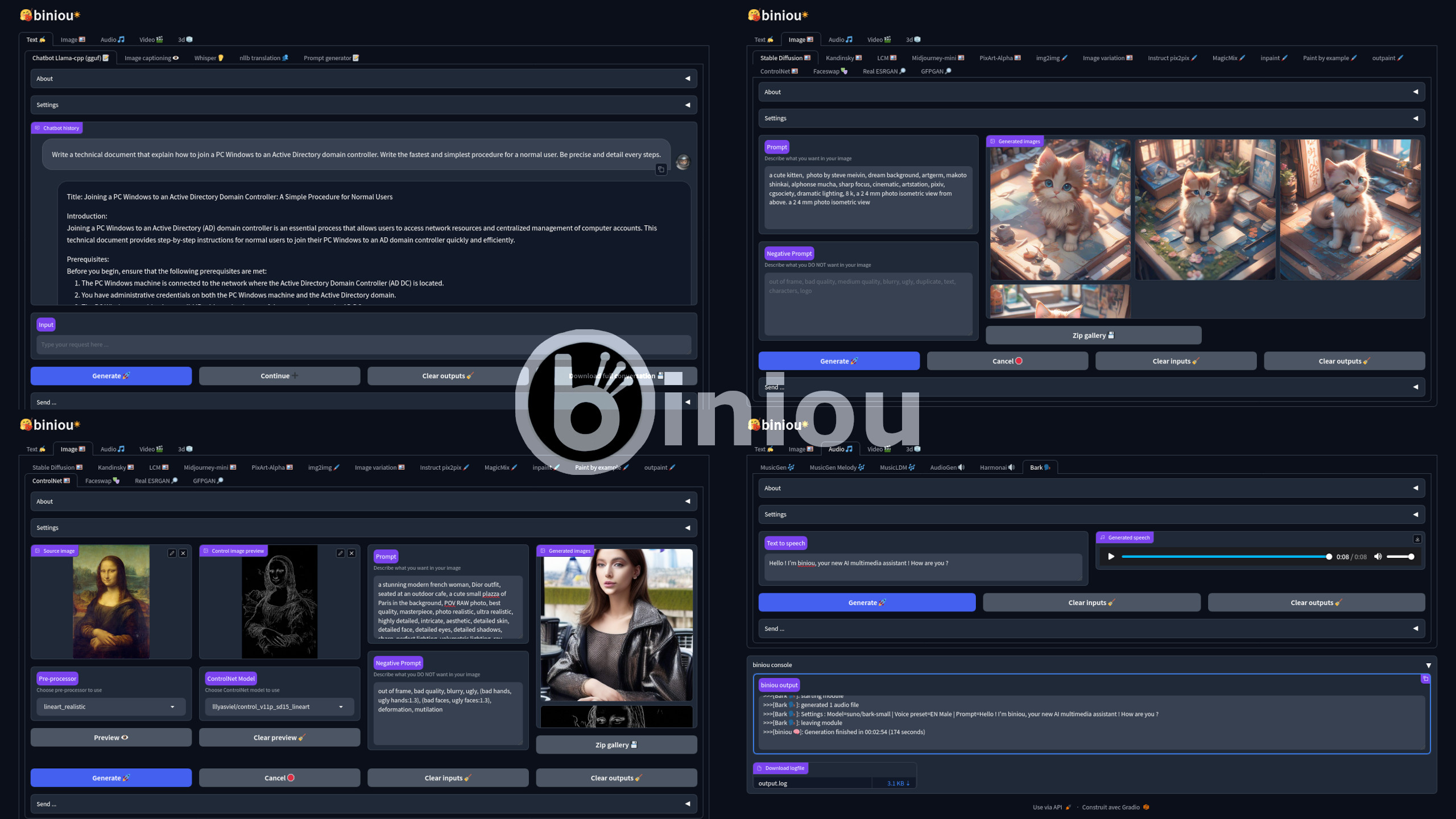
a self-hosted webui for 30+ generative ai
v0.0.1发布于 2024-05-29 03:09 UTC1,153star136fork同步于 2026-11-10 17:52 UTC
sh <(curl https://raw.githubusercontent.com/Woolverine94/biniou/main/oci-debian.sh || wget -O - https://raw.githubusercontent.com/Woolverine94/biniou/main/oci-debian.sh) 硬件要求按 README 说明
README 称无需独立 GPU,最低 8GB 内存即可运行;提供 CUDA Docker 镜像,但未列出具体显存要求和 GPU 型号。
纯 CPU 可运行支持 Apple Silicon需要 CUDA支持 ROCm / AMD有 Docker 镜像
自托管生成式 AI 网页界面,集成 30+ 模型,无独显也能在本地跑多媒体生成与聊天
自托管的生成式 AI 网页界面,集成 30 多种模型,覆盖图像、视频、音频生成,用浏览器就能统一调用,省去逐个搭建环境的麻烦。
核心能力
- 统一 WebUI 集成 30+ 生成式 AI 模型
- 支持文生图、音乐、语音与聊天机器人
- 部署并下载模型后可完全离线运行
- 提供各发行版一键安装脚本与 Docker 镜像
- 支持 SDXL、Flux 等模型的 LoRA 扩展
容易踩的坑
内容由模型根据 README 生成,可能不完整或不准确,以官方文档为准。看原文 README
- v0.0.1Pre-release 0.0.1pre-release最新正式版2024-05-29 · 2024-05-29 03:09 UTC
Initial pre-release.
UPDATE 07/02/2025 : Please note that this release is now obsolete and should probably not work in many contexts. You should definitely consider using the dev release instead.
This pre-release must be considered as a first stable milestone before further deep modifications of biniou. Use in production at your own risks !
Linux One-click installers :
Open-Suse base
OpenSUSE Leap 15.5 / OpenSUSE Tumbleweed
sh <(curl https://raw.githubusercontent.com/Woolverine94/biniou/0.0.1/oci-opensuse.sh || wget -O - https://raw.githubusercontent.com/Woolverine94/biniou/0.0.1/oci-opensuse.sh)RHEL base
Rocky 9.3 / Alma 9.3 / CentOS Stream 9 / Fedora 39
sh <(curl https://raw.githubusercontent.com/Woolverine94/biniou/0.0.1/oci-rhel.sh || wget -O - https://raw.githubusercontent.com/Woolverine94/biniou/0.0.1/oci-rhel.sh)Debian base
Debian 12 / Ubuntu 22.04.3 / Linux Mint 21.2+
sh <(curl https://raw.githubusercontent.com/Woolverine94/biniou/0.0.1/oci-debian.sh || wget -O - https://raw.githubusercontent.com/Woolverine94/biniou/0.0.1/oci-debian.sh)Windows CMD installer :
Windows 10/Windows 11
Save and execute this cmd script. Running as administrator avoid manual UAC validation.
Dockerfile :
CPU-only
docker build -t biniou https://raw.githubusercontent.com/Woolverine94/biniou/0.0.1/DockerfileCUDA support
docker build -t biniou https://raw.githubusercontent.com/Woolverine94/biniou/0.0.1/CUDA/Dockerfile
用户点评
登录用户的真实使用记录,可按版本和硬件筛选共 0 条
还没有人点评。第一个说出真实体验的人最有价值。
Home


Updates
-
🆕 2026-11-07 : 🔥 Weekly update 🔥 >
- Add support for Chatbot high-end model bartowski/GrootTeam_Groot-19B-A3B-261023-GGUF and tiny model QUASAR-QAT/Qwen3.5-4B-QUASAR-Q4_0-GGUF.
- Add support for MusicGen model TevinWang/mixart-gen.
- Add support for MusicGen Melody model smarters/musicgen-melody-csi.
- Add support for SDXL LoRA models sWizad/pokemon-trainer-sprite-pixelart, CiroN2022/toy-face, davidrd123/Hiroshige-SDXL-LoRA and KappaNeuro/origami.
-
🆕 2026-10-31 : 🔥 Weekly update 🔥 >
- Add support for Chatbot high-end model bartowski/MiniCPM-V-4.7-35B-A3B-GGUF and tiny model unsloth/NVIDIA-Nemotron-3.5-Bolt-E4B-GGUF.
- Add support for PixArt-Alpha Sigma model dattrong/pixart-sigma-512.
- Add support for MusicGen model pharoAIsanders420/musicgen-small-dnb.
- Add support for Flux LoRA models CiroN2022/beetlejuice-1988-flux-v1, merve/trained-flux-lora-lego, CiroN2022/futujapan-flux-v1 and CiroN2022/invasion-graphics-flux-v10.
-
🆕 2026-10-24 : 🔥 Weekly update 🔥 >
- Add support for Chatbot high-end models bartowski/LiquidAI_LFM2.5-24B-A2B-GGUF and bartowski/Mellum2.1-12B-A2.5B-Thinking-GGUF.
- Add support for MusicGen model karthik/music_gen_unlimited.
- Add support for Bark model ocaklisemih/bark-flash-attention-2.
- Add support for SDXL LoRA models KappaNeuro/pierre-auguste-renoir-style and e-n-v-y/envy-cel-shaded-xl-01.
- Add support for Flux LoRA models openfree/claude-monet and heykinnu/concord-pictogram-lora.
- Security enhancement in handling of URL parameters.
-
🆕 2026-10-17 : 🔥 Weekly update 🔥 >
- Add support for Chatbot high-end model empero-ai/Qwen3.8-35B-A3B-Distill-GGUF and tiny model bartowski/FrogNano-4B-2609-GGUF.
- Add support for SDXL model John6666/illustrious-pencil-xl-v110-sdxl.
- Raising timeout delay for downloads with hf_hub and adding an environment variable for timeout control (e.g.:
ENV_BINIOU_DL_TIMEOUT=20 ./webui.sh). - Add support for Flux LoRA models Muapi/nasa-raw-images, zhreyu/ComicStrips-Lora-Fluxdev, Muapi/nasa-astrophotography-flux.d and Jonjew/NeonCyberPunkFLUX.
-
🆕 2026-10-10 : 🔥 Weekly update 🔥 >
- Add support for Chatbot specialized models bartowski/Altworld_Hemmingway-1-GGUF and bartowski/junshim_When2Think-ThinkOnly-1.5B-GGUF.
- Add support for anime model vdo/animov-0.1.1 in Modelscope module.
- Add support for model avasaz/avasaz-large in MusicGen module.
- Add support for SDXL LoRA models KappaNeuro/robert-crumb-style, KappaNeuro/tintoretto-style, KappaNeuro/stained-glass-portrait and KappaNeuro/lascaux.
Menu
Features
-
Text generation using :
- ✍️ llama-cpp based chatbot module (uses .gguf models)
- 👁️ Llava multimodal chatbot module (uses .gguf models)
- 👁️ Microsoft GIT image captioning module
- 👂 Whisper speech-to-text module
- 👥 nllb translation module (200 languages)
- 📝 Prompt generator (require 16GB+ RAM for ChatGPT output type)
-
Image generation and modification using :
- 🖼️ Stable Diffusion module
- 🖼️ Kandinsky module (require 16GB+ RAM)
- 🖼️ Latent Consistency Models module
- 🖼️ Midjourney-mini module
- 🖼️PixArt-Alpha module
- 🖌️ Stable Diffusion Img2img module
- 🖌️ IP-Adapter module
- 🖼️ Stable Diffusion Image variation module (require 16GB+ RAM)
- 🖌️ Instruct Pix2Pix module
- 🖌️ MagicMix module
- 🖌️ Stable Diffusion Inpaint module
- 🖌️ Fantasy Studio Paint by Example module (require 16GB+ RAM)
- 🖌️ Stable Diffusion Outpaint module (require 16GB+ RAM)
- 🖼️ Stable Diffusion ControlNet module
- 🖼️ Photobooth module
- 🎭 Insight Face faceswapping module
- 🔎 Real ESRGAN upscaler module
- 🔎GFPGAN face restoration module
-
Audio generation using :
- 🎶 MusicGen module
- 🎶 MusicGen Melody module (require 16GB+ RAM)
- 🎶 MusicLDM module
- 🔊 Audiogen module (require 16GB+ RAM)
- 🔊 Harmonai module
- 🗣️ Bark module
-
Video generation and modification using :
- 📼 Modelscope module (require 16GB+ RAM)
- 📼 Text2Video-Zero module
- 📼 AnimateDiff module (require 16GB+ RAM)
- 📼 Stable Video Diffusion module (require 16GB+ RAM)
- 🖌️ Video Instruct-Pix2Pix module (require 16GB+ RAM)
-
3D objects generation using :
- 🧊 Shap-E txt2shape module
- 🧊 Shap-E img2shape module (require 16GB+ RAM)
-
Other features
- Zeroconf installation through one-click installers or Windows exe.
- User friendly : Everything required to run biniou is installed automatically, either at install time or at first use.
- WebUI in English, French, Chinese (traditional).
- Easy management through a control panel directly inside webui : update, restart, shutdown, activate authentication, control network access or share your instance online with a single click.
- Easy management of models through a simple interface.
- Communication between modules : send an output as an input to another module
- Powered by 🤗 Huggingface and gradio
- Cross platform : GNU/Linux, Windows 10/11 and macOS(experimental, via homebrew)
- Convenient Dockerfile for cloud instances
- Generation settings saved as metadatas in each content.
- Support for CUDA (see CUDA support)
- Experimental support for ROCm (see here)
- Support for Stable Diffusion SD-1.5, SD-2.1, SD-Turbo, SDXL, SDXL-Turbo, SDXL-Lightning, Hyper-SD, Stable Diffusion 3, SD 3.5 Medium and Large, LCM, VegaRT, Segmind, Playground-v2, Koala, Pixart-Alpha, Pixart-Sigma, Kandinsky, Flux Dev, Flux Schnell, Flux Lite and compatible models, through built-in model list or standalone .safetensors files
- Support for LoRA models (SD 1.5, SDXL, SD 3.5 medium, SD 3.5 large and Flux)
- Support for textual inversion
- Support llama-cpp-python optimizations CUDA, OpenBLAS, OpenCL BLAS, ROCm and Vulkan through a simple setting
- Support for gpt-oss, Llama 2/3, Mistral, Mixtral, Qwen 2/3, Deepseek, Gemma, and compatible GGUF quantized models, through built-in model list or standalone .gguf files.
- Easy copy/paste integration for TheBloke GGUF quantized models.
Prerequisites
-
Minimal hardware :
- 64bit CPU (AMD64 architecture ONLY)
- 8GB RAM
- Storage requirements :
- for GNU/Linux : at least 20GB for installation without models.
- for Windows : at least 30GB for installation without models.
- for macOS : at least ??GB for installation without models.
- Storage type : HDD
- Internet access (required only for installation and models download) : unlimited bandwidth optical fiber internet access
-
Recommended hardware :
- Massively multicore 64bit CPU (AMD64 architecture ONLY) and a GPU compatible with CUDA or ROCm
- 16GB+ RAM
- Storage requirements :
- for GNU/Linux : around 200GB for installation including all defaults models.
- for Windows : around 200GB for installation including all defaults models.
- for macOS : around ??GB for installation including all defaults models.
- Storage type : SSD Nvme
- Internet access (required only for installation and models download) : unlimited bandwidth optical fiber internet access
-
Operating system :
- a 64 bit OS :
- Debian 12
- Ubuntu 22.04.3 / 24.04
- Linux Mint 21.2+ / 22+
- Pop! OS
- Rocky 9.3+
- Alma 9.3+
- CentOS Stream 9
- Fedora 39+
- OpenSUSE Leap 15.5
- OpenSUSE Tumbleweed
- CachyOS
- OpenMandriva
- Windows 10 22H2
- Windows 11 22H2
- macOS ???
- a 64 bit OS :
-
Software pre-requisites (will be installed automatically with install scripts) :
- Python 3.10 or 3.11 (3.11+ wouldn't work)
- git
- pip
- python3.x-venv
- python3.x-dev
- gcc
- perl
- make / Cmake via Visual Studio 2017 for Windows
- ffmpeg
- openssl
Note : biniou supports Cuda or ROCm but does not require a dedicated GPU to run. You can install it in a virtual machine.
Installation
GNU/Linux
OpenSUSE Leap 15.5 / OpenSUSE Tumbleweed
One-click installer :
- Copy/paste and execute the following command in a terminal :
sh <(curl https://raw.githubusercontent.com/Woolverine94/biniou/main/oci-opensuse.sh || wget -O - https://raw.githubusercontent.com/Woolverine94/biniou/main/oci-opensuse.sh)
Rocky 9.3+ / Alma 9.3+ / CentOS Stream 9 / Fedora 39+
One-click installer :
- Copy/paste and execute the following command in a terminal :
sh <(curl https://raw.githubusercontent.com/Woolverine94/biniou/main/oci-rhel.sh || wget -O - https://raw.githubusercontent.com/Woolverine94/biniou/main/oci-rhel.sh)
CachyOS
One-click installer :
- Copy/paste and execute the following command in a terminal :
sh (curl https://raw.githubusercontent.com/Woolverine94/biniou/main/oci-arch.sh|psub)
OpenMandriva
One-click installer :
- Copy/paste and execute the following command in a terminal :
sh <(curl https://raw.githubusercontent.com/Woolverine94/biniou/main/oci-mandriva.sh || wget -O - https://raw.githubusercontent.com/Woolverine94/biniou/main/oci-mandriva.sh)
Debian 12 / Ubuntu 22.04.3 / Ubuntu 24.04 / Linux Mint 21.2+ / Linux Mint 22+ / Pop! OS
One-click installer :
- Copy/paste and execute the following command in a terminal :
sh <(curl https://raw.githubusercontent.com/Woolverine94/biniou/main/oci-debian.sh || wget -O - https://raw.githubusercontent.com/Woolverine94/biniou/main/oci-debian.sh)
Manual installation (debian 12 / Ubuntu 22.04 / Linux Mint 21.2+) :
- Install the pre-requisites as root :
apt install git pip python3 python3-venv gcc perl make ffmpeg openssl
- Clone this repository as user :
git clone https://github.com/Woolverine94/biniou.git
- Launch the installer :
cd ./biniou
./install.sh
- (optional, but highly recommended) Install TCMalloc as root to optimize memory management :
apt install google-perftools
Windows 10 / Windows 11
Windows installation has more prerequisites than GNU/Linux one, and requires following softwares (which will be installed automatically) :
- Git
- Python 3.11 (and specifically 3.11 version)
- OpenSSL
- Visual Studio Build tools
- Windows 10/11 SDK
- Vcredist
- ffmpeg
- ... and all their dependencies.
⚠️ You should really make a backup of your system and datas before starting the installation process. ⚠️
- Download and execute : biniou_netinstall.exe
OR
- Download and execute : install_win.cmd (right-click on the link and select "Save Target/Link as ..." to download)
All the installation is automated, but Windows UAC will ask you for confirmation for each software installed during the "prerequisites" phase. You can avoid this by running the chosen installer as administrator.
⚠️ Since commit 8d2537b Windows users can now define a custom path for biniou directory, when installing with install_win.cmd ⚠️
Proceed as follow :
- Download and edit install_win.cmd
- Modify
set DEFAULT_BINIOU_DIR="%userprofile%"toset DEFAULT_BINIOU_DIR="E:\datas\somedir"(for example) - Only use absolute path (e.g.:
E:\datas\somedirand not.\datas\somedir) - Don't add a trailing slash (e.g.:
E:\datas\somedirand notE:\datas\somedir\) - Don't add a "biniou" suffix to your path (e.g.:
E:\datas\somedir\biniou), as the biniou directory will be created by the git clone command - Save and launch install_win.cmd
macOS Intel Homebrew install
⚠️ Homebrew install is theoretically compatible with macOS Intel, but has not been tested. Use at your own risk. Also note that biniou is currently incompatible with Apple silicon. Any feedback on this procedure through discussions or an issue ticket will be really appreciated. ⚠️
⚠️ Update 01/09/2024: Thanks to @lepicodon, there's a workaround for Apple Silicon's users : you can install biniou in a virtual machine using OrbStack. See this comment for explanations. ⚠️
-
Install Homebrew for your operating system
-
Install required homebrew "bottles" :
brew install git python3 gcc gcc@11 perl make ffmpeg openssl
- Install python virtualenv :
python3 -m pip install virtualenv
- Clone this repository as user :
git clone https://github.com/Woolverine94/biniou.git
- Launch the installer :
cd ./biniou
./install.sh
Dockerfile
These instructions assumes that you already have a configured and working docker environment.
- Create the docker image :
docker build -t biniou https://github.com/Woolverine94/biniou.git
or, for CUDA support :
docker build -t biniou https://raw.githubusercontent.com/Woolverine94/biniou/main/CUDA/Dockerfile
Alternatively, you can directly pull a weekly updated image from ghcr.io using :
docker pull ghcr.io/woolverine94/biniou:main
or, for CUDA support :
docker pull ghcr.io/woolverine94/biniou-cuda:main
- Launch the container :
- For Dockerfile generated images :
docker run -it --restart=always -p 7860:7860 \
-v biniou_outputs:/home/biniou/biniou/outputs \
-v biniou_models:/home/biniou/biniou/models \
-v biniou_cache:/home/biniou/.cache/huggingface \
-v biniou_gfpgan:/home/biniou/biniou/gfpgan \
biniou:latest
or, with CUDA support :
docker run -it --gpus all --restart=always -p 7860:7860 \
-v biniou_outputs:/home/biniou/biniou/outputs \
-v biniou_models:/home/biniou/biniou/models \
-v biniou_cache:/home/biniou/.cache/huggingface \
-v biniou_gfpgan:/home/biniou/biniou/gfpgan \
biniou:latest
- For docker images pulled from ghcr.io :
docker run -it --restart=always -p 7860:7860 \
-v biniou_outputs:/home/biniou/biniou/outputs \
-v biniou_models:/home/biniou/biniou/models \
-v biniou_cache:/home/biniou/.cache/huggingface \
-v biniou_gfpgan:/home/biniou/biniou/gfpgan \
ghcr.io/woolverine94/biniou:main
or, with CUDA support :
docker run -it --gpus all --restart=always -p 7860:7860 \
-v biniou_outputs:/home/biniou/biniou/outputs \
-v biniou_models:/home/biniou/biniou/models \
-v biniou_cache:/home/biniou/.cache/huggingface \
-v biniou_gfpgan:/home/biniou/biniou/gfpgan \
ghcr.io/woolverine94/biniou-cuda:main
- Access the webui by the url : https://127.0.0.1:7860 or https://127.0.0.1:7860/?__theme=dark for dark theme ... or replace 127.0.0.1 by ip of your container
Note : to save storage space, the previous container launch command defines common shared volumes for all biniou containers and ensure that the container auto-restart in case of OOM crash. Remove
--restartand-varguments if you didn't want these behaviors.
CUDA support
biniou is natively cpu-only, to ensure compatibility with a wide range of hardware, but you can easily activate CUDA support through Nvidia CUDA (if you have a functional CUDA 12.1 environment) or AMD ROCm (if you have a functional ROCm 5.6 environment) by selecting the type of optimization to activate (CPU, CUDA or ROCm for Linux), in the WebUI control module.
Currently, all modules except Chatbot, Llava and faceswap modules, could benefits from CUDA optimization.
How To Use
- Launch by executing from the biniou directory :
- for GNU/Linux :
cd /home/$USER/biniou
./webui.sh
- for Windows :
Note : First start could be very slow on Windows 11 (comparing to others OS).
-
Access the webui by the url : https://127.0.0.1:7860 or https://127.0.0.1:7860/?__theme=dark for dark theme You can also access biniou from any device (including smartphones) on the same LAN/Wifi network by replacing 127.0.0.1 in the url with biniou host ip address.
-
Quit by using the keyboard shortcut CTRL+C in the Terminal
-
Update this application (biniou + python virtual environment) by using the WebUI control updates options.
Good to know
-
Most frequent cause of crash is not enough memory on the host. Symptom is biniou program closing and returning to/closing the terminal without specific error message. You can use biniou with 8GB RAM, but 16GB at least is recommended to avoid OOM (out of memory) error.
-
biniou use a lot of differents AI models, which requires a lot of space : if you want to use all the modules in biniou, you will need around 200GB of disk space only for the default model of each module. Models are downloaded on the first run of each module or when you select a new model in a module and generate content. Models are stored in the directory /models of the biniou installation. Unused models could be deleted to save some space.
-
... consequently, you will need a fast internet access to download models.
-
A backup of every content generated is available inside the /outputs directory of the biniou folder.
-
biniou natively only rely on CPU for all operations. It use a specific CPU-only version of PyTorch. The result is a better compatibility with a wide range of hardware, but degraded performances. Depending on your hardware, expect slowness. See here for Nvidia CUDA support and AMD ROCm experimental support (GNU/Linux only).
-
Defaults settings are selected to permit generation of contents on low-end computers, with the best ratio performance/quality. If you have a configuration above the minimal settings, you could try using other models, increasing media dimensions or duration, modifying inference parameters or other settings (like token merging for images) to obtain better quality contents.
-
biniou is licensed under GNU GPL3, but each model used in biniou has its own license. Please consult each model license to know what you can and cannot do with the models. For each model, you can find a link to the huggingface page of the model in the "About" section of the associated module.
-
Don't have too much expectations : biniou is in an early stage of development, and most open source software used in it are in development (some are still experimental).
-
Every biniou modules offers 2 accordions elements About and Settings :
- About is a quick help feature that describes the module and gives instructions and tips on how to use it.
- Settings is a panel setting specific to the module that lets you configure the generation parameters.
Credits
This application uses the following softwares and technologies :
- 🤗 Huggingface : Diffusers and Transformers libraries and almost all the generative models.
- Gradio : webUI
- llama-cpp-python : python bindings for llama-cpp
- Llava
- BakLLava
- Microsoft GIT : Image2text
- Whisper : speech2text
- nllb translation : language translation
- Stable Diffusion : txt2img, img2img, Image variation, inpaint, ControlNet, Text2Video-Zero, img2vid
- Kandinsky : txt2img
- Latent consistency models : txt2img
- PixArt-Alpha : PixArt-Alpha
- IP-Adapter : IP-Adapter img2img
- Instruct pix2pix : pix2pix
- MagicMix : MagicMix
- Fantasy Studio Paint by Example : paintbyex
- Controlnet Auxiliary models : preview models for ControlNet module
- IP-Adapter FaceID : Adapter model for Photobooth module
- Photomaker Adapter model for Photobooth module
- Insight Face : faceswapping
- Real ESRGAN : upscaler
- GFPGAN : face restoration
- Audiocraft : musicgen, musicgen melody, audiogen
- MusicLDM : MusicLDM
- Harmonai : harmonai
- Bark : text2speech
- Modelscope text-to-video-synthesis : txt2vid
- AnimateLCM : txt2vid
- Open AI Shap-E : txt2shape, img2shape
- compel : Prompt enhancement for various
StableDiffusionPipeline-based modules - tomesd : Token merging for various
StableDiffusionPipeline-based modules - Python
- PyTorch
- Git
- ffmpeg
... and all their dependencies
License
GNU General Public License v3.0
GitHub @Woolverine94 ·
stable-diffusion-webui
AUTOMATIC1111·Python
基于 Gradio 的 Stable Diffusion 网页界面,把文生图、图生图、局部重绘等能力做成可视化操作面板,不用写代码就能跑图像生成。
图像生成+4图像生成
165283+3731kv1.10.12026-03-02 07:00 UTC
ComfyUI
Comfy-Org·Python
基于节点图的扩散模型图形界面与后端,支持本地快速推理和 API 调用,方便搭建和调试图像生成工作流。
扩散模型+4图像生成
146144+65817kv0.44.02026-11-10 17:13 UTC

OpenMontage
OpenMontageInc·Python
把 Claude、Cursor 等 AI 编程助手变成完整视频制作工作室,内置 12 条制作流水线和 100+ 工具,覆盖脚本、配音、图像生成到剪辑全流程。
视频制作+4图像生成
79357+70311k2026-11-09 06:23 UTC

OpenMontage
calesthio·Python
把 Claude、Cursor 等 AI 编程助手变成完整的视频制作工作室,内置 12 条制作流水线和 100+ 工具,覆盖从生成到剪辑的全流程。
视频制作+4图像生成
7786710k2026-11-03 17:42 UTC