安装命令与包名基于 Debian,其他发行版需自行换算;i3status 配置里的无线接口 wlp2s0、电池 BAT0、CPU 温度路径需按本机实际修改;复制字体后需执行 fc-cache -fv 刷新字体缓存
i3-starterpack
addy-dclxvi活跃维护一份从零安装 i3 窗口管理器及其必备组件的配置指南,附带 Debian 13 的 dotfiles,帮你快速把桌面调得好看又好用。
A simple guide (and example of configuration) about how to install i3 & its and essentials packages, then make them look eye candy, also contains my dotfiles of Debian 12 (Now Updated to Debian 13) setup
暂无版本1,666star +1 / 7 天167fork同步于 2026-11-10 23:48 UTC
sudo apt-get install i3
sudo apt-get install hsetroot rxvt-unicode xsel lxappearance scrot
git clone https://github.com/addy-dclxvi/i3-starterpack.git 硬件要求按 README 说明
README 未说明硬件要求,仅要求已有可用的桌面环境或窗口管理器(含 Xorg、显示管理器、声音与网络管理)
一份极简的 i3 平铺窗口管理器安装指南与配置示例,帮你快速搭出好看又顺手的桌面
一份从零安装 i3 窗口管理器及其必备组件的配置指南,附带 Debian 13 的 dotfiles,帮你快速把桌面调得好看又好用。
核心能力
- 仅约 140 行 i3 配置,无自定义脚本与补丁
- 只用各发行版主仓库包,无需 AUR、PPA
- 附带 i3status 状态栏 Pango 标记美化配置
- 提供常用快捷键速查表,含窗口与工作区操作
- 附带 CMUS、Ranger、Vim、Fish 等应用配置
容易踩的坑
内容由模型根据 README 生成,可能不完整或不准确,以官方文档为准。看原文 README
暂无 release 数据(可能没有发版,或尚未同步)。
用户点评
登录用户的真实使用记录,可按版本和硬件筛选共 0 条
还没有人点评。第一个说出真实体验的人最有价值。
Initital Commit 10 March 2018
Introduction
A simple guide (and example of configuration) to install i3 and its and essential packages and make them look eye candy, or at least make them not ugly.
Example configuration in this repo is pretty simple, minimal, and easy to be understood, without reducing the usability. Only contains about 140 lines of i3 configuration, pretty stock without any custom script, custom packages, and custom patch. This is my daily i3 configuration by the way. And this configuration only use packages that available on most Distros main repository. So You don't need AUR, PPA, xbps-src, or sudo make install.
I'm using Debian, with i3 stock metapackages (i3wm, i3bar, i3status, i3lock, i3-sensible-terminal, and i3-dmenu-desktop), so does this guide. Hence I name this repo i3-starterpack. So, the installation guide here will use Debian command & package name.
Preview
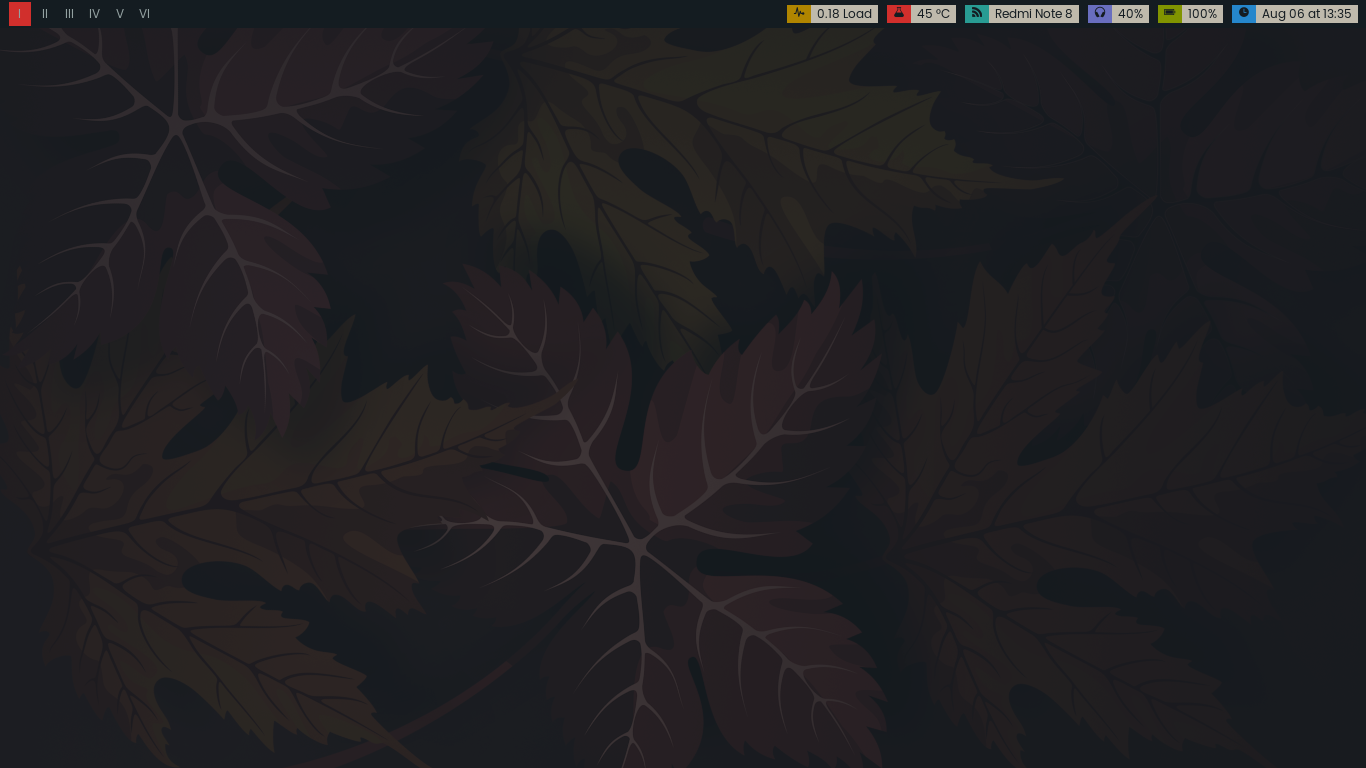 Clean, without any opened app. Only i3bar is visible.
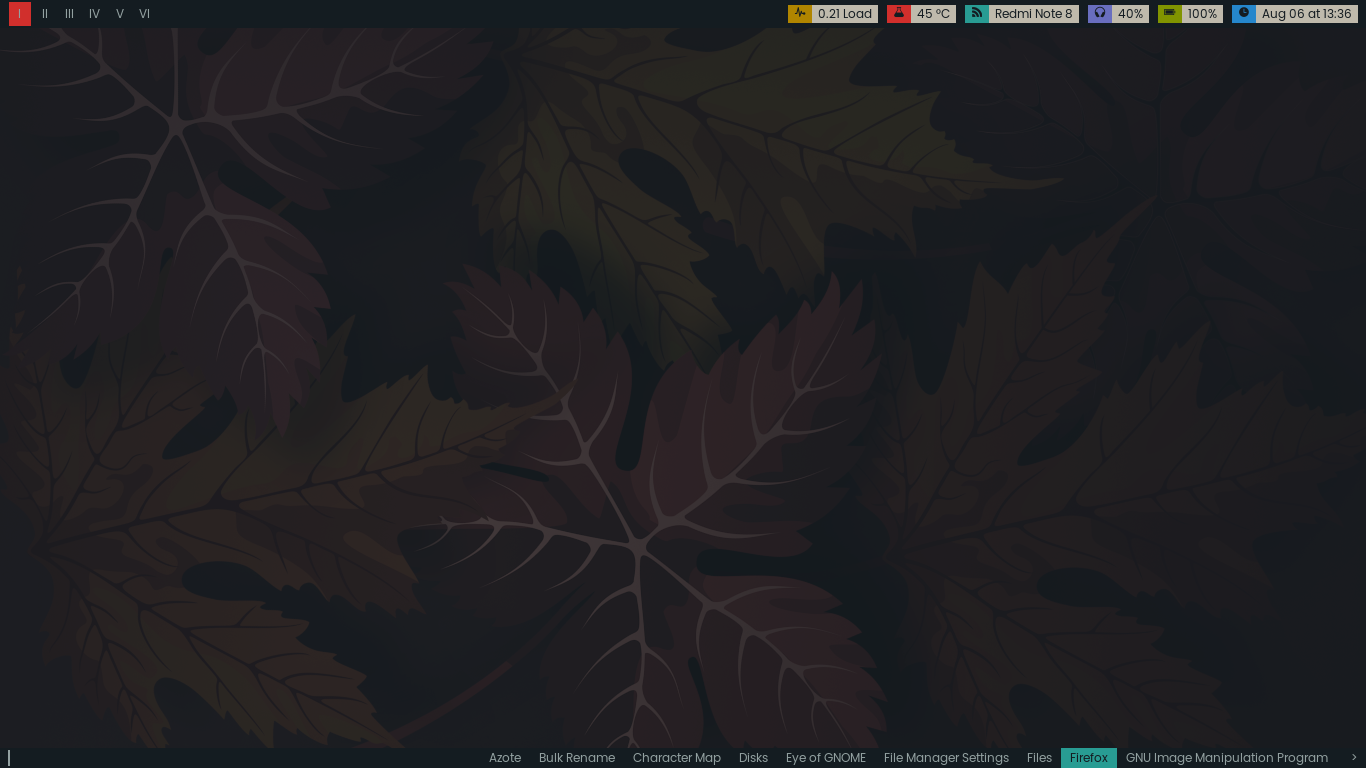 dmenu, for launching app. The i3-dmenu-desktop version only shows desktop apps. A minimal start menu replacement.
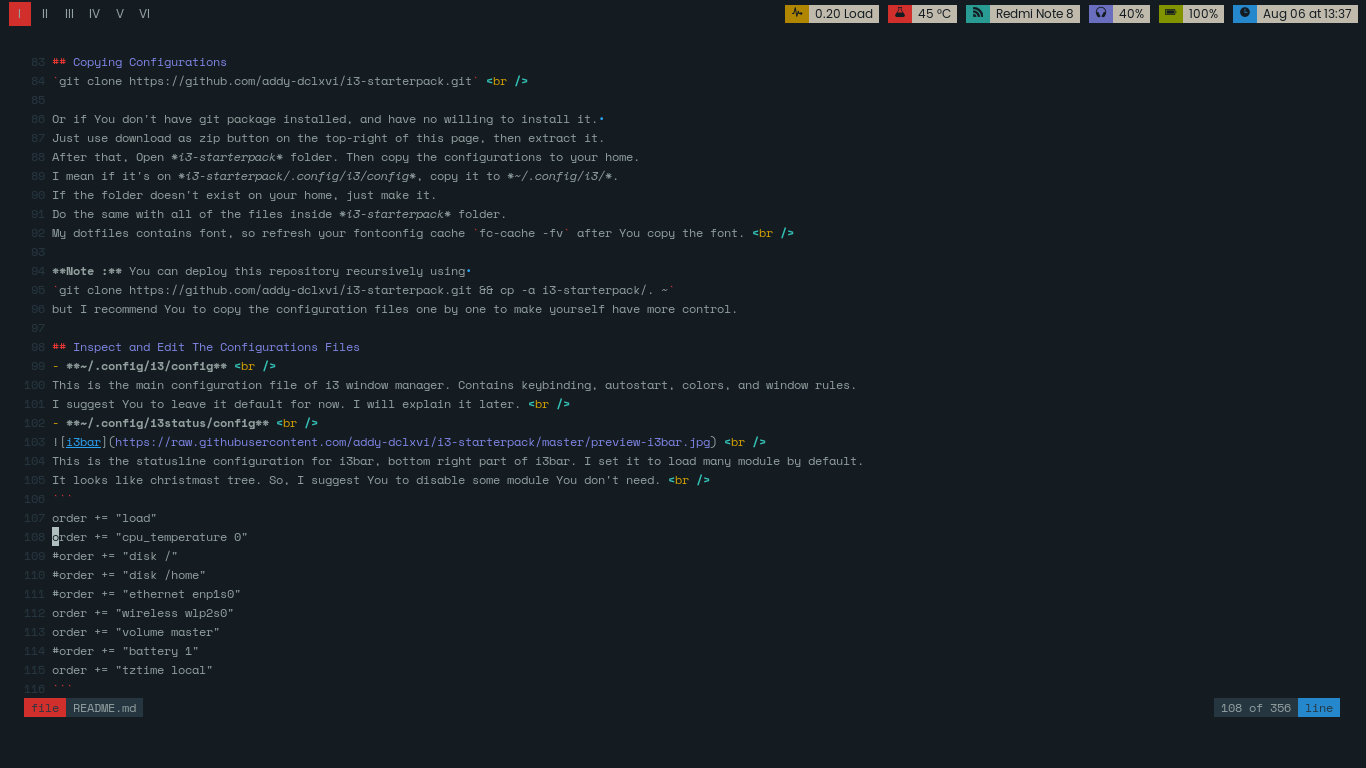 Fullscreen, when I write this guide using Vim inside URxvt. When only one window opened, the gaps and borders automatically disappear.
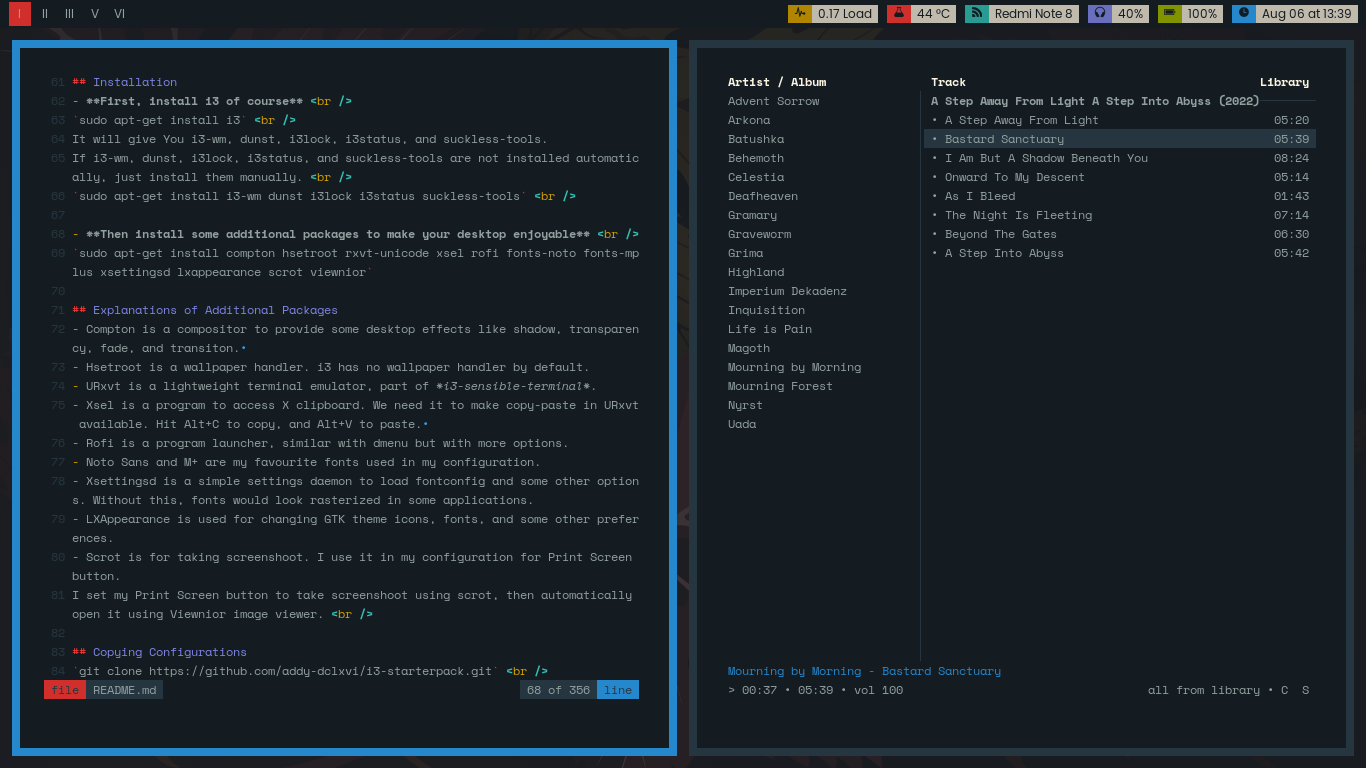 Splitscreen, I open cmus music player on the right. When two windows opened, they will be separated by gaps and borders.
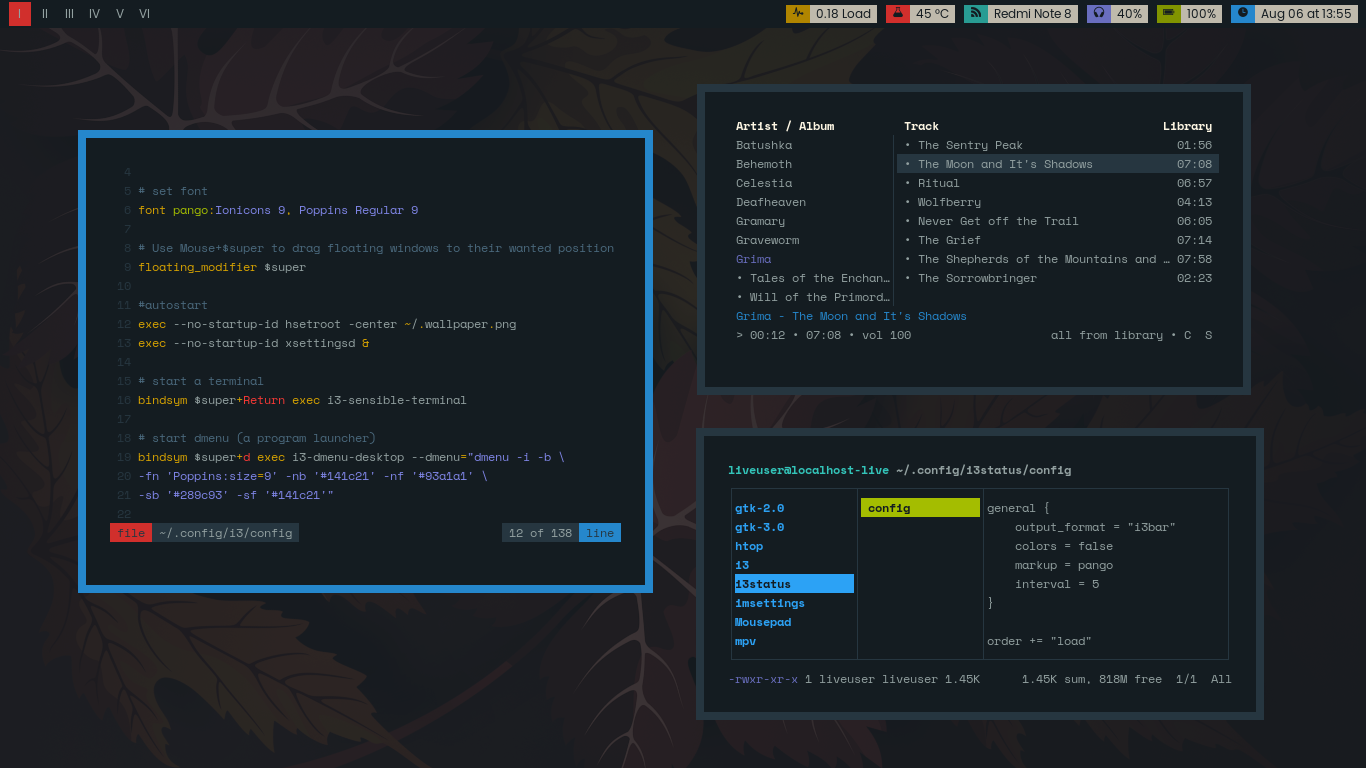 Floating, for show-off.
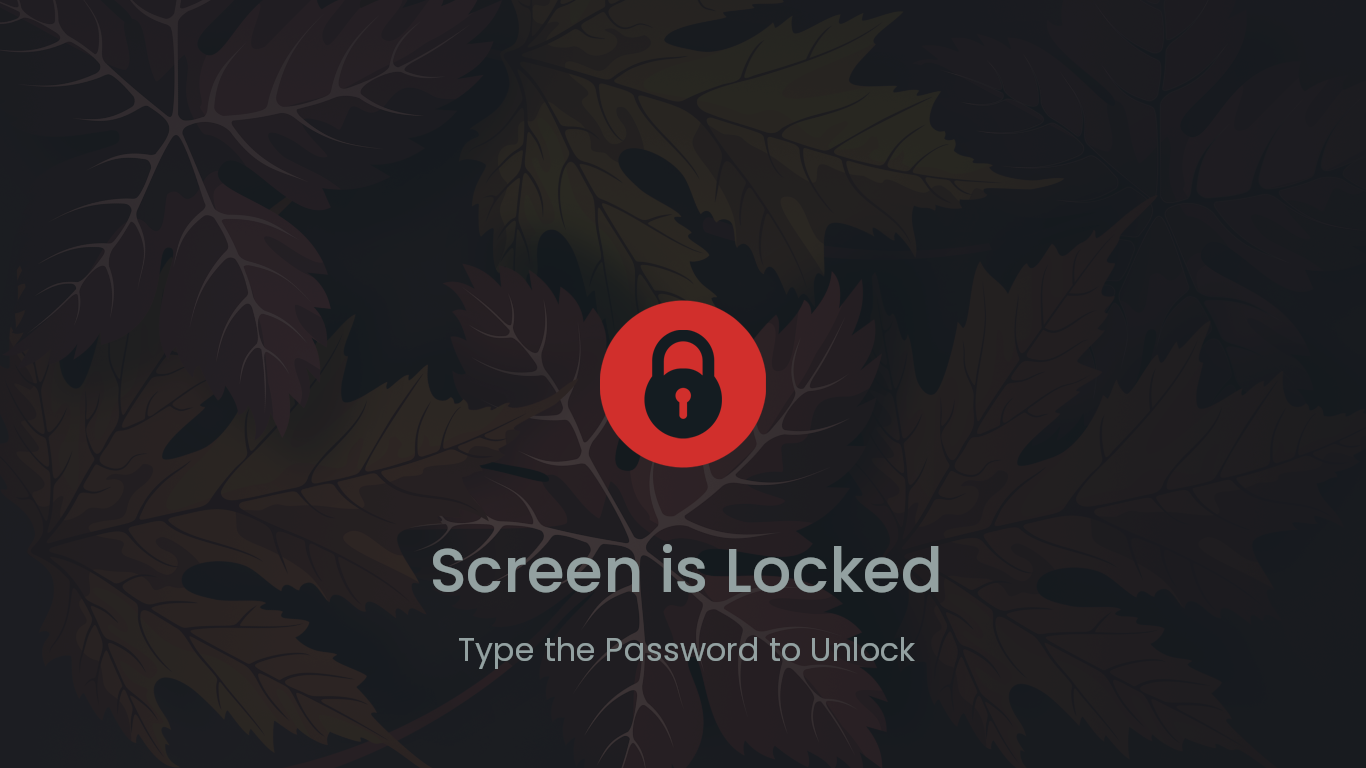 Lockscreen. using i3lock
Disclaimer
I'm not a Pro. I just started learning Linux a couple years ago. And I'm not an IT guy. So, probably this guide will have some mistakes.
Why i3?
i3 is (arguably) the most easiest tiling window manager to learn and configure. And i3 has a really good documentation, including example command and troubleshooting. The community is also quite large. You will easily get more customization examples. So, I really recommend You to start from i3 if You want learn Linux customization. After You can handle i3, You can try more advanced window managers. i3 is my first tiling window manager by the way :relaxed:
Requirements
- At least a working Desktop Environtment or Window Manager (I'm sure You already have it). Why? Just to make sure already have some essential packages like Xorg, Display Manager, Sound Mixer, Network Manager, etc.
- My recommendation is start from Xfce. It's quite minimal for a Desktop Environtment. And We can use some of its useful components later. Like file manager, text editor, power manager, clipman, task manager, or maybe its settings daemon.
- Willing to learn, patience, and ability to use Google for fixing problems.
- Not give up easily.
- Some great musics for companion.
- :coffee:
Installation
-
First, install i3 of course
sudo apt-get install i3It will give You i3-wm, dunst, i3lock, i3status, and suckless-tools. If i3-wm, dunst, i3lock, i3status, and suckless-tools are not installed automatically, just install them manually.sudo apt-get install i3-wm dunst i3lock i3status suckless-tools -
Then install some additional packages to make your desktop enjoyable
sudo apt-get install hsetroot rxvt-unicode xsel lxappearance scrot -
I use CMUS Music Player, Ranger File Manager, Vim Text Editor, and Fish Interactive Shell. If you're interested, also install them (optional). I also put my configurations of those apps in this repo.
sudo apt-get install cmus ranger vim fishTo activate Fish interative shellsudo chsh -s /usr/bin/fish addy(replace addy with your own username). Fish will be available after next login. I have written an article about Fish interactive shell here.
Explanations of Additional Packages
- Hsetroot is a wallpaper handler. i3 has no wallpaper handler by default.
- URxvt is a lightweight terminal emulator, part of i3-sensible-terminal.
- Xsel is a program to access X clipboard. We need it to make copy-paste in URxvt available. Hit Alt+C to copy, and Alt+V to paste.
- LXAppearance is used for changing GTK theme icons, fonts, and some other preferences (Unnecessary if you already have Xfce Settings).
- Scrot is for taking screenshoot. I use it in my configuration for Print Screen button. I set my Print Screen button to take screenshoot using scrot, then automatically open it any installed image viewer.
Copying Configurations
git clone https://github.com/addy-dclxvi/i3-starterpack.git
Or if You don't have git package installed, and have no willing to install it.
Just use download as zip button on the top-right of this page, then extract it.
After that, Open i3-starterpack folder. Then copy the configurations to your home.
I mean if it's on i3-starterpack/.config/i3/config, copy it to ~/.config/i3/.
If the folder doesn't exist on your home, just make it.
Do the same with all of the files inside i3-starterpack folder.
My dotfiles contains font, so refresh your fontconfig cache fc-cache -fv after You copy the font.
Note : You can deploy this repository recursively using
git clone https://github.com/addy-dclxvi/i3-starterpack.git && cp -a i3-starterpack/. ~
but I recommend You to copy the configuration files one by one to make yourself have more control.
Inspect and Edit The Configurations Files
- ~/.config/i3/config This is the main configuration file of i3 window manager. Contains keybinding, autostart, colors, and window rules. I suggest You to leave it default for now. I will explain it later.
- ~/.config/i3status/config This is the statusline configuration for i3bar, top right part of i3bar. I set it to load many module by default. It looks like christmast tree. So, I suggest You to disable some module You don't need.
order += "load"
order += "cpu_temperature 0"
order += "wireless wlp2s0"
order += "volume master"
order += "battery 0"
order += "time"
You can remove or comment out the module You want to disable. Then now You have to configure the variable. Don't forget to change both in order list and in function list.
Update 31 July 2018
And remember, i3status supports Pango Markup. Not many customization options, but still interesting. Here is my current i3status customization (I remove the lines I don't use instead comment them out).
general {
output_format = "i3bar"
colors = false
markup = pango
interval = 5
}
order += "load"
order += "cpu_temperature 0"
order += "wireless wlp2s0"
order += "volume master"
order += "battery 0"
order += "time"
load {
format = "<span background='#b08500'> </span><span background='#bfbaac'> %5min Load </span>"
}
cpu_temperature 0 {
format = "<span background='#d12f2c'> </span><span background='#bfbaac'> %degrees °C </span>"
path = "/sys/class/thermal/thermal_zone0/temp"
}
wireless wlp2s0 {
format_up = "<span background='#819400'> </span><span background='#bfbaac'> %essid </span>"
format_down = "<span background='#819400'> </span><span background='#bfbaac'> Disconnected </span>"
}
volume master {
format = "<span background='#696ebf'> </span><span background='#bfbaac'> %volume </span>"
format_muted = "<span background='#696ebf'> </span><span background='#bfbaac'> Muted </span>"
device = "default"
mixer = "Master"
mixer_idx = 0
}
battery 0 {
last_full_capacity = true
format = "<span background='#819400'> %status </span><span background='#bfbaac'> %percentage </span>"
format_down = "No Battery"
status_chr = ""
status_bat = ""
status_unk = ""
status_full = ""
path = "/sys/class/power_supply/BAT%d/uevent"
low_threshold = 10
integer_battery_capacity = true
}
time {
format = "<span background='#2587cc'> </span><span background='#bfbaac'> %b %d at %H:%M </span>"
}
i3status Variables
- My wireless interface is wlp2s0, You can find yours by
/sbin/iwconfigoriwconfigorip acommand. - My battery id is BAT0, You can find yours by
ls /sys/class/power_supply/command. - My volume mixer is Alsa, probably also work for You. If not, You can see the manual page to configure PulseAudio.
- To use CPU temperature, You need your CPU temperature path.
If
/sys/class/thermal/thermal_zone0/tempdoesn't work try/sys/devices/platform/coretemp.0/temp1_input. Still doesn't work? Try/sys/class/thermal/thermal_zone1/temp. - You can add more module, just read the manual page
man i3status.
Launching i3
Logout your current session. Then login again with i3 session.
Some Cheatsheet
My keybind is pretty weird, I'm more focus on easy to memorize, and essential operations can be handled using left hand only. So it's easier to use softwares that need mouse like image editor, office suite, and web browser.
- Super + D Launch dmenu program launcher (replacement of start menu)
- Super + Enter Launch i3-sensible-terminal, URxvt in this case
- Super + Arrow Change focused window, if You have two or more windows in the workspace
- Super + Shift + Arrow Send focused window to another edge of the screen, if You have two or more windows in the workspace
- Super + H and Super + V Change split direction to horizontal or vertical
- Super + S Change split direction, if You already have splitted windows
- Super + Space Float the window, hit it again to back to tiling mode
- Super + 1-6 Switch to workspace 1-6
- Super + Shift + 1-6 Send the focused window to workspace 1-6
- Super + Control + Left/Right Switch to previous or next workspace. Only works if You have 2 workspace opened
- Super + R Resize mode. In resize mode, hit Arrow keys to do resizing. Hit Enter to back to normal mode
- Super + C or Alt + F4 Close window
- Super + Q Quit i3wm
- Super + L Lockscreen. To unlock, type your user password then hit Enter
- Super + Backspace Fully reload the configuration file. Hit this after do some modifications in the config file
- More keybind look on the configuration file.
Now What?
Edit the configuration to make it suitable for you, of course. Maybe change some keybind, autostart apps, window rules, and more You can find on i3 official documentations. Also, make yourself getting used with keybinds. It is faster than using mouse. If you want to change the keybind but don't know the button name, you can use xev.
# change volume and brightness
bindsym XF86AudioRaiseVolume exec amixer -q set Master 5%+
bindsym XF86AudioLowerVolume exec amixer -q set Master 5%-
bindsym XF86AudioMute exec amixer set Master toggle
bindsym XF86MonBrightnessUp exec brightnessctl set 5%+
bindsym XF86MonBrightnessDown exec brightnessctl set 5%-
I use Amixer to change my volume. If it doesn't work for You, change it with Pactl, Pamixer, or anything else. Just ask Google how to control volume via command line.
# common apps keybinds
bindsym Print exec scrot 'Cheese_%a-%d%b%y_%H.%M.png' -e 'xdg-open ~/$f'
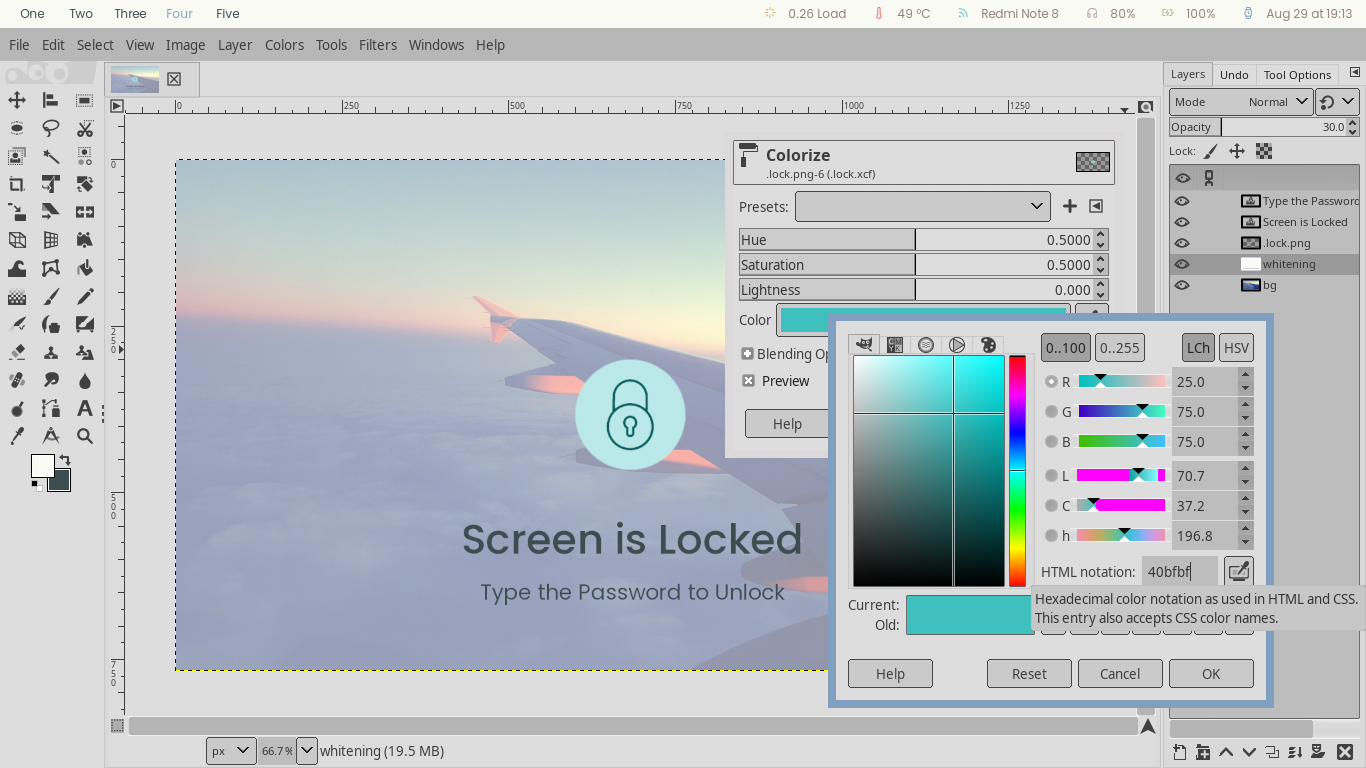
bindsym $super+l exec i3lock -i ~/.lock.png
bindsym $super+w exec firefox
bindsym $super+e exec thunar
I set keybind to launch my frequently used apps, you can remove what You don't need. And add what do You need. Note: i3lock need png image
# autostart
exec --no-startup-id hsetroot -center ~/.wallpaper.png
Maybe You want to add some programs to your autostart, like network manager applet, clipboard manager, power manager, conky, and some goodies.
Probably your network manager applet is nm-applet. So, if want to use it, add exec --no-startup-id nm-applet & (exec --no-startup-id means the program will be executed without changing the mouse cursor to circle shape or loading, ampersand means run the command in the background then execute next command without waiting the current command finished).
It will be loaded on next login. I don't put it on my autostart, because usually I only launch it from terminal when I want to switch SSID.
And if You come from Xfce maybe You want use its setting daemon.
Add exec --no-startup-id xfsettingsd &.
You will have some Xfce advantage, like mouse settings, appearance settings (LXAppearance will be overiden by this),
font settings, and some other advantage. But it will cost a thing, slightly reduce the performance.
And if the window rendering looks broken, maybe you'll also need to install a compositor like
compton or picom
then add it to autostart. With compositor you'll get more advantage like transparancy and window animation.
# autostart
exec --no-startup-id hsetroot -center ~/.wallpaper.png
exec --no-startup-id nm-applet &
exec --no-startup-id xfsettingsd &
exec --no-startup-id compton &
Next is window rules. i3 has abilities to assign workspace for certain programs, make the window floating by default, make the launched window steals the focus, etc.
# window rules, you can find the window class using xprop
for_window [class=".*"] border pixel 4
assign [class=URxvt] 1:I
assign [class=Firefox|Transmission-gtk] 2:II
assign [class=Thunar|File-roller] 3:III
assign [class=Geany|Evince|Gucharmap|Soffice|libreoffice*] 4:IV
assign [class=Audacity|Vlc|mpv|Ghb|Xfburn|Gimp*|Inkscape] 5:V
assign [class=Lxappearance|System-config-printer.py|Lxtask|GParted|Pavucontrol|Exo-helper*|Lxrandr|Arandr] 6:VI
for_window [class=Viewnior|feh|Audacious|File-roller|Lxappearance|Lxtask|Pavucontrol] floating enable
for_window [class=URxvt|Firefox|Geany|Evince|Soffice|libreoffice*|mpv|Ghb|Xfburn|Gimp*|Inkscape|Vlc|Lxappearance|Audacity] focus
for_window [class=Xfburn|GParted|System-config-printer.py|Lxtask|Pavucontrol|Exo-helper*|Lxrandr|Arandr] focus
That's my window rules. I use it to group apps on several workspace.
- Workspace 1 for Terminals
- Workspace 2 for Web
- Workspace 3 for File Manager
- Workspace 4 for Office
- Workspace 5 for Multimedia
- Workspace 6 for Settings
And I set some apps to launch in floating mode. You can make your own rules of course. Maybe my window rules isn't efficient for You. My workspaces are only six, and it's more than enough for me.
Update 2024 August Now I no longer use window rules to assign workspace for certains programs. Now my configuration looks like this.
for_window [class=Eog|Sxiv|feh|mpv|Vlc|File-roller|Xarchiver] floating enable
for_window [class=Eog|Sxiv|feh|mpv|Vlc|File-roller|Xarchiver] focus
Now let's see the panel coloring
# panel
bar {
	status_command i3status
	position top
	workspace_min_width 24
	padding 2px 8px 2px 8px
	strip_workspace_numbers yes

	colors {
	background #141c21
	statusline #141c21
	separator #141c21

	# colour of border, background, and text
	focused_workspace #141c21 #d12f2c #93a1a1
	active_workspace #141c21 #141c21 #93a1a1
	inactive_workspace #141c21 #141c21 #93a1a1
	urgent_workspace #141c21 #b08500 #93a1a1
	}
}
That's my panel colour. I set it has a black background, with white color for workspace name. Active workspace is highlighted by red colour, and urgent workspace will be highlighted with yellow colour. If one of your workspaces is highlighted with yellow colour, it means that workspace needs an attention. You can modify it by yourself of course.
# colour of border, background, text, indicator, and child_border
client.focused #d12f2c #263640 #93a1a1 #696ebf #2587cc1
client.focused_inactive #263640 #b08500 #93a1a1 #263640 #263640
client.unfocused #263640 #b08500 #93a1a1 #263640 #263640
client.urgent #263640 #b08500 #93a1a1 #263640 #263640
client.placeholder #263640 #b08500 #93a1a1 #263640 #263640
client.background #263640
That's my settings of window border colour. I set the focused window border to blue, and unfocused window border to black. On focused window, the purple border means splitting direction. If the purple border is on the right, that means if You launch a new window on that workspace, it will be launched on the right of current focused window. You can change the splitting direction to bottom using Super + V. If You want to split to right again, hit Super + H. If You unsatisfied with it, just modify it :wink:
That's For Now
I think, this is quite enough for a starter. You can improve it by yourself. Thanks for reading! :blush:
Update 1 August 2024
I put some changes to my i3 setup.
- I change the colorscheme
- I change the statusbar
- I cleanup the window rules
- I change some keybinds
- I change the fonts (included in the repo)
- I change the default apps
- And others. Please read the config before use.
I also made a light theme and put it in leaf branch.
Preview
 Clean Without any window opened
 Floating Opening Vim, Cmus, and Ranger in floating mode for show off. The bottom line is i3-dmenu-desktop.
 Tiling With two windows opened
 Tiling With three windows opened

 Monocle One windows opened, the gaps and borders are automatically disappeared, so no space wasted
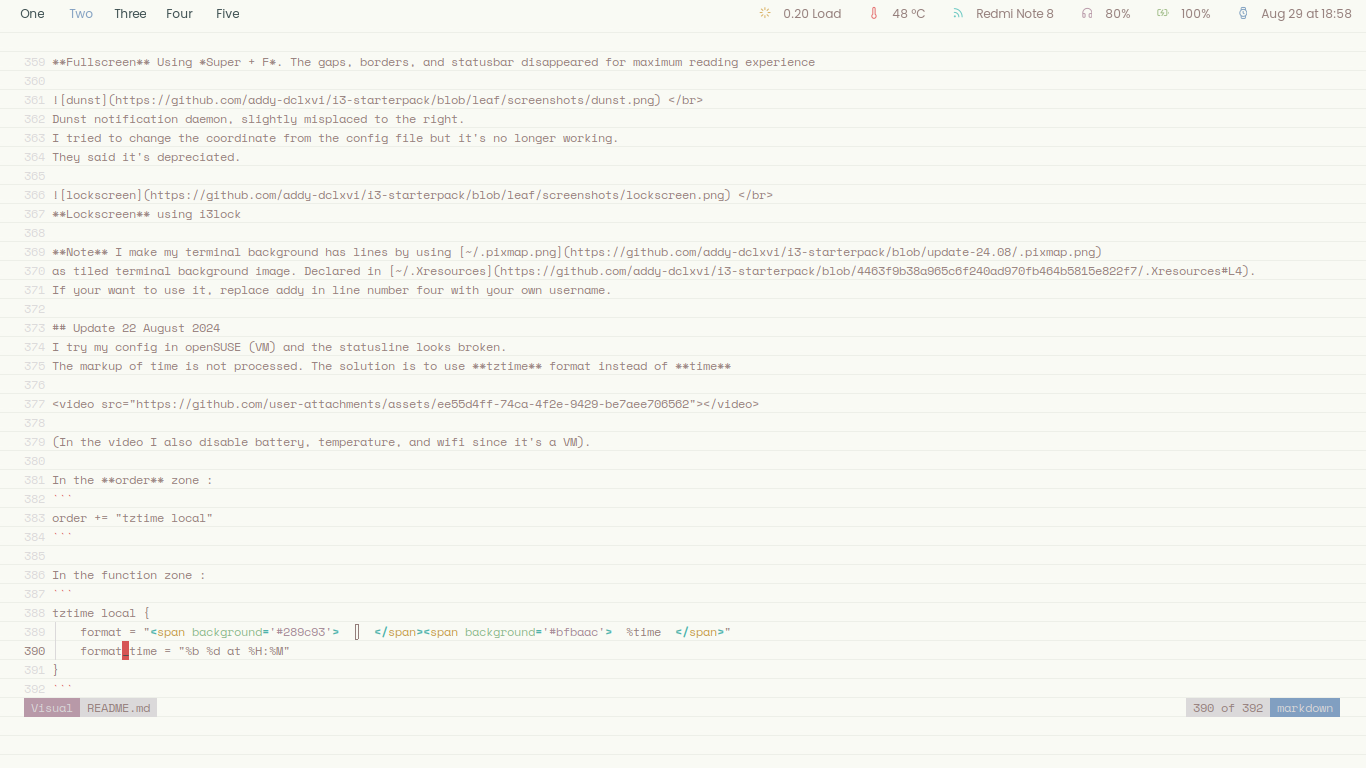
 Fullscreen Using Super + F. The gaps, borders, and statusbar disappeared for maximum reading experience
 Dunst notification daemon, slightly misplaced to the right.
I tried to change the coordinate from the config file but it's no longer working.
They said it's depreciated.
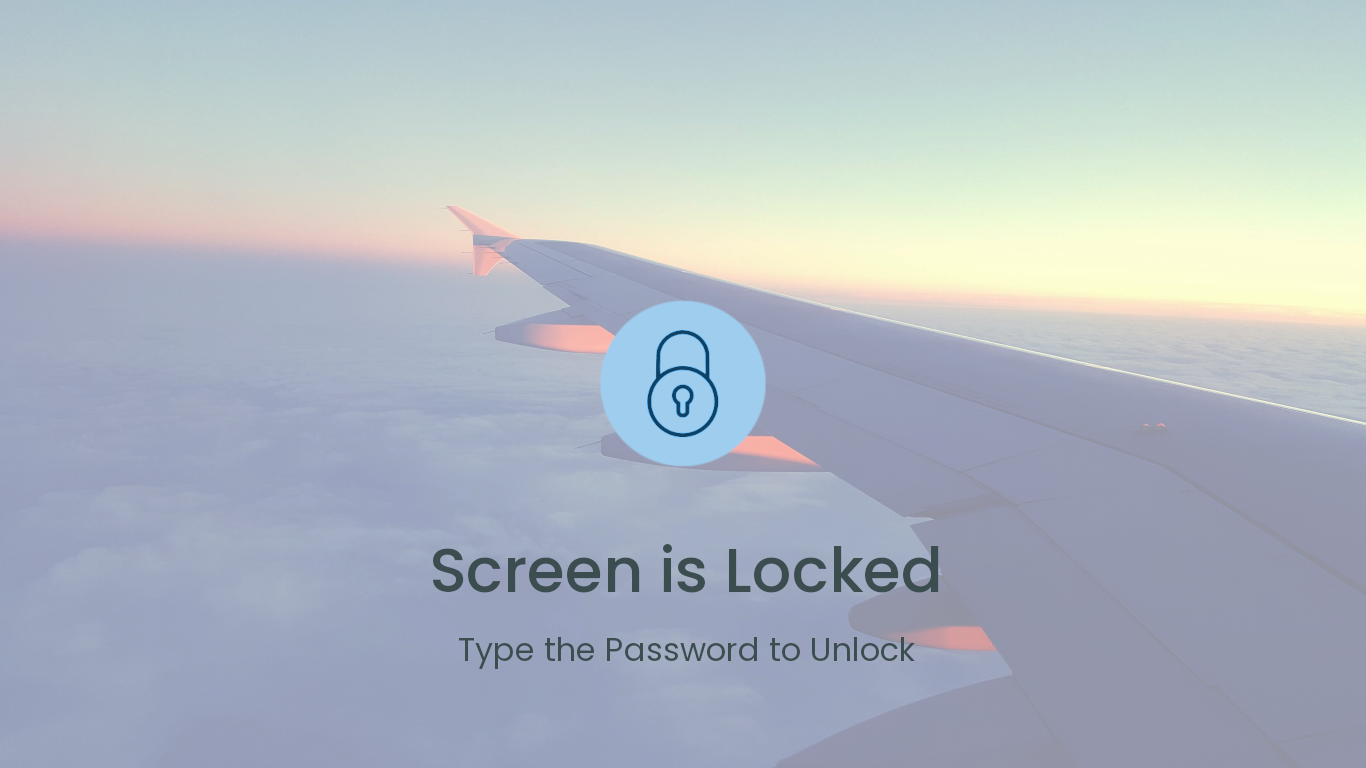
 Lockscreen using i3lock
Note I make my terminal background has lines by using ~/.pixmap.png as tiled terminal background image. Declared in ~/.Xresources. If your want to use it, replace addy in line number four with your own username.
Update 22 August 2024
I try my config in openSUSE (VM) and the statusline looks broken. The markup of time is not processed. The solution is to use tztime format instead of time
(In the video I also disable battery, temperature, and wifi since it's a VM).
In the order zone :
order += "tztime local"
In the function zone :
tztime local {
format = "<span background='#289c93'> </span><span background='#bfbaac'> %time </span>"
format_time = "%b %d at %H:%M"
}
Update 29 August 2024
Doing minimal install is getting harder, I have problems with Network Manager on Debian Bookworm. On previouses Debian versions, I only need to install proprietary Atheros driver then my wifi card will be automatically managed by Network Manager. I only need to open nmtui to connect to my wifi. But now, my wifi card won't appear in nmtui. When I try Debian Bookwork Gnome Live CD, the wifi working out of the box. It seems that on minimal install, Network Manager needs to be configured manually. Other than network manager, I also have other issues. And too lazy to solve them all, so now I use ISO file with complete desktop environment instead of DE-less ISO like usual.
And for ISO with complete desktop environtment, I prefer Fedora or openSUSE than Debian because they have better package selection. Debian put too many unimportant softwares on default Gnome or KDE install.
Now, I use openSUSE default install (KDE) then install some packages I need.
sudo zypper install i3 rxvt-unicode xsel ranger cmus hsetroot caca-utils git highlight fish brightnessctl
sudo zypper install opi && sudo opi codecs
sudo chsh -s /usr/bin/fish addy
git clone https://github.com/addy-dclxvi/i3-starterpack
cd i3-starterpack
git checkout aeroplane
cp -a . ~
Preview
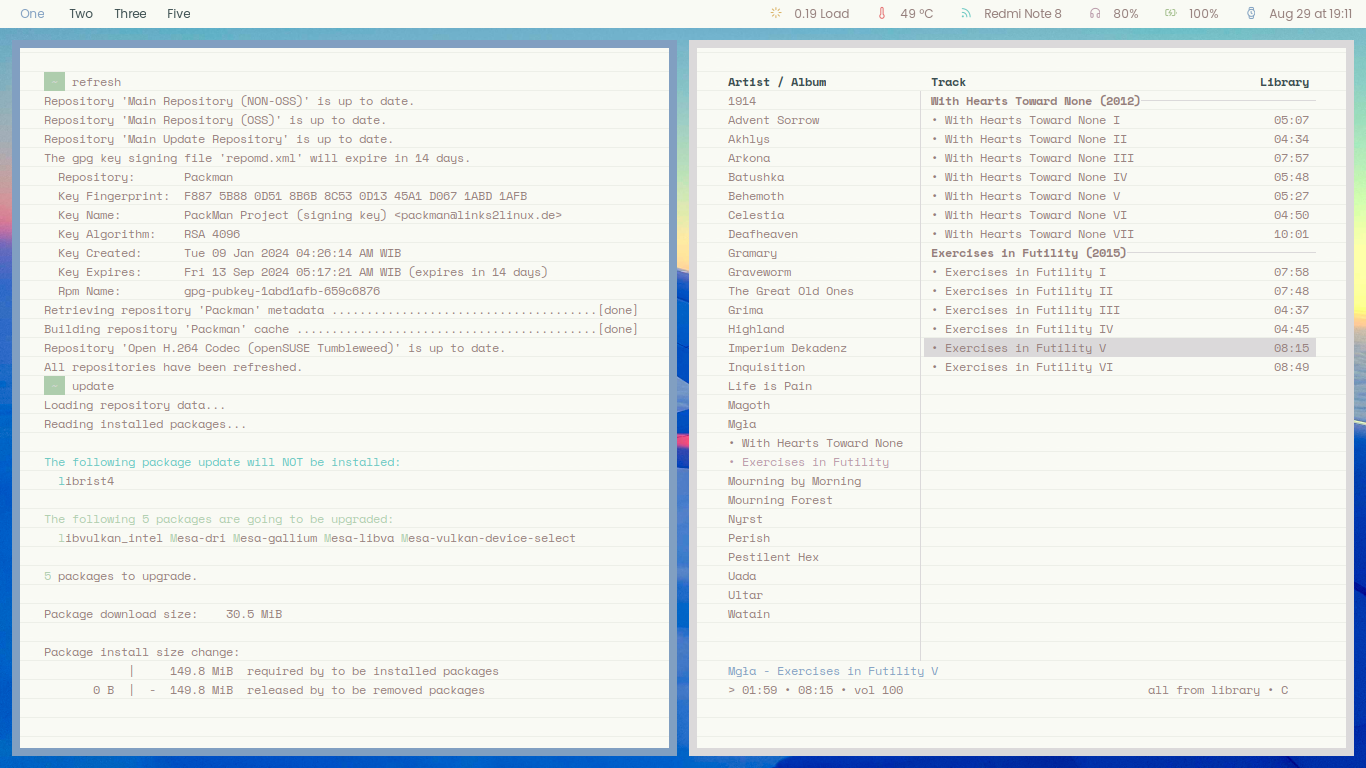
My current openSUSE setup. I put it in aeroplane branch. Of course it's also work on other distros. The only differences are
- Aliases in the fish config, replacing commands related with APT with Zypper
- Shortcut of common apps in i3 config, I utilize apps that come with KDE. Like Super+E now open Dolphin.
- Autostart in i3 config too, I utilize apps that come with KDE. Like KDE keyring and KDE Polkit. I don't autostart KDE power manager because I cannot wake my laptop after entering sleep mode.
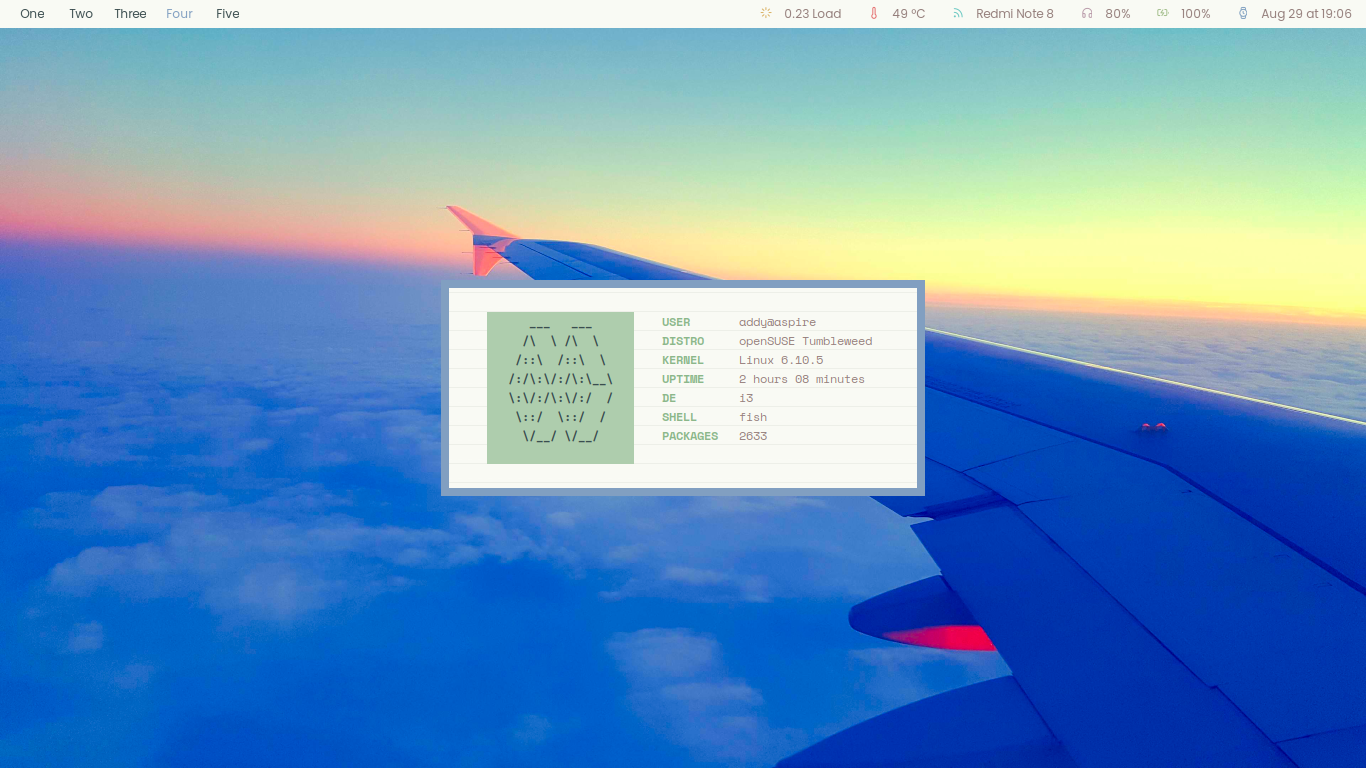
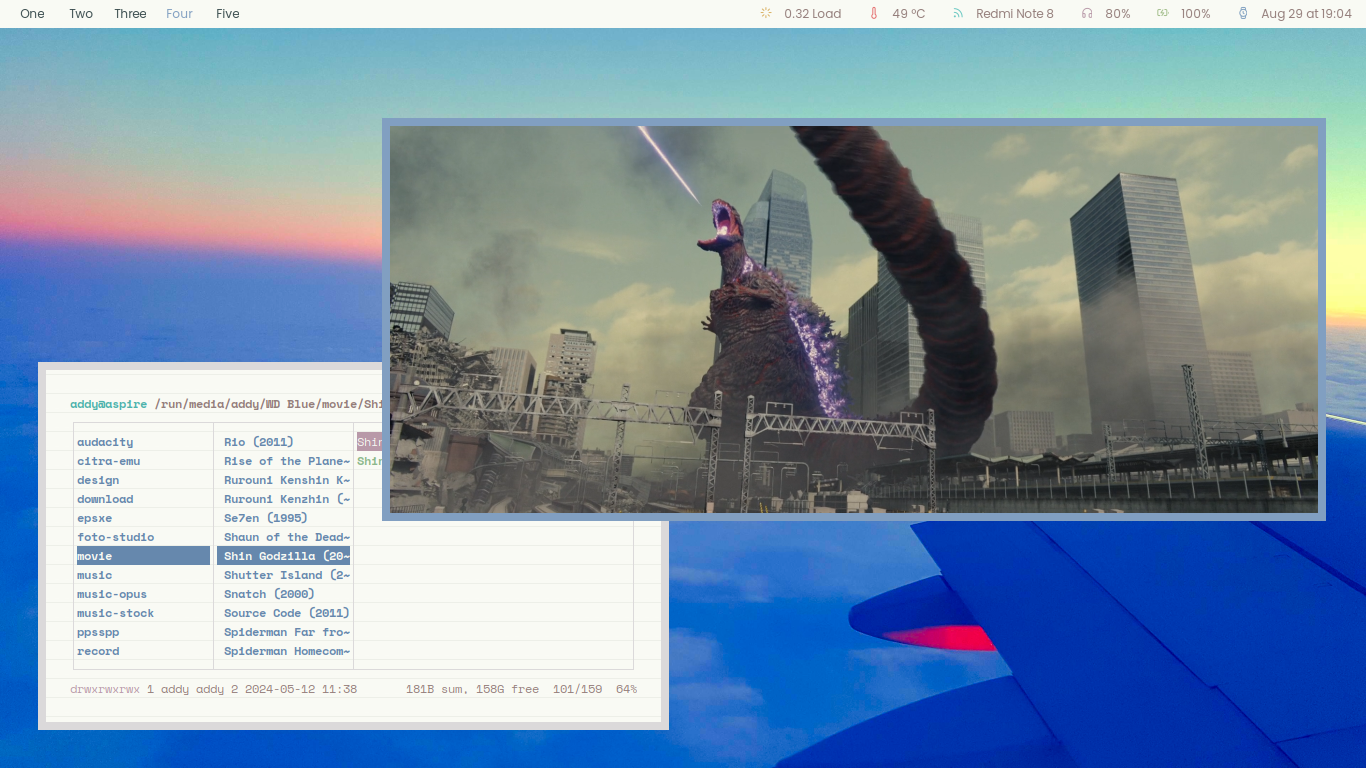
Update 30 August 2024
Some new themes
canyon branch
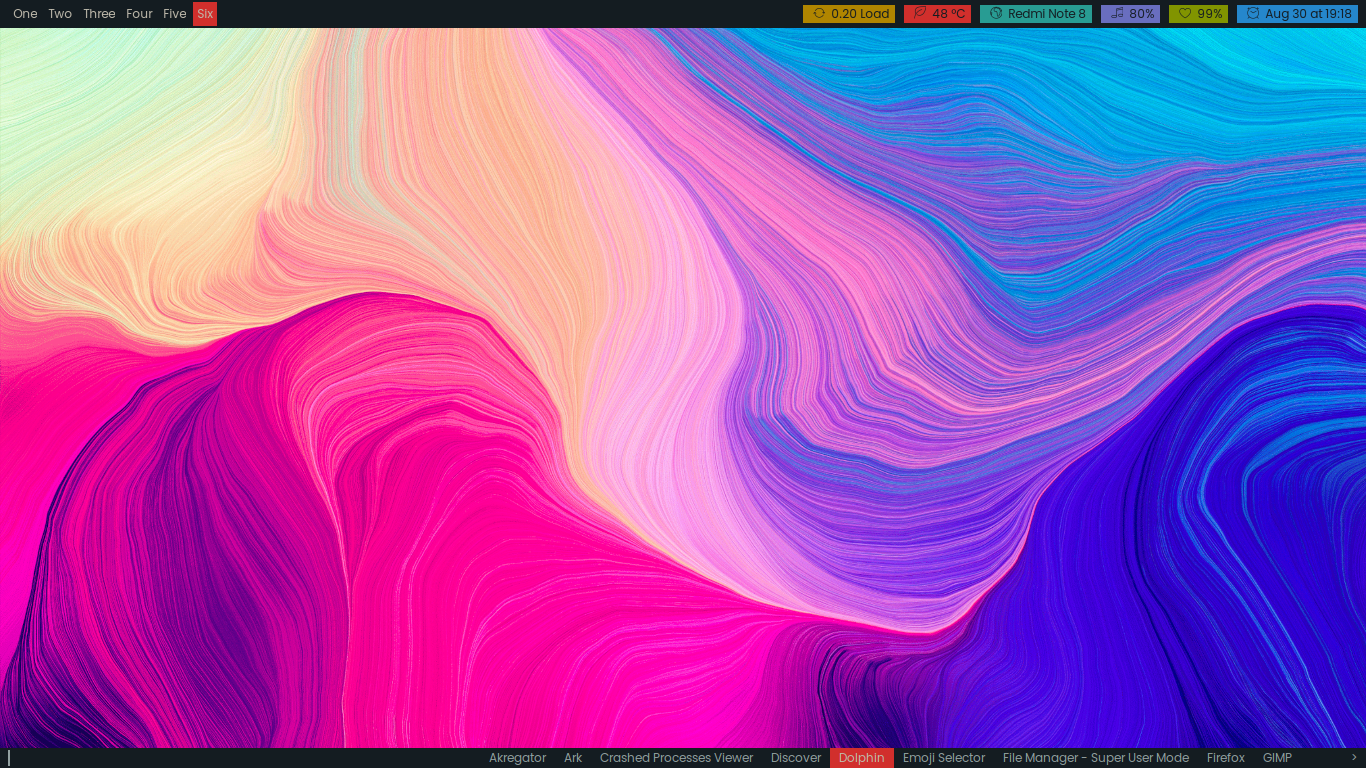
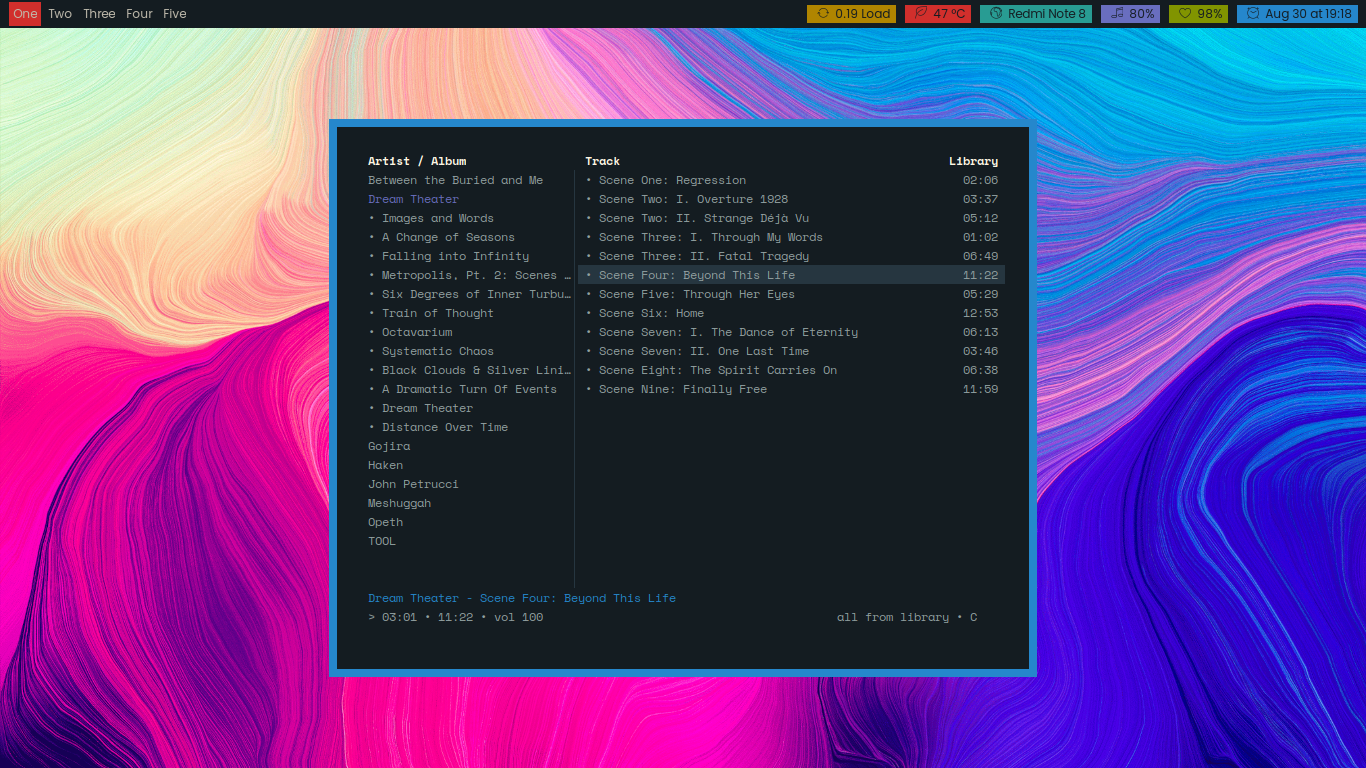
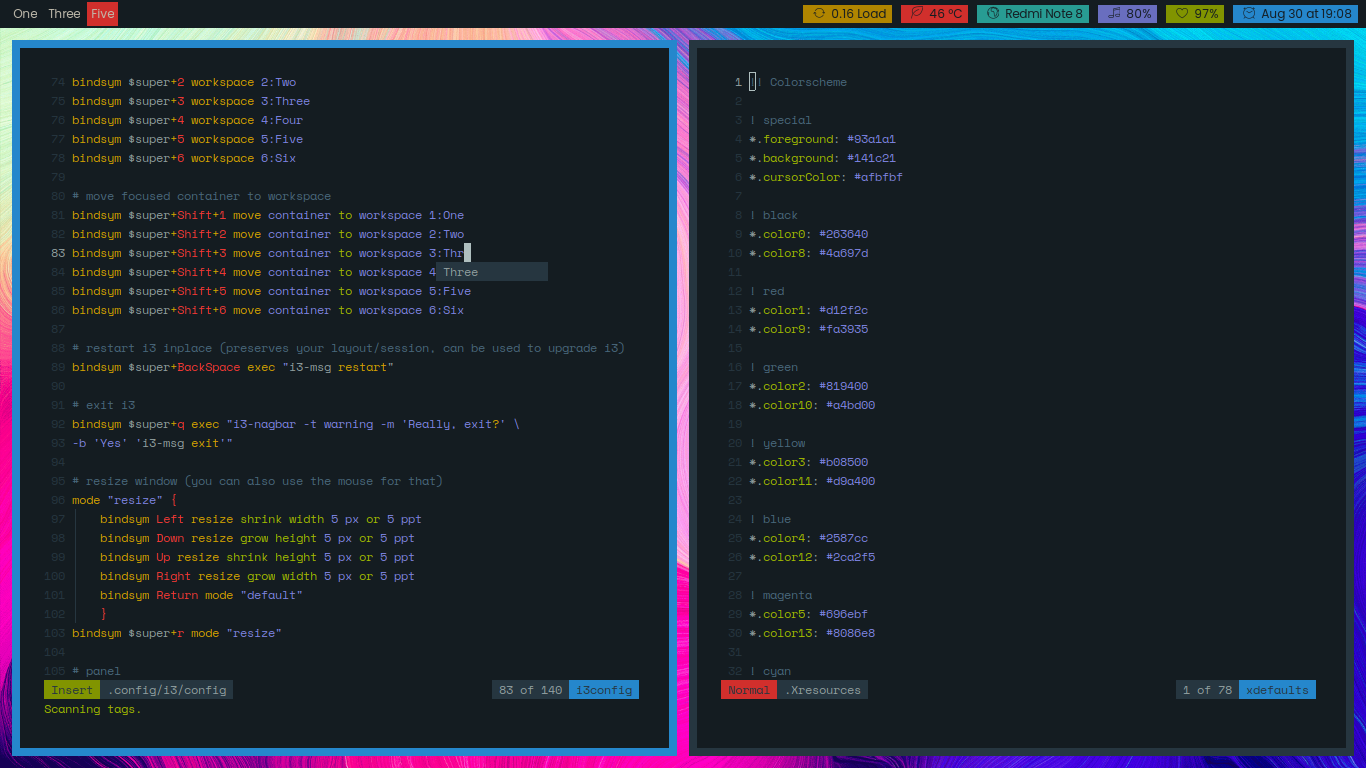
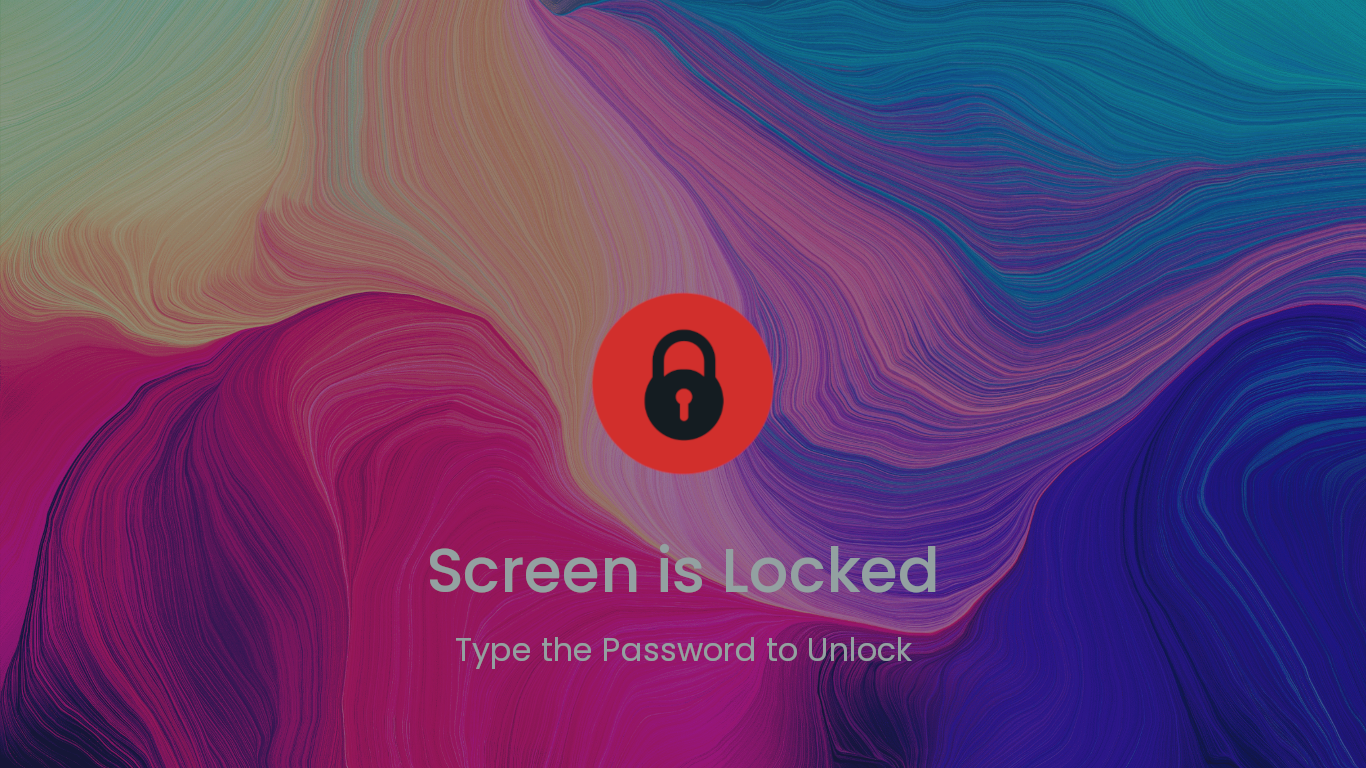
wall branch
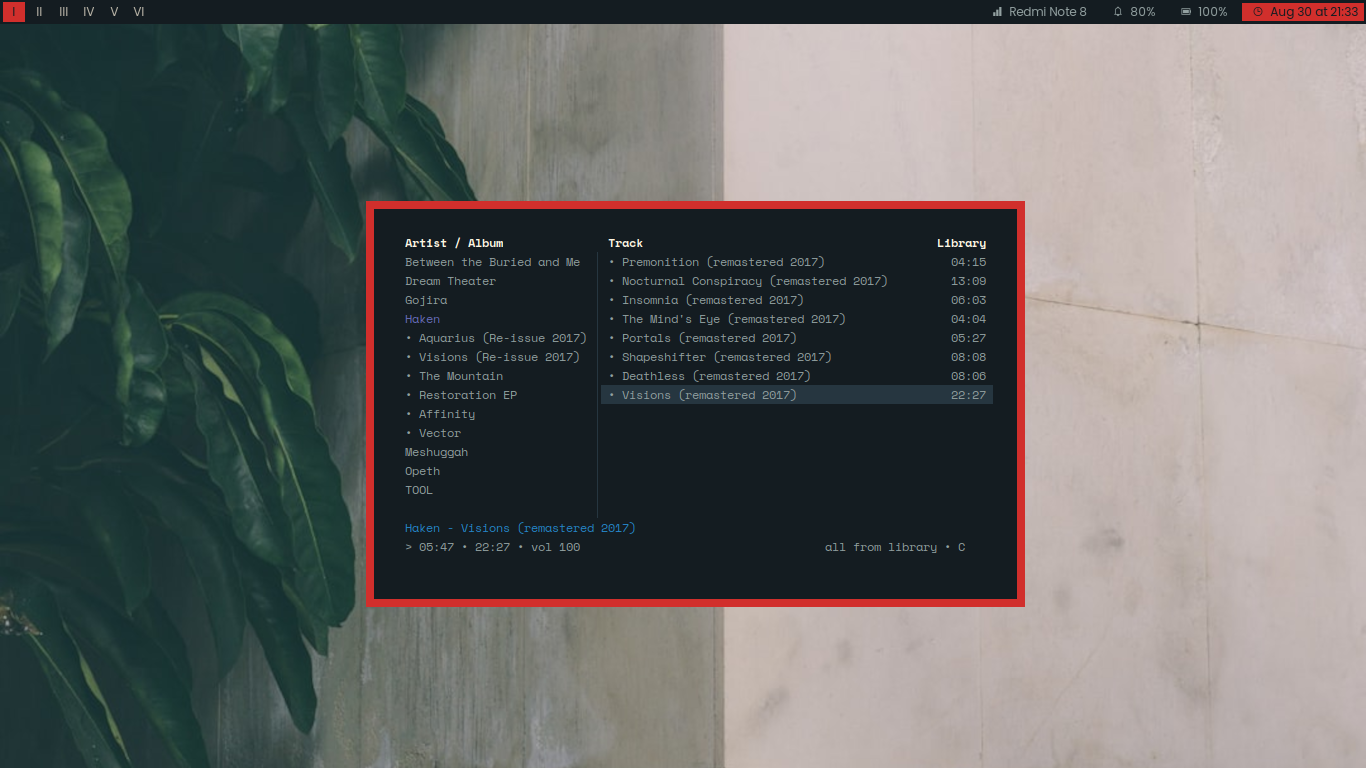
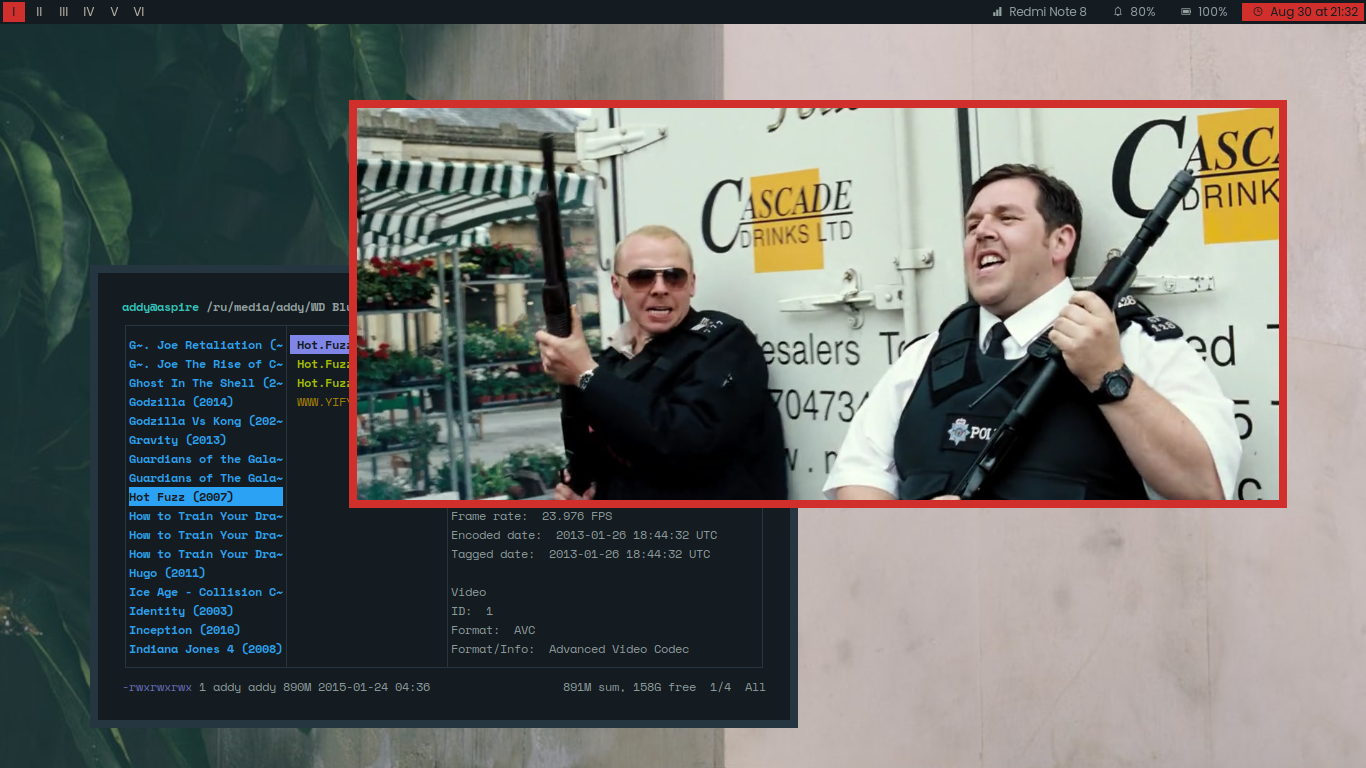
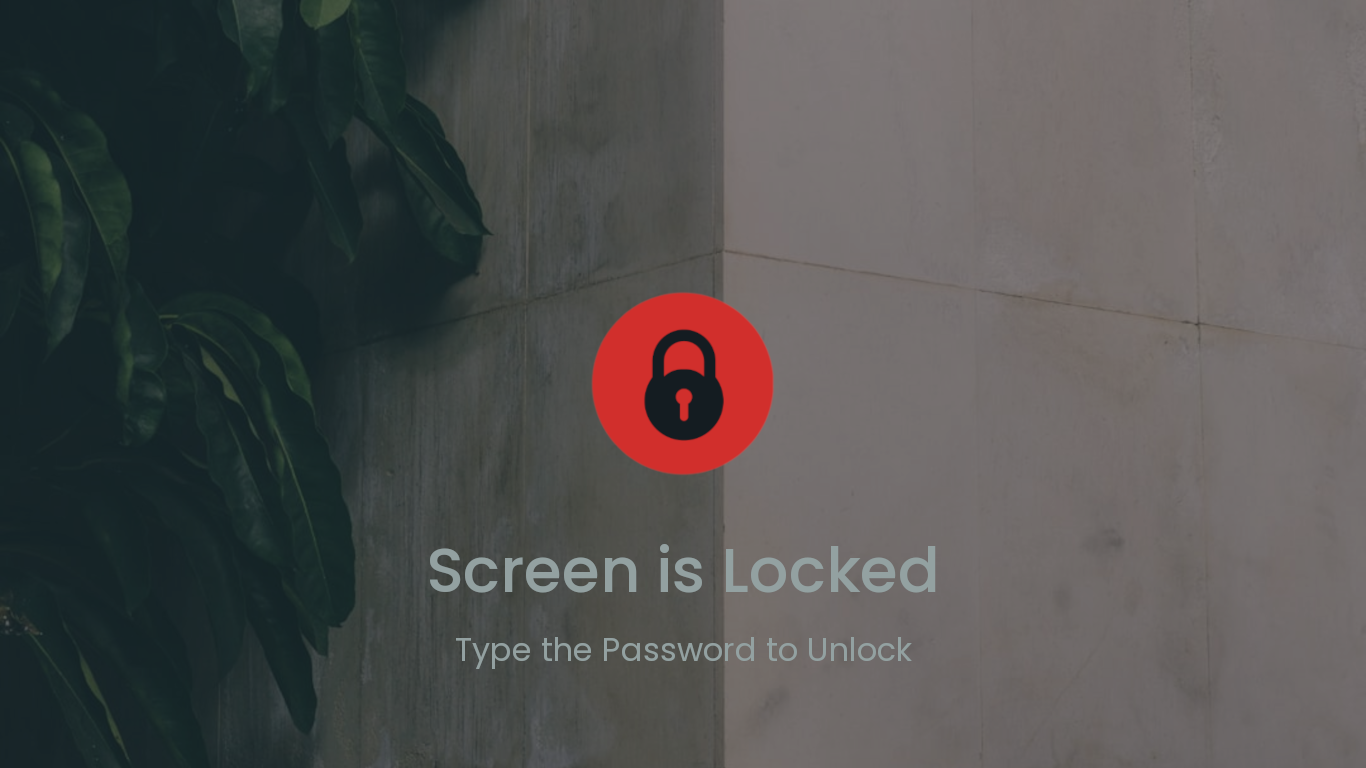
pistachio branch
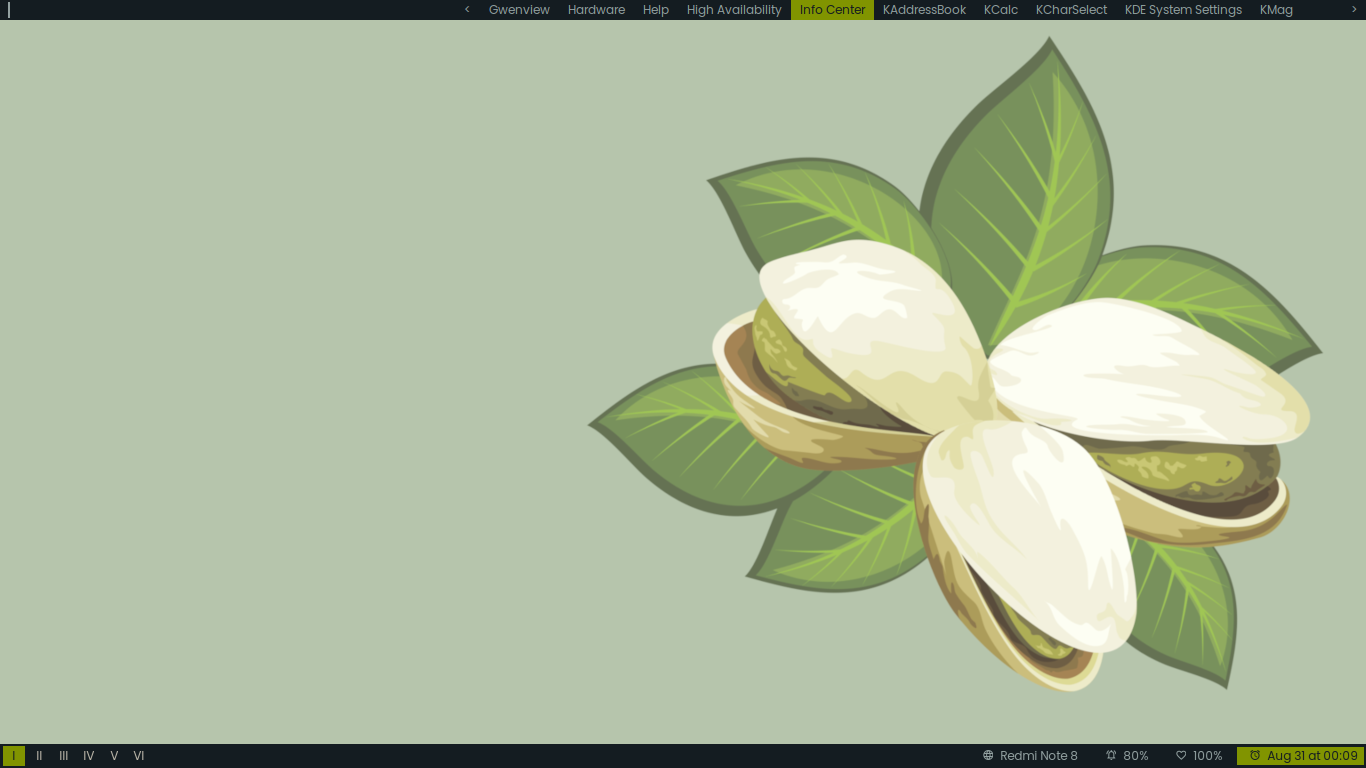
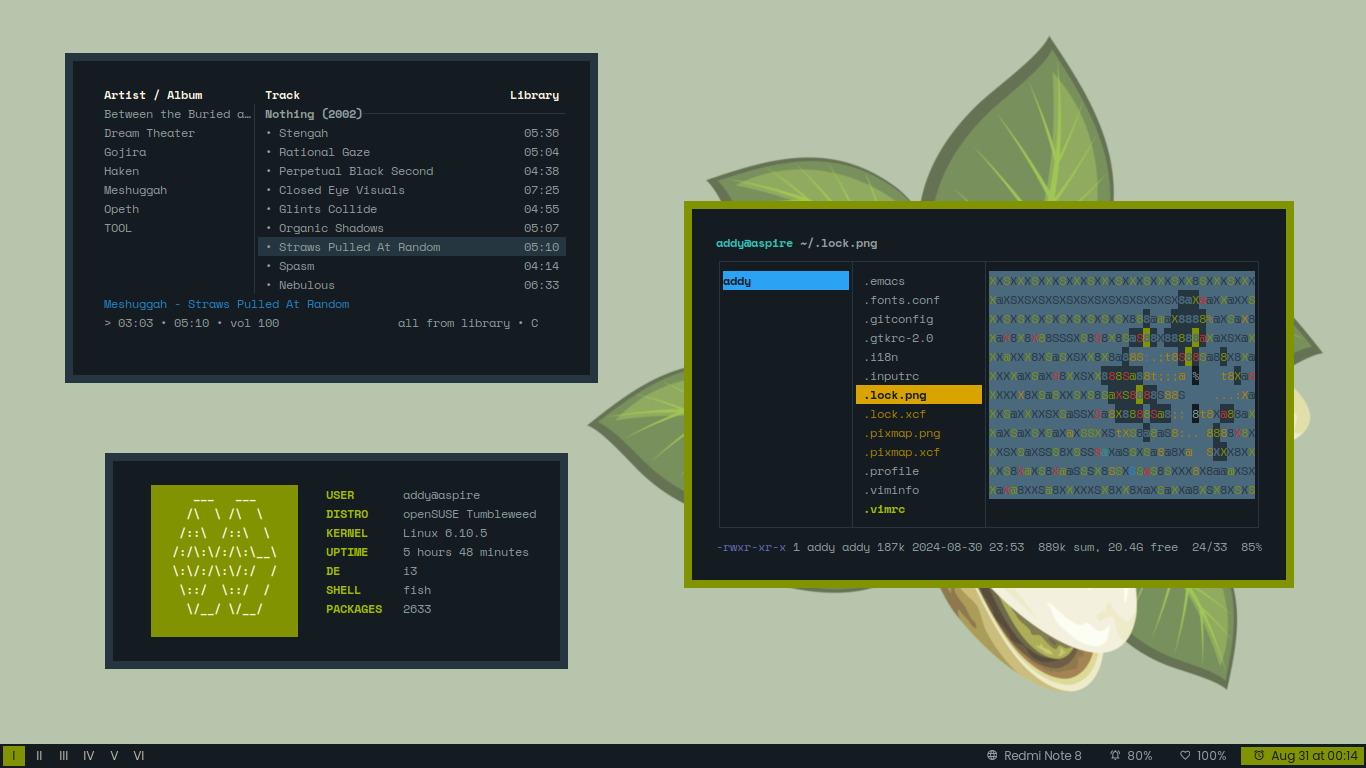
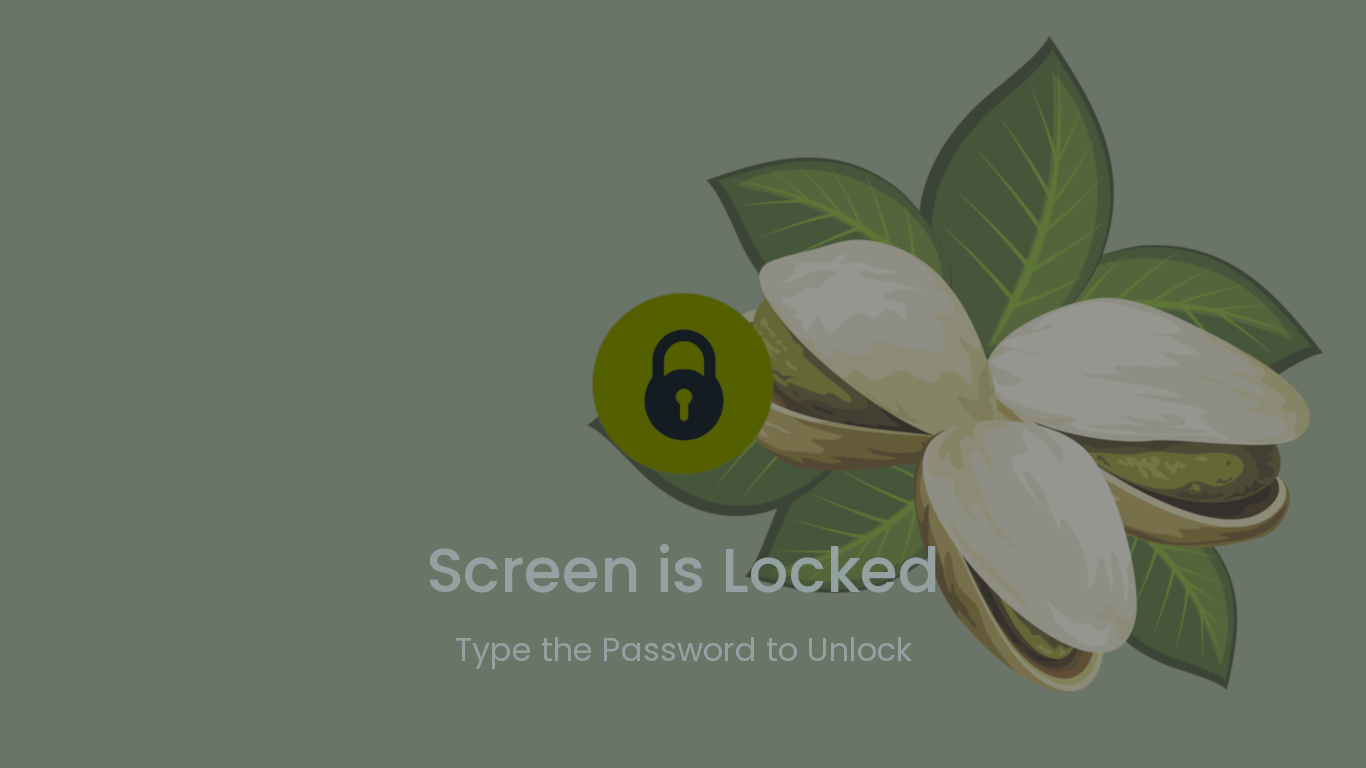
Update 13 September 2026
Some new themes
earlgrey branch
 Floating
 Tiling
Now I install i3wm on top of Mate and trying to use available Mate components like Mate Terminal, Mate Settings Daemon, Mate Polkit, and many others.
Mate stores app settings in dconf that can be restored using
dconf load / < dconf.ini command.
I also change the GTK Fonts from Poppins to Space Grotesk, because Space Grotesk is a font designed to work with Space Mono, the font I use in the Terminal.
The colorscheme is Earl Grey by June Kelly.
latte branch
 Floating
 Tiling
The colorscheme is Catpuccin Latte by Catpuccin Team.
Update 19 September 2026
vibrant branch
 Floating Now I add titlebar when the window is floating,
it will automatically disappear on tiling and fullscreen mode.
 Full Screen GIMP editing photo of my last travel at Tretes Wonosalam Waterfall
 Tiling
 Full Screen & Floating
 dmenu Start Menu
Mate app settings (including mate-terminal) can be restored using
dconf load / < dconf.ini command.
A lot of things changed. Back to my own colorscheme and make it more readable,
Add some scripts written in fish to make my life easier
(like screen_record, convert mkv_to_mp4, music downloader, colorscheme testing, modified ufetch, etc.),
changing ranger 'open-with' options, making colors in i3wm configurations more tidy
(previously it's very messy'), hiding terminal apps from start menu,
and many other things.
The wallpaper solid color looks weirdly bright on the screenshot but it looks so soft in my ThinkPad X230. Maybe my screen is too dull.
Update 29 September 2026
Back to Debian.
I miss bitmap font. So I install URxvt as terminal emulator then load my old bitmap fonts. The wallpaper handler and image viewer is now feh. Some of aliases in fish config are specific to Debian instead of openSUSE like in previous post. Other packages stays same.
I put this setup in skyscraper branch
 Floating I add titlebar when the window is floating,
it will automatically disappear on tiling and fullscreen mode.
The fetch script is modified ufetch rewritten as fish function.
 Full Screen GIMP editing photo of my last travel at Tretes Wonosalam Waterfall
 Tiling
 Full Screen & Floating
 dmenu Start Menu
 i3lock Lockscreen
 Fullscreen (Super + F) Firefox with my startpage (included in ~/.startpage folder)
 Just normal Libre Office, nothing special
Mate app settings (including mate-terminal) can be restored using
dconf load / < dconf.ini command.
ohmyzsh
ohmyzsh·Shell
一套社区维护的 zsh 配置管理框架,内置 300+ 插件和 140+ 主题,帮你快速搭好顺手的终端环境并自动更新。
zsh 配置+4桌面美化 / 主题
190435+9927k2026-11-09 12:36 UTC
warp
warpdotdev·Rust
基于 Rust 打造的智能体开发环境,从终端演化而来,把 AI 代理能力直接融入命令行,让写代码、跑命令和调试更顺手。
终端模拟器+4桌面美化 / 主题
65967+665.8kv0.2026.06.09.19.54.dev_002026-11-10 22:48 UTC
NvChad
NvChad·Lua
基于 Lua 的 Neovim 配置框架,开箱即用,自带合理默认设置和漂亮界面,省去从零折腾配置的麻烦。
Neovim 配置+3桌面美化 / 主题
28542+102.2kv2.52026-10-24 22:01 UTC

.tmux
gpakosz·Shell
一套开箱即用的 tmux 配置,自带主题、状态栏和常用快捷键,省去自己写 .tmux.conf 的麻烦,让终端多窗口操作更顺手。
tmux 配置+4桌面美化 / 主题
25471+33.6k2026-10-21 15:47 UTC