需先自行安装 polybar、rofi、pywal、calc、networkmanager_dmenu 等依赖,否则部分模块不可用;主题依赖 Iosevka Nerd Font、Material Icons 等字体,setup.sh 会安装字体但需确认生效;各主题相互关联,README 提醒自行修改前要清楚在改什么。
polybar-themes
adi1090xGPL-3.0活跃维护一套体量很大的 Polybar 状态栏主题合集,涵盖多种风格、配色和变体,帮 Linux 用户快速把桌面状态栏换成好看的样子。
A huge collection of polybar themes with different styles, colors and variants.
暂无版本6,265star +3 / 7 天423fork同步于 2026-11-10 17:35 UTC
git clone --depth=1 https://github.com/adi1090x/polybar-themes.git
cd polybar-themes && chmod +x setup.sh && ./setup.sh
bash ~/.config/polybar/launch.sh --hack 硬件要求按 README 说明
README 未说明。这是 Linux 桌面状态栏主题,需在已安装 polybar 的图形桌面环境(如 Openbox、i3、bspwm)中使用。
一套 polybar 状态栏主题合集,提供多种风格、配色和变体,省去自己写配置的功夫
一套体量很大的 Polybar 状态栏主题合集,涵盖多种风格、配色和变体,帮 Linux 用户快速把桌面状态栏换成好看的样子。
核心能力
- 提供 material、shades、hack、docky 等 12 种风格主题
- 每个主题含深色/浅色模式与 15+ 配色
- 内置 Rofi 应用启动、网络、电源和配色切换菜单
- 支持 pywal 壁纸取色与 random.sh 随机配色脚本
- 用 setup.sh 交互式选择风格并自动安装字体、备份原配置
容易踩的坑
内容由模型根据 README 生成,可能不完整或不准确,以官方文档为准。看原文 README
暂无 release 数据(可能没有发版,或尚未同步)。
用户点评
登录用户的真实使用记录,可按版本和硬件筛选共 0 条
还没有人点评。第一个说出真实体验的人最有价值。
Polybar aims to help users build beautiful and highly customizable status bars for their desktop environment, without the need of having a black belt in shell scripting.
The main purpose of Polybar is to help users create awesome status bars. It has built-in functionality to display information about the most commonly used services. Some of the services included so far...
- Systray icons
- Window title
- Playback controls and status display for MPD using libmpdclient
- ALSA volume controls
- Workspace and desktop panel for bspwm and i3
- Workspace module for EWMH compliant window managers
- Keyboard layout and indicator status
- CPU and memory load indicator
- Battery display
- Network connection details
- Backlight level
- Date and time label
- Time-based shell script execution
- Command output tailing
- User-defined menu tree
- Inter-process messaging
- And more...
Dependencies
Install following programs on your system before you use these themes.
Polybar: Of course, the bar itselfRofi: For App launcher, network, power and style menuspywal: For pywal supportcalc: For random colors supportnetworkmanager_dmenu: For network modules
Fonts
Here's a list of all fonts used by these themes.
Text Fonts
- Iosevka Nerd Font
- Fantasque Sans Mono
- Noto Sans
- Droid Sans
- Terminus
Icon Fonts
- Iosevka Nerd Font
- Icomoon Feather
- Material Icons
- Waffle (Siji)
Installation
Follow the steps below to install these themes on your system.
- First, Clone this repository -
$ git clone --depth=1 https://github.com/adi1090x/polybar-themes.git
- Change to cloned directory and make setup.sh executable -
$ cd polybar-themes
$ chmod +x setup.sh
- Run
setup.shand select a style -
$ ./setup.sh

[*] Installing Polybar Themes...

[*] Choose Style -
[1] Simple
[2] Bitmap

[?] Select Option : 1

[*] Installing fonts...
[*] Creating a backup of your polybar configs...
[*] Successfully Installed.
- That's it, These themes are now installed on your system.
Note : These themes are like an ecosystem, everything here is connected with each other in some way. So... before modifying anything by your own, make sure you know what you are doing.
Launch the bar
To launch the bar with the selected theme, Just...
- Open the terminal and enter the following command -
$ bash ~/.config/polybar/launch.sh

Usage : launch.sh --theme

Available Themes :
--blocks    --colorblocks    --cuts      --docky
--forest    --grayblocks     --hack      --material
--panels    --pwidgets       --shades    --shapes
- Now, select your theme and launch the bar -
$ bash ~/.config/polybar/launch.sh --hack
- You can add the same command to your WM autostart file to launch the bar on login. For example, to launch the bar at startup on openbox, add following lines in
$HOME/.config/openbox/autostart-
## Launch Polybar
bash ~/.config/polybar/launch.sh --cuts
Use the scripts
Almost every theme has pywal and random color support added to them. If you want to use the bar with pywal, just execute the pywal.sh script with the path of the wallpaper or wallpapers directory. eg - If you're using material theme...
$ bash ~/.config/polybar/material/scripts/pywal.sh /path/to/wallpaper
If you want to use random colors for your bar, just execute random.sh script -
$ bash ~/.config/polybar/material/scripts/random.sh
You can add these lines, before the launch command in your WM startup file if you want to use pywal or random color for your bar every time you login. eg - in Openbox's autostart file...
## Launch Polybar with random wallpaper
bash ~/.config/polybar/material/scripts/pywal.sh /path/to/wallpaper_dir
bash ~/.config/polybar/launch.sh --material
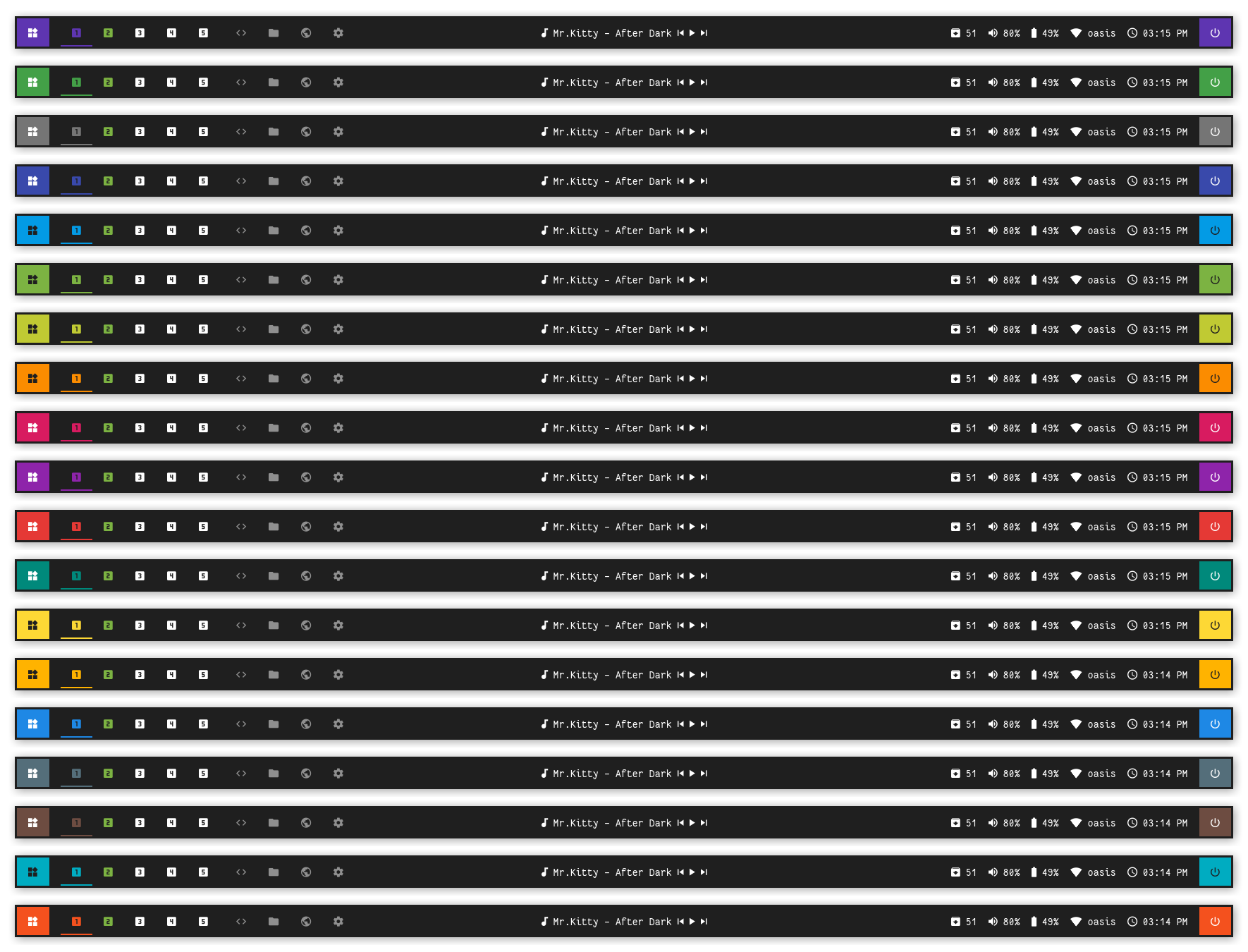
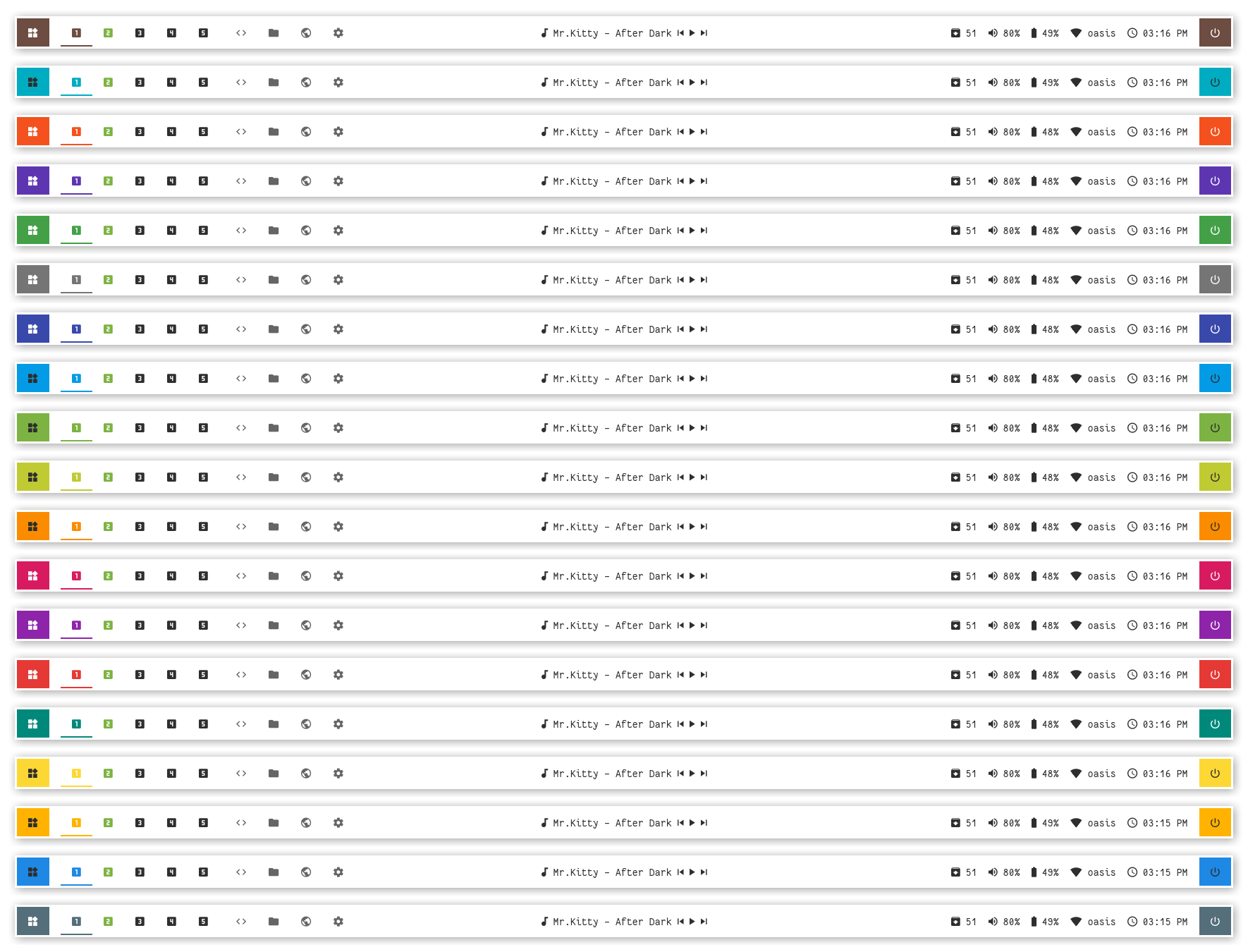
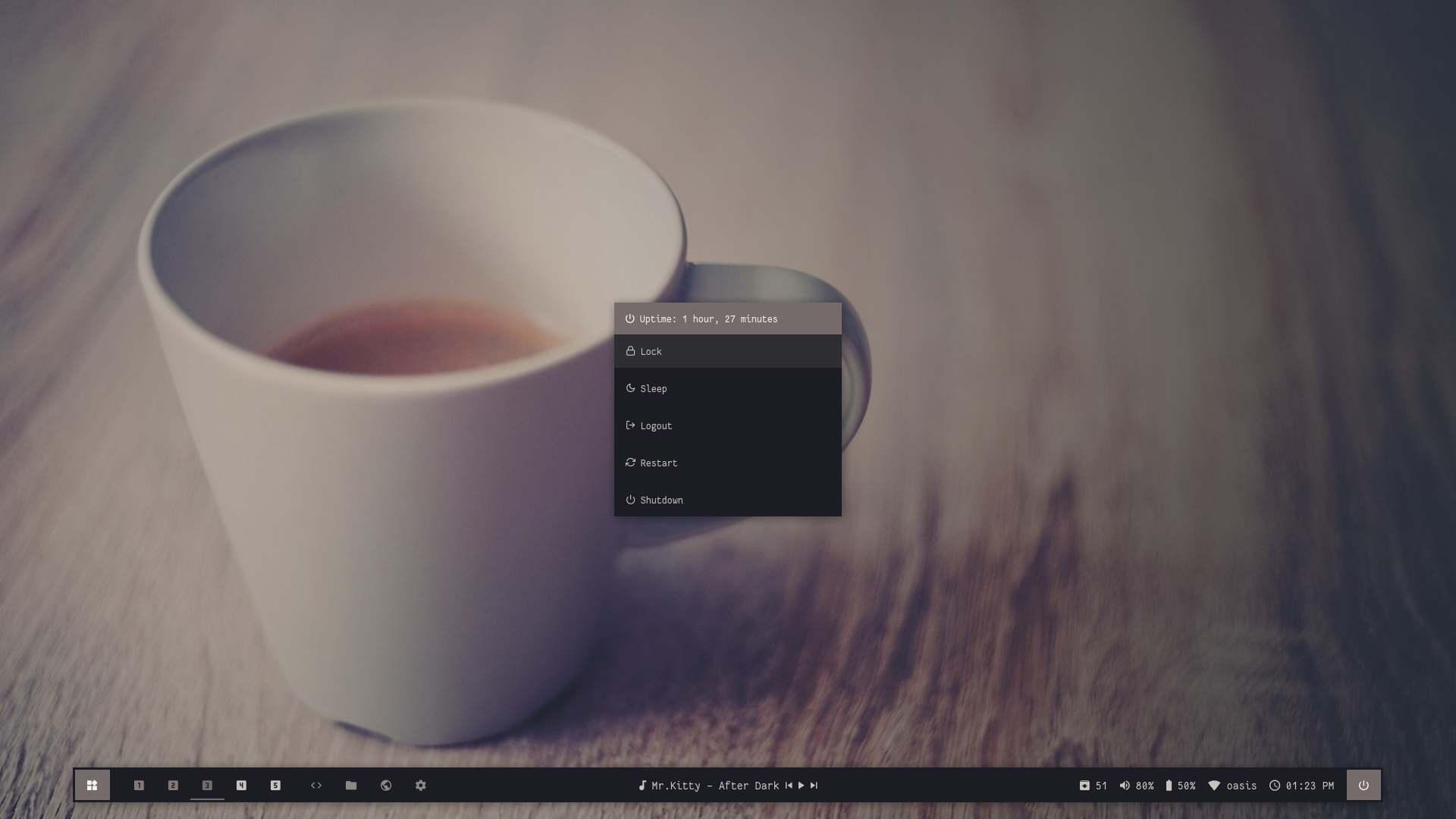
Material


Overview
Window Manager: OpenboxIcon Font: Material IconsText Font: Fantasque Sans Mono
Features
- Dark and Light mode with 15+ colors
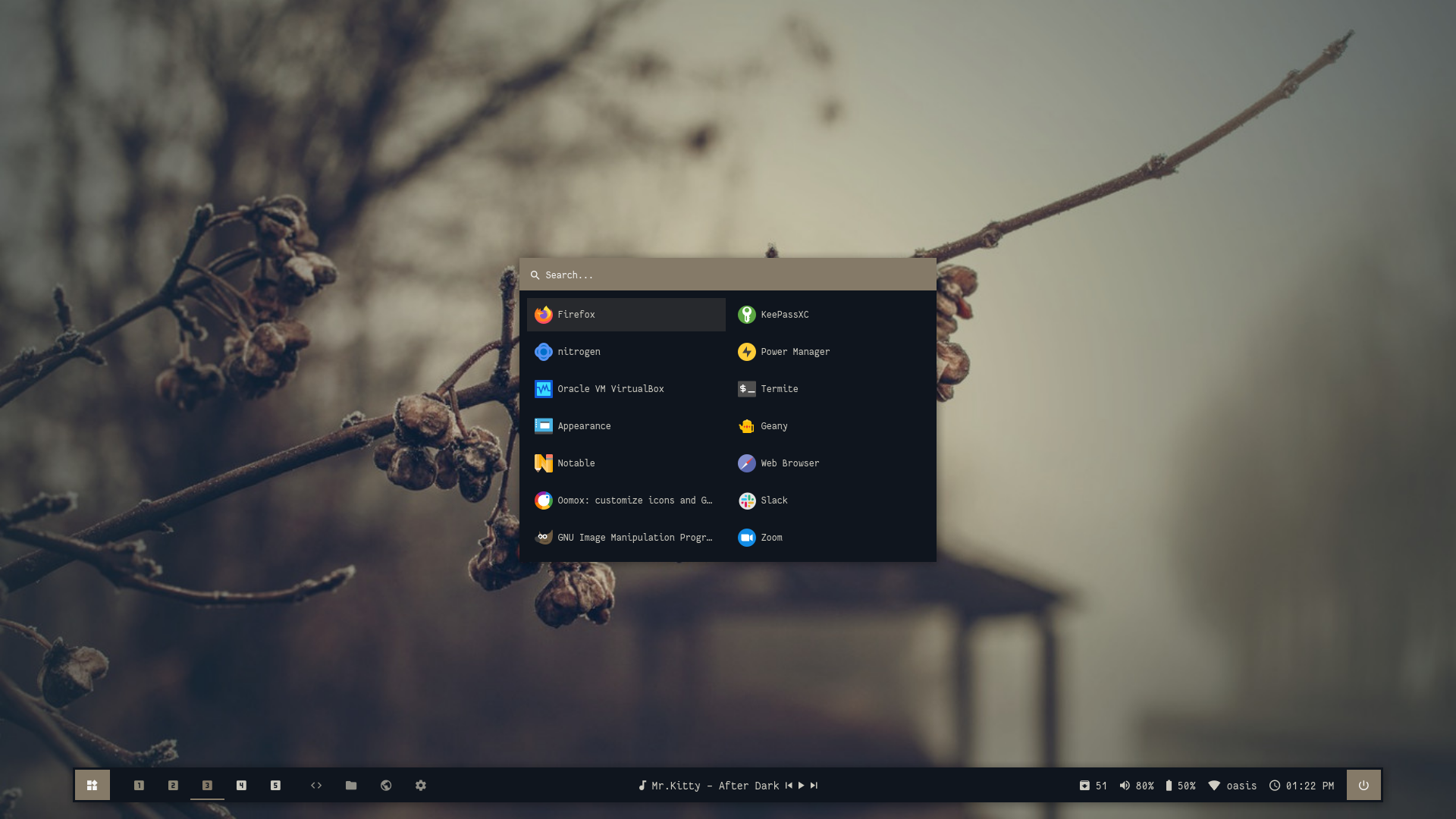
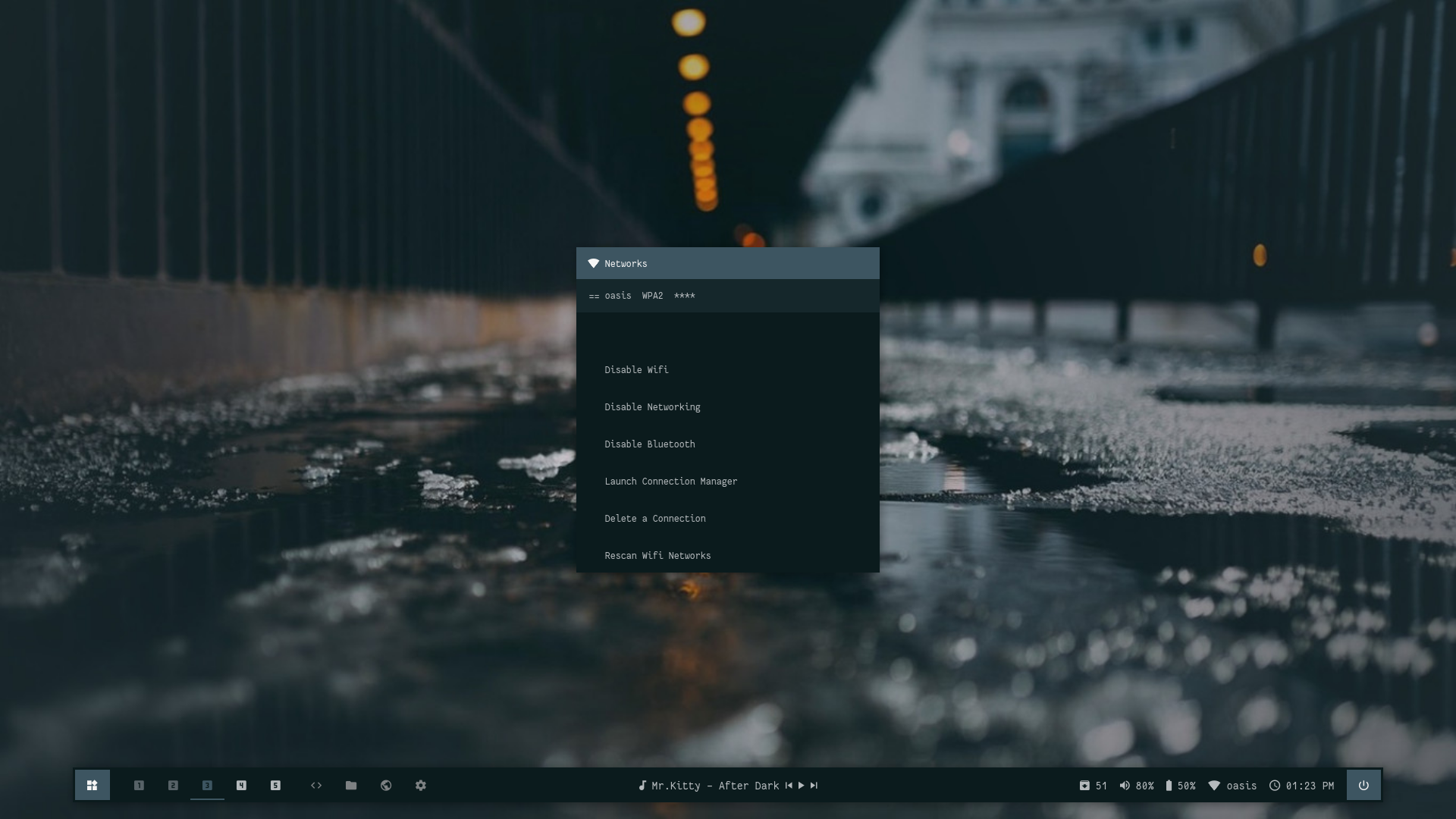
- Rofi menus with same colors
- Added Pywal support
- Script to set random colors
Tips
- Run
preview.shto see all configured modules - Left click on apps icon for
App Launcher - Right click on apps icon for
Color Switcher - Left click on power icon for
Powermenu - Left click on network name for
Network Menu
Previews
Click to expand
Bar


Modules


Dark
Light


| Launcher | Networks |
|---|---|
 |  |
| Powermenu | Color Switcher |
|---|---|
 |  |
Shades


Overview
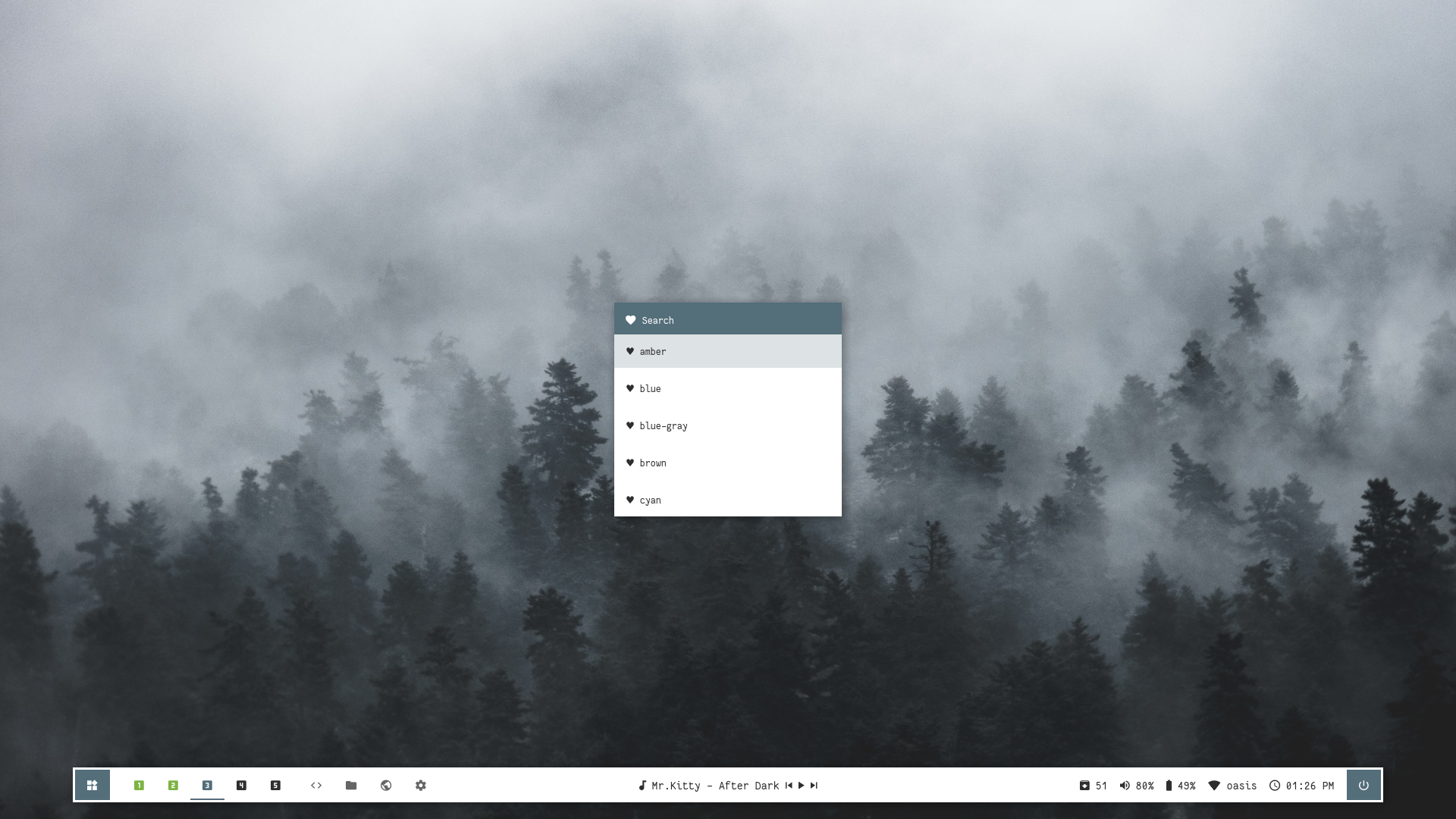
Window Manager: OpenboxIcon Font: Iosevka Nerd FontText Font: Fantasque Sans Mono
Features
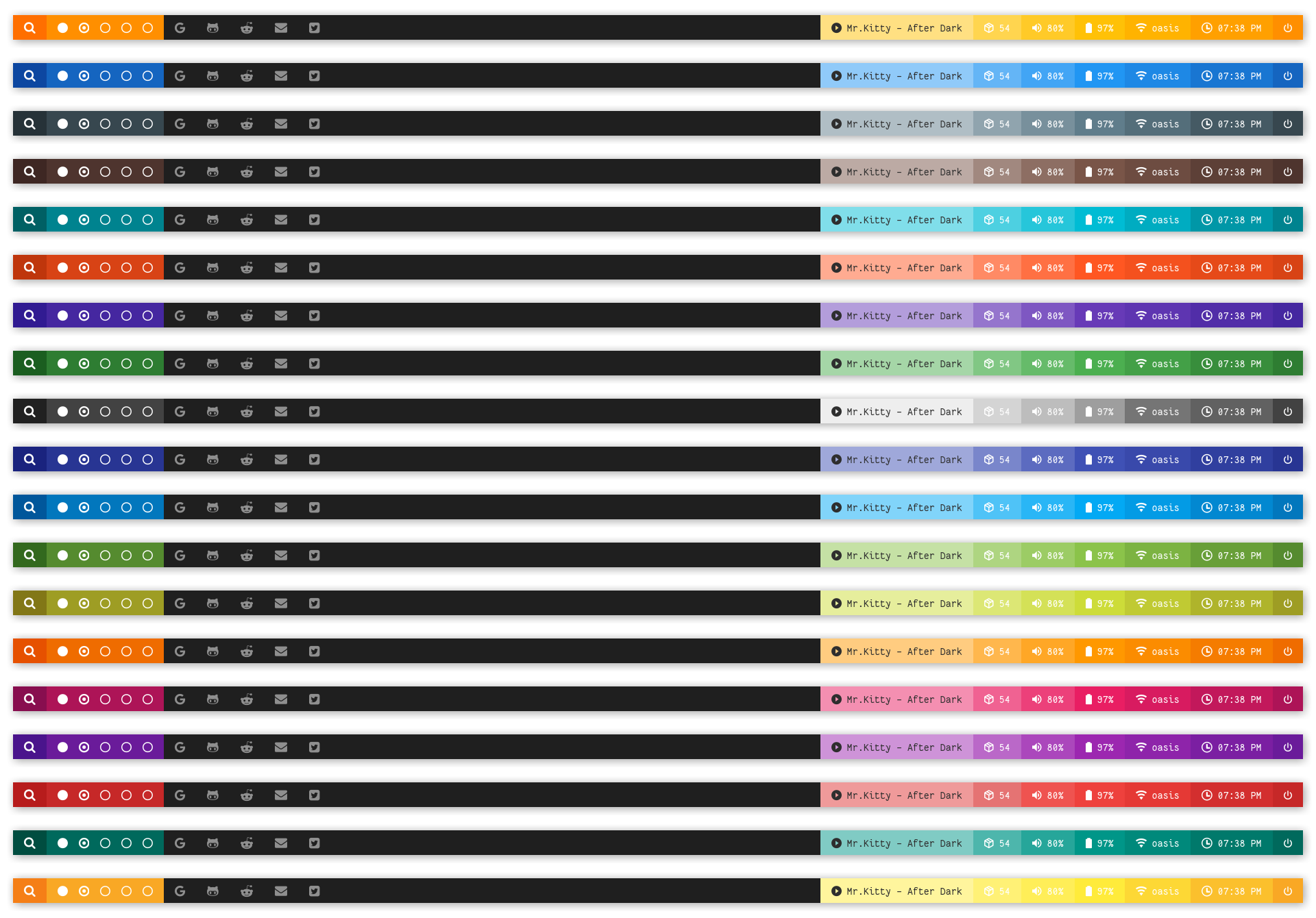
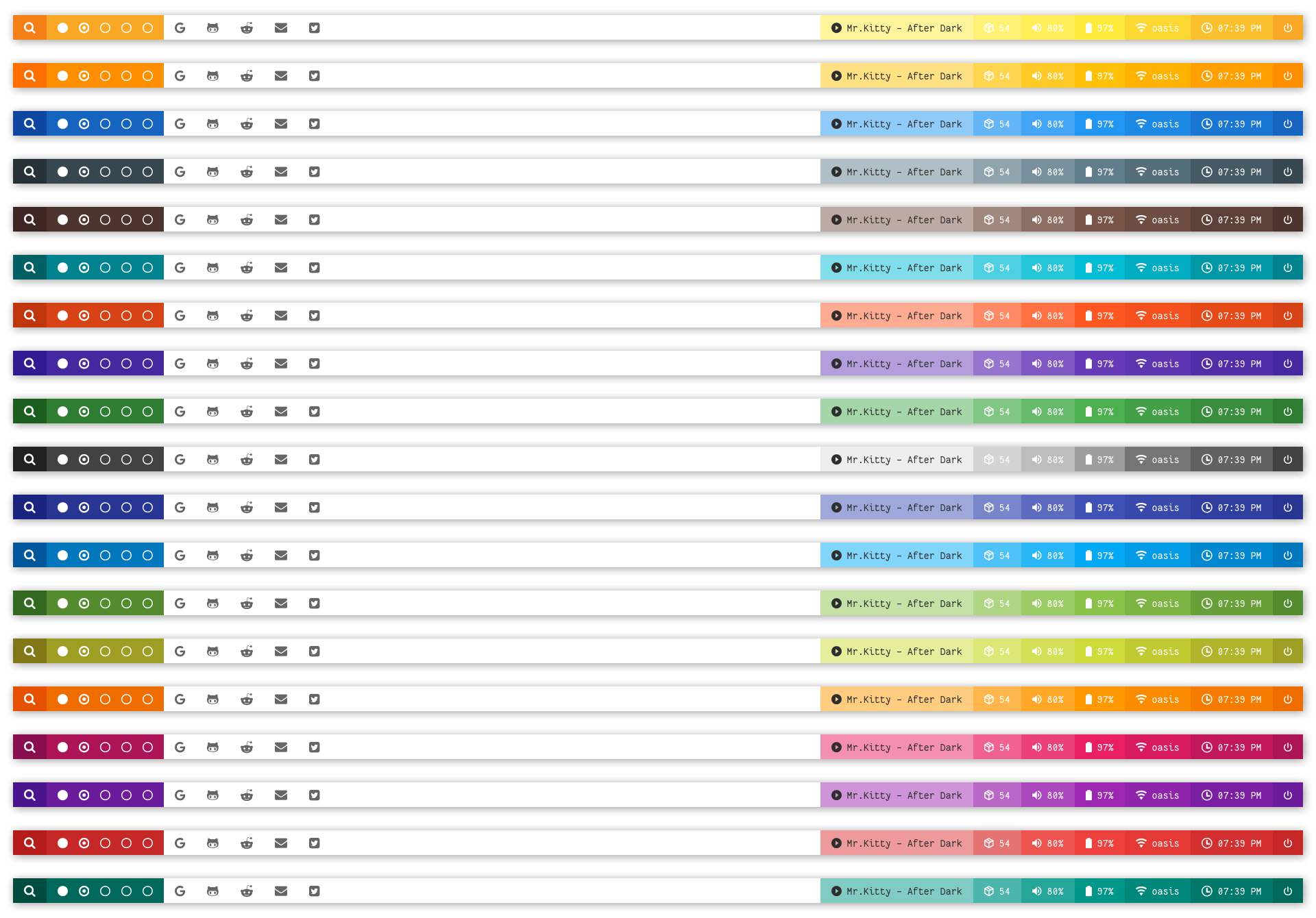
- Dark and Light mode with 15+ colors
- Rofi menus with same colors
- Added Pywal support
- Script to set random colors
Tips
- Run
preview.shto see all configured modules - Left click on search icon for
App Launcher - Right click on search icon for
Color Switcher - Left click on power icon for
Powermenu - Left click on network name for
Network Menu
Previews
Click to expand
Bar


Modules


Dark
Light


| Launcher | Networks |
|---|---|
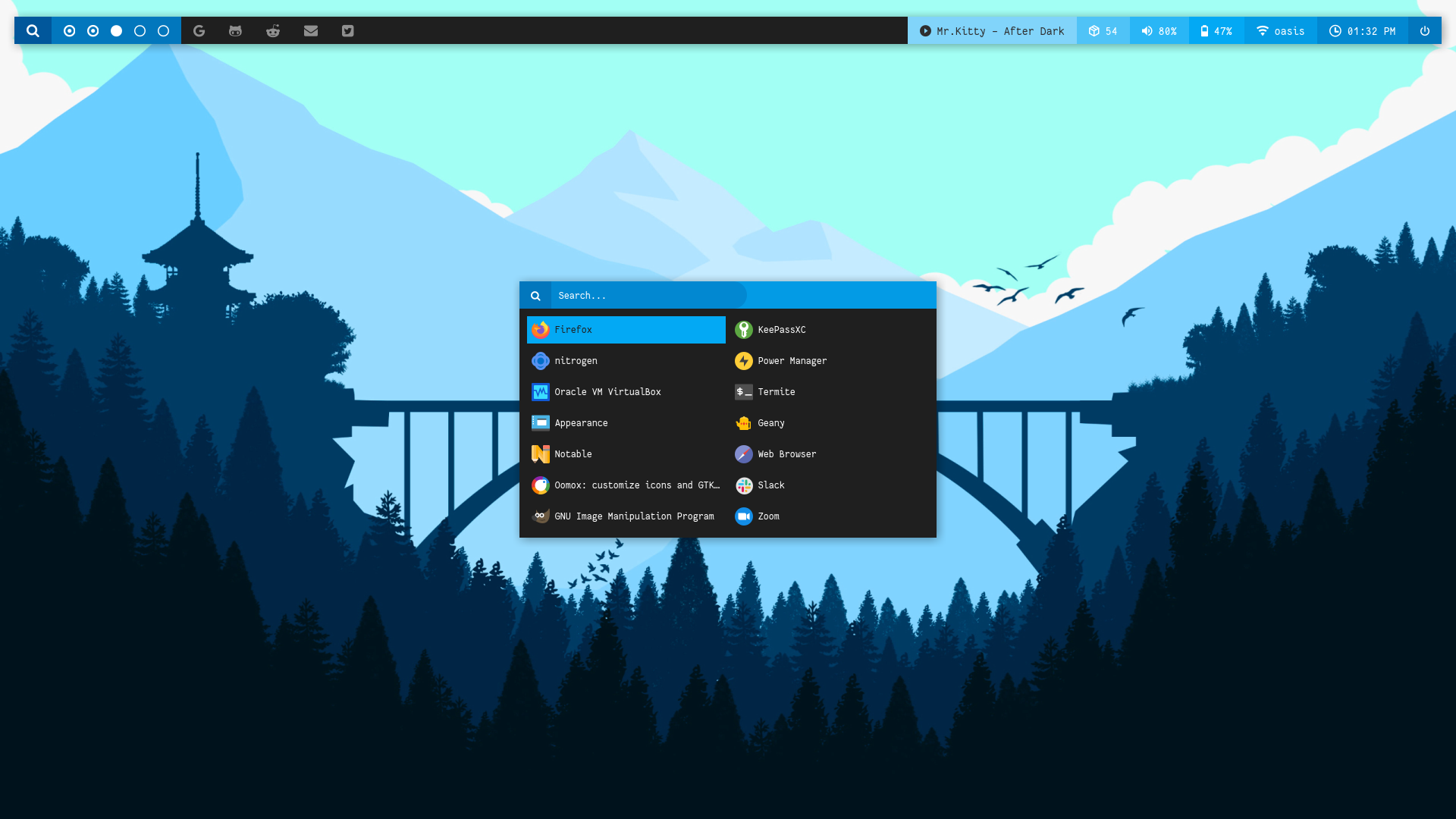 | 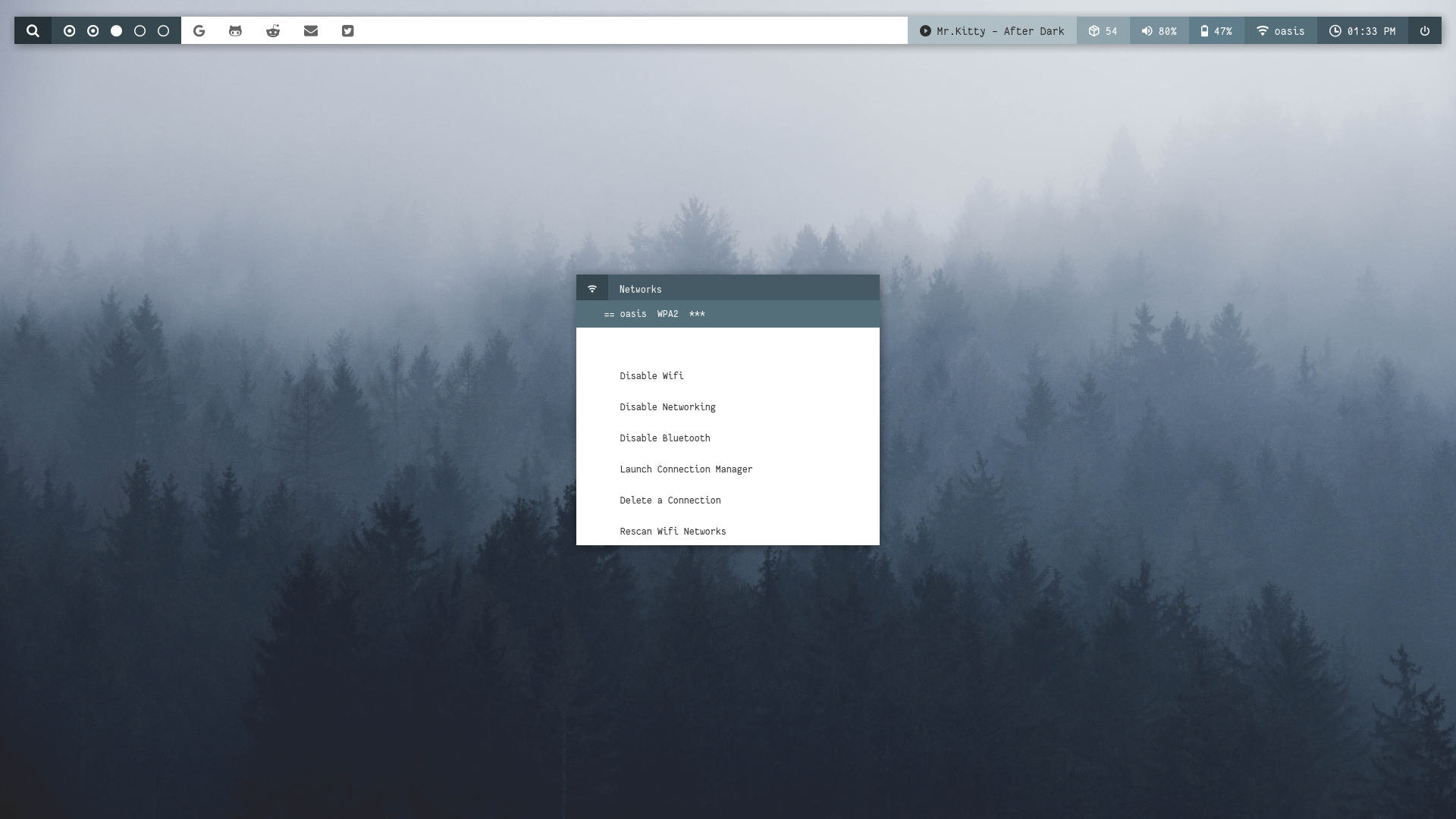 |
| Powermenu | Color Switcher |
|---|---|
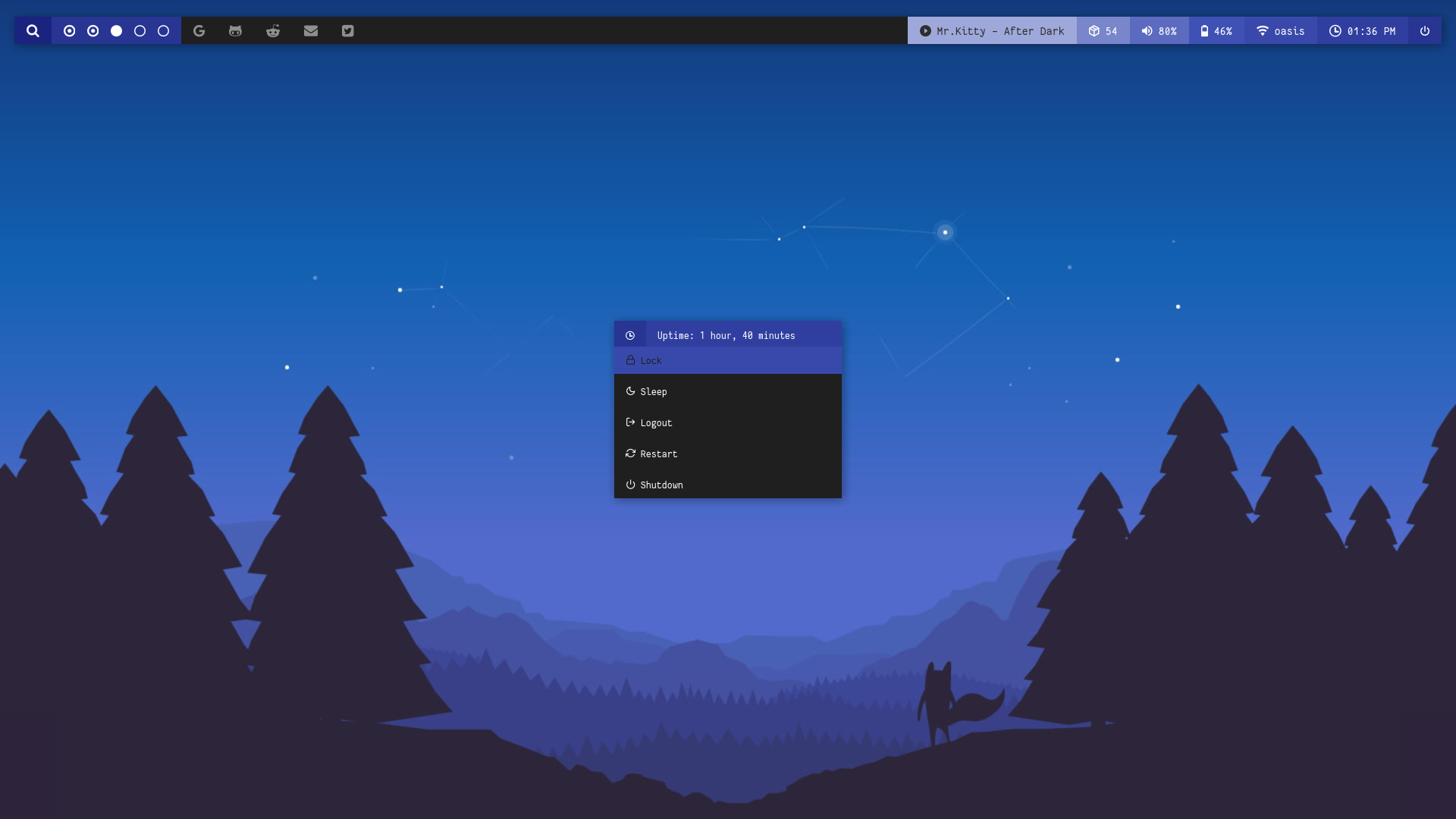 | 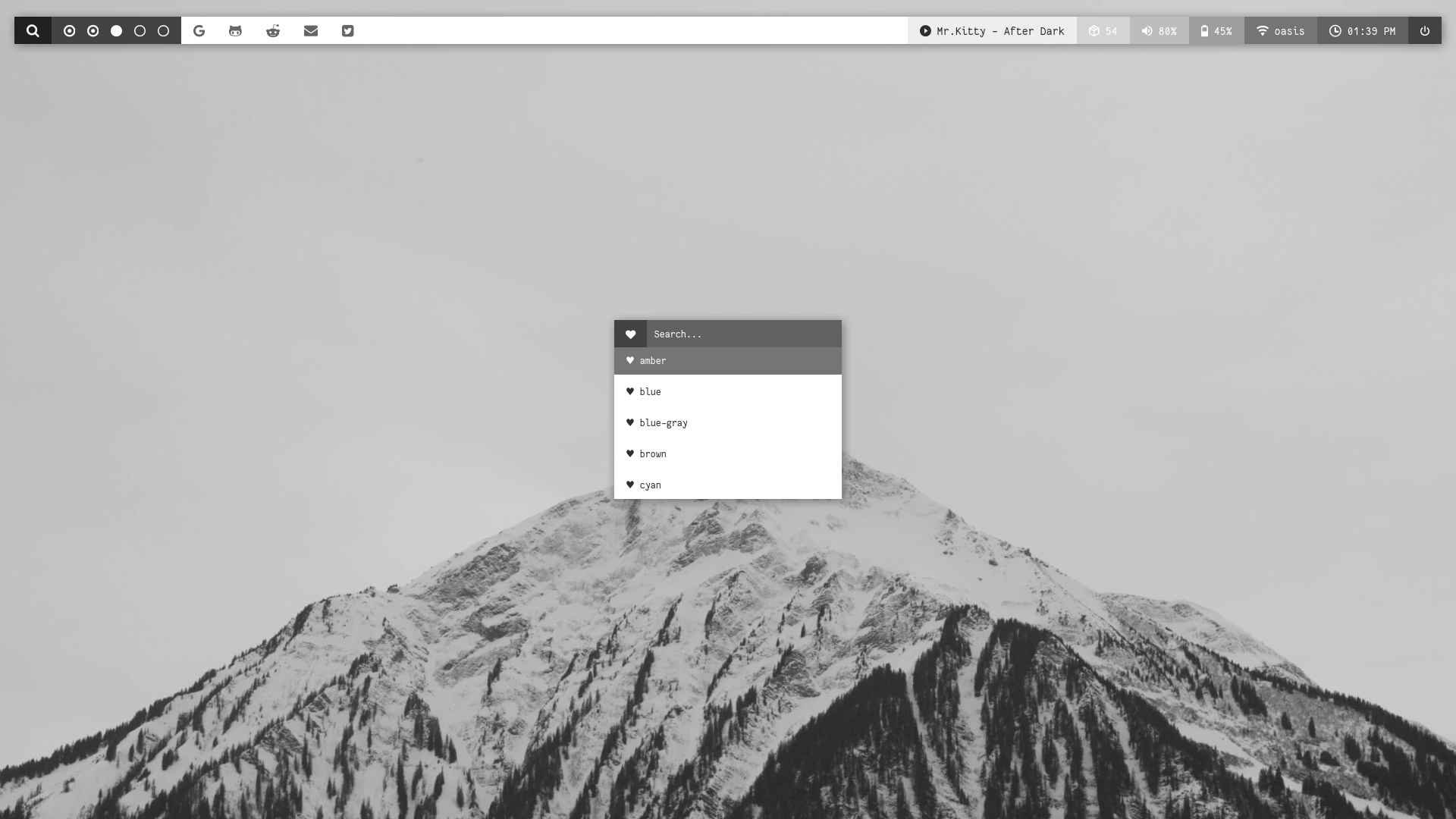 |
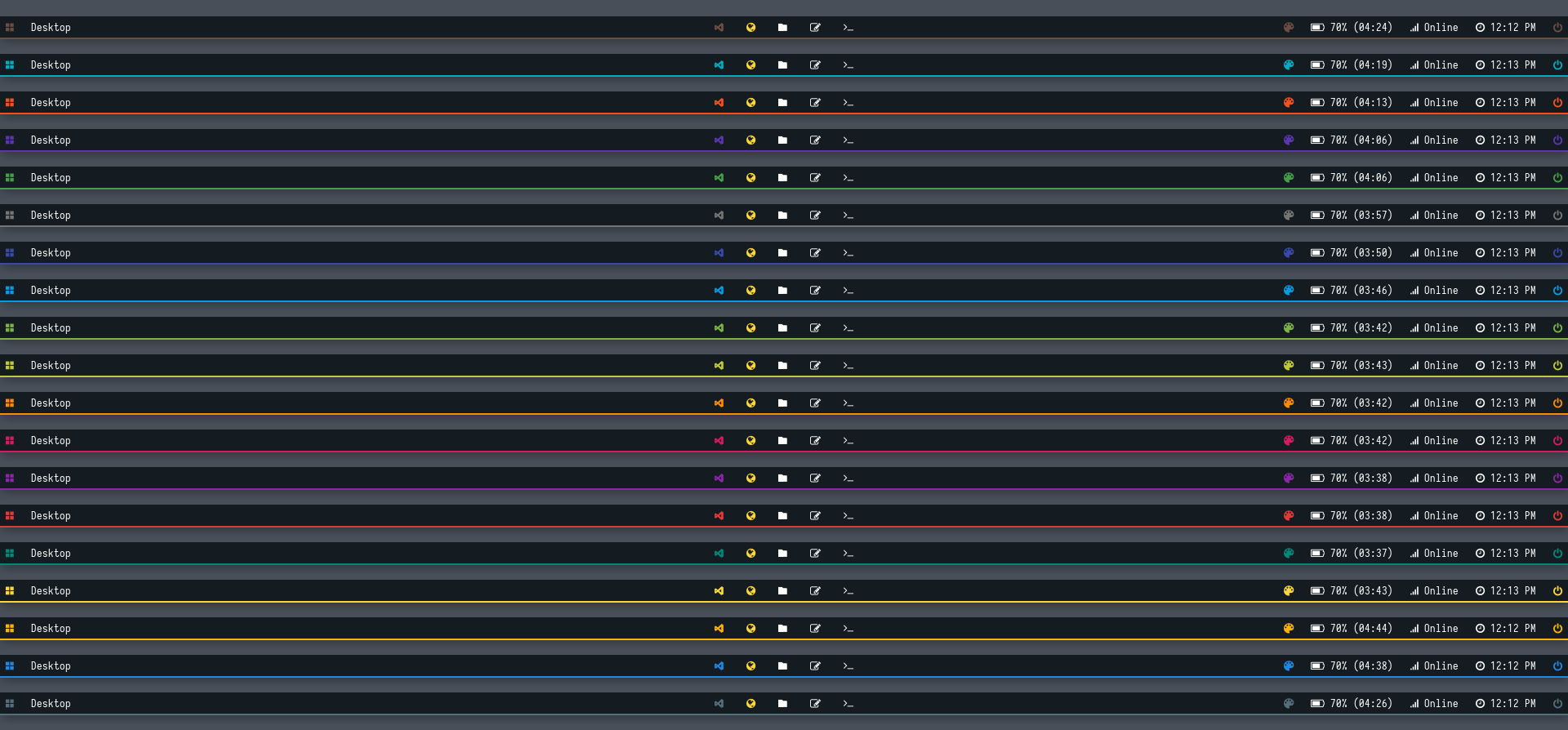
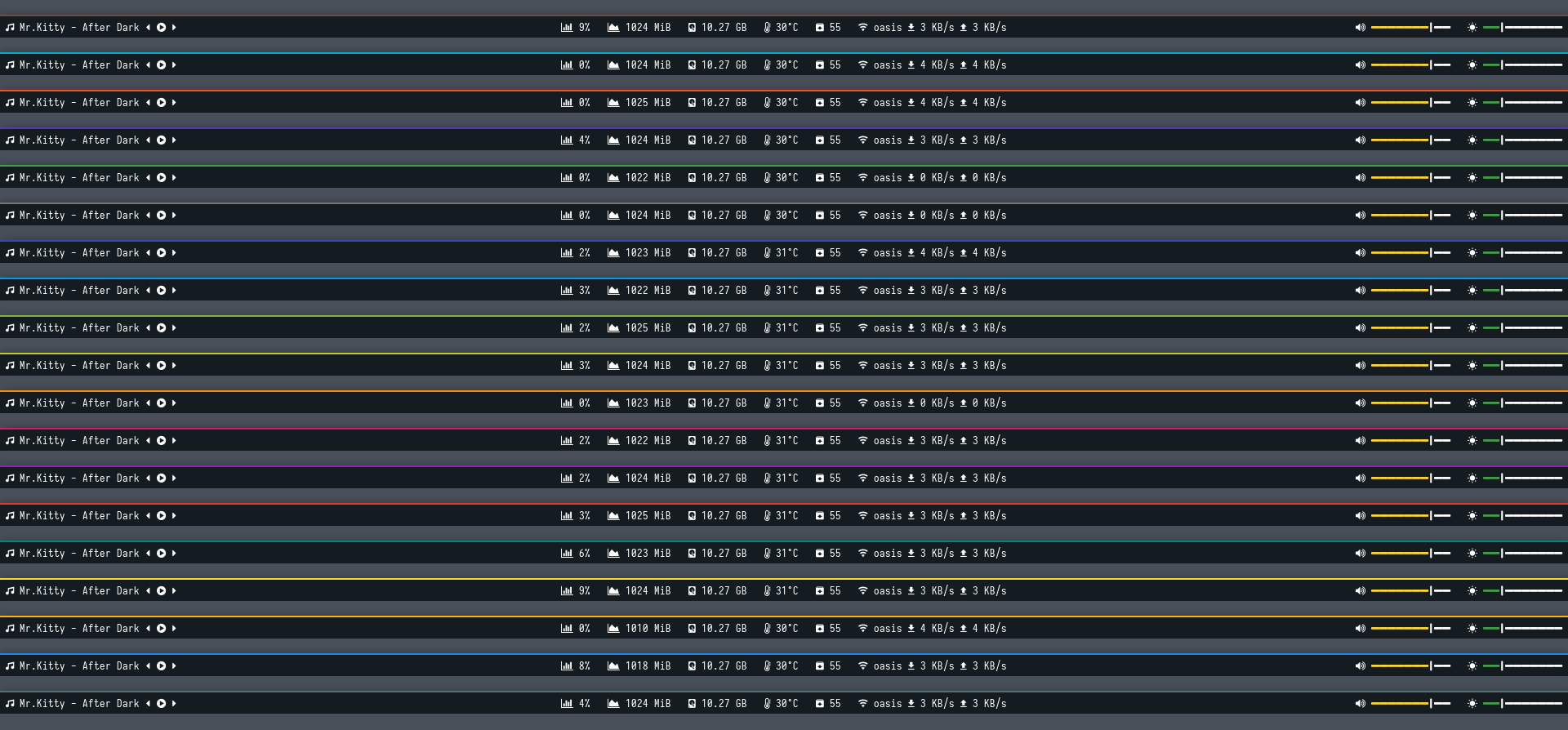
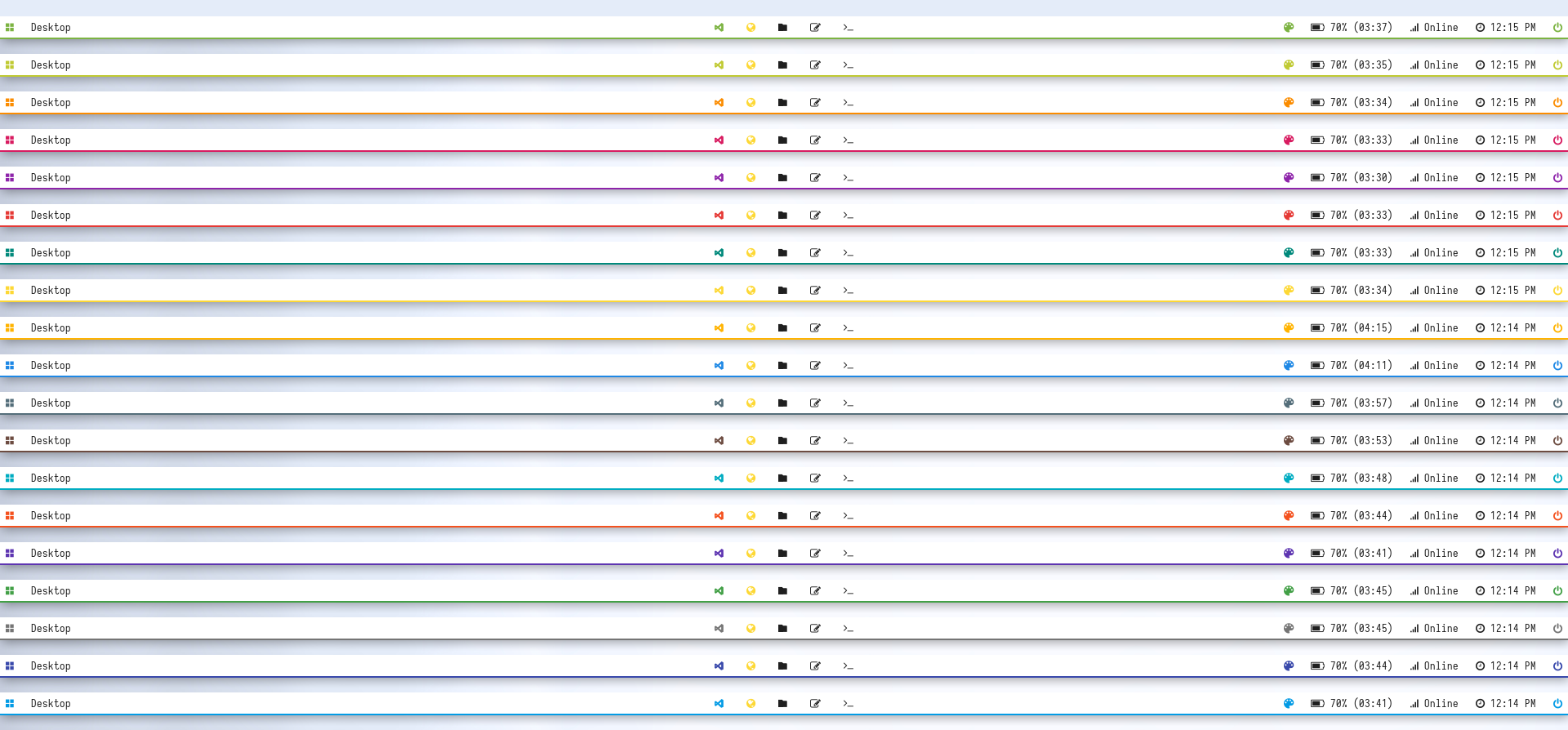
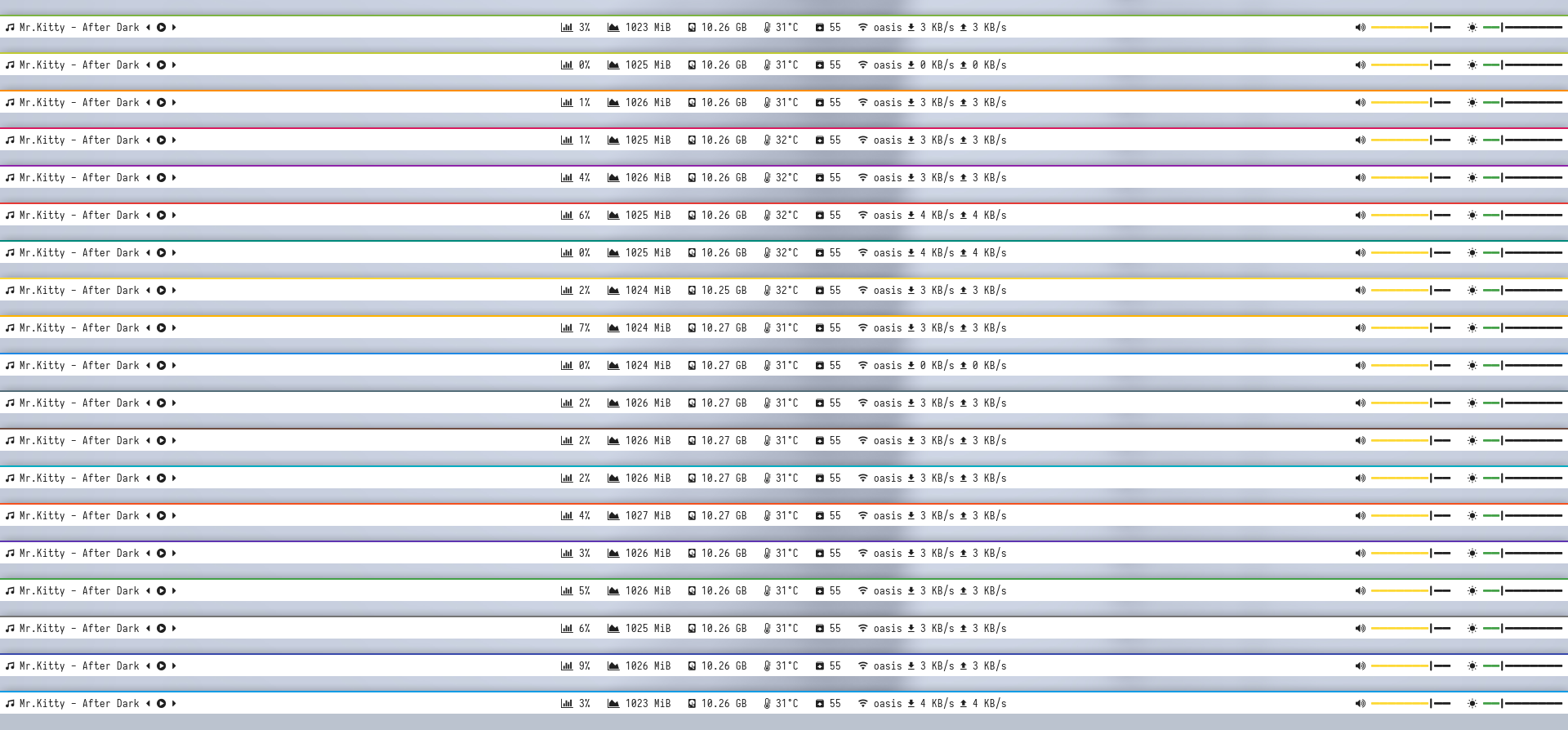
Hack




Overview
Window Manager: OpenboxIcon Font: Iosevka Nerd FontText Font: Iosevka Nerd Font
Features
- Dark and Light mode with 15+ colors
- Rofi menus with same colors
- Added Pywal support
- Script to set random colors
Tips
- Run
preview.shto see all configured modules - Left click on apps icon for
App Launcher - Left click on colors icon for
Color Switcher - Left click on power icon for
Powermenu - Left click on network name/status for
Network Menu
Previews
Click to expand
Bar




Modules


Dark
Light




| Launcher | Networks |
|---|---|
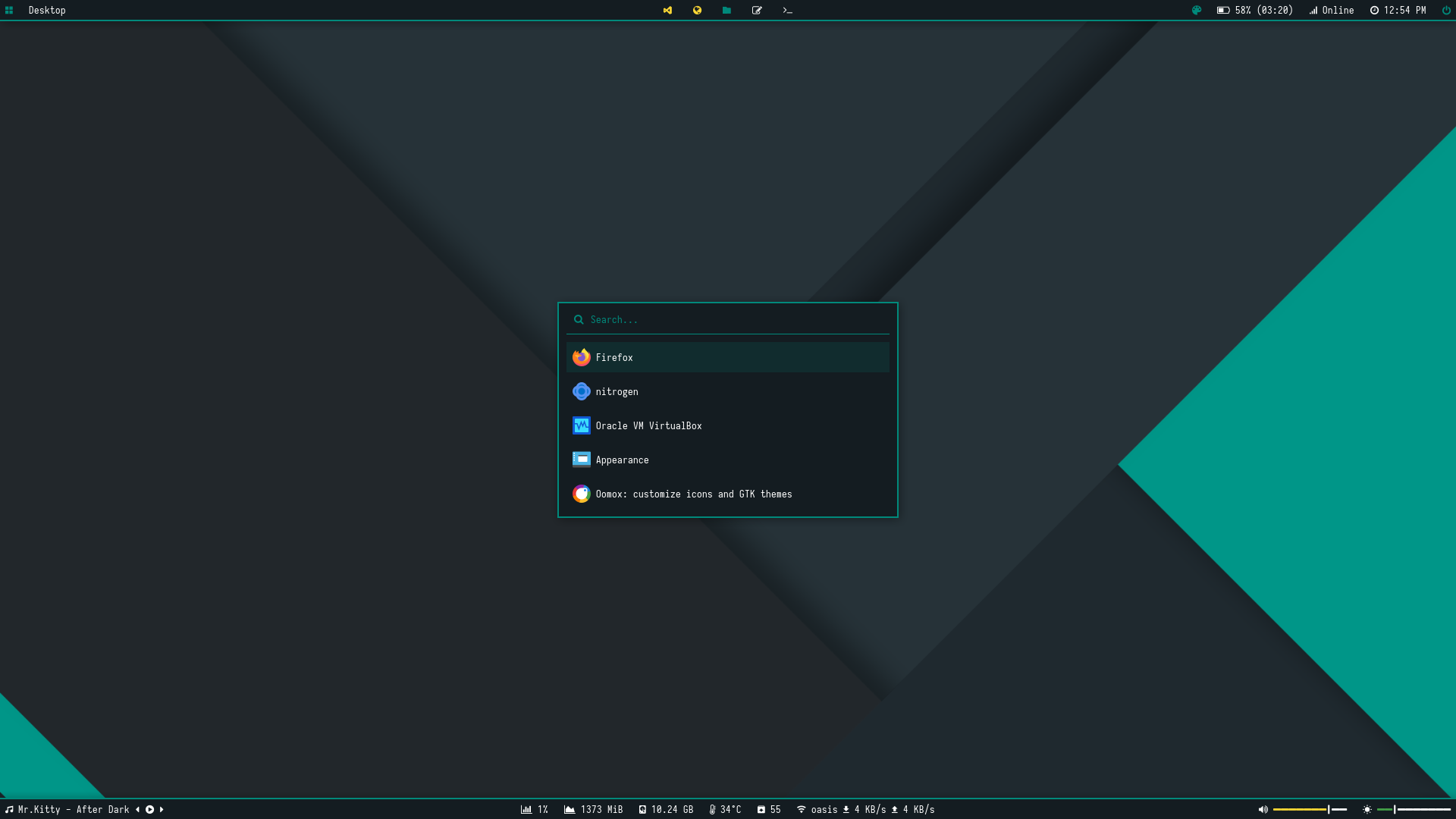 | 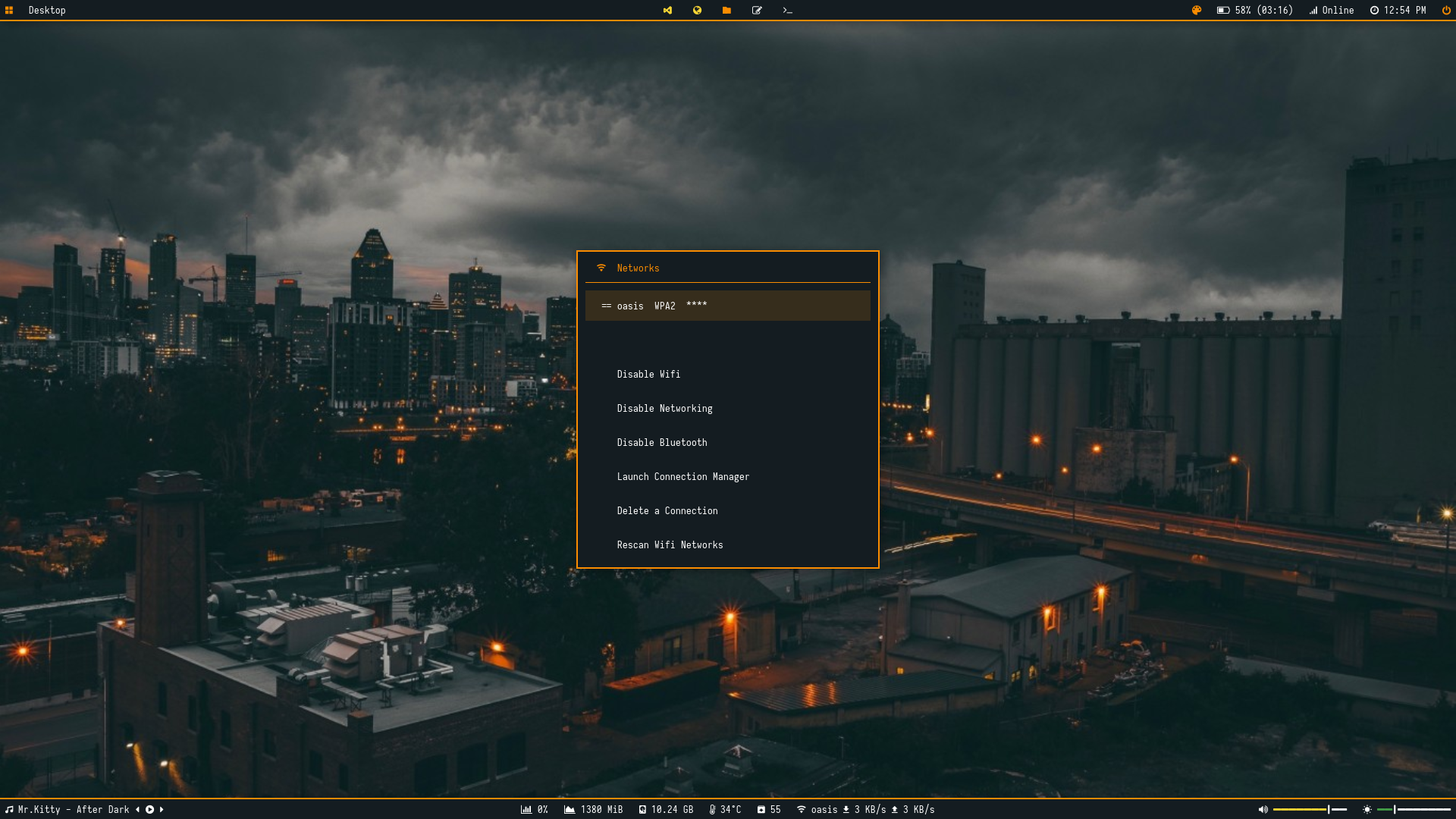 |
| Powermenu | Color Switcher |
|---|---|
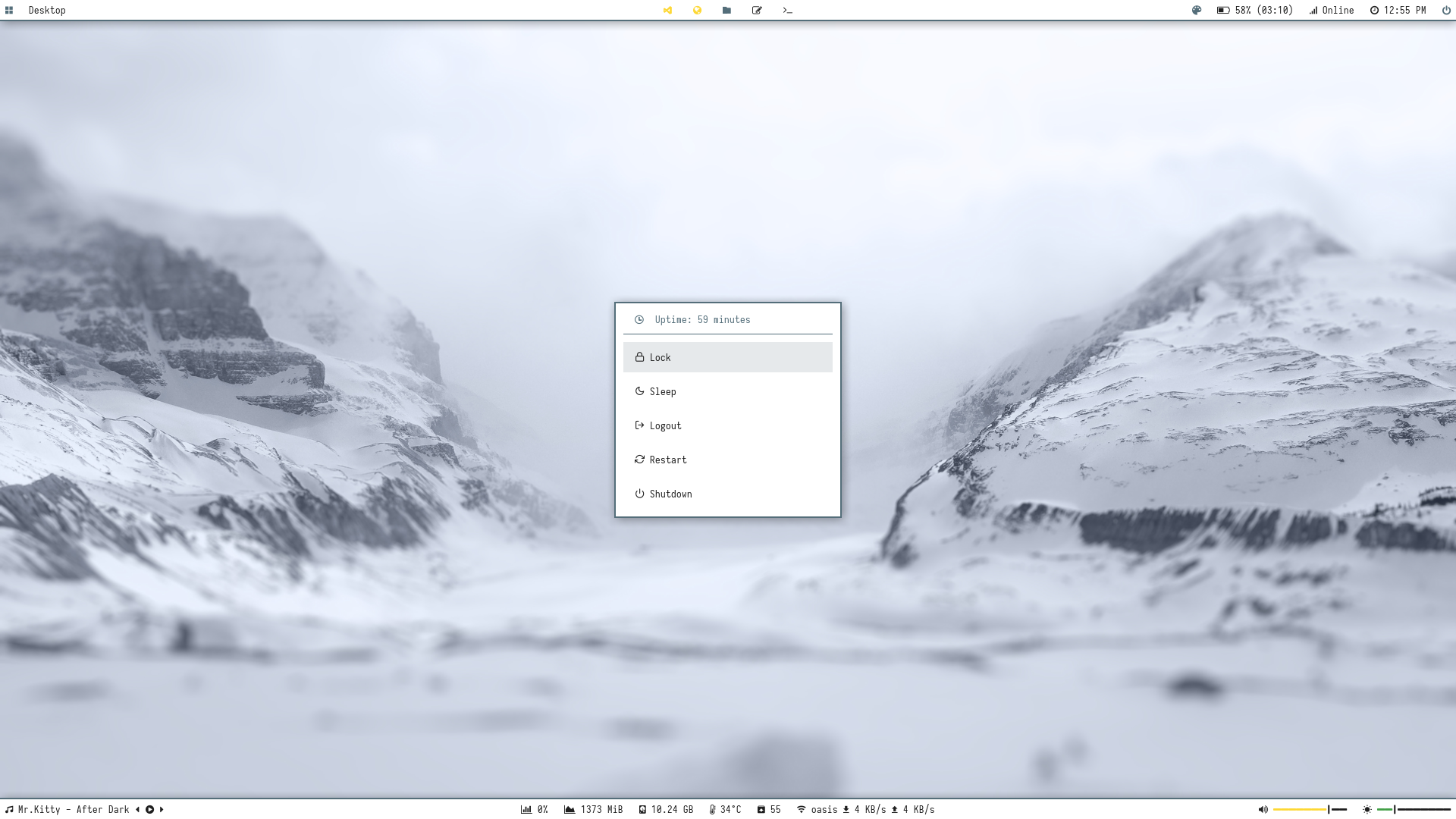 | 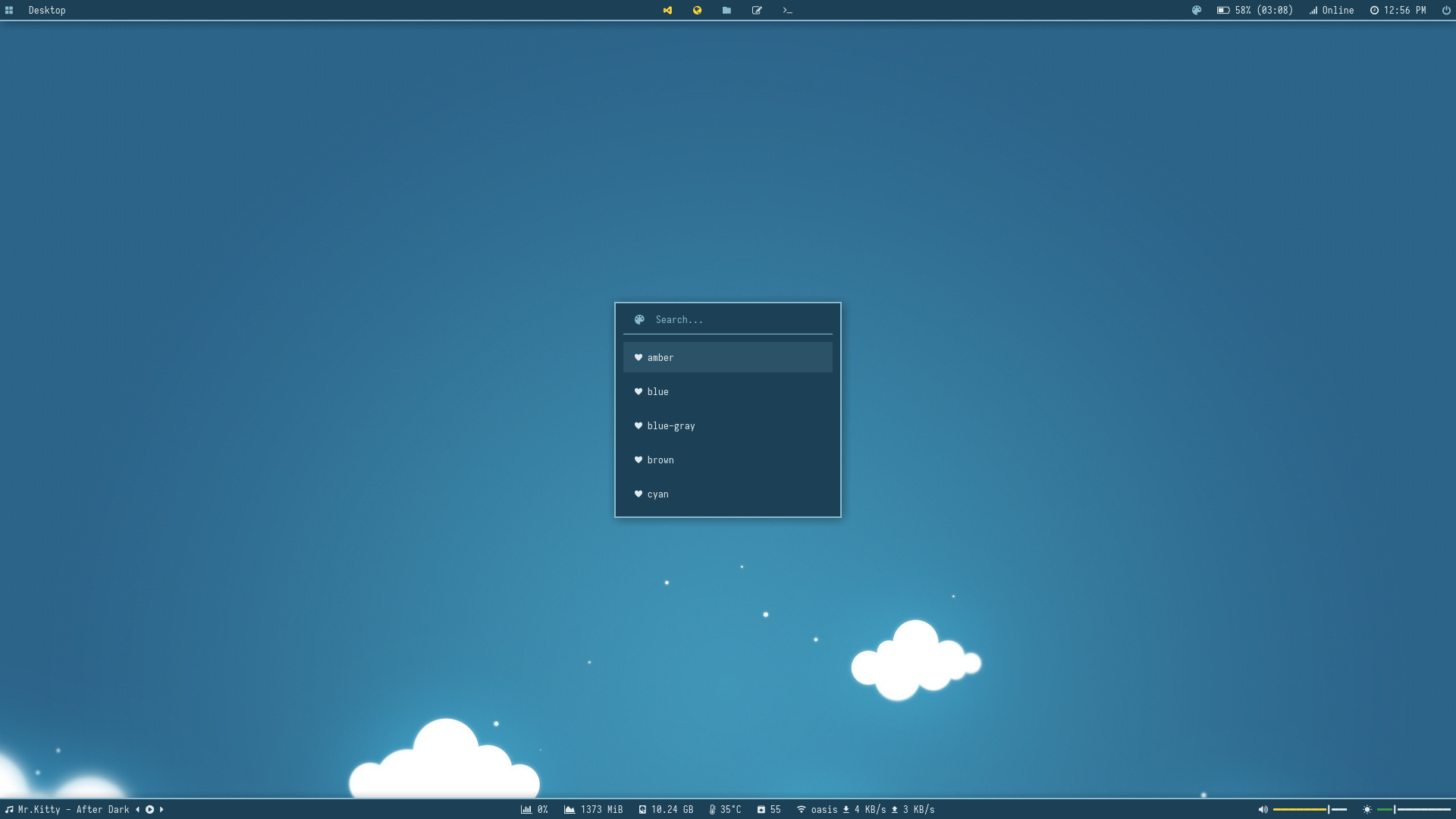 |
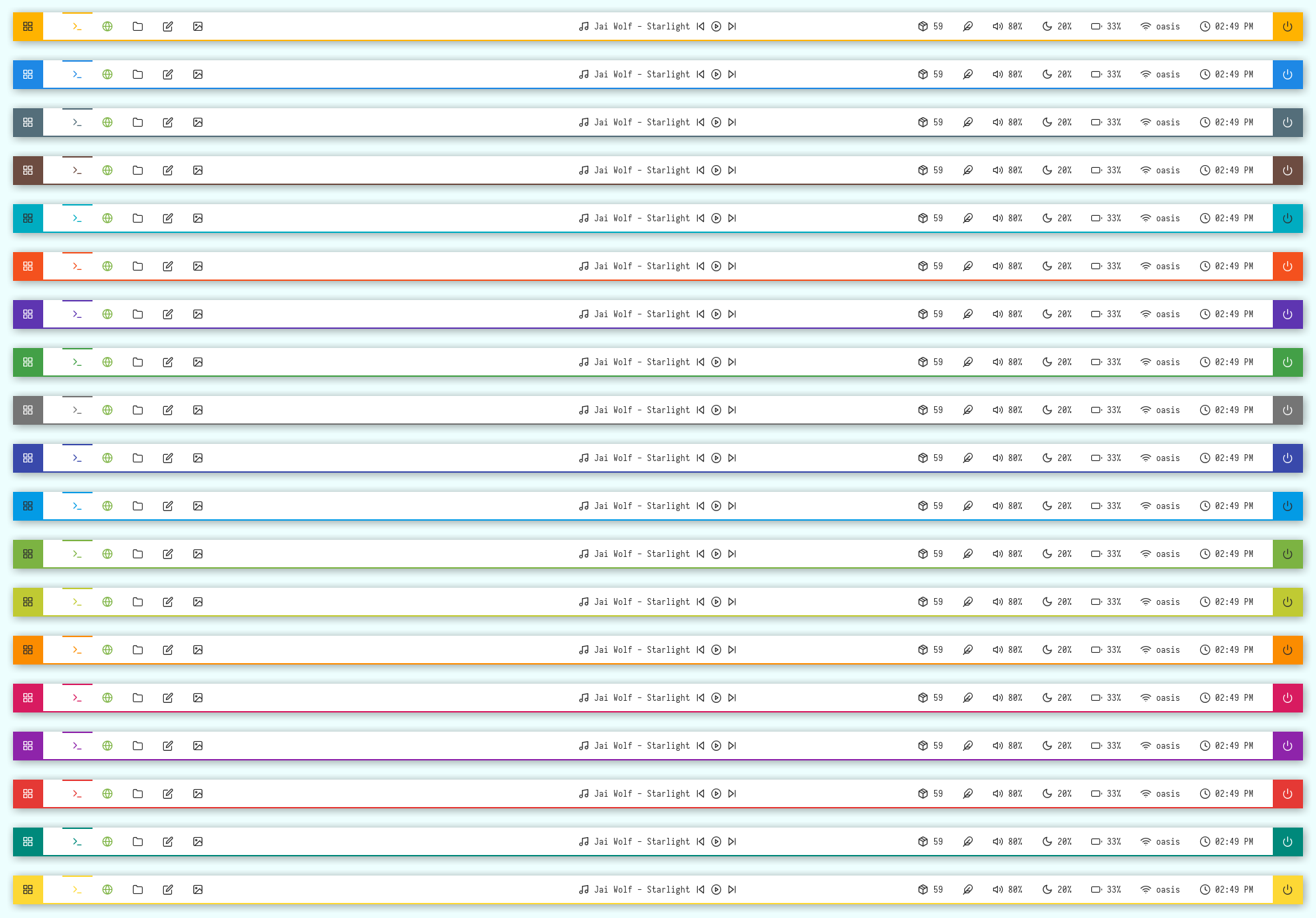
Docky


Overview
Window Manager: OpenboxIcon Font: Icomoon FeatherText Font: Iosevka Nerd Font
Features
- Dark and Light mode with 15+ colors
- Rofi menus with same colors
- Added Pywal support
- Script to set random colors
Tips
- Run
preview.shto see all configured modules - Left click on apps icon for
App Launcher - Left click on feather icon for
Color Switcher - Left click on power icon for
Powermenu - Left click on network name for
Network Menu
Previews
Click to expand
Bar


Modules


Dark
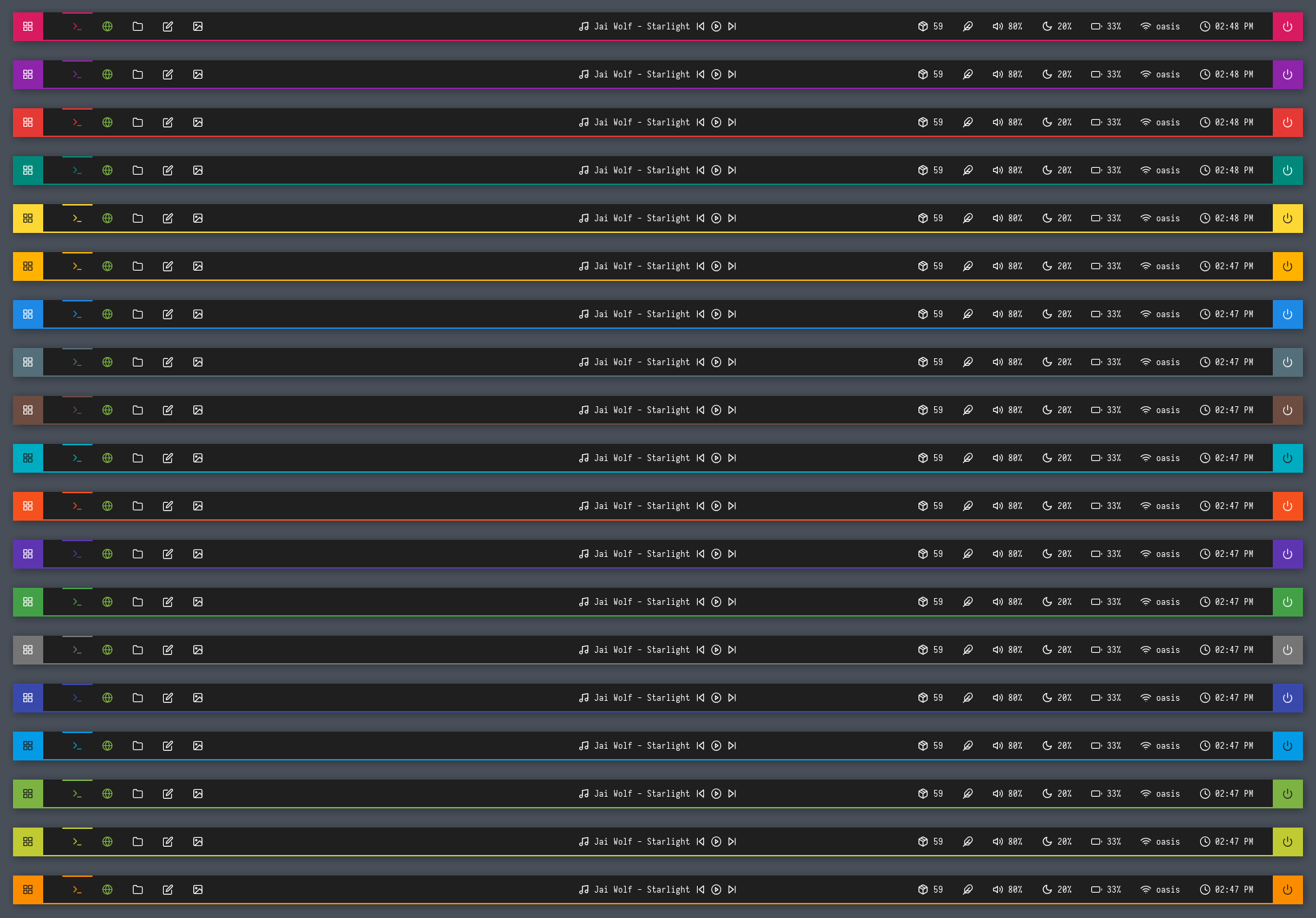
Light


| Launcher | Networks |
|---|---|
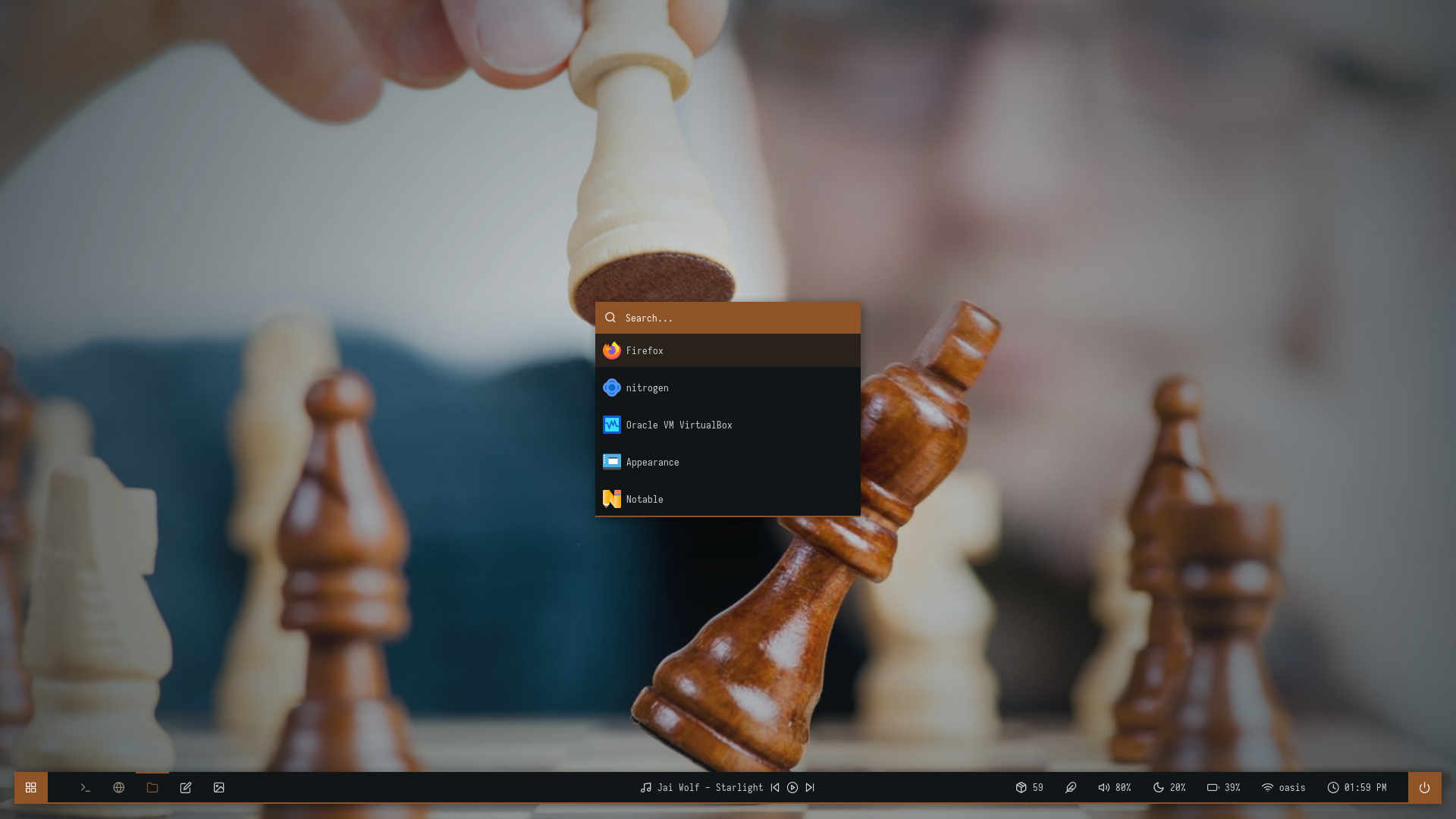 | 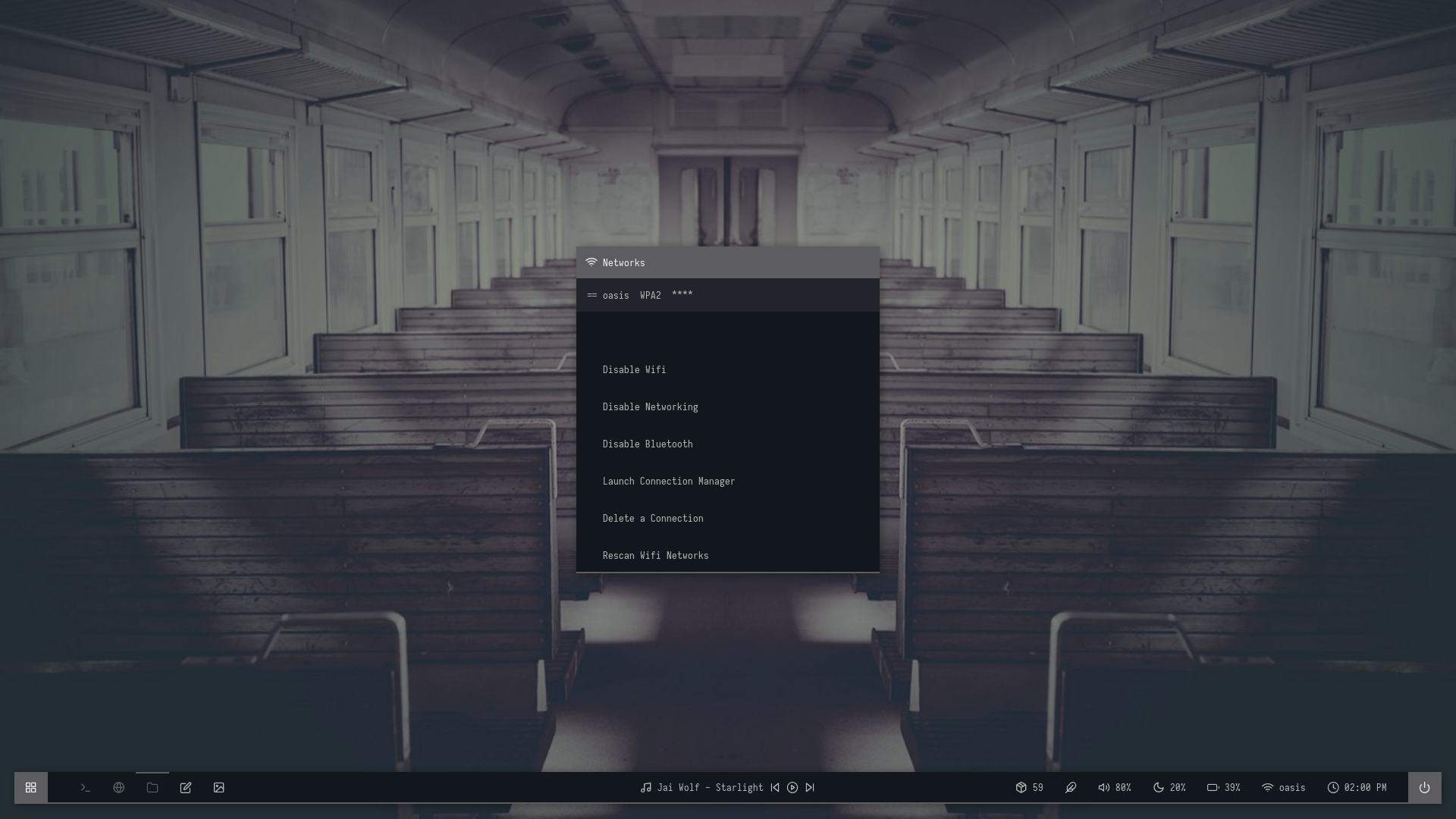 |
| Powermenu | Color Switcher |
|---|---|
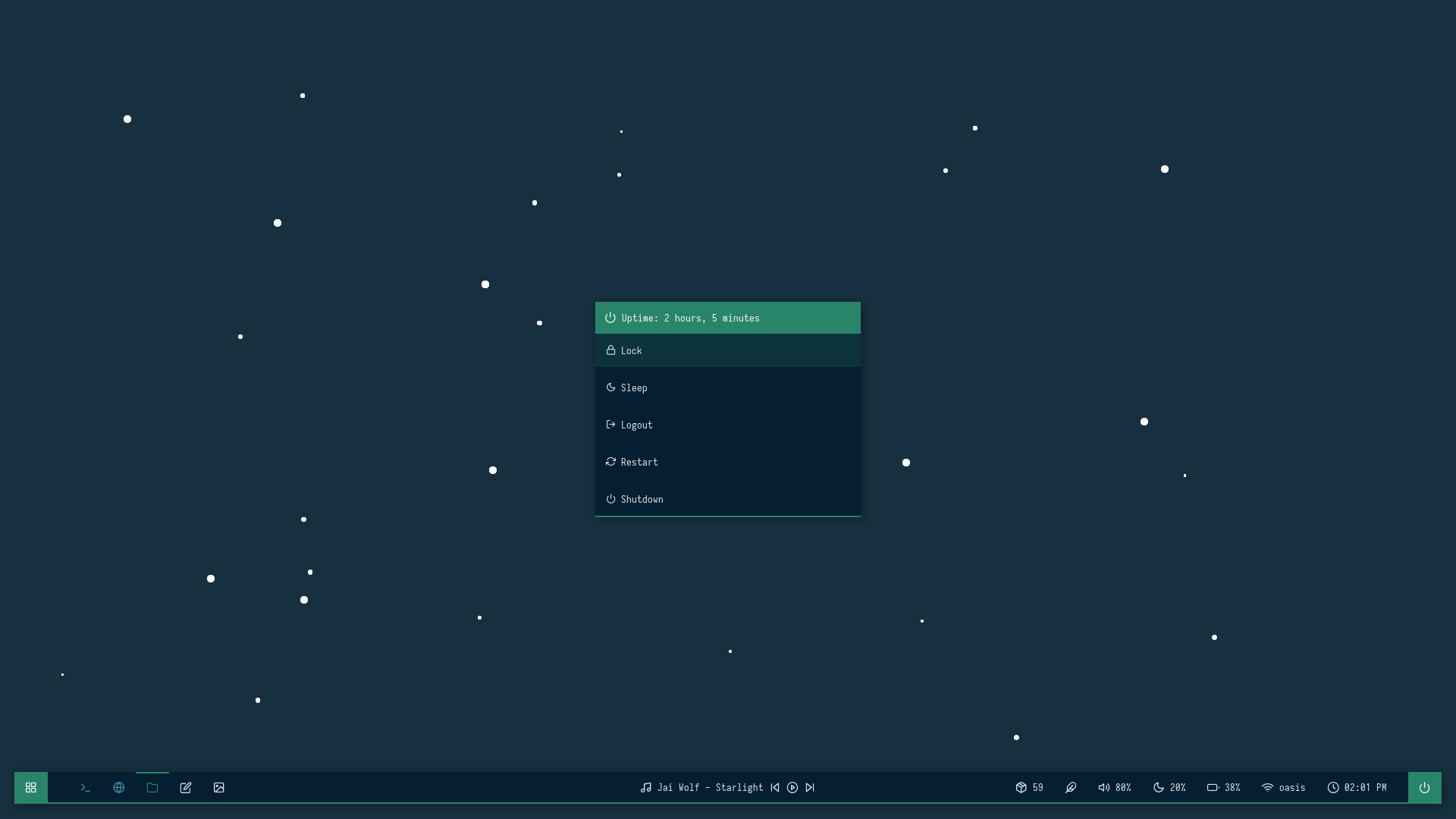 | 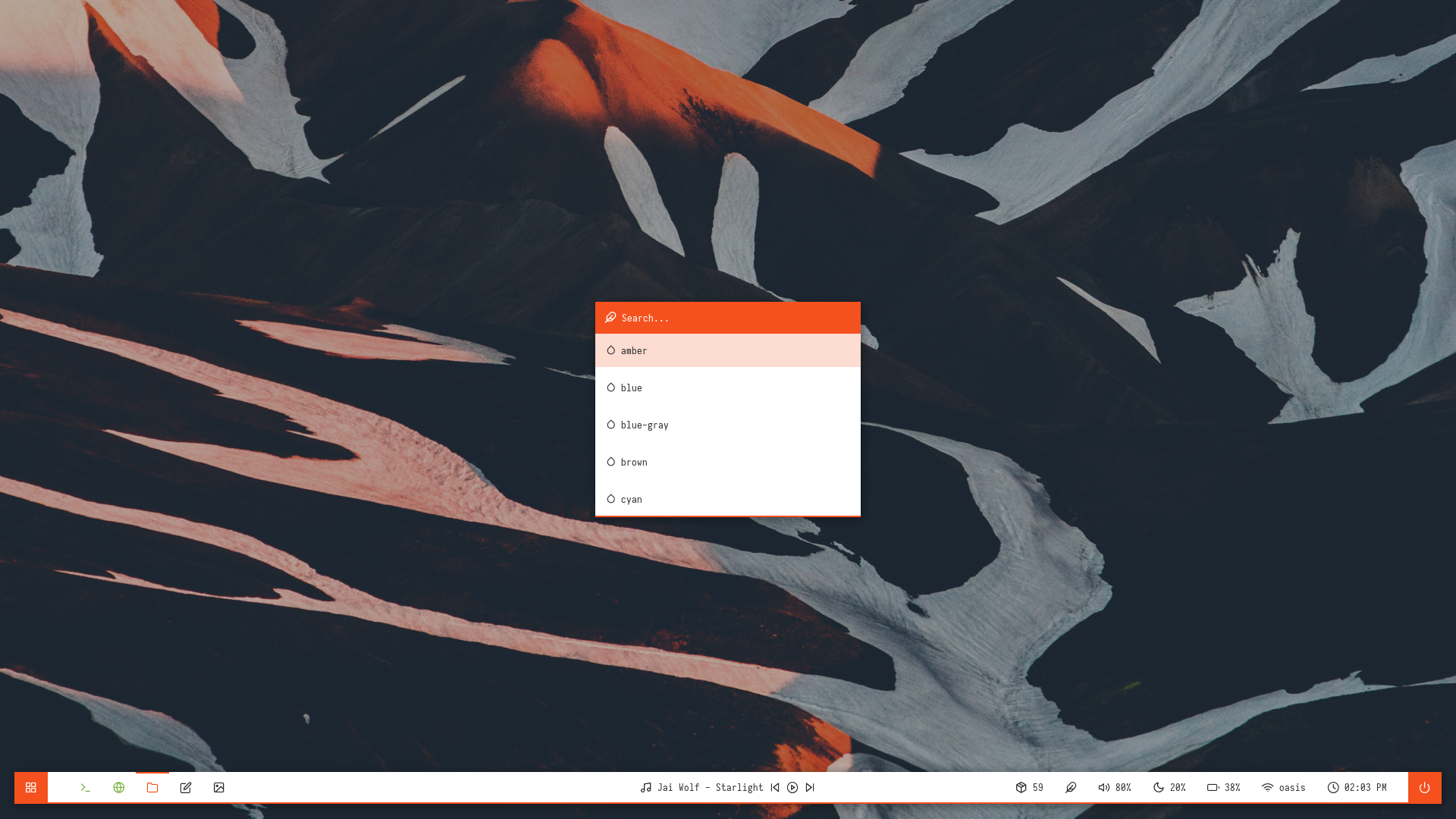 |
Cuts






Overview
Window Manager: OpenboxIcon Font: Icomoon FeatherText Font: Iosevka Nerd Font
Features
- Dark and Light mode with 15+ colors
- Popular color-schemes based themes
- Rofi menus with same colors
- Added Pywal support
- Script to set random colors
Tips
- Run
preview.shto see all configured modules - Left click on apps icon for
App Launcher - Left click on feather icon for
Style Switcher - Right click on feather icon for
Color Switcher - Left click on power icon for
Powermenu - Left click on network name for
Network Menu
Previews
Click to expand
Bar


Modules


Dark
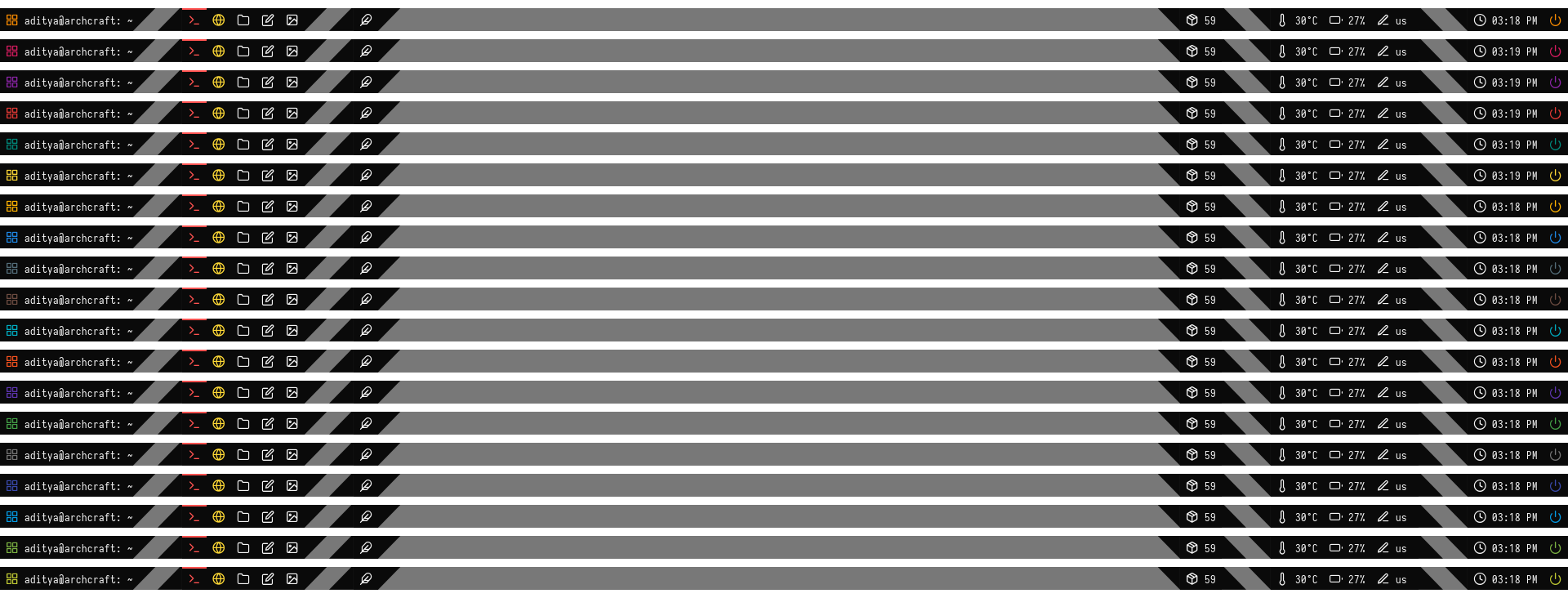
Light
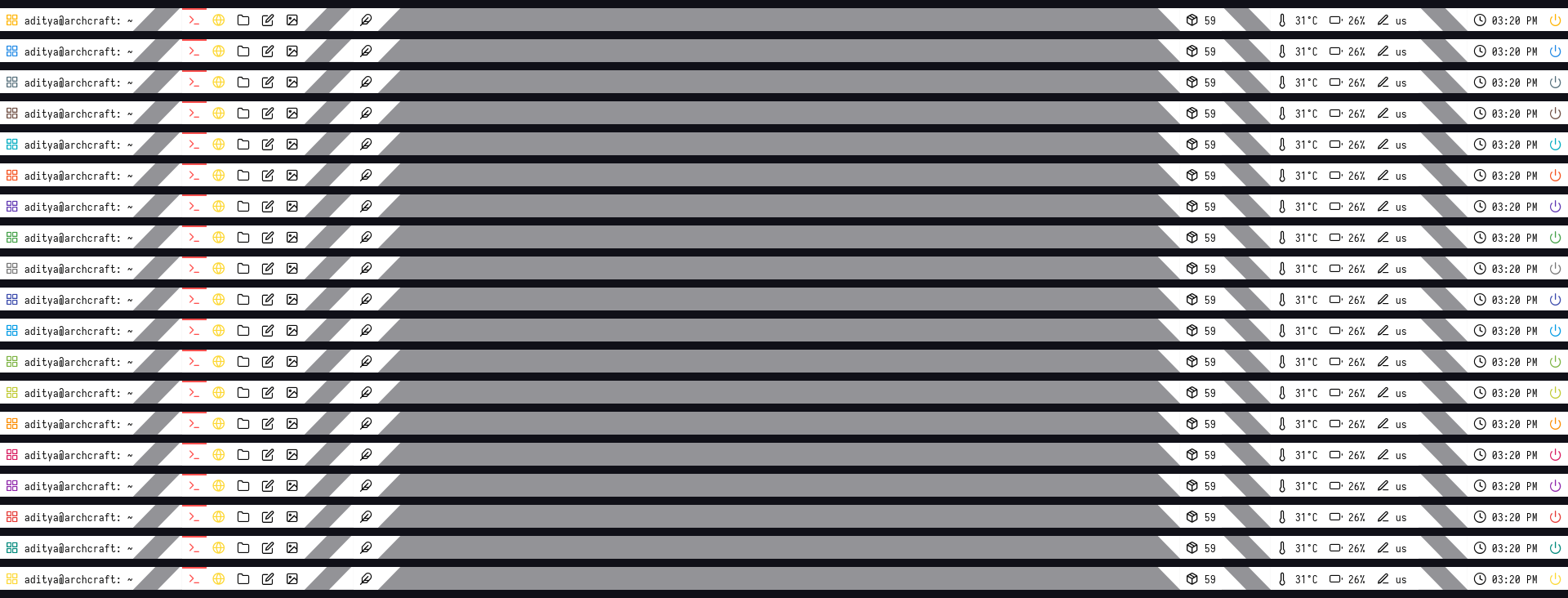
Colors
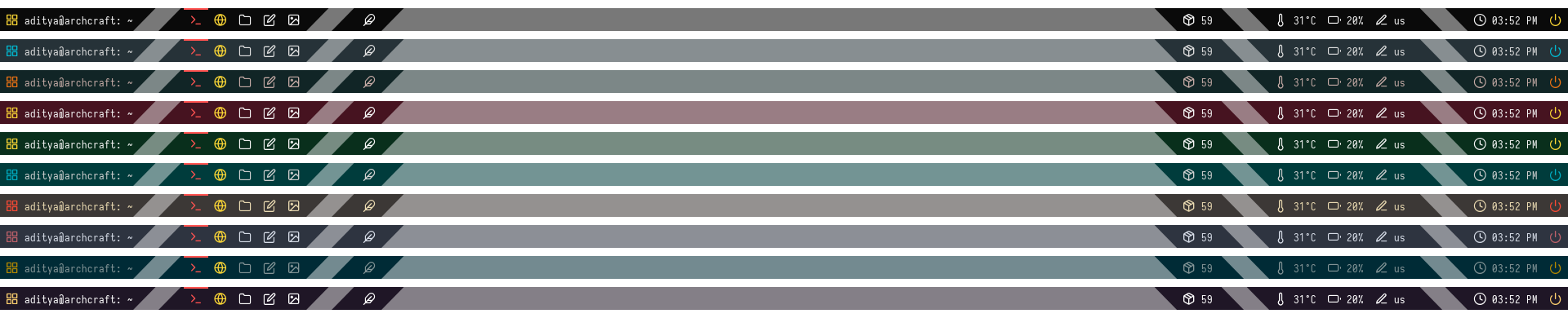
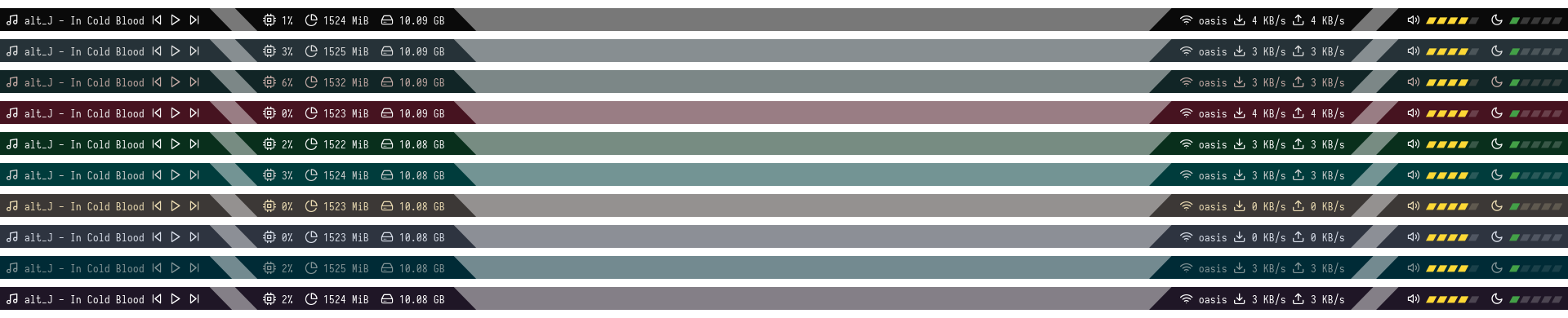




| Launcher | Networks |
|---|---|
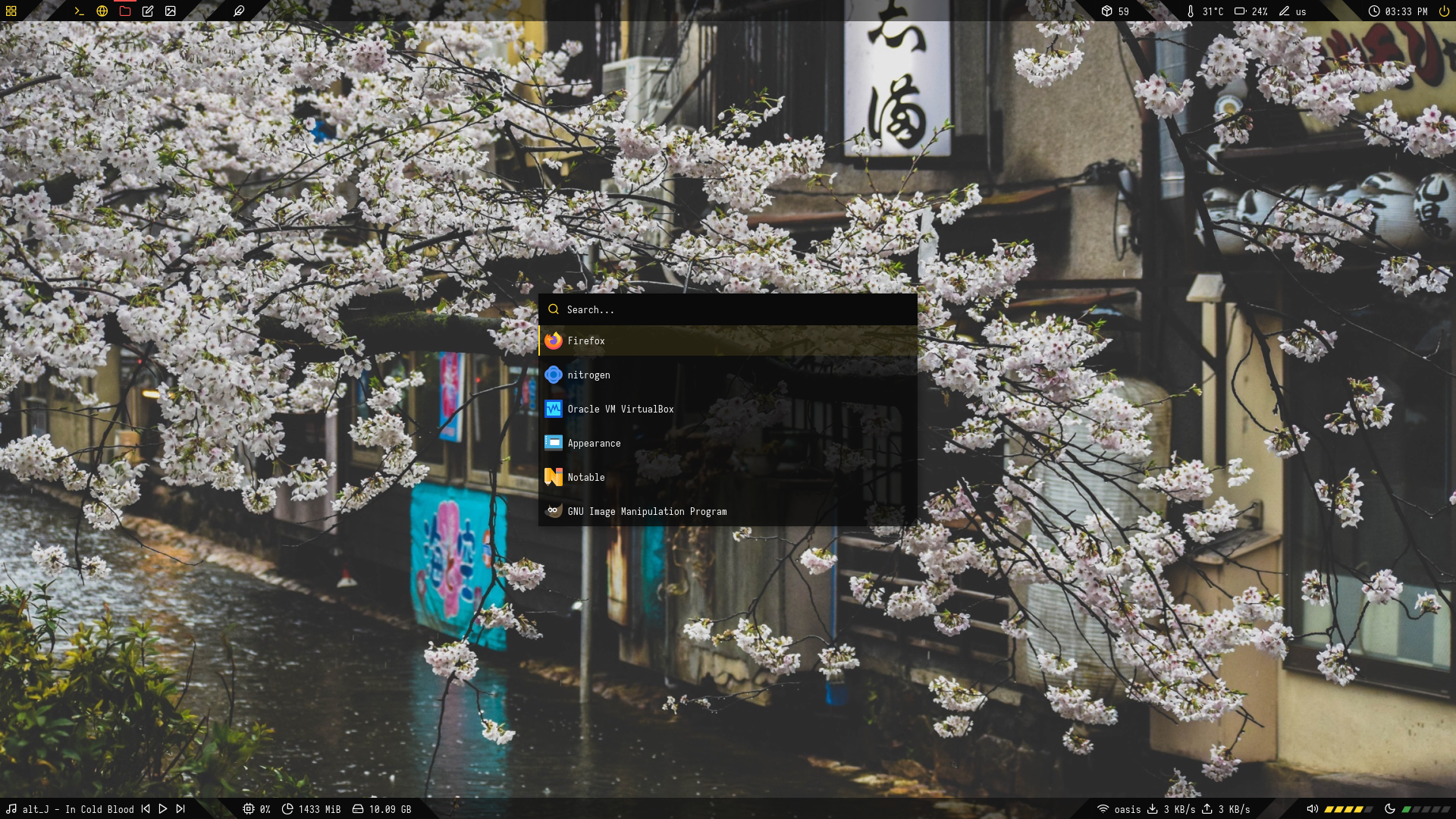 | 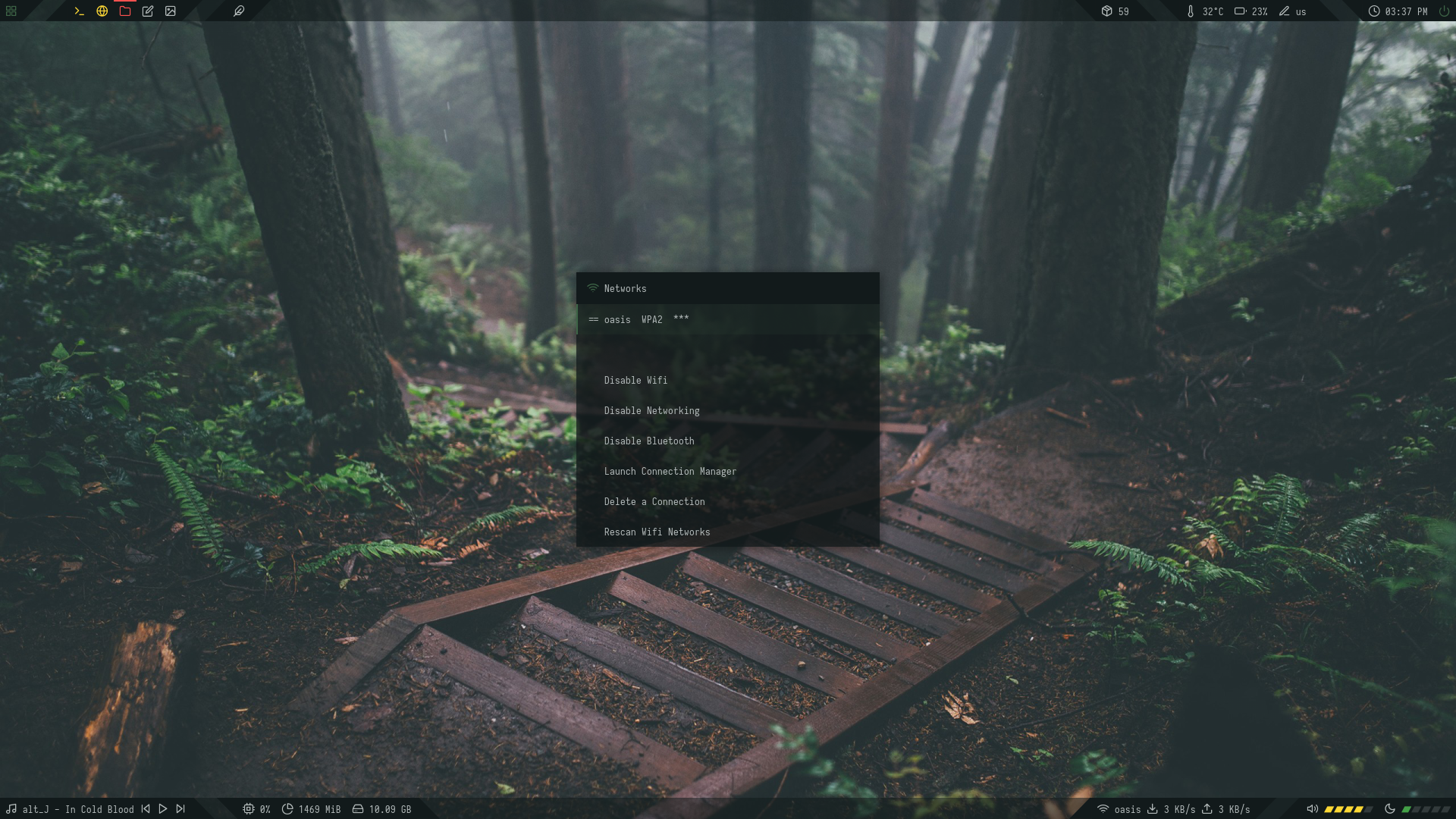 |
| Powermenu | Color Switcher |
|---|---|
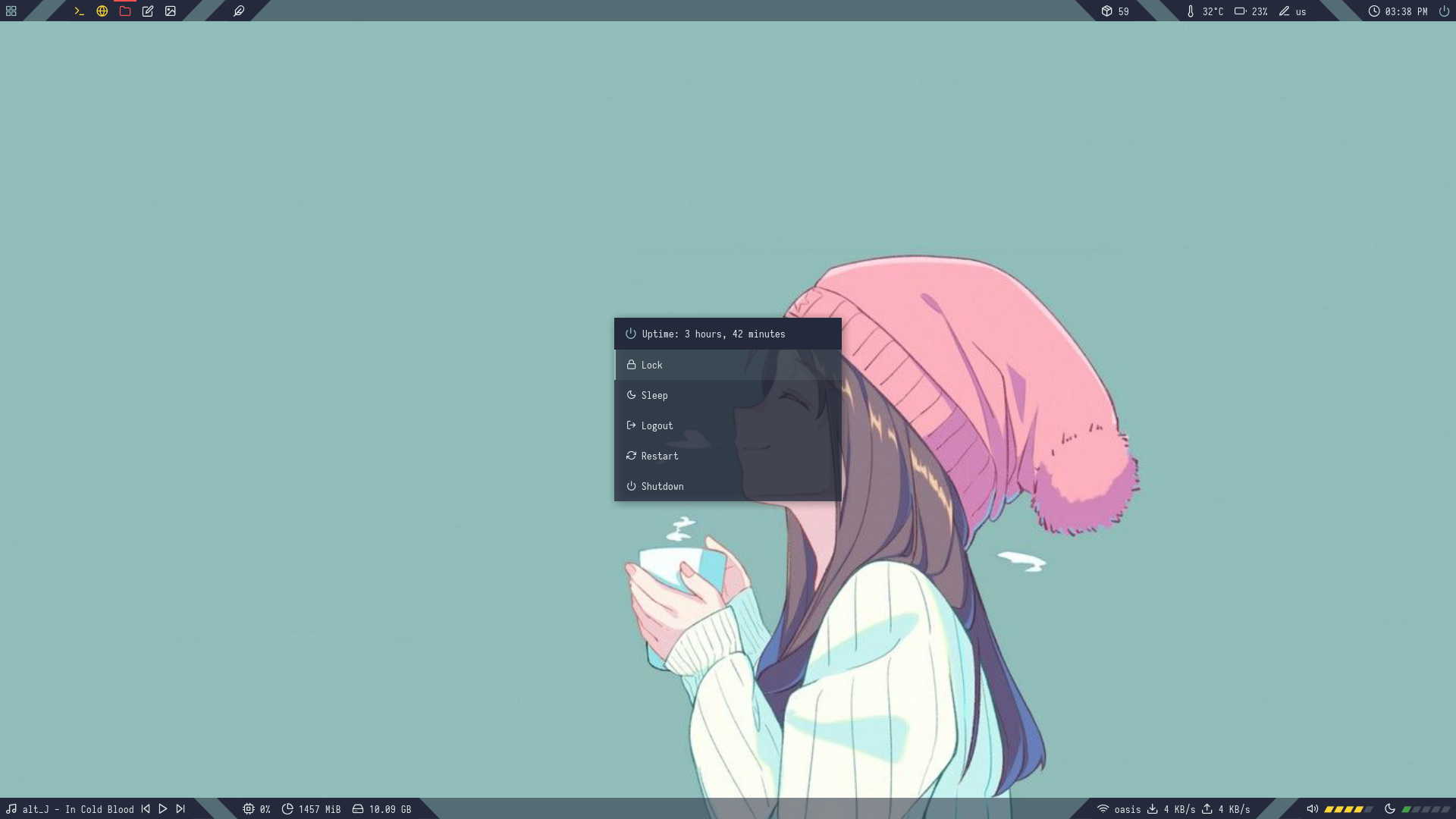 | 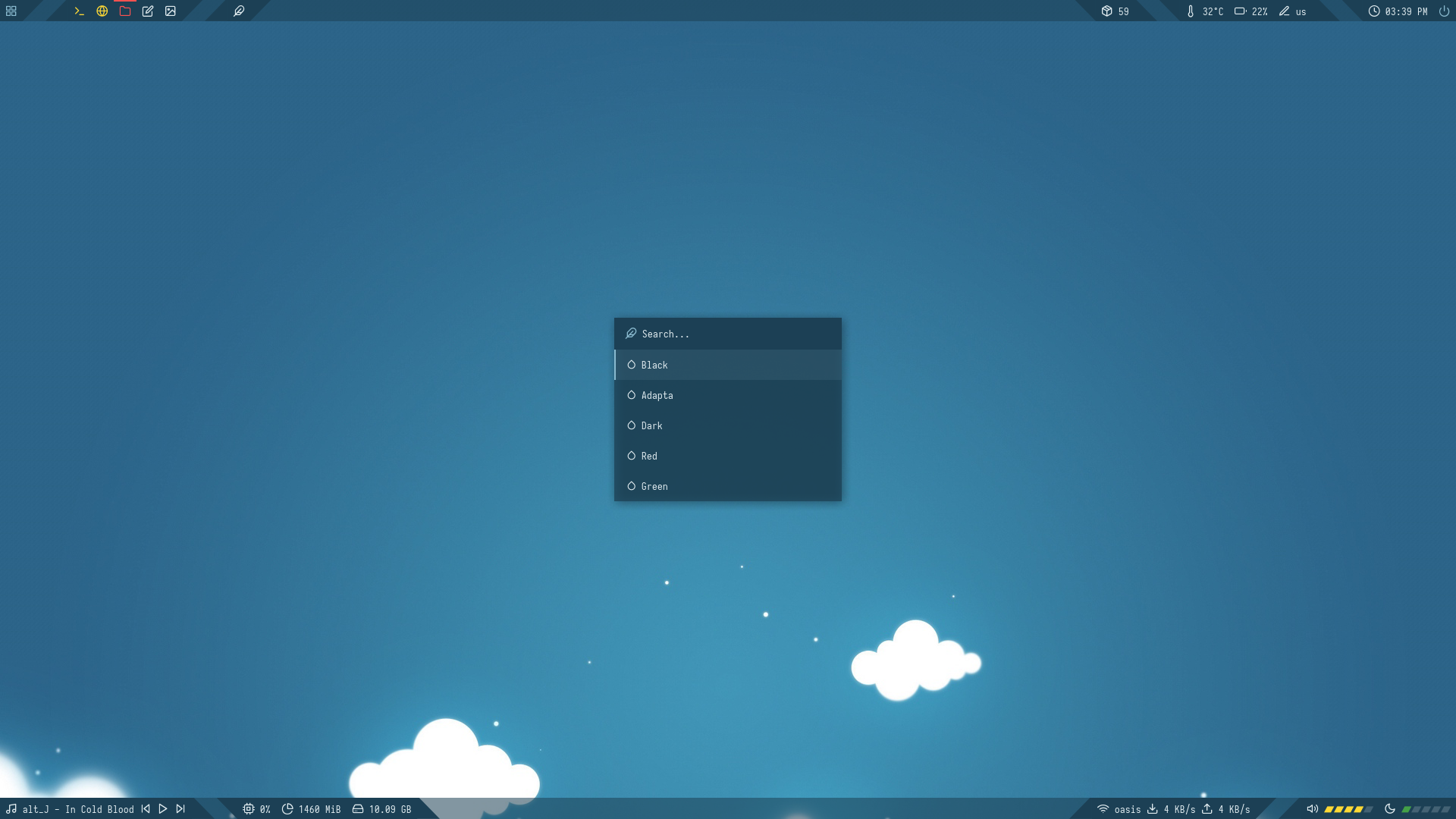 |
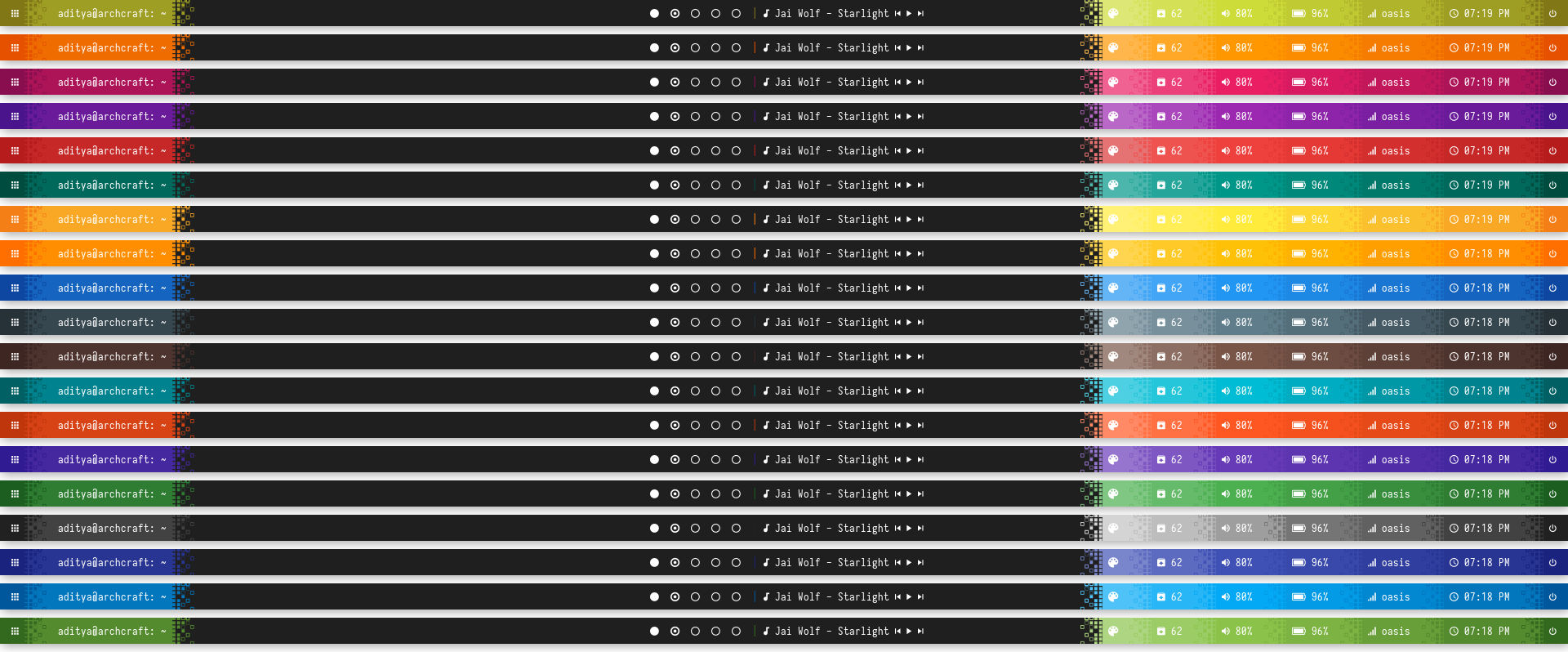
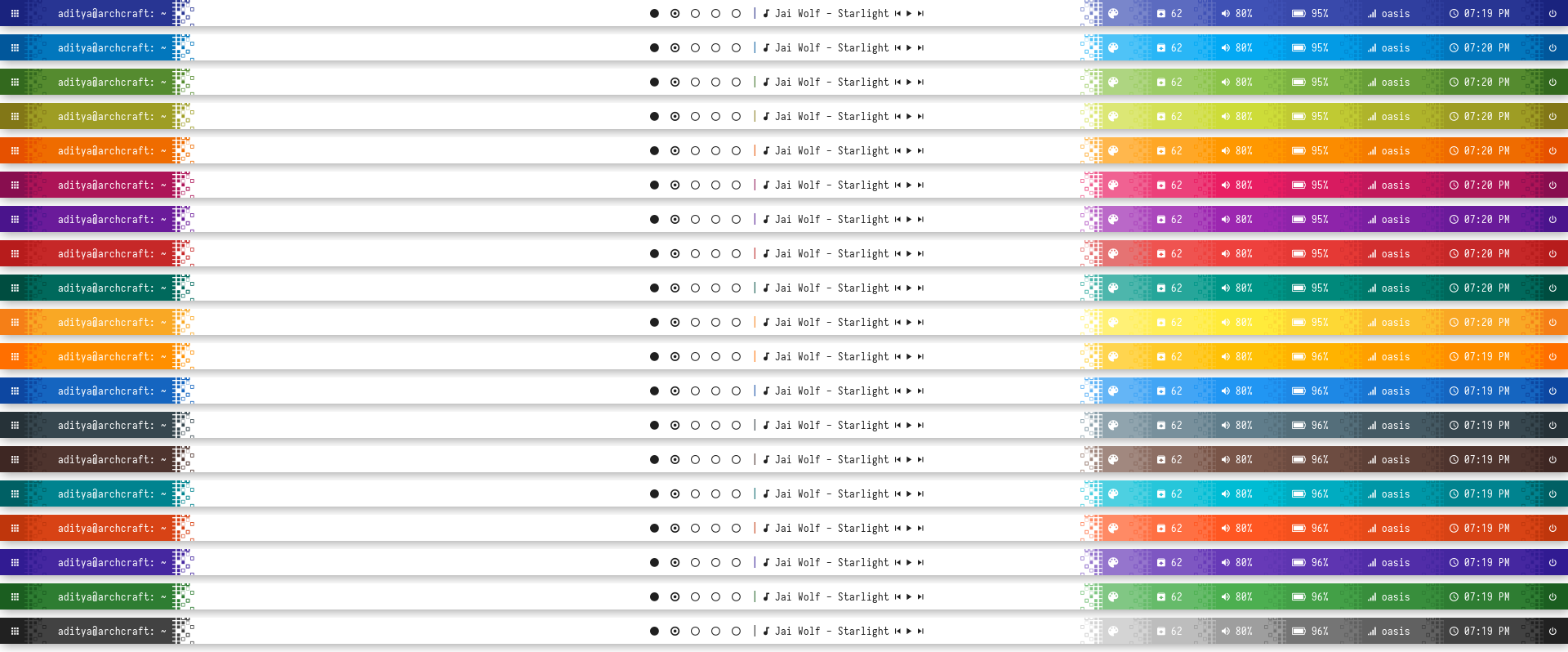
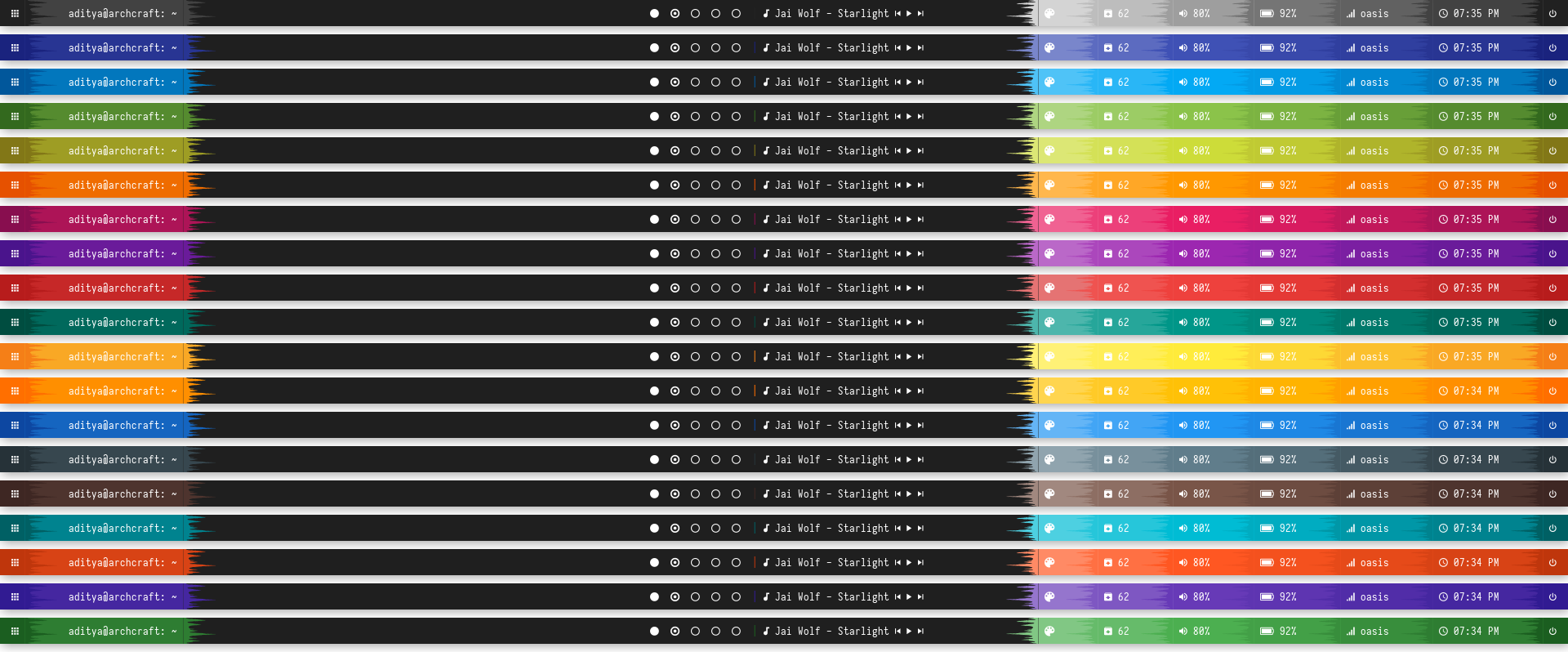
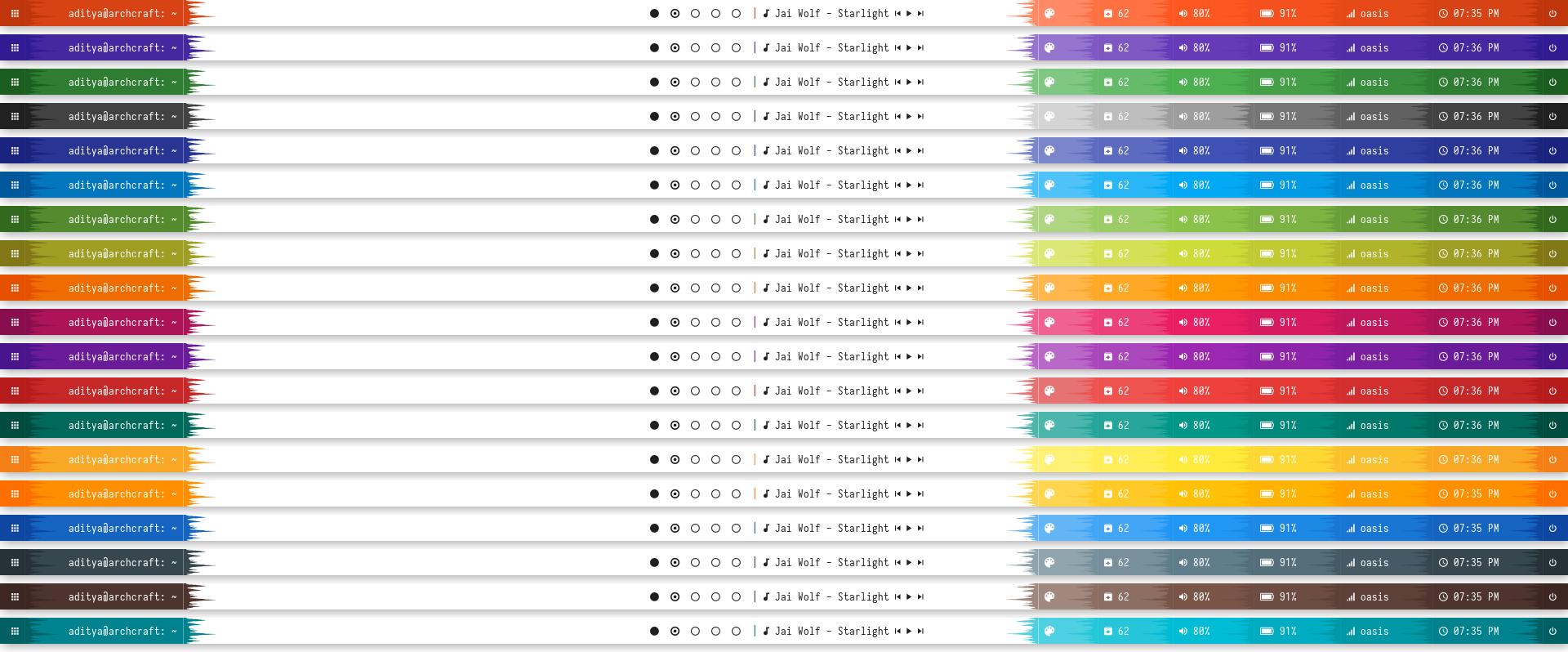
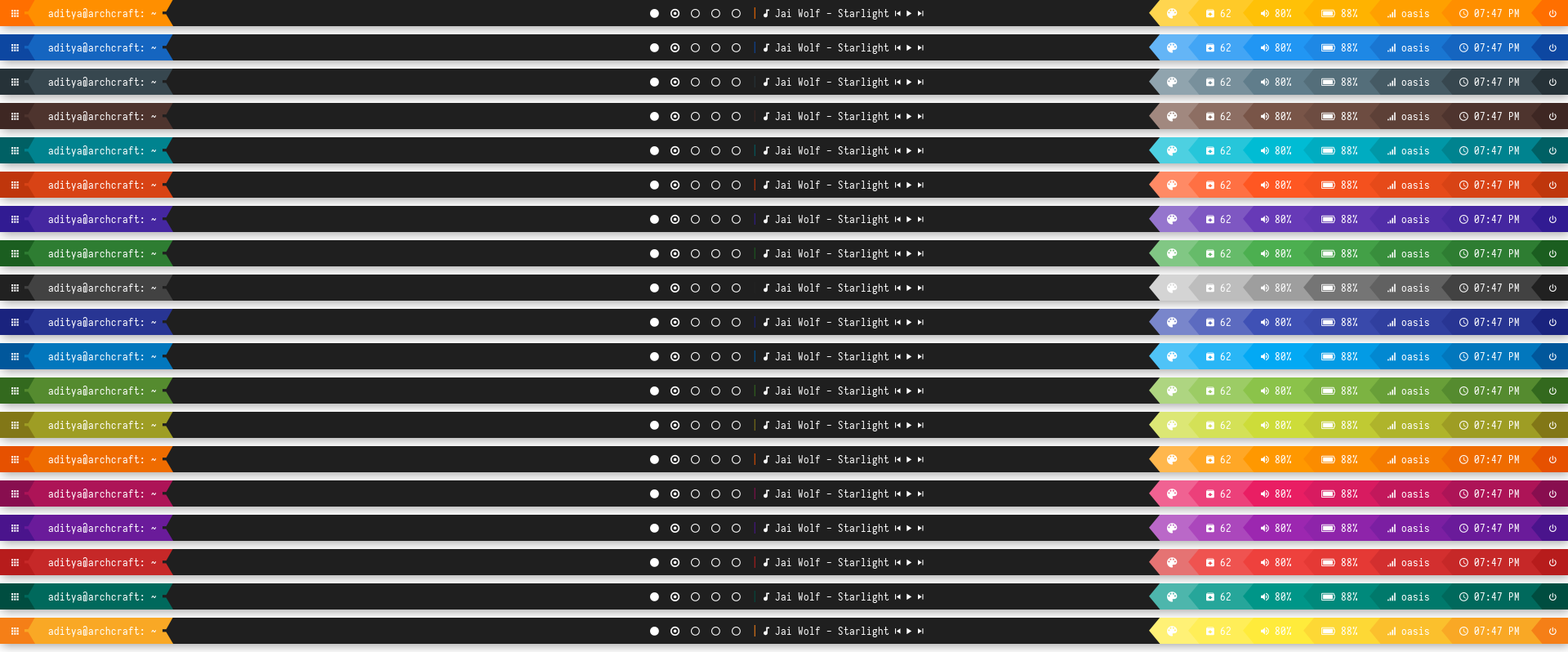
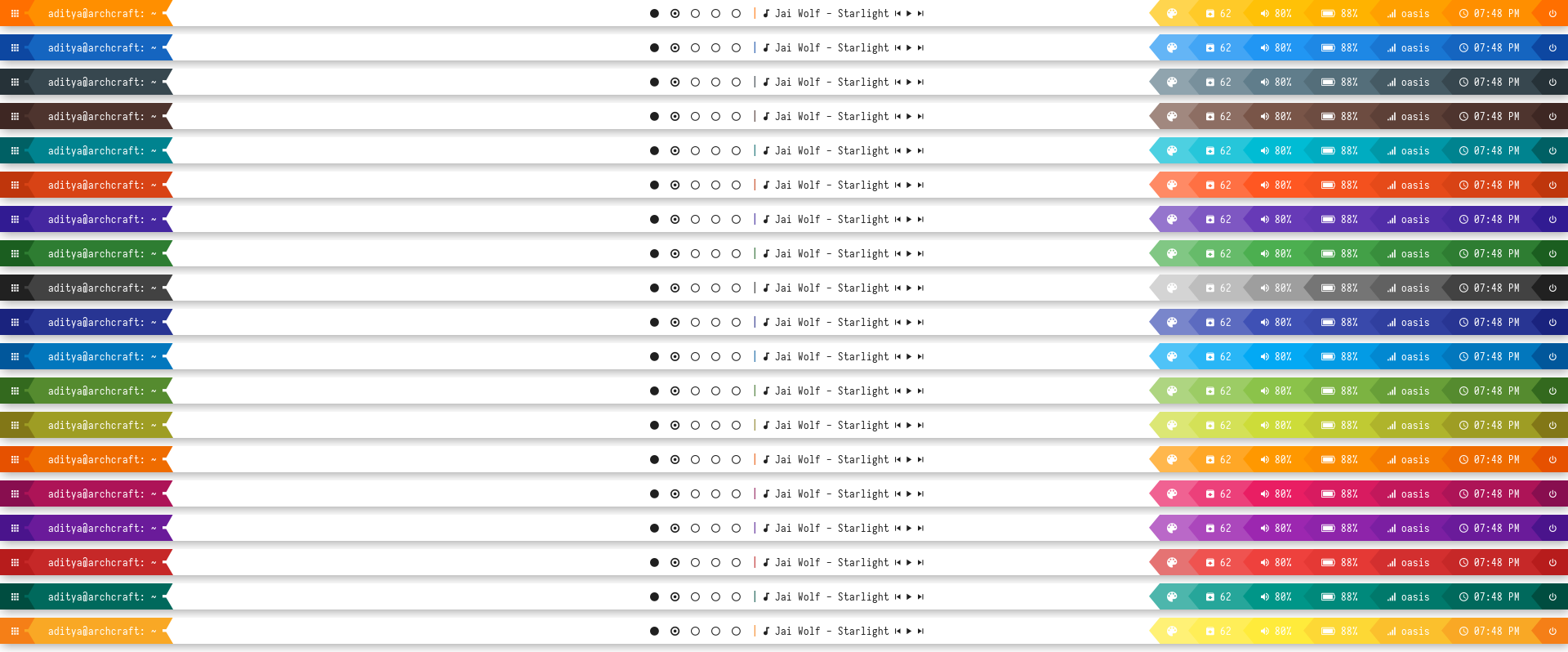
Shapes
























Overview
Window Manager: OpenboxIcon Font: Iosevka Nerd FontText Font: Iosevka Nerd Font
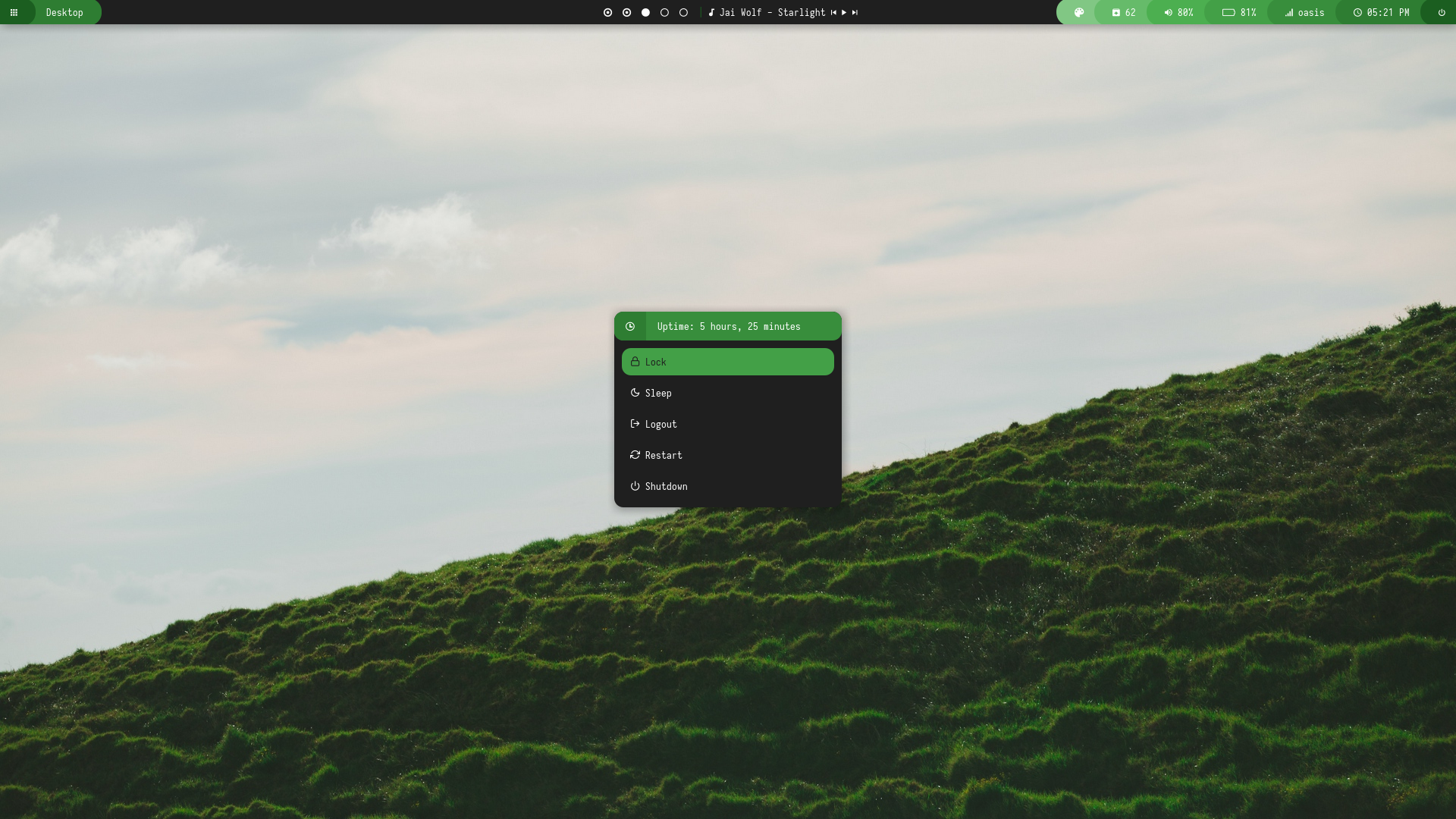
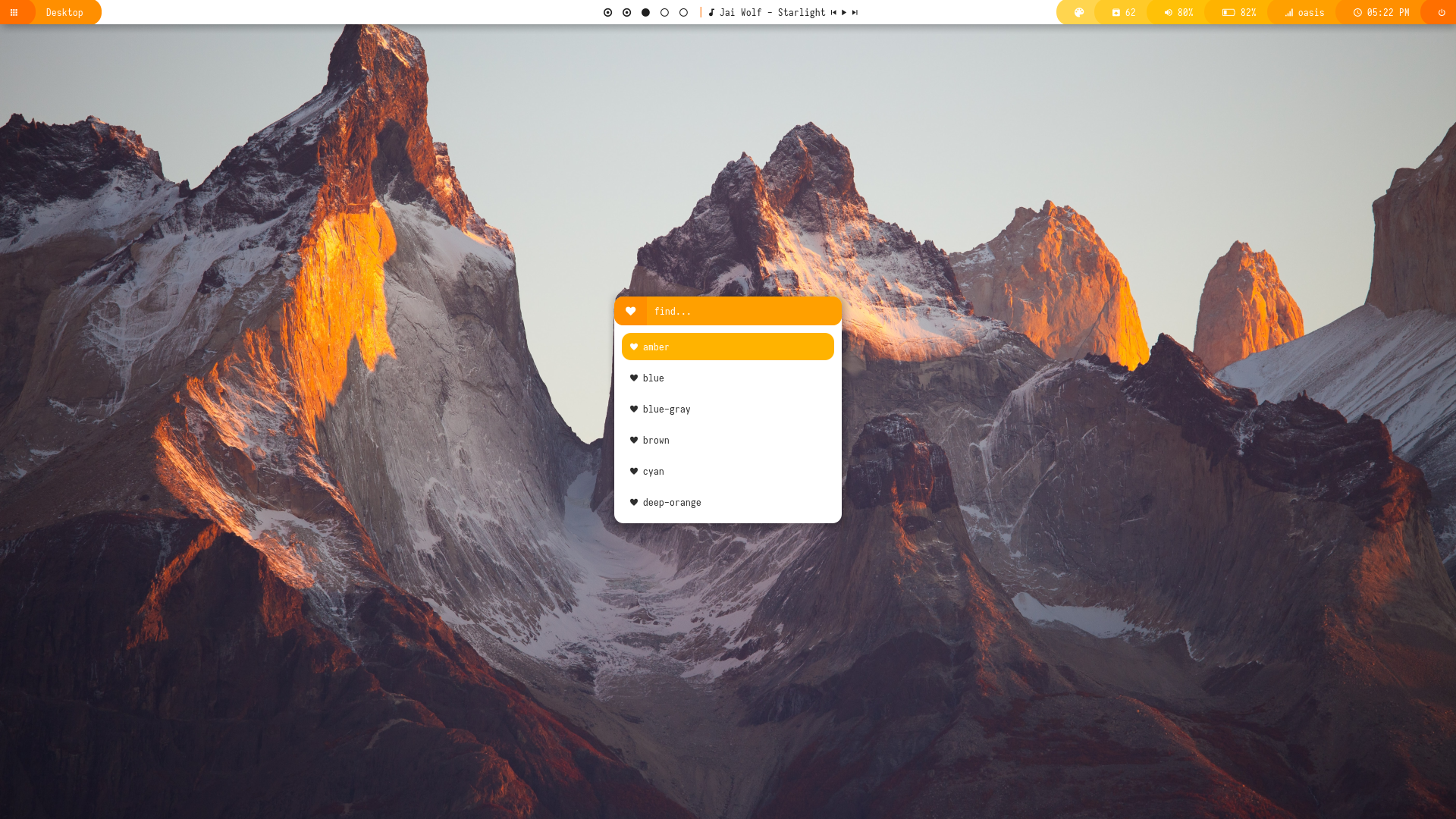
Features
- Dark and Light mode with 15+ colors
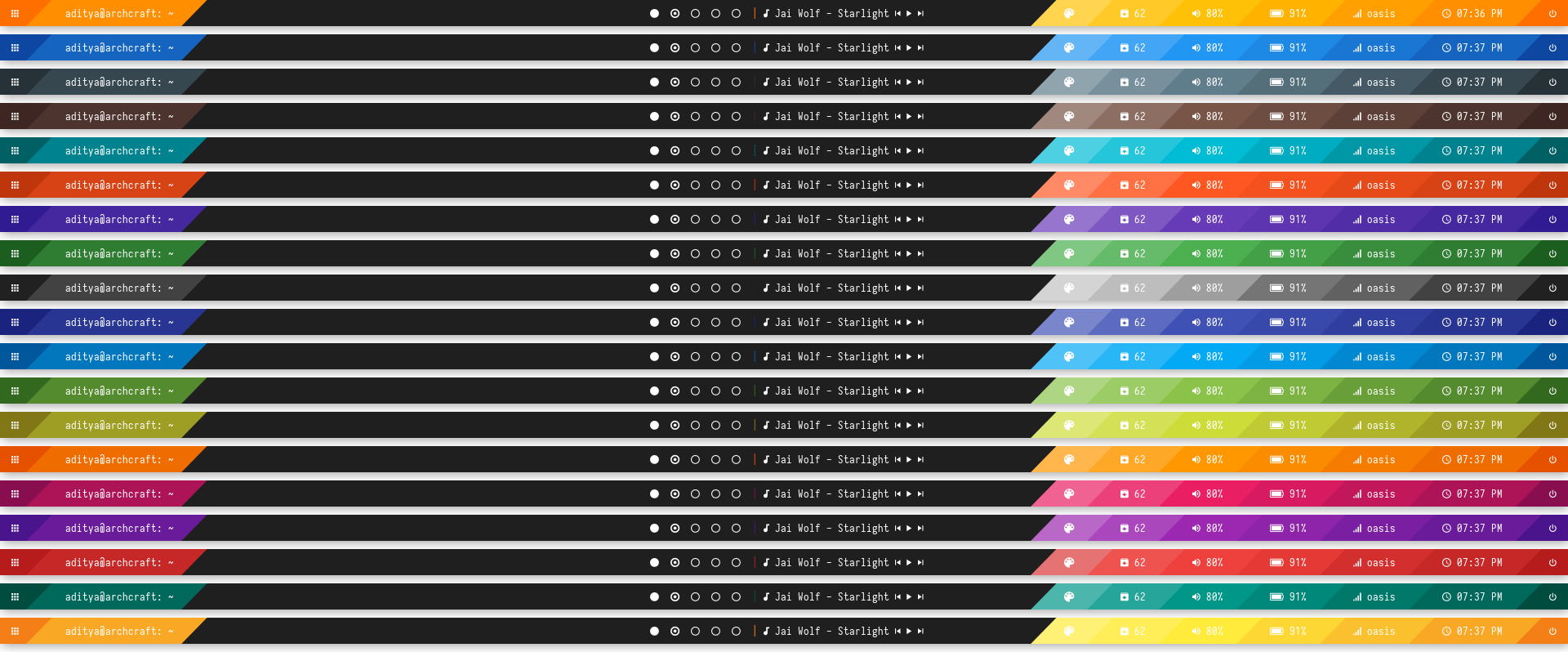
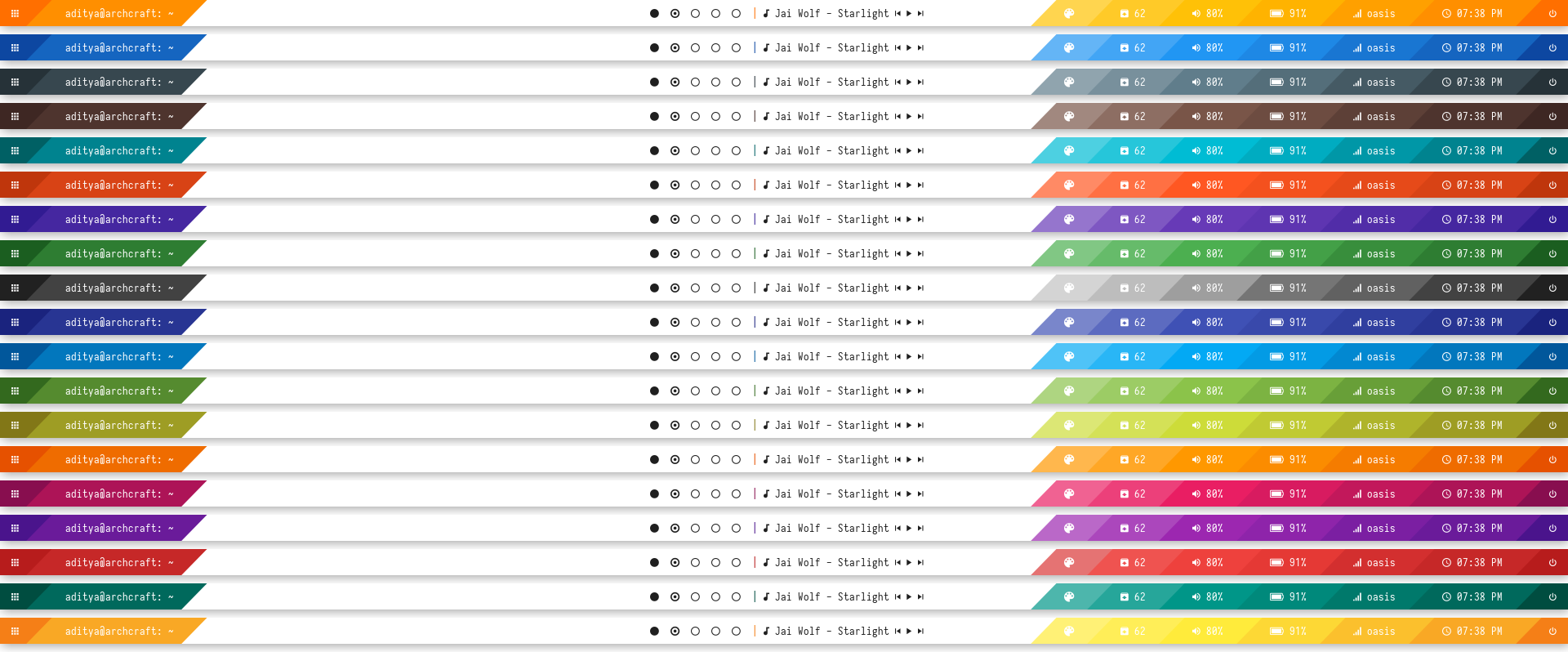
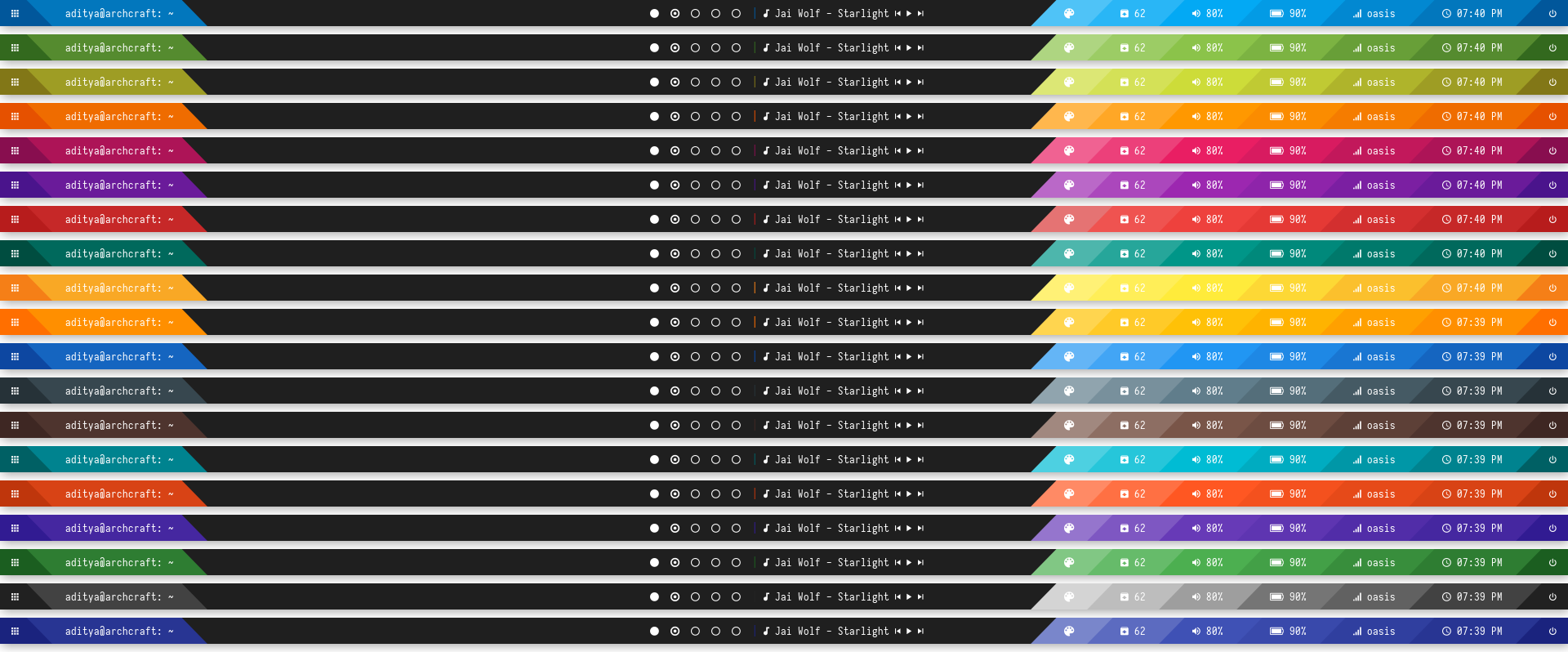
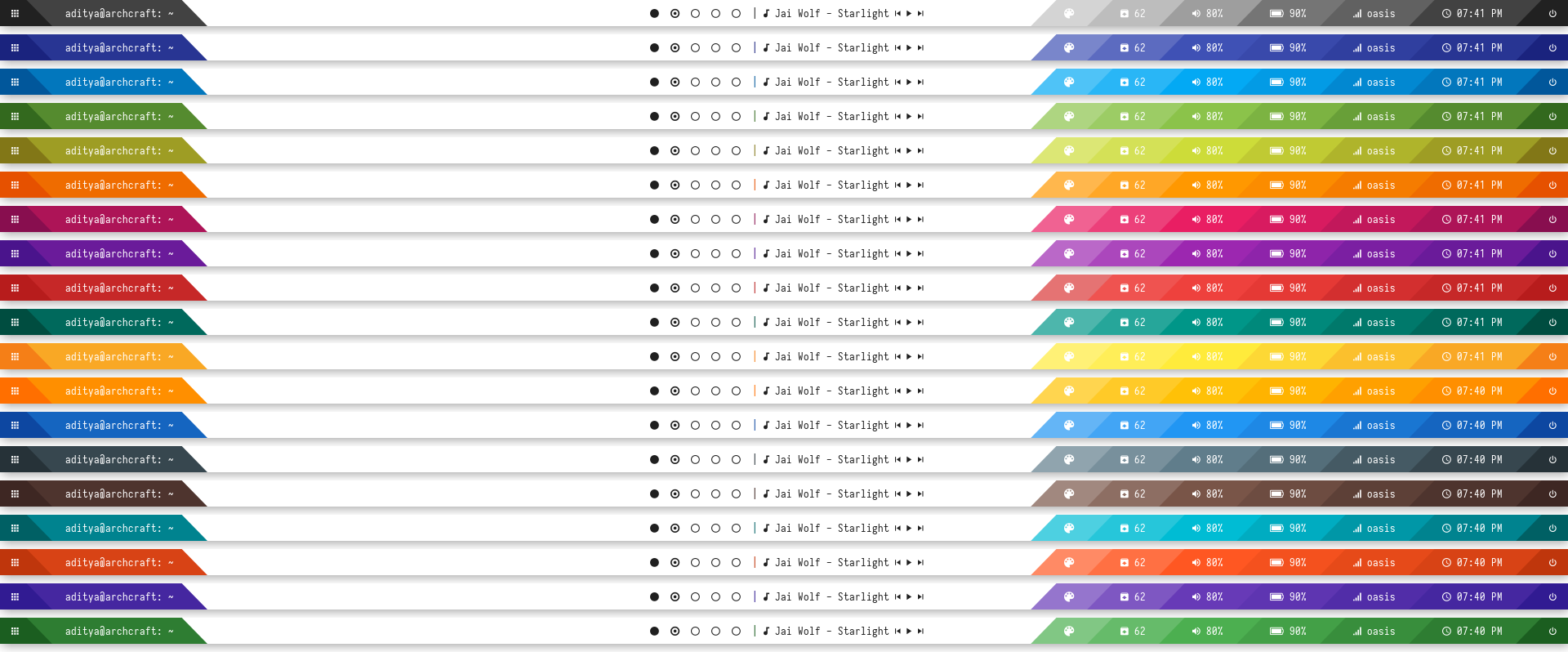
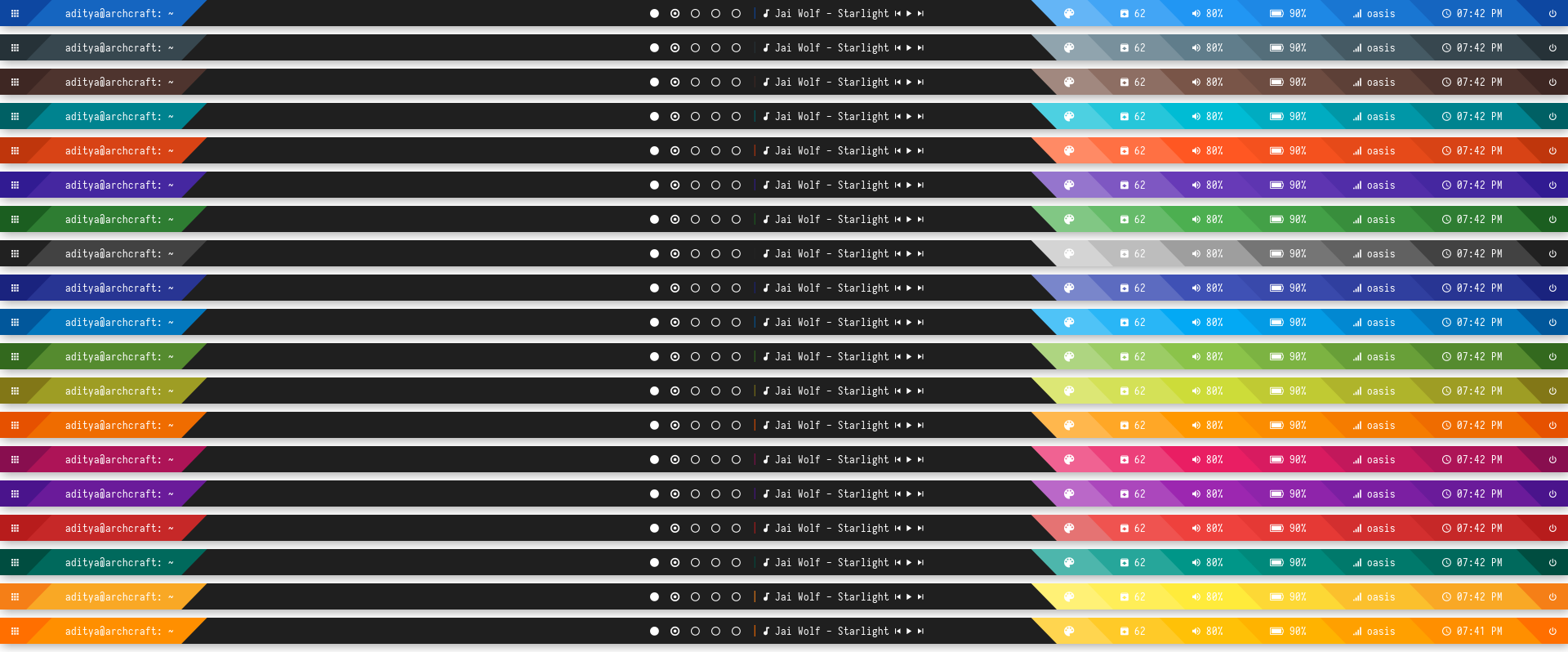
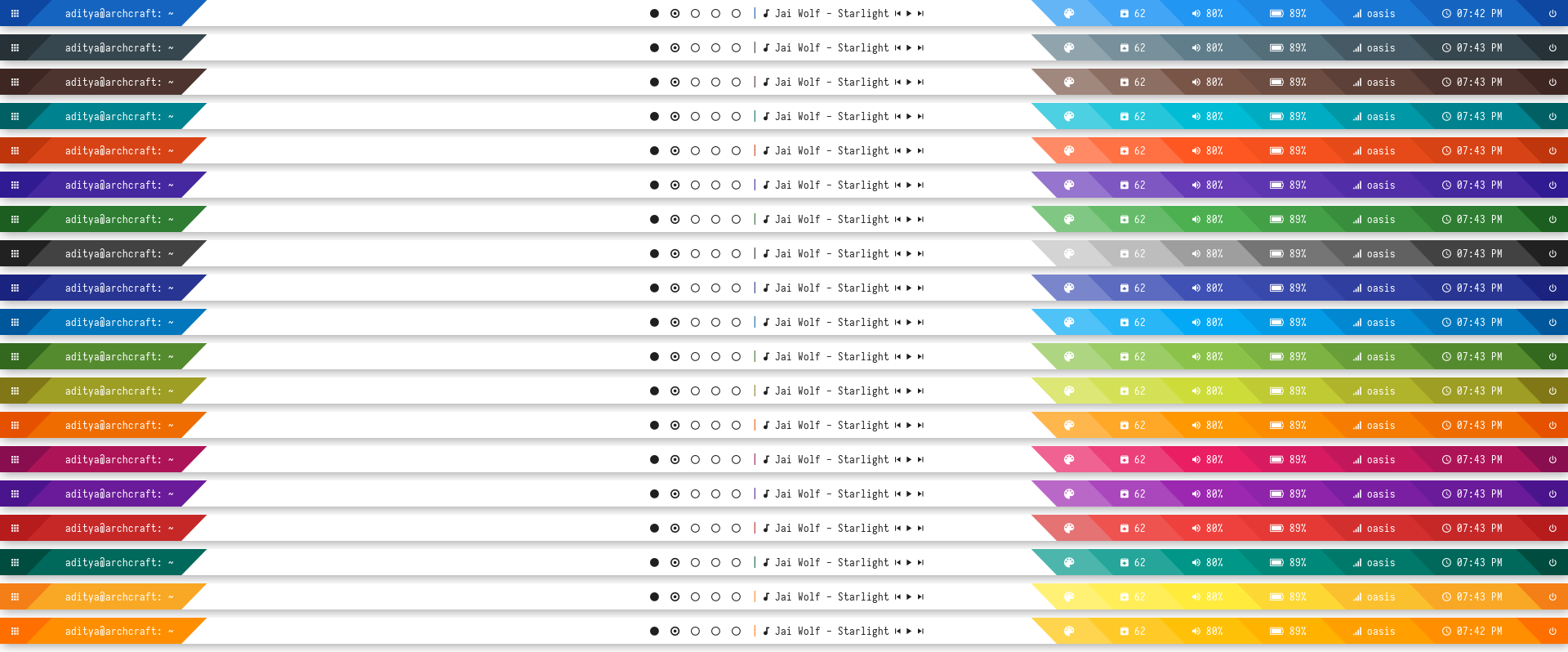
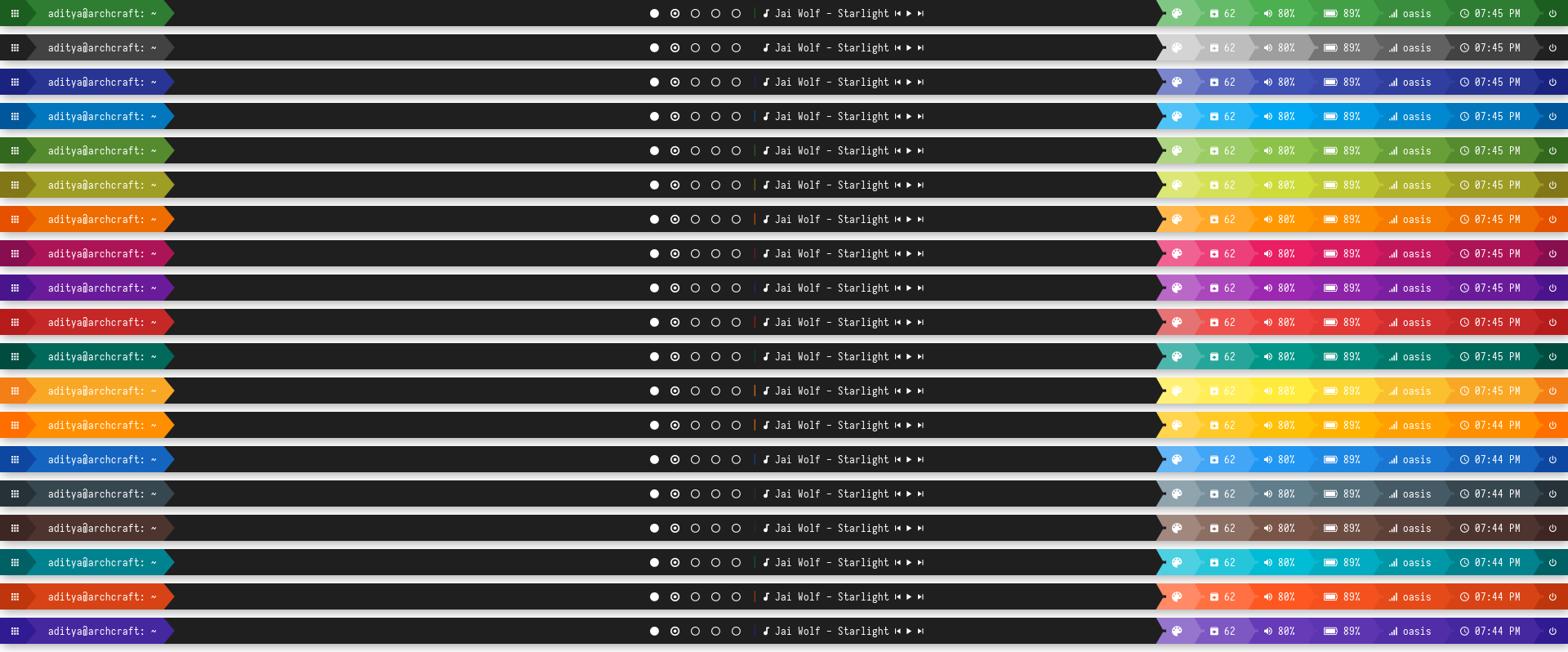
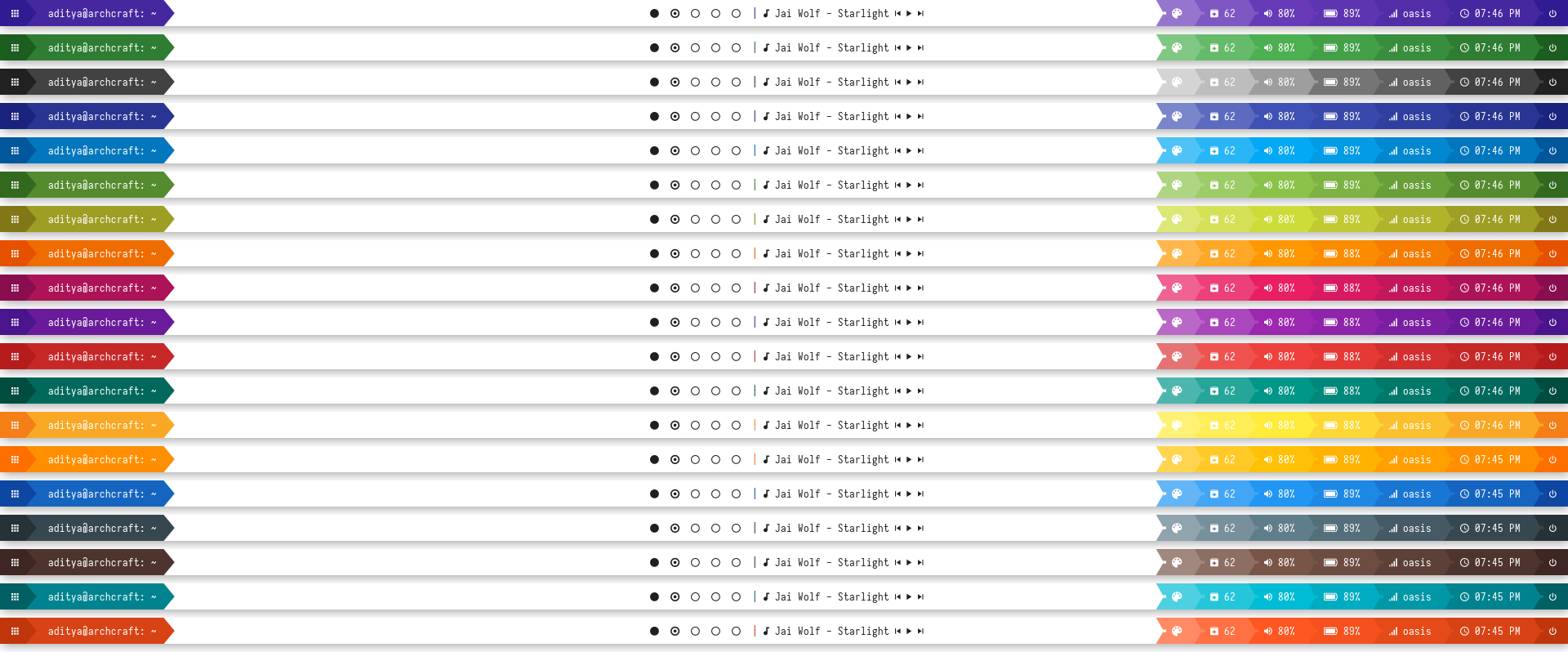
- 12 bar styles with different glyphs
- Rofi menus with same colors
- Added Pywal support for each style
- Script to set random colors for each style
Tips
- Run
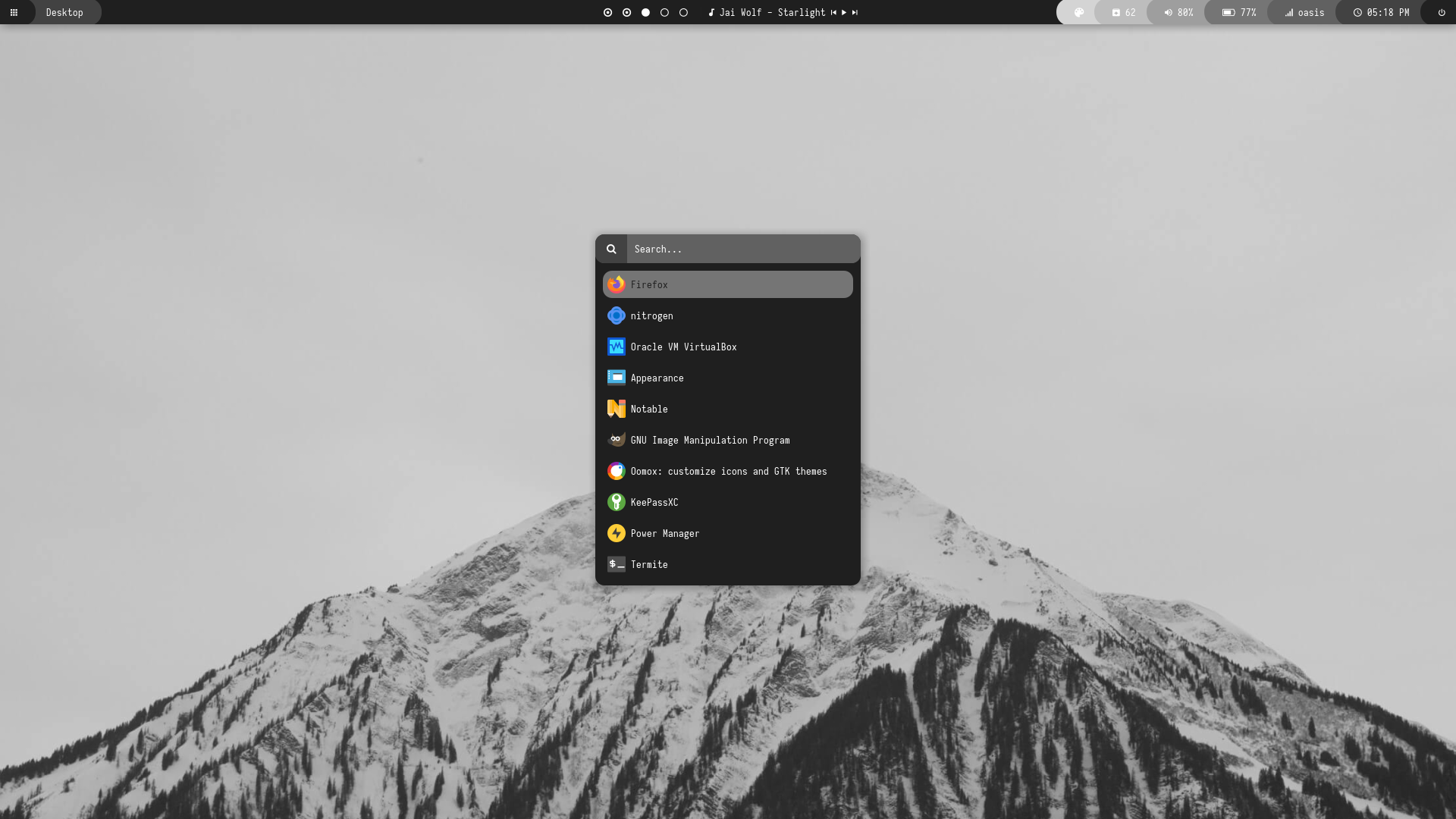
preview.shto see all configured modules - Left click on apps icon for
App Launcher - Left click on colors icon for
Color Switcher - Right click on colors icon for
Style Switcher - Left click on power icon for
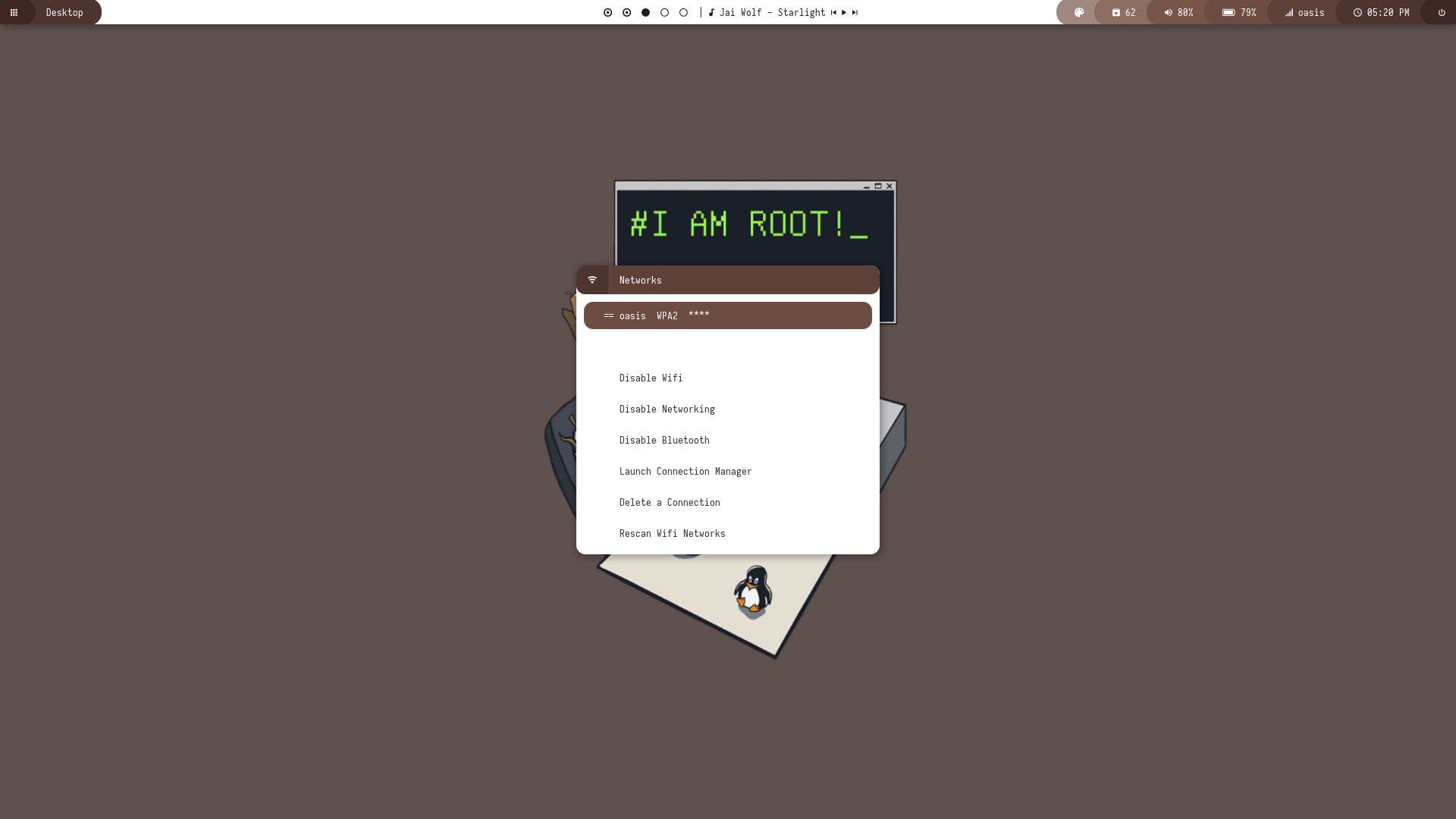
Powermenu - Left click on network name for
Network Menu
Previews
Click to expand
Bar


Modules


Dark
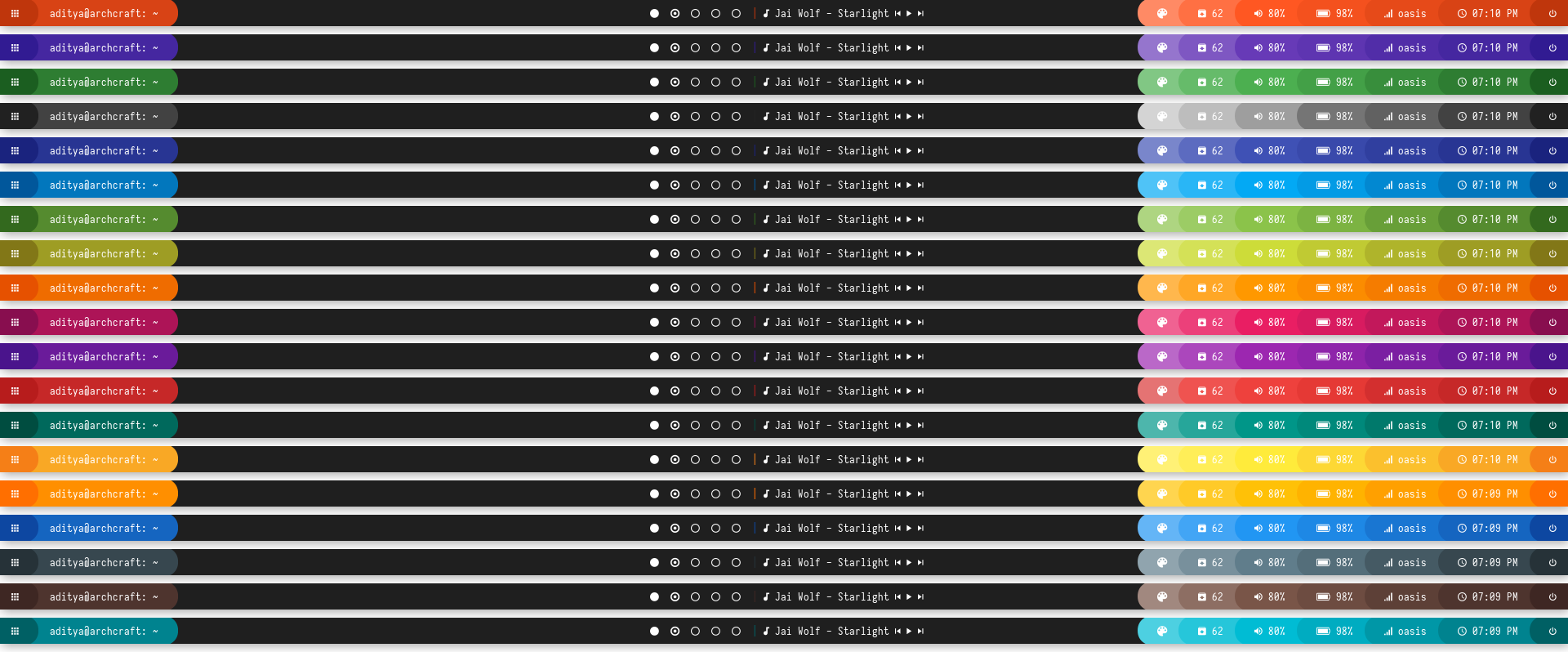
Light
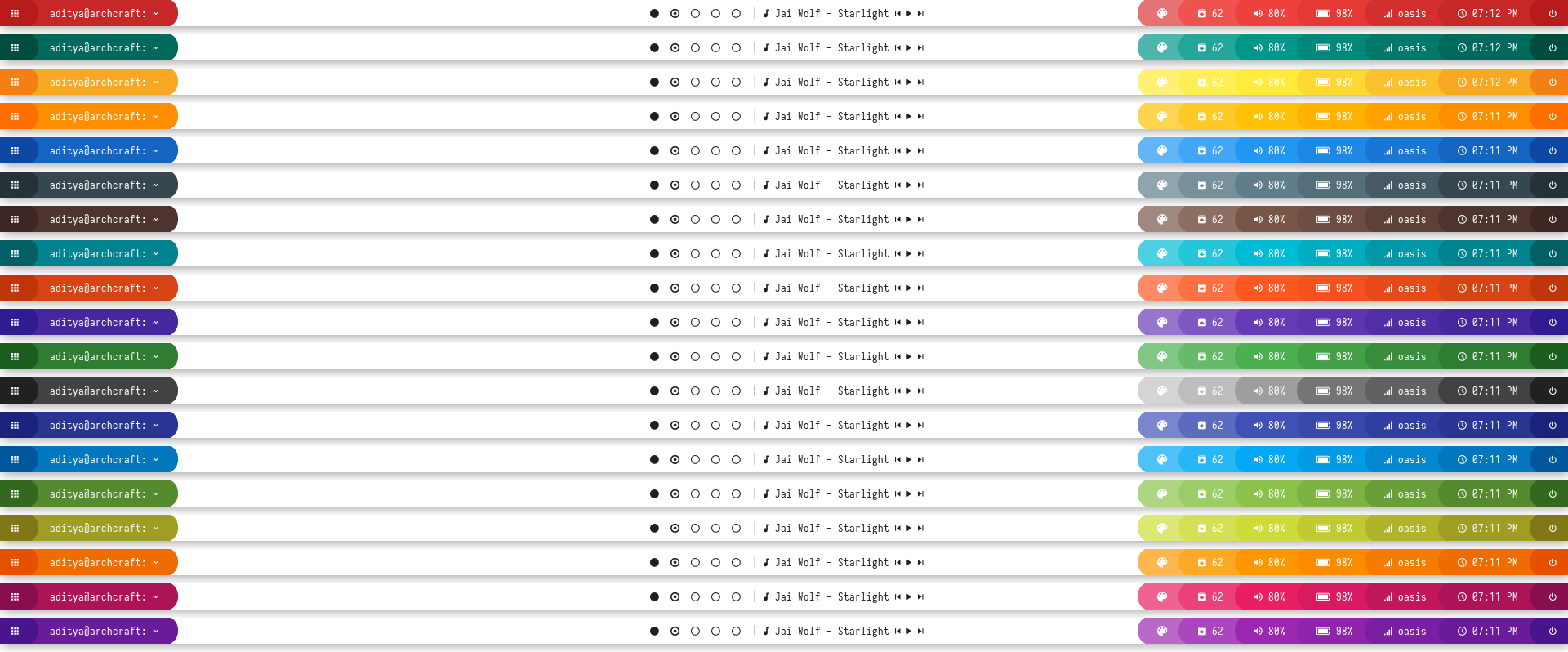
Dark
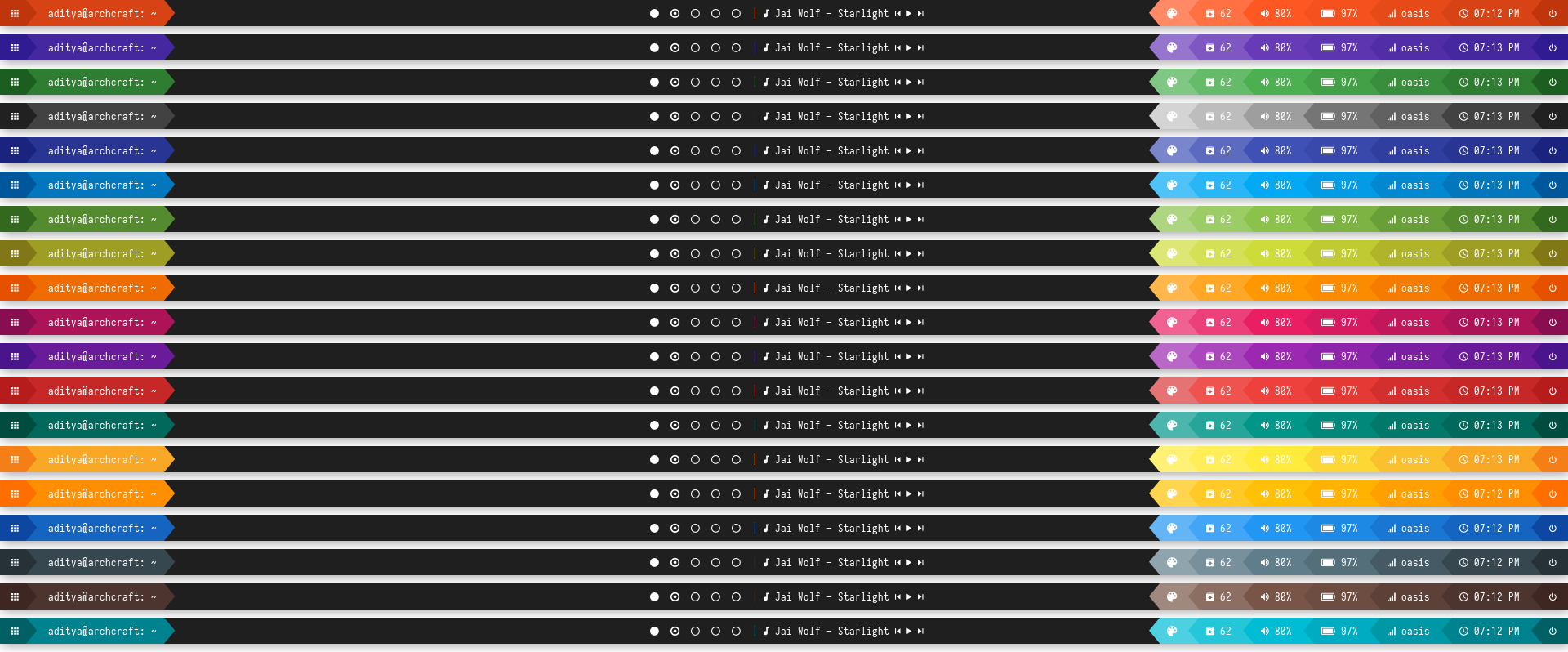
Light
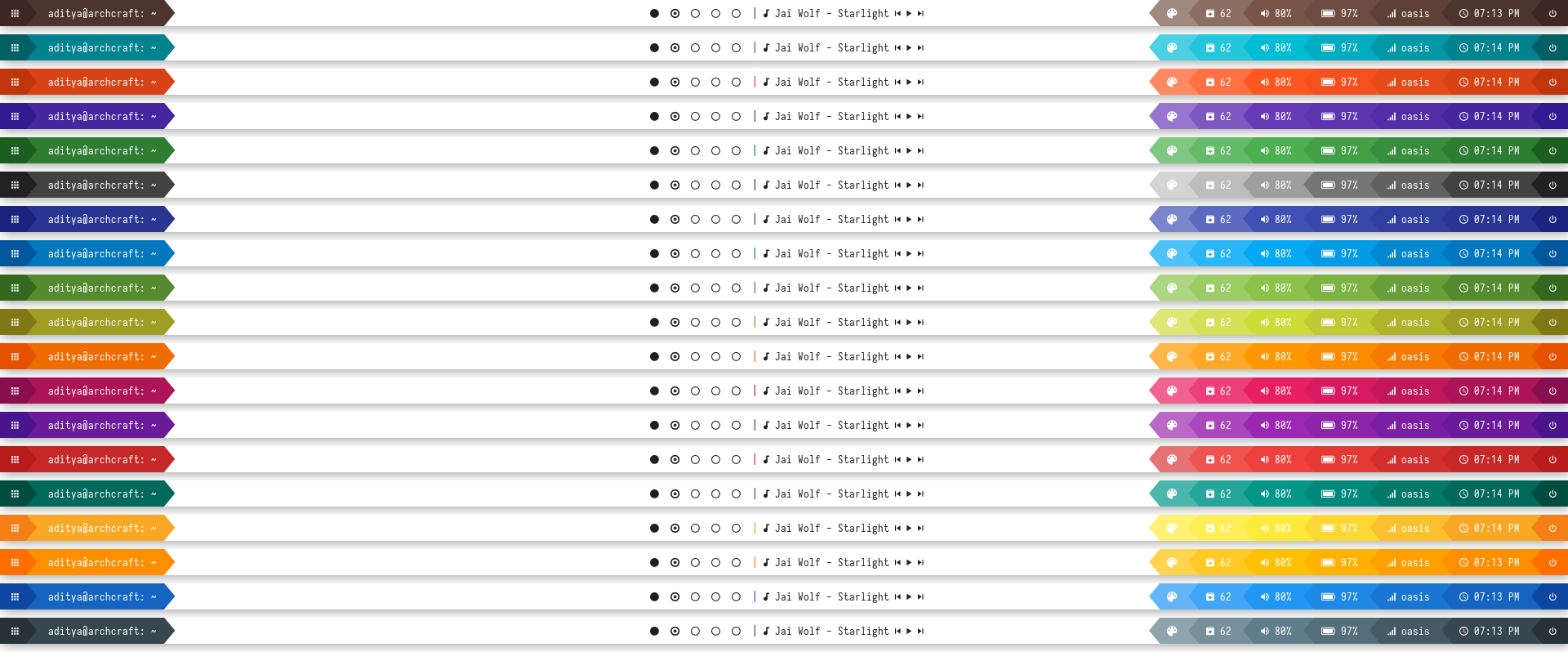
Dark
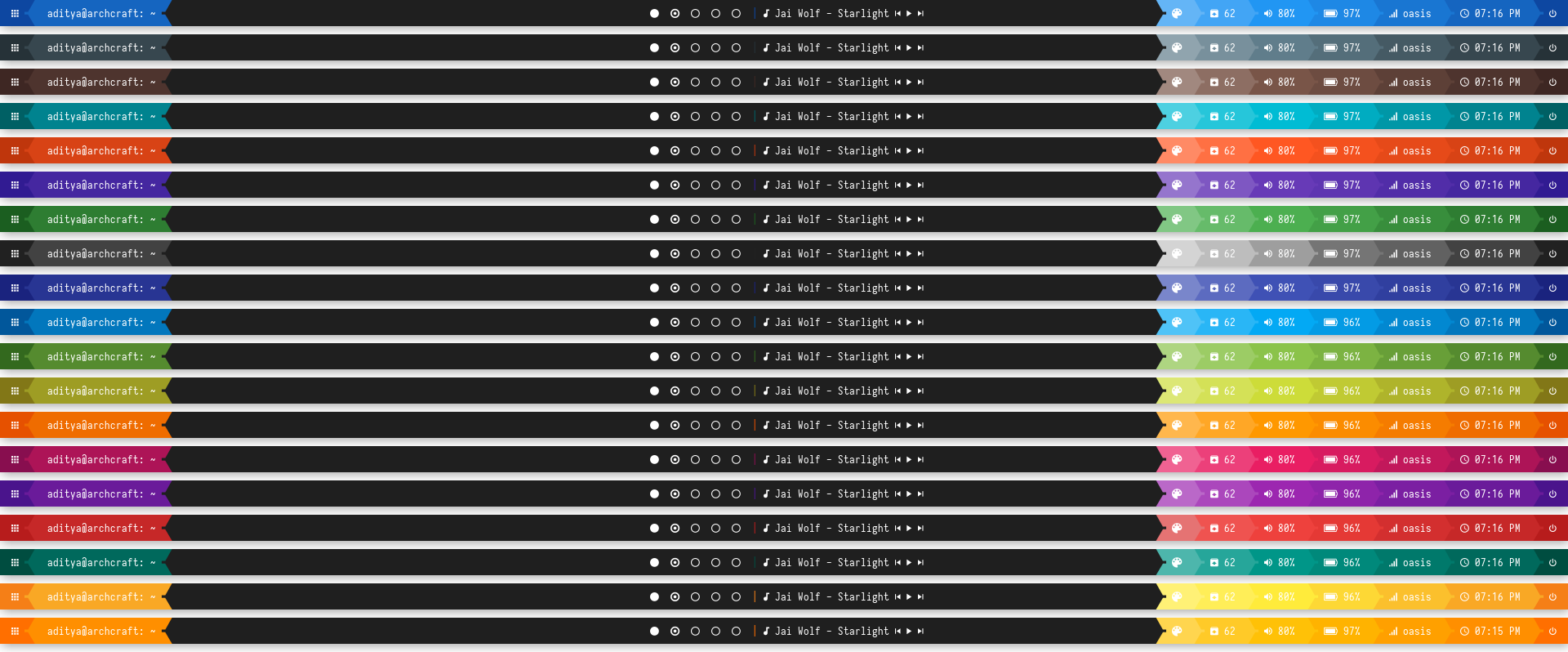
Light
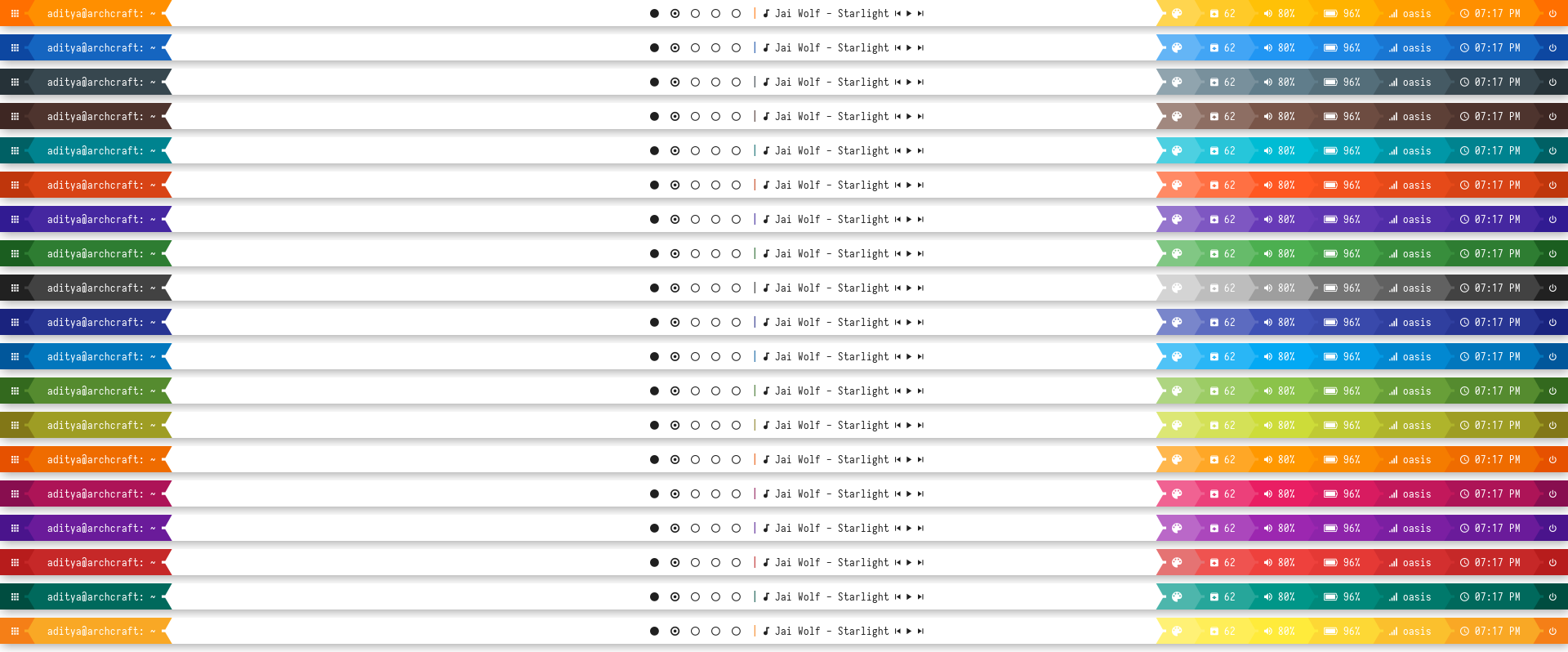
Dark
Light
Dark
Light
Dark
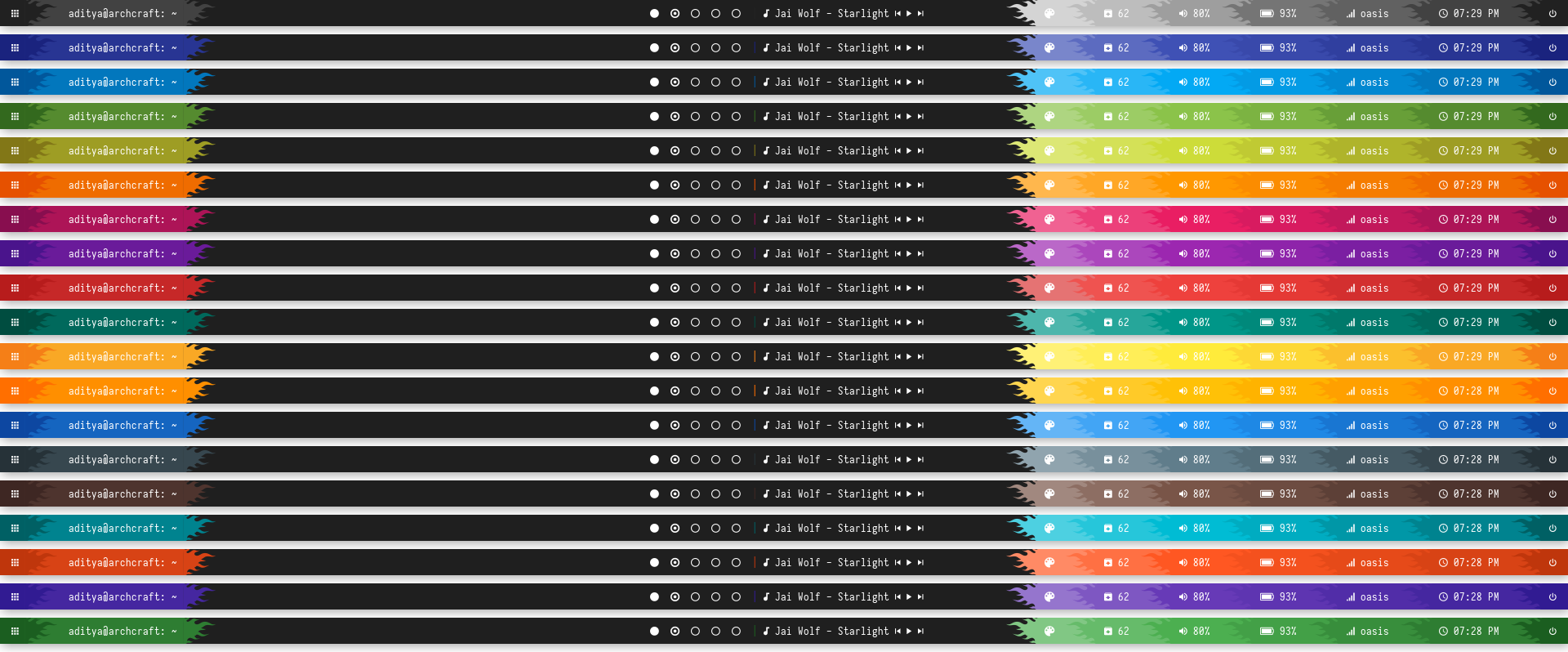
Light
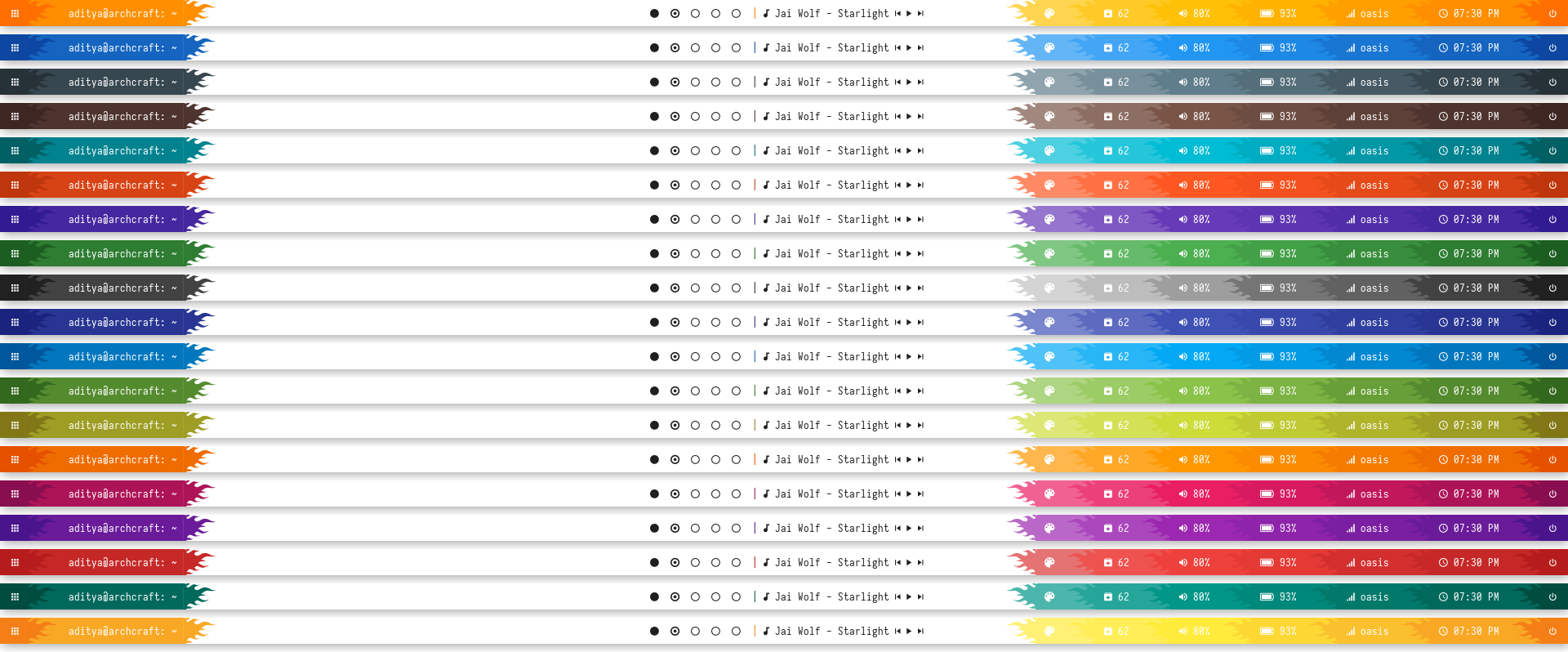
Dark
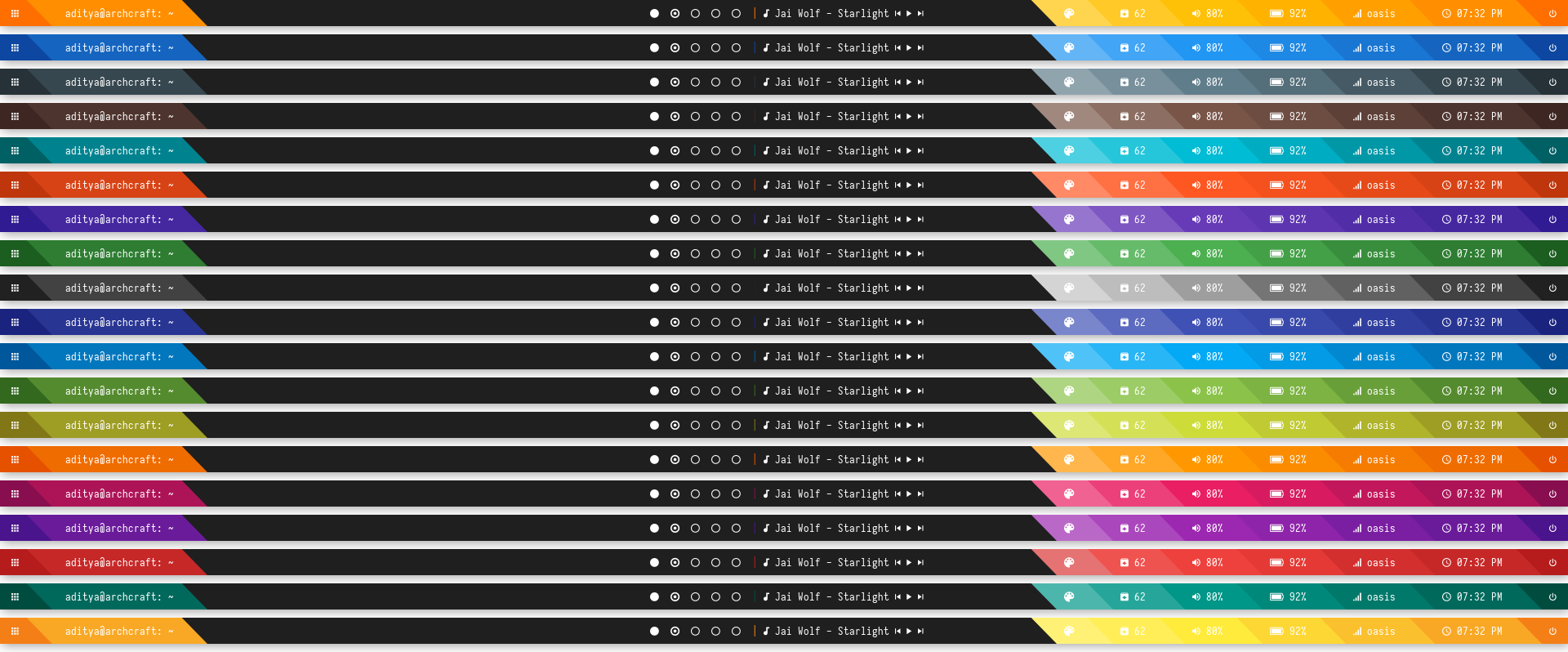
Light
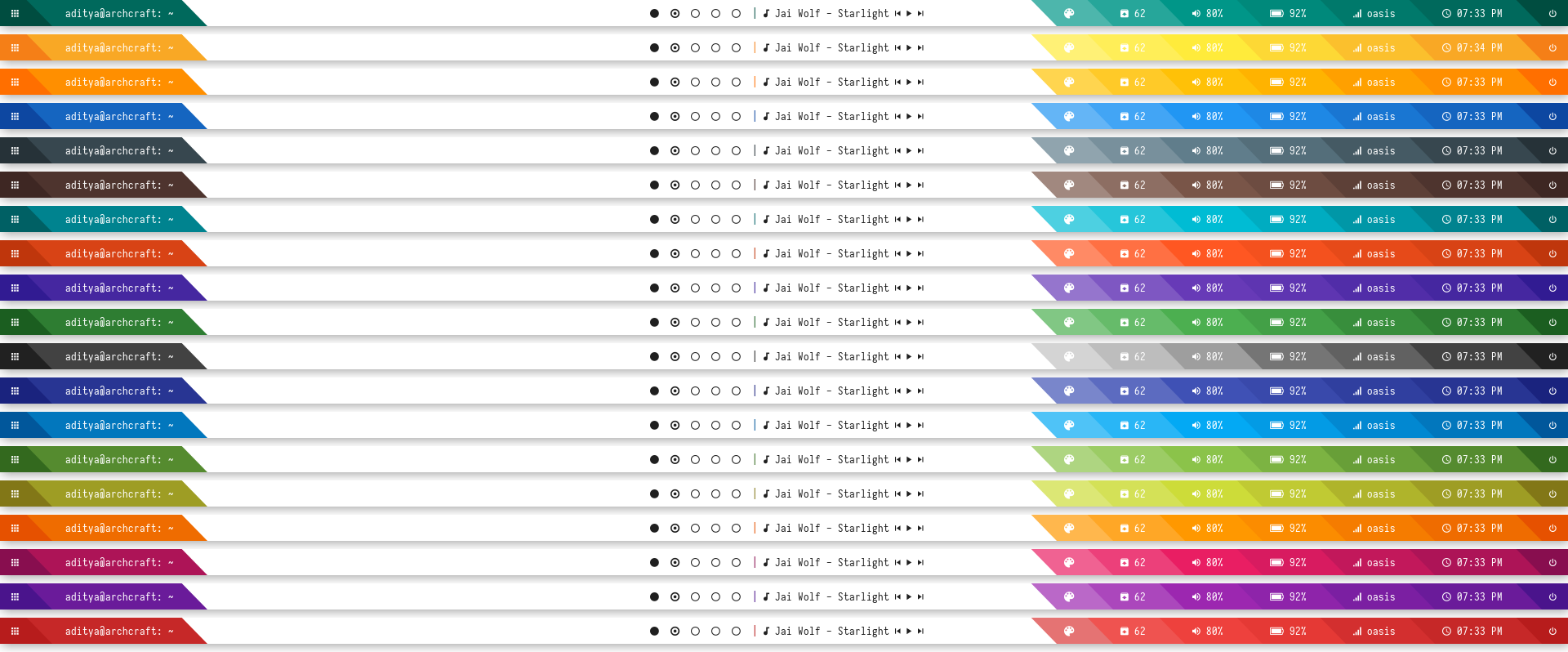
Dark
Light
Dark
Light
Dark
Light
Dark
Light
Dark
Light




| Launcher | Networks |
|---|---|
 |  |
| Powermenu | Color Switcher |
|---|---|
 |  |
Grayblocks


Overview
Window Manager: OpenboxIcon Font: Icomoon FeatherText Font: Iosevka Nerd Font
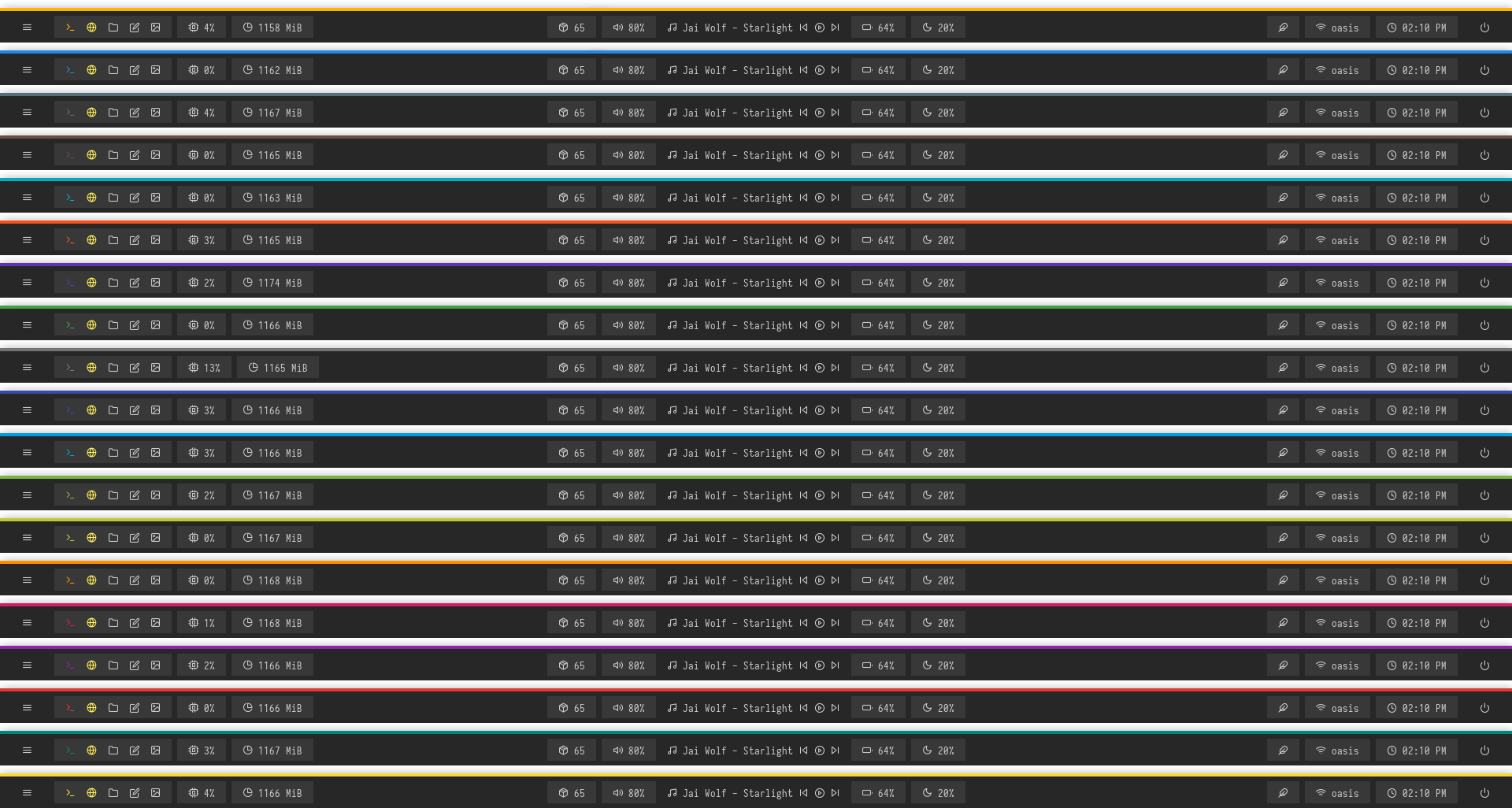
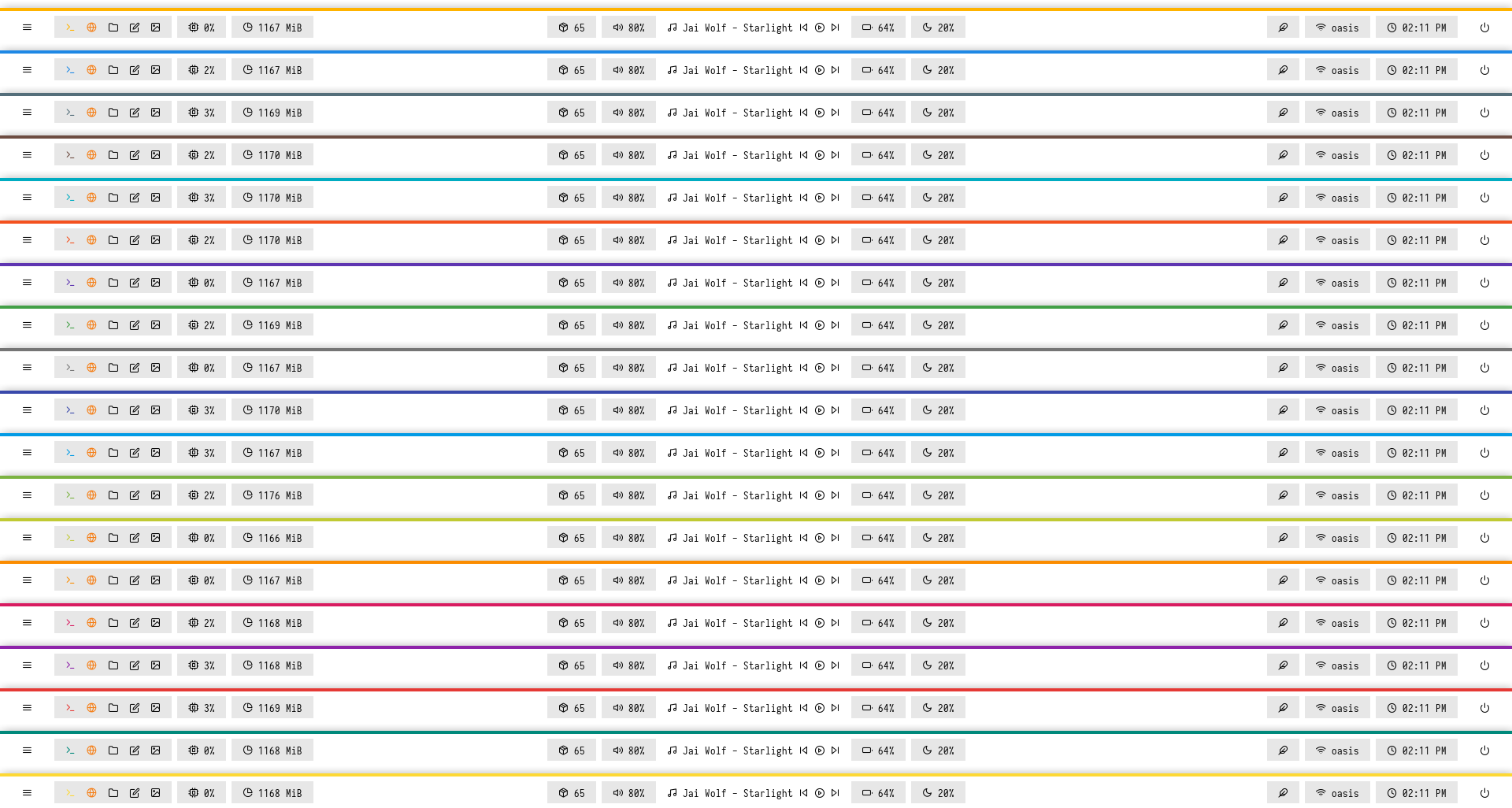
Features
- Dark and Light mode with 15+ colors
- Rofi menus with same colors
- Added Pywal support
- Script to set random colors
Tips
- Run
preview.shto see all configured modules - Left click on apps icon for
App Launcher - Left click on feather icon for
Color Switcher - Left click on power icon for
Powermenu - Left click on network name for
Network Menu
Previews
Click to expand
Bar


Modules


Dark
Light


| Launcher | Networks |
|---|---|
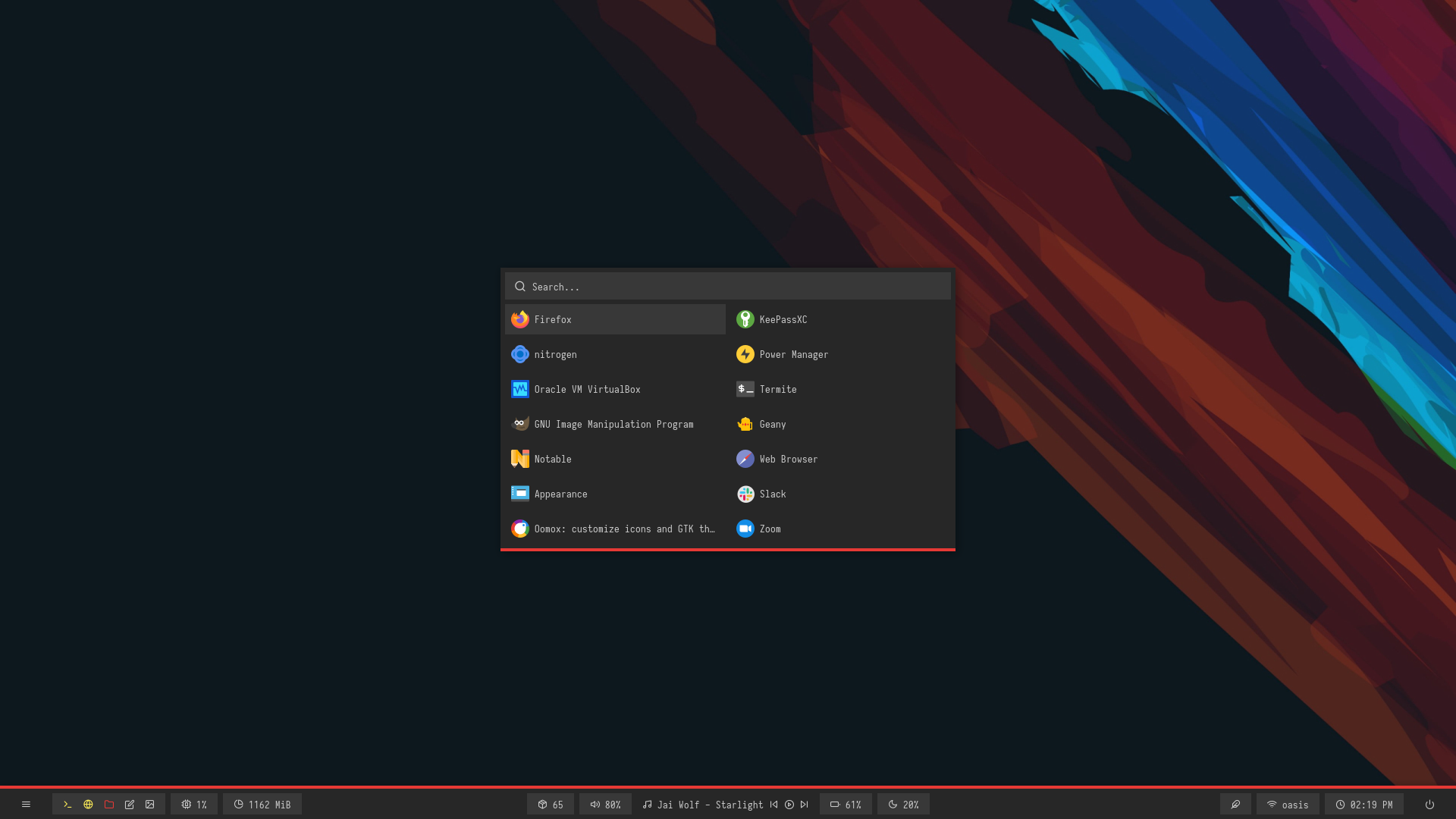 | 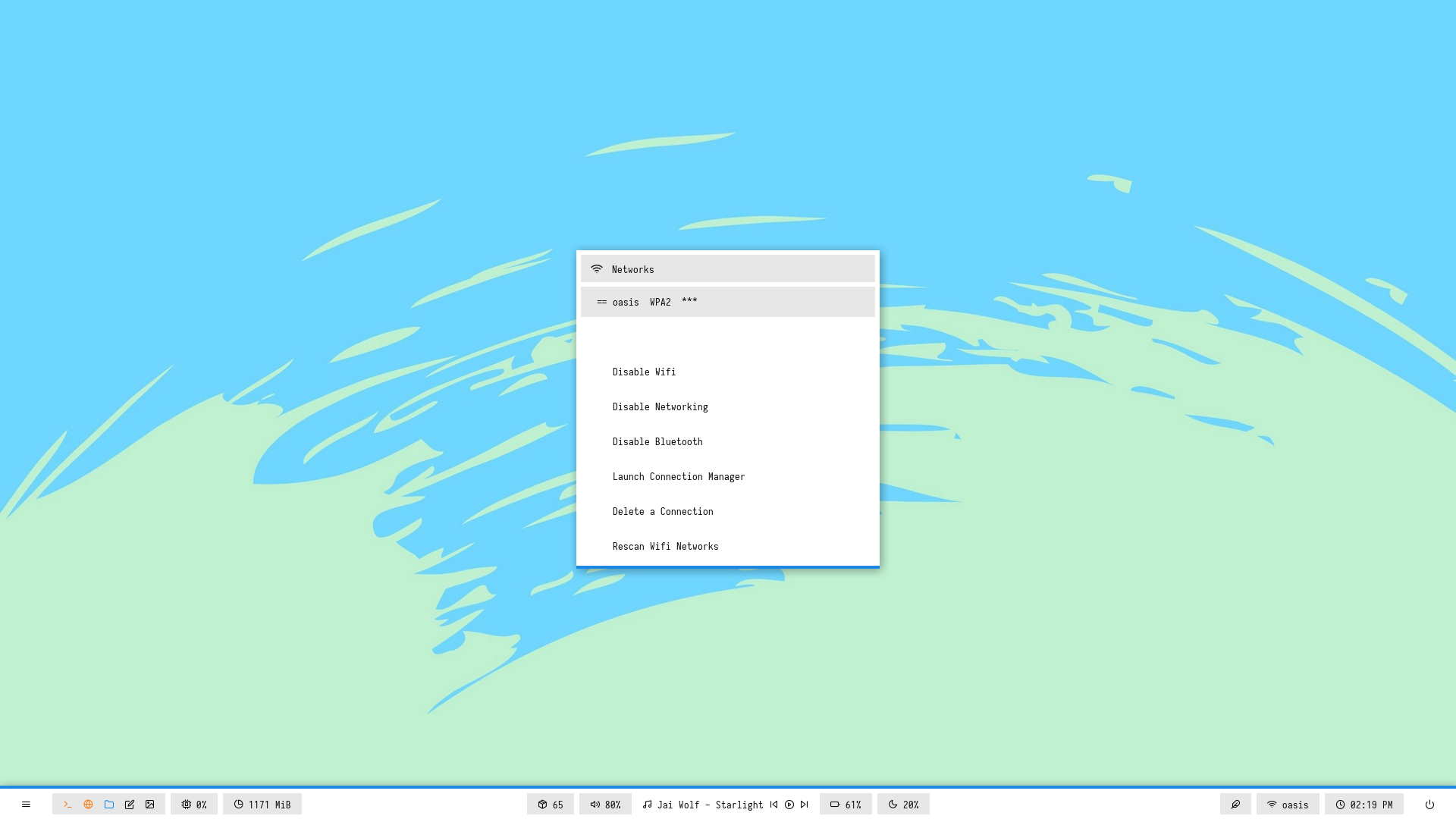 |
| Powermenu | Color Switcher |
|---|---|
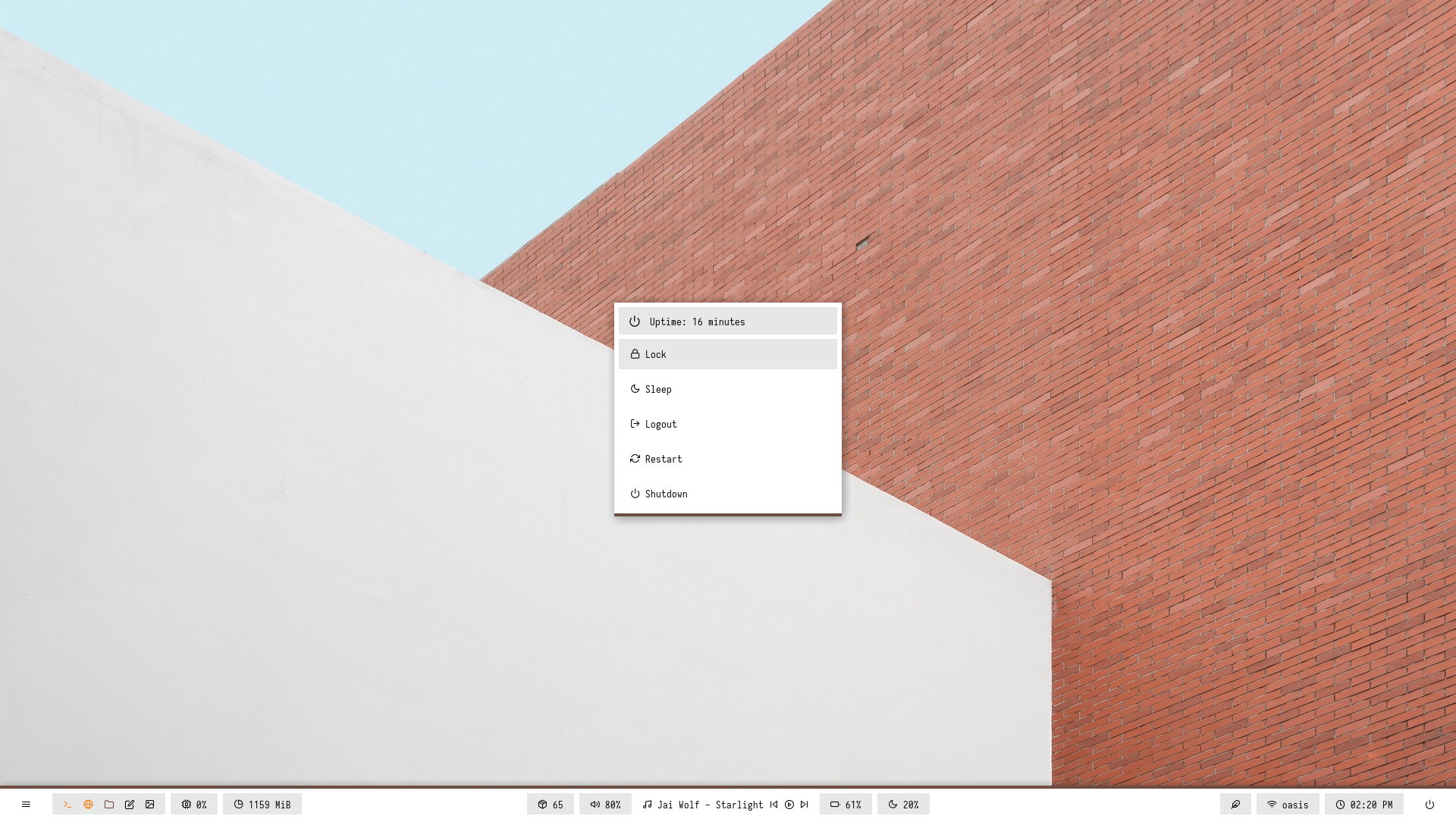 | 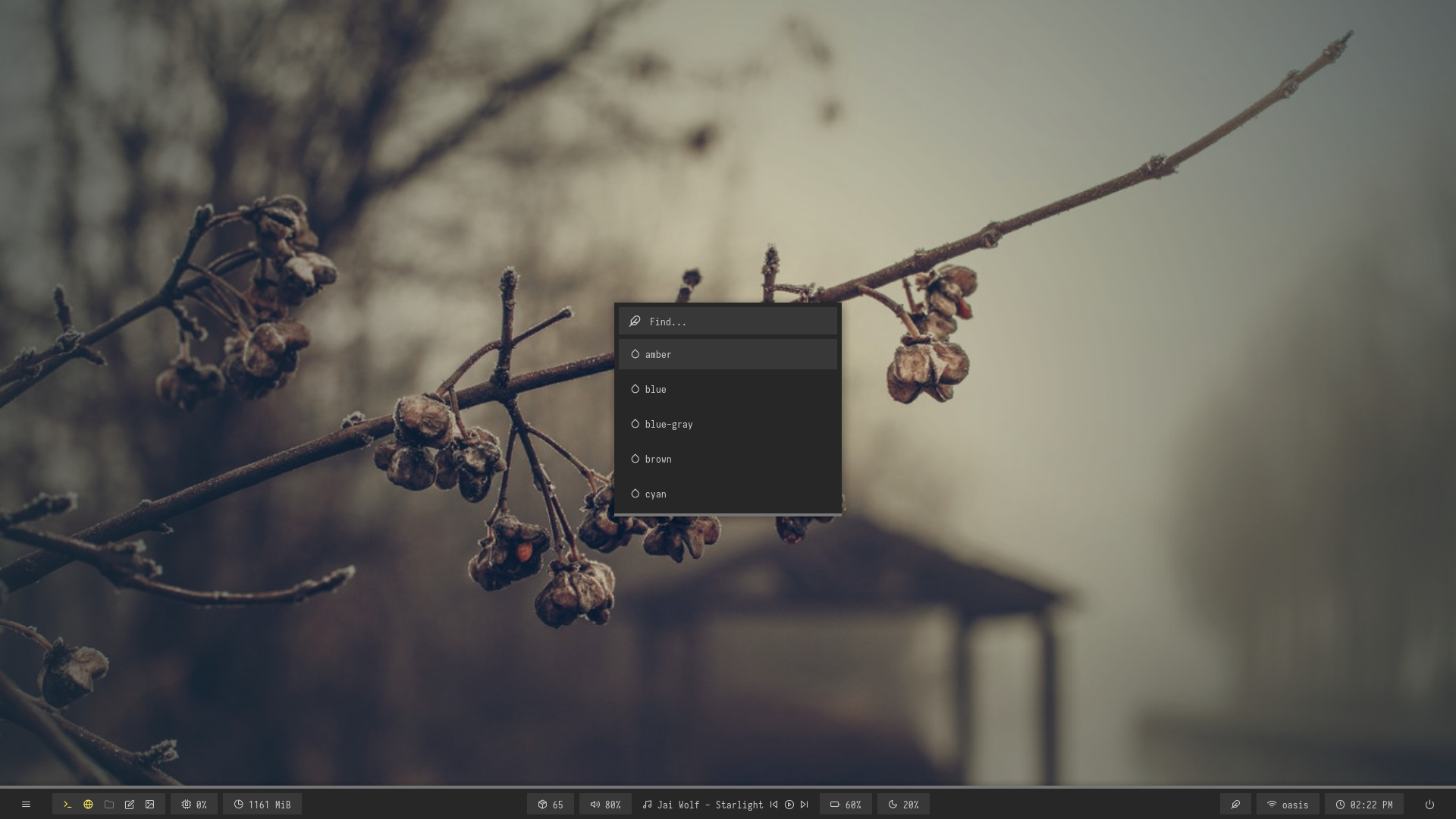 |
Blocks

Overview
Window Manager: OpenboxIcon Font: Icomoon FeatherText Font: Iosevka Nerd Font
Features
- Popular color-schemes based themes
- Rofi menus with same colors
Tips
- Run
preview.shto see all configured modules - Left click on apps/menu icon for
App Launcher - Left click on feather/style icon for
Style Switcher - Left click on power/system icon for
Powermenu - Left click on network name for
Network Menu
Previews
Click to expand
Bar

Modules


Default

Nord

Adapta

Gruvbox

Cherry

| Launcher | Networks |
|---|---|
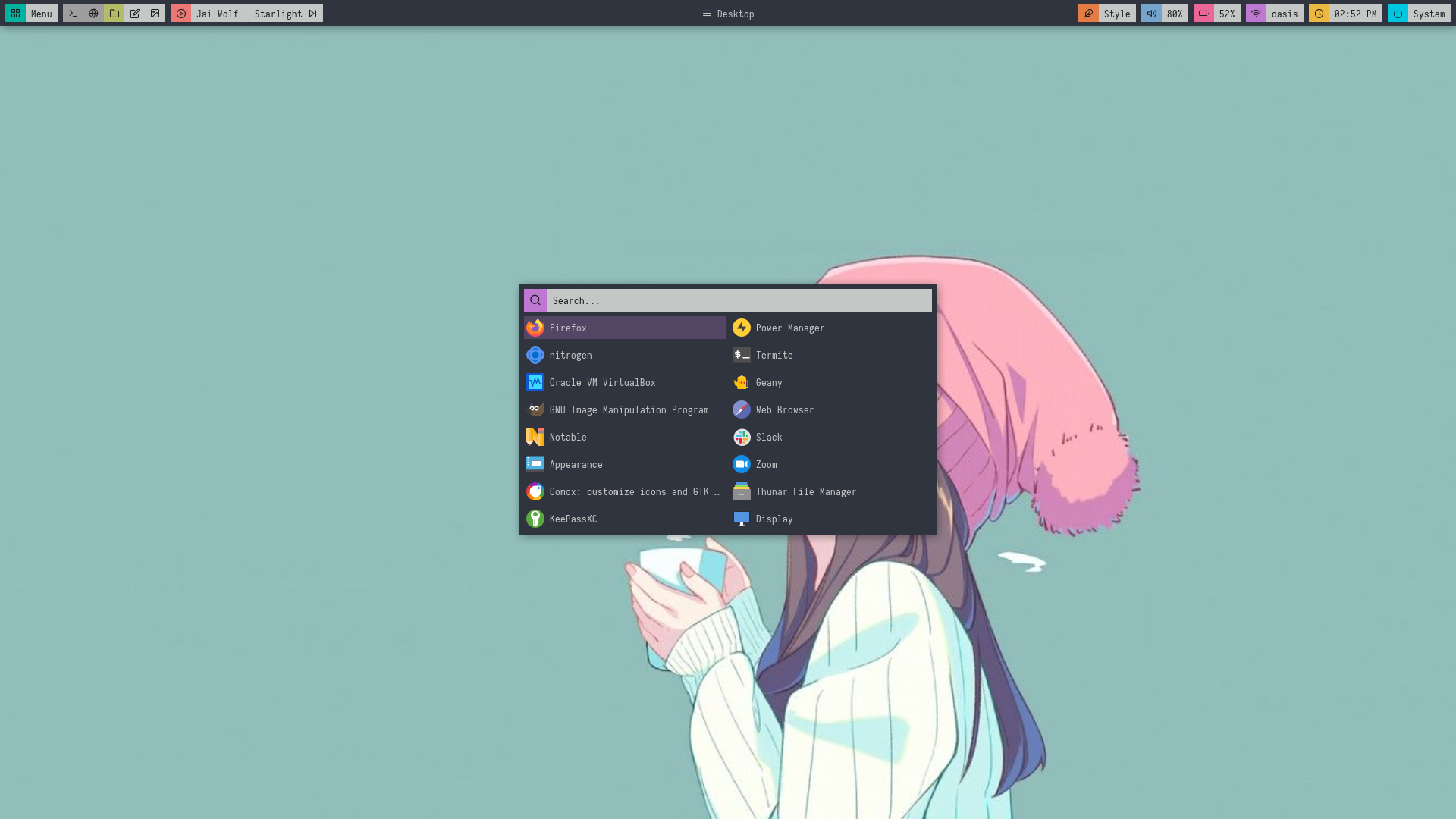 | 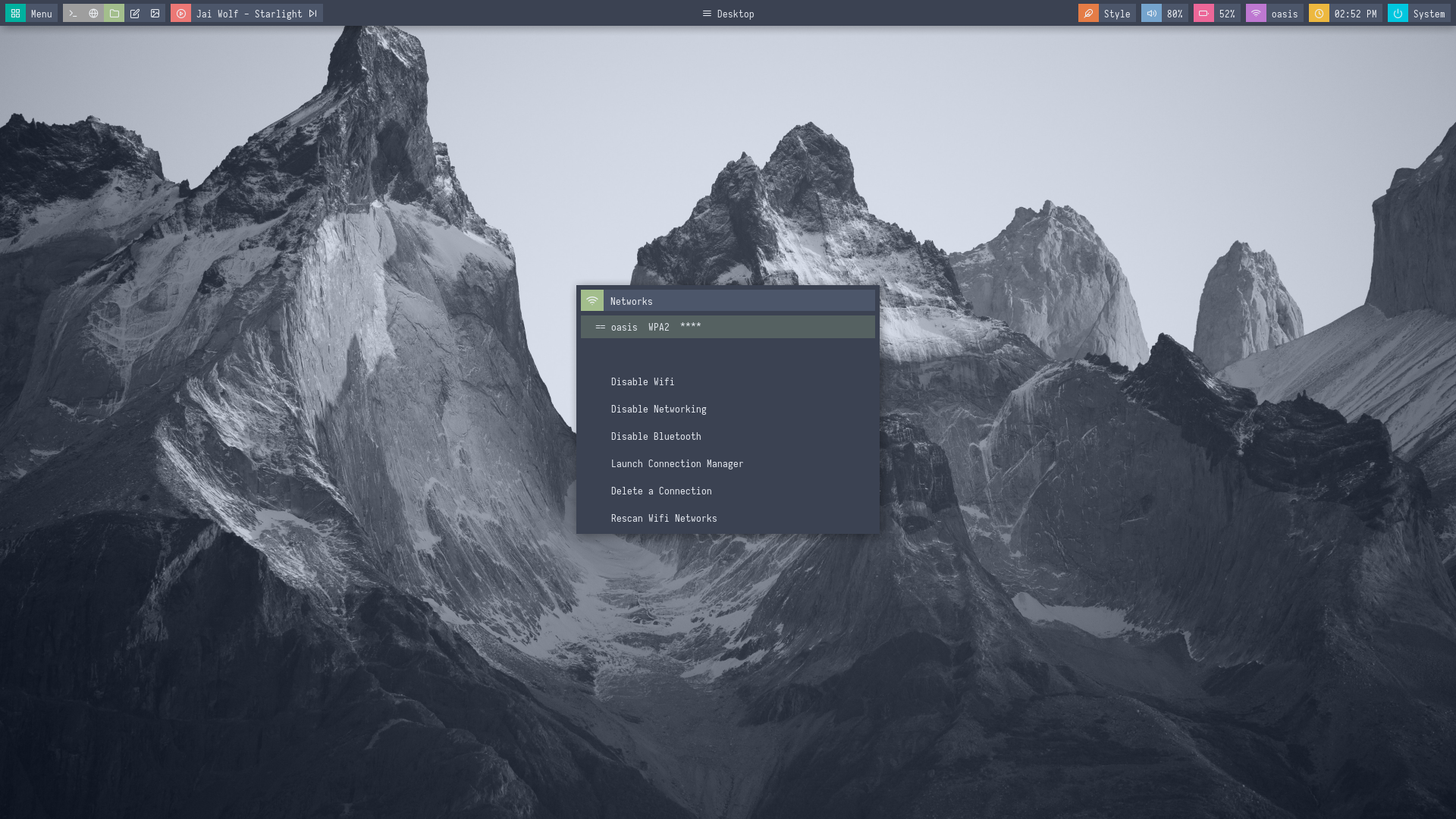 |
| Powermenu | Color Switcher |
|---|---|
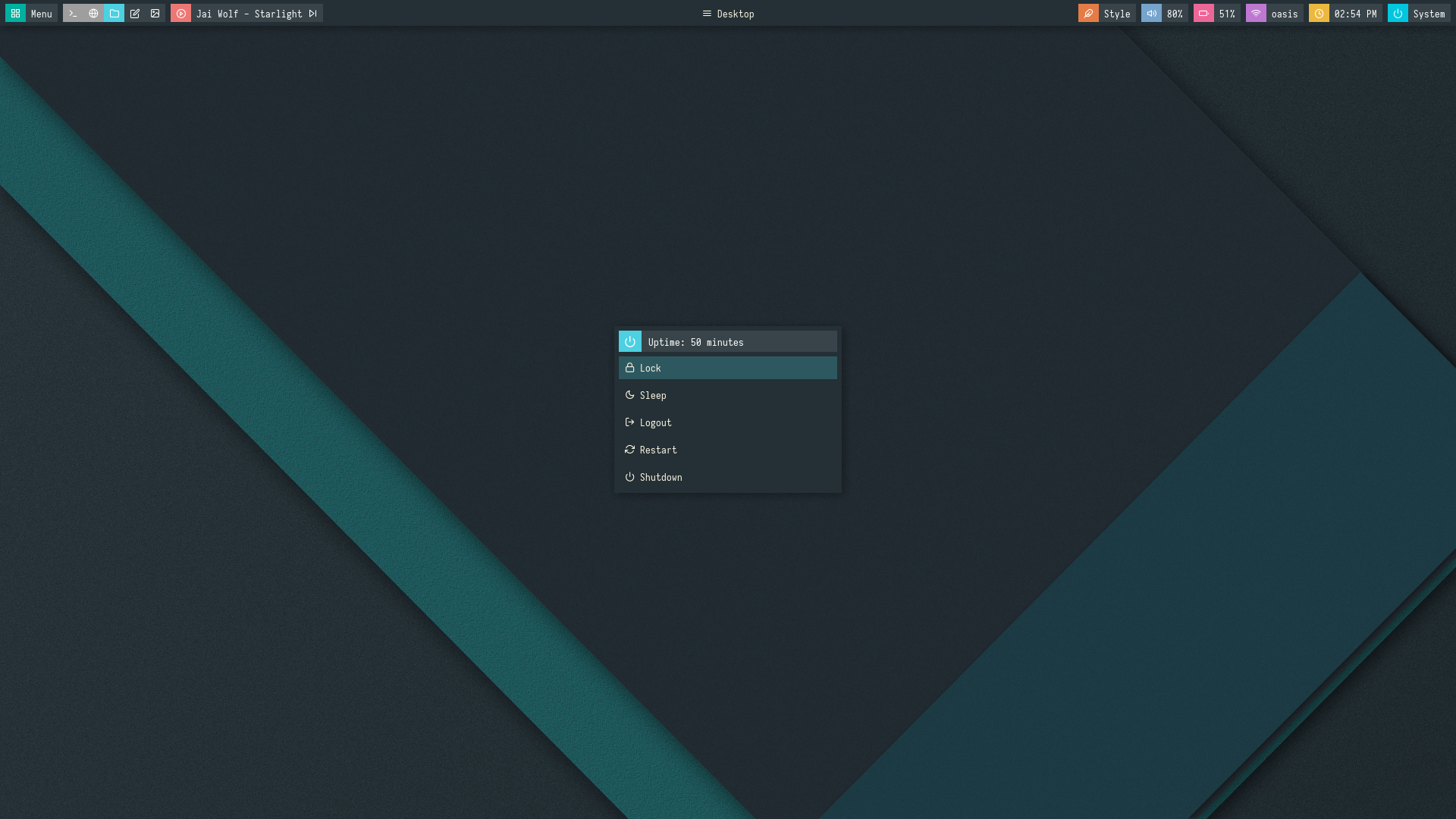 | 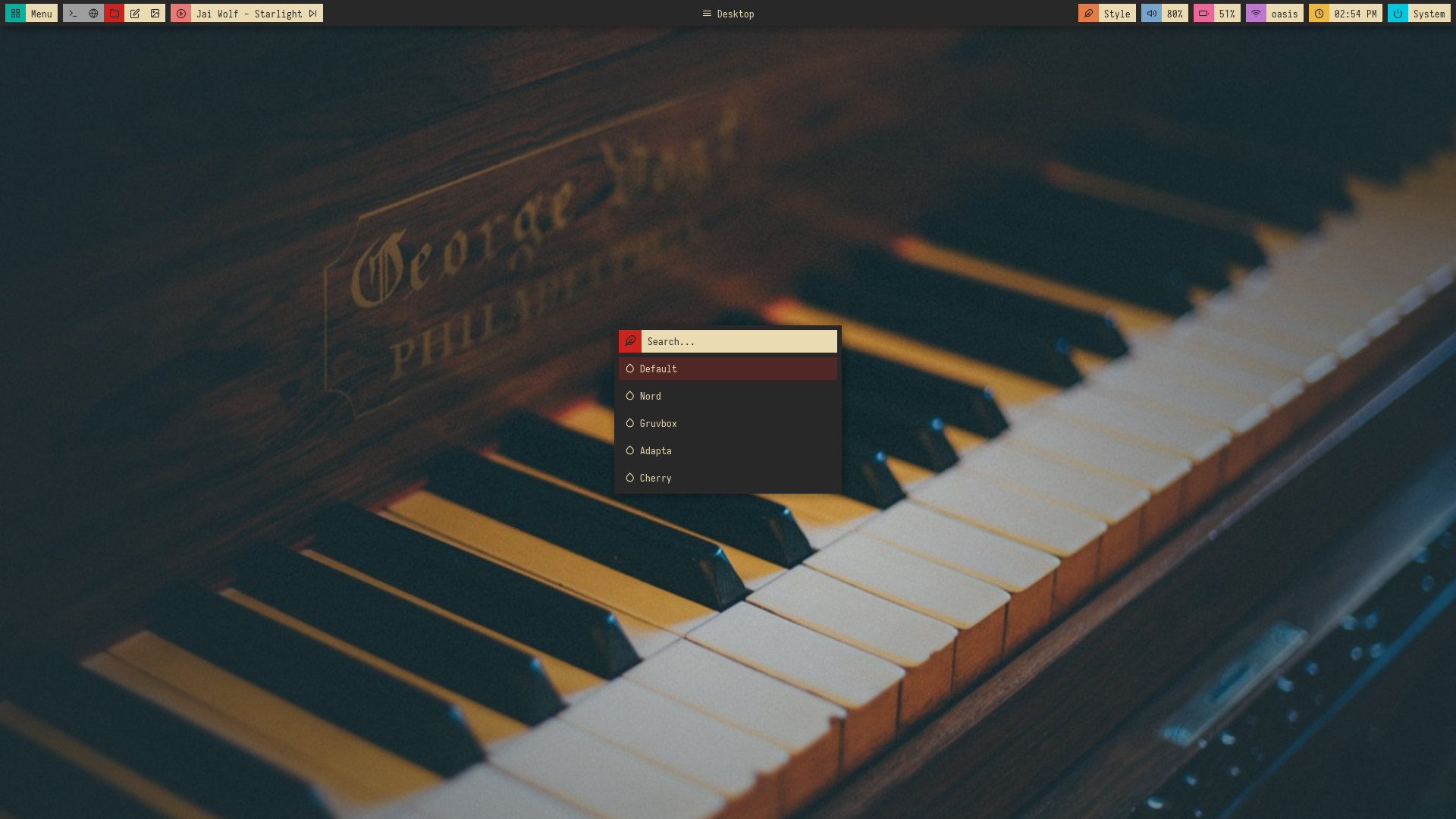 |
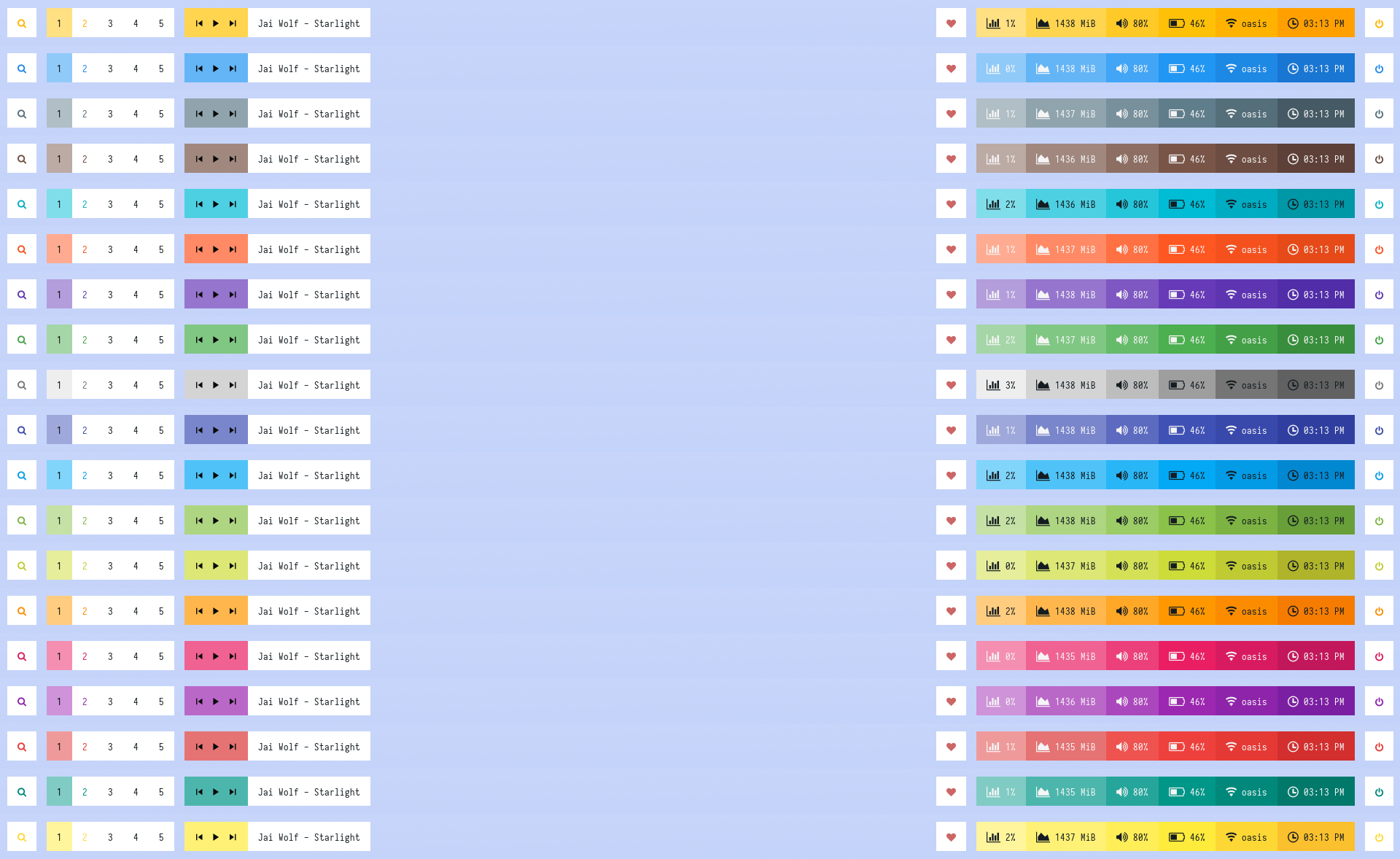
Colorblocks


Overview
Window Manager: OpenboxIcon Font: Iosevka Nerd FontText Font: Iosevka Nerd Font
Features
- Dark and Light mode with 15+ colors
- Rofi menus with same colors
- Added Pywal support
- Script to set random colors
Tips
- Run
preview.shto see all configured modules - Left click on search icon for
App Launcher - Left click on heart icon for
Color Switcher - Left click on power icon for
Powermenu - Left click on network name for
Network Menu
Previews
Click to expand
Bar


Modules


Dark
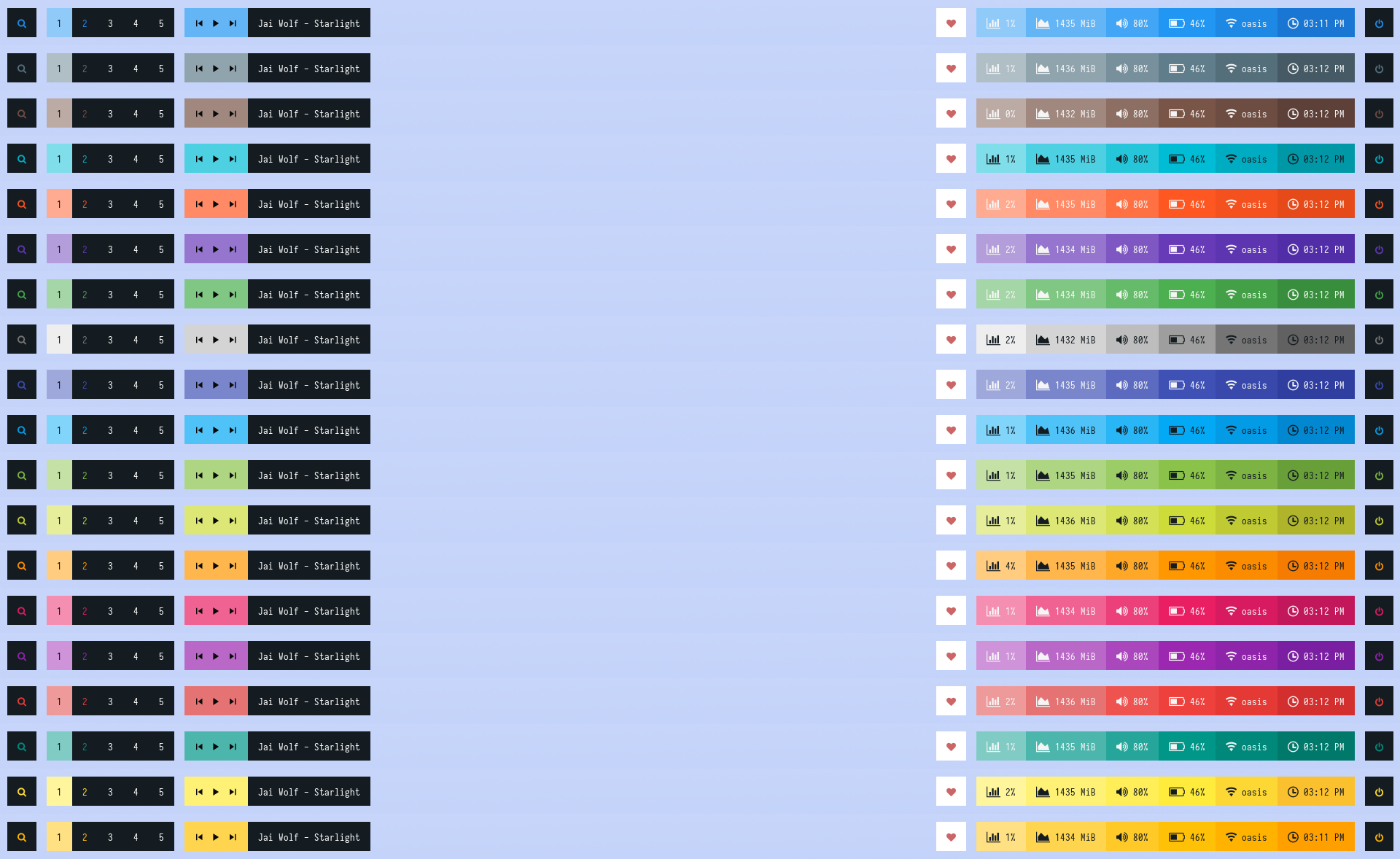
Light


| Launcher | Networks |
|---|---|
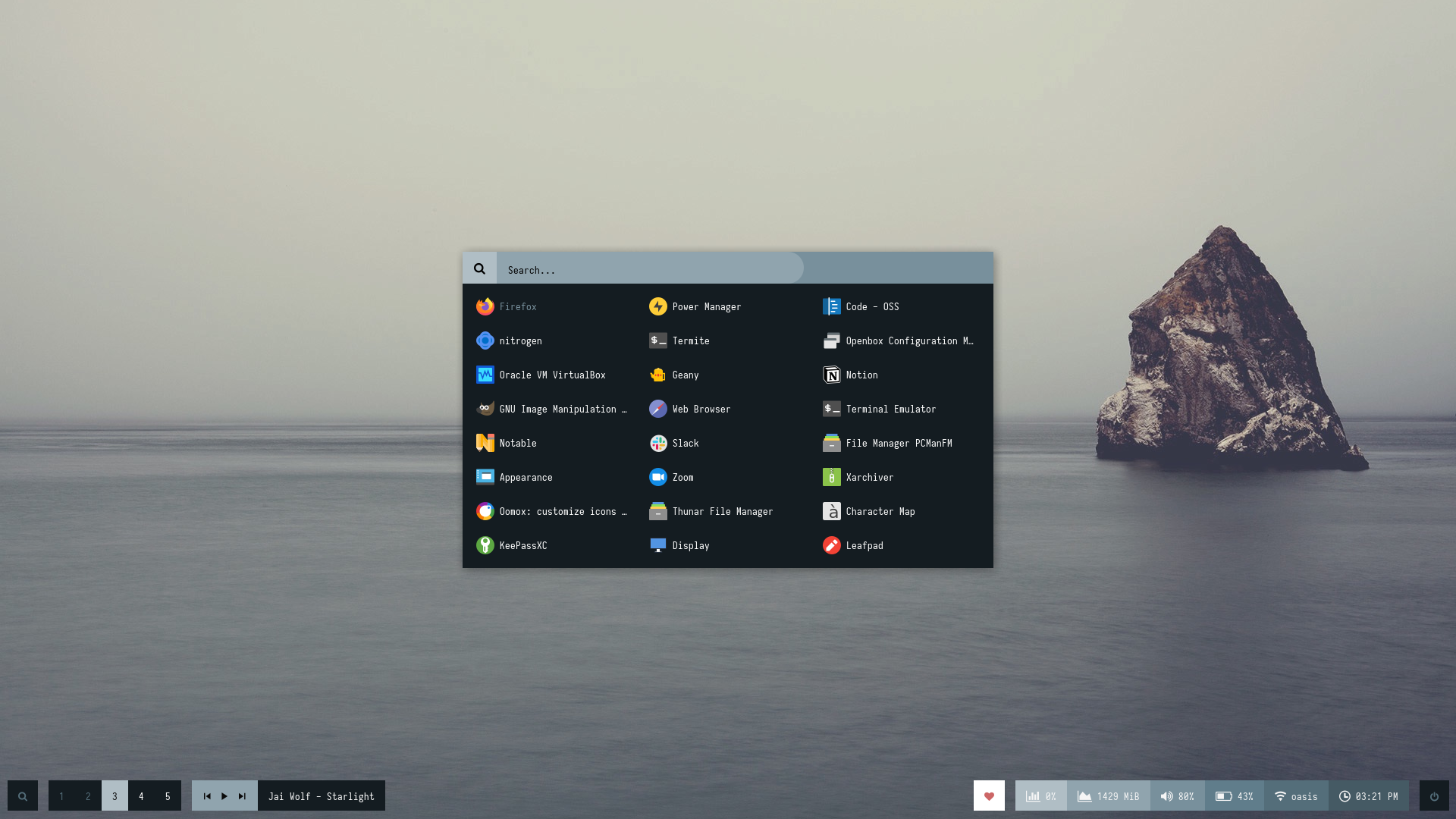 | 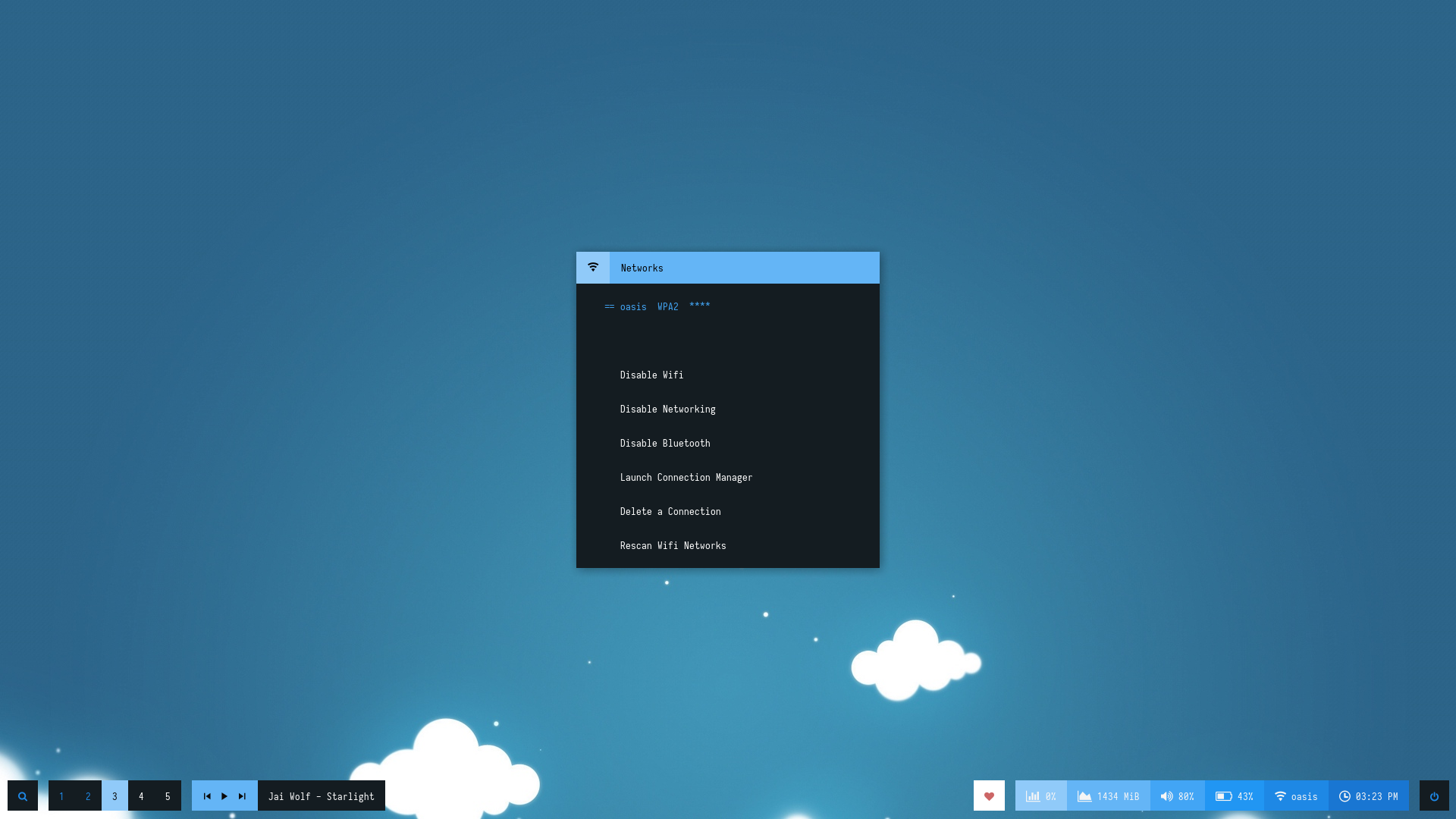 |
| Powermenu | Color Switcher |
|---|---|
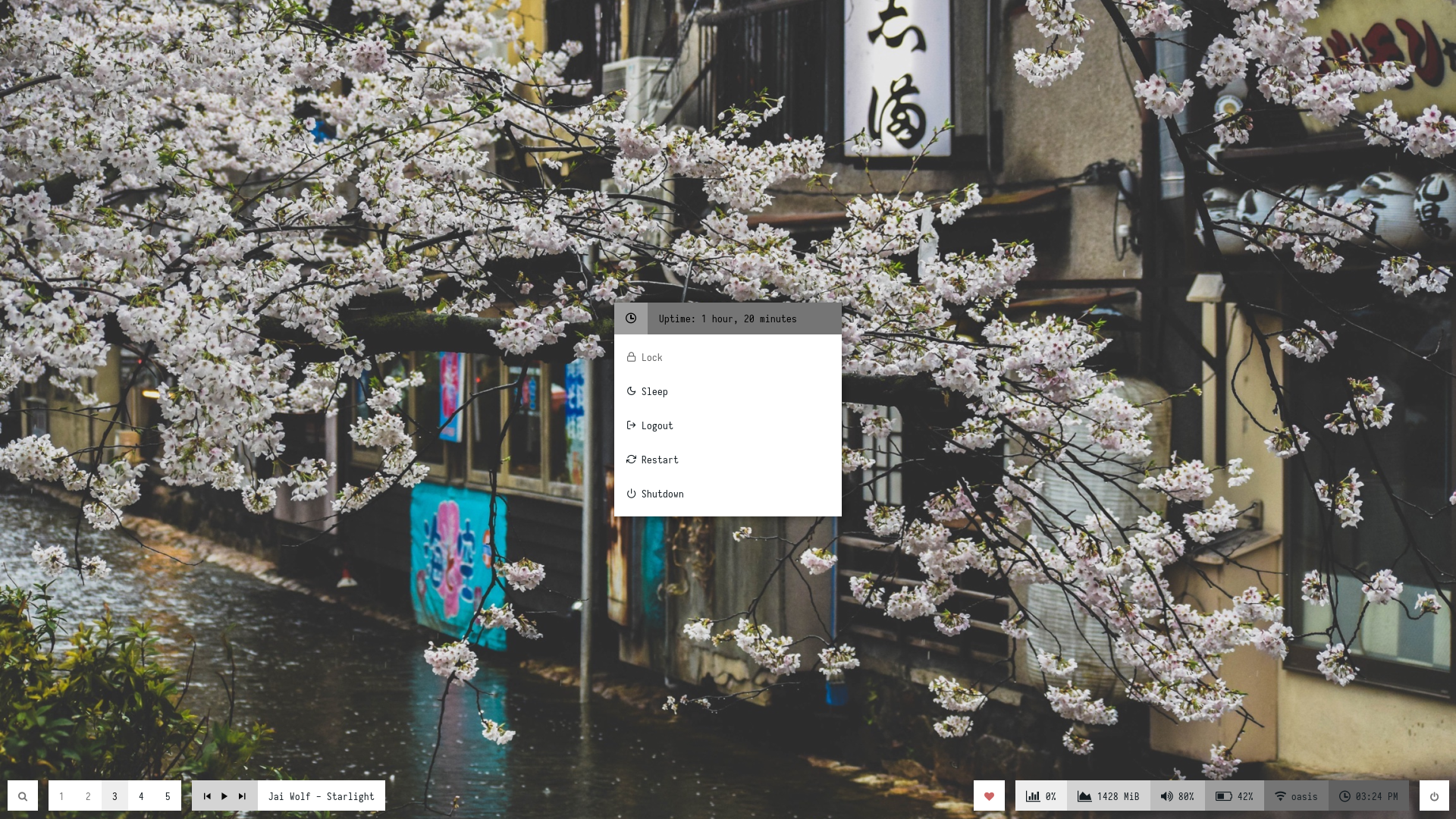 | 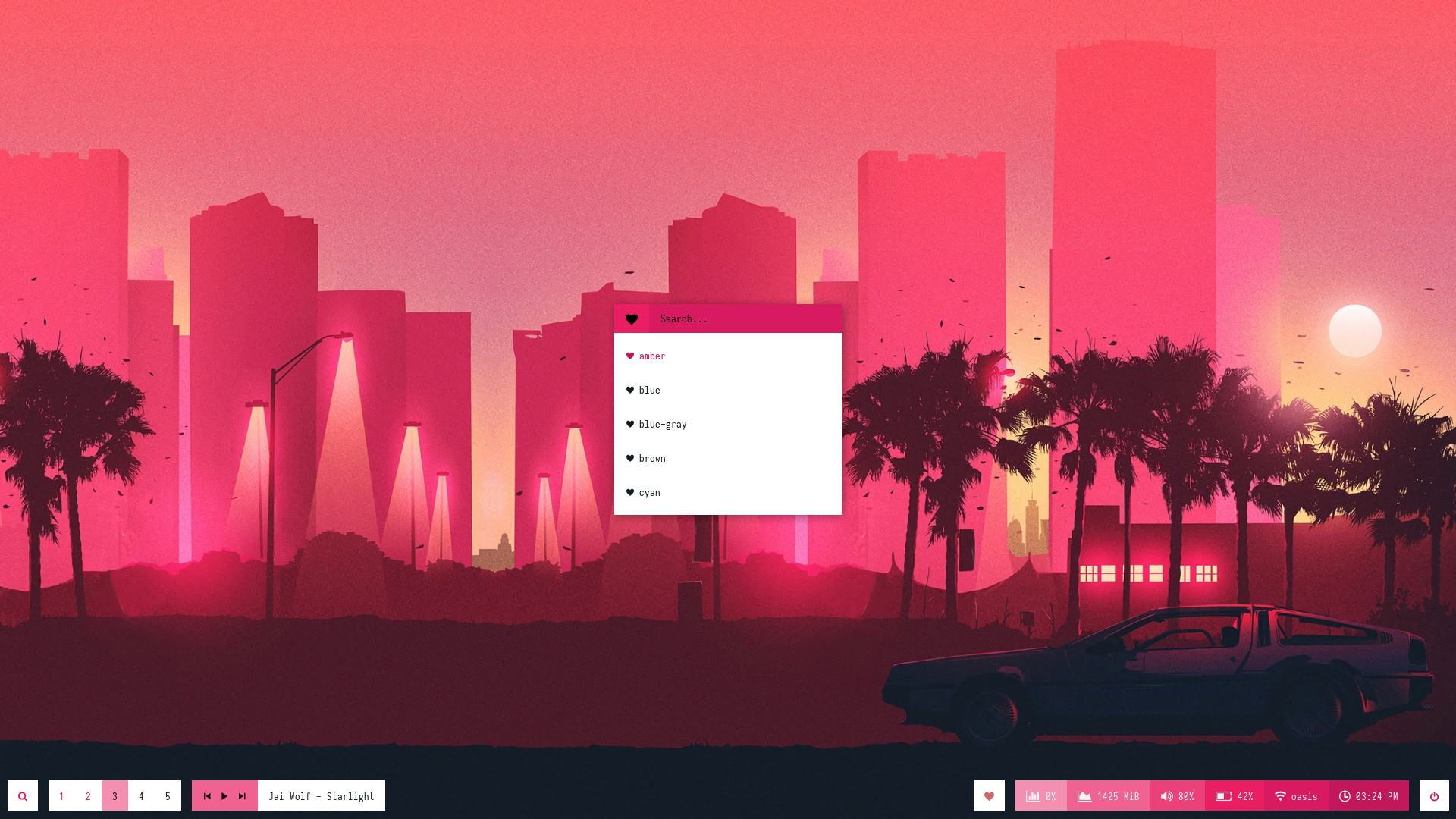 |
Forest

Overview
Window Manager: OpenboxIcon Font: Icomoon FeatherText Font: Iosevka Nerd Font
Features
- Popular color-schemes based themes
- Rofi menus with same colors
Tips
- Run
preview.shto see all configured modules - Left click on apps icon for
App Launcher - Right click on apps icon for
Style Switcher - Left click on power icon for
Powermenu - Left click on network name for
Network Menu
Previews
Click to expand
Bar

Modules


Default

Nord

Gruvbox

Dark

Cherry

| Launcher | Networks |
|---|---|
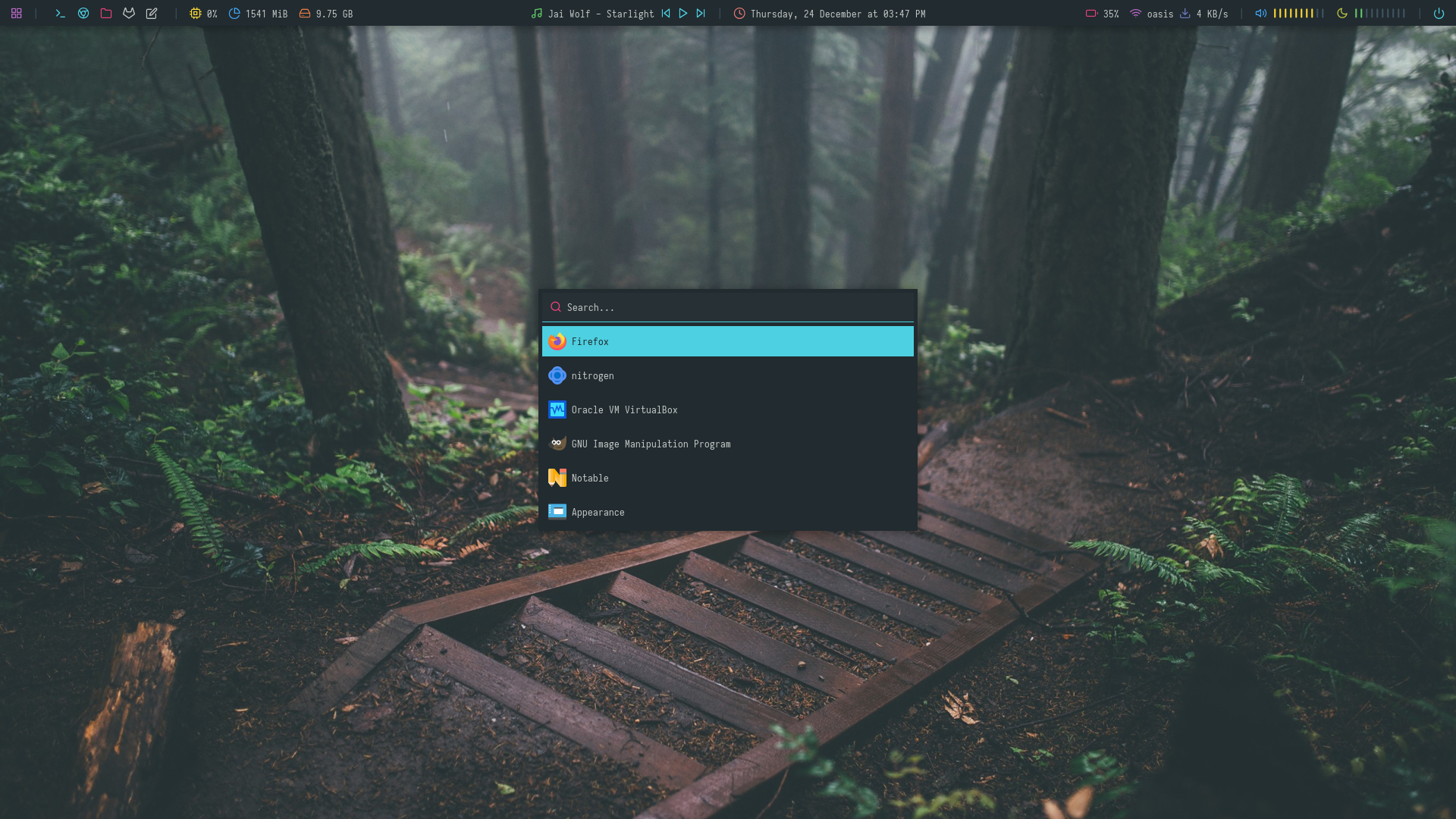 | 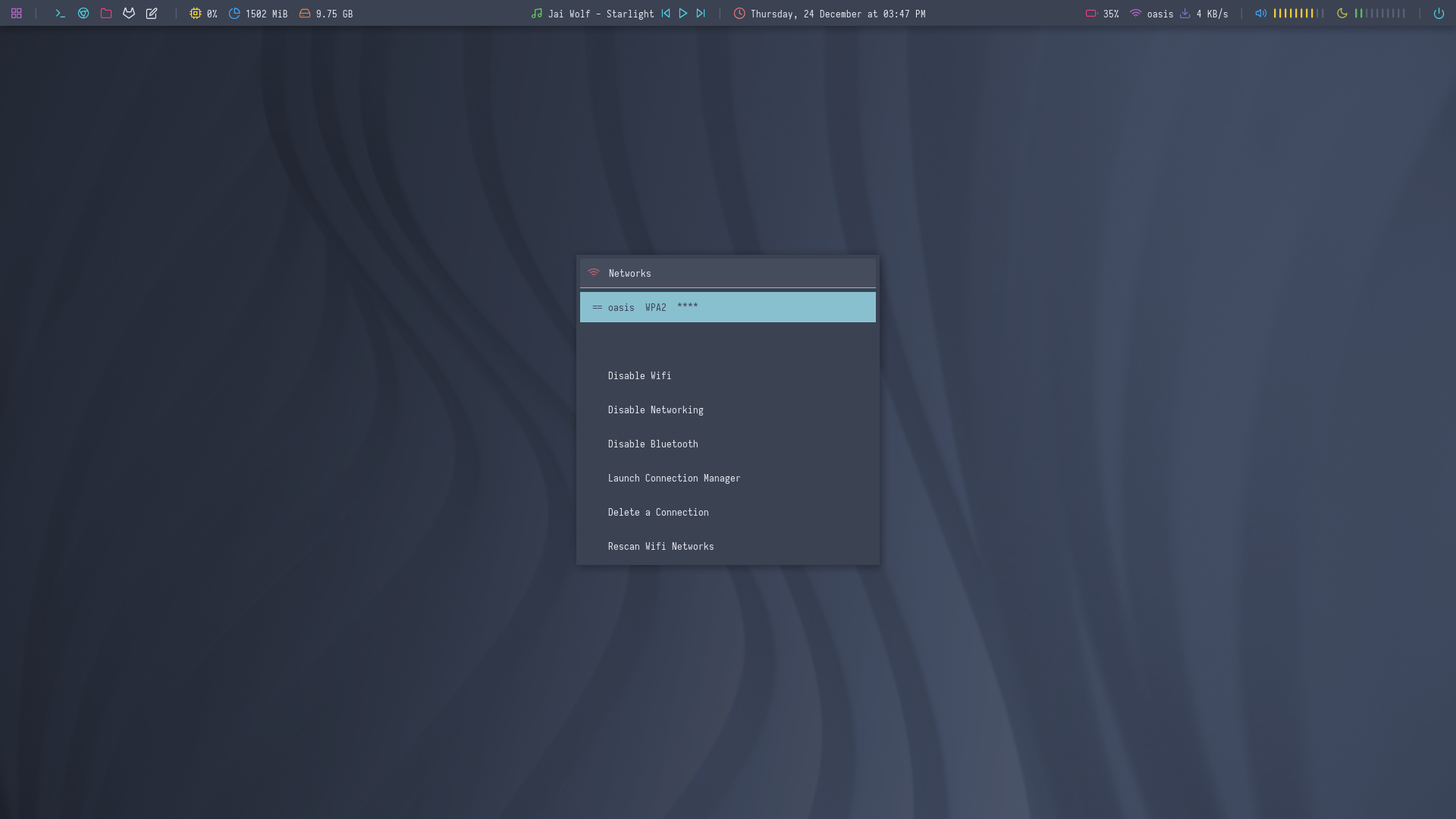 |
| Powermenu | Color Switcher |
|---|---|
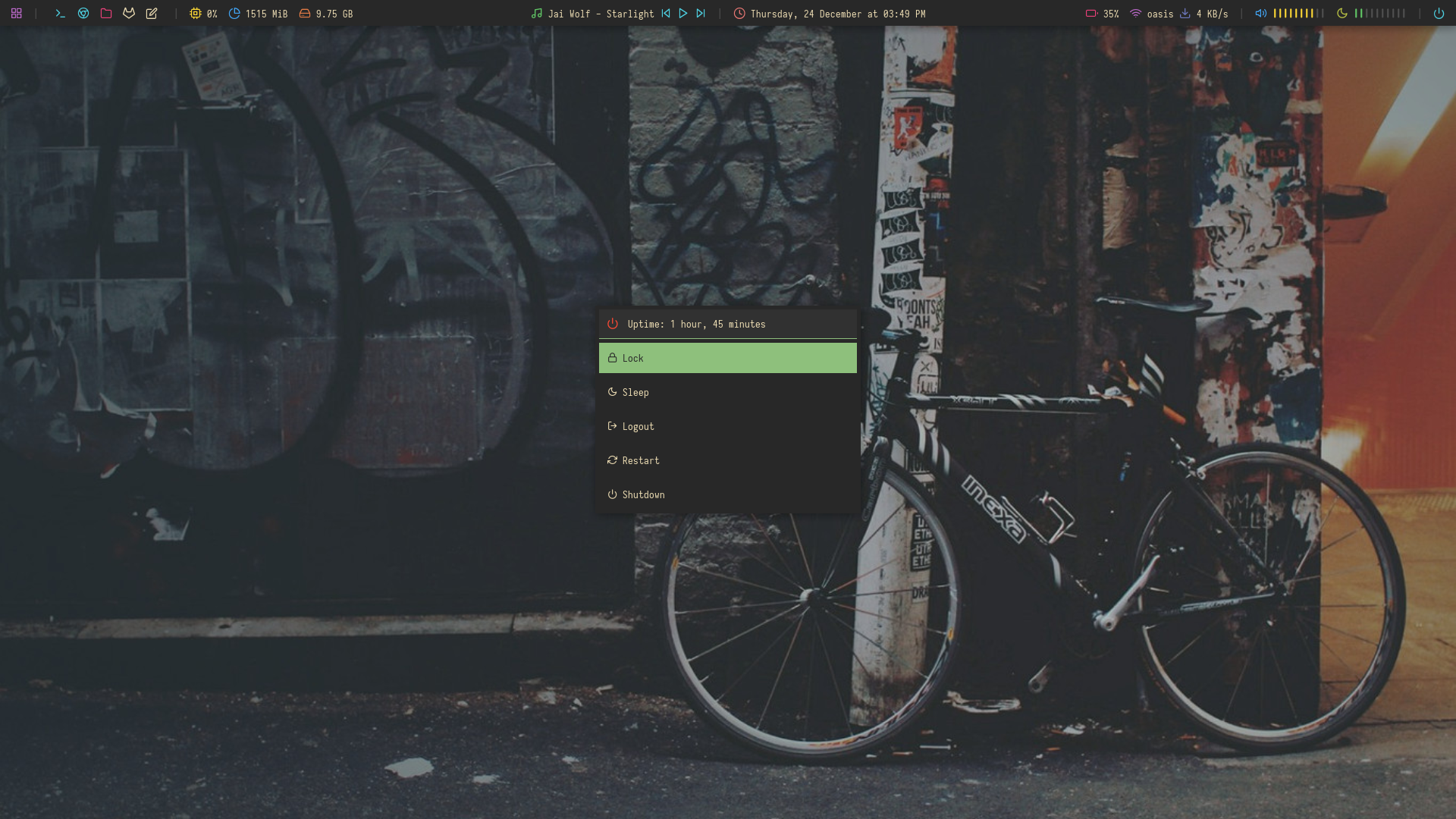 | 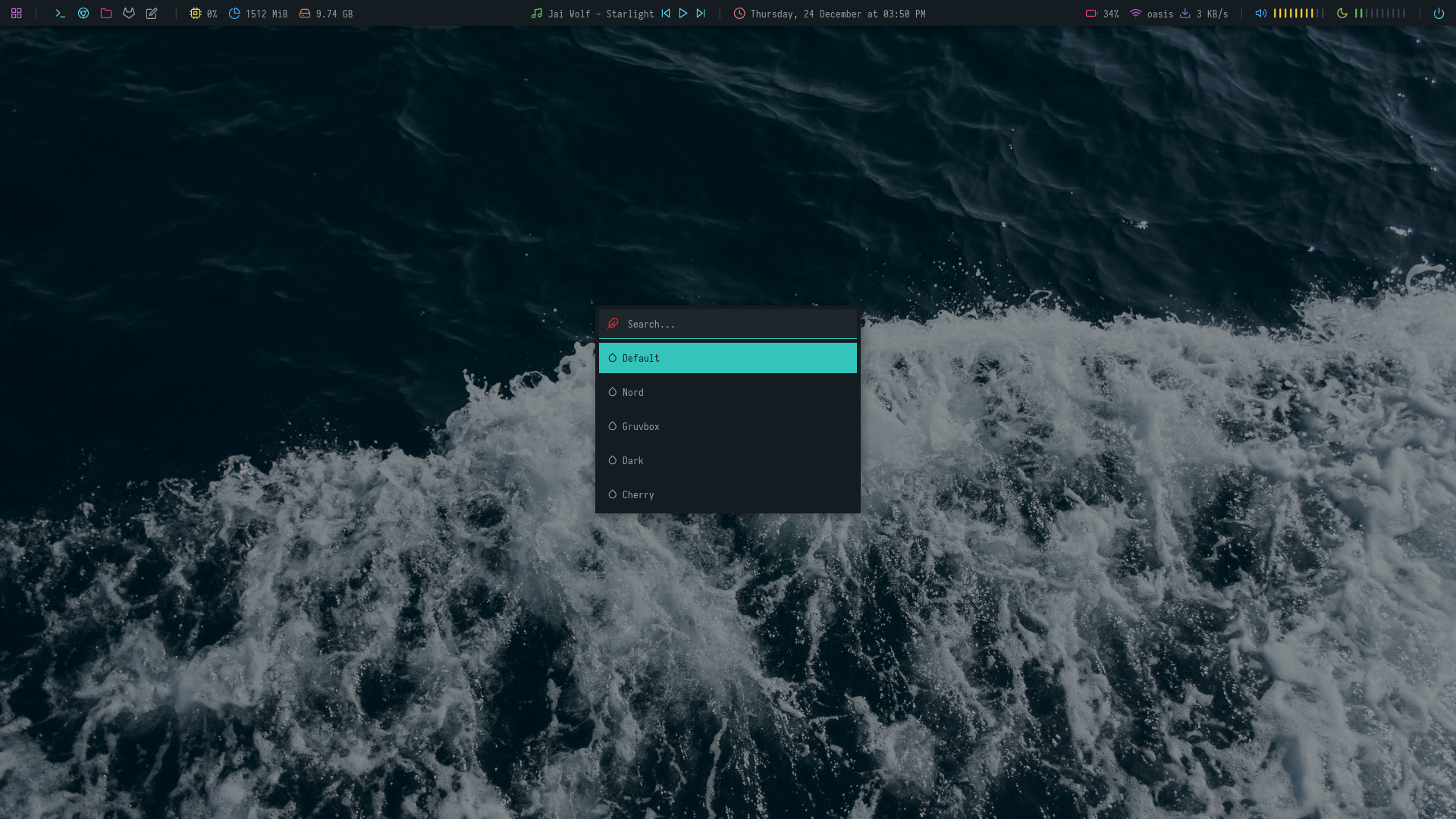 |
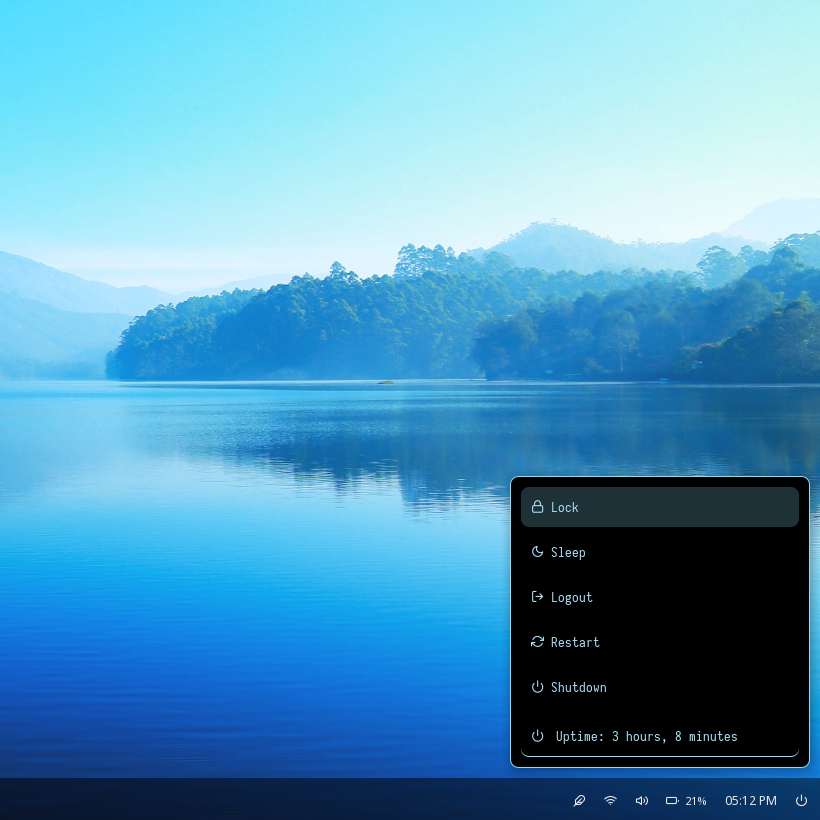
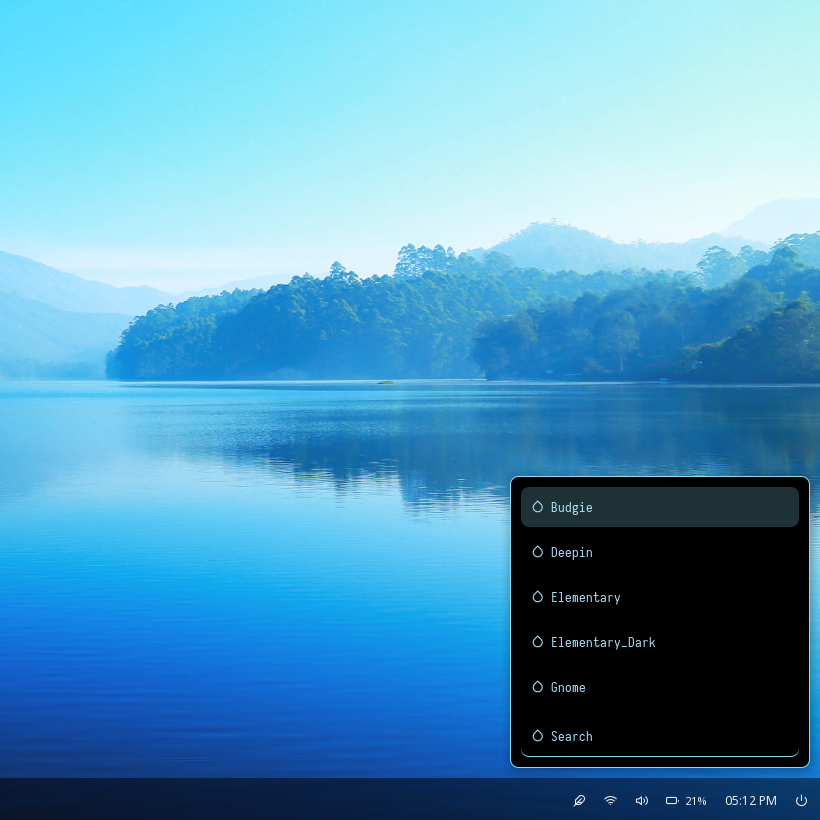
Panels
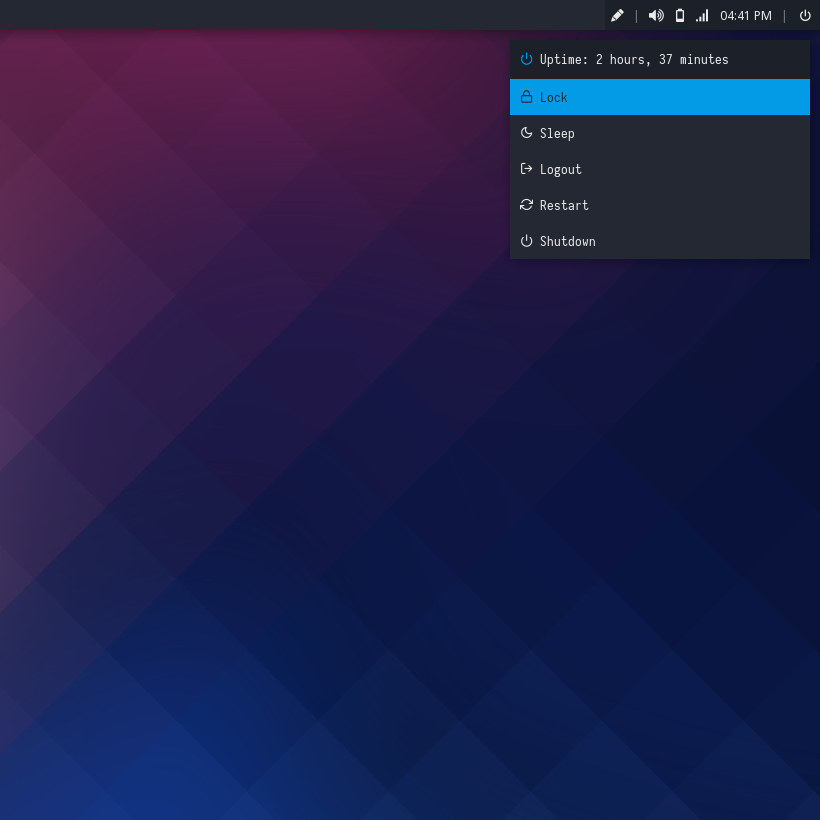
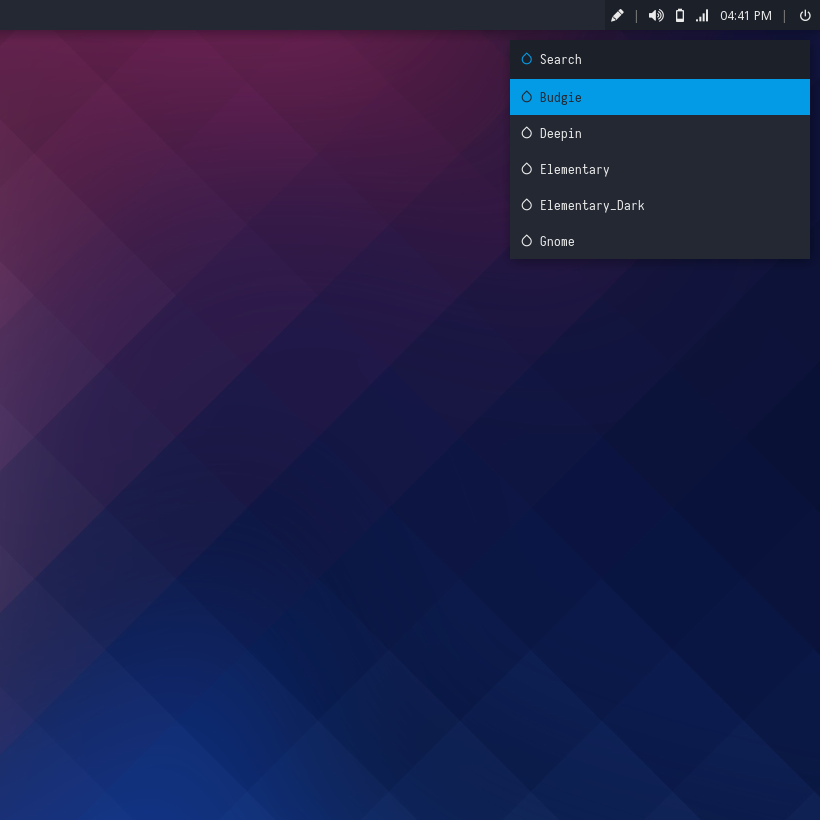
Budgie

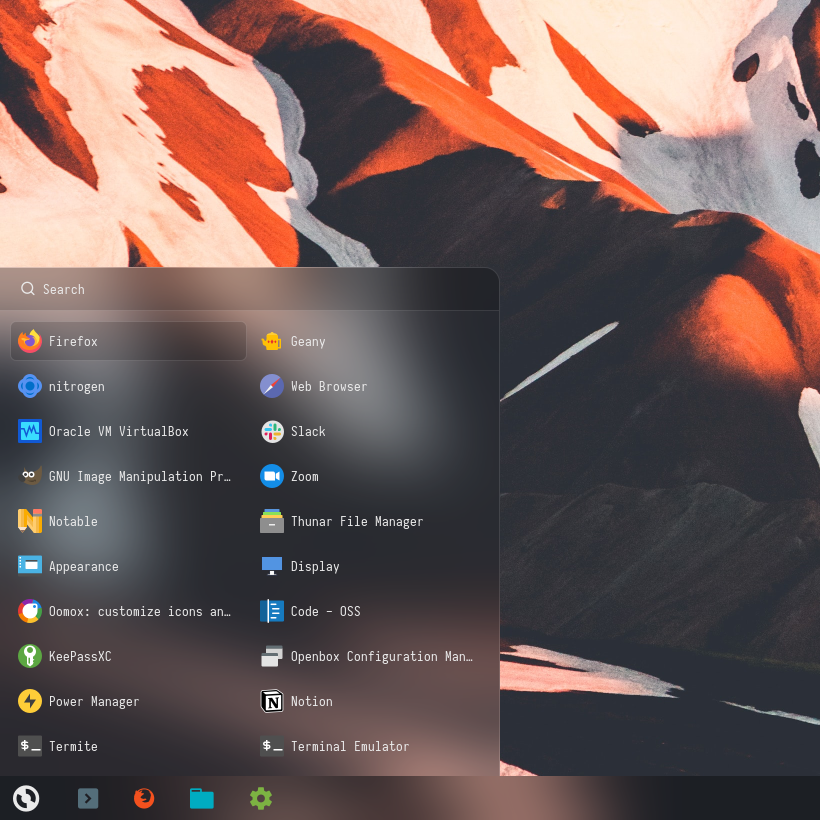
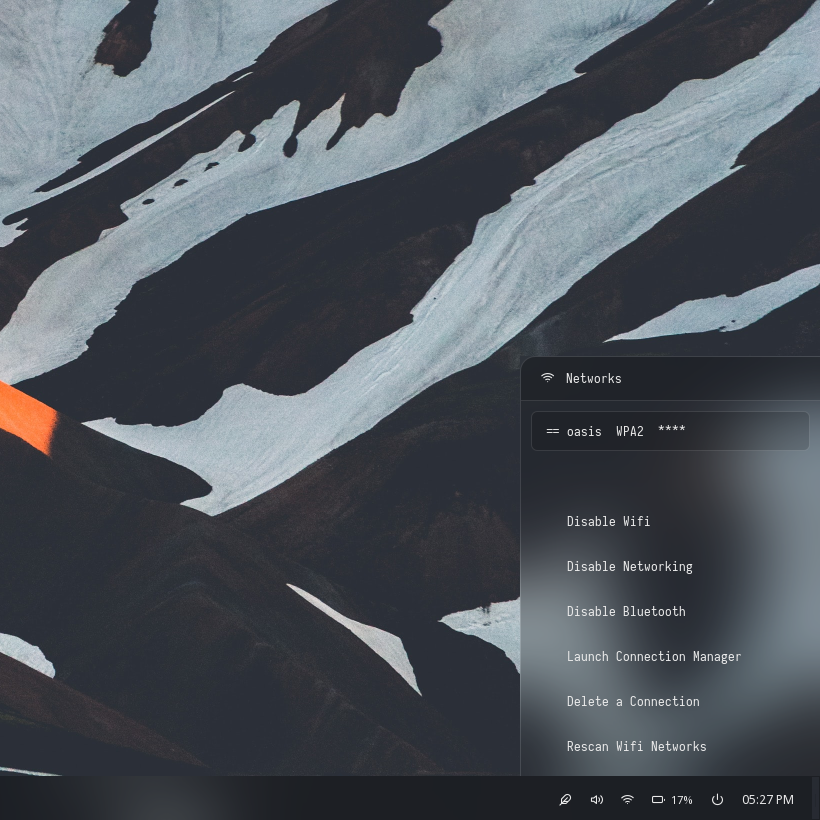
Deepin

Elementary

Elementary Dark

Gnome

KDE

KDE Dark

Liri

Mint

Ubuntu Gnome

Ubuntu Unity

Xubuntu

Zorin

Overview
Window Manager: OpenboxIcon Font: Icomoon Feather, Iosevka Nerd Font, Material IconsText Font: Droid Sans, Noto Sans
Features
- 13 different Desktop Environment panels
- Identical rofi menus for each panel
Tips
- Left click on logo icon for
App Launcher - Left click on pen/feather/drop icon for
Bar Switcher - Left click on power icon for
Powermenu - Left click on network icon for
Network Menu
Previews
Budgie
| Launcher | Networks | Powermenu | Color Switcher |
|---|---|---|---|
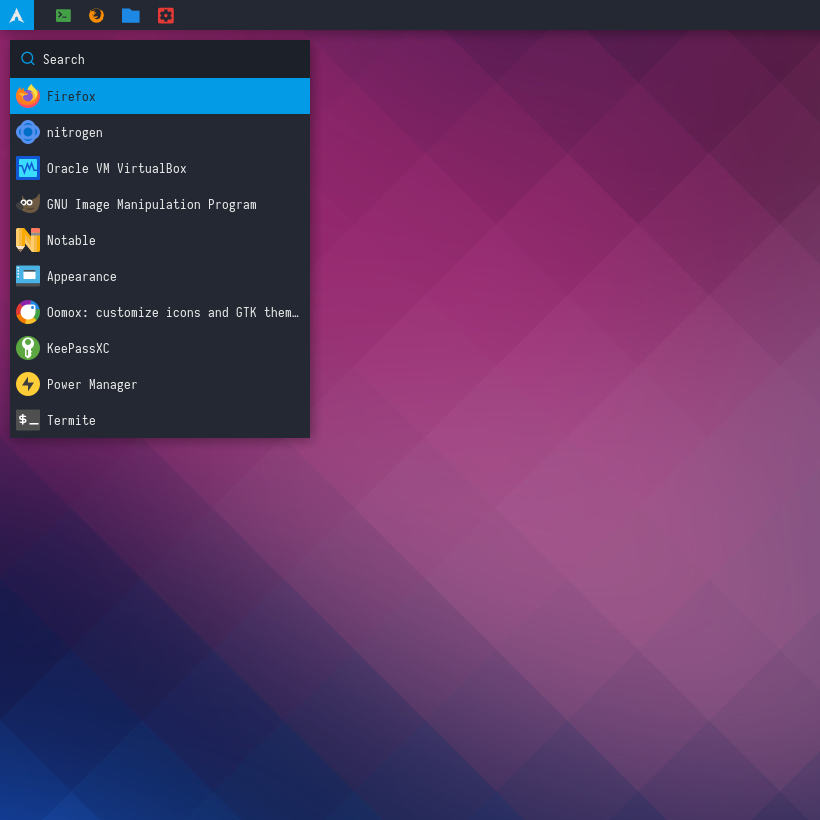 | 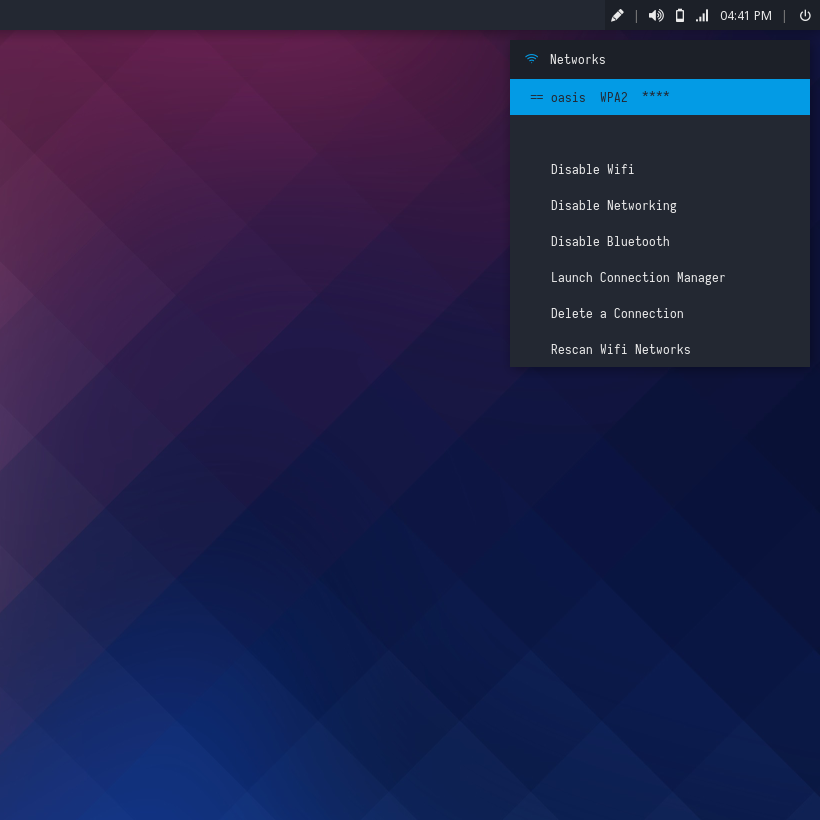 |  |  |
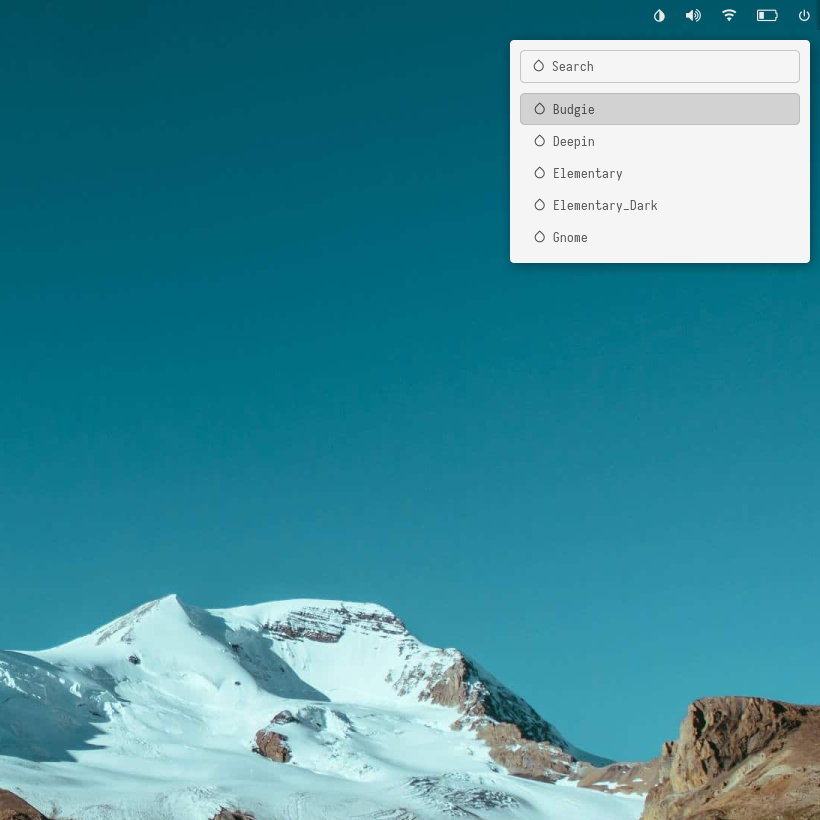
Deepin
| Launcher | Networks | Powermenu | Color Switcher |
|---|---|---|---|
 |  | 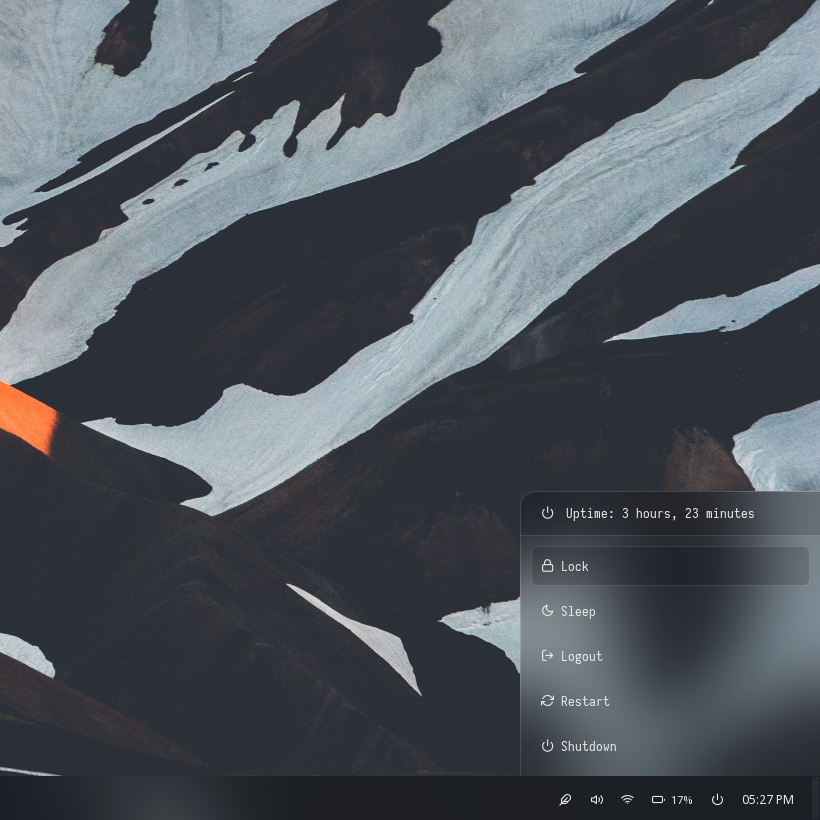 | 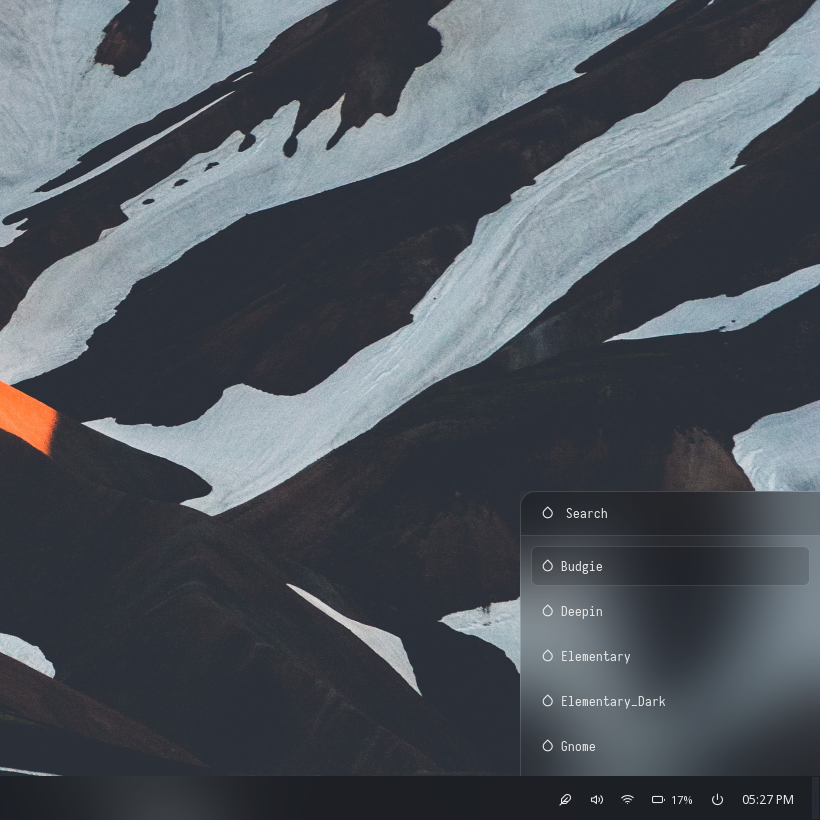 |
Elementary
| Launcher | Networks | Powermenu | Color Switcher |
|---|---|---|---|
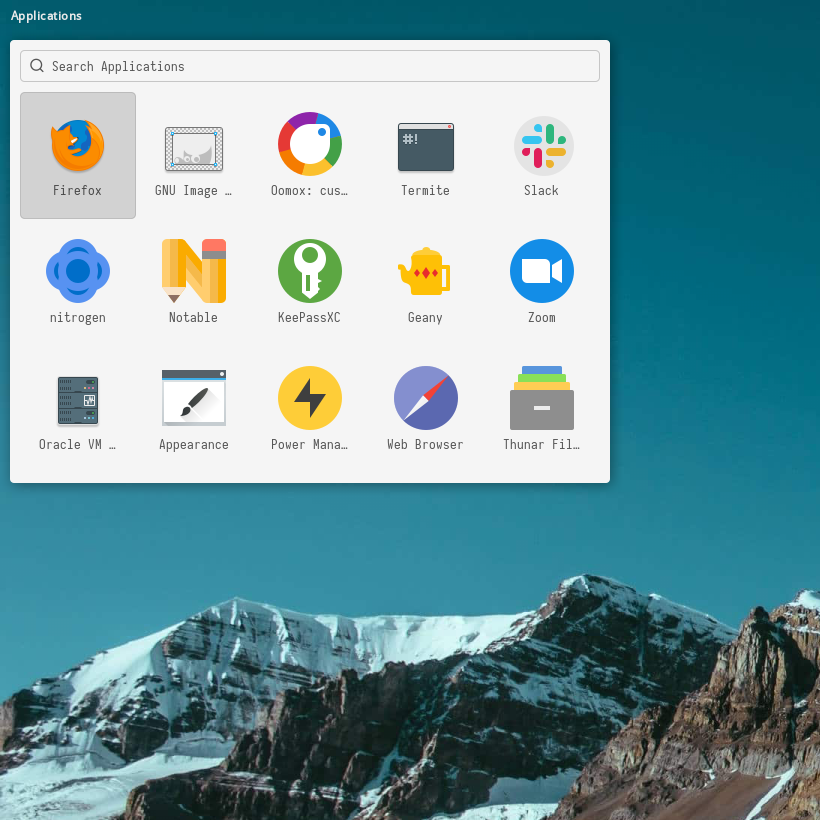 | 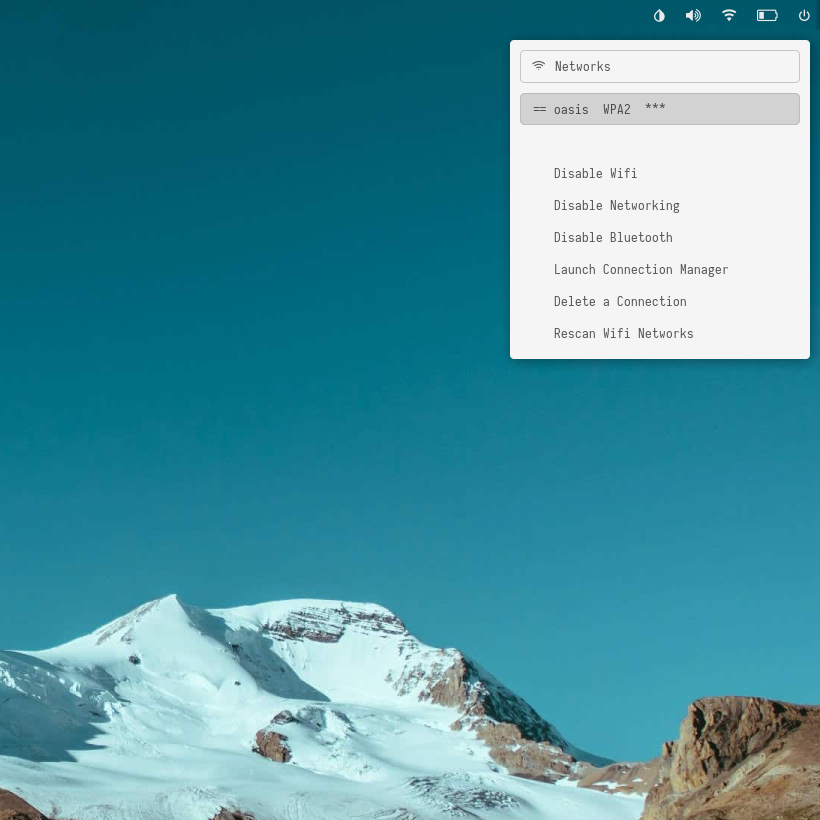 | 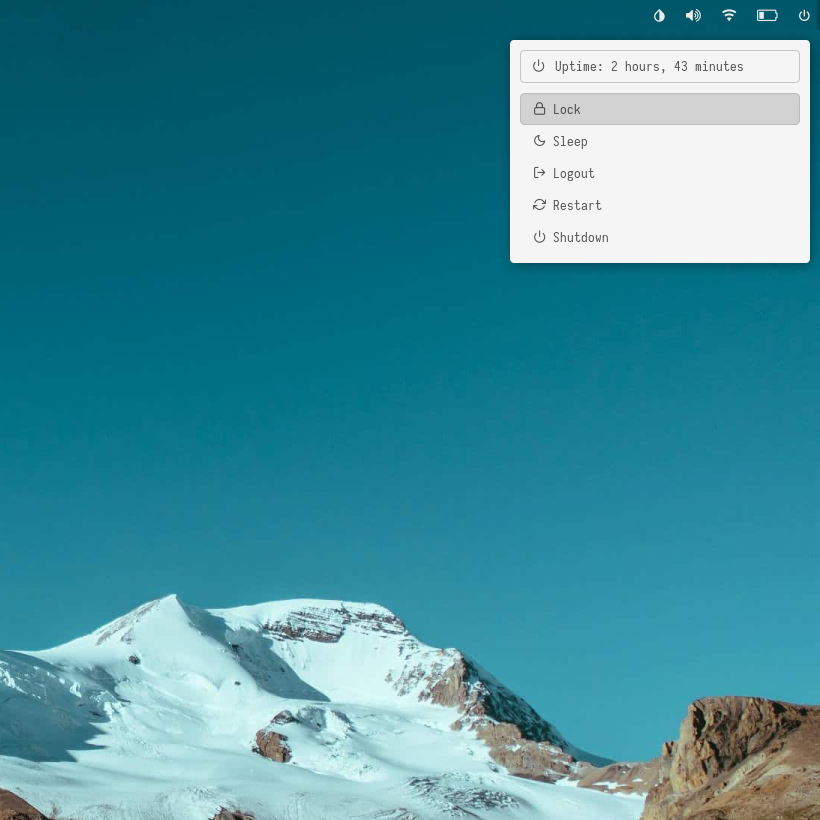 |  |
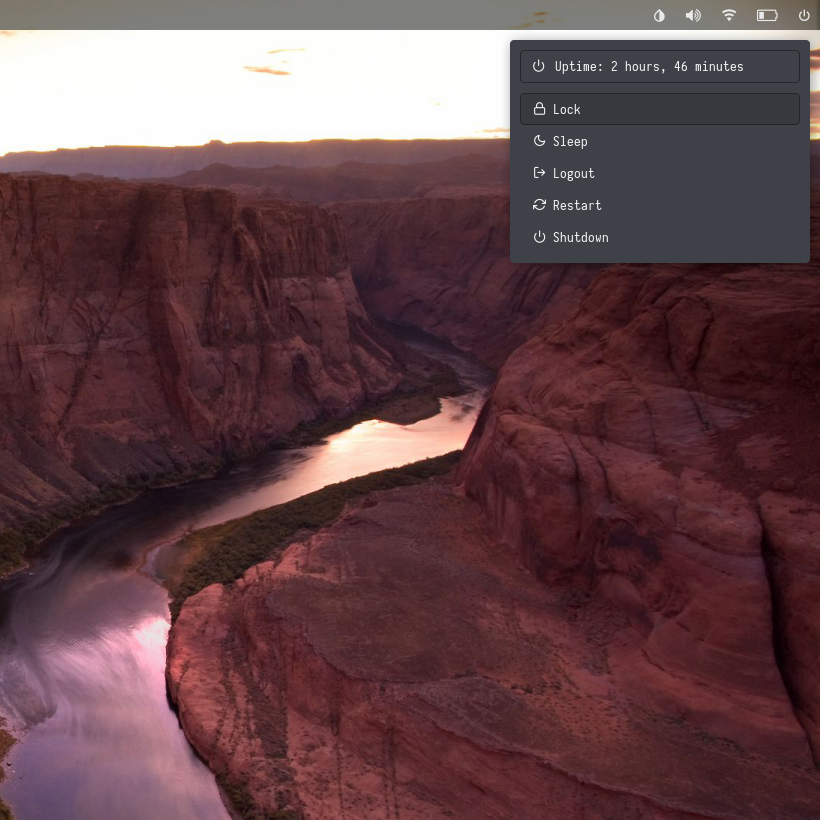
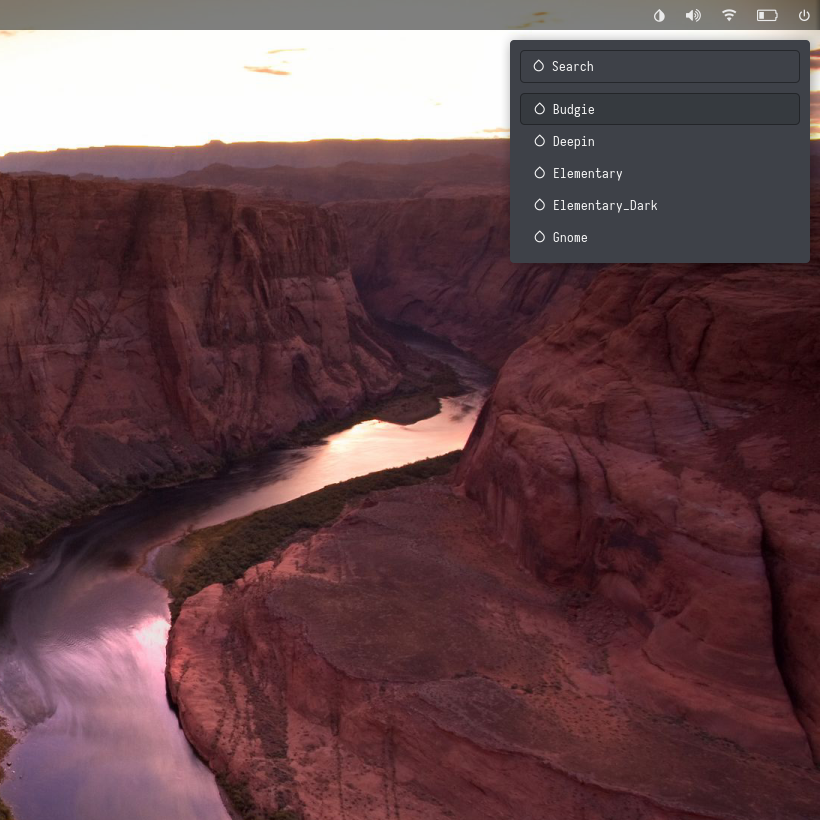
Elementary Dark
| Launcher | Networks | Powermenu | Color Switcher |
|---|---|---|---|
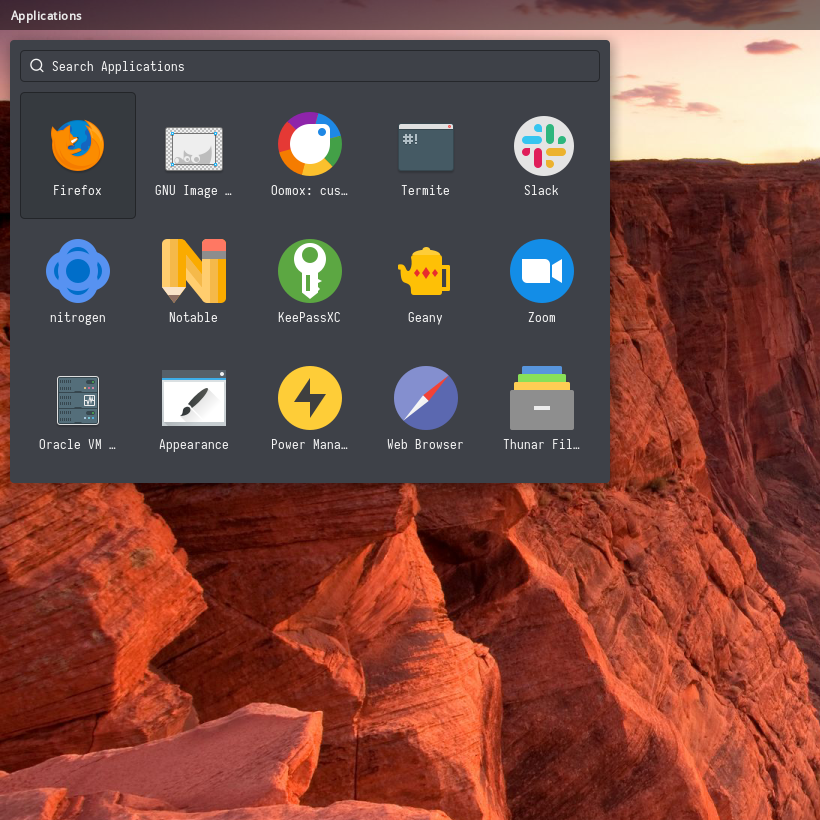 | 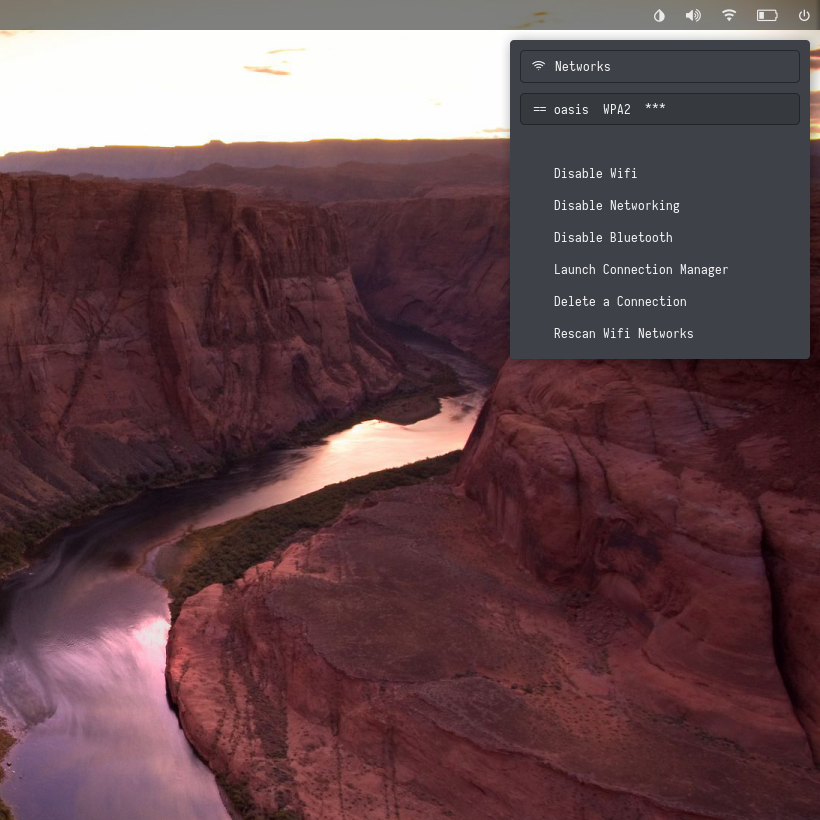 |  |  |
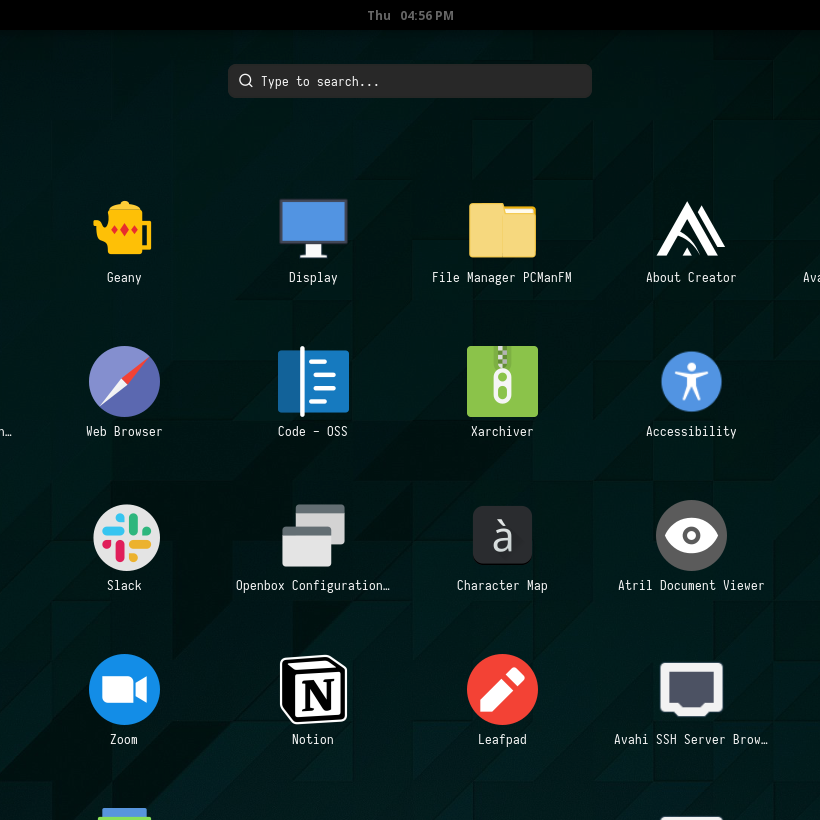
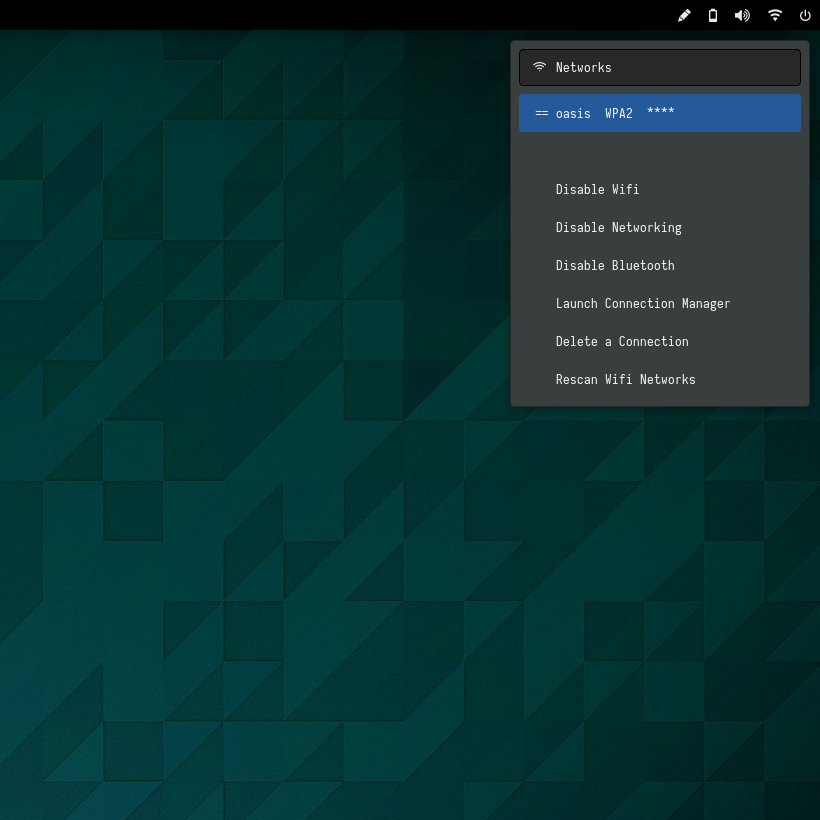
Gnome
| Launcher | Networks | Powermenu | Color Switcher |
|---|---|---|---|
 |  | 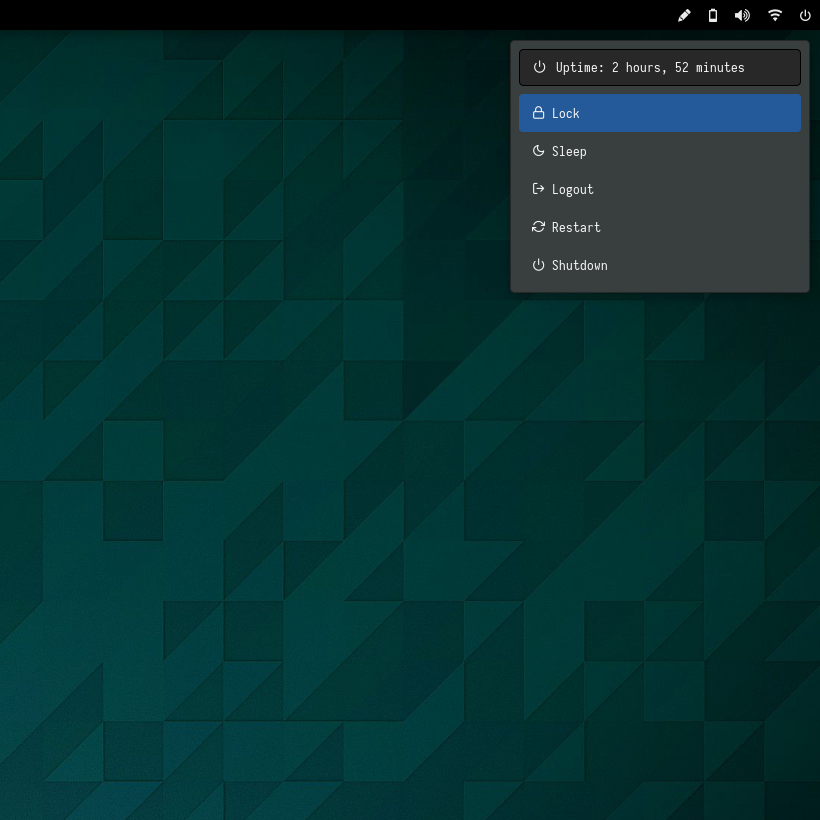 | 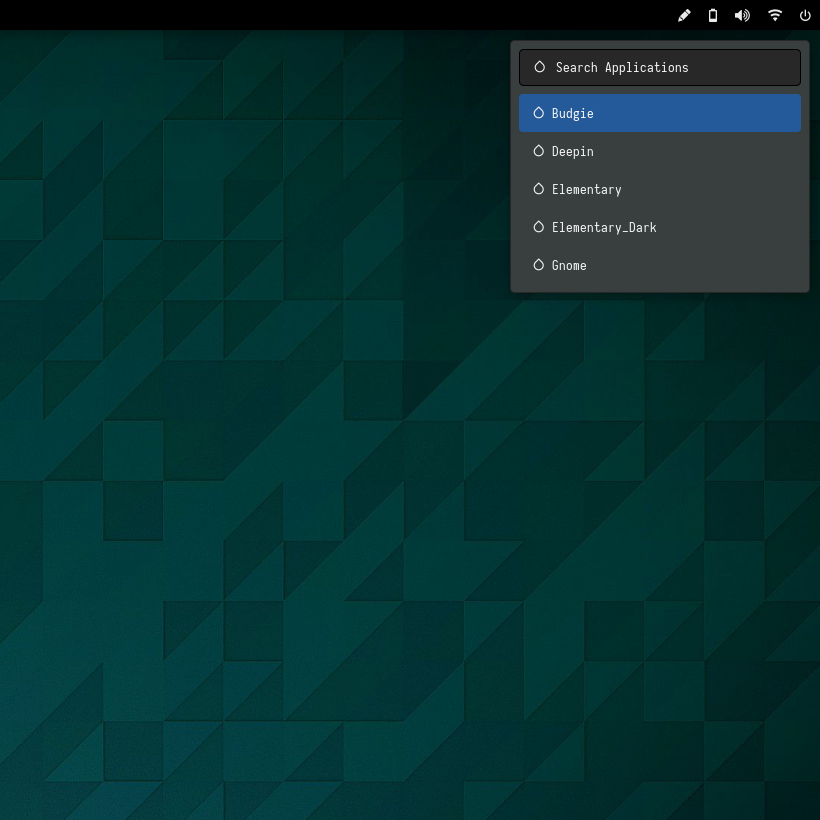 |
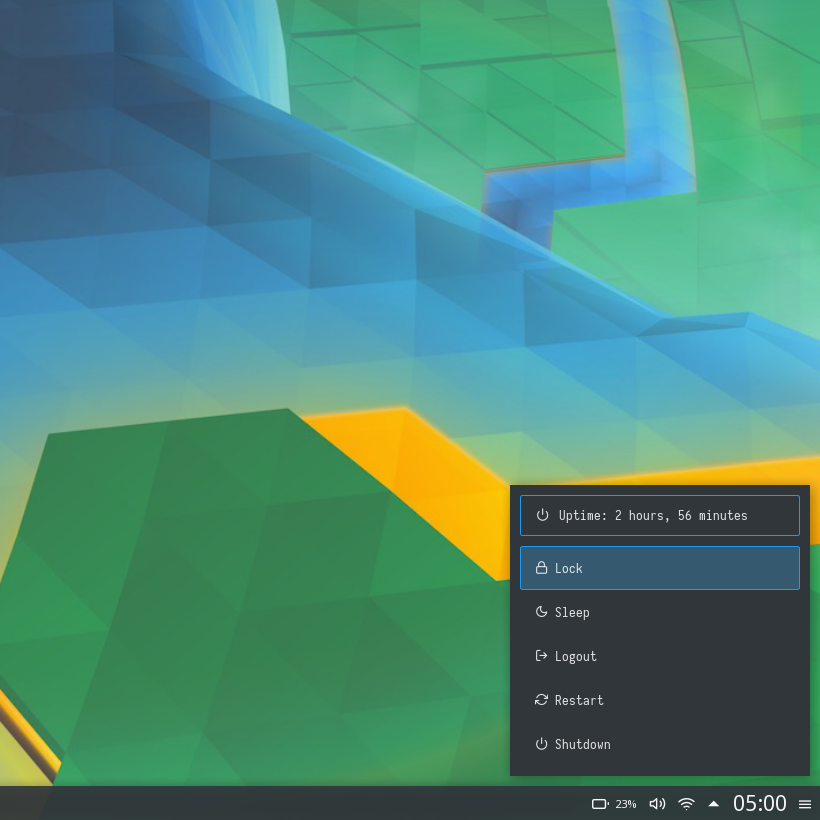
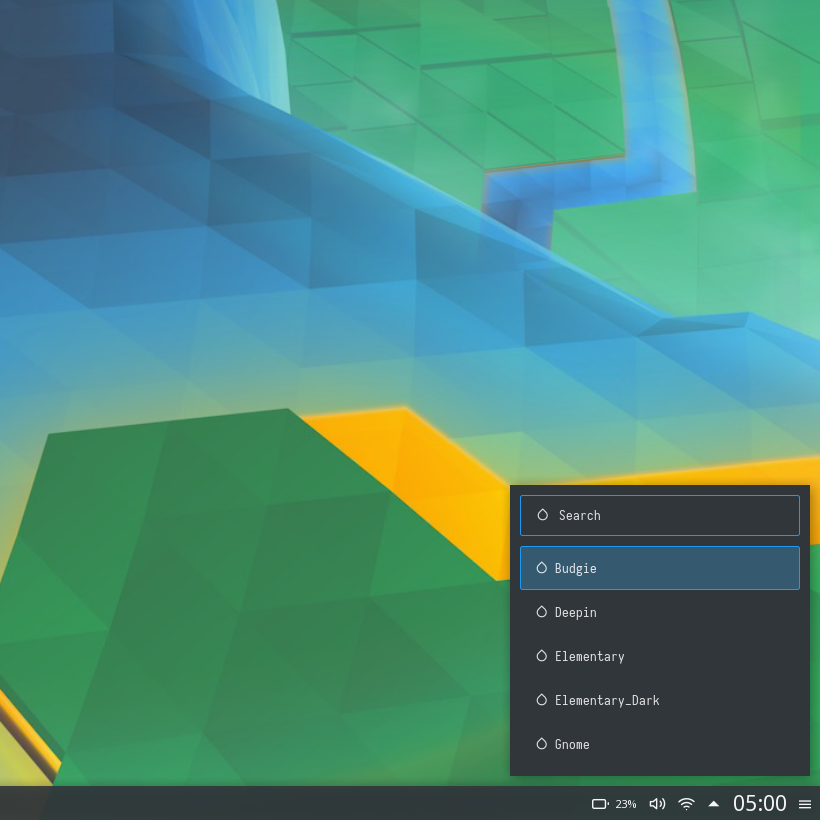
KDE
| Launcher | Networks | Powermenu | Color Switcher |
|---|---|---|---|
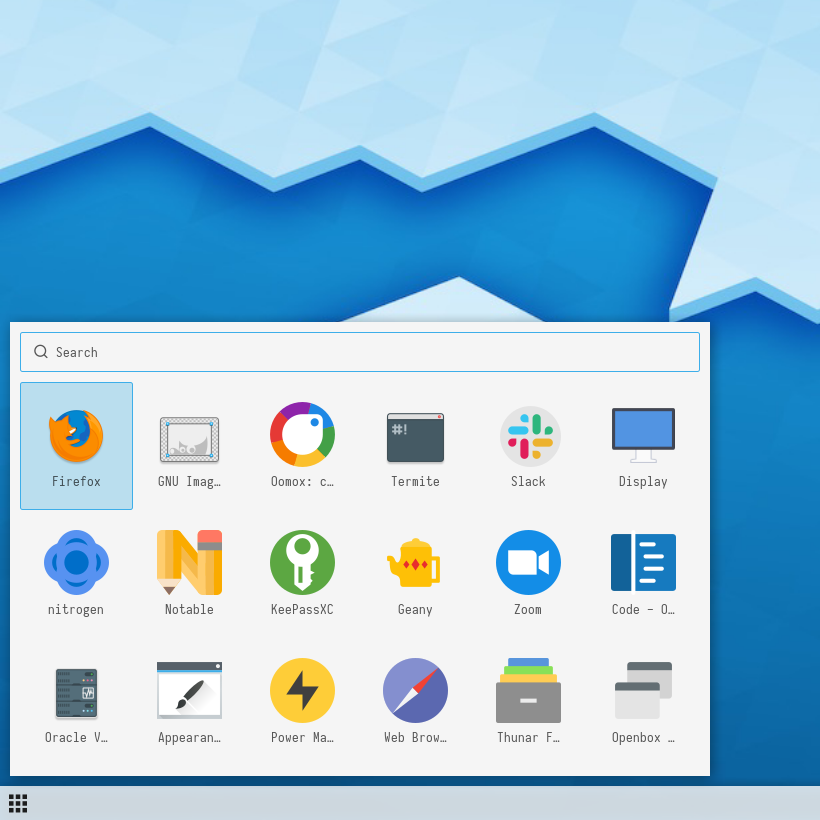 | 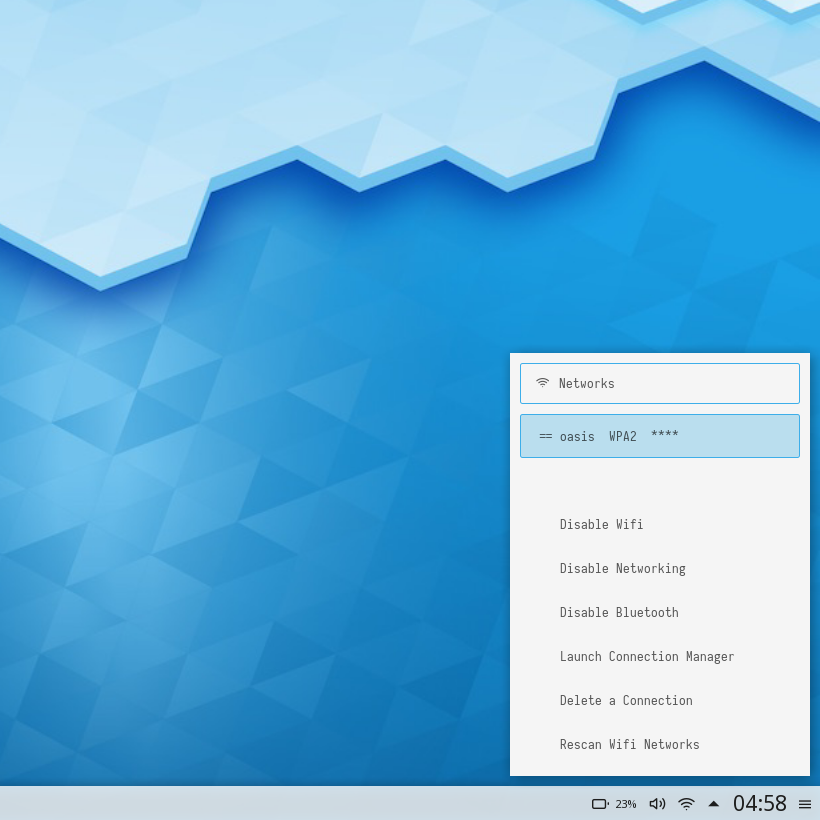 | 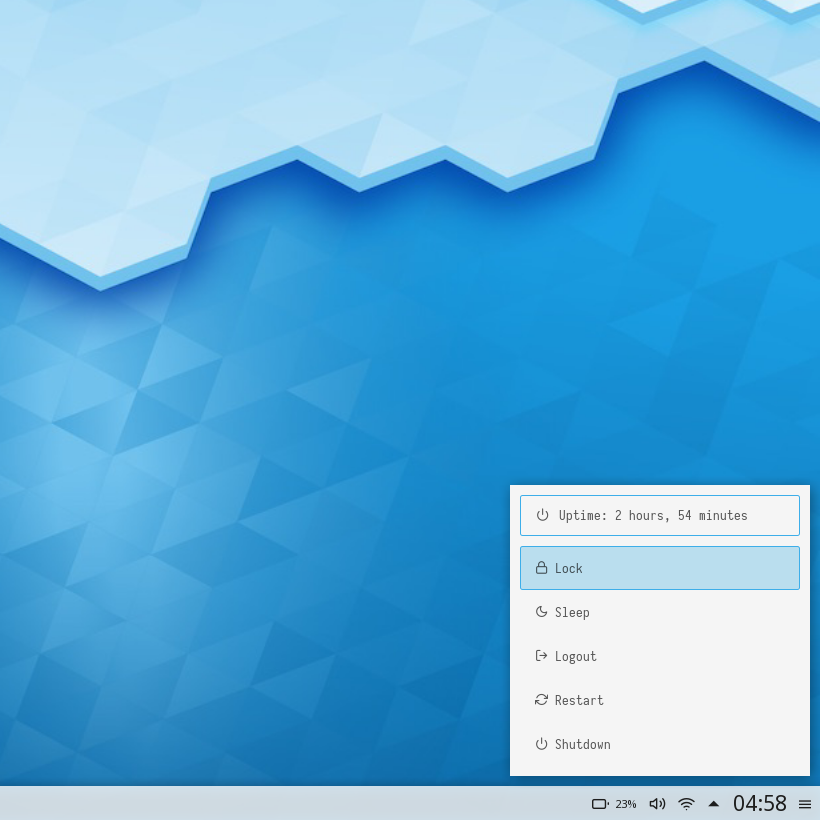 | 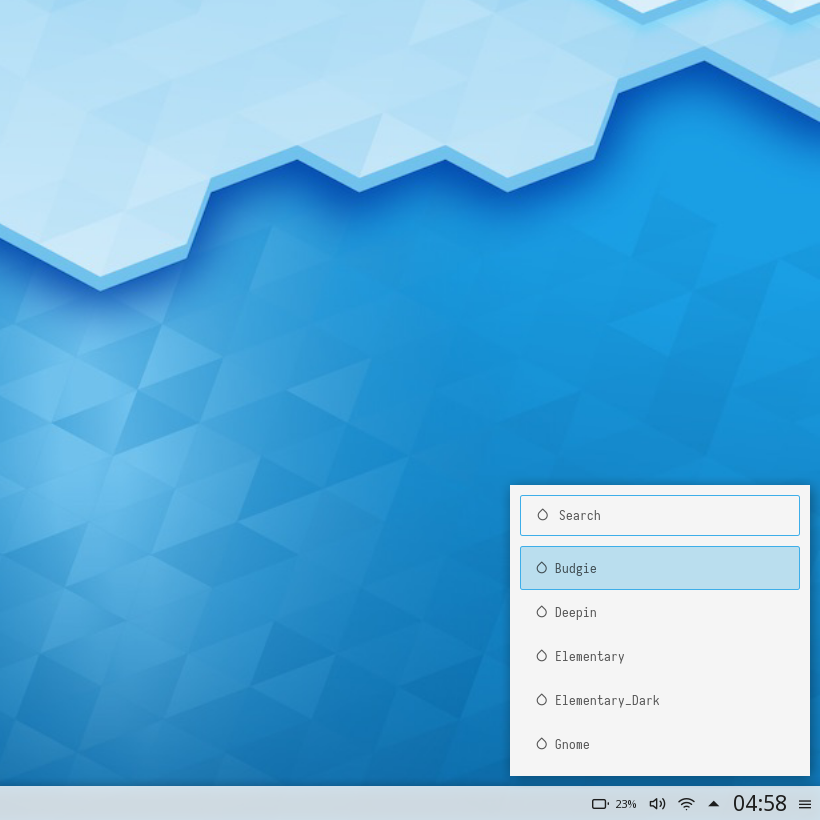 |
KDE Dark
| Launcher | Networks | Powermenu | Color Switcher |
|---|---|---|---|
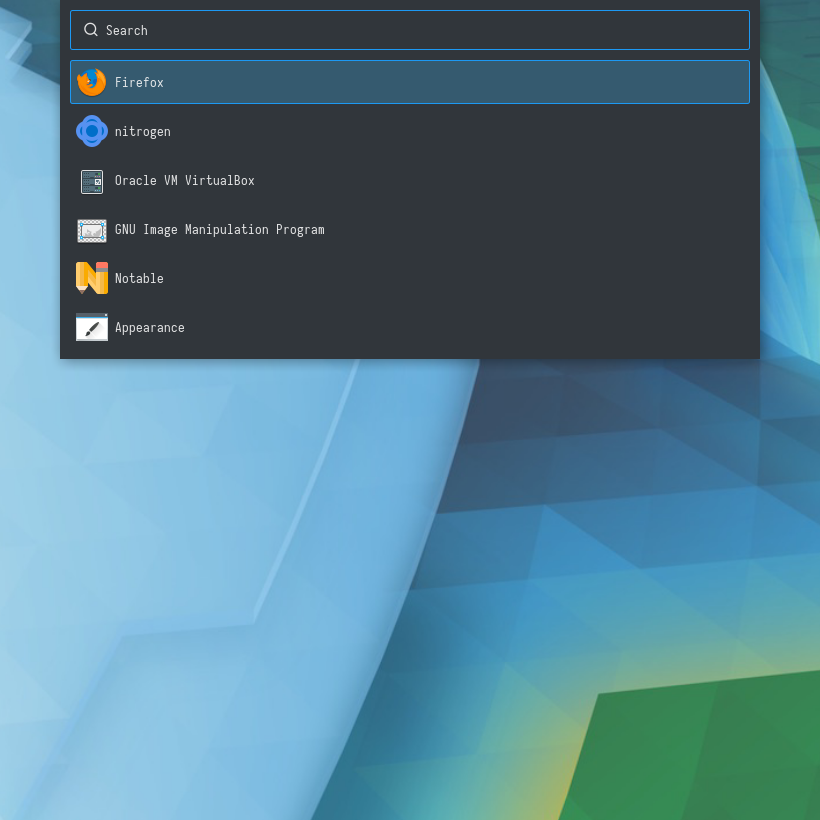 | 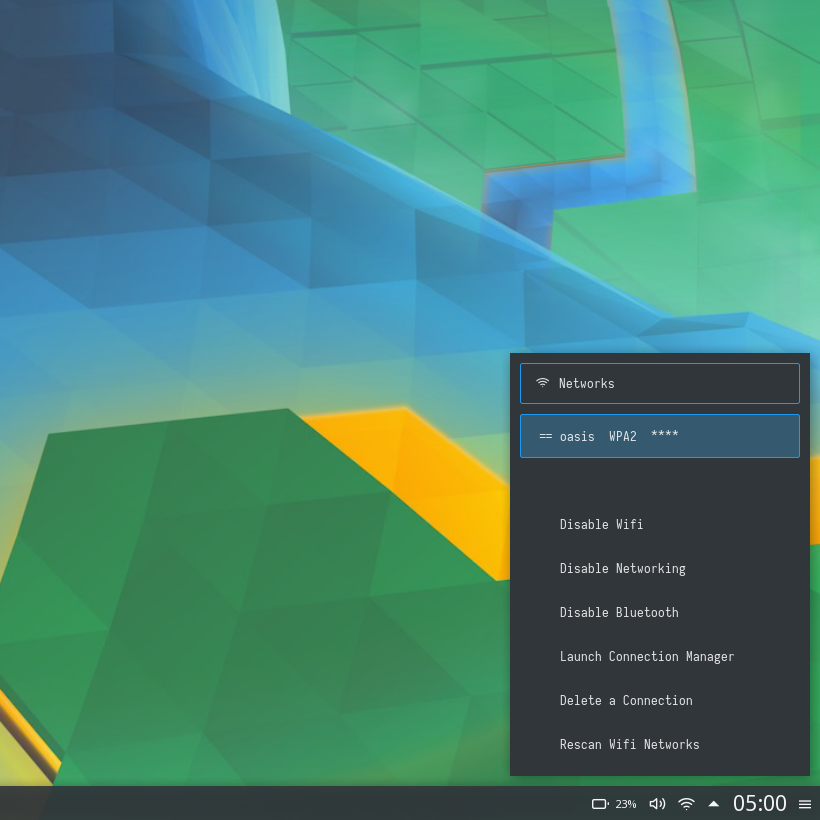 |  |  |
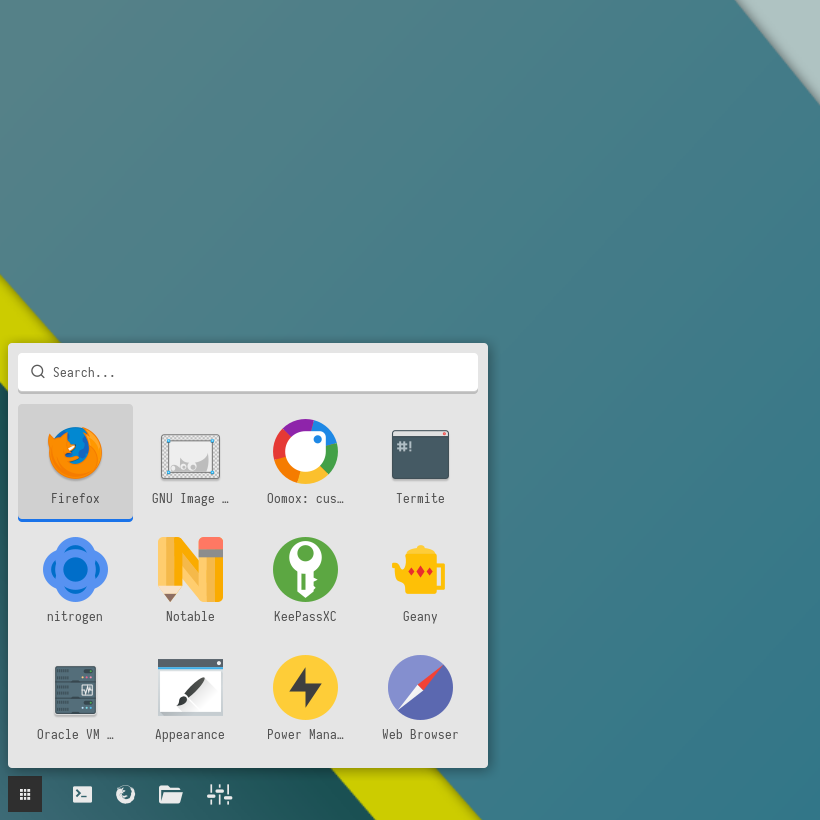
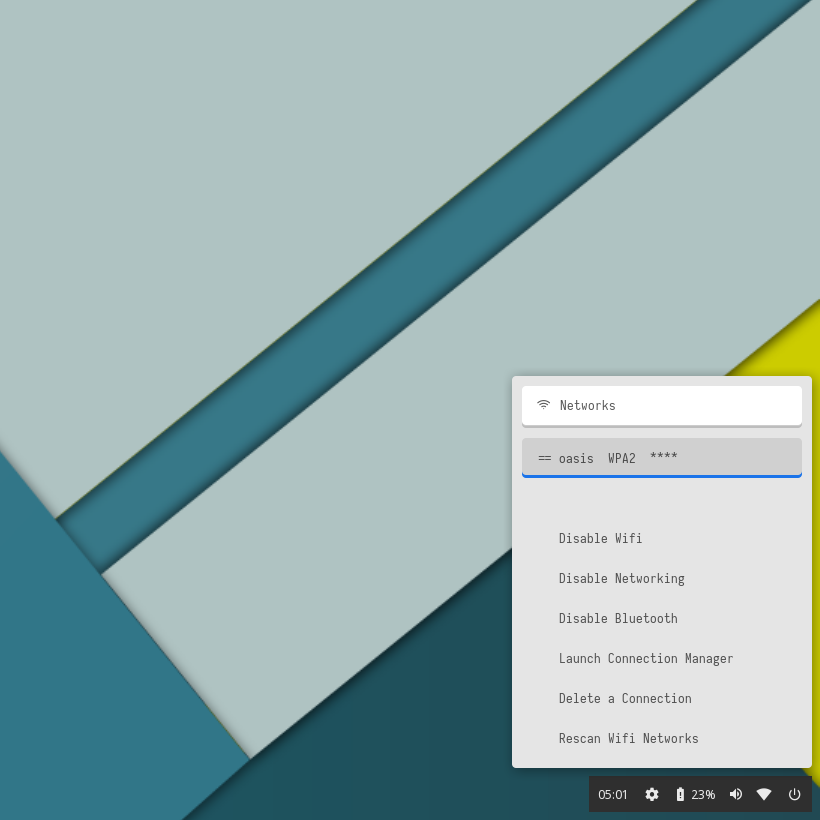
Liri
| Launcher | Networks | Powermenu | Color Switcher |
|---|---|---|---|
 |  | 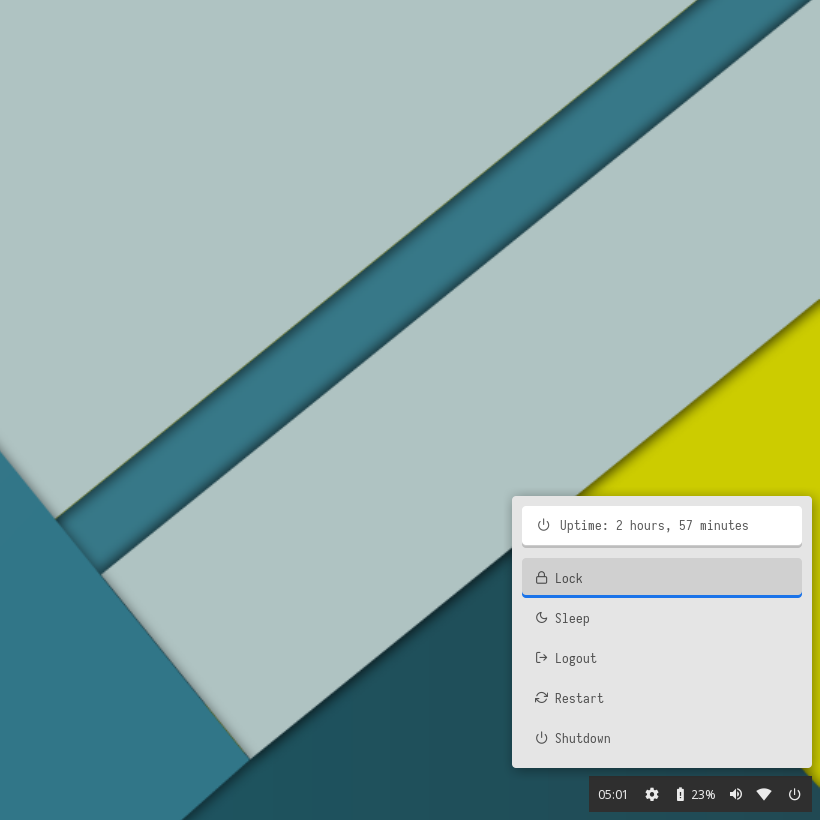 | 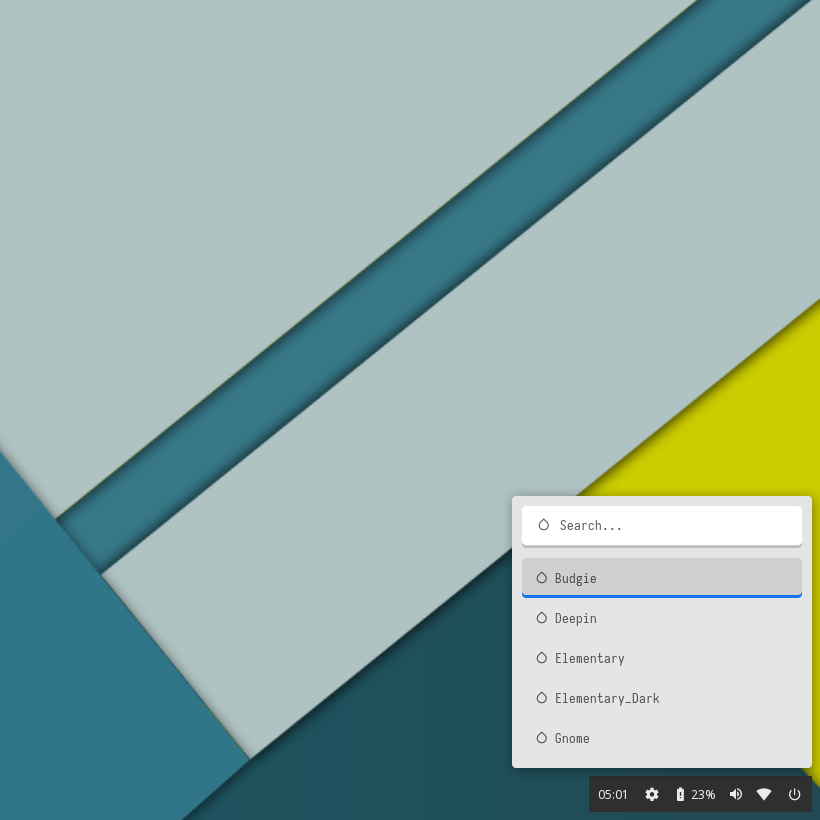 |
Mint
| Launcher | Networks | Powermenu | Color Switcher |
|---|---|---|---|
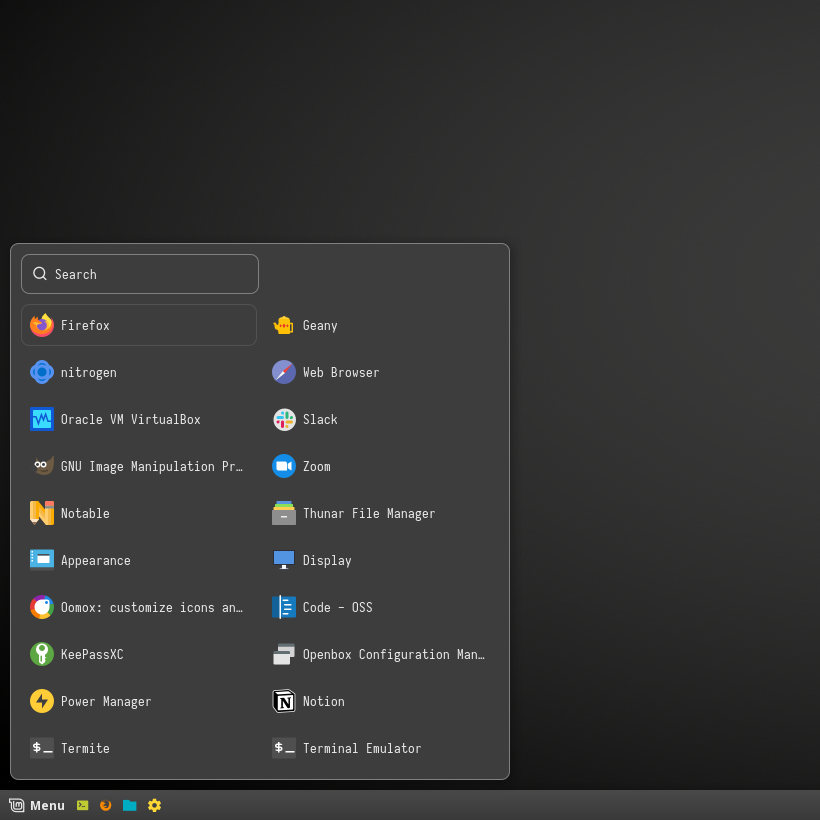 | 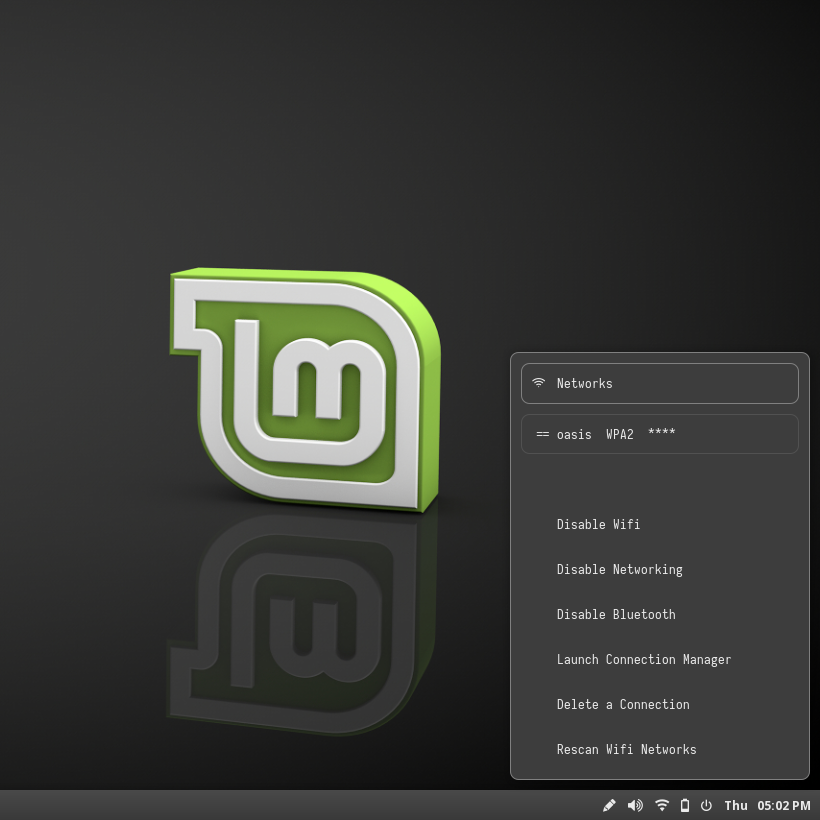 | 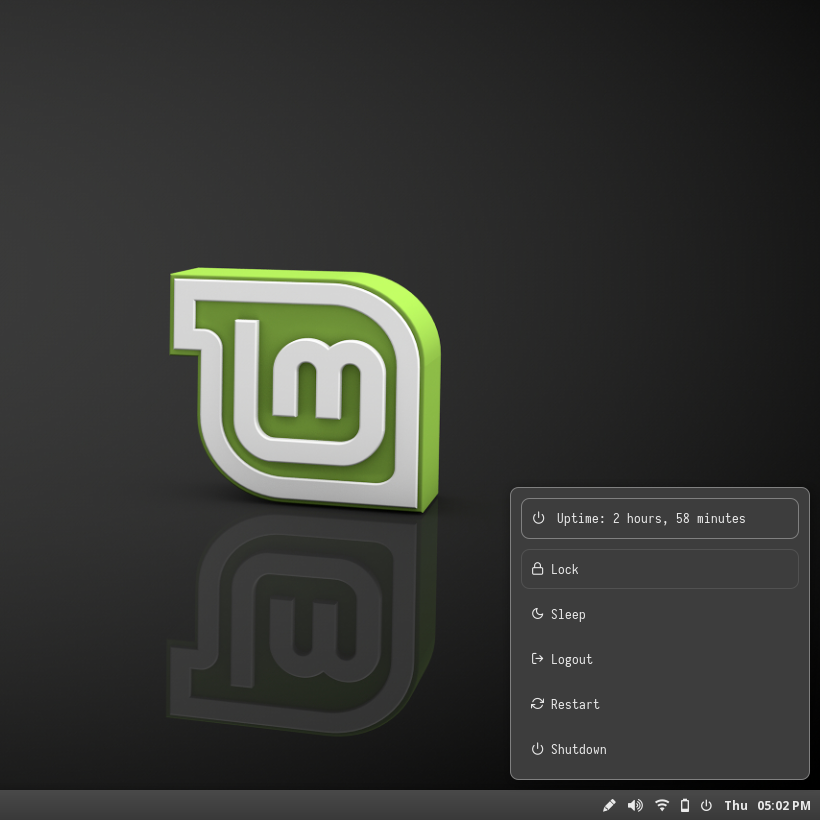 | 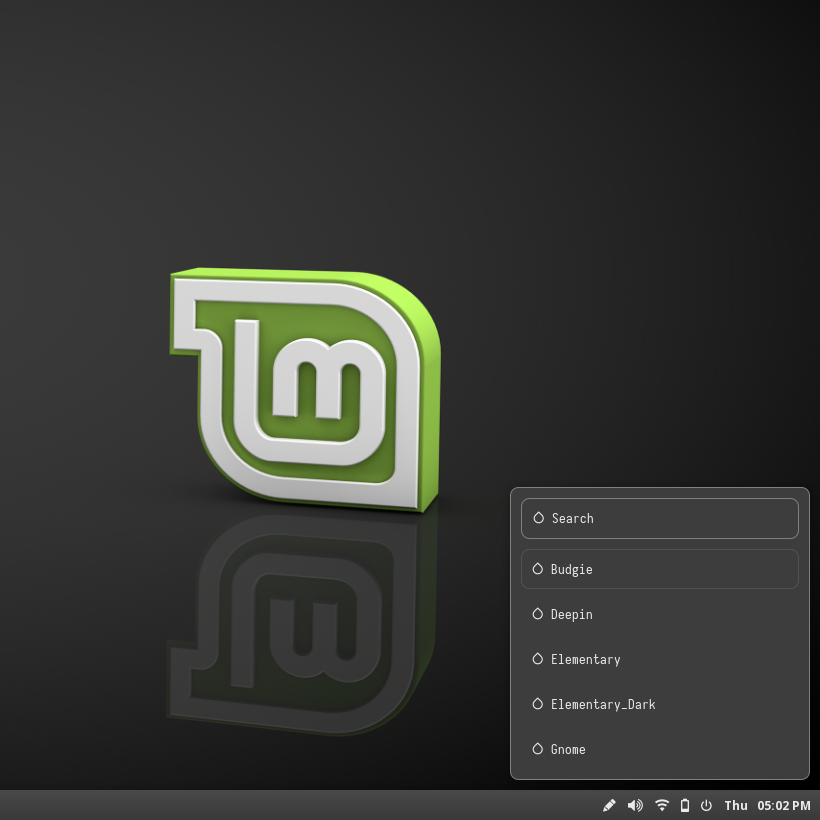 |
Ubuntu Gnome
| Launcher | Networks | Powermenu | Color Switcher |
|---|---|---|---|
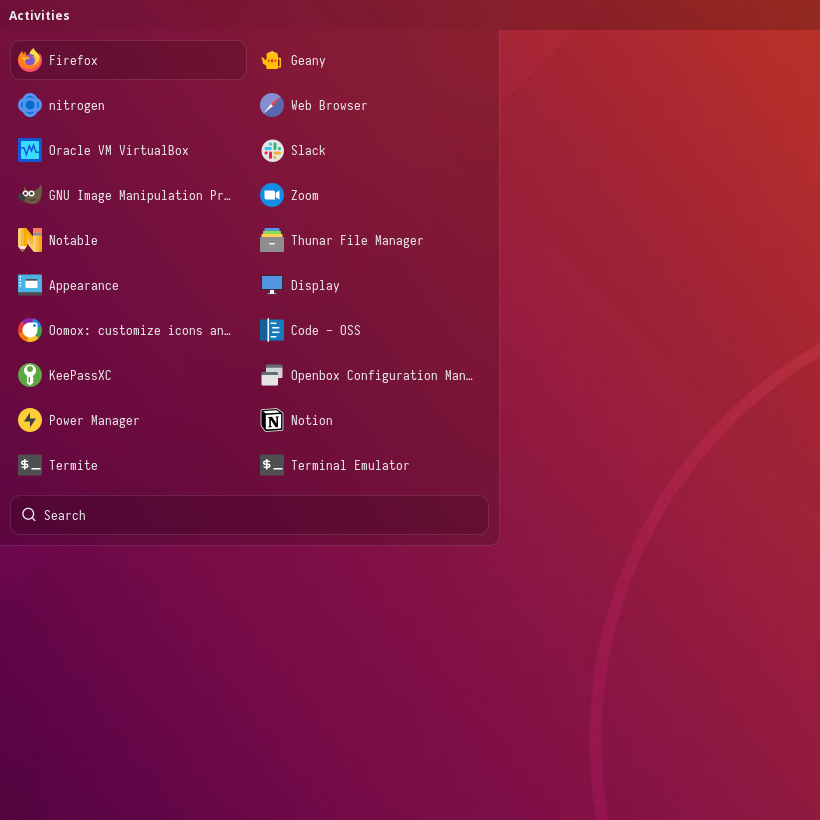 | 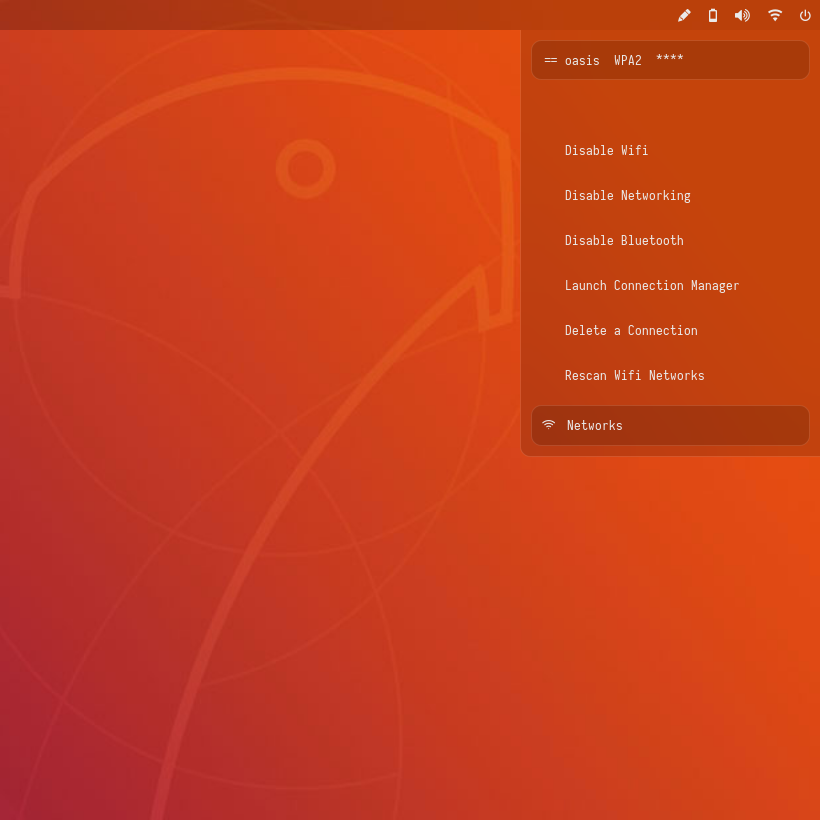 | 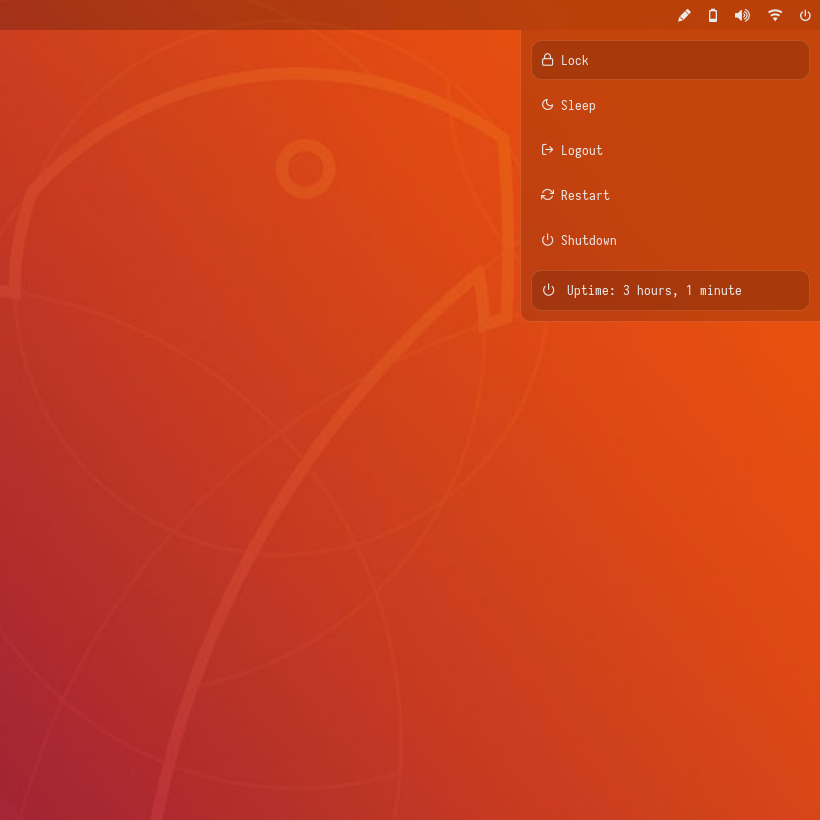 | 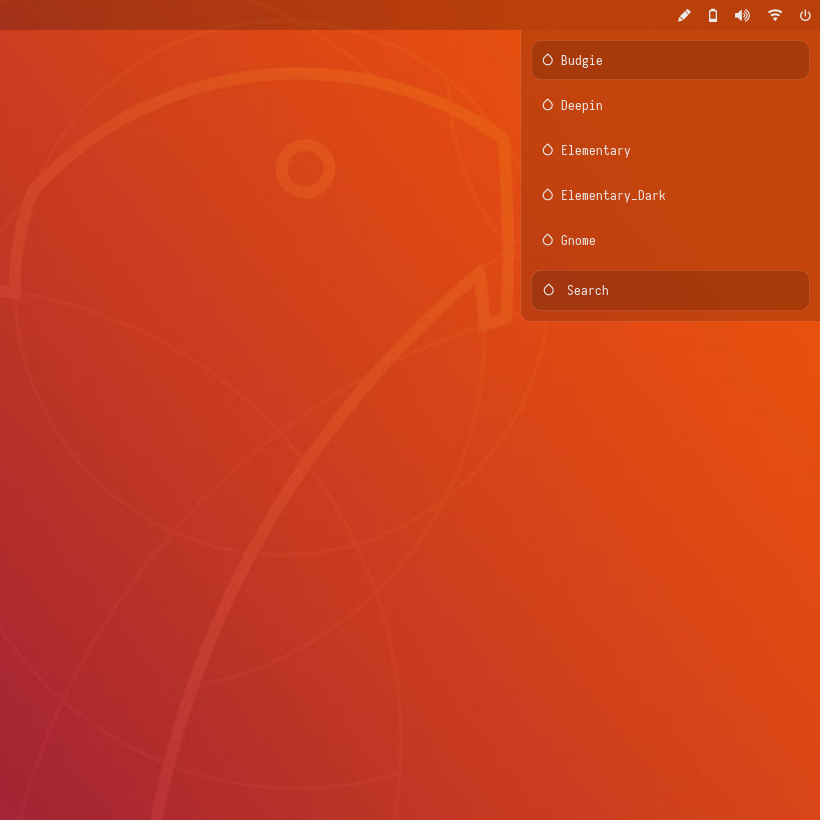 |
Ubuntu Unity
| Launcher | Networks | Powermenu | Color Switcher |
|---|---|---|---|
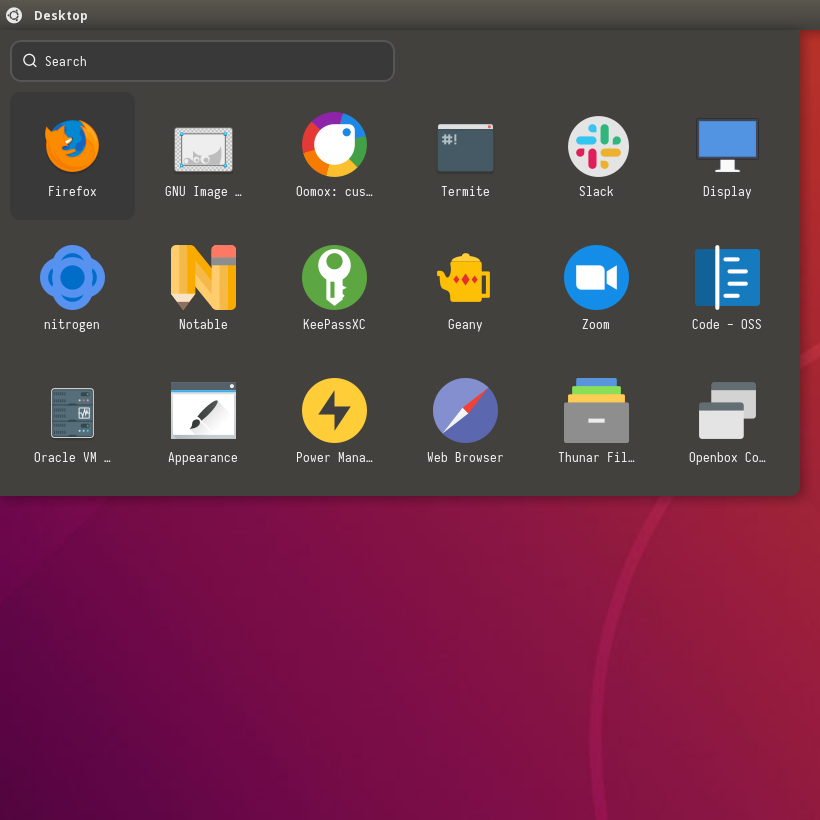 | 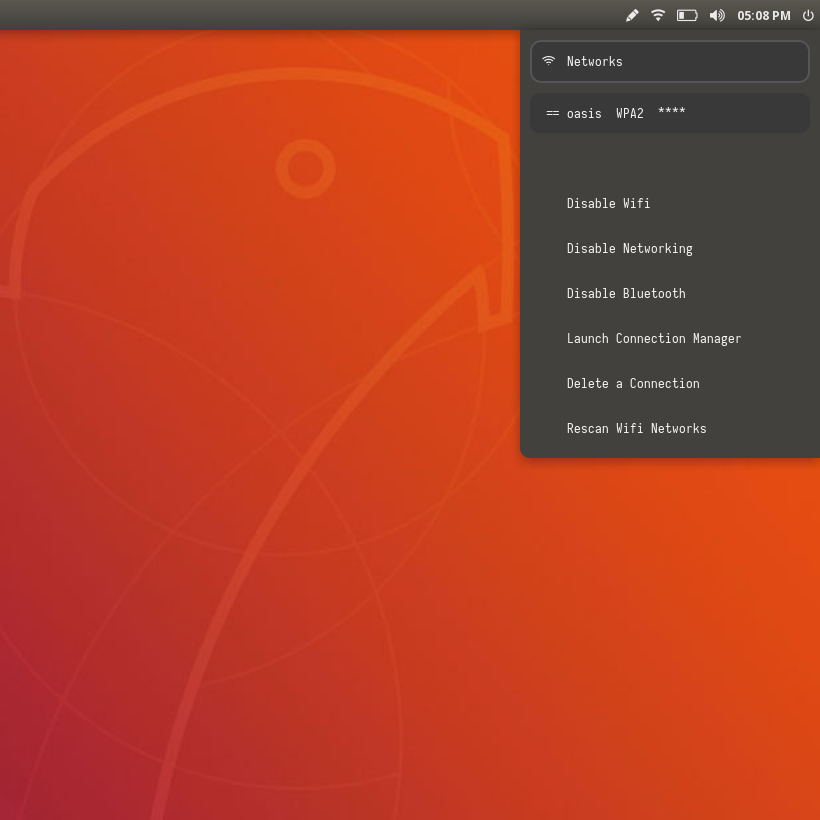 | 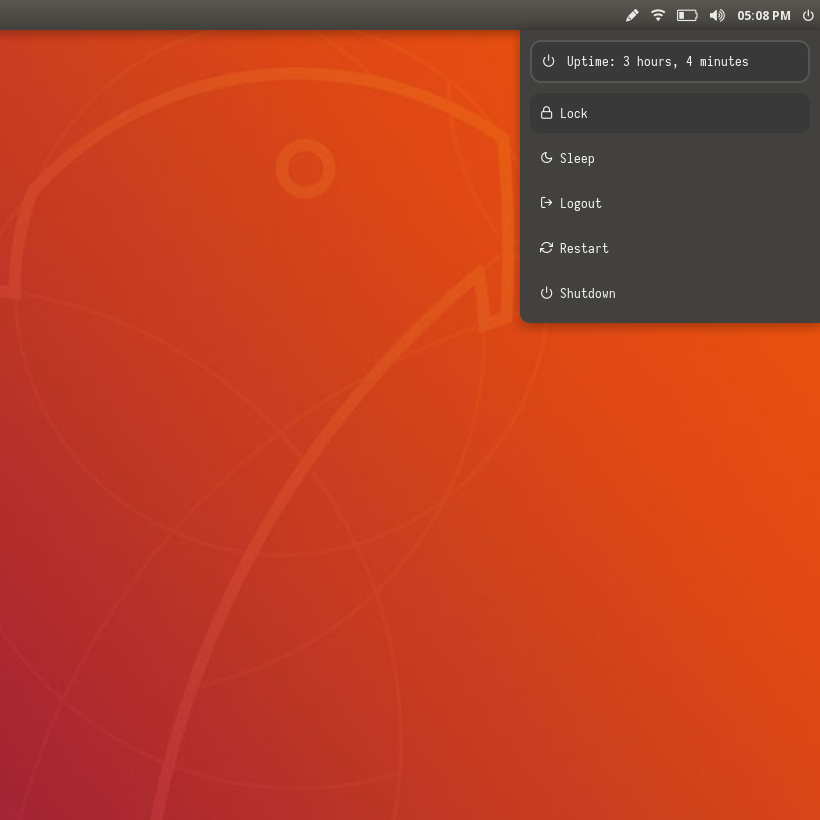 | 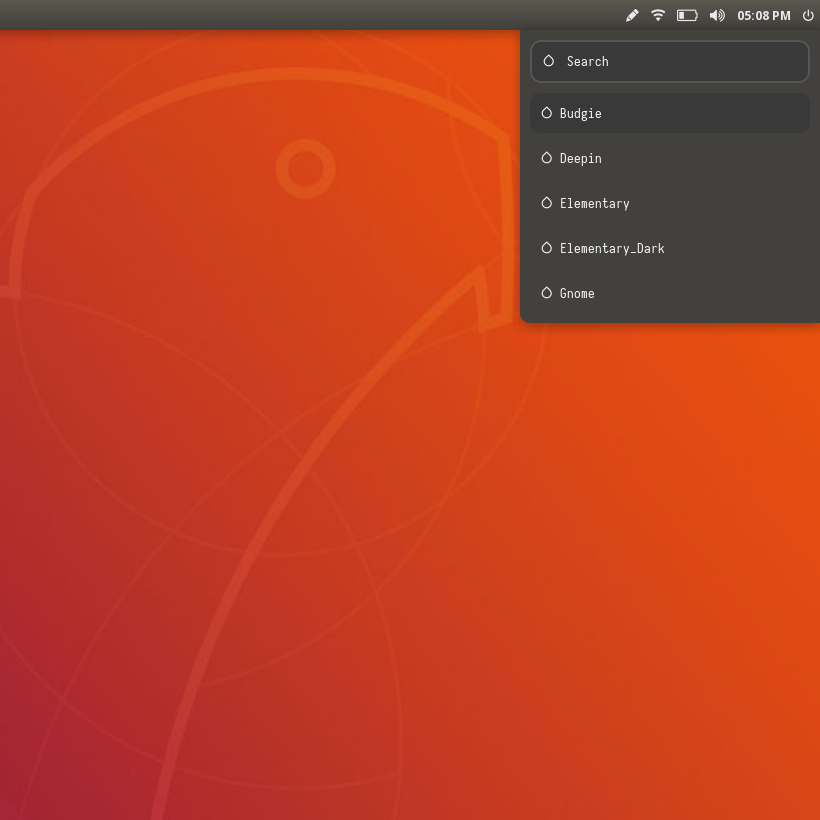 |
Xubuntu
| Launcher | Networks | Powermenu | Color Switcher |
|---|---|---|---|
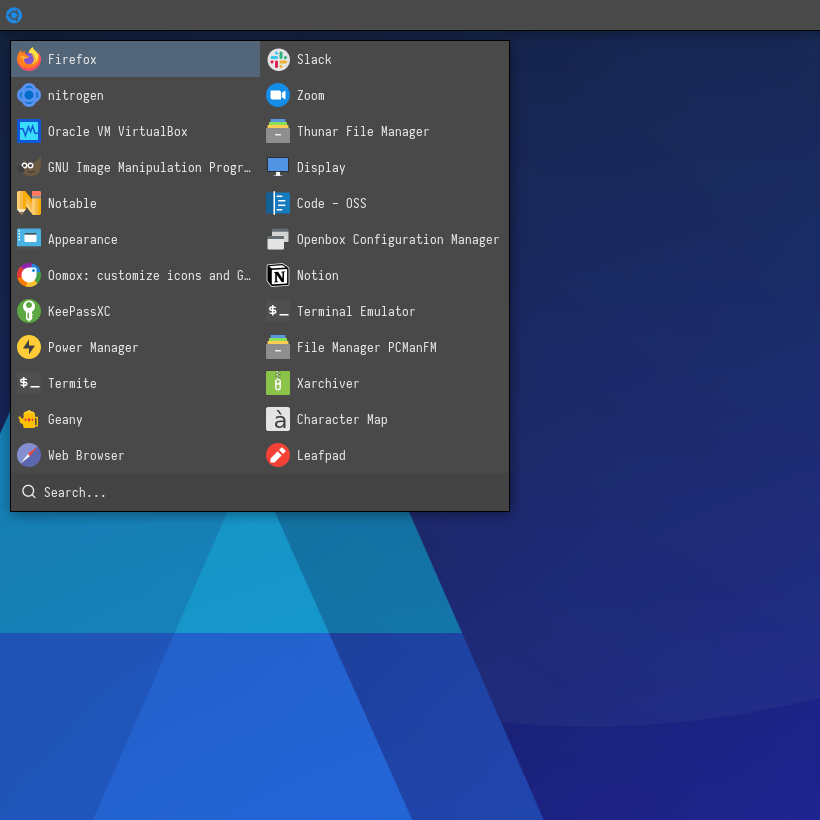 | 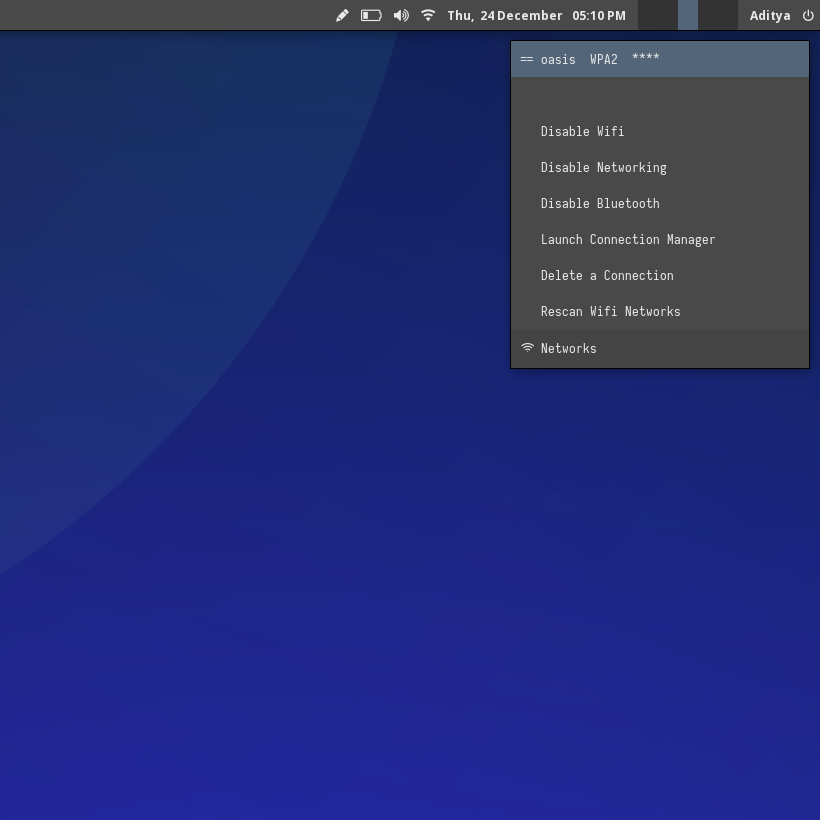 | 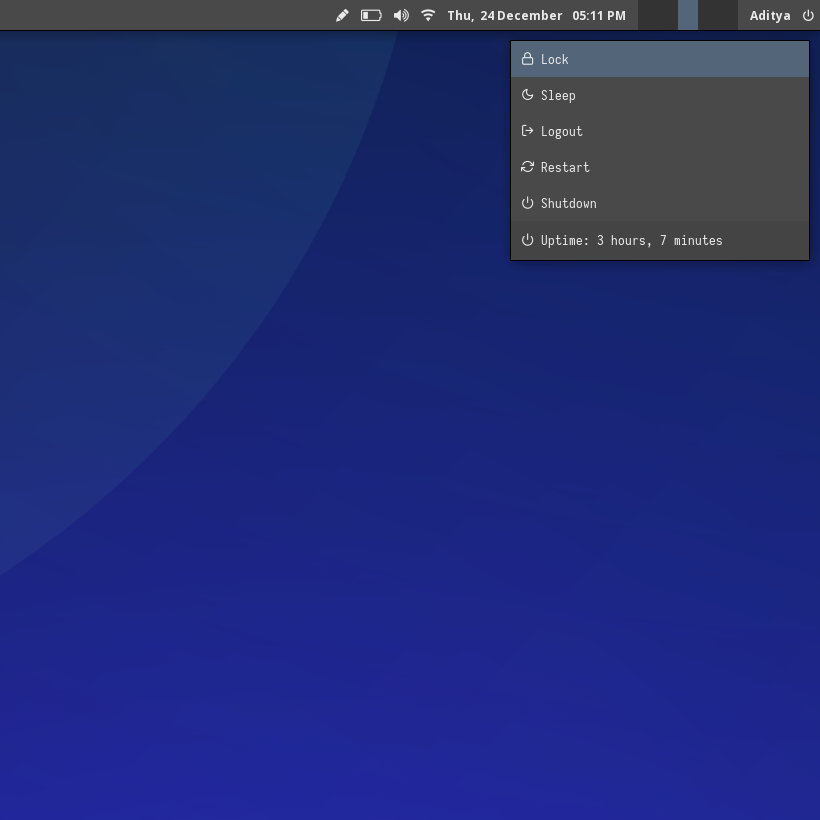 | 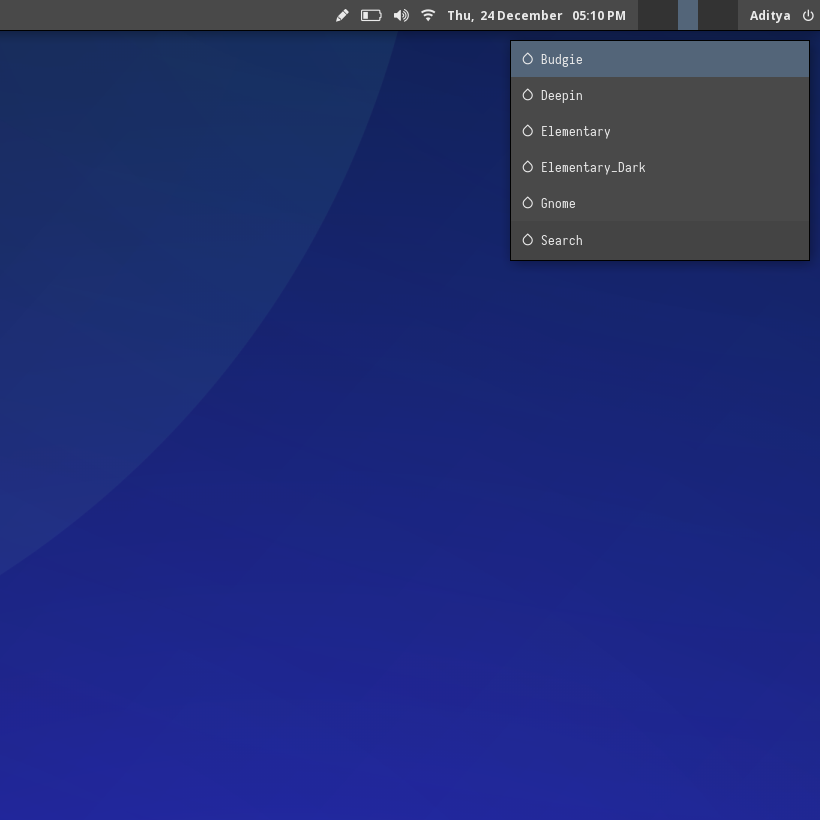 |
Zorin
| Launcher | Networks | Powermenu | Color Switcher |
|---|---|---|---|
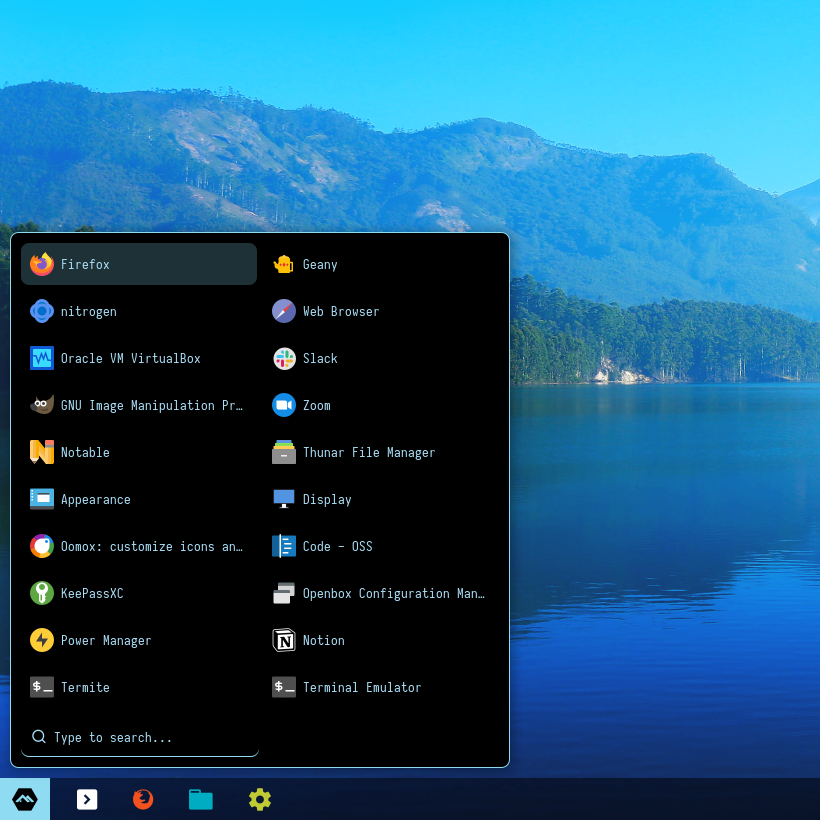 | 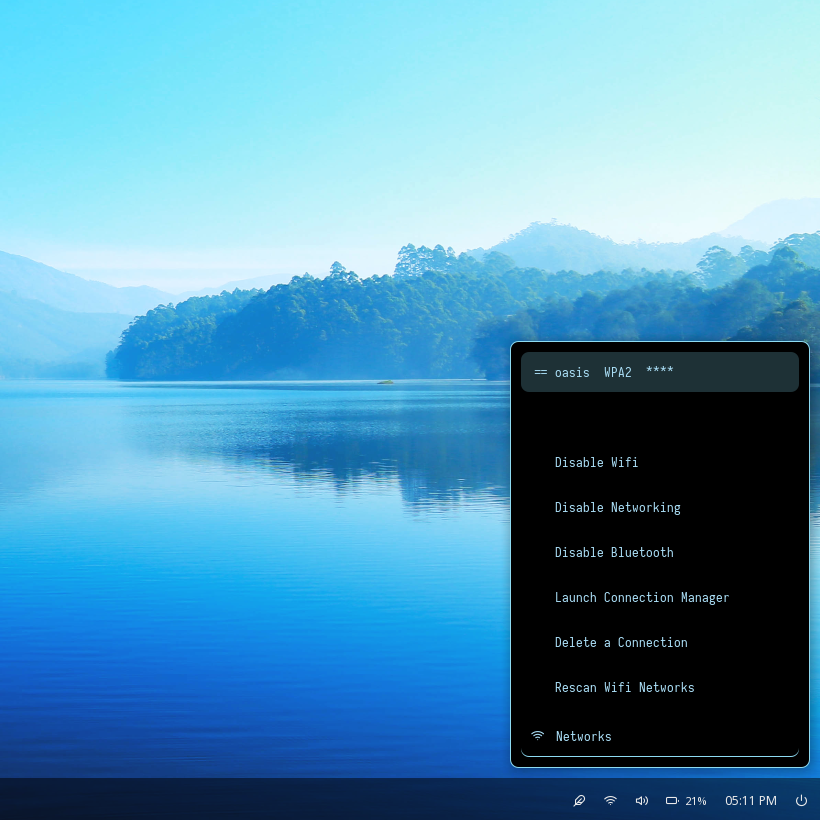 |  |  |
Pwidgets
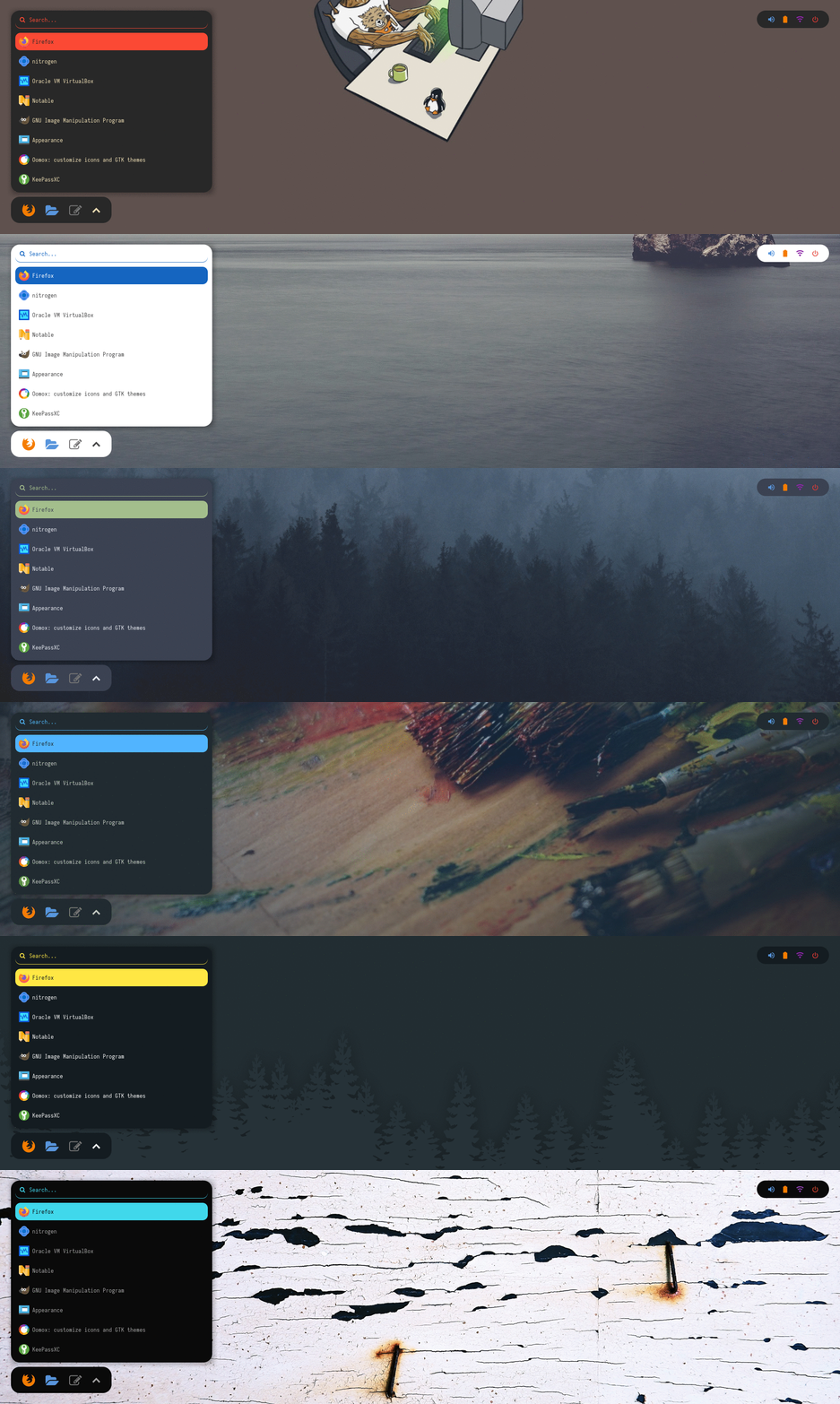
Overview
Window Manager: OpenboxIcon Font: Iosevka Nerd FontText Font: Iosevka Nerd Font
Features
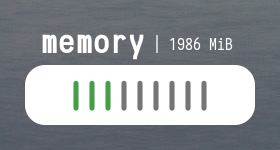
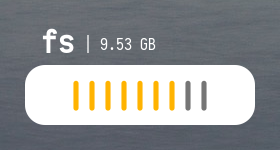
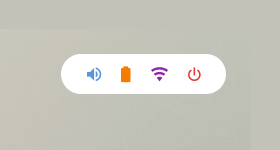
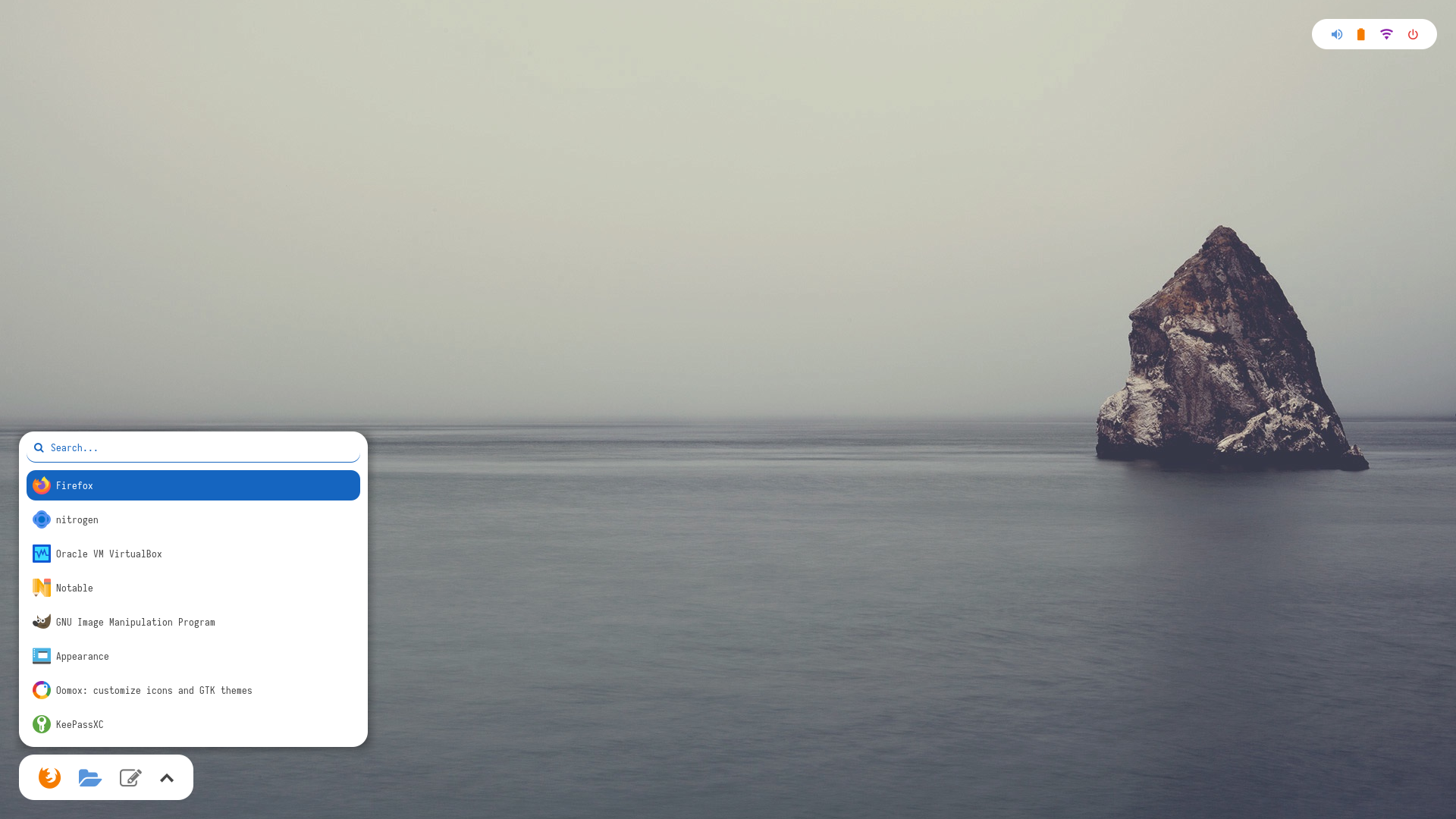
- 8 widgets with popular color-schemes based themes
- Rofi menus with same colors
- Added Pywal support
- Script to set random colors
Tips
- Left click on up arrow icon for
App Launcher - Right click on up arrow icon for
Color Switcher - Left click on power icon for
Powermenu - Left click on network name for
Network Menu
Previews
Click to expand
| Apps | System | MPD | Workspaces |
|---|---|---|---|
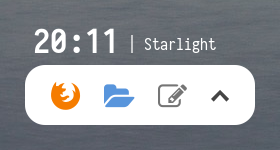 | 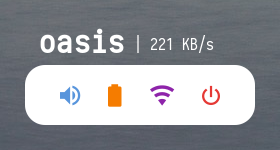 | 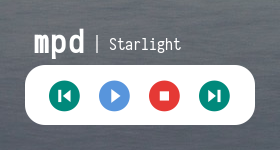 | 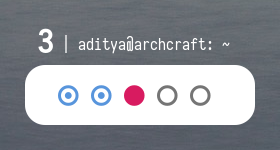 |
| CPU | Memory | Filesystem | Tray |
|---|---|---|---|
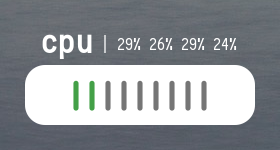 |  |  |  |


| Launcher | Networks |
|---|---|
 | 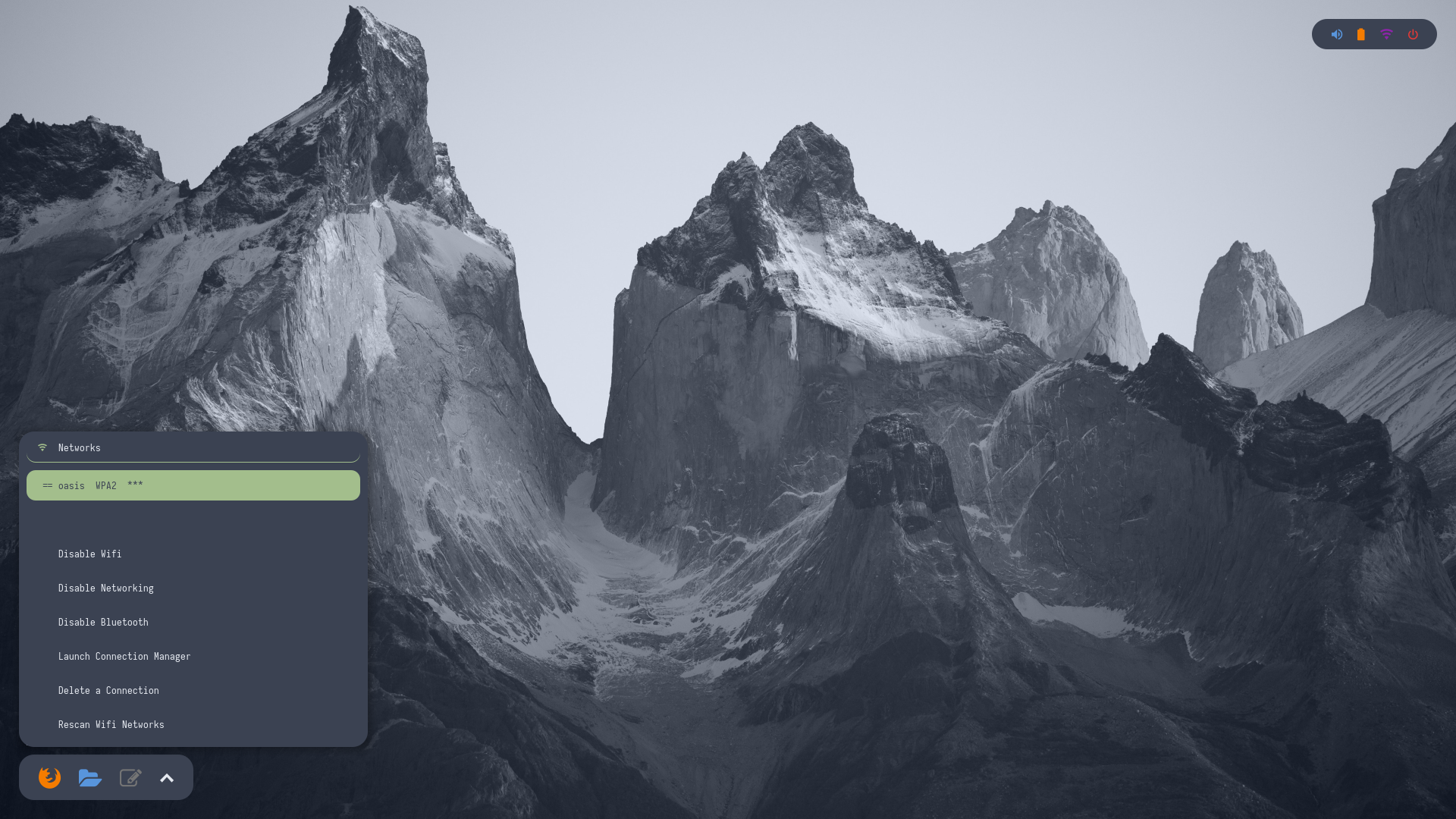 |
| Powermenu | Color Switcher |
|---|---|
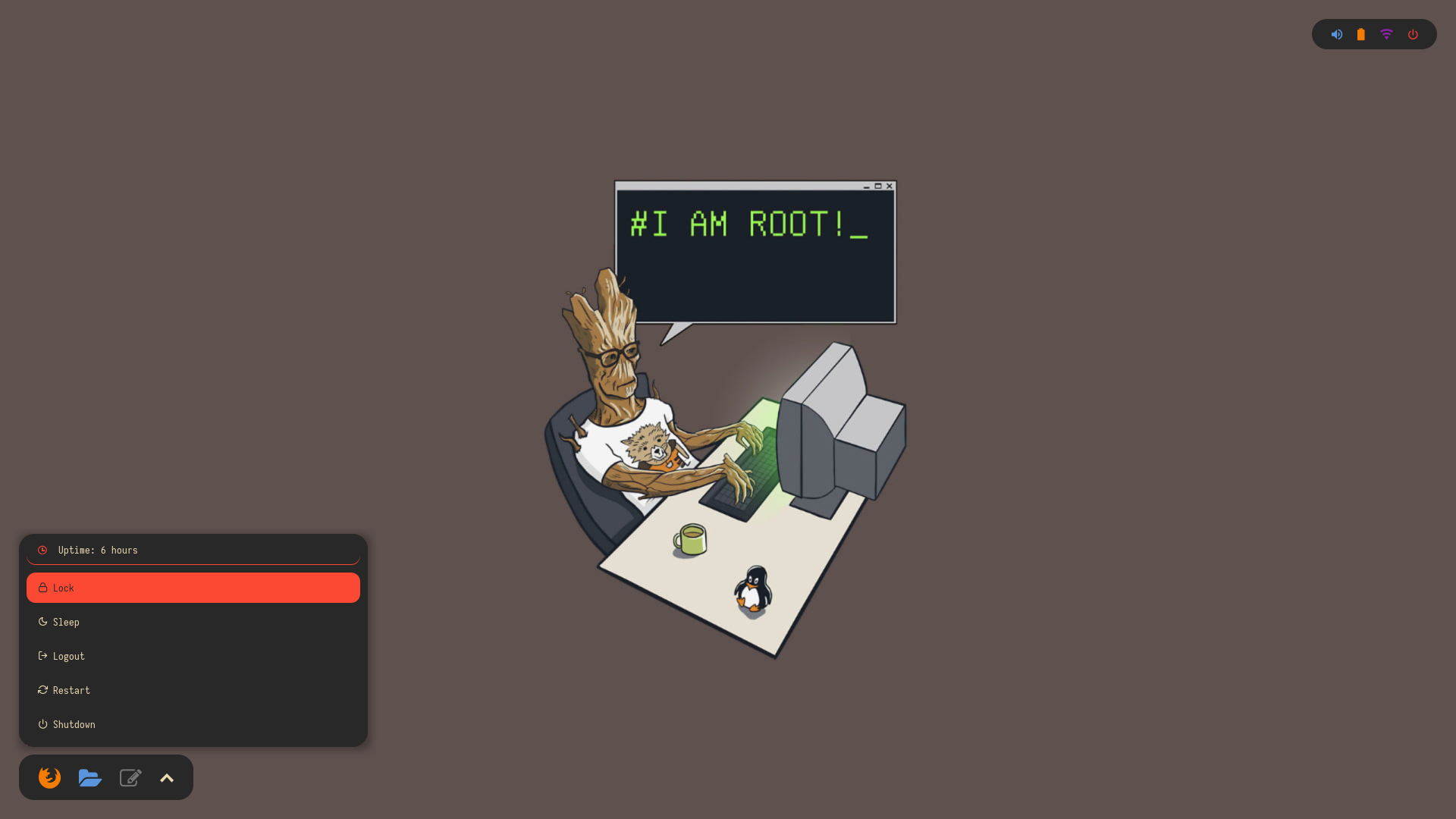 | 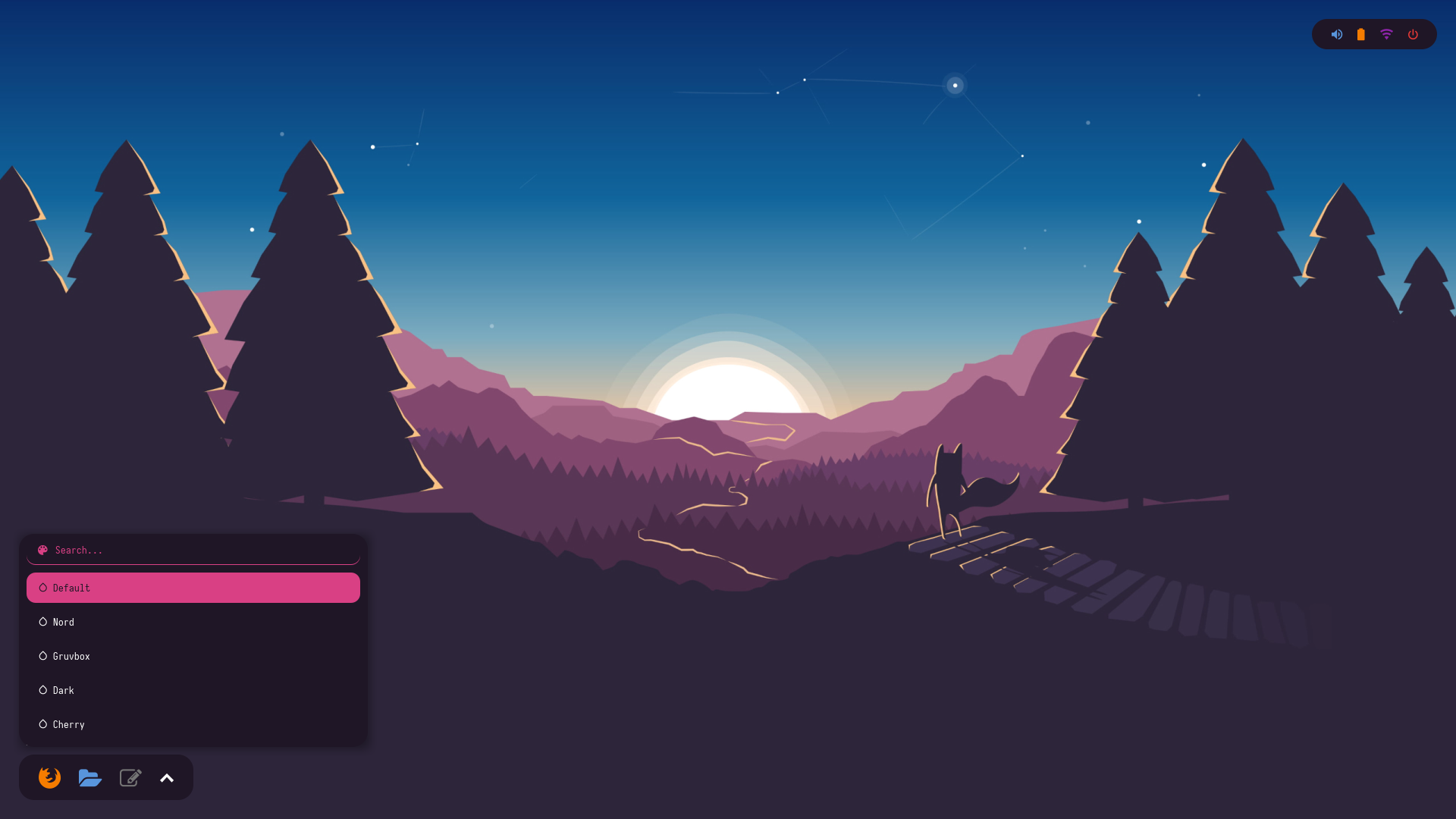 |
Troubleshooting
People usually open very common issues here, which are not actually caused by these themes. Here are few issues which can be solved easily.
0. Font issue with HiDPI screen
If you're using a hidpi screen...
- Adjust the font size according to your display, just edit
config.inifile -
; Text Fonts
font-0 = Iosevka Nerd Font:style=Medium:size=10;4

; Icons Fonts
font-1 = feather:style=Medium:size=12;3

; Powerline Glyphs
font-2 = Iosevka Nerd Font:style=Medium:size=19;3

; Larger font size for bar fill icons
font-3 = Iosevka Nerd Font:style=Medium:size=12;4

; Smaller font size for shorter spaces
font-4 = Iosevka Nerd Font:style=Medium:size=7;4
You may have to increase the height/width of the bar as well.
- Bitmap fonts are not scalable, So... Don't use bitmap themes.
1. Dropping unmatched character
If you're facing this issue...
- Make sure you've the correct fonts installed on your system.
- On most systems, the bitmap fonts are disabled by default, enable them by -
$ sudo rm /etc/fonts/conf.d/70-no-bitmaps.conf
2. System tray icons are not showing
By default, the System tray is disabled in these themes. You can enable it by editing the config.ini file -
; Available positions:
;   left
;   center
;   right
;   none
tray-position = right
3. Brightness module is not working
If the brightness module is not working on your system, Edit modules.ini & bars.ini files and...
- Use
type = internal/xbacklightandcard = intel_backlight, if you're using an Intel GPU. - Use
type = internal/backlightif you're using an AMD or Nvidia GPU. - look inside
/sys/class/backlight/and find the card name for your system. (eg:card = amdgpu_bl0)
4. Battery module is not working :
If the battery module is not working on your system, Edit modules.ini & bars.ini files and...
- Use
ls -l /sys/class/power_supply/command to list batteries and adapters. - Replace
BAT1andACADwith your batteries and adapters. (eg:battery = BAT0)
5. MPD module is not working :
If the mpd module is not working on your system...
- Make sure you've mpd installed and running.
- Make sure you've songs on your playlist.
- If mpd daemon is not running on localhost, edit
host =,port =andpassword =values accordingly. - Make sure mpd is installed before you compile the polybar.
6. Temperature module is not working :
If your system doesn't support thermal-zones, Use full path of temperature sysfs path in hwmon-path = .
7. Updates module is not working :
The Updates module and checkupdates, updates.sh scripts only works for pacman (Arch Linux package manager)
8. Volume module is not working :
There are both alsa and pulseaudio modules available in each theme. Use according to your system.
Quick FYI
- These themes are created on a 1080p display. So if you're using a 720p or 4k panel, Don't forget to adjust the fonts accordingly.
- System Tray is disable by default, edit
config.inito enable it. - Have Fun, Share it with your friends.
puter
HeyPuter·TypeScript
一个可自托管的开源云端桌面环境,把文件存储、应用和界面搬到浏览器里,相当于自己搭一个私有网盘加在线操作系统。
云桌面+4桌面环境 / 窗口管理器
44129+294.2k26.112026-11-10 16:25 UTC
serenity
SerenityOS·C++
从零手写的类 Unix 桌面操作系统,自带内核、浏览器和桌面环境,适合想深入理解操作系统底层实现的人阅读和动手改造。
操作系统+4桌面环境 / 窗口管理器
33959+123.5k2026-11-09 12:47 UTC

daedalOS
DustinBrett·JavaScript
在浏览器里跑起一套完整的桌面环境,窗口、任务栏、文件系统一应俱全,适合做 Web 版桌面演示或在线工作台。
浏览器桌面+3桌面环境 / 窗口管理器
13101+31.2k2026-10-22 03:46 UTC

serpantinum
ilyamiro·QML
基于 QML 和 Quickshell 打造的 Wayland 桌面 Shell,为 Hyprland、Niri、Sway 等合成器提供统一的面板、启动器与桌面组件。
Wayland+4桌面环境 / 窗口管理器
7666+31358v2.5.02026-11-10 15:56 UTC