必须先安装 ttyd 和 ffmpeg 并加入 PATH,否则无法运行;用 go install 方式安装时同样需要自行准备这两个依赖;vhs serve 默认监听 localhost:1976,远程访问需配置 VHS_HOST 和 VHS_PORT。

brew install vhs
vhs demo.tape 硬件要求按 README 说明
README 未说明硬件要求;VHS 依赖 ttyd 和 ffmpeg,需在 PATH 中可用。
有 Docker 镜像
把终端操作写成 .tape 脚本,自动生成 GIF 用于 CLI 演示和集成测试
用类似脚本的语法编写终端操作流程,自动录制成 GIF 或视频,省去手动录屏和剪辑,适合做 CLI 演示和文档动图。
核心能力
- 用 .tape 脚本描述按键、等待和输出
- 录制终端操作自动生成 tape 文件
- 支持输出 GIF、PNG 截图和 ascii 金文件
- 内置 SSH 服务端可远程渲染 tape
- 可用 vhs-action 接入 CI 自动更新 GIF
容易踩的坑
内容由模型根据 README 生成,可能不完整或不准确,以官方文档为准。看原文 README
- v0.12.1最新正式版2026-09-24 · 2026-09-24 09:30 UTC
Big bug fix 🐛
This release fixes https://github.com/charmbracelet/vhs/issues/787.
See you next time, Charm ⭐
Changelog
Fixed
- 87b2f37632740ee6faa453a14227384c6de270b4: fix: preserve context for rendering and report encoder errors (#788) (@gudcks0305)
Other stuff
- 24fa2254a9806091e6ee6a980e9f3bcfe0a9ba53: v0.12.1 (@andrinoff)
First, download the
checksums.txtfile and thechecksums.txt.sigstore.jsonfile files, for example, withwget:wget 'https://github.com/charmbracelet/vhs/releases/download/v0.12.1/checksums.txt' wget 'https://github.com/charmbracelet/vhs/releases/download/v0.12.1/checksums.txt.sigstore.json'Then, verify it using
cosign:cosign verify-blob \ --certificate-identity 'https://github.com/charmbracelet/meta/.github/workflows/goreleaser.yml@refs/heads/main' \ --certificate-oidc-issuer 'https://token.actions.githubusercontent.com' \ --bundle 'checksums.txt.sigstore.json' \ ./checksums.txtIf the output is
Verified OK, you can safely use it to verify the checksums of other artifacts you downloaded from the release usingsha256sum:sha256sum --ignore-missing -c checksums.txtDone! You artifacts are now verified!
Thoughts? Questions? We love hearing from you. Feel free to reach out on X, Discord, Slack, The Fediverse, Bluesky.
- v0.12.02026-09-09 · 2026-09-09 09:50 UTC
查看更新说明
Rows ’n’ Calls + Some Fixes
This release has a nice quality-of-life feature and some bugfixes. Let's check it out.
New!
RowsandColsNow you can set the output size the 1980s way: using rows and columns. This is an alternative to using pixels.
Output examples/settings/columns.gif

Set Height 400
Set Columns 30
Set FontSize 32

# A count from 1 to 30, one digit per column, touches the left and
# right edges of the frame exactly with no wrap: 30 columns.
Hide
Type "clear; echo 123456789012345678901234567890"
Show

Sleep 1s
Enter

Sleep 2s
Special thanks to star contributor and longtime community member @DaltonSW for the feature.
Fixed
- VHS action: fixed in v2.1.1. Make sure to check that out with this VHS version (
v0.12.0)! - Windows command console non longer hangs. Enjoy a hang free Windows VHS experience!
That's all for now,
Best of luck, Charm XX ☀️
Changelog
New!
- f48d79b482296f40b857d555d535d0dc43a70cb0: feat(cli): assume .tape extension in filename arg if omitted (#654) (@DaltonSW)
- f0761c04f6096baf43d8a39f008fe31c0c5c55da: feat: rows/cols for axises (#763) (@DaltonSW)
Fixed
- 42f1776e6dce45ef3d711118ba799e1cbd385e00: fix(windows): chrome process idle no rendering (#781) (@andrinoff)
- 3294be00fcc19a8f16c3eff994bc0d985cc508db: fix: bump go to 1.26.7 (#784) (@andrinoff)
Docs
- 0a2c15eab702062a2044816729ba2c356ab47687: docs: fix README grammar (@rohan436)
Other stuff
- 3546c13f022f7db55fd949b430439bf6af463734: ci: sync dependabot config (#776) (@charmcli)
- 6f0c046e6bcaeada9749e08367b745b5c5cbfd3d: ci: sync golangci-lint config (#723) (@github-actions[bot])
- db96d7374f7d7a3774f69a43f4fcc5c5a1fd74e3: v0.12.0 (@andrinoff)
First, download the
checksums.txtfile and thechecksums.txt.sigstore.jsonfile files, for example, withwget:wget 'https://github.com/charmbracelet/vhs/releases/download/v0.12.0/checksums.txt' wget 'https://github.com/charmbracelet/vhs/releases/download/v0.12.0/checksums.txt.sigstore.json'Then, verify it using
cosign:cosign verify-blob \ --certificate-identity 'https://github.com/charmbracelet/meta/.github/workflows/goreleaser.yml@refs/heads/main' \ --certificate-oidc-issuer 'https://token.actions.githubusercontent.com' \ --bundle 'checksums.txt.sigstore.json' \ ./checksums.txtIf the output is
Verified OK, you can safely use it to verify the checksums of other artifacts you downloaded from the release usingsha256sum:sha256sum --ignore-missing -c checksums.txtDone! You artifacts are now verified!
Thoughts? Questions? We love hearing from you. Feel free to reach out on X, Discord, Slack, The Fediverse, Bluesky.
- VHS action: fixed in v2.1.1. Make sure to check that out with this VHS version (
- v0.11.02026-03-10 · 2026-03-10 18:39 UTC
查看更新说明
Scroll? More keys?
This release includes two nice features that include scrolling the viewport and supporting
Ctrl+<arrow>keys. You can now use theScrollUpandScrollDowncommands to scroll the viewport. VHS will also now recognizeCtrl+Left/Up/Right/Downkeys.Thanks to @joshka-oai and @sectore for their gracious contributions and support 🙂
Changelog
New!
- bae3eb0b10c1adde7532d58e4e3cbc838cd11be7: feat: add viewport scroll commands to tapes (#707) (@joshka-oai)
- 9e2797694769694ab9971bab0e615d445ffc6786: feat: support
ctrl+ arrow keys (#673) (@sectore)
Fixed
- 55f824abd4a73db1aec1c1569ae77485c355004b: fix(docker): remove ubuntu font which is no longer available in alpine (@aymanbagabas)
- b8a1d8603178adf3aa8d8df26db6e74efbbf9a04: fix(docker): update env variables to use '=' (@aymanbagabas)
- 9c80359a6ddfe5f54b7f92b9e981876263b04ae9: fix: lint issues (@aymanbagabas)
Other stuff
- 9efc235e9f862d3c95e9b01e9b513bd56addfe14: Fix lexer regex escaping (#678) (@raphamorim)
- 0a14d2caab29ed20584752e1f5d0e3ae781406a0: ci: sync dependabot config (#660) (@charmcli)
- 0bb22516def6b1c364c4fb557d45ad6b53e00b6f: ci: sync dependabot config (#668) (@charmcli)
- a94d7259419539c552186eb7893afc2166d66ff9: ci: sync golangci-lint config (@caarlos0)
- be4921999fba580003bcef2f18db28ce6318c787: ci: sync golangci-lint config (#650) (@github-actions[bot])
First, download the
checksums.txtfile and thechecksums.txt.sigstore.jsonfile files, for example, withwget:wget 'https://github.com/charmbracelet/vhs/releases/download/v0.11.0/checksums.txt' wget 'https://github.com/charmbracelet/vhs/releases/download/v0.11.0/checksums.txt.sigstore.json'Then, verify it using
cosign:cosign verify-blob \ --certificate-identity 'https://github.com/charmbracelet/meta/.github/workflows/goreleaser.yml@refs/heads/main' \ --certificate-oidc-issuer 'https://token.actions.githubusercontent.com' \ --bundle 'checksums.txt.sigstore.json' \ ./checksums.txtIf the output is
Verified OK, you can safely use it to verify the checksums of other artifacts you downloaded from the release usingsha256sum:sha256sum --ignore-missing -c checksums.txtDone! You artifacts are now verified!
Thoughts? Questions? We love hearing from you. Feel free to reach out on X, Discord, Slack, The Fediverse, Bluesky.
- v0.10.02025-06-17 · 2025-06-17 19:17 UTC
查看更新说明
Changelog
New Features
- d9fd05fa446f74a524b01d85a46f7e1861b1a50d: feat: support additional alt/ctrl/shift special characters (#582) (@raphamorim)
Bug fixes
- 5fd3e351f336734f73aa4dd53669f7727897cb5a: fix(ci): use meta lint workflow (@aymanbagabas)
- b461e7bc63c36319d3eca69d577deca93c874bf3: fix(record): propagate env of vhs process to record terminal (#572) (@tr3mor)
- ed7c8a9282825cd3eeb71a1d2c3091ffe031d4c4: fix(record): set PAGEX to PAGE_X for proper capitalization (#570) (@bashbunni)
- ab03c35a9c92a614690a640b3f50c43ed1366db3: fix: lint (@caarlos0)
- 710bb769af94d844ffdc3c8b737a6775813fc0a4: fix: lint (#637) (@caarlos0)
- ce7286f30c602ebdea4a8fc773b0b5012aa16608: fix: lint issues (@caarlos0)
- fd38bed9b5f24302ed648f934a5a8402b87095c1: fix: source nested tapes (#567) (@rsteube)
- 25d888f2c3cf848e470ce251e2c7718cdbed9092: fix: source not respecting arguments of sourced commands (#604) (@caarlos0)
- 2c7733e76ae7a5158518e5c30cb3a715ca8c27e3: fix: sync golangci-lint config (#573) (@github-actions[bot])
Dependency updates
- aeecc2fea6029ca0f2a2612708d151b1c381332d: fix(deps): glamour (@caarlos0)
Documentation updates
- e9647e868367e3641887eb06c0f99714182ba065: docs: add "Enter" to cleanup example (#598) (@mdjohns)
- 9c6a385de335b83106b5521e6c98fe92ba8a9187: docs: add contributing guidelines (#636) (@bashbunni)
Other work
- 90220f7cde9aa097a9247b062504ec386970fd56: ci: add lint-sync job (@caarlos0)
- b41d47fa1d2e5847aa3c5fd0e5e2b284fd83f08c: ci: fix build (#602) (@caarlos0)
- 1d29712a70d868d4a11b2bdcf21947c62ab161bc: ci: remove lint-soft.yml (@caarlos0)
- 517bcda0faf416728bcf6b7fe489eb0e2469d9b5: ci: set goreleaser version (@caarlos0)
- 02e73ee00962522b88ce7058a9a40862deb0236d: ci: sync dependabot config (#586) (@charmcli)
- 9583c54801d499fcefe49ceff1d4f8cb407cf771: ci: sync dependabot config (#587) (@charmcli)
- 380e0dea950ebcb0fa86114dc883c5cf48e78a66: ci: sync dependabot config (#618) (@charmcli)
- 4fb70ffff36026927dca7de07afaa71ca4f44fea: ci: sync golangci-lint config (@caarlos0)
- ce18cfa6cd90232a626b1404d4ce681a18961eaa: ci: sync golangci-lint config (#597) (@github-actions[bot])
- 987c1ab6e05c10ccc5654910824749e42cc3f82c: ci: sync golangci-lint config (#599) (@github-actions[bot])
- 7929ef2b1f9c9592d377baefa71c6d9729e20fae: ci: sync golangci-lint config (#607) (@github-actions[bot])
- 24b40a43e855dd7db2ddb4a63be4e76afaa2508d: ci: sync golangci-lint config (#629) (@github-actions[bot])
- 9901ed9a08b129289597bbac2cdbef82c03257bf: refactor: cleanup repeated code (#628) (@alaingilbert)
First, download the
checksums.txtfile, for example, withwget:wget 'https://github.com/charmbracelet/vhs/releases/download/v0.10.0/checksums.txt'Then, verify it using
cosign:cosign verify-blob \ --certificate-identity 'https://github.com/charmbracelet/meta/.github/workflows/goreleaser.yml@refs/heads/main' \ --certificate-oidc-issuer 'https://token.actions.githubusercontent.com' \ --cert 'https://github.com/charmbracelet/vhs/releases/download/v0.10.0/checksums.txt.pem' \ --signature 'https://github.com/charmbracelet/vhs/releases/download/v0.10.0/checksums.txt.sig' \ ./checksums.txtIf the output is
Verified OK, you can safely use it to verify the checksums of other artifacts you downloaded from the release usingsha256sum:sha256sum --ignore-missing -c checksums.txtDone! You artifacts are now verified!
Thoughts? Questions? We love hearing from you. Feel free to reach out on Twitter, The Fediverse, or on Discord.
- v0.9.02025-01-15 · 2025-01-15 18:38 UTC
查看更新说明
VHS v0.9.0
Hurry up and
WaitThis release introduces the
Waitkeyword:Output wait.gif Require gum Type "./slow.sh" Enter Wait+Screen@10s /Hello/ Type "echo Lets Go!" Enter Sleep 1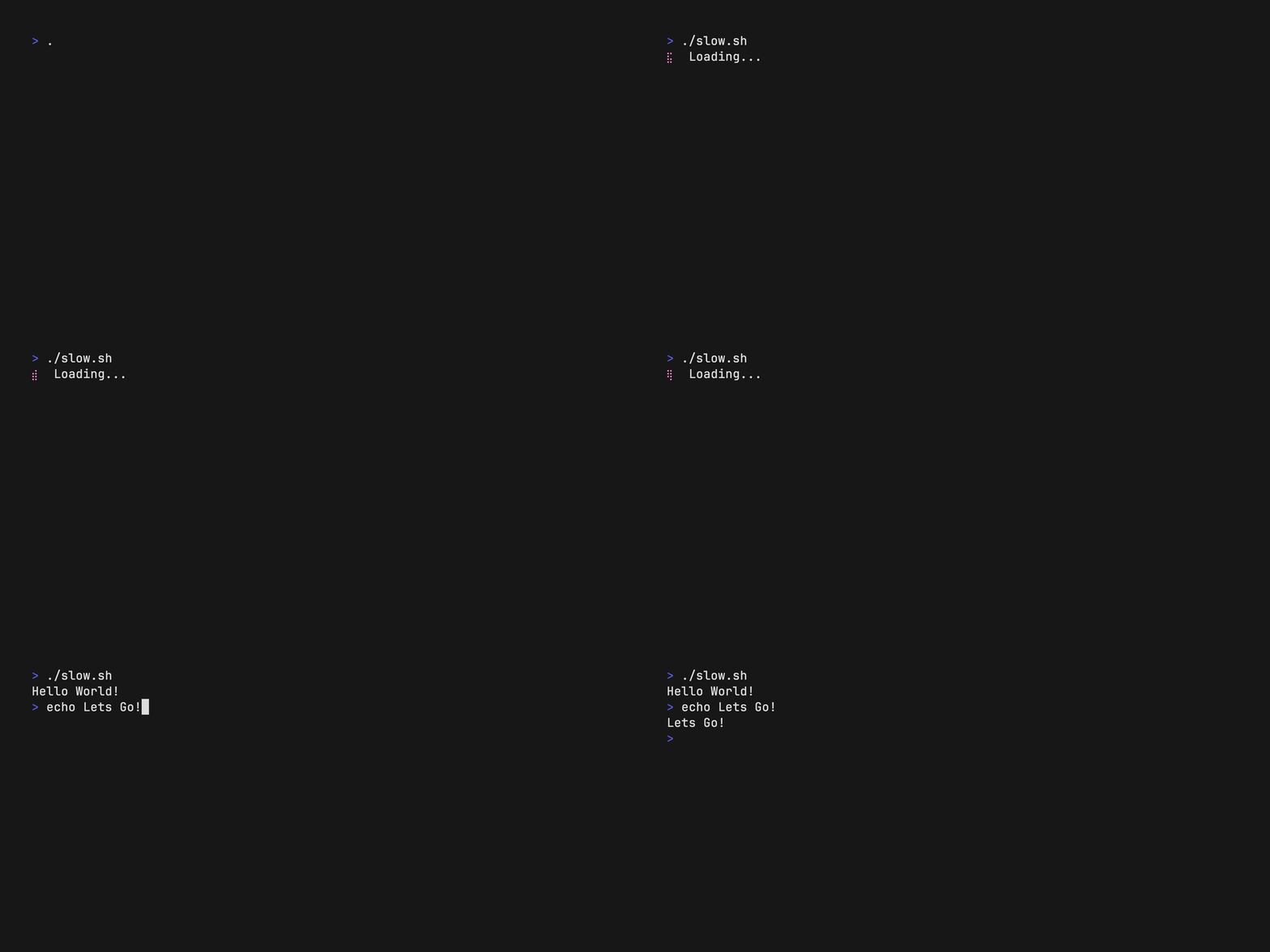
This allows you to remove all the random
Sleeps in your tape files! You can now wait for specific conditions instead. This means more control while simplifying tape file creation.More shells
There's also support for
xonshandosh, so you can now use them in your tapes as well:Output examples/settings/set-shell-xonsh.gif Set FontSize 38 Set Height 225 Set Shell xonsh Sleep 1s Type "I am using xonsh." Sleep 2s
Changelog
New Features
- 9624cdad81eb73f050415b44bfc097fc371ba566: feat: add Wait to wait for expected output (#257) (@mastercactapus)
- 5ddc8628a74ef6a645e0a44c6c7bb03df6873573: feat: added osh (#564) (@rsteube)
- 16ec55b02b9934ee9e8e83d877ed7b9c1fd46d32: feat: added xonsh (#563) (@rsteube)
- 92db33b8091b040101ab060bf736f97e2bc7835d: feat: don't create 'out.gif' by default (#518) (@nolta)
- b8b780e08f9e7c627c1de8548fa61e5fc5ba860f: feat: nushell: adopt colored
>prompt (#565) (@rsteube) - 2ff7bbd4341800abee599473a39a4b5e774b985d: feat: warn when using
SETcommands not being the top decl (#508) (@Delta456)
Bug fixes
- 281a28018bff6c9c81e2ab806da4d5e2c39a14da: fix: gifs (@caarlos0)
- 607c25877d783a715fa7c51ce487c3149818c8cc: fix: remove gifs (@caarlos0)
- ecc115046f327d923a15482804663dfbd5495158: fix: typo in WindowBar parser - fixes #543 (#544) (@popey)
Documentation updates
- ba9823672b6f785872dffecd792c60ee61132755: docs: document wait (@caarlos0)
Other work
- a5f09b2763c8bdfd9104630d599843ff7c2962fb: ci: remove homebrew core auto push (@caarlos0)
First, download the
checksums.txtfile, for example, withwget:wget 'https://github.com/charmbracelet/vhs/releases/download/v0.9.0/checksums.txt'Then, verify it using
cosign:cosign verify-blob \ --certificate-identity 'https://github.com/charmbracelet/meta/.github/workflows/goreleaser.yml@refs/heads/main' \ --certificate-oidc-issuer 'https://token.actions.githubusercontent.com' \ --cert 'https://github.com/charmbracelet/vhs/releases/download/v0.9.0/checksums.txt.pem' \ --signature 'https://github.com/charmbracelet/vhs/releases/download/v0.9.0/checksums.txt.sig' \ ./checksums.txtIf the output is
Verified OK, you can safely use it to verify the checksums of other artifacts you downloaded from the release usingsha256sum:sha256sum --ignore-missing -c checksums.txtDone! You artifacts are now verified!
Thoughts? Questions? We love hearing from you. Feel free to reach out on Twitter, The Fediverse, or on Discord.
用户点评
登录用户的真实使用记录,可按版本和硬件筛选共 0 条
还没有人点评。第一个说出真实体验的人最有价值。
VHS
Write terminal GIFs as code for integration testing and demoing your CLI tools.
The above example was generated with VHS (view source).
Tutorial
To get started, install VHS and create a new .tape file.
vhs new demo.tape
Open the .tape file with your favorite $EDITOR.
vim demo.tape
Tape files consist of a series of commands. The commands are instructions for VHS to perform on its virtual terminal. For a list of all possible commands see the command reference.
# Where should we write the GIF?
Output demo.gif

# Set up a 1200x600 terminal with 46px font.
Set FontSize 46
Set Width 1200
Set Height 600

# Type a command in the terminal.
Type "echo 'Welcome to VHS!'"

# Pause for dramatic effect...
Sleep 500ms

# Run the command by pressing enter.
Enter

# Admire the output for a bit.
Sleep 5s
Once you've finished, save the file and feed it into VHS.
vhs demo.tape
All done! You should see a new file called demo.gif (or whatever you named
the Output) in the directory.
For more examples see the examples/ directory.
Installation
[!NOTE] VHS requires
ttydandffmpegto be installed and available on yourPATH.
Use a package manager:
# macOS or Linux
brew install vhs

# Arch Linux (btw)
pacman -S vhs

# Nix
nix-env -iA nixpkgs.vhs

# Windows using scoop
scoop install vhs
Or, use Docker to run VHS directly, dependencies included:
docker run --rm -v $PWD:/vhs ghcr.io/charmbracelet/vhs <cassette>.tape
Or, download it:
- Packages are available in Debian and RPM formats
- Binaries are available for Linux, macOS, and Windows
Or, just install it with go:
go install github.com/charmbracelet/vhs@latest
- Debian / Ubuntu
# Debian/Ubuntu
sudo mkdir -p /etc/apt/keyrings
curl -fsSL https://repo.charm.sh/apt/gpg.key | sudo gpg --dearmor -o /etc/apt/keyrings/charm.gpg
echo "deb [signed-by=/etc/apt/keyrings/charm.gpg] https://repo.charm.sh/apt/ * *" | sudo tee /etc/apt/sources.list.d/charm.list
# Install ttyd from https://github.com/tsl0922/ttyd/releases
sudo apt update && sudo apt install vhs ffmpeg
- Fedora / RHEL
echo '[charm]
name=Charm
baseurl=https://repo.charm.sh/yum/
enabled=1
gpgcheck=1
gpgkey=https://repo.charm.sh/yum/gpg.key' | sudo tee /etc/yum.repos.d/charm.repo
# Install ttyd from https://github.com/tsl0922/ttyd/releases
sudo yum install vhs ffmpeg
- Void
sudo xbps-install vhs
- Windows
winget install charmbracelet.vhs
# or scoop
scoop install vhs
Record Tapes
VHS has the ability to generate tape files from your terminal actions!
To record to a tape file, run:
vhs record > cassette.tape
Perform any actions you want and then exit the terminal session to stop
recording. You may want to manually edit the generated .tape file to add
settings or modify actions. Then, you can generate the GIF:
vhs cassette.tape
Publish Tapes
VHS allows you to publish your GIFs to our servers for easy sharing with your
friends and colleagues. Specify which file you want to share, then use the
publish sub-command to host it on vhs.charm.sh. The output will provide you
with links to share your GIF via browser, HTML, and Markdown.
vhs publish demo.gif
The VHS Server
VHS has an SSH server built in! When you self-host VHS you can access it as though it were installed locally. VHS will have access to commands and applications on the host, so you don't need to install them on your machine.
To start the server run:
vhs serve
VHS_PORT: The port to listen on (1976)VHS_HOST: The host to listen on (localhost)VHS_GID: The Group ID to run the server as (current user's GID)VHS_UID: The User ID to run the server as (current user's UID)VHS_KEY_PATH: The path to the SSH key to use (.ssh/vhs_ed25519)VHS_AUTHORIZED_KEYS_PATH: The path to the authorized keys file (empty, publicly accessible)
Then, simply access VHS from a different machine via ssh:
ssh vhs.example.com < demo.tape > demo.gif
VHS Command Reference
[!NOTE] You can view all VHS documentation on the command line with
vhs manual.
There are a few basic types of VHS commands:
Output <path>: specify file outputRequire <program>: specify required programs for tape fileSet <Setting> Value: set recording settingsType "<characters>": emulate typingLeftRightUpDown: arrow keysBackspaceEnterTabSpace: special keysScrollUpScrollDown: scroll terminal viewportCtrl[+Alt][+Shift]+<char>: press control + key and/or modifierSleep <time>: wait for a certain amount of timeWait[+Screen][+Line] /regex/: wait for specific conditionsHide: hide commands from outputShow: stop hiding commands from outputScreenshot: screenshot the current frameCopy/Paste: copy and paste text from clipboard.Source: source commands from another tapeEnv <Key> Value: set environment variables
Output
The Output command allows you to specify the location and file format
of the render. You can specify more than one output in a tape file which
will render them to the respective locations.
Output out.gif
Output out.mp4
Output out.webm
Output frames/ # a directory of frames as a PNG sequence
Require
The Require command allows you to specify dependencies for your tape file.
These are useful to fail early if a required program is missing from the
$PATH, and it is certain that the VHS execution will not work as expected.
Require commands must be defined at the top of a tape file, before any non- setting or non-output command.
# A tape file that requires gum and glow to be in the $PATH
Require gum
Require glow
Settings
The Set command allows you to change global aspects of the terminal, such as
the font settings, window dimensions, and GIF output location.
Setting must be administered at the top of the tape file. Any setting (except
TypingSpeed) applied after a non-setting or non-output command will be
ignored.
Set Shell
Set the shell with the Set Shell <shell> command
Set Shell fish
Set Font Size
Set the font size with the Set FontSize <number> command.
Set FontSize 10
Set FontSize 20
Set FontSize 40
Set Font Family
Set the font family with the Set FontFamily "<font>" command
Set FontFamily "Monoflow"
Set Width
Set the width of the terminal with the Set Width command.
Set Width 300
Set Height
Set the height of the terminal with the Set Height command.
Set Height 1000
Set Columns
Set the width of the terminal in columns (character cells) with the Set Columns command. VHS derives the final pixel width from the current font
settings (FontSize, FontFamily, LetterSpacing) plus Padding/Margin.
Set Columns 100
Set Columns cannot be combined with Set Width — use one or the other to
control the terminal's width. It can be freely combined with Set Height
or Set Rows to control height.
Set Rows
Set the height of the terminal in rows (character cells) with the Set Rows
command. VHS derives the final pixel height from the current font settings
(FontSize, FontFamily, LineHeight) plus Padding/Margin/WindowBar.
Set Rows 40
Set Rows cannot be combined with Set Height — use one or the other to
control the terminal's height. It can be freely combined with Set Width
or Set Columns to control width.
Set Letter Spacing
Set the spacing between letters (tracking) with the Set LetterSpacing
Command.
Set LetterSpacing 20
Set Line Height
Set the spacing between lines with the Set LineHeight Command.
Set LineHeight 1.8
Set Typing Speed
Set TypingSpeed 500ms # 500ms
Set TypingSpeed 1s    # 1s
Set the typing speed of seconds per key press. For example, a typing speed of
0.1 would result in a 0.1s (100ms) delay between each character being typed.
This setting can also be overwritten per command with the @<time> syntax.
Set TypingSpeed 0.1
Type "100ms delay per character"
Type@500ms "500ms delay per character"
Set Theme
Set the theme of the terminal with the Set Theme command. The theme value
should be a JSON string with the base 16 colors and foreground + background.
Set Theme { "name": "Whimsy", "black": "#535178", "red": "#ef6487", "green": "#5eca89", "yellow": "#fdd877", "blue": "#65aef7", "magenta": "#aa7ff0", "cyan": "#43c1be", "white": "#ffffff", "brightBlack": "#535178", "brightRed": "#ef6487", "brightGreen": "#5eca89", "brightYellow": "#fdd877", "brightBlue": "#65aef7", "brightMagenta": "#aa7ff0", "brightCyan": "#43c1be", "brightWhite": "#ffffff", "background": "#29283b", "foreground": "#b3b0d6", "selection": "#3d3c58", "cursor": "#b3b0d6" }
You can also set themes by name:
Set Theme "Catppuccin Frappe"
See the full list by running vhs themes, or in THEMES.md.
Set Padding
Set the padding (in pixels) of the terminal frame with the Set Padding
command.
Set Padding 0
Set Margin
Set the margin (in pixels) of the video with the Set Margin command.
Set Margin 60
Set MarginFill "#6B50FF"
Set Window Bar
Set the type of window bar (Colorful, ColorfulRight, Rings, RingsRight) on the terminal window with the Set WindowBar command.
Set WindowBar Colorful
Set Border Radius
Set the border radius (in pixels) of the terminal window with the Set BorderRadius command.
# You'll likely want to add a Margin + MarginFill if you use BorderRadius.
Set Margin 20
Set MarginFill "#674EFF"
Set BorderRadius 10
Set Framerate
Set the rate at which VHS captures frames with the Set Framerate command.
Set Framerate 60
Set Playback Speed
Set the playback speed of the final render.
Set PlaybackSpeed 0.5 # Make output 2 times slower
Set PlaybackSpeed 1.0 # Keep output at normal speed (default)
Set PlaybackSpeed 2.0 # Make output 2 times faster
Set Loop Offset
Set the offset for when the GIF loop should begin. This allows you to make the first frame of the GIF (generally used for previews) more interesting.
Set LoopOffset 5 # Start the GIF at the 5th frame
Set LoopOffset 50% # Start the GIF halfway through
Set Cursor Blink
Set whether the cursor should blink. Enabled by default.
Set CursorBlink false
Type
Use Type to emulate key presses. That is, you can use Type to script typing
in a terminal. Type is handy for both entering commands and interacting with
prompts and TUIs in the terminal. The command takes a string argument of the
characters to type.
You can set the standard typing speed with Set TypingSpeed
and override it in places with a @time argument.
# Type something
Type "Whatever you want"

# Type something really slowly!
Type@500ms "Slow down there, partner."
Escape single and double quotes with backticks.
Type `VAR="Escaped"`
Keys
Key commands take an optional @time and optional repeat count for repeating
the key press every interval of <time>.
Key[@<time>] [count]
Backspace
Press the backspace key with the Backspace command.
Backspace 18
Ctrl
You can access the control modifier and send control sequences with the Ctrl
command.
Ctrl+R
Enter
Press the enter key with the Enter command.
Enter 2
Arrow Keys
Press any of the arrow keys with the Up, Down, Left, Right commands.
Up 2
Down 2
Left
Right
Left
Right
Type "B"
Type "A"
Tab
Enter a tab with the Tab command.
Tab@500ms 2
Space
Press the space bar with the Space command.
Space 10
Page Up / Down
Press the Page Up / Down keys with the PageUp or PageDown commands.
PageUp 3
PageDown 5
Scroll Up / Down
Scroll the terminal viewport directly with ScrollUp and ScrollDown.
Both commands use the same optional @time and repeat count shape as other
repeatable key commands: ScrollUp[@<time>] [count].
ScrollUp 10
ScrollDown 4
ScrollDown@100ms 12
Wait
The Wait command allows you to wait for something to appear on the screen.
This is useful when you need to wait on something to complete, even if you don't
know how long it'll take, while including it in the recording like a spinner or
loading state.
The command takes a regular expression as an argument, and optionally allows you
to set the duration to wait and if you want to check the whole screen or just the
last line (the scope).
Wait
Wait            /World/
Wait+Screen     /World/
Wait+Line       /World/
Wait@10ms       /World/
Wait+Line@10ms  /World/
The default regular expression is />$/, the wait timeout is 15s, and the
default scope is Line.
Sleep
The Sleep command allows you to continue capturing frames without interacting
with the terminal. This is useful when you need to wait on something to
complete while including it in the recording like a spinner or loading state.
The command takes a number argument in seconds.
Sleep 0.5   # 500ms
Sleep 2     # 2s
Sleep 100ms # 100ms
Sleep 1s    # 1s
Hide
The Hide command instructs VHS to stop capturing frames. It's useful to pause
a recording to perform hidden commands.
Hide
This command is helpful for performing any setup and cleanup required to record a GIF, such as building the latest version of a binary and removing the binary once the demo is recorded.
Output example.gif

# Setup
Hide
Type "go build -o example . && clear"
Enter
Show

# Recording...
Type 'Running ./example'
...
Enter

# Cleanup
Hide
Type 'rm example'
Enter
Show
The Show command instructs VHS to begin capturing frames, again. It's useful
after a Hide command to resume frame recording for the output.
Hide
Type "You won't see this being typed."
Show
Type "You will see this being typed."
Screenshot
The Screenshot command captures the current frame (png format).
# At any point...
Screenshot examples/screenshot.png
Copy / Paste
The Copy and Paste copy and paste the string from clipboard.
Copy "https://github.com/charmbracelet"
Type "open "
Sleep 500ms
Paste
Env
Env command sets the environment variable via key-value pair.
Env HELLO "WORLD"

Type "echo $HELLO"
Enter
Sleep 1s
Source
The source command allows you to execute commands from another tape.
Source config.tape
Continuous Integration
You can hook up VHS to your CI pipeline to keep your GIFs up-to-date with the official VHS GitHub Action:
VHS can also be used for integration testing. Use the .txt or .ascii output
to generate golden files. Store these files in a git repository to ensure there
are no diffs between runs of the tape file.
Output golden.ascii
Syntax Highlighting
There’s a tree-sitter grammar for .tape files available for editors that
support syntax highlighting with tree-sitter:
It works great with Neovim, Emacs, and so on!
Contributing
See contributing.
Feedback
We’d love to hear your thoughts on this project. Feel free to drop us a note!
License
Part of Charm.
Charm热爱开源 • Charm loves open source
terminal
microsoft·C++
微软官方的新版 Windows Terminal 终端模拟器,同时包含原版 Windows 控制台宿主,支持多标签、GPU 加速渲染和 WSL,替代老旧的 cmd 窗口。
终端模拟器+4终端模拟器
105363+289.7kv1.25.2733.02026-11-09 23:18 UTC

tabby
Eugeny·TypeScript
一款基于 TypeScript 的现代终端模拟器,支持 SSH、Telnet、串口连接,提供插件扩展和主题定制,适合替代传统终端工具。
终端模拟器+4终端模拟器
75362+444.3kv1.0.2382026-11-06 04:03 UTC
alacritty
alacritty·Rust
用 Rust 写的跨平台 GPU 加速终端模拟器,基于 OpenGL 渲染,主打高帧率和低延迟,适合嫌普通终端卡顿、想要更顺滑操作体验的开发者。
终端模拟器+4终端模拟器
66149+253.7kv0.17.02026-11-06 21:34 UTC

termux-app
termux·Java
在 Android 手机上提供完整的 Linux 终端环境,通过安装各类软件包把手机变成便携开发机。
终端模拟器+3终端模拟器
64538+2428.3kv0.118.32026-11-05 09:38 UTC