需在 index.html、host.html 或 App.razor 中手动引入组件的 CSS 与 JS 文件;mermaid 和 highlight.js 默认不加载,须显式设置 EnableMermaid、EnableHighlight 才生效;Resize 等选项只在编辑器初始化时读取,运行时切换需用 @key 重建实例
BlazorMarkdownEditor
erossiniMIT活跃维护给 Blazor WebAssembly 和 Blazor Server 应用直接嵌入的 Markdown 编辑器组件,功能齐全,省去自己从头写编辑器的功夫。
Complete Markdown Editor component for Blazor WebAssembly and Blazor Server. Full of functionalities
v2.0.0发布于 2022-01-18 11:53 UTC224star34fork同步于 2026-11-10 12:04 UTC
dotnet add package PSC.Blazor.Components.MarkdownEditor 硬件要求按 README 说明
README 未说明
基于 EasyMDE 的 Blazor Markdown 编辑器组件,WebAssembly 和 Server 都能用,功能齐全
给 Blazor WebAssembly 和 Blazor Server 应用直接嵌入的 Markdown 编辑器组件,功能齐全,省去自己从头写编辑器的功夫。
核心能力
- 封装 EasyMDE 1.0.x,提供 Blazor 组件式 Markdown 编辑
- 支持自定义工具栏按钮并回调事件
- ValueHTMLChanged 直接输出渲染后的 HTML
- 内置 mermaid 与 highlight.js,按需离线加载
- 提供 SetValueAsync、InsertTextAsync 等编程式操作接口
容易踩的坑
内容由模型根据 README 生成,可能不完整或不准确,以官方文档为准。看原文 README
- v2.0.0Rewrite the Markdown Editor for Blazor with EasyMDE最新正式版2022-01-18 · 2022-01-18 11:53 UTC
这个版本没有写更新说明。
- v1.0.0Basic Markdown Editor2022-01-08 · 2022-01-08 09:57 UTC
查看更新说明
Basic functionalities for the Markdown editor.
用户点评
登录用户的真实使用记录,可按版本和硬件筛选共 0 条
还没有人点评。第一个说出真实体验的人最有价值。
Blazor Markdown Editor
This is a Markdown Editor component for Blazor WebAssembly and Blazor Server with .NET 10. The component is based on EasyMDE version 1.0.x to create the editor. I decided to create my repository for the JavaScript library because I wanted to have control over the updates and the changes. The component is a wrapper around the JavaScript library and it is a Blazor component that allows you to use the Markdown Editor in your Blazor application.
For more documentation and help this component, visit the post I created here.
If you like this project and want to support my work, you can buy me a coffee or make a donation. Your support is really appreciated and it helps me to continue to create new projects and to maintain the existing ones.

Try Markdown Editor online (upload is not enabled)
Usage
Add the Editor to your _Imports.razor
@using PSC.Blazor.Components.MarkdownEditor
@using PSC.Blazor.Components.MarkdownEditor.Enums
@using PSC.Blazor.Components.MarkdownEditor.EventsArgs
Then, in your index.html, host.html or App.razor add those lines:
<link href="/_content/PSC.Blazor.Components.MarkdownEditor/css/markdowneditor.css" rel="stylesheet" />
<link href="/_content/PSC.Blazor.Components.MarkdownEditor/css/easymde.min.css" rel="stylesheet" />

<script src="/_content/PSC.Blazor.Components.MarkdownEditor/js/easymde.min.js"></script>
<script src="/_content/PSC.Blazor.Components.MarkdownEditor/js/markdownEditor.js"></script>
jQuery is no longer needed. If you are upgrading, you can remove its <script> tag, unless your own pages use it.
The component contains the Easy Markdown Editor script version 1.0.x that is also maintain by myself. You can add this script in your project but if you use the script in the component, you are sure it works fine and all functionalities are tested.
The CSS markdowneditor.css contains the style for same of the new tags I added in the Markdown Editor such as att, note, tip, warn and video.
Add MarkdownEditor in a page
In a Razor page, we can add the component with these lines
<div class="col-md-12">
    <MarkdownEditor @bind-Value="@markdownValue"
                    ValueHTMLChanged="@OnMarkdownValueHTMLChanged" />

    <hr />

    <h3>Result</h3>
    @((MarkupString)markdownHtml)
</div>

@code {
    string markdownValue = "#Markdown Editor\nThis is a test";
    string markdownHtml;

    Task OnMarkdownValueChanged(string value)
    {
        return Task.CompletedTask;
    }

    Task OnMarkdownValueHTMLChanged(string value)
    {
        markdownHtml = value;
        return Task.CompletedTask;
    }
}
The main different between value and ValueHTMLChanged is that Value return the text written in the editor as a string whereas ValueHTMLChanged returns the rendered HTML code for the text.
The ValueHTMLChanged includes the code for displaying mermaid graphs in a SVG tag.
The result is a nice Markdown Editor like in the following screenshot. This is a screenshot from the demo in this repository.

Add a custom toolbar
In your Markdown Editor add the following code
<MarkdownEditor @bind-Value="@markdownValue"
                ValueHTMLChanged="@OnMarkdownValueHTMLChanged"
                SpellChecker="false"
                CustomButtonClicked="@OnCustomButtonClicked">
    <Toolbar>
        <MarkdownToolbarButton Action="MarkdownAction.Bold" Icon="fa fa-bolt" Title="Bold" />
        <MarkdownToolbarButton Separator Name="Custom button"
                               Value="@("Hello from your custom Toolbar Button")"
                               Icon="fa fa-star"
                               Title="A Custom Button" />
        <MarkdownToolbarButton Separator Name="https://github.com/erossini/BlazorMarkdownEditor"
                               Icon="fa fab fa-github" Title="A Custom Link" />
    </Toolbar>
</MarkdownEditor>

@code {
    // omitted code...

    Task OnCustomButtonClicked(MarkdownButtonEventArgs eventArgs)
    {
        Console.WriteLine("OnCustomButtonClicked -> " + eventArgs.Value);
        buttonText += "OnCustomButtonClicked -> " + eventArgs.Value + "<br />";

        return Task.CompletedTask;
    }
}
In the tag MarkdownEditor, you add the new tab Toolbar that contains one or more MarkdownToolbarButton.
Each MarkdownToolbarButton can have one of the default Action (see table below) or a custom value for example a link to a website.
If you want to display before a MarkdownToolbarButton a vertical line, add the property Separator in the MarkdownToolbarButton.
Customise the Markdown Guide URL
The toolbar's ? Help button opens the Markdown Guide by default. If you want it to open your own Markdown reference (a docs page in your product, an internal wiki page, a custom cheat sheet) set MarkdownUrl on the editor:
<MarkdownEditor @bind-Value="markdown"
                MarkdownUrl="https://your-host.example/docs/markdown-syntax" />
The value is per-instance, so different editors on the same page can each point at a different reference. The component forwards the URL to EasyMDE's native markdownUrl constructor option — equivalent to writing this directly in JavaScript:
new EasyMDE({
    element: document.getElementById('editor'),
    markdownUrl: 'https://your-host.example/docs/markdown-syntax',
});
When MarkdownUrl is null or empty the default upstream URL is used.
Change the content after the first init
In same cases, you want to refresh the content of the Markdown Editor after the first init, for example because your application has to read the value from an API and it takes time.
For that, you have to add a ref to the MarkdownEditor and then use it to call SetValueAsync property, as in the following code
<MarkdownEditor @bind-Value="@markdownValue"
                ValueHTMLChanged="@OnMarkdownValueHTMLChanged"
                SpellChecker="false" @ref="Markdown1" />

@code {
    MarkdownEditor Markdown1;

    // omitted code...

    async Task ChangeText()
    {
        markdownValue = "Test!";
        await Markdown1.SetValueAsync(markdownValue);
    }
}
Resize the editor
EasyMDE exposes a native resize grip in the bottom-right corner of the composition
area. The component surfaces this through the Resize parameter, combined with
MinHeight / MaxHeight (EasyMDE uses MaxHeight as the initial height and lets
the editor grow up to that value, then scrolls):
<MarkdownEditor @bind-Value="@markdownValue"
                Resize="vertical"
                MinHeight="150px"
                MaxHeight="400px" />
Accepted values for Resize are "none" (default, no grip), "vertical",
"horizontal" and "both". Because EasyMDE reads this option only when the
editor is constructed, switch modes at runtime by forcing a fresh instance with
@key:
<MarkdownEditor @key="resize"
                @bind-Value="@markdownValue"
                Resize="@resize"
                MaxHeight="400px" />
See Pages/Resize.razor in the demo project for a full example with buttons that
flip between the four modes.
Stack the fullscreen editor above overlays
When the editor is used inside a Bootstrap modal (z-index: 1040) or any other
overlay, the fullscreen view can be covered by the overlay. Use
FullScreenZIndex to raise the fullscreen layer:
<MarkdownEditor @bind-Value="@markdownValue"
                FullScreenZIndex="1050" />
Check spelling
The editor can let the browser's own spell checker underline misspelt words and offer corrections on right-click. It uses the languages set in the browser and the operating system (British English, Italian, and so on), works offline, and sends nothing anywhere unless the user has turned on the browser's enhanced, online spell check.
The browser can check only text that is itself editable. EasyMDE makes it so by itself only on a phone or a tablet, so on a computer ask for it with InputStyle:
<MarkdownEditor @bind-Value="@markdownValue"
                SpellChecker="false"
                NativeSpellChecker="true"
                InputStyle="MarkdownInputStyle.ContentEditable" />
NativeSpellCheckerturns the browser's checker on or off (on by default).InputStyleisAutomatic(the default:ContentEditableon a phone,Textareaelsewhere),TextareaorContentEditable. It is read when the editor starts.SpellCheckeris EasyMDE's own checker: US English only, with its dictionary downloaded from a CDN each time. Turn it off when you use the browser's, or both underline the same words.
Single line breaks
By default, as in standard Markdown, lines with no blank line between them run on into one paragraph in the preview. Set SingleLineBreaks to make each line break a <br>, as GitHub renders comments:
<MarkdownEditor @bind-Value="@markdownValue"
                SingleLineBreaks="true" />
It applies to the preview and to the HTML given to ValueHTMLChanged. There is no need to patch window.EasyMDE for it any more.
Insert a link from a list of pages
A common documentation scenario is letting the user pick a target page from a
predefined list and insert a Markdown link at the cursor. The component exposes
InsertTextAsync for exactly this — combine it with a custom toolbar button that
opens your own picker UI:
<MarkdownEditor @ref="editorRef"
                @bind-Value="@markdownValue"
                CustomButtonClicked="@OnCustomButtonClicked">
    <Toolbar>
        <MarkdownToolbarButton Name="PickPageLink"
                               Icon="fa fa-link"
                               Title="Insert link from page list" />
    </Toolbar>
</MarkdownEditor>

@code {
    MarkdownEditor editorRef;
    bool showLinkPicker;

    Task OnCustomButtonClicked(MarkdownButtonEventArgs e)
    {
        if (e.Name == "PickPageLink") showLinkPicker = true;
        return Task.CompletedTask;
    }

    async Task InsertPageLink((string title, string slug) args)
    {
        showLinkPicker = false;
        var markdown = $"[{args.title}](https://github.com/erossini/BlazorMarkdownEditor/blob/HEAD/docs/{args.slug})";
        if (editorRef is not null)
            await editorRef.InsertTextAsync(markdown);
    }
}
The demo project contains a complete working example at Pages/InsertLink.razor
(modal with a scrollable list of pages).
Mermaid and highlight.js (offline, on demand)
The component ships mermaid and
highlight.js inside its NuGet package and loads them
only when the consumer asks for them — nothing is fetched from a CDN at
runtime. There is no need to add <script> tags to your index.html /
host.html / App.razor anymore.
Opt in with the EnableMermaid / EnableHighlight parameters and pick a
highlight.js theme by file name (any *.min.css from
wwwroot/lib/highlight.js/styles/ works):
<MarkdownEditor @bind-Value="@markdownValue"
                EnableMermaid="true"
                EnableHighlight="true"
                HighlightTheme="github.min.css" />
When neither flag is set the scripts are not downloaded at all, so the editor stays as light as possible. When multiple editors on the same page enable the same asset, it is loaded once and shared.
Mermaid
Mermaid renders diagrams from fenced code blocks tagged mermaid:
```mermaid
flowchart LR
    A[Write Markdown] --> B{Preview?}
    B -- yes --> C[Render Mermaid]
    B -- no  --> D[Keep editing]
```
Supported diagram types include Flowchart, Sequence, Class, State, Entity Relationship, User Journey, Gantt, Pie Chart, Quadrant, Requirement, Git graph, C4 Context, Mindmaps and Timeline.
When EnableMermaid is true, a "mermaid" toolbar button is added so users can
insert the fenced block with one click.
highlight.js
Set EnableHighlight="true" and any fenced block with a known language tag is
syntax-highlighted in the preview:
```csharp
public class Greeter
{
    public static void Main() => Console.WriteLine("Hello, world!");
}
```
Pick a colour theme via HighlightTheme. Common choices: github.min.css,
github-dark.min.css, atom-one-dark.min.css, monokai.min.css,
nord.min.css, vs2015.min.css. The full list of available themes is whatever
ships under wwwroot/lib/highlight.js/styles/*.min.css.
The bundled highlight.min.js ships the common-language pack (~35 languages).
If you need an exotic language not in that pack, you can drop the additional
parser file under wwwroot/lib/highlight.js/languages/ in your host project
and load it with a regular <script> tag in index.html — highlight.js
automatically picks it up.
Combining mermaid and highlight.js
Both libraries can be enabled on the same editor with no extra setup. The
component rewires EasyMDE's preview renderer to (a) leave mermaid blocks for
the mermaid runtime and (b) feed every other fenced block to highlight.js, so
the previous "loading both libraries breaks mermaid" caveat from earlier
versions no longer applies.
See the demo project: /mermaid-highlight in Pages/MermaidHighlight.razor
shows both features together with a theme picker.
An example of the mermaid graphs
A Sequence diagram is an interaction diagram that shows how processes operate with one another and in what order.
sequenceDiagram
    Alice->>John: Hello John, how are you?
    John-->>Alice: Great!
    Alice-)John: See you later!
A Gantt chart is useful for tracking the amount of time it would take before a project is finished, but it can also be used to graphically represent "non-working days", with a few tweaks.
gantt
    title A Gantt Diagram
    dateFormat  YYYY-MM-DD
    section Section
    A task           :a1, 2014-01-01, 30d
    Another task     :after a1  , 20d
    section Another
    Task in sec      :2014-01-12  , 12d
    another task      : 24d
An entity–relationship model (or ER model) describes interrelated things of interest in a specific domain of knowledge. A basic ER model is composed of entity types (which classify the things of interest) and specifies relationships that can exist between entities (instances of those entity types).
erDiagram
    CUSTOMER ||--o{ ORDER : places
    ORDER ||--|{ LINE-ITEM : contains
    CUSTOMER }|..|{ DELIVERY-ADDRESS : uses
See Mermaid and highlight.js (offline, on demand) above for the supported way to enable syntax highlighting via the
EnableHighlightandHighlightThemeparameters. The component bundles highlight.js, so no external<script>is required.
Alerts
In the Markdown, there are some missing tags to display some useful information on the page like a highlight note, a tip, a warning or an attention message. So, I added them in this Markdown Editor. An example of the result of this implementation is in the following screenshot.
To add the message, click on the icons in the toolbar in the editor or add those commands:
| Command | Color | Description |
|---|---|---|
| ```att | Red | Display an attention message |
| ```note | Azure | Add a note in the document |
| ```tip | Green | Shows a tip message |
| ```warn | Orange | This is a warning message |
In the Markdown Editor component, there is a CSS for the them called alert.css and you can add it to the index.html with this line if you haven't add the markdowneditor.css
<link href="/_content/PSC.Blazor.Components.MarkdownEditor/css/alert.css" rel="stylesheet" />
Clean saved documentation
By default, the Markdown Editor saves the text in the browser local storage.
The AutoSaveEnabled is True and the AutoSaveSubmitDelay is set up to 5000 milliseconds. This means that the text is saved every 5 seconds.
If you want to clean the saved text, you can use the following code
<MarkdownEditor @bind-Value="@markdownValue" MaxHeight="300px"
                ValueHTMLChanged="@OnMarkdownValueHTMLChanged"
                SpellChecker="false" @ref="Markdown1"
                AutoSaveEnabled="true" />

@code {
    MarkdownEditor Markdown1;

    async Task DeleteStorage()
    {
        await Markdown1.CleanAutoSave();
    }
}
Video
In the Markdown Editor, you can add a video in the text. The video can be from YouTube, Vimeo or any other video provider. The video is displayed in the editor and in the rendered HTML code.
    ```video
	https://www.youtube.com/shorts/JY1zFZgX6zM
    ```
Documentation
The Markdown Editor for Blazor has a estensive collection of properties to map all the functionalities in the JavaScript version. In this repository, there are 2 projects:
- MarkdownEditorDemo is a Blazor Web Assembly project that contains 2 pages:
Index.razorwhere I show how to use the component with the basic functions andUpload.razorthat shows how to cope with the image upload. To test the upload, the projectMarkdownEditorDemo.Apimust run - MarkdownEditorDemo.Api this is an ASP.NET Core WebApi (.NET6) how to implement a proper API for uploading images. For more details, I wrote a post about Uploading image with .NET.
Properties
| Name | Description | Type | Default |
|---|---|---|---|
| AutoSaveEnabled | Gets or sets the setting for the auto save. Saves the text that's being written and will load it back in the future. It will forget the text when the form it's contained in is submitted. Recommended to choose a unique ID for the Markdown Editor. | bool | false |
| AutoSaveId | Gets or sets the automatic save identifier. You must set a unique string identifier so that the component can autosave. Something that separates this from other instances of the component elsewhere on your website. | string | Default value |
| AutoSaveDelay | Delay between saves, in milliseconds. Defaults to 10000 (10s). | int | 10000 (10s) |
| AutoSaveSubmitDelay | Delay before assuming that submit of the form failed and saving the text, in milliseconds. | int | 5000 (5s) |
| AutoSaveText | Text for autosave | string | Autosaved: |
| AutoSaveTimeFormatLocale | Set the format for the datetime to display. For more info, see the JavaScript documentation DateTimeFormat instances | string | en-US |
| AutoSaveTimeFormatYear | Set the format for the year | string | numeric |
| AutoSaveTimeFormatMonth | Set the format for the month | string | long |
| AutoSaveTimeFormatDay | Set the format for the day | string | 2-digit |
| AutoSaveTimeFormatHour | Set the format for the hour | string | 2-digit |
| AutoSaveTimeFormatMinute | Set the format for the minute | string | 2-digit |
| AutoDownloadFontAwesome | If set to true, force downloads Font Awesome (used for icons). If set to false, prevents downloading. | bool? | null |
| CharactersStatusText | Set the words to display in the statusbar for the character's counting | string | characters: |
| CustomButtonClicked | Occurs after the custom toolbar button is clicked. | EventCallback | |
| CustomImageUpload | Sets a custom image upload handler | ||
| Direction | rtl or ltr. Changes text direction to support right-to-left languages. Defaults to ltr. | string | ltr |
| ErrorMessages | Errors displayed to the user, using the errorCallback option, where image_name, image_size and image_max_size will be replaced by their respective values, that can be used for customization or internationalization. | MarkdownErrorMessages | |
| EnableHighlight | If true, lazy-loads the bundled highlight.min.js (and the theme selected by HighlightTheme) before initializing EasyMDE so fenced code blocks are syntax-highlighted in the preview. Defaults to false. | bool | false |
| EnableMermaid | If true, lazy-loads the bundled mermaid.min.js before initializing EasyMDE so ```mermaid fenced blocks render as diagrams in the preview. Defaults to false. | bool | false |
| FullScreenZIndex | Sets the z-index used by EasyMDE when entering fullscreen mode. Raise it above any overlay layers (for example Bootstrap modals at 1040) so the fullscreen editor is not covered. | int? | null (EasyMDE default) |
| HighlightTheme | File name of the highlight.js theme stylesheet inside wwwroot/lib/highlight.js/styles/ (relative to the component's static assets). Used only when EnableHighlight is true. | string | "github.min.css" |
| HideIcons | An array of icon names to hide. Can be used to hide specific icons shown by default without completely customizing the toolbar. | string[] | 'side-by-side', 'fullscreen' |
| ImageAccept | A comma-separated list of mime-types used to check image type before upload (note: never trust client, always check file types at server-side). Defaults to image/png, image/jpeg, image/jpg, image/gif, image/webp. | string | image/png, image/jpeg, image/jpg, image/gif, image/webp |
| ImageCSRFToken | CSRF token to include with AJAX call to upload image. For instance, used with Django backend. | string | |
| InputStyle | How the editor takes typing: Automatic (EasyMDE chooses: ContentEditable on a phone, Textarea elsewhere), Textarea or ContentEditable. The browser's spell checker (NativeSpellChecker) underlines words only with ContentEditable. | MarkdownInputStyle | Automatic |
| ImageMaxSize | Maximum image size in bytes, checked before upload (note: never trust client, always check image size at server-side). Defaults to 1024 * 1024 * 2 (2Mb). | long | 1024 * 1024 * 2 (2Mb) |
| ImagePathAbsolute | If set to true, will treat imageUrl from imageUploadFunction and filePath returned from imageUploadEndpoint as an absolute rather than relative path, i.e. not prepend window.location.origin to it. | string | |
| ImageTexts | Texts displayed to the user (mainly on the status bar) for the import image feature, where image_name, image_size and image_max_size will be replaced by their respective values, that can be used for customization or internationalization. | MarkdownImageTexts | null |
| ImageUploadAuthenticationSchema | If an authentication for the API is required, assign to this property the schema to use. Bearer is the common one. | string | empty |
| ImageUploadAuthenticationToken | If an authentication for the API is required, assign to this property the token | string | empty |
| LineNumbers | If set to true, enables line numbers in the editor. | bool | false |
| LinesStatusText | Set the words to display in the statusbar for the line's counting | string | lines: |
| LineWrapping | If set to false, disable line wrapping. Defaults to true. | bool | false |
| MarkdownUrl | Override the URL the toolbar's ? Help button opens. Forwarded to EasyMDE's native markdownUrl constructor option. When unset, opens the default Markdown Guide. See Customise the Markdown Guide URL for an example. | string | https://www.markdownguide.org/basic-syntax/ |
| MaxHeight | Sets fixed height for the composition area. minHeight option will be ignored. Should be a string containing a valid CSS value like "500px". Defaults to undefined. | string | |
| MaxUploadImageMessageSize | Gets or sets the max message size when uploading the file. | long | 20 * 1024 |
| MinHeight | Sets the minimum height for the composition area, before it starts auto-growing. Should be a string containing a valid CSS value like "500px". Defaults to "300px". | string | 300px |
| NativeSpellChecker | Enable (true) or disable (false) the browser's own spell checker, in the browser's languages. It underlines words only when InputStyle is ContentEditable (on a computer) or on a phone. | bool | True |
| Placeholder | If set, displays a custom placeholder message. | string | null |
| Resize | Controls the native EasyMDE resize handle on the editor. Accepted values: "none", "vertical", "horizontal", "both". Any value other than "none" enables resizing; EasyMDE uses MaxHeight as the initial height. | string | "none" |
| SegmentFetchTimeout | Gets or sets the Segment Fetch Timeout when uploading the file. | TimeSpan | 1 min |
| ShowIcons | An array of icon names to show. Can be used to show specific icons hidden by default without completely customizing the toolbar. | string[] | 'code', 'table' |
| SingleLineBreaks | If set to true, a single line break in the text is a line break in the preview and in the HTML (as GitHub comments render). Defaults to false: lines run on into one paragraph, as standard Markdown has them. | bool | False |
| SpellChecker | Enable (true) or disable (false) EasyMDE's own spell checker: US English only, with its dictionary downloaded from a CDN. | bool | True |
| TabSize | If set, customize the tab size. Defaults to 2. | int | 2 |
| Theme | Override the theme. Defaults to easymde. | string | easymde |
| Toolbar | [Optional] Gets or sets the content of the toolbar. | RenderFragment | |
| ToolbarTips | If set to false, disable toolbar button tips. Defaults to true. | bool | true |
| UploadImage | If set to true, enables the image upload functionality, which can be triggered by drag-drop, copy-paste and through the browse-file window (opened when the user clicks on the upload-image icon). Defaults to false. | bool | false |
| Value | Gets or sets the markdown value. | string | null |
| ValueHTML | Gets the HTML from the markdown value. | string | null |
| WordsStatusText | Set the words to display in the statusbar for the word's counting | string | words: |
Events
| Name | Description | Type |
|---|---|---|
| ErrorCallback | A callback function used to define how to display an error message. Defaults to (errorMessage) => alert(errorMessage). | Func<string, Task> |
| ImageUploadChanged | Occurs every time the selected image has changed. | Func<FileChangedEventArgs, Task> |
| ImageUploadEnded | Occurs when an individual image upload has ended. | Func<FileEndedEventArgs, Task> |
| ImageUploadEndpoint | The endpoint where the images data will be sent, via an asynchronous POST request. The server is supposed to save this image, and return a json response. | string |
| ImageUploadProgressed | Notifies the progress of image being written to the destination stream. | Func<FileProgressedEventArgs, Task> |
| ImageUploadStarted | Occurs when an individual image upload has started. | Func<FileStartedEventArgs, Task> |
| ValueChanged | An event that occurs after the markdown value has changed. | EventCallback |
| ValueHTMLChanged | An event that occurs after the markdown value has changed and the new HTML code is available. | EventCallback |
Methods
Call these via an @ref to the MarkdownEditor instance.
| Name | Description | Signature |
|---|---|---|
| GetValueAsync | Reads the current Markdown text from the editor (useful when bypassing two-way binding). | Task<string> GetValueAsync() |
| SetValueAsync | Replaces the editor content with the provided Markdown. | Task SetValueAsync(string value) |
| InsertTextAsync | Inserts the provided text at the current cursor position. Used to build features such as "insert link from a list of pages" — see Pages/InsertLink.razor in the demo project. | Task InsertTextAsync(string text) |
| TogglePreviewAsync | Toggles preview mode on/off. | Task TogglePreviewAsync() |
| SetPreviewAsync | Forces preview mode to the requested state. | Task SetPreviewAsync(bool wanted) |
| CleanAutoSave | Removes the current editor's autosave entry from localStorage. | Task CleanAutoSave() |
| CleanAllAutoSave | Removes every autosave entry created by the component from localStorage. | Task CleanAllAutoSave() |
Upload file
The Markdown Editor for Blazor can take care of uploading a file and add the relative Markdown code in the editor. For that, the property UploadImage has to set to true. Also, the upload API must be specified in the property ImageUploadEndpoint, unless a CustomImageUpload handler stores the image instead (see below).
Images pasted or dropped into the editor are checked in the browser first, against ImageAccept and ImageMaxSize. The default maximum is 2 MB, which many screenshots exceed: set it to the limit your server enforces.
Custom upload handler
CustomImageUpload lets your own code store the image — in a database, blob storage, anywhere — with no HTTP endpoint. Set UploadUrl on the entry to the address the image will be shown from; an exception thrown by the handler becomes the error shown in the editor.
<MarkdownEditor @bind-Value="markdownValue"
                UploadImage="true"
                ImageMaxSize="8388608"
                CustomImageUpload="StoreImageAsync" />

@code {
    private async Task<FileEntry> StoreImageAsync(MarkdownEditor editor, FileEntry file)
    {
        var bytes = Convert.FromBase64String(file.ContentBase64);
        var id = await images.SaveAsync(file.Name, bytes);

        file.UploadUrl = $"/images/{id}";
        return file;
    }
}
In Blazor Server the image travels to the server over the SignalR connection as base64 — about 4/3 of its size — in one message, and the hub refuses messages over 32 KB by default. Raise the limit to match ImageMaxSize:
builder.Services.AddRazorComponents()
    .AddInteractiveServerComponents()
    .AddHubOptions(options => options.MaximumReceiveMessageSize = 8 * 1024 * 1024 * 4 / 3 + 64 * 1024);
In some cases, the API requires an authentication. The properties ImageUploadAuthenticationSchema and ImageUploadAuthenticationToken allow you to pass the correct schema and token to use in the call.
Those values will be added to the HttpClient POST request in the header. Only if both properties are not null, they will be added to the header.
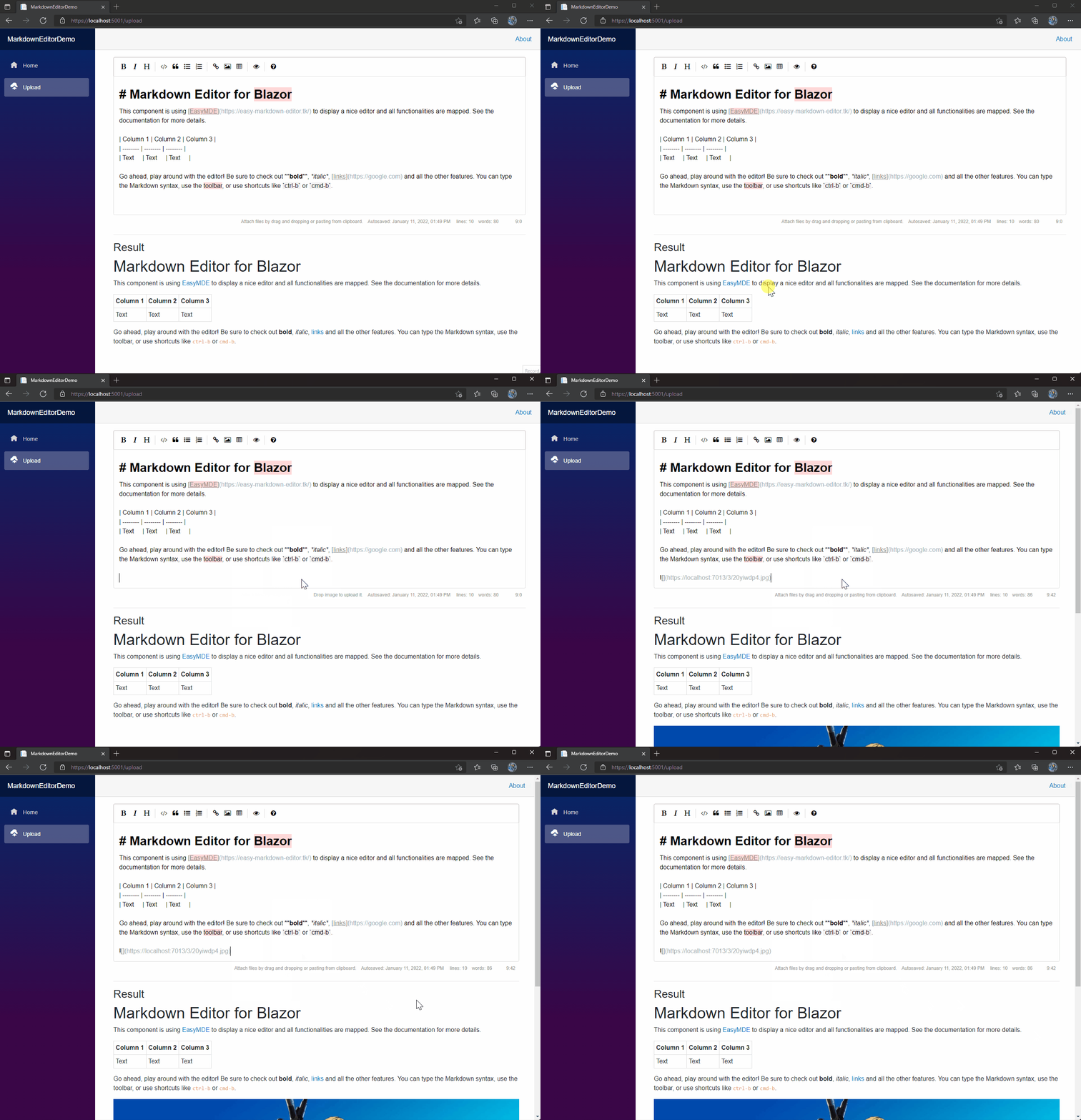
If you want to understand better how to create the API for the upload, I have created a specific post on PureSourceCode.
Toolbar icons
Below are the built-in toolbar icons (only some of which are enabled by default), which can be reorganized however you like. "Name" is the name of the icon, referenced in the JS. "Action" is either a function or a URL to open. "Class" is the class given to the icon. "Tooltip" is the small tooltip that appears via the title="" attribute. Note that shortcut hints are added automatically and reflect the specified action if it has a key bind assigned to it (i.e. with the value of action set to bold and that of tooltip set to Bold, the final text the user will see would be "Bold (Ctrl-B)").
Additionally, you can add a separator between any icons by adding "|" to the toolbar array.
| Name | Action | TooltipClass |
|---|---|---|
| bold | toggleBold | Boldfa fa-bold |
| italic | toggleItalic | Italicfa fa-italic |
| strikethrough | toggleStrikethrough | Strikethroughfa fa-strikethrough |
| heading | toggleHeadingSmaller | Headingfa fa-header |
| heading-smaller | toggleHeadingSmaller | Smaller Headingfa fa-header |
| heading-bigger | toggleHeadingBigger | Bigger Headingfa fa-lg fa-header |
| heading-1 | toggleHeading1 | Big Headingfa fa-header header-1 |
| heading-2 | toggleHeading2 | Medium Headingfa fa-header header-2 |
| heading-3 | toggleHeading3 | Small Headingfa fa-header header-3 |
| code | toggleCodeBlock | Codefa fa-code |
| quote | toggleBlockquote | Quotefa fa-quote-left |
| unordered-list | toggleUnorderedList | Generic Listfa fa-list-ul |
| ordered-list | toggleOrderedList | Numbered Listfa fa-list-ol |
| clean-block | cleanBlock | Clean blockfa fa-eraser |
| link | drawLink | Create Linkfa fa-link |
| image | drawImage | Insert Imagefa fa-picture-o |
| table | drawTable | Insert Tablefa fa-table |
| horizontal-rule | drawHorizontalRule | Insert Horizontal Linefa fa-minus |
| preview | togglePreview | Toggle Previewfa fa-eye no-disable |
| side-by-side | toggleSideBySide | Toggle Side by Sidefa fa-columns no-disable no-mobile |
| fullscreen | toggleFullScreen | Toggle Fullscreenfa fa-arrows-alt no-disable no-mobile |
| guide | This link (override with MarkdownUrl — see Customise the Markdown Guide URL) | Markdown Guidefa fa-question-circle |
Keyboard shortcuts
EasyMDE comes with an array of predefined keyboard shortcuts, but they can be altered with a configuration option. The list of default ones is as follows:
| Shortcut (Windows / Linux) | Shortcut (macOS) | Action |
|---|---|---|
| Ctrl-' | Cmd-' | "toggleBlockquote" |
| Ctrl-B | Cmd-B | "toggleBold" |
| Ctrl-E | Cmd-E | "cleanBlock" |
| Ctrl-H | Cmd-H | "toggleHeadingSmaller" |
| Ctrl-I | Cmd-I | "toggleItalic" |
| Ctrl-K | Cmd-K | "drawLink" |
| Ctrl-L | Cmd-L | "toggleUnorderedList" |
| Ctrl-P | Cmd-P | "togglePreview" |
| Ctrl-Alt-C | Cmd-Alt-C | "toggleCodeBlock" |
| Ctrl-Alt-I | Cmd-Alt-I | "drawImage" |
| Ctrl-Alt-L | Cmd-Alt-L | "toggleOrderedList" |
| Shift-Ctrl-H | Shift-Cmd-H | "toggleHeadingBigger" |
| F9 | F9 | "toggleSideBySide" |
| F11 | F11 | "toggleFullScreen" |
Licence and contribution
A lot of people sent me the same question. My components (MarkdownEditor, DataTable, SVG Icon and others that you find on my GitHub) are freeware.
I ask you to contribute to the project in one of the following ways:
- sending your feedback
- highlight bugs
- ask for improvement
- submit code and fixes
- share the project
- share my website PureSourceCode.com
If you don't know how to do it or you:
- want to support this project
- find very useful this project and it saves you a lot of time and work
- like to sustain my work
- want to pay my a beer
- are using this component for commercial purpose and you want to set your conscience at rest and/or put a hand on one's heart 😂
then, you can buy one of the support licence I created. There are different prices. The amount is your decision. You find have a full list on PureSourceCode Shop
The contribution gives you:
- dedicate email support
- priority access to the support
- fast bug fix
- receive preview and beta of the components
- help to fix your code with Visual Studio Live Share
Other Blazor components
| Component name | Forum | Description |
|---|---|---|
| DataTable for Blazor | Forum | DataTable component for Blazor WebAssembly and Blazor Server |
| Markdown editor for Blazor | Forum | This is a Markdown Editor for use in Blazor. It contains a live preview as well as an embeded help guide for users. |
| Browser Detect for Blazor | Forum | Browser detect for Blazor WebAssembly and Blazor Server |
| CodeSnipper for Blazor | Forum | Add code snippet in your Blazor pages for 196 programming languages with 243 styles |
| Copy To Clipboard | Forum | Add a button to copy text in the clipbord |
| SVG Icons and flags for Blazor | Forum | Library with a lot of SVG icons and SVG flags to use in your Razor pages |
| Modal dialog for Blazor | Forum | Simple Modal Dialog for Blazor WebAssembly |
| PSC.Extensions | Forum | A lot of functions for .NET5 in a NuGet package that you can download for free. We collected in this package functions for everyday work to help you with claim, strings, enums, date and time, expressions... |
| Quill for Blazor | Forum | Quill Component is a custom reusable control that allows us to easily consume Quill and place multiple instances of it on a single page in our Blazor application |
| Segment for Blazor | Forum | This is a Segment component for Blazor Web Assembly and Blazor Server |
| Tabs for Blazor | Forum | This is a Tabs component for Blazor Web Assembly and Blazor Server |
| WorldMap for Blazor | Forum | Show world maps with your data |
More examples and documentation
- Write a reusable Blazor component
- Getting Started With C# And Blazor
- Setting Up A Blazor WebAssembly Application
- Working With Blazor Component Model
- Secure Blazor WebAssembly With IdentityServer4
- Blazor Using HttpClient With Authentication
- InputSelect component for enumerations in Blazor
- Use LocalStorage with Blazor WebAssembly
- Modal Dialog component for Blazor
- Create Tooltip component for Blazor
- Consume ASP.NET Core Razor components from Razor class libraries | Microsoft Docs
👋 About the author & more from me
This library is built and maintained by Enrico Rossini — .NET architect, Blazor advocate, and indie maker.
If this project helped you, here are a few more things from me you might like:
📝 My blog — PureSourceCode.com
Deep-dives on Blazor, .NET, JavaScript frameworks, DevOps, and real-world engineering problems. 10+ years of articles, demos, and open-source components.
🚀 FastLinkIt (flnk.it) — My SaaS platform
A full-stack platform for link shortening, QR codes, link-in-bio pages, contact management, email campaigns, event booking, payments & donations, service requests, AI doc chat, and more. Free tier available, no credit card required.
💼 Sell your code on FastLinkIt
Got a library, NuGet package, template, or digital product? Sell it through flnk.it/features/sell-code — private NuGet feed for buyers, one-command install, Stripe Connect payouts, licence keys, no monthly fees. You keep the money, I keep the platform running.
🌍 LanguageInUse.com — Language learning, reinvented
My other project: an app for learning languages through real-world usage patterns instead of textbooks. Visit and give it a try and search the apps in your app store.
🤝 Support this work
- ⭐ Star this repo on GitHub
- 🐛 Open an issue for bugs or feature requests
- 💬 Follow me on LinkedIn
- ☕ Donate (optional)
Thanks for using this project. 🙏
vscode
microsoft·TypeScript
微软开源的跨平台代码编辑器,基于 Electron 和 TypeScript 构建,支持插件扩展、调试和 Git 集成,适合日常开发写代码。
代码编辑器+4编辑器 / IDE
195262+16644k1.145.22026-11-10 17:16 UTC
neovim
neovim·Vim Script
Vim 的分支版本,用 Lua 做配置和插件开发,内置 LSP 与异步 API,让终端编辑器更好扩展、更好用。
文本编辑器+4编辑器 / IDE
103547+757.4kv0.12.62026-11-10 16:22 UTC
zed
zed-industries·Rust
用 Rust 打造的高性能多人协作代码编辑器,由 Atom 和 Tree-sitter 作者开发,主打低延迟编辑与实时协同编码。
代码编辑器+4编辑器 / IDE
94661+78712kv1.27.02026-11-10 16:11 UTC

AFFiNE
toeverything·TypeScript
把文档、白板、表格融为一体的开源知识库,可离线使用、支持多人实时协作,是 Notion 和 Miro 的替代方案。
知识库+4编辑器 / IDE
74421+1285.5kv2026.11.9-canary.9072026-11-10 16:20 UTC