macOS 用 brew 安装后可能因安全机制无法打开,需右键打开或在系统设置中允许;最小 X11 窗口管理器(i3、dwm 等)可能因缺少 portal 后端截图失败,需启用旧版 X11 截图;托盘图标需系统装有 systray 软件,部分 GNOME 环境需额外插件。

flameshot
flameshot-orgGPL-3.0活跃维护跨平台截图工具,支持区域截取、标注编辑和上传分享,界面简洁但功能齐全,适合日常快速截图和简单图像处理。
Powerful yet simple to use screenshot software :desktop_computer: :camera_flash:
v15.0.0发布于 2026-11-07 16:42 UTC31,497star +48 / 7 天2,096fork同步于 2026-11-10 17:21 UTC
apt install flameshot
flameshot gui 硬件要求按 README 说明
README 未说明具体硬件要求;支持 Linux、Windows、macOS 桌面环境,无需 GPU。
跨平台开源截图工具,内置标注编辑,截图后可直接涂改并上传分享
跨平台截图工具,支持区域截取、标注编辑和上传分享,界面简洁但功能齐全,适合日常快速截图和简单图像处理。
核心能力
- 截图后进入内置编辑器直接标注涂改
- 支持 GUI 交互、全屏、指定屏幕等多种截图模式
- 提供 DBus 接口与命令行参数便于脚本调用
- 可配置延迟截图并自动复制到剪贴板
- 支持上传图片到 Imgur
容易踩的坑
内容由模型根据 README 生成,可能不完整或不准确,以官方文档为准。看原文 README
- v15.0.0最新正式版2026-11-07 · 2026-11-07 16:42 UTC
What's Changed
New Features
-
Let the GUI colors be choosen via hex values by @IndolikarQuantifier in https://github.com/flameshot-org/flameshot/pull/4738
-
Add arrow style selector by @serebryakov02 in https://github.com/flameshot-org/flameshot/pull/4769
-
Increment/decrement circle counter on mouse wheel by @milnadar in https://github.com/flameshot-org/flameshot/pull/4698
-
Add keyboard controls to monitor selector by @serebryakov02 in https://github.com/flameshot-org/flameshot/pull/4811
-
Fall back to native X11 capture when the portal is unavailable by @jmcarthur in https://github.com/flameshot-org/flameshot/pull/4827
-
Add option to disable the Circle Counter outline by @bekirsoylu in https://github.com/flameshot-org/flameshot/pull/4882
-
Removed the close on double click on pinned captures and moved it to shortcut which is configurable through config by @IndolikarQuantifier in https://github.com/flameshot-org/flameshot/pull/4993
-
add more desktop terminal emulators to TerminalLauncher by @anushTikoo in https://github.com/flameshot-org/flameshot/pull/5010
-
Make the UI language picker a filterable search box by @nicitaacom in https://github.com/flameshot-org/flameshot/pull/4891
-
Bug Fixes
-
Fix capture when logical min/max coordinates are not zero by @rs-pro0 in https://github.com/flameshot-org/flameshot/pull/4735
-
Fixing the currently broken macOS packaging for x64 (Intel) by @HackintoshHD in https://github.com/flameshot-org/flameshot/pull/4795
-
Commit text on Esc in text tool by @serebryakov02 in https://github.com/flameshot-org/flameshot/pull/4804
-
Fix screen capture ignoring GUI last-region setting by @serebryakov02 in https://github.com/flameshot-org/flameshot/pull/4789
-
Fix aspect ratio in selection widget when pressing CTRL by @ElTh0r0 in https://github.com/flameshot-org/flameshot/pull/4651
-
Fail fast when the screenshot portal cannot take the capture by @jmcarthur in https://github.com/flameshot-org/flameshot/pull/4826
-
Fix monitor selector stuck after closing via window manager by @renathossain in https://github.com/flameshot-org/flameshot/pull/4839
-
Fix issue in winows cli by @borgmanJeremy in https://github.com/flameshot-org/flameshot/pull/4881
-
Improve windows-cli by @ElTh0r0 in https://github.com/flameshot-org/flameshot/pull/4888
-
Fix pin size on Windows for scaled screen by @4RH1T3CT0R7 in https://github.com/flameshot-org/flameshot/pull/4907
-
Fall back to a same-language translation for unmatched locales by @4RH1T3CT0R7 in https://github.com/flameshot-org/flameshot/pull/4932
-
Use the installed binary path in the desktop entry actions by @Dev-next-gen in https://github.com/flameshot-org/flameshot/pull/4950
-
workaround to reposition window on Mate X11 by @borgmanJeremy in https://github.com/flameshot-org/flameshot/pull/4946
-
Persist tool size when it changes, not when the notifier hides by @bterps in https://github.com/flameshot-org/flameshot/pull/4961
-
fix(macos): bundle translations inside the app by @fmendezy in https://github.com/flameshot-org/flameshot/pull/4986
-
utils: Add missing iterator in strfparse by @aokblast in https://github.com/flameshot-org/flameshot/pull/5012
-
Update save dialog file suffix when the format filter changes by @4RH1T3CT0R7 in https://github.com/flameshot-org/flameshot/pull/4931
-
Refresh launcher region inputs after each capture by @lev-spassky in https://github.com/flameshot-org/flameshot/pull/5004
-
fix(macos): publish clipboard captures as public.png/public.jpeg by @fmendezy in https://github.com/flameshot-org/flameshot/pull/4985
Other Improvements
- update donation info in docs/CONTRIBUTING.md by @mmahmoudian in https://github.com/flameshot-org/flameshot/pull/4728
- Document hyprland usage by @pol-rivero in https://github.com/flameshot-org/flameshot/pull/4734
- Simplify Hyprland example by @pol-rivero in https://github.com/flameshot-org/flameshot/pull/4741
- add SECURITY.md by @mmahmoudian in https://github.c
-
- v15.0.rc1v15 RC1 Betapre-release2026-09-19 · 2026-09-19 20:35 UTC
查看更新说明
What's Changed
Minor feature updates and fixing some vulnerabilities that were reported. Planning to have a short beta period. I uploaded the binaries in a rush so the names may be slightly off.
- update donation info in docs/CONTRIBUTING.md by @mmahmoudian in https://github.com/flameshot-org/flameshot/pull/4728
- Document hyprland usage by @pol-rivero in https://github.com/flameshot-org/flameshot/pull/4734
- Simplify Hyprland example by @pol-rivero in https://github.com/flameshot-org/flameshot/pull/4741
- Fix capture when logical min/max coordinates are not zero by @rs-pro0 in https://github.com/flameshot-org/flameshot/pull/4735
- add SECURITY.md by @mmahmoudian in https://github.com/flameshot-org/flameshot/pull/4726
- remove the legacy argument parsing for region argument by @mmahmoudian in https://github.com/flameshot-org/flameshot/pull/4761
- Let the GUI colors be choosen via hex values by @IndolikarQuantifier in https://github.com/flameshot-org/flameshot/pull/4738
- Remove deprecated msg and added error message by @borgmanJeremy in https://github.com/flameshot-org/flameshot/pull/4778
- ci: update linux distro build matrix by @holazt in https://github.com/flameshot-org/flameshot/pull/4777
- update the flatpak yaml file to be on-par with flathub repo by @mmahmoudian in https://github.com/flameshot-org/flameshot/pull/4764
- Fixing the currently broken macOS packaging for x64 (Intel) by @HackintoshHD in https://github.com/flameshot-org/flameshot/pull/4795
- Add arrow style selector by @serebryakov02 in https://github.com/flameshot-org/flameshot/pull/4769
- Increment/decrement circle counter on mouse wheel by @milnadar in https://github.com/flameshot-org/flameshot/pull/4698
- fixes SFINEA build warning by @borgmanJeremy in https://github.com/flameshot-org/flameshot/pull/4797
- docs: add usage guide for minimal X11 window managers by @LSMISN in https://github.com/flameshot-org/flameshot/pull/4772
- improve config text by @mmahmoudian in https://github.com/flameshot-org/flameshot/pull/4760
- Update KDSingleApplication to v1.2.1 by @ElTh0r0 in https://github.com/flameshot-org/flameshot/pull/4661
- Translations update from Hosted Weblate by @weblate in https://github.com/flameshot-org/flameshot/pull/4801
- Translations update from Hosted Weblate by @weblate in https://github.com/flameshot-org/flameshot/pull/4802
- Translations update from Hosted Weblate by @weblate in https://github.com/flameshot-org/flameshot/pull/4806
- Translations update from Hosted Weblate by @weblate in https://github.com/flameshot-org/flameshot/pull/4813
- Translations update from Hosted Weblate by @weblate in https://github.com/flameshot-org/flameshot/pull/4816
- Translations update from Hosted Weblate by @weblate in https://github.com/flameshot-org/flameshot/pull/4832
- Translations update from Hosted Weblate by @weblate in https://github.com/flameshot-org/flameshot/pull/4842
- Translations update from Hosted Weblate by @weblate in https://github.com/flameshot-org/flameshot/pull/4846
- Add keyboard controls to monitor selector by @serebryakov02 in https://github.com/flameshot-org/flameshot/pull/4811
- Translations update from Hosted Weblate by @weblate in https://github.com/flameshot-org/flameshot/pull/4853
- Commit text on Esc in text tool by @serebryakov02 in https://github.com/flameshot-org/flameshot/pull/4804
- Fix screen capture ignoring GUI last-region setting by @serebryakov02 in https://github.com/flameshot-org/flameshot/pull/4789
- Clarify config option by @mmahmoudian in https://github.com/flameshot-org/flameshot/pull/4807
- fix: replace PCRE2 {,1} with ? for broader compatibility by @vimuxx in https://github.com/flameshot-org/flameshot/pull/4792
- Fix aspect ratio in selection widget when pressing CTRL by @ElTh0r0 in https://github.com/flameshot-org/flameshot/pull/4651
- Fail fast when the screenshot portal cannot take the capture by @jmcarthur in https://github.com/flameshot-org/flameshot/pull/4826
- v14.0.02026-06-19 · 2026-06-19 01:20 UTC
查看更新说明
Flameshot v14.0 Release Notes
This release brings major improvements to multi-monitor support, fractional scaling support, new capture workflows, and a long list of bug fixes across all platforms.
New Features
Unified Approach to Multi-Monitor / Scaling
The largest change in this version is when a screenshot is taken, the user will be prompted to select which monitor to capture. Previously on Linux and Windows the capture widget was drawn across all monitors. This presents significant challenges as we diversify the DE's that are supported in linux and mixed scaling becomes more common. After a lot of testing and iteration I decided the best path forward is this solution.
I understand this is a change in workflow, and some may find it cumbersome. However, this will be the path forward for the time being. Please read the following sections as well if you are on X11 or Windows.
Additionally, on Linux the primary way to take a screenshot is using the xdg-desktop-portal calls. This is the only way to screenshot on Wayland, and many X11 DE's also support this. I reccomend looking at this Arch Wiki page to see if your DE supports it. If not there is a "deprecated" option that can be enabled that will fall back to the legacy method for capturing. (See below)
Legacy X11 Screenshot Fallback
For users on minimal window managers (i3, xmonad, etc.) without
xdg-desktop-portal, there is now a Settings → General → "Use legacy X11 screenshot method" option that bypasses the portal. This is marked as deprecated but ensures Flameshot works in more environments.Tray Menu to select screen
If you typically launch flameshot from the tray menu, there is a new dropdown that will directly let you select which monitor to capture and bypass the monitor selection widget.
Capture Active Monitor (X11 & Windows)
When this is enabled Flameshot will skip the monitor selection dialog entirely and will automatically capture whichever monitor your cursor is on. Enable it in Settings → General → "Capture active monitor (skip monitor selection)".
⚠️ Not available on Wayland due to security model limitations.
Windows Global Screenshot Shortcut
Flameshot on Windows now supports a global "take screenshot" hotkey, meaning that you can now take screenshots with keybindings other than PrntScn. It can also detect if Windows has reserved PrtScn for Snipping Tool and offers to change that registry setting, or register Flameshot as the system's screen capture application.
D-Bus Capture Method (Linux)
A new
captureScreen()D-Bus method lets scripts and external applications trigger Flameshot's GUI capture programmatically, making automation and integration even more easier on Linux.Portable Binary Mode (Windows)
Flameshot can now store its configuration in a
flameshot.inifile alongside the executable instead of the user config directory. This enables portable/USB-stick deployment. Controlled by theUSE_PORTABLE_CONFIGCMake flag (on by default for Windows).Screen Subcommand Redesign
The
flameshot screenCLI subcommand has been reworked to support a per-screen capture paradigm. A new--edit/-eflag enables the user to specify which screen to capture. Users can use this to bind custom hotkeys to screenshot specific monitors to bypass the monitor select - v14.0.rc3pre-release2026-06-01 · 2026-06-01 01:11 UTC
查看更新说明
This is hopefully the final beta before the v14 release. This is largely a set of bug fixes from the rc1 beta. (RC2 never was published just tagged).
What's Changed
- Translations update from Hosted Weblate by @weblate in https://github.com/flameshot-org/flameshot/pull/4612
- Translations update from Hosted Weblate by @weblate in https://github.com/flameshot-org/flameshot/pull/4619
- Fix pin position on Windows for scaled screen by @ElTh0r0 in https://github.com/flameshot-org/flameshot/pull/4614
- Cmake Analyzers by @ElTh0r0 in https://github.com/flameshot-org/flameshot/pull/4613
- Translations update from Hosted Weblate by @weblate in https://github.com/flameshot-org/flameshot/pull/4632
- fix(macos): prevent config tab content from rendering behind tab bar by @Mitnitsky in https://github.com/flameshot-org/flameshot/pull/4627
- fix(macos): use CGRequestScreenCaptureAccess instead of grabWindow for permission request by @Mitnitsky in https://github.com/flameshot-org/flameshot/pull/4617
- Fix KDE Plasma keyboard shortcut config file by @ElTh0r0 in https://github.com/flameshot-org/flameshot/pull/4637
- fix(macos): fix clipboard copy failing from tray and GUI by @Mitnitsky in https://github.com/flameshot-org/flameshot/pull/4629
- feature(macos): show dock icon when config window is open by @Mitnitsky in https://github.com/flameshot-org/flameshot/pull/4628
- Option to disable tray icon on Windows by @ElTh0r0 in https://github.com/flameshot-org/flameshot/pull/4634
- Translations update from Hosted Weblate by @weblate in https://github.com/flameshot-org/flameshot/pull/4642
- fix(macos): make fullscreen capture overlay configurable by @Mitnitsky in https://github.com/flameshot-org/flameshot/pull/4622
- Update GH actions using Node.js 24 by @ElTh0r0 in https://github.com/flameshot-org/flameshot/pull/4660
- fix issue with screen selection in non interactive mode by @borgmanJeremy in https://github.com/flameshot-org/flameshot/pull/4667
- Uniformize both spec files + ninja build openSUSE by @QuentiumYT in https://github.com/flameshot-org/flameshot/pull/4658
- screengrabber: pass non-empty parent_window to xdg-desktop-portal by @artefaktor93 in https://github.com/flameshot-org/flameshot/pull/4664
- Allow multiple flameshot GUI instances (fix for #3177) by @ElTh0r0 in https://github.com/flameshot-org/flameshot/pull/4680
- Unify Linux ARM CI into Linux CI (also drop QEMU) by @theofficialgman in https://github.com/flameshot-org/flameshot/pull/4702
- respect system proxy settings by @borgmanJeremy in https://github.com/flameshot-org/flameshot/pull/4674
- Replace ifdef LINUX with UNIX to include BSD systems by @ElTh0r0 in https://github.com/flameshot-org/flameshot/pull/4700
New Contributors
- @Mitnitsky made their first contribution in https://github.com/flameshot-org/flameshot/pull/4627
- @artefaktor93 made their first contribution in https://github.com/flameshot-org/flameshot/pull/4664
- @theofficialgman made their first contribution in https://github.com/flameshot-org/flameshot/pull/4702
Full Changelog: https://github.com/flameshot-org/flameshot/compare/v14.0.rc1...v14.0.rc3
- v14.0.rc1pre-release2026-04-06 · 2026-04-06 21:12 UTC
查看更新说明
Flameshot v14.0 RC1 Release Notes
We are excited to start the beta for Flameshot version 14. This release brings major improvements to multi-monitor support, fractionl scaling support, new capture workflows, and a long list of bug fixes across all platforms.
New Features
Unified Approach to Multi-Monitor / Scaling
The largest change in this version is when a screenshot is taken, the user will be prompted to select which monitor to capture. Previously on Linux and Windows the capture widget was drawn across all monitors. This presents significant challenges as we diversify the DE's that are supported in linux and mixed scaling becomes more common. After a lot of testing and iteration I decided the best path forward is this solution.
I understand this is a change in workflow, and some may find it cumbersome. However, this will be the path forward for the time being. Please read the following sections as well if you are on X11 or Windows.
Additionally, on Linux the primary way to take a screenshot is using the xdg-desktop-portal calls. This is the only way to screenshot on Wayland, and many X11 DE's also support this. I reccomend looking at this Arch Wiki page to see if your DE supports it. If not there is a "deprecated" option that can be enabled that will fall back to the legacy method for capturing. (See below)
Legacy X11 Screenshot Fallback
For users on minimal window managers (i3, xmonad, etc.) without
xdg-desktop-portal, there is now a Settings → General → "Use legacy X11 screenshot method" option that bypasses the portal. This is marked as deprecated but ensures Flameshot works in more environments.Tray Menu to select screen
If you typically launch flameshot from the tray menu, there is a new dropdown that will directly let you select which monitor to capture and bypass the monitor selection widget.
Capture Active Monitor (X11 & Windows)
When this is enabled Flameshot will skip the monitor selection dialog entirely and will automatically capture whichever monitor your cursor is on. Enable it in Settings → General → "Capture active monitor (skip monitor selection)".
⚠️ Not available on Wayland due to security model limitations.
Windows Global Screenshot Shortcut
Flameshot on Windows now supports a global "take screenshot" hotkey, meaning that you can now take screenshots with keybindings other than PrntScn. It can also detect if Windows has reserved PrtScn for Snipping Tool and offers to change that registry setting, or register Flameshot as the system's screen capture application.
[TBD Add image / directions]
D-Bus Capture Method (Linux)
A new
captureScreen()D-Bus method lets scripts and external applications trigger Flameshot's GUI capture programmatically, making automation and integration even more easier on Linux.Portable Binary Mode (Windows)
Flameshot can now store its configuration in a
flameshot.inifile alongside the executable instead of the user config directory. This enables portable/USB-stick deployment. Controlled by theUSE_PORTABLE_CONFIGCMake flag (on by default for Windows).Screen Subcommand Redesign
The
flameshot screenCLI subcommand has been reworked to support a per-screen capture paradigm. A new--edit/-eflag enables the user to specify which screen to capture. Users can
用户点评
登录用户的真实使用记录,可按版本和硬件筛选共 0 条
还没有人点评。第一个说出真实体验的人最有价值。
Preview
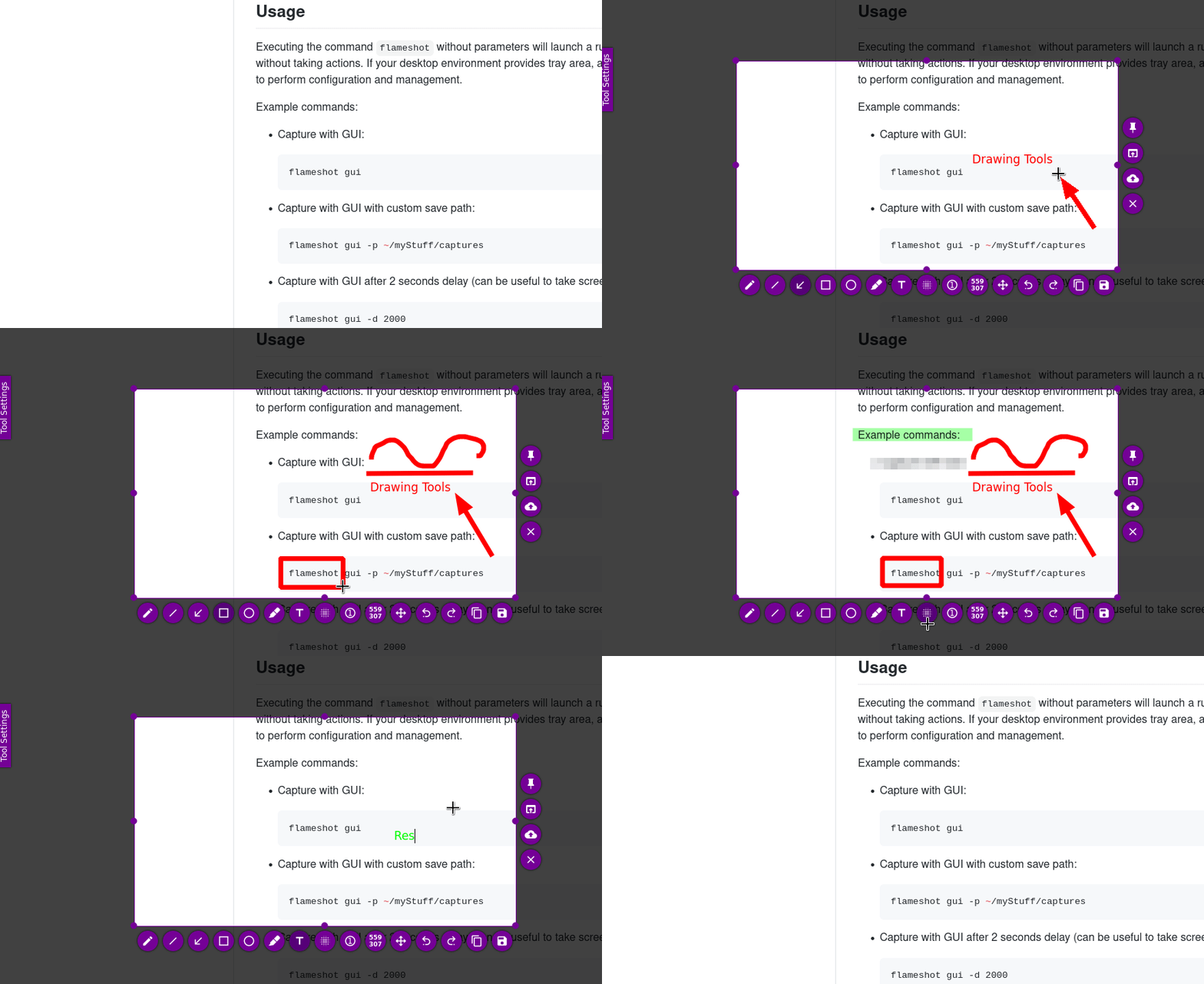
Index
- Features
- Usage
- Keyboard Shortcuts
- Considerations
- Installation
- Compilation
- License
- Privacy Policy
- Code Signing Policy
- Contribute
- Acknowledgment
Features
- Customizable appearance.
- Easy to use.
- In-app screenshot editing.
- DBus interface.
- Upload to Imgur.
Usage
Executing the command flameshot without parameters will launch a running
instance of the program in the background without taking actions.
If your desktop environment provides tray area, a tray icon will also
appear in the tray for users to perform configuration and management.
Example commands:
-
Capture with GUI:
flameshot gui -
Capture with GUI with custom save path:
flameshot gui -p ~/myStuff/captures -
Capture with GUI after 2 seconds delay (can be useful to take screenshots of mouse hover tooltips, etc.):
flameshot gui -d 2000 -
Fullscreen capture with custom save path (no GUI) and delayed:
flameshot full -p ~/myStuff/captures -d 5000 -
Fullscreen capture with custom save path copying to clipboard:
flameshot full -c -p ~/myStuff/captures -
Capture the screen containing the mouse and print the image (bytes) in PNG format:
flameshot screen -r -
Capture the screen number 1 and copy it to the clipboard:
flameshot screen -n 1 -c
In case of doubt choose the first or the second command as shortcut in your favorite desktop environment.
A systray icon will be in your system's panel while Flameshot is running. Do a right click on the tray icon and you'll see some menu items to open the configuration window and the information window. Check out the About window to see all available shortcuts in the graphical capture mode.
Usage on Windows
On Windows, flameshot.exe will behave as expected for all supported command-line arguments,
but it will not output any text to the console. This is problematic if, for example, you are
running flameshot.exe -h.
If you require console output, run flameshot-cli.exe instead. flameshot-cli.exe is a minimal wrapper around flameshot.exe that ensures all stdout is captured and output to the console.
Usage on Hyprland / Sway / wlroots
Please refer to this document for detailed instructions on how to set up Flameshot on Hyprland, Sway, and wlroots-based Wayland compositors.
Usage on minimal X11 window managers
On minimal X11 window managers (i3, dwm, xmonad, bspwm, ...), capturing may fail because no portal backend implements the Screenshot interface (errors such as "Could not locate the org.freedesktop.portal.Desktop service" or "Screenshot portal timed out"). Please refer to this document for the fix (enabling the legacy X11 capture).
CLI configuration
You can use the graphical menu to configure Flameshot, but alternatively you can use your terminal or scripts to do so.
-
Open the configuration menu:
flameshot config -
Show the initial help message in the capture mode:
flameshot config --showhelp true -
For more information about the available options use the help flag:
flameshot config -h
Config file
You can also edit some of the settings (like overriding the default colors) in the configuration file.
Linux path: ~/.config/flameshot/flameshot.ini.
Windows path: C:\Users\{YOURNAME}\AppData\Roaming\flameshot\flameshot.ini.
When copying over the config file from Linux to Windows or vice versa,
make sure to correct the savePath variable,
so that the screenshots save in the right directory on your desired file system.
Keyboard shortcuts
Local
These shortcuts are available in GUI mode:
| Keys | Description |
|---|---|
| P | Set the Pencil as paint tool |
| D | Set the Line as paint tool |
| A | Set the Arrow as paint tool |
| S | Set Selection as paint tool |
| R | Set the Rectangle as paint tool |
| C | Set the Circle as paint tool |
| M | Set the Marker as paint tool |
| T | Add text to your capture |
| B | Set Pixelate as the paint tool |
| ←, ↓, ↑, → | Move selection 1px |
| Shift + ←, ↓, ↑, → | Resize selection 1px |
| Ctrl + Shift + ←, ↓, ↑, → | Symmetrically resize selection 2px |
| Esc | Quit capture |
| Ctrl + M | Move the selection area |
| Ctrl + C | Copy to clipboard |
| Ctrl + S | Save selection as a file |
| Ctrl + Z | Undo the last modification |
| Ctrl + Shift + Z | Redo the next modification |
| Ctrl + Q | Leave the capture screen |
| Ctrl + O | Choose an app to open the capture |
| Ctrl + Return | Commit text in text area |
| Ctrl + Backspace | Cancel current selection |
| Return | Upload the selection to Imgur |
| Spacebar | Toggle visibility of sidebar with options of the selected tool, color picker for the drawing color and history menu |
| G | Starts the color picker |
| Right Click | Show the color wheel |
| Mouse Wheel | Change the tool's thickness |
| Print screen | Capture Screen |
| Shift + Print | Screenshot History |
| Ctrl + drawing line, arrow or marker | Drawing only horizontally, vertically or diagonally |
| Ctrl + drawing rectangle or circle | Keeping aspect ratio |
Shift + drag a handler of the selection area: mirror redimension in the opposite handler.
Global
- Windows: Prt Sc (fixed, cannot be changed) and Win + Shift + X (can be changed in the settings)
- macOS: cmd + Shift + X (can be changed in the settings)
- Linux: Flameshot doesn't yet support Prt Sc out of the box, but you can set this up with a bit of configuration:
On KDE Plasma desktop
To make configuration easier, there's a file in the repository that more or less automates this process. This file will assign the following hotkeys by default:
| Keys | Description |
|---|---|
| Prt Sc | Start the Flameshot screenshot tool and take a screenshot |
| Ctrl + Prt Sc | Wait for 3 seconds, then start the Flameshot screenshot tool and take a screenshot |
| Shift + Prt Sc | Take a full-screen (all monitors) screenshot and save it |
| Ctrl + Shift + Prt Sc | Take a full-screen (all monitors) screenshot and copy it to the clipboard |
If you don't like the defaults, they can be changed later.
Steps for using the configuration:
-
The configuration file makes Flameshot automatically save screenshots to
~/Pictures/Screenshotswithout opening the save dialog. Make sure that folder exists by running:mkdir -p ~/Pictures/Screenshots(If you don't like the default location, you can skip this step and configure your preferred directory later.)
-
Download the configuration file:
cd ~/Desktop wget https://raw.githubusercontent.com/flameshot-org/flameshot/master/docs/shortcuts-config/flameshot-shortcuts-kde.khotkeys -
Make sure you have the
khotkeysinstalled using your package manager to enable custom shortcuts in KDE Plasma. -
Go to System Settings → Shortcuts → Custom Shortcuts.
-
If an entry exists for Spectacle (the default KDE screenshot utility), you'll need to disable it because its shortcuts might conflict with Flameshot's. Do this by unchecking the Spectacle entry.
-
Click Edit → Import..., navigate to the configuration file and open it.
-
Now the Flameshot entry should appear in the list. Click Apply to apply the changes.
-
If you want to change the default hotkeys, you can expand the entry, select the appropriate action and modify it as you wish; the process is pretty self-explanatory.
-
If you installed Flameshot as a Flatpak, you will need to create a symlink to the command:
ln -s /var/lib/flatpak/exports/bin/org.flameshot.Flameshot ~/.local/bin/flameshot
On Gnome (Ubuntu, Fedora and more)
To use Flameshot instead of the default screenshot application in Gnome we need to remove the binding on Prt Sc key, and then create a new binding for flameshot gui (adapted from Pavel's answer on AskUbuntu).
-
Remove the binding on Prt Sc:
Go to Settings > Keyboard > View and Customise Shortcuts > Screenshots > Take a screenshot interactively and press
backspace -
Add custom binding on Prt Sc:
Go to Settings > Keyboard > View and Customise Shortcuts > Custom shortcuts and press the '+' button at the bottom.
-
Name the command as you like it, e.g.
flameshot. And in the command insert/usr/bin/flameshot guiorflatpak run org.flameshot.Flameshot guiif installed via flatpak. -
Then click "Set Shortcut.." and press Prt Sc. This will show as "print".
Now every time you press Prt Sc, it will start the Flameshot GUI instead of the default application.
On XFCE 4
-
Go to
Keyboardsettings -
Switch to the tab
Application Shortcuts -
Find the entry
Command Shortcut xfce4-screenshooter -fd 1 Print -
Replace
xfce4-screenshooter -fd 1withflameshot gui
Now every time you press Prt Sc it will start Flameshot GUI instead of the default application.
On Fluxbox
-
Edit your
~/.fluxbox/keysfile -
Add a new entry.
Printis the key name,flameshot guiis the shell command; for more options see the fluxbox wiki.Print :Exec flameshot gui -
Refresh Fluxbox configuration with Reconfigure option from the menu.
Considerations
-
Experimental Gnome Wayland and Plasma Wayland support.
-
If you are using Gnome you need to install the AppIndicator and KStatusNotifierItem Support extension in order to see the system tray icon.
-
Press Enter or Ctrl + C when you are in a capture mode and you don't have an active selection and the whole desktop will be copied to your clipboard. Pressing Ctrl + S will save your capture to a file. Check the Shortcuts for more information.
-
Flameshot works best with a desktop environment that includes D-Bus. See this article for tips on using Flameshot in a minimal window manager (dwm, i3, xmonad, etc).
-
In order to speed up the first launch of Flameshot (D-Bus init of the app can be slow), consider starting the application automatically on boot.
- Quick tip: If you don't have Flameshot to autostart at boot and you want to set keyboard shortcut, use the following as the command for the keybinding:
( flameshot &; ) && ( sleep 0.5s && flameshot gui )
Installation
Flameshot can be installed on Linux, Microsoft Windows, and macOS.
Prebuilt packages
Some prebuilt packages are provided on the release page of the GitHub project repository.
Packages from Repository
There are packages available in the repository of some Linux distributions:
- Arch:
pacman -S flameshot- Snapshot also available via AUR: flameshot-git.
- Debian 10+:
apt install flameshot- Package for Debian 9 ("Stretch") also available via stretch-backports.
- Ubuntu:
apt install flameshot- A PPA supporting Ubuntu 22.04 and newer is provided by
Quentin Lienhardt that offers an up-to-date version of
flameshot.
- A PPA supporting Ubuntu 22.04 and newer is provided by
Quentin Lienhardt that offers an up-to-date version of
- openSUSE:
zypper install flameshot - Void Linux:
xbps-install flameshot - Solus:
eopkg it flameshot - Fedora:
dnf install flameshot - NixOS:
nix-env -iA nixos.flameshot - ALT:
su - -c "apt-get install flameshot" - Snap/Flatpak/AppImage
- Docker
- Windows
macOS
- MacPorts:
sudo port selfupdate && sudo port install flameshot - Homebrew:
brew tap flameshot-org/flameshot
brew trust --cask flameshot-org/flameshot/flameshot-org-flameshot
brew install  flameshot-org-flameshot
Note that because of macOS security features, you may not be able to open flameshot when installed using brew.
If you see the message “flameshot” cannot be opened because the developer cannot be verified. you will need to
follow the steps below:
- Go to the Applications folder (Finder > Go > Applications, or Shift+Command+A)
- Right-Click on "flameshot.app" and choose "Open" from the context menu
- In the dialog click "Open"
On MacOs 15 and above, you will have to go to system settings -> privacy and security after doing this and click "Open Anyway" or you can open flameshot first time with the following command.
sudo xattr -rd com.apple.quarantine /Applications/flameshot.app
After following all those steps above, flameshot will open without problems in your Mac.
Windows
- Scoop:
scoop install flameshot
Tray icon
Note that for the Flameshot icon to appear in your tray area, you should have a systray software installed. This is especially true for users who use minimal window managers such as dwm. In some Desktop Environment installations (e.g Gnome), the systray might be missing and you can install an application or plugin (e.g Gnome shell extension) to add the systray to your setup. It has been reported) that icon of some software, including Flameshot, does not show in gnome-shell-extension-appindicator.
Alternatively, in case you don't want to have a systray, you can always call Flameshot from the terminal. See Usage section.
Compilation
To build the application in your system, you'll need to install the dependencies needed for it and package names might be different for each distribution, see Dependencies below for more information. You can also install most of the Qt dependencies via their installer. If you were developing Qt apps before, you probably already have them.
This project uses CMake build system, so you need to install it in order to build the project (on most Linux distributions it is available in the standard repositories as a package called cmake). If your distribution provides too old version of CMake (e.g. Ubuntu or Debian) you can download it on the official website.
Also you can open and build/debug the project in a C++ IDE. For example, in Qt Creator you should be able to simply open CMakeLists.txt via Open File or Project in the menu after installing CMake into your system. More information about CMake projects in Qt Creator.
Dependencies
Compile-time
- Qt >= 6.2.4 (available by default on Ubuntu Jammy)
- Development tools
- GCC >= 11
- CMake >= 3.22
Run-time
- Qt
- SVG
Optional
- Git
- OpenSSL
- CA Certificates
- Qt Image Formats - for additional export image formats (e.g. tiff, webp, and more)
Debian
## Compile-time
apt install g++ cmake build-essential qt6-base-dev qt6-tools-dev-tools qt6-svg-dev qt6-tools-dev

## Run-time
apt install libkf6guiaddons-dev libqt6dbus6 libqt6network6 libqt6core6 libqt6widgets6 libqt6gui6 libqt6svg6 qt6-qpa-plugins

## Optional
apt install git openssl ca-certificates qt6-image-formats-plugins
Fedora
## Compile-time
dnf install gcc-c++ cmake qt6-qtbase-devel qt6-qtsvg-devel qt6-qttools qt6-linguist qt6-qttools-devel kf6-kguiaddons-devel

## Run-time
dnf install qt6-qtbase qt6-qtsvg kf6-kguiaddons

## Optional
dnf install git openssl ca-certificates qt6-qtimageformats
Arch
## Compile-time
pacman -S cmake base-devel git qt6-base qt6-tools kguiaddons

## Run-time
pacman -S qt6-svg

## Optional
pacman -S openssl ca-certificates qt6-imageformats
Nix
Development Shell:
## Without flakes:
nix-shell

## With flakes:
nix develop
## Build flameshot
nix build

## Build and run flameshot
nix run
macOS
First of all you need to install brew and then install the dependencies
brew install qt6
brew install cmake
Build
After installing all the dependencies, Flameshot can be built.
Installation/build dir
For the translations to be loaded correctly, the build process needs to be aware of where you want to install Flameshot.
## Directory where build files will be placed, may be relative
export BUILD_DIR=build

## Directory prefix where Flameshot will be installed. If you are just building and don't want to
## install, comment this environment variable.
## This excludes the bin/flameshot part of the install,
## e.g. in /opt/flameshot/bin/flameshot, the CMAKE_INSTALL_PREFIX is /opt/flameshot
## This must be an absolute path. Requires CMAKE 3.29.
export CMAKE_INSTALL_PREFIX=/opt/flameshot

## Linux
cmake -S . -B "$BUILD_DIR" \
    && cmake --build "$BUILD_DIR"

#MacOS
cmake -S . -B "$BUILD_DIR" \
    -DQt6_DIR="$(brew --prefix qt6)/lib/cmake/Qt6" \
    && cmake --build "$BUILD_DIR"
When the cmake --build command has completed you can launch Flameshot from the project_folder/build/src folder.
Install
Note that if you install from source, there is no uninstaller, so consider installing to a custom directory.
To install into a custom directory
Make sure you are using cmake >= 3.29 and build Flameshot with $CMAKE_INSTALL_PREFIX set to the
installation directory. If this is not done, the translations won't be found when using a custom directory.
Then, run the following:
## !Build with CMAKE_INSTALL_PREFIX and use cmake >= 3.29! Using an older cmake will cause
## installation into the default /usr/local dir.

## You may need to run this with privileges
cmake --install "$BUILD_DIR"
To install to the default install directory
## You may need to run this with privileges
cmake --install "$BUILD_DIR"
FAQ
https://flameshot.org/docs/guide/faq/
License
- The main code is licensed under GPLv3+
- The logo of Flameshot is licensed under Free Art License v1.3
- The button icons are licensed under Apache License 2.0. See: https://github.com/google/material-design-icons
- The code at capture/capturewidget.cpp is based on https://github.com/ckaiser/Lightscreen/blob/master/dialogs/areadialog.cpp (GPLv2)
- The code at capture/capturewidget.h is based on https://github.com/ckaiser/Lightscreen/blob/master/dialogs/areadialog.h (GPLv2)
- I copied a few lines of code from KSnapshot regiongrabber.cpp revision
796531(LGPL) - Qt-Color-Widgets taken and modified from https://github.com/mbasaglia/Qt-Color-Widgets (see their license and exceptions in the project) (LGPL/GPL)
Info: If I take code from your project and that implies a relicense to GPLv3+, you can reuse my changes with the original previous license of your project applied.
Privacy Policy
This program will not transfer any information to other networked systems unless specifically requested by the user or the person installing or operating it.
Code Signing Policy
For Windows binaries, this program uses free code signing provided by SignPath.io, and a certificate by the SignPath Foundation.
Code signing is currently a manual process so not every patch release will be signed.
Contribute
If you want to contribute check the CONTRIBUTING.md
Acknowledgment
Thanks to those who have shown interest in the early development process:
Thanks to sponsors: