装完扩展必须手动执行激活命令,否则图标不生效;自定义 SVG 图标只能放在用户目录 .vscode/extensions 下且仅限用户设置;关联自定义 SVG 时文件名不要带 .svg 后缀
vscode-material-icon-theme
material-extensionsMIT活跃维护给 VS Code 换上 Material Design 风格的图标主题,让资源管理器里的文件和文件夹一眼就能区分类型,界面更清爽好认。
Material Design icons for VS Code
v5.40.0发布于 2026-10-26 12:30 UTC3,030star814fork同步于 2026-11-10 11:42 UTC
在 VS Code 扩展市场安装 PKief.material-icon-theme,然后在命令面板执行:Material Icons: Activate Icon Theme 硬件要求按 README 说明
README 未说明,作为 VS Code 扩展无需额外硬件
给 VS Code 换上 Material Design 风格的文件与文件夹图标,让资源管理器一眼分清文件类型
给 VS Code 换上 Material Design 风格的图标主题,让资源管理器里的文件和文件夹一眼就能区分类型,界面更清爽好认。
核心能力
- 为文件与文件夹提供 Material Design 图标
- 可调图标颜色、透明度与饱和度
- 支持文件夹主题与图标包切换
- 用通配符或文件名自定义图标关联
- 可克隆现有图标改色生成新图标
容易踩的坑
内容由模型根据 README 生成,可能不完整或不准确,以官方文档为准。看原文 README
- v5.40.0最新正式版2026-10-26 · 2026-10-26 12:30 UTC
🚀 Enhancements
- Add the Nextflow icon asset for .nf files (#3611)
- Add
.tosdextension totomlscope (#3618) - Added zizmor file icon (#3599)
- Add PEG technologies icon (#3624)
- Add 'storage' folder name to database icon (#3634)
- Add Bluetooth folder icon (#3636)
🩹 Fixes
- Add
prisma7.configsupport (#3586) - Update package versions and add overrides for markdownlint-cli (d92fe906)
- Allow unsafe PR checkout in icon review workflow (7f24c399)
- Add common file extensions for Gnuplot (#3628)
- Resolve vulnerabilities (ba83aeca)
- Linting issues (1a9d4b3d)
❤️ Contributors
- Halogly (@Halogly)
- Philipp Kief
- Martí
- ZM
- Cameron Cowen
- Thaddeus Crews (@Repiteo)
- Kurayi Chawatama
- v5.39.02026-10-02 · 2026-10-02 08:10 UTC
查看更新说明
🚀 Enhancements
- Add Rstack config file association (#3574)
- Additional tsconfig file names (44bc0bd0)
- Add all supported file extensions for prisma.config (#3586)
🩹 Fixes
🏡 Chore
- deps-dev: Bump fast-uri from 3.1.6 to 3.1.8 (#3602)
- deps-dev: Bump undici from 7.29.0 to 7.30.0 (#3607)
❤️ Contributors
- Leo Aso
- Maikel Van Dort
- Philipp Kief
- Soon
- Angel Uriot
- v5.38.12026-08-24 · 2026-08-24 07:12 UTC
查看更新说明
🩹 Fixes
- Add build step to release workflow in npm publishing part (c67556cc)
❤️ Contributors
- Philipp Kief (@PKief)
- v5.38.02026-08-23 · 2026-08-23 13:33 UTC
查看更新说明
🚀 Enhancements
- Support lint-staged.config.ts (#3541)
- Added
AGENTS.mdfile icon (#3437) - fileIcons: Add .env.preprod to tune icon (#3558)
- Associate .xcode-version with swift icon (#3568)
- Add deepEqual utility and update change detection (b3f9bbaa)
🩹 Fixes
- ci: Add npm ci to the release workflow (957d82b4)
- Change Renovate config to use recommended preset (a440d8ec)
- Remove 'brs' from file icon list (Closes #3554) (#3554)
- Resolve TypeScript indexing error in deepEqual (7f109357)
🏡 Chore
- deps-dev: Bump linkify-it from 5.0.1 to 5.0.2 (#3544)
- deps-dev: Bump svgo from 4.0.1 to 4.0.2 (#3542)
- deps-dev: Bump postcss from 8.5.15 to 8.5.24 (#3551)
- deps-dev: Bump fast-uri from 3.1.2 to 3.1.4 (#3545)
- deps-dev: Bump fast-uri from 3.1.4 to 3.1.5 (#3557)
- deps-dev: Bump undici from 7.28.0 to 7.29.0 (#3555)
❤️ Contributors
- Philipp Kief (@PKief)
- Soham Mondal (@sohammondal)
- Guillaume Valmont (@gvalmont)
- Cameron Cowen
- Kangkangovo12138
- v5.37.02026-07-19 · 2026-07-19 10:14 UTC
查看更新说明
🚀 Enhancements
- Migrate config file (c2ebdd35)
🩹 Fixes
- ci: Add contents read permission to publish-npm job (07a49322)
- Resolves error with merge conflict (Closes #3502) (#3502)
- ci: Update version of svg-icon-review (f4d0cdcb)
- Correct supabase folder icon design (#3516)
🏡 Chore
- Migrate from Bun to Node for better VS Code compatibility (3fd30b6d)
- ci: Remove pr closed workflow (007e8401)
- Add custom manager for biome versions in renovate config (4621b7f1)
- Fix formatting of renovate.json (9fd9483e)
- Update renovate.json (7185b66a)
❤️ Contributors
- Philipp Kief (@PKief)
- Andrin Haldner (@AHaldner)
用户点评
登录用户的真实使用记录,可按版本和硬件筛选共 0 条
还没有人点评。第一个说出真实体验的人最有价值。
File icons
Folder icons
Table of Contents
- Features
- Getting Started
- Customization
- Commands
- Icon sources
- Contributors
- Contributing
- Related extensions
Features
- Material Design file & folder icons for VS Code
- Customizable colors, opacity, and saturation
- Icon packs and theme support
- Custom icon associations and clones
- Easy to use, modern, and actively maintained
Getting Started
-
Install the extension
-
Activate the icon theme Open the command palette (
Ctrl+Shift+PorCmd+Shift+Pon macOS), typeMaterial Icons: Activate Icon Theme, and select it. -
Enjoy your new icons Your editor will now display beautiful, customizable Material Design icons for files and folders.

Customization
You can personalize the appearance of Material Icon Theme by adjusting colors, icon styles, opacity, and more to match your preferences or workflow.
Customize file & folder color
You can change the color of the default file and folder icons using the command palette:
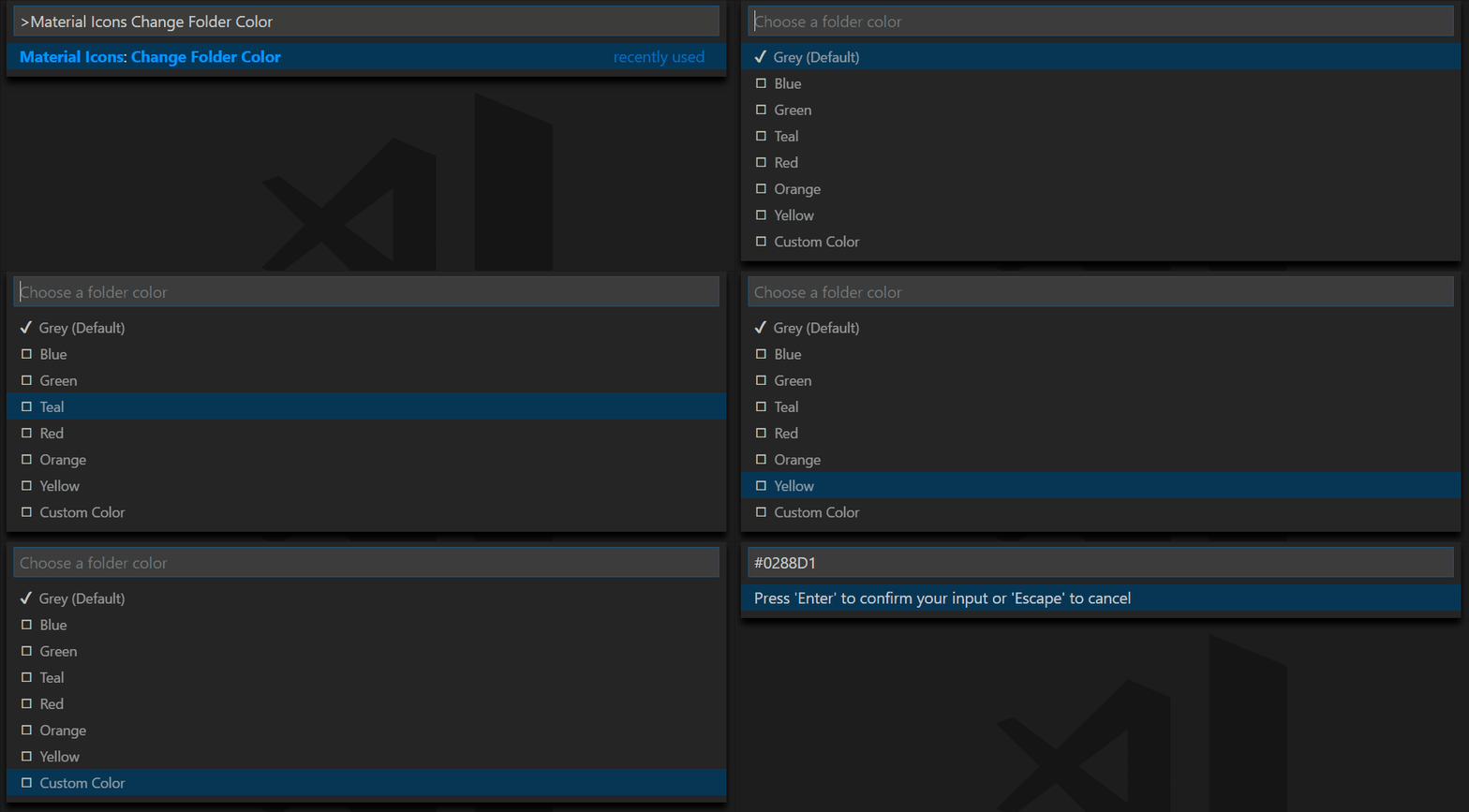
or via user settings:
"material-icon-theme.folders.color": "#ef5350",
"material-icon-theme.files.color": "#42a5f5",
Folder themes
You can change the design of the folder icons using the command palette:
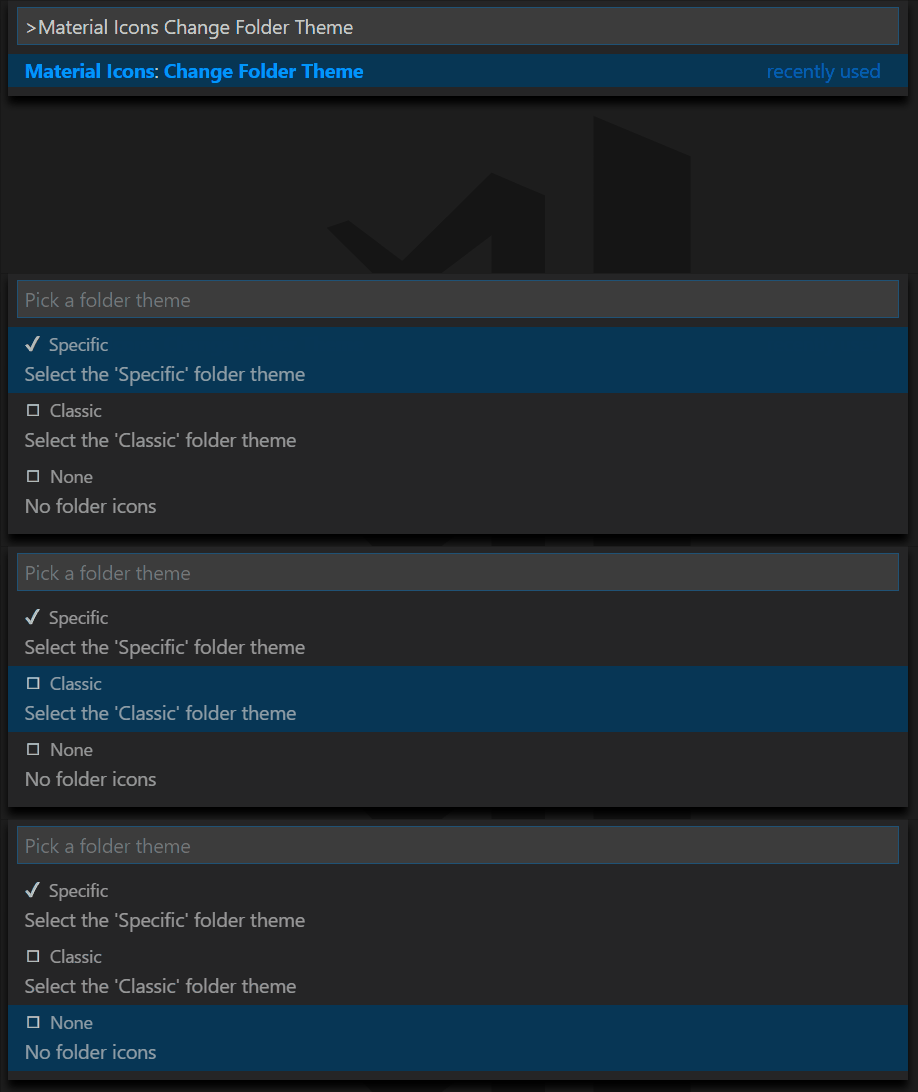
or via user settings:
"material-icon-theme.folders.theme": "specific"
Custom icon opacity
You can set a custom opacity for the icons:
"material-icon-theme.opacity": 0.5
Custom icon saturation
If colors do not make you happy you can change the icons to have less saturation making them look grayish or completely grayscale by setting saturation to 0:
"material-icon-theme.saturation": 0.5
You can also achieve no saturation (i.e., grayscale) by setting Toggle Grayscale to ON.
Custom icon associations
You can customize the icon associations directly in the user settings.
File associations
With the *.[extension] pattern you can define custom file icon associations. For example you could define an icon for *.sample and every file that ends with .sample will have the defined icon. However, not all files with the same file extension always have the same icon. For some specific file names there is a special icon. In order to overwrite all the specific file icons as well, two asterisks must be set instead of one, i.e. **.[extension].
If there's no leading * it will be automatically configured as filename and not as file extension.
"material-icon-theme.files.associations": {
    "*.ts": "typescript",
    "**.json": "json",
    "fileName.ts": "angular"
}
Custom SVG icons
It's possible to add custom icons by adding a path to an SVG file which is located relative to the extension's dist folder. However, the restriction applies that the directory in which the custom icons are located must be within the extensions directory of the .vscode folder in the user directory.
For example a custom SVG file called sample.svg can be placed in an icons folder inside of VS Code's extensions folder:
.vscode
 ┗ extensions
   ┗ icons
     ┗ sample.svg
In the settings.json (User Settings only!) the icon can be associated to a file name or file extension like this:
"material-icon-theme.files.associations": {
    "fileName.ts": "../../icons/sample"
}
Note: The custom file name must be configured in the settings without the file ending .svg as shown in the example above.
Custom file icon clones
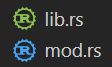
It's also possible to clone existing file icons and change their colors to create new icons that can be associated with file names or file extensions. The following example shows how to clone the rust icon:
"material-icon-theme.files.customClones": [
  {
    "name": "rust-mod",
    "base": "rust",
    "color": "blue-400",
    "fileNames": ["mod.rs"]
  },
  {
    "name": "rust-lib",
    "base": "rust",
    "color": "light-green-300",
    "lightColor": "light-green-600",
    "fileNames": ["lib.rs"]
  }
]
This will create two new icons called rust-mod and rust-lib that are associated with the file names mod.rs and lib.rs respectively. The base property defines the icon that should be cloned (in this case the rust icon). The color property defines the color of the new icon. The lightColor property is optional and defines the color of the icon when Visual Studio Code is running with a light color theme. The fileNames property defines the file names that should be associated with the new icon. There's also a fileExtensions property, which can be used to associate the new icon with file extensions ("fileExtensions": ["ext", "ext2"]).
- Although you can use any
#RRGGBBcolor for thecolorandlightColorproperties, if you want to stick with colors from the material palette, you can check the full list of allowed aliases in the materialPalette.ts. - You can check the full list of available icons to be used as the
basein the fileIcons.ts.
Folder associations
The following configuration can customize the folder icons. It is also possible to overwrite existing associations and create nice combinations. For example you could change the folder theme to "classic" and define icons only for the folder names you like.
"material-icon-theme.folders.associations": {
    "customFolderName": "src",
    "sample": "dist"
}
Custom SVG folder icons
Similar to the files, it is also possible to reference your own SVG icons for folder icons. Here it's important to provide two SVG files: one for the folder if it's closed and another one for the opened state. These two files - let's call them "folder-sample.svg" and "folder-sample-open.svg" - have to be placed into a directory which is relative to the extensions dist folder. This directory has to be somewhere inside of the .vscode/extensions folder.
In our example we place them into an icons folder inside of the .vscode/extensions folder:
.vscode
 ┗ extensions
   ┗ icons
     ┣ folder-sample.svg
     ┗ folder-sample-open.svg
In the settings.json (User Settings only!) the folder icons can be associated to a folder name (e.g. "src") like this:
"material-icon-theme.folders.associations": {
    "src": "../../../../icons/folder-sample"
}
Custom folder icon clones
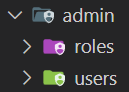
It's also possible to clone existing folder icons and change their colors to create new icons that can be associated with folder names. The following example shows how to clone the admin folder icon:
"material-icon-theme.folders.customClones": [
  {
    "name": "users-admin",
    "base": "admin",
    "color": "light-green-500",
    "lightColor": "light-green-700",
    "folderNames": ["users"],
    "rootFolderNames": ["users"]
  },
  {
    "name": "roles-admin",
    "base": "admin",
    "color": "purple-400",
    "folderNames": ["roles"],
    "rootFolderNames": ["users"]
  }
]
This will create two new icons called users-admin and roles-admin that are associated with the folder names users and roles respectively. The base property defines the icon that should be cloned (in this case the admin folder icon). The color property defines the color of the new icon. The lightColor property is optional and defines the color of the icon when Visual Studio Code is running with a light color theme. The folderNames property defines the folder names that should be associated with the new icon. The rootFolderNames property defines the root folder names that should be associated with the new icon.
- Although you can use any
#RRGGBBcolor for thecolorandlightColorproperties, if you want to stick with colors from the material palette, you can check the full list of allowed aliases in the materialPalette.ts. - You can check the full list of available icons to be used as the
basein the folderIcons.ts.
Root folder associations
You can customize the icon for your workspace's root folder. This is helpful if you want a distinct icon for the main folder in your project.
To assign an icon (e.g. the server folder icon) to a root folder (e.g., backend), use the following configuration:
"material-icon-theme.rootFolders.associations": {
  "backend": "server"
}
Customize root folder icon color
To change the color of root folder icons, add this setting:
"material-icon-theme.rootFolders.color": "#F4511E"
Language associations
With the following configuration you can customize the language icons. It is also possible to overwrite existing associations.
"material-icon-theme.languages.associations": {
  "languageId": "iconName",
  "json": "json"
}
You can see the available icon names in the overview above. See "Known language identifiers" in the VS Code documentation for a list of permitted values for languageId.
Custom language icon clones
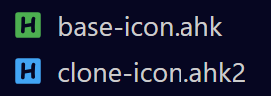
It's also possible to clone existing language icons and change their colors to create new icons that can be associated with language ids. The following example shows how to clone the autohotkey language icon:
"material-icon-theme.languages.customClones": [
  {
    "name": "ahk-clone",
    "base": "autohotkey",
    "color": "blue-400",
    "lightColor": "grey-600",
    "ids": ["ahk2"]
  }
]
This will create a new icon called ahk-clone which is associated with the language id ahk2 respectively. The base property defines the icon that should be cloned (in this case the autohotkey language icon). The color property defines the color of the new icon. The lightColor property is optional and defines the color of the icon when Visual Studio Code is running with a light color theme. The ids property defines the language ids that should be associated with the new icon.
- Although you can use any
#RRGGBBcolor for thecolorandlightColorproperties, if you want to stick with colors from the material palette, you can check the full list of allowed aliases in the materialPalette.ts. - You can check the full list of available icons to be used as the
basein the fileIcons.ts.
Commands
Press Ctrl-Shift-P to open the command palette and type Material Icons.
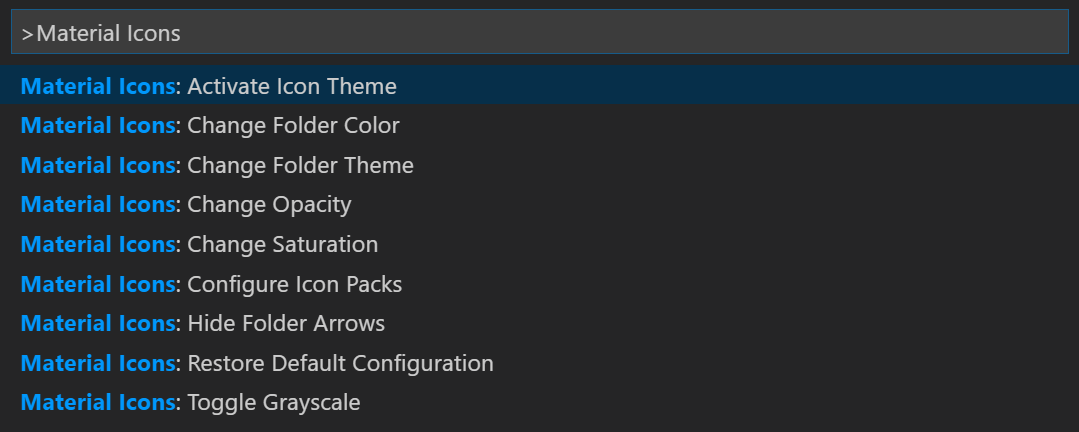
Command List
| Command | Description |
|---|---|
| Activate Icon Theme | Activate the icon theme. |
| Change File Color | Change the color of the file icons. |
| Change Folder Color | Change the color of the folder icons. |
| Change Folder Theme | Change the design of the folder icons. |
| Change Opacity | Change the opacity of the icons. |
| Change Root Folder Color | Change the color of the root folder icons. |
| Change Saturation | Change the saturation value of the icons. |
| Configure Icon Packs | Selects an icon pack that enables additional icons (e.g. for Angular, React, Ngrx). |
| Restore Default Configuration | Reset to the default configuration. |
| Toggle Explorer Arrows | Show or hide the arrows next to the folder icons. |
| Toggle Grayscale | Set icon saturation to 0 (grayscale), or 1 (color). |
Icon sources
Contributors
Thank you to all our amazing contributors! Your support helps make Material Icon Theme better for everyone.
Contributing
We welcome contributions of all kinds! Whether you want to add new icons, improve documentation, fix bugs, or help with translations, your input is appreciated.
How to get involved:
-
📖 Read the Contribution Guidelines Learn about our coding standards, icon design tips, and workflow.
-
🐛 Report Issues Found a bug or have an icon request? Open an issue.
-
💡 Submit Pull Requests Ready to contribute code or icons? Create a pull request.
-
🌍 Help with Translations Improve or add translations by editing the files in
src/core/i18n/translations/andpackage.nls.*.json.
Related extensions
vscode
microsoft·TypeScript
微软开源的跨平台代码编辑器,基于 Electron 和 TypeScript 构建,支持插件扩展、调试和 Git 集成,适合日常开发写代码。
代码编辑器+4编辑器 / IDE
195250+16644k1.145.22026-11-10 11:10 UTC
neovim
neovim·Vim Script
Vim 的分支版本,用 Lua 做配置和插件开发,内置 LSP 与异步 API,让终端编辑器更好扩展、更好用。
文本编辑器+4编辑器 / IDE
103537+757.4kv0.12.62026-11-10 05:17 UTC
zed
zed-industries·Rust
用 Rust 打造的高性能多人协作代码编辑器,由 Atom 和 Tree-sitter 作者开发,主打低延迟编辑与实时协同编码。
代码编辑器+4编辑器 / IDE
94639+78712kv1.27.02026-11-10 11:13 UTC

AFFiNE
toeverything·TypeScript
把文档、白板、表格融为一体的开源知识库,可离线使用、支持多人实时协作,是 Notion 和 Miro 的替代方案。
知识库+4编辑器 / IDE
74415+1285.5kv2026.11.9-canary.9072026-11-10 10:49 UTC