首次启动需先选 JEV 或 Gemini 模式并保存对应 API Key、授予权限;Learn from a video 需额外的 Elorian API Key,YouTube 链接还需装 yt-dlp;仓库禁止用终端 xcodebuild 构建,否则会破坏已安装应用的 macOS 权限
打开 tiptour-macos.xcodeproj,选择 TipTour scheme,设置签名团队后在 Xcode 中构建运行;可选 brew install yt-dlp 以支持 YouTube 教程链接 硬件要求按 README 说明
README 未说明显存或 GPU 要求;需 macOS 14.2+ 与支持 Swift 的当前版本 Xcode,构建需在 Xcode 中完成。
macOS 菜单栏本地电脑操作助手,用你自己的 API Key 让 AI 看屏并执行点击输入
开源的 macOS 本地电脑操作工具,让 AI 快速操控鼠标和界面完成自动化任务,无需依赖云端。
核心能力
- Gemini 实时模式支持点击、输入、快捷键、开应用和滚动
- JEV 文本模式从本地检测控件中选目标并逐条执行校验
- 按住 Ctrl+Shift 框选区域给 Gemini 提供焦点上下文
- 粘贴教程链接由 Elorian 生成分步导览并在本机指引操作
- API Key 存于 macOS Keychain,无共享密钥或代理
容易踩的坑
内容由模型根据 README 生成,可能不完整或不准确,以官方文档为准。看原文 README
暂无 release 数据(可能没有发版,或尚未同步)。
用户点评
登录用户的真实使用记录,可按版本和硬件筛选共 0 条
还没有人点评。第一个说出真实体验的人最有价值。
TipTour
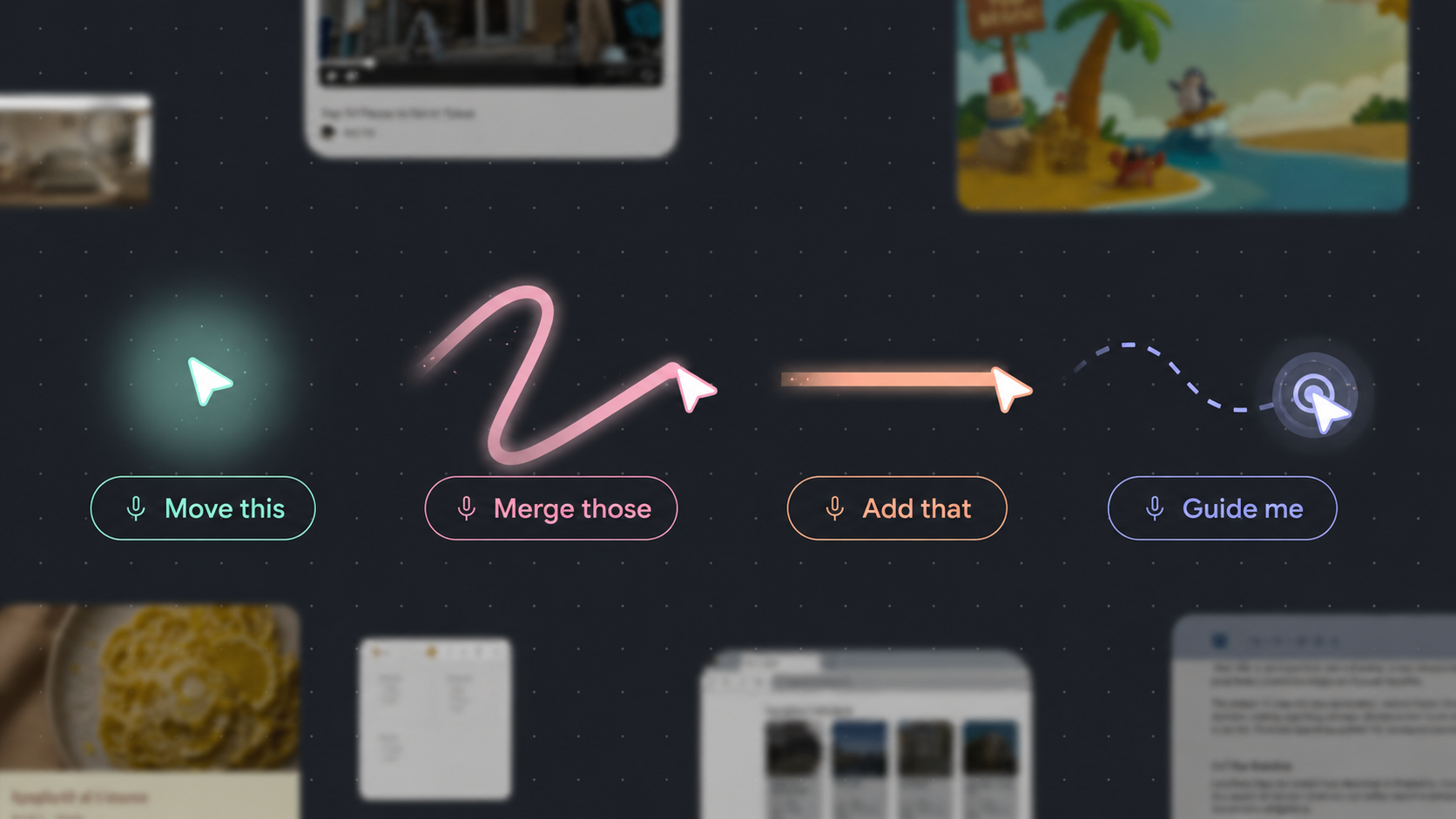
This and That


A macOS menu bar companion with two modes, powered by your own API keys.
| Mode | Shortcut | What it does |
|---|---|---|
| Gemini realtime | Ctrl+Option | Talk about your screen and ask for one desktop action per turn. Press again to stop. |
| JEV text | Ctrl+K | Type a click-based task. JEV chooses from locally detected controls, then TipTour executes and validates each action. |
JEV is selected by default. On first launch, choose JEV or Gemini, save that mode’s API key, then grant its permissions. JEV does not require microphone access. You can switch later in Settings → Models, which shows only the selected mode’s key field. Keys stay in macOS Keychain. There are no shared keys, hosted key proxies, or keys loaded from other projects.
Shortcuts activate only the selected mode. The primary menu-bar button and welcome hint follow your selection.
Using TipTour
- Gemini supports clicking, typing, shortcuts, app/URL opening, scrolling, and highlighted text edits. It also supports creating an Apple Notes note from supplied content.
- JEV supports single, double, and right clicks. It reads screen labels and locations from local detection; it cannot see images or generate replacement text. Use Gemini for writing or keyboard actions.
- Press Escape in the text panel or click Stop to cancel JEV. JEV acts on its top-ranked target without a confidence cutoff. The loop stops when JEV chooses none or reports completion, on an execution pause/failure, or at its 12-action limit.
- Hold Ctrl+Shift and paint over an area to give Gemini focus context.
- Hold Ctrl+Option+Command for the Speak / Type / Highlight shortcut chooser.
- Auto-click lets TipTour act. Point only lets Gemini indicate where you should click. JEV requires auto-click.
Settings also contains desktop action access, screenshot privacy, permissions, and optional debug visuals. TipTour does not record your screen and has no video creation or image-generation pipeline.
Learn from a video
Paste a tutorial link (YouTube, Loom, or a direct .mp4) into Learn from a video in the menu bar panel, or choose a video file. Elorian watches the tutorial and turns it into a step-by-step tour; press play and TipTour points at each control on your own screen and waits for you to click it, type, or press the shortcut. There are no Next buttons: a step moves on when you do it, and Escape stops the tour. TipTour never clicks for you in a tour.
- Needs an Elorian API key (Settings → Models) and works with either mode. YouTube links need yt-dlp (
brew install yt-dlp); English captions are used when the video has them. - Building a tour takes a few minutes per 90 s of video and roughly $0.15–$1 of Elorian credit per short tutorial. Tours are saved and replay instantly.
- Each step is found on your screen with TipTour's local grounding first. If that misses and Remote Screenshots is on, Elorian points at it on a screenshot, using the target as it looked in the video.
Privacy and permissions
Gemini receives microphone audio and, when enabled, screenshots. JEV receives your typed task, locally detected labels/locations, and recent action history; screenshots stay local. Both modes use the shared local grounding and action engine.
Learn from a video sends the tutorial video you choose (and its captions) to Elorian, and deletes the upload when the tour is built. During a tour, a screenshot goes to Elorian only when local grounding cannot find a step and Remote Screenshots is on.
Accessibility permission is needed to inspect and control apps. macOS Screen Recording / Screen Content permission enables screenshots and local screen detection; it does not mean TipTour records videos. Microphone access is only needed for Gemini voice.
Build
Requires macOS 14.2+ and a current Xcode with Swift support. Open tiptour-macos.xcodeproj, select the TipTour scheme, set your signing team, and build/run in Xcode. Package dependencies resolve through Xcode.
Use Xcode for app builds: terminal xcodebuild is prohibited by this repository's workflow to preserve the installed app's macOS permissions. Run scripts/test-jev.sh for isolated JEV decision tests without installing or launching the app.
Code
See source layout and local harness contract. main is the integration branch for both modes; feature branches are temporary PR work.
MIT licensed. See LICENSE.
browser-use
browser-use·Python
开源的 Python 库,让大模型直接操控浏览器完成点击、填表、抓取等网页任务,省去手写 Playwright 脚本的麻烦。
浏览器自动化+4电脑 / 浏览器 Agent进阶
120594+36413k1.0.12026-11-10 23:09 UTC

browser
lightpanda-io·Zig
用 Zig 从零编写的无头浏览器,专为 AI 和自动化场景设计,兼容 CDP 协议,可替代 Playwright、Puppeteer 驱动网页抓取与 Agent 任务。
无头浏览器+4电脑 / 浏览器 Agent进阶
41789+2692.1k1.0.32026-11-10 23:15 UTC

UI-TARS-desktop
bytedance·TypeScript
字节开源的多模态 AI Agent 桌面栈,把前沿模型和 Agent 基础设施连起来,让 Agent 能像人一样操作 GUI、浏览器和电脑完成任务。
多模态Agent+4电脑 / 浏览器 Agent
39586+214.0kv0.3.12026-10-09 01:29 UTC
Jobs_Applier_AI_Agent
feder-cr·Python
自动投递简历的求职机器人,能按简历匹配度筛选岗位并批量提交申请,睡觉时也能持续找工作。
求职自动化+4电脑 / 浏览器 Agent进阶
32455+564.8kusage-counter2026-11-10 02:38 UTC