图片、视频、PDF 等预览依赖 w3mimgdisplay、ueberzug、ffmpeg、pdftotext 等外部可选程序,需自行安装;默认配置需用 ranger --copy-config=all 复制到 ~/.config/ranger 后才会生效;默认分页器为 less,未安装时部分查看功能受影响。

ranger
rangerGPL-3.0活跃维护终端里的 Vim 风格文件管理器,用键盘多栏浏览、预览和启动文件,适合习惯 Vim 操作、不想离开命令行的用户。
A VIM-inspired filemanager for the console
暂无版本17,455star +4 / 7 天938fork同步于 2026-11-10 17:25 UTC
pipx run --spec ranger-fm ranger
sudo make install 硬件要求按 README 说明
纯控制台程序,无 GPU 或显存要求;需 Python(>=2.6 或 >=3.1)并带 curses 模块,可在任意能跑 Python 的机器上运行。
支持 Apple Silicon
终端里的 VIM 风格文件管理器,用 hjkl 快速切换目录和浏览文件系统
终端里的 Vim 风格文件管理器,用键盘多栏浏览、预览和启动文件,适合习惯 Vim 操作、不想离开命令行的用户。
核心能力
- 用 VI 键位与类 VIM 控制台操作文件
- 三栏视图实时预览选中文件或目录内容
- 内置 rifle 按文件类型自动选择打开程序
- 支持多标签、书签、鼠标与多栏视图模式
- 退出后自动切换所在 shell 的当前目录
容易踩的坑
内容由模型根据 README 生成,可能不完整或不准确,以官方文档为准。看原文 README
暂无 release 数据(可能没有发版,或尚未同步)。
用户点评
登录用户的真实使用记录,可按版本和硬件筛选共 0 条
还没有人点评。第一个说出真实体验的人最有价值。
Ranger 1.9.4


Ranger is a console file manager with VI key bindings. It provides a
minimalistic and nice curses interface with a view on the directory hierarchy.
It ships with rifle, a file launcher that is good at automatically finding
out which program to use for what file type.
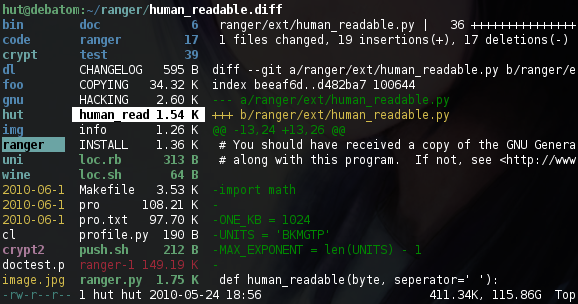
For mc aficionados there's also the multi-pane viewmode.
This file describes ranger and how to get it to run. For instructions on the
usage, please read the man page (man ranger in a terminal). See HACKING.md
for development-specific information.
For configuration, check the files in ranger/config/ or copy the
default config to ~/.config/ranger with ranger --copy-config
(see instructions).
The examples/ directory contains several scripts and plugins that demonstrate how
ranger can be extended or combined with other programs. These files can be
found in the git repository or in /usr/share/doc/ranger.
A note to packagers: Versions meant for packaging are listed in the changelog on the website.
About
- Authors: see
AUTHORSfile - License: GNU General Public License Version 3
- Website: https://ranger.fm/
- Download: https://ranger.fm/ranger-stable.tar.gz
- Bug reports: https://github.com/ranger/ranger/issues
- git clone https://github.com/ranger/ranger.git
Design Goals
- An easily maintainable file manager in a high level language
- A quick way to switch directories and browse the file system
- Keep it small but useful, do one thing and do it well
- Console-based, with smooth integration into the unix shell
Features
- UTF-8 Support (if your Python copy supports it)
- Multi-column display
- Preview of the selected file/directory
- Common file operations (create/chmod/copy/delete/...)
- Renaming multiple files at once
- VIM-like console and hotkeys
- Automatically determine file types and run them with correct programs
- Change the directory of your shell after exiting ranger
- Tabs, bookmarks, mouse support...
Dependencies
- Python (
>=2.6or>=3.1) with thecursesmodule and (optionally) wide-unicode support - A pager (
lessby default)
Optional dependencies
For general usage:
filefor determining file typeschardet(Python package) for improved encoding detection of text filessudoto use the "run as root" featurepython-bidi(Python package) to display right-to-left file names correctly (Hebrew, Arabic)
For enhanced file previews (with scope.sh):
img2txt(fromcaca-utils) for ASCII-art image previewsw3mimgdisplay,ueberzug,mpv,iTerm2,kitty(or other terminal supporting the Kitty graphics protocol),terminologyorurxvtfor image previewsconvert(fromimagemagick) to auto-rotate images and for image previewsrsvg-convert(fromlibrsvg) for SVG previewsffmpeg, orffmpegthumbnailerfor video thumbnailshighlight,batorpygmentizefor syntax highlighting of codeatool,bsdtar,unrarand/or7zzto preview archivesbsdtar,tar,unrar,unzipand/orzipinfo(andsed) to preview archives as their first imagelynx,w3morelinksto preview html pagespdftotextormutool(andfmt) for textualpdfpreviews,pdftoppmto preview as imagedjvutxtfor textual DjVu previews,ddjvuto preview as imagecalibreorepub-thumbnailerfor image previews of ebookstransmission-showfor viewing BitTorrent informationmediainfoorexiftoolfor viewing information about media filesodt2txtfor OpenDocument text files (odt,ods,odpandsxw)pythonorjqfor JSON filessqlite3for listing tables in SQLite database (and optionallysqlite-utilsfor fancier box drawing.)jupyter nbconvertfor Jupyter Notebooksfontimagefor font previewsopenscadfor 3D model previews (stl,off,dxf,scad,csg)draw.iofor draw.io diagram previews (drawioextension)
Installing
Use the package manager of your operating system to install ranger.
You can also install ranger through PyPI: pip install ranger-fm.
However, it is recommended to use pipx instead
(to benefit from isolated environments). Use
pipx run --spec ranger-fm ranger to install and run ranger in one step.
Installing from a clone
Note that you don't have to install ranger; you can simply run ranger.py.
To install ranger manually:
sudo make install
This translates roughly to:
sudo python setup.py install --optimize=1 --record=install_log.txt
This also saves a list of all installed files to install_log.txt, which you can
use to uninstall ranger.
Getting Started
After starting ranger, you can use the Arrow Keys or h j k l to
navigate, Enter to open a file or q to quit. The third column shows a
preview of the current file. The second is the main column and the first shows
the parent directory.
Ranger can automatically copy default configuration files to ~/.config/ranger
if you run it with the switch --copy-config=( rc | scope | ... | all ).
See ranger --help for a description of that switch. Also check
ranger/config/ for the default configuration.
Going Further
- To get the most out of ranger, read the Official User Guide.
- For frequently asked questions, see the FAQ.
- For more information on customization, see the wiki.
Community
For help, support, or if you just want to hang out with us, you can find us here:
- IRC: channel #ranger on Libera.Chat. Don't have an IRC client? Join us via the webchat!
- Reddit: r/ranger
Files
files-community·C#
一款面向 Windows 的现代文件管理器,用多标签页、双栏浏览和 Fluent 设计改进资源管理器的使用体验,方便整理文件和文件夹。
文件管理器+4文件管理
46578+643.0kv4.32026-11-10 15:05 UTC

yazi
sxyazi·Rust
用 Rust 写的终端文件管理器,基于异步 I/O 实现极快的目录浏览和文件操作,适合习惯命令行的开发者日常管理文件。
终端文件管理器+4文件管理
43334+631.1kv26.9.12026-11-10 07:28 UTC

spacedrive
spacedriveapp·Rust
用 Rust 写的跨平台开源文件管理器,底层是虚拟分布式文件系统,能把多台设备上的文件统一管理,像访问本地一样浏览和整理。
文件管理器+4文件管理
39480+311.4k0.4.32026-11-06 11:49 UTC
filebrowser
filebrowser·Go
File Browser provides a file managing interface within a specified directory and it can be used to upload, delete, preview and edit your files.
文件管理
358704.2k2026-07-31 10:06 UTC