puppeteer 为可选依赖,不装时需自行保证 Chromium 版本匹配;managed 模式必须在 .storybook/main.js 加 storycap 并在 preview.js 注册 withScreenshot 装饰器;截图前需先启动 Storybook 服务或用 --serverCmd 指定启动命令。
storycap
reg-vizMIT活跃维护Storybook 插件,用 Puppeteer 自动给每个 story 截图保存,方便做视觉回归测试和 UI 快照对比。
A Storybook Addon, Save the screenshot image of your stories :camera: via puppeteer.
v5.0.1发布于 2024-09-04 12:54 UTC757star97fork同步于 2026-11-10 23:54 UTC
npm install storycap
npx storycap http://localhost:9001 硬件要求按 README 说明
README 未说明显存或 GPU 要求;依赖 Puppeteer 驱动 Chromium 无头浏览器运行,可选用 Docker 方式运行。
支持 Apple Silicon
用 Puppeteer 爬取 Storybook 并批量截图,为视觉回归测试生成基准图
Storybook 插件,用 Puppeteer 自动给每个 story 截图保存,方便做视觉回归测试和 UI 快照对比。
核心能力
- 用 Puppeteer 遍历 Storybook 逐条 story 截图
- 支持 simple 模式直接传 URL,无需改 Storybook 配置
- 通过 withScreenshot 装饰器按 story 定制截图时机与尺寸
- 用 variants 从单个 story 生成多张不同视口截图
- 支持 --shard 分片,多机并行截图
容易踩的坑
内容由模型根据 README 生成,可能不完整或不准确,以官方文档为准。看原文 README
- v5.0.1最新正式版2024-09-04 · 2024-09-04 12:54 UTC
Bug fixes
- fix: Stop wait to navigate preview html by @Quramy in https://github.com/reg-viz/storycap/pull/902, related to https://github.com/reg-viz/storycap/issues/896
What's Changed
Full Changelog: https://github.com/reg-viz/storycap/compare/v5.0.0...v5.0.1
- v5.0.02024-03-29 · 2024-03-29 01:05 UTC
查看更新说明
Breaking changes
- Drop legacy Storybook (<= v6) support (#860)
- Change supported Node.js lower version to v18.x
What's Changed
- Upgrade prettier by @Quramy in https://github.com/reg-viz/storycap/pull/861
- chore: Update compat SB section by @Quramy in https://github.com/reg-viz/storycap/pull/863
- Drop SB v6 support by @Quramy in https://github.com/reg-viz/storycap/pull/862
- feat: Drop old Node.js by @Quramy in https://github.com/reg-viz/storycap/pull/864
- docs: Refinement README by @Quramy in https://github.com/reg-viz/storycap/pull/866
- chore: Move at types to dev deps by @Quramy in https://github.com/reg-viz/storycap/pull/868
- Remove unused type decl by @Quramy in https://github.com/reg-viz/storycap/pull/872
Full Changelog: https://github.com/reg-viz/storycap/compare/v4.3.1...v5.0.0
- v4.3.12024-03-26 · 2024-03-26 08:21 UTC
查看更新说明
What's Changed
- Limit to only using require to let Rollup bundler to detect the file as cjs file by @indigolain in https://github.com/reg-viz/storycap/pull/857
- chore: Modify sample stories by @Quramy in https://github.com/reg-viz/storycap/pull/859
Full Changelog: https://github.com/reg-viz/storycap/compare/v4.3.0...v4.3.1
- v4.3.02024-03-15 · 2024-03-15 16:11 UTC
查看更新说明
New features
- Add support for storybook v8 by @indigolain in https://github.com/reg-viz/storycap/pull/855
Fixes
- #806 Fix "failed to find element" by @stefanroeck in https://github.com/reg-viz/storycap/pull/807
- chore: fix external link in the README by @penicillin0 in https://github.com/reg-viz/storycap/pull/835
- Update some dependencies
New Contributors
- @stefanroeck made their first contribution in https://github.com/reg-viz/storycap/pull/807
- @penicillin0 made their first contribution in https://github.com/reg-viz/storycap/pull/835
- @indigolain made their first contribution in https://github.com/reg-viz/storycap/pull/855
Full Changelog: https://github.com/reg-viz/storycap/compare/v4.2.0...v4.3.0
- v4.2.02023-07-25 · 2023-07-25 00:23 UTC
查看更新说明
New features
- Add CLI option to forward console logs from the story context to the user's CLI (#790)
- Add CLI option to record CPU traces from screenshot runs (#791)
用户点评
登录用户的真实使用记录,可按版本和硬件筛选共 0 条
还没有人点评。第一个说出真实体验的人最有价值。
Storycap
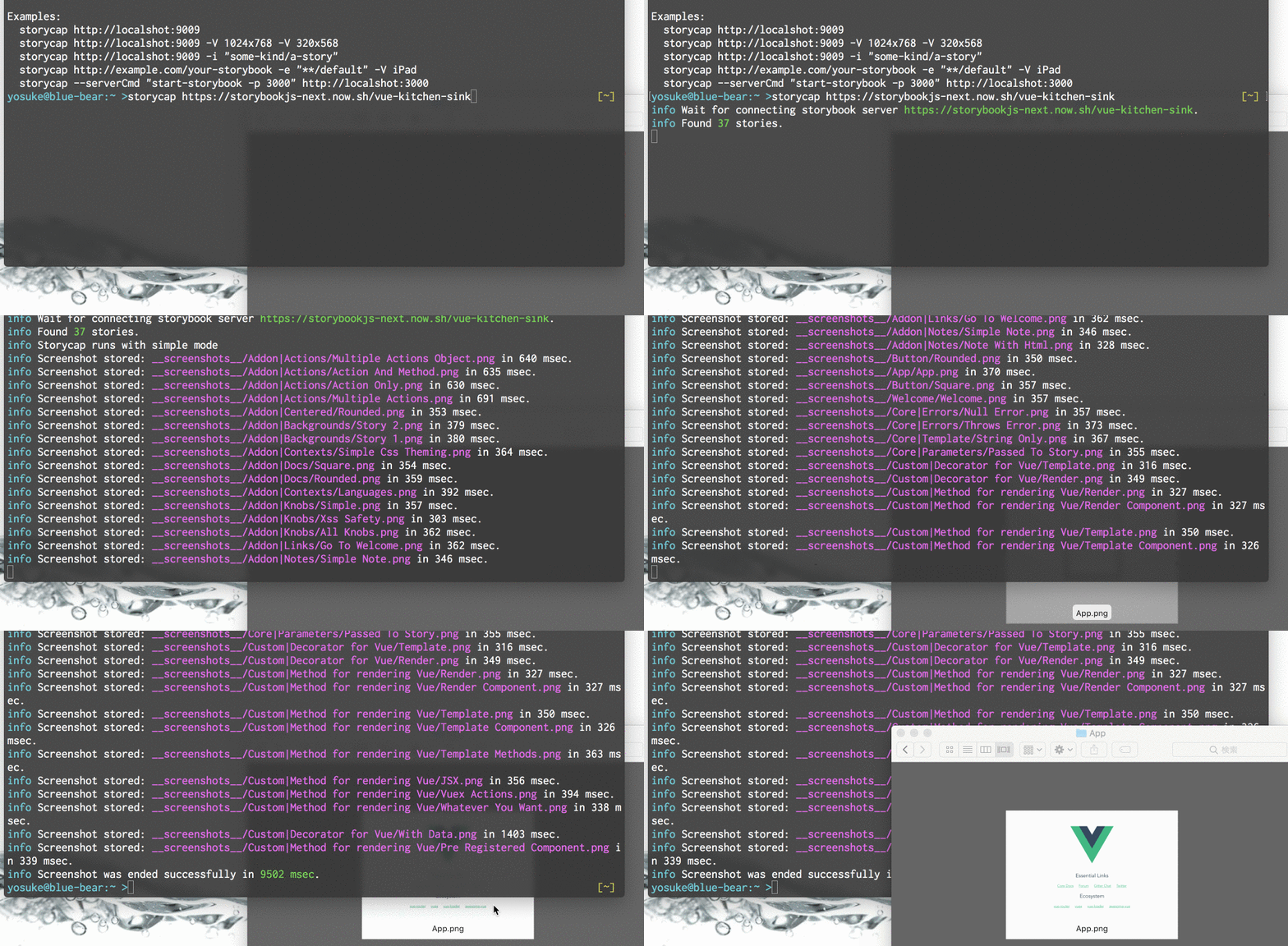

A Storybook Addon, Save the screenshot image of your stories :camera: via Puppeteer.
Storycap crawls your Storybook and takes screenshot images. It is primarily responsible for image generation necessary for Visual Testing such as reg-suit.
- Features
- Install
- Getting Started
- API
- Command Line Options
- Multiple PNGs from 1 story
- Tips
- Chromium version
- Storybook compatibility
- How it works
- Contributing
- License
Features
- :camera: Take screenshots of each stories via Puppeteer.
- :zap: Extremely fast.
- :package: Zero configuration.
- :rocket: Provide flexible screenshot shooting options.
- :tada: Independent of any UI framework(React, Angular, Vue, etc...)
Install
$ npm install storycap
Or
$ npm install storycap puppeteer
Installing puppeteer is optional. See Chromium version to get more detail.
Getting Started
Storycap runs with 2 modes. One is "simple" and another is "managed".
With the simple mode, you don't need to configure your Storybook. All you need is give Storybook's URL, such as:
$ npx storycap http://localhost:9001
You can launch your server via --serverCmd option.
$ storycap --serverCmd "start-storybook -p 9001" http://localhost:9001
Of course, you can use pre-built Storybook:
$ build-storybook -o dist-storybook
$ storycap --serverCmd "npx http-server dist-storybook -p 9001" http://localhost:9001
Also, Storycap can crawls built and hosted Storybook pages:
$ storycap https://next--storybookjs.netlify.app/vue-kitchen-sink/
Managed mode
Setup Storybook
If you want to control how stories are captured (timing or size or etc...), use managed mode.
First, add storycap to your Storybook config file:
/* .storybook/main.js */

module.exports = {
  stories: ['../src/**/*.stories.@(js|mdx)'],
  addons: [
    '@storybook/addon-actions',
    '@storybook/addon-links',
    'storycap', // <-- Add storycap
  ],
};
Next, use withScreenshot decorator to tell how Storycap captures your stories.
/* .storybook/preview.js */

import { withScreenshot } from 'storycap';

export const decorators = [
  withScreenshot, // Registration the decorator is required
];

export const parameters = {
  // Global parameter is optional.
  screenshot: {
    // Put global screenshot parameters(e.g. viewport)
  },
};
[!NOTE] You can set configuration of screenshot with
addParametersandscreenshotkey.
Setup your stories(optional)
And you can overwrite the global screenshot options in specific stories file via parameters.
import React from 'react';
import MyComponent from './MyComponent';

export default {
  title: 'MyComponent',
  component: MyComponent,
  parameters: {
    screenshot: {
      delay: 200,
    },
  },
};

export const Normal = {};

export const Small = {
  args: {
    text: 'small',
  },
  parameters: {
    screenshot: {
      viewport: 'iPhone 5',
    },
  },
};
Run storycap Command
$ npx start-storybook -p 9009
$ npx storycap http://localhost:9009
Or you can exec with one-liner via --serverCmd option:
$ npx storycap http://localhost:9009 --serverCmd "start-storybook -p 9009"
API
withScreenshot
A Storybook decorator to notify Storycap to captures stories.
type ScreenshotOptions
ScreenshotOptions object is available as the value of the key screenshot of addParameters argument or withScreenshot argument.
interface ScreenshotOptions {
  delay?: number;                           // default 0 msec
  waitAssets?: boolean;                     // default true
  waitFor?: string | () => Promise<void>;   // default ""
  fullPage?: boolean;                       // default true
  hover?: string;                           // default ""
  focus?: string;                           // default ""
  click?: string;                           // default ""
  skip?: boolean;                           // default false
  viewport?: Viewport;
  viewports?: string[] | { [variantName]: Viewport };
  variants?: Variants;
  waitImages?: boolean;                     // default true
  omitBackground?: boolean;                 // default false
  captureBeyondViewport?: boolean;          // default true
  clip?: { x: number; y: number; width: number; height: number } | null; // default null
}
delay: Waiting time [msec] before capturing.waitAssets: If set true, Storycap waits until all resources requested by the story, such as<img>or CSS background images, are finished.waitFor: If you set a function to returnPromise, Storycap waits the promise is resolved. You can also set a name of global function that returnsPromise.fullPage: If set true, Storycap captures the entire page of stories.focus: If set a valid CSS selector string, Storycap captures after focusing the element matched by the selector.hover: If set a valid CSS selector string, Storycap captures after hovering the element matched by the selector.click: If set a valid CSS selector string, Storycap captures after clicking the element matched by the selector.skip: If set true, Storycap cancels capturing corresponding stories.viewport,viewports: See typeViewportsection below.variants: See typeVariantssection below.waitImages: Deprecated. UsewaitAssets. If set true, Storycap waits until<img>in the story are loaded.omitBackground: If set true, Storycap omits the background of the page allowing for transparent screenshots. Note the storybook theme will need to be transparent as well.captureBeyondViewport: If set true, Storycap captures screenshot beyond the viewport. See also Puppeteer API docs.clip: If set, Storycap captures only the portion of the screen bounded by x/y/width/height.
type Variants
Variants is used to generate multiple PNGs from 1 story.
type Variants = {
  [variantName: string]: {
    extends?: string | string[]; // default: ""
    delay?: number;
    waitAssets?: boolean;
    waitFor?: string | () => Promise<void>;
    fullPage?: boolean;
    hover?: string;
    focus?: string;
    click?: string;
    skip?: boolean;
    viewport?: Viewport;
    waitImages?: boolean;
    omitBackground?: boolean;
    captureBeyondViewport?: boolean;
    clip?: { x: number; y: number; width: number; height: number } | null;
  };
};
extends: If set other variant's name(or an array of names of them), this variant extends the other variant options. And this variant generates a PNG file with suffix such as_${parentVariantName}_${thisVariantName}.
type Viewport
Viewport is compatible for Puppeteer viewport interface.
type Viewport =
  | string
  | {
      width: number; // default: 800
      height: number; // default: 600
      deviceScaleFactor: ?number; // default: 1,
      isMobile?: boolean; // default: false,
      hasTouch?: boolean; // default: false,
      isLandscape?: boolean; // default: false,
    };
[!NOTE] You should choose a valid device name if set string.
Viewport values are available in viewports field such as:
addParameters({
  screenshot: {
    viewports: {
      large: {
        width: 1024,
        height: 768,
      },
      small: {
        width: 375,
        height: 668,
      },
      xsmall: {
        width: 320,
        height: 568,
      },
    },
  },
});
function isScreenshot
function isScreenshot(): boolean;
Returns whether current process runs in Storycap browser. It's useful to change your stories' behavior only in Storycap (e.g. disable JavaScript animation).
Command Line Options
usage: storycap [options] storybook_url

Options:
      --help                       Show help                                                                   [boolean]
      --version                    Show version number                                                         [boolean]
  -o, --outDir                     Output directory.                               [string] [default: "__screenshots__"]
  -p, --parallel                   Number of browsers to screenshot.                               [number] [default: 4]
  -f, --flat                       Flatten output filename.                                   [boolean] [default: false]
  -i, --include                    Including stories name rule.                                    [array] [default: []]
  -e, --exclude                    Excluding stories name rule.                                    [array] [default: []]
      --delay                      Waiting time [msec] before screenshot for each story.           [number] [default: 0]
  -V, --viewport                   Viewport.                                              [array] [default: ["800x600"]]
      --disableCssAnimation        Disable CSS animation and transition.                       [boolean] [default: true]
      --disableWaitAssets          Disable waiting for requested assets                       [boolean] [default: false]
      --trace                      Emit Chromium trace files per screenshot.                  [boolean] [default: false]
      --silent                                                                                [boolean] [default: false]
      --verbose                                                                               [boolean] [default: false]
      --forwardConsoleLogs         Forward in-page console logs to the user's console.        [boolean] [default: false]
      --serverCmd                  Command line to launch Storybook server.                       [string] [default: ""]
      --serverTimeout              Timeout [msec] for starting Storybook server.               [number] [default: 60000]
      --shard                      The sharding options for this run. In the format <shardNumber>/<totalShards>.
                                   <shardNumber> is a number between 1 and <totalShards>. <totalShards> is the total
                                   number of computers working.                                [string] [default: "1/1"]
      --captureTimeout             Timeout [msec] for capture a story.                          [number] [default: 5000]
      --captureMaxRetryCount       Number of count to retry to capture.                            [number] [default: 3]
      --metricsWatchRetryCount     Number of count to retry until browser metrics stable.       [number] [default: 1000]
      --viewportDelay              Delay time [msec] between changing viewport and capturing.    [number] [default: 300]
      --reloadAfterChangeViewport  Whether to reload after viewport changed.                  [boolean] [default: false]
      --stateChangeDelay           Delay time [msec] after changing element's state.               [number] [default: 0]
      --listDevices                List available device descriptors.                         [boolean] [default: false]
  -C, --chromiumChannel            Channel to search local Chromium. One of "puppeteer", "canary", "stable", "*"
                                                                                                 [string] [default: "*"]
      --chromiumPath               Executable Chromium path.                                      [string] [default: ""]
      --puppeteerLaunchConfig      JSON string of launch config for Puppeteer.
               [string] [default: "{ "args": ["--no-sandbox", "--disable-setuid-sandbox", "--disable-dev-shm-usage"] }"]

Examples:
  storycap http://localhost:9009
  storycap http://localhost:9009 -V 1024x768 -V 320x568
  storycap http://localhost:9009 -i "some-kind/a-story"
  storycap http://example.com/your-storybook -e "**/default" -V iPad
  storycap --serverCmd "start-storybook -p 3000" http://localhost:3000
Multiple PNGs from 1 story
By default, storycap generates 1 screenshot image from 1 story. Use variants if you want multiple PNGs(e.g. viewports, element's states variation, etc...) for 1 story.
Basic usage
For example:
import React from 'react';
import MyButton from './MyButton';

export default {
  title: 'MyButton',
  component: MyButton,
};

export const Normal = {
  parameters: {
    screenshot: {
      variants: {
        hovered: {
          hover: 'button.my-button',
        },
      },
    },
  },
};
The above configuration generates 2 PNGs:
MyButton/normal.pngMyButton/normal_hovered.png
The variant key, hovered in the above example, is used as suffix of the generated PNG file name. And the almost all ScreenshotOptions fields are available as fields of variant value.
Note: variants itself and viewports are prohibited as variant's field.
Variants composition
You can composite multiple variants via extends field.
export const Normal = {
  parameters: {
    screenshot: {
      variants: {
        small: {
          viewport: 'iPhone 5',
        },
        hovered: {
          extends: 'small',
          hover: 'button.my-button',
        },
      },
    },
  },
};
The above example generates the following:
MyButton/normal.png(defaultMyButton/normal_small.png(derived from thesmallvariantMyButton/normal_hovered.png(derived from thehoveredvariantMyButton/normal_small_hovered.png(derived from thehoveredandsmallvariant
[!NOTE] You can extend some viewports with keys of
viewportsoption because theviewportsfield is expanded to variants internally.
Parallelisation across multiple computers
To process more stories in parallel across multiple computers, the shard argument can be used.
The shard argument is a string of the format: <shardNumber>/<totalShards>. <shardNumber> is a number between 1 and <totalShards>, inclusive. <totalShards> is the total number of computers running the execution.
For example, a run with --shard 1/1 would be considered the default behaviour on a single computer. Two computers each running --shard 1/2 and --shard 2/2 respectively would split the stories across two computers.
Stories are distributed across shards in a round robin fashion when ordered by their ID. If a series of stories 'close together' are slower to screenshot than others, they should be distributed evenly.
Tips
Run with Docker
Use regviz/node-xcb.
Or create your Docker base image such as:
FROM node:18

RUN apt-get update -y \
    && apt-get install -yq \
    ca-certificates \
    fonts-liberation \
    git \
    libayatana-appindicator3-1 \
    libasound2 \
    libatk-bridge2.0-0 \
    libatk1.0-0 \
    libc6 \
    libcairo2 \
    libcups2 \
    libdbus-1-3 \
    libexpat1 \
    libfontconfig1 \
    libgbm1 \
    libgcc1 \
    libglib2.0-0 \
    libgtk-3-0 \
    libnspr4 \
    libnss3 \
    libpango-1.0-0 \
    libpangocairo-1.0-0 \
    libstdc++6 \
    libx11-6 \
    libx11-xcb1 \
    libxcb1 \
    libxcomposite1 \
    libxcursor1 \
    libxdamage1 \
    libxext6 \
    libxfixes3 \
    libxi6 \
    libxrandr2 \
    libxrender1 \
    libxss1 \
    libxtst6 \
    lsb-release \
    wget \
    xdg-utils
Full control the screenshot timing
Sometimes you may want to full-manage the timing of performing screenshot.
Use the waitFor option if you think so. This parameter accepts function returning Promise or name of function should points a global function to return Promise.
Example 1
For example, you can wait for specific HTML elements appearance with screen function provided @storybook/test package. It's useful when the elements are rendered lazy.
/* MyComponent.stories.js */

import { screen } from '@storybook/test';

export const MyStory = {
  screenshot: {
    waitFor: async () => {
      await screen.findByRole('link');
    },
  },
};
Example 2
Another example, the following setting tells storycap to wait for resolving of fontLoading:
<!-- ./storybook/preview-head.html -->
<link rel="preload" href="/some-heavy-asset.woff" as="font" onload="this.setAttribute('loaded', 'loaded')" />
<script>
  function fontLoading() {
    const loaded = () => !!document.querySelector('link[rel="preload"][loaded="loaded"]');
    if (loaded()) return Promise.resolve();
    return new Promise((resolve, reject) => {
      const id = setInterval(() => {
        if (!loaded()) return;
        clearInterval(id);
        resolve();
      }, 50);
    });
  }
</script>
/* .storybook/preview.js */

import { withScreenshot } from 'storycap';

export const decorators = [withScreenshot];

export const parameters = {
  screenshot: {
    waitFor: 'fontLoading',
  },
};
Chromium version
Since v3.0.0, Storycap does not use Puppeteer directly. Instead, Storycap searches Chromium binary in the following order:
- Installed Puppeteer package (if you installed explicitly)
- Canary Chrome installed locally
- Stable Chrome installed locally
You can change search channel with --chromiumChannel option or set executable Chromium file path with --chromiumPath option.
Storybook compatibility
Storybook versions
Storycap is tested with the followings versions:
- Simple mode:
- Storybook v7.x
- Storybook v8.x
- Managed mode:
- Storybook v7.x
- Storybook v8.x
See also packages in examples directory.
UI frameworks
Storycap (with both simple and managed mode) is agnostic for specific UI frameworks(e.g. React, Angular, Vue.js, etc...). So you can use it with Storybook with your own favorite framework :smile: .
How it works
Storycap accesses the launched page using Puppeteer.
Contributing
See CONTRIBUTING.md.