stow 只能为不存在的文件建软链,程序安装生成的默认配置文件需先删除;仓库默认放在 ~/.local/src/dotfiles,stow 命令必须加 -t ~ 否则会链到 ~/.local;neovim 需额外克隆 lazy.nvim 并跑 Lazy sync 与 MasonUpdate,tmux 需另装 tpm 插件
dotfiles
xeroCC0-1.0活跃维护一套精心定制的 Linux 配置文件合集,涵盖 Neovim、Shell 别名和主题,适合想快速美化终端与桌面环境的用户参考或直接套用。
rice 🍚 custom linux config files. as seen on r/unixporn #noricenolife neovim cultist. dotfiles are perpetual wip
evangelion发布于 2025-03-11 19:06 UTC2,397star132fork同步于 2026-11-07 07:32 UTC
git clone [email protected]:xero/dotfiles.git ~/.local/src/dotfiles && cd ~/.local/src/dotfiles && stow bin fun git gpg ssh tmux neovim zsh -t ~ 硬件要求按 README 说明
README 未说明硬件要求;作者日常在 iPad 上通过 blink shell 连 VPS 使用,VPS 示例为 AWS arm64 graviton(c6g.medium)
支持 Apple Silicon
xero 的 Linux 终端配置集合,用 GNU Stow 把 zsh、tmux、neovim 等 dotfiles 软链到 home 目录
一套精心定制的 Linux 配置文件合集,涵盖 Neovim、Shell 别名和主题,适合想快速美化终端与桌面环境的用户参考或直接套用。
核心能力
- 用 GNU Stow 按目录软链配置到目标路径
- 按 XDG 规范组织 .config 与 .local 目录结构
- 提供 setup 脚本一键完成克隆与 stow 安装
- 包含 zsh、tmux、neovim、git、gpg、ssh 等配置
- 用 osc52 与 xvfb 打通 VPS 与本地剪贴板
容易踩的坑
内容由模型根据 README 生成,可能不完整或不准确,以官方文档为准。看原文 README
- evangelion最新正式版2025-03-11 · 2025-03-11 19:06 UTC
Ꮆ乇ㄒ 丨几 ㄒ卄乇 千ㄩҜҜ乇几 尺ㄖ乃ㄖㄒ 丂卄丨几フ丨!
my neon genesis evangelion theme dotfiles
- miasma2024-08-30 · 2024-08-30 16:39 UTC
查看更新说明
this is the final completed version of the miasma theme.
tagging this commit as an epoch
用户点评
登录用户的真实使用记录,可按版本和硬件筛选共 0 条
还没有人点评。第一个说出真实体验的人最有价值。
      ██            ██     ████ ██  ██
     ░██           ░██    ░██░ ░░  ░██
     ░██  ██████  ██████ ██████ ██ ░██  █████   ██████
  ██████ ██░░░░██░░░██░ ░░░██░ ░██ ░██ ██░░░██ ██░░░░
 ██░░░██░██   ░██  ░██    ░██  ░██ ░██░███████░░█████
░██  ░██░██   ░██  ░██    ░██  ░██ ░██░██░░░░  ░░░░░██
░░██████░░██████   ░░██   ░██  ░██ ███░░██████ ██████
 ░░░░░░  ░░░░░░     ░░    ░░   ░░ ░░░  ░░░░░░ ░░░░░░

  ▓▓▓▓▓▓▓▓▓▓
 ░▓ about  ▓ custom linux config files
 ░▓ author ▓ xero <[email protected]>
 ░▓ code   ▓ http://code.x-e.ro/dotfiles
 ░▓ mirror ▓ https://git.io/.files
 ░▓▓▓▓▓▓▓▓▓▓
 ░░░░░░░░░░
NOTE: if you are looking for my linux wm configs like 2bwm, windowchef, etc. they now live in the classic branch and are not actively maintained since i live in the tty, xorg free, these days.
table of contents
- introduction
- managing
- installing
- how it works
- tl;dr
- terminal emulator
- vps & local clipboard
- shell
- clean home
- neovim
- license
dotfiles
in the unix world programs are commonly configured in two different ways, via shell arguments or text based configuration files. programs with many options like text editors are configured on a per-user basis with files in your home directory ~. in unix like operating systems any file or directory name that starts with a period or full stop character is considered hidden, and in a default view will not be displayed. thus the name dotfiles.
it's been said of every console user:
"you are your dotfiles".
since they dictate how your system will look and function. to many users (see ricers and beaners) these files are very important, and need to be backed up and shared. people who create custom themes have the added challenge of managing multiple versions of them. i have tried many organization techniques. and just take my word for it when i say, keeping a git repo in the root of your home directory is a bad idea. i've written custom shell scripts for moving or symlinking files into place. there are even a few dotfile managers, but they all seem to have lots of dependencies. i knew there had to be a simple tool to help me.
managing
i manage mine with gnu stow, a free, portable, lightweight symlink farm manager. this allows me to keep a versioned directory of all my config files that are virtually linked into place via a single command. this makes sharing these files among many users (root) and computers super simple. and does not clutter your home directory with version control files.
installing
stow is available for all linux and most other unix like distributions via your package manager.
apt install stowbrew install stowdnf install stowpacman -S stowyum install stow
or clone it from source and build it yourself.
how it works
by default the stow command will create symlinks for files in the parent directory of where you execute the command. since i keep my dots in: ~/.local/src/dotfiles and all stow commands should be executed in that directory and suffixed with -t ~ to target the home directory. otherwise they will end up in ~/.local/. if you wanna make things easier on yourself you can clone the repo to ~/dotfiles then run commands with no flags. but who likes things easy in the unix world ;P
to install configs execute the stow command with the folder name as the first argument, then target your home directory (or wherever you like).
to install my zsh configs use the command:
stow zsh -t ~
this will symlink files like .zshrc to ~/.config/zsh
to install the fun scripts to /usr/local/bin execute the command:
stow fun -t /usr/local/
this will symlink the fun scripts like food to /usr/local/bin. notice that the location of the scripts has appended a bin folder? that's b/c stow creates or uses the exact folder structure of the repo. and the food script is located at /fun/bin/food in this repo.
note: stow can only create a symlink if a config file does not already exist. if a default file was created upon program installation you must delete it first before you can install a new one with stow. this does not apply to directories, only files.
more notes on using/understanding stow in this github issue.
my dotfiles setup
to fully "install" and setup this repo run the setup script or something like this:
# clone and stow
git clone [email protected]:xero/dotfiles.git ~/.local/src/dotfiles &&
	cd ~/.local/src/dotfiles &&
	stow bin fun git gpg ssh tmux neovim zsh -t ~

# tmux
mkdir ~/.config/tmux/plugins &&
	git clone --depth=1 https://github.com/tmux-plugins/tpm ~/.config/tmux/plugins/tpm &&
	~/.config/tmux/plugins/tpm/scripts/install_plugins.sh &&
	cd ~/.config/tmux/plugins/tmux-thumbs &&
		expect -c "spawn ./tmux-thumbs-install.sh; send \"\r2\r\"; expect complete" 1>/dev/null

# nvim
mkdir ~/.local/nvim &&
  git clone --filter=blob:none --single-branch https://github.com/folke/lazy.nvim.git ~/.local/share/nvim/lazy
nvim --headless "+Lazy! sync" +qa
nvim --headless "+MasonUpdate" +qa

# creating ~src and ~dotfiles aliases"
sudo useradd -g src -d ~/.local/src src
sudo useradd -d ~/.local/src/dotfiles dotfiles
tl;dr
navigate to your home directory
cd ~
clone the repo:
git clone [email protected]:xero/dotfiles.git
enter the dotfiles directory
cd dotfiles
install the zsh settings
stow zsh
install zsh settings for the root user
sudo stow zsh -t /root
uninstall zsh
stow -D zsh
etc, etc, etc...
terminal emulator
recently i've been using an 11" m1 ipad pro and a bluetooth 68% mechanical keyboard, usually on my lap, as my main computer. i use the community edition of the blink shell connected to a vps.
when it comes to fonts i've been using hack (i use a mod w/ extra icons for extended unicode and emoji support.) it's included in base64 encoded css form, along with color schemes, in the blink directory.
run blink config under appearance, set the screen mode set to cover then setup your server identity and keys. beyond that the only command i ever run in blink is mosh x. x being my server alias.
vps & local clipboard
idk why, but i chose debian 11 on aws for some reason. there's a setup script for a fresh vps to install all the packages, tools, & services, create my user, setup keys, etc... that i use, my way. but you the reader don't need them all to run my dots, this is for me. beware there be dragons here.
it builds mosh-server from this pr for osc 52 clipboard support.
i use xvfb to create a headless xorg enviroment for the clipboard. you can then use tools like xsel and xclip to pipe {in/out} of it in the tty. i have a personal fork on clipmenu that uses fzf and a an osc52 yank script to syncromize the x and ipad clipboards. there are other osc52 plugins for neovim and tmux included in these dotfiles to bring the whole thing together.
here's an abbreviated aws ec2 launch template for my arm64 graviton instance:
{
	"LaunchTemplateName": "debian11_dev_box",
	"LaunchTemplateData": {
		"ImageId": "ami-038e5cbebf3138c24",
		"InstanceType": "c6g.medium",
		"EbsOptimized": true,
		"BlockDeviceMappings": [{
			"DeviceName": "/dev/xvda",
			"Ebs": {
				"Encrypted": true,
				"Iops": 8000,
				"VolumeSize": 80,
				"VolumeType": "gp3",
				"Throughput": 125
			}
		}],
		"NetworkInterfaces": [{
			"SecuityGroups": {
				"IpPermissions": [
					{ "protocol": "tcp", "port": 0 },
					{ "protocol": "tcp", "port": 1723 },
					{ "protocol": "tcp", "port": 22 },
					{ "protocol": "tcp", "port": 443 },
					{ "protocol": "tcp", "port": 60806 },
					{ "protocol": "tcp", "port": 80 },
					{ "protocol": "udp", "port": 1701 },
					{ "protocol": "udp", "port": 4500 },
					{ "protocol": "udp", "port": 500 },
					{ "protocol": "udp", "port": 61000 }
				]
			}
		}]
	}
}
shell
i prefer a minimal setup, and choose to interact with my operating system via the so-called "terminal" or "command line", (read that quoting sarcastically). with the web browser and video player among the noted outliers. in my opinion, using your computer should be a very personal experience. your colors, aliases, key-bindings, etc meticulously crafted to your exacting specifications. so for me, the unix shell is the most important part of my environment.
i use zsh as my interactive shell. it's an extensible, bash like shell with awesome completion and correction engines. i manage multiple shell sessions with tmux. it's a feature packed terminal multiplexer with support for buffers, split windows, detached local and remote sessions, etc. i use neovim and a member of the cult of vi. sing phrases to the third reincarnation of the glorious ed! lel.
clean home
i'm all about living a comfy and clean digital life, so that means a tidy and organized home directory. my ~ and this repo, follow the XDG spec. here's a generalized breakdown:
.
├── .config/ $XDG_CONFIG_HOME --> app specific configs
│   ├── nvim
│   ├── tmux
│   ├── zsh       --> each app has a folder
│   │   └── zshrc --> config files
│   └── etc...
├── .local/
│   ├── bin/   $PATH            --> my scripts
│   ├── cache/ $XDG_CACHE_HOME  --> runtime files
│   ├── docs/  ~docs            --> my documents
│   ├── lib/   $pkgManger_HOME  --> app libraries
│   ├── share/ $XDG_DATA_HOME   --> shared app files
│   ├── src/
│   │   ├── dotfiles/   --> this repo
│   │   └── other_code/
│   └── state/ $XDG_STATE_HOME  --> app state files
│       └── zsh/
│           └── history --> app created files
├── .ssh/
│   ├── authorized_keys
│   ├── config
│   └── known_hosts
└── todo.txt
to make this all work, (esp ~/.local/lib) i have a ton of XDG directives in my zsh environment file. the one tricky bit it getting your zshrc outta home. you need to export the ZDOTDIR globally somewhere like /etc/zsh/zshenv or /etc/zlogin that is globally sourced. other options like using systemd discussed here. i suggest running these two commands from my setup script to get things ready:
# create directory skeleton
mkdir -p ~/.local/{bin,docs,cache,lib,share,src,state} ~/.local/state/zsh

# export ZDOTDIR globally
echo 'export ZDOTDIR="$HOME"/.config/zsh' >>/etc/zsh/zshenv
i like to run these before cloning my dotfiles and using stow, to prevent these dirs from being symlinks.
neovim
with it's tight integration to the unix shell, vim has been my editor of choice for years. once you start to grok movements and operators you quickly begin manipulating, not just editing text files. and in the shell, everything is just text ;D these days i'm a full time neovim user. it's just better than normal vim at this point imho. using a community built embedded language like lua5 makes way more sense than a custom/proprietary one.
with my asliases e is $EDITOR and se is sudo $EDITOR
e ~dotfiles/README.md is nvim ~/.local/src/dotfiles/README.md
se /etc/hosts is sudo nvim /etc/hosts
you can also start neovim using ec or editor clean, to run nvim --cmd ":lua vim.g.noplugins=1". which is kinda like nvim --clean with the added bonus of still loading some sane defaults. i use this as my MANPAGER with +MAN! as well.
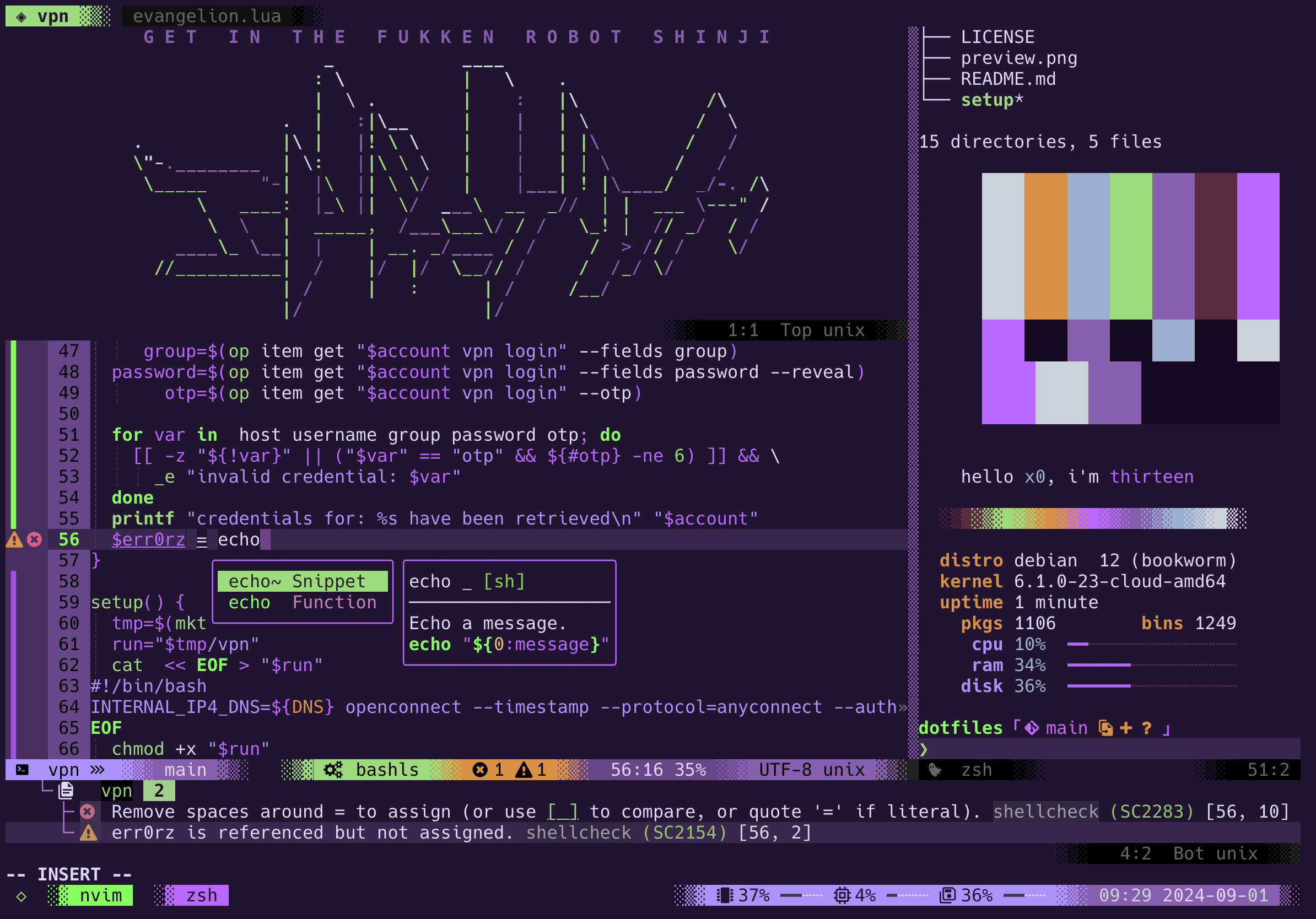
my neovim setup is written in lua, uses lazy.vim, and a bunch of plugins. you can enable/disable them selectivly from plugins.lua. here's the general structure of configs:
~/.config/nvim
├── init.lua                 --> nvim entry point
└── lua/
    ├── cfg/                 --> main config files
    │   ├── commands.lua     --> custom commands and key-bindings
    │   ├── general.lua      --> general settings
    │   ├── lazy.lua         --> lazy.nvim entrypoint
    │   └── ui.lua           --> ui related options
    ├── core/                --> features and functions
    │   ├── blink.lua        --> completion engine
    │   ├── snacks.lua       --> yummy little features
    │   ├── yank.lua         --> local/remote/tmux clipboard sync
    │   └── etc, etc...
    ├── lsp/                 --> language server configs
    │   ├── init.lua         --> main setup
    │   ├── luals.lua        --> lua language server
    │   ├── remaps.lua       --> key-bindings
    │   └── etc, etc...
    ├── ui/                  --> user interact config
    │   ├── colorschemes.lua --> my colors
    │   ├── devicons.lua     --> nerd font icons
    │   ├── nvim-logo        --> dashboard text art
    │   └── etc, etc...
    └── utils/               --> helpers
        ├── functions.lua    --> define functions
        ├── icons.lua        --> icons all in one place
        └── remaps.lua       --> remap and vmap keys
as of writing this, i use ~50 plugins and an average startup time of 80-125ms. plugin highlights include:
- lazy - the chillest package manager
- lspconfig - native language server protocol
- gitsigns - subtle git diffs in the gutter
- blink - completion engine
- snacks - QOL micro-plugins
- surround - motions to surround objects w/ characters
- flog - visually explore your git history
- lualine - customized status bar for the rice factor
- tint - desaturate inactive panes for visual cues
- telescope - extensible fuzzy finder with native floating windows
- telescope-undo - view your undo history as a tree of diffs
- telescope-live-grep-args - ripgrep powered fuzzy search
- telescope-file-browser - file browser, for when you need it
- lush - interactive colorscheme development tool
- evangeion - my own colorscheme
- which-key - help define and display key-bindings
my leader key is set to , and you can checkout all my custom key-bindings by calling :WhichKey
previews

more at https://lab.x-e.ro/rice/
license

all files and scripts in this repo are released CC0 / kopimi! in the spirit of freedom of information, i encourage you to fork, modify, change, share, or do whatever you like with this project! ^c^v
ohmyzsh
ohmyzsh·Shell
一套社区维护的 zsh 配置管理框架,内置 300+ 插件和 140+ 主题,帮你快速搭好顺手的终端环境并自动更新。
zsh 配置+4桌面美化 / 主题
190417+8127k2026-11-09 12:36 UTC
warp
warpdotdev·Rust
基于 Rust 打造的智能体开发环境,从终端演化而来,把 AI 代理能力直接融入命令行,让写代码、跑命令和调试更顺手。
终端模拟器+4桌面美化 / 主题
65958+575.8kv0.2026.06.09.19.54.dev_002026-11-10 06:33 UTC
NvChad
NvChad·Lua
基于 Lua 的 Neovim 配置框架,开箱即用,自带合理默认设置和漂亮界面,省去从零折腾配置的麻烦。
Neovim 配置+3桌面美化 / 主题
28538+62.2kv2.52026-10-24 22:01 UTC

.tmux
gpakosz·Shell
一套开箱即用的 tmux 配置,自带主题、状态栏和常用快捷键,省去自己写 .tmux.conf 的麻烦,让终端多窗口操作更顺手。
tmux 配置+4桌面美化 / 主题
254683.6k2026-10-21 15:47 UTC