需系统已安装 Bash、Git 和一个支持命令行的文本编辑器;Pandoc 转换、ripgrep 搜索、bat 高亮等均为可选依赖,不装则相应功能不可用;仅用户权限安装不含补全脚本和可选依赖,需 sudo nb env install 补齐
nb
xwmxAGPL-3.0活跃维护一个纯 Shell 脚本实现的命令行笔记与书签管理工具,支持链接、标签、搜索、Git 版本同步和 Pandoc 格式转换,适合在终端里搭建本地知识库。
CLI and local web plain text note‑taking, bookmarking, and archiving with linking, tagging, filtering, search, Git versioning & syncing, Pandoc conversion, + more, in a single portable script.
7.25.6发布于 2026-10-31 02:35 UTC8,469star +3 / 7 天257fork同步于 2026-11-10 17:32 UTC
curl -L https://raw.github.com/xwmx/nb/master/nb -o ~/bin/nb && chmod +x ~/bin/nb 硬件要求按 README 说明
README 未说明;可在标准 Linux/Unix 环境运行,macOS 及 Windows 经 WSL、MSYS、Cygwin 亦可,无需 GPU
支持 Apple Silicon
单文件 Shell 脚本实现的命令行与本地网页笔记、书签和归档工具,纯文本存储并自带 Git 版本管理
一个纯 Shell 脚本实现的命令行笔记与书签管理工具,支持链接、标签、搜索、Git 版本同步和 Pandoc 格式转换,适合在终端里搭建本地知识库。
核心能力
- 用单个可移植 Bash 脚本实现全部功能,可 curl 到任意位置运行
- 笔记以 Markdown、Org、LaTeX、AsciiDoc 等纯文本格式存储
- 内置 Git 自动记录修订历史并同步远程仓库
- 支持 [[wiki 风格链接]]、标签、置顶、过滤与全文搜索
- 书签抓取网页正文存为 Markdown,支持 Wayback 快照与本地搜索
容易踩的坑
内容由模型根据 README 生成,可能不完整或不准确,以官方文档为准。看原文 README
- 7.25.6最新正式版2026-10-31 · 2026-10-31 02:35 UTC
Full Changelog: https://github.com/xwmx/nb/compare/7.25.5...7.25.6
- 7.25.52026-08-12 · 2026-08-12 23:57 UTC
查看更新说明
Full Changelog: https://github.com/xwmx/nb/compare/7.25.4...7.25.5
- 7.25.42026-04-28 · 2026-04-28 22:50 UTC
查看更新说明
Full Changelog: https://github.com/xwmx/nb/compare/7.25.3...7.25.4
- 7.25.32026-03-16 · 2026-03-16 21:52 UTC
查看更新说明
Full Changelog: https://github.com/xwmx/nb/compare/7.25.2...7.25.3
- 7.25.22026-02-27 · 2026-02-27 22:27 UTC
查看更新说明
Full Changelog: https://github.com/xwmx/nb/compare/7.25.1...7.25.2
用户点评
登录用户的真实使用记录,可按版本和硬件筛选共 0 条
还没有人点评。第一个说出真实体验的人最有价值。
nb is a command line and local web
note‑taking, bookmarking, archiving,
and knowledge base application
with:
- plain text data storage,
- encryption,
- filtering, pinning, #tagging, and search,
- Git-backed versioning and syncing,
- Pandoc-backed conversion,
- [[wiki-style linking]],
- terminal and GUI web browsing,
- inline images,
- todos with tasks,
- global and local notebooks,
- organization with folders,
- customizable color themes,
- extensibility through plugins,
and more, in a single portable script.
nb creates notes in text-based formats like
Markdown,
Org,
LaTeX,
and AsciiDoc,
can work with files in any format,
can import and export notes to many document formats,
and can create private, password-protected encrypted notes and bookmarks.
With nb, you can write notes using
Vim,
Emacs,
VS Code,
Sublime Text,
and any other text editor you like,
as well as terminal and GUI web browsers.
nb works in any standard Linux / Unix environment,
including macOS and Windows via WSL, MSYS, and Cygwin.
Optional dependencies can be installed to enhance functionality,
but nb works great without them.
nb is also a powerful bookmarking system featuring:
- locally-served, text-centric, distraction-free bookmark browsing in terminal and GUI web browsers,
- local full-text search of cached page content with regular expression support,
- convenient filtering and listing,
- Internet Archive Wayback Machine snapshot lookup for broken links,
- tagging, pinning, linking, and full integration with other
nbfeatures.
Page information is downloaded, cleaned up, structured, and saved into normal Markdown documents made for humans, so bookmarks are easy to view and edit just like any other note.
nb uses Git in the background to
automatically record changes and sync notebooks with remote repositories.
nb can also be configured to
sync notebooks using a general purpose syncing utility like Dropbox
so notes can be edited in other apps on any device.
nb is designed to be portable, future-focused, and vendor independent,
providing a full-featured and intuitive experience within
a highly composable multimodal user-centric text interface.
The entire program is contained within
a single well-tested shell script
that can be
installed, copied, or curled almost anywhere and just work,
using a strategy inspired by
progressive enhancement
for various experience improvements in more capable environments.
nb works great whether you have one notebook with just a few notes
or dozens of notebooks containing thousands of notes, bookmarks, and other items.
nb makes it easy to incorporate other tools, writing apps, and workflows.
nb can be used a little, a lot, once in a while, or for just a subset of features.
nb is flexible.
Installation
Dependencies
Required
- Bash
nbworks perfectly with Zsh, fish, and any other shell set as your primary login shell, the system just needs to have Bash available on it.
- Git
- A text editor with command line support, such as:
Optional
nb leverages standard command line tools
and works in standard Linux / Unix environments.
nb also checks the environment for some additional optional tools and
uses them to enhance the experience whenever they are available.
Recommended:
Also supported for various enhancements:
Ack,
afplay,
asciidoctor,
The Silver Searcher (ag),
catimg,
Chafa,
Chromium / Chrome,
eza,
ffplay,
ImageMagick,
glow,
GnuPG,
highlight,
imgcat,
joshuto,
kitty's icat kitten,
lowdown,
lsd,
Links,
Lynx,
mdcat,
mdless,
mdv,
Midnight Commander (mc),
mpg123,
MPlayer,
ncat,
netcat,
note-link-janitor
(via plugin),
pdftotext,
Pygments,
Ranger,
readability-cli,
rga / ripgrep-all,
sc-im,
socat,
termvisage,
termpdf.py,
Tidy-Viewer (tv),
timg,
vifm,
viu,
VisiData
macOS / Homebrew
brew install xwmx/taps/nb
Installing nb with Homebrew also installs
the recommended dependencies above
and completion scripts for Bash, Zsh, and Fish.
Install the latest development version from the repository with:
brew install xwmx/taps/nb --head
nb is also available in
homebrew-core.
Installing it together with the bash formula is recommended:
brew install nb bash
Ubuntu, Windows, and others
npm
npm install -g nb.sh
After npm installation completes, run
sudo "$(which nb)" completions install
to install Bash and Zsh completion scripts (recommended).
On Ubuntu and WSL, you can
run sudo "$(which nb)" env install
to install the optional dependencies.
When nb is installed on Windows,
socat (MSYS,
Cygwin) is recommended.
nb is also available under its original package name,
notes.sh,
which comes with an extra notes executable wrapping nb.
Download and Install
To install as an administrator, copy and paste one of the following multi-line commands:
# install using wget
sudo wget https://raw.github.com/xwmx/nb/master/nb -O /usr/local/bin/nb &&
  sudo chmod +x /usr/local/bin/nb &&
  sudo nb completions install --download

# install using curl
sudo curl -L https://raw.github.com/xwmx/nb/master/nb -o /usr/local/bin/nb &&
  sudo chmod +x /usr/local/bin/nb &&
  sudo nb completions install --download
On Ubuntu and WSL, you can
run sudo nb env install to install the optional dependencies.
User-only Installation
To install with just user permissions, simply
add the nb script to your $PATH.
If you already have a ~/bin directory, for example, you can
use one of the following commands:
# download with wget
wget https://raw.github.com/xwmx/nb/master/nb -O ~/bin/nb && chmod +x ~/bin/nb

# download with curl
curl -L https://raw.github.com/xwmx/nb/master/nb -o ~/bin/nb && chmod +x ~/bin/nb
Installing with just user permissions doesn't include
the optional dependencies or completions,
but nb core functionality works without them.
If you have sudo access and want
to install the completion scripts and dependencies, run the following command:
sudo nb env install
Make
To install with Make, clone this repository, navigate to the clone's root directory, and run:
sudo make install
This will also install the completion scripts on all systems and the recommended dependencies on Ubuntu and WSL.
bpkg
To install with bpkg:
bpkg install xwmx/nb
basher
To install with basher:
basher install xwmx/nb
Tab Completion
Bash, Fish, and Zsh tab completion should be enabled
when nb is installed using the methods above,
assuming you have the appropriate system permissions or installed with sudo.
If completion isn't working after installing nb, see the
completion installation instructions.
Updating
When nb is installed using a package manager like npm or Homebrew,
use the package manager's upgrade functionality to update nb to
the latest version.
When installed via other methods,
nb can be updated to the latest version using
the nb update subcommand.
Overview
To get started, simply run:
nb
nb sets up your initial home notebook the first time it runs.
By default, notebooks and notes are global (at ~/.nb),
so they are always available to nb
regardless of the current working directory.
nb also supports local notebooks.
📝 Notes
Adding
Use nb add (shortcuts: nb a, nb +)
to create new notes:
# create a new note in your text editor
nb add

# create a new note with the filename "example.md"
nb add example.md

# create a new note containing "This is a note."
nb add "This is a note."

# create a new note with piped content
echo "Note content." | nb add

# create a new password-protected, encrypted note titled "Secret Document"
nb add --title "Secret Document" --encrypt

# create a new note in the notebook named "example"
nb example:add "This is a note."

# create a new note in the folder named "sample"
nb add sample/
nb add with no arguments or input will open the new, blank note
in your environment's preferred text editor.
You can change your editor using
the $EDITOR environment variable
or nb set editor.
nb files are Markdown
files by default. The default file type can be changed to
whatever you like
using nb set default_extension.
nb add has intelligent argument parsing
and behaves differently depending on the types of arguments it receives.
When a filename with extension is specified,
a new note with that filename is opened in the editor:
nb add example.md
When a string is specified, a new note is immediately created with that string as the content and without opening the editor:
❯ nb add "This is a note."
Added: [1] 20200101000000.md
nb add <string> is useful for quickly jotting down notes directly
via the command line. Quoting content is optional, but recommended.
When no filename is specified, nb add uses the current datetime as
the filename.
nb add can also receive piped content, which behaves the same as
nb add <string>:
# create a new note containing "Note content."
❯ echo "Note content." | nb add
Added: [6] 20200101000100.md

# create a new note containing the clipboard contents on macOS
❯ pbpaste | nb add
Added: [7] 20200101000200.md

# create a new note containing the clipboard contents using xclip
❯ xclip -o | nb add
Added: [8] 20200101000300.md
Content can be passed with the --content <content> option,
which also creates a new note without opening the editor:
nb add --content "Note content."
When content is piped,
specified with --content <content>,
or passed as a string argument,
use the --edit flag to open the file in the editor
before the change is committed.
The title, filename, and content can also be specified with long and short options:
❯ nb add --filename "example.md" -t "Example Title" -c "Example content."
Added: [9] example.md "Example Title"
The -t <title> / --title <title> option also
sets the filename to the title,
lowercased with spaces and non-filename characters replaced with underscores:
❯ nb add --title "Example Title" "Example content."
Added: [10] example_title.md "Example Title"
Tags can be added with the --tags <tag1>,<tag2>... option, which
takes a comma separated list of tags,
converts them to #hashtags,
and inserts them between the title and content:
❯ nb add "Example content." --title "Tagged Example" --tags tag1,tag2
Added: [11] tagged_example.md "Tagged Example"

❯ nb show 11 --print
# Tagged Example

#tag1 #tag2

Example content.
Search for tagged items with
nb search / nb q:
# search for items tagged with "#tag1"
nb search --tag tag1

# search for items tagged with "#tag1" AND "#tag2", short options
nb q -t tag1 -t tag2

# search for items tagged with "#tag1" OR "#tag2", arguments
nb q \#tag1 --or \#tag2
Files can be created with any file type by specifying the extension either
in the filename (example.md),
the extension by itself (.md),
or via the --type <type> option (--type md):
# open a new Org file in the editor
nb add example.org

# open a new reStructuredText file in the editor
nb add --type rst

# open a new JavaScript file in the editor
nb add .js
Combining a type argument with piped clipboard content provides
a very convenient way to save code snippets using a clipboard utility such as
pbpaste,
xclip,
or pb:
# save the clipboard contents as a JavaScript file in the current notebook
pb | nb add .js

# save the clipboard contents as a Rust file in the "rust" notebook
# using the shortcut alias `nb a`
pb | nb a rust: .rs

# save the clipboard contents as a Haskell file named "example.hs" in the
# "snippets" notebook using the shortcut alias `nb +`
pb | nb + snippets: example.hs
Use nb show and nb browse to view code snippets
with automatic syntax highlighting and
use nb edit to open in your editor.
The clip plugin can also be used to
create notes from clipboard content.
Piping,
--title <title>,
--tags <tag-list>,
--content <content>,
and content passed in an argument
can be combined as needed
to create notes with content from multiple input methods and sources
using a single command:
❯ pb | nb add "Argument content." \
    --title   "Sample Title"      \
    --tags    tag1,tag2           \
    --content "Option content."
Added: [12] sample_title.md "Sample Title"

❯ nb show 12 --print
# Sample Title

#tag1 #tag2

Argument content.

Option content.

Clipboard content.
For a full list of options available for nb add, run
nb help add.
Password-Protected Encrypted Notes and Bookmarks
Password-protected notes and bookmarks are
created with the -e / --encrypt flag and
encrypted with AES-256 using OpenSSL by default.
GPG is also supported and can be configured with
nb set encryption_tool.
Each protected note and bookmark is
encrypted individually with its own password.
When an encrypted item is viewed, edited, or opened,
nb will simply prompt for the item's password before proceeding.
After an item is edited,
nb automatically re-encrypts it and saves the new version.
Encrypted notes can be decrypted
using the OpenSSL and GPG command line tools directly, so
you aren't dependent on nb to decrypt your files.
Templates
Create a note based on a template by assigning a template string
or path to a template file with add --template <template>:
# create a new note based on a template specified by path
nb add --template /path/to/example/template

# create a new note based on a template defined as a string
nb add --template "{{title}} • {{content}}"
nb template tags are enclosed in double curly brackets.
Supported tags include:
An example complete markdown template could look like the following:
# {{title}}

{{date +"%Y-%m-%d"}}

{{tags}}

{{content}}
Templates are Bash strings processed with eval, so you can use
command substitution ($(echo "Example command")) to include
the output from command line tools and shell code.
A default template can be configured by assigning a string or path
to the $NB_DEFAULT_TEMPLATE variable
in your ~/.nbrc file:
# set the default template to a path
export NB_DEFAULT_TEMPLATE="/path/to/example/template"

# set the default template with a string
export NB_DEFAULT_TEMPLATE="{{title}} • {{content}}"
Use nb add --no-template to skip using a template when
one is assigned.
Shortcut Aliases: nb a, nb +
nb includes shortcuts for many commands, including
nb a and nb + for nb add:
# create a new note in your text editor
nb a

# create a new note with the filename "example.md"
nb a example.md

# create a new note containing "This is a note."
nb + "This is a note."

# create a new note containing the clipboard contents with xclip
xclip -o | nb +

# create a new note in the notebook named "example"
nb example:a
Other Aliases: nb create, nb new
nb add can also be invoked with
nb create and nb new for convenience:
# create a new note containing "Example note content."
nb new "Example note content."

# create a new note with the title "Example Note Title"
nb create --title "Example Note Title"
Adding with nb browse
Items can also be added within terminal and GUI web browsers using
nb browse add / nb b a:
❯ nb browse add
❯nb · home : +

[                                                     ]
[                                                     ]
[                                                     ]
[                                                     ]
[                                                     ]
[                                                     ]
[                                                     ]
[                                                     ]
[                                                     ]
[                                                     ]

[add]
Pass a filename, relative path, and / or notebook name to create a new note at that location:
# open the add form in the browser to create the file "file.md" in the folder "example"
nb browse add "example/file.md"
nb browse add includes options for quickly
pre-populating new notes with content:
❯ nb browse add --title "Example Title" --content "Example content." --tags tag1,tag2
❯nb · home : +

[# Example Title                                      ]
[                                                     ]
[#tag1 #tag2                                          ]
[                                                     ]
[Example content.                                     ]
[                                                     ]
[                                                     ]
[                                                     ]
[                                                     ]
[                                                     ]

[add]
nb browse add can also be opened with
nb add --browse / nb a -b.
For more information, see Browsing.
Listing & Filtering
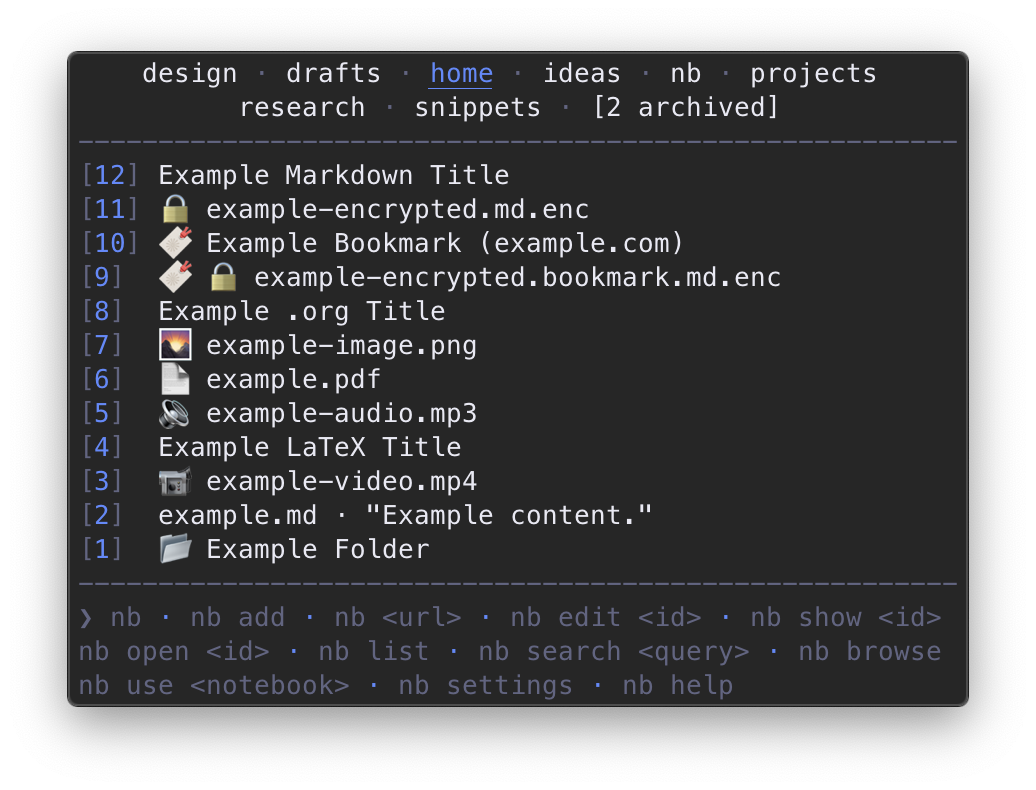
To list notes and notebooks, run nb ls (shortcut alias: nb):
Notebooks are listed above the line,
with the current notebook highlighted and/or underlined,
depending on terminal capabilities.
nb ls also includes a footer with example commands for easy reference.
The notebook header and command footer can be configured or hidden with
nb set header and
nb set footer.
❯ nb ls
home
----
[3] example.md · "Example content."
[2] sample.md · "Sample content."
[1] demo.md · "- Demo list item one."
Notes from the current notebook are listed in the order they were last modified. By default, each note is listed with its id, filename, and an excerpt from the first line of the note. When a note has a title, the title is displayed instead of the filename and first line.
Markdown titles can be defined within a note using
either Markdown h1 style
or YAML front matter:
# Example Title
Sample Title
============
---
title: Demo Title
---
Org,
LaTeX,
and AsciiDoc
titles are recognized in .org,.latex, and .asciidoc / .adoc files:
#+title: Example Org Title
\title{Example LaTeX Title}
= Example AsciiDoc Title
Once defined, titles are displayed in place of the filename and first line
in the output of nb ls:
❯ nb ls
home
----
[3] Example Title
[2] Sample Title
[1] Demo Title
Pass an id, filename, or title to view the listing for that note:
❯ nb ls Sample\ Title
[2] Sample Title

❯ nb ls 3
[3] Example Title
If there is no exact match, nb will list items with
titles and filenames that fuzzy match the query:
❯ nb ls exa
[3] Example Title

❯ nb ls ample
[3] Example Title
[2] Sample Title
Multiple words act like an OR filter, listing any
titles or filenames that match any of the words:
❯ nb ls example demo
[3] Example Title
[1] Demo Title
When multiple words are quoted, filter titles and filenames for that phrase:
❯ nb ls "example title"
[3] Example Title
For full text search, see Search.
To view excerpts of notes, use the --excerpt or -e option,
which optionally accepts a length:
❯ nb ls 3 --excerpt
[3] Example Title
-----------------
# Example Title

This is an example excerpt.

❯ nb ls 3 -e 8
[3] Example Title
-----------------
# Example Title

This is an example excerpt.

More example content:

- one
- two
Several classes of file types are represented with emoji
indicators to make them easily identifiable in lists.
For example, bookmarks and encrypted notes are listed with 🔖 and 🔒:
❯ nb ls
home
----
[4] Example Note
[3] 🔒 encrypted-note.md.enc
[2] 🔖 Example Bookmark (example.com)
[1] 🔖 🔒 encrypted.bookmark.md.enc
File types include:
 🔉  Audio
 📖  Book
 🔖  Bookmark
 🔒  Encrypted
 📂  Folder
 🌄  Image
 📄  PDF, Word, or Open Office document
 📹  Video
By default, items are listed starting with the most recently modified.
To reverse the order, use the -r or --reverse flag:
❯ nb ls
home
----
[2] Todos
[3] Example Title
[1] Ideas

❯ nb ls --reverse
[1] Ideas
[3] Example Title
[2] Todos
Notes can be sorted with the -s / --sort flag,
which can be combined with -r / --reverse:
❯ nb ls
home
----
[2] Sample Title
[3] Example Title
[1] Demo Title

❯ nb ls --sort
[1] Demo Title
[2] Sample Title
[3] Example Title

❯ nb ls --sort --reverse
[3] Example Title
[2] Sample Title
[1] Demo Title
nb with no subcommand behaves like an alias for nb ls,
so the examples above can be run without the ls:
❯ nb
home
----
[2] Sample Title
[3] Example Title
[1] Demo Title

❯ nb example
[3] Example Title

❯ nb 3 --excerpt
[3] Example Title
-----------------
# Example Title

This is an example excerpt.

❯ nb 3 -e 8
[3] Example Title
-----------------
# Example Title

This is an example excerpt.

More example content:

- one
- two

❯ nb --sort
[1] Demo Title
[2] Sample Title
[3] Example Title

❯ nb --sort --reverse
[3] Example Title
[2] Sample Title
[1] Demo Title
Short options can be combined for brevity:
# equivalent to `nb --sort --reverse --excerpt 2` and `nb -s -r -e 2`:
❯ nb -sre 2
[3] Example Title
-----------------
# Example Title

[2] Sample Title
----------------
Sample Title
============
[1] Demo Title
--------------
---
title: Demo Title
nb and nb ls display the 15 most recently modified items.
The default limit can be changed with nb set limit <number>.
To list a different number of items on a per-command basis, use the
-n <limit>,
--limit <limit>,
--<limit>,
-a,
and --all
flags:
❯ nb -n 1
home
----
[5] Example Five
4 omitted. 5 total.

❯ nb --limit 2
home
----
[5] Example Five
[4] Example Four
3 omitted. 5 total.

❯ nb --3
home
----
[5] Example Five
[4] Example Four
[3] Example Three
2 omitted. 5 total.

❯ nb --all
home
----
[5] Example Five
[4] Example Four
[3] Example Three
[2] Example Two
[1] Example One
Lists can be paginated with
-p <number> / --page <number>,
which paginates by the value of nb set limit by
default, or the value of
-n <limit>,
--limit <limit>,
or --<limit>
when present:
❯ nb
home
----
[6] Example Six
[5] Example Five
[4] Example Four
[3] Example Three
[2] Example Two
[1] Example One

❯ nb set limit 3
NB_LIMIT set to 3

❯ nb --page 1
[6] Example Six
[5] Example Five
[4] Example Four

❯ nb -p 2
[3] Example Three
[2] Example Two
[1] Example One

❯ nb -p 2 --limit 2
[4] Example Four
[3] Example Three

❯ nb -p 3 --2
[2] Example Two
[1] Example One
List #tagged items by passing \#escaped or "#quoted" hashtags
or tags specified with the --tags option. Multiple tags perform an
AND query:
# list items in the current notebook tagged with "#tag1", escaped
nb \#tag1

# list items in the "example" notebook tagged with "#tag2", quoted
nb example: "#tag2"

# list items in all notebooks tagged with "#tag1", long option
nb \#tag1 --all

# list items in the current notebook tagged with "#tag1" AND "#tag2"
nb \#tag1 "#tag2"

# list items in all notebooks tagged with "#tag2" AND "#tag3", short option
nb --tags tag2,tag3 -a
nb ls is a combination of
nb notebooks and nb list
in one view and accepts the same arguments as nb list,
which lists only notes without the notebook list and with no limit by default:
❯ nb list
[100] Example One Hundred
[99]  Example Ninety-Nine
[98]  Example Ninety-Eight
... lists all notes ...
[2]   Example Two
[1]   Example One
For more information about options for listing notes, run
nb help ls
and
nb help list.
Listing with browse
Items can be listed within terminal and GUI web browsers using
nb browse / nb b:
❯ nb browse example:sample/demo/
❯nb · example : sample / demo / +

search: [                    ]

[example:sample/demo/7] Title Seven
[example:sample/demo/6] Title Six
[example:sample/demo/5] Title Five
[example:sample/demo/4] Title Four
[example:sample/demo/3] Title Three

next ❯
For more information, see Browsing.
Editing
You can edit an item in your editor with
nb edit (shortcut: nb e):
# edit note by id
nb edit 3

# edit note by filename
nb edit example.md

# edit note by title
nb edit "A Document Title"

# edit note 12 in the notebook named "example"
nb edit example:12

# edit note 12 in the notebook named "example", alternative
nb example:12 edit

# edit note 12 in the notebook named "example", alternative
nb example:edit 12

# edit the last modified item
nb edit --last
edit and other subcommands that take an identifier
can be called with the identifier and subcommand name reversed:
# edit note by id
nb 3 edit
nb edit can also receive piped content, which it
appends to the specified note without opening the editor:
echo "Content to append." | nb edit 1
Content can be passed with the --content <content> option,
which also appends the content without opening the editor:
nb edit 1 --content "Content to append."
Use the --overwrite option to overwrite existing file content
and the --prepend option to prepend the new content before existing content.
When content is piped or specified with --content <content>,
use the --edit flag to open the file in the editor
before the change is committed.
Edit the last modified item with --last / -l:
# edit the last modified item
nb edit --last

# edit the last modified item, short option
nb edit -l
Editing Encrypted Notes
When a note is encrypted,
nb edit prompts you for the note password,
opens the unencrypted content in your editor,
and then automatically reencrypts the note when you are done editing.
Shortcut Alias: nb e
nb edit can be called by the shortcut alias, nb e:
# edit note by id
nb e 3

# edit note by filename
nb e example.md

# edit note by title
nb e "A Document Title"

# edit note by id, alternative
nb 3 e

# edit note 12 in the notebook named "example"
nb e example:12

# edit note 12 in the notebook named "example", alternative
nb example:12 e

# edit note 12 in the notebook named "example", alternative
nb example:e 12

# edit the last modified item, short option
nb e -l
For nb edit help information, run nb help edit.
Editing with browse
Items can be edited within terminal and GUI web browsers using
nb browse edit / nb b e:
❯ nb browse edit text:formats/markdown/123
❯nb · text : formats / markdown / 123 · ↓ · editing · - | +

[# Daring Fireball: Markdown (daringfireball.net)         ]
[                                                         ]
[<https://daringfireball.net/projects/markdown/>          ]
[                                                         ]
[## Related                                               ]
[                                                         ]
[- <https://en.wikipedia.org/wiki/Markdown>               ]
[                                                         ]
[## Comments                                              ]
[                                                         ]
[See also:                                                ]
[                                                         ]
[- [[text:formats/org]]                                   ]
[- [[cli:apps/nb]]                                        ]
[                                                         ]
[## Tags                                                  ]
[                                                         ]

[save] · last: 2021-01-01 01:00:00
For more information, see
browse edit and Browsing.
Viewing
Notes and other items can be viewed using
nb show (shortcut: nb s):
# show note by id
nb show 3

# show note by filename
nb show example.md

# show note by title
nb show "A Document Title"

# show note by id, alternative
nb 3 show

# show note 12 in the notebook named "example"
nb show example:12

# show note 12 in the notebook named "example", alternative
nb example:12 show

# show note 12 in the notebook named "example", alternative
nb example:show 12
By default, nb show opens notes in
less,
with syntax highlighting if
bat,
highlight,
or
Pygments
is installed.
You can navigate in less using the following keys:
Key               Function
---               --------
mouse scroll      Scroll up or down
arrow up or down  Scroll one line up or down
f                 Jump forward one window
b                 Jump back one window
d                 Jump down one half window
u                 Jump up one half window
/<query>          Search for <query>
n                 Jump to next <query> match
q                 Quit
If less scrolling isn't working in iTerm2,
go to
"Settings"
-> "Advanced"
-> "Scroll wheel sends arrow keys when in alternate screen mode"
and change it to "Yes".
More Info
Use the -p / --print option
to print to standard output with syntax highlighting:
❯ nb show 123 --print
# Example Title

Example content:

- one
- two
- three
Use nb show --print --no-color to print without syntax highlighting.
When Pandoc is available,
use the -r / --render option to
render the note to HTML and open it in your terminal browser:
nb show example.md --render
# opens example.md as an HTML page in w3m, links, or lynx
nb show also supports previewing other file types in the terminal,
depending on the tools available in the environment. To prefer specific tools
for certain file types, nb provides configuration variables that can be
set in your ~/.nbrc file,
which can be opened in your editor with nb settings edit.
Supported file types and tools include:
- Markdown files (
$NB_MARKDOWN_TOOL): - PDF files:
termpdf.pywith kittypdftotext
- Audio files (
$NB_AUDIO_TOOL): - Images (
$NB_IMAGE_TOOL):catimg- Chafa
- ImageMagick with a terminal that supports sixels
imgcatwith iTerm2- kitty's
icatkitten termvisagetimgviu
- Folders, Directories, Notebooks (
$NB_DIRECTORY_TOOL): - Word Documents:
- Excel, CSV, TSV, and data files (
$NB_DATA_TOOL): - EPUB ebooks:
When using nb show with other file types or
if the above tools are not available,
nb show opens files in
your system's preferred application for each type.
nb show also provides options for
querying information about an item. For example, use the
--added / -a and --updated / -u
flags to print the date and time that an item was added or updated:
❯ nb show 2 --added
2020-01-01 01:01:00 -0700

❯ nb show 2 --updated
2020-02-02 02:02:00 -0700
nb show is primarily intended for viewing items within the terminal.
To view a file in the system's preferred GUI application, use
nb open.
To browse rendered items in terminal and GUI web browsers, use
nb browse.
For full nb show usage information, run nb help show.
Shortcut Alias: nb s
nb show can be called using the shortcut alias nb s:
# show note by id
nb s 3

# show note by filename
nb s example.md

# show note by title
nb s "A Document Title"

# show note by id, alternative
nb 3 s

# show note 12 in the notebook named "example"
nb s example:12

# show note 12 in the notebook named "example", alternative
nb example:12 s

# show note 12 in the notebook named "example", alternative
nb example:s 12
Alias: nb view
nb show can also be invoked with nb view for convenience:
# show note by id
nb view 3

# show note by filename
nb view example.md

# show note by title
nb view "A Document Title"

# show note by id, alternative
nb 3 view
Viewing with browse
Items can be viewed within terminal and GUI web browsers using
nb browse / nb b:
❯ nb browse text:formats/markdown/123
❯nb · text : formats / markdown / 123 · ↓ · edit | +
Daring Fireball: Markdown (daringfireball.net)

https://daringfireball.net/projects/markdown/

Related

  • https://en.wikipedia.org/wiki/Markdown

Comments

See also:

  • [[text:formats/org]]
  • [[cli:apps/nb]]

Tags

#markup #plain-text

Content

Daring Fireball: Markdown

Download

Markdown 1.0.1 (18 KB) — 17 Dec 2004

Introduction

Markdown is a text-to-HTML conversion tool for web writers. Markdown allows
you to write using an easy-to-read, easy-to-write plain text format, then
convert it to structurally valid XHTML (or HTML).
For more information, see Browsing.
Deleting
To delete one or more notes, pass any number of
ids, filenames, titles, and other selectors
to nb delete (shortcuts: nb d, nb -):
# delete item by id
nb delete 3

# delete item by filename
nb delete example.md

# delete item by title
nb delete "A Document Title"

# delete item by id, alternative
nb 3 delete

# delete item 12 in the notebook named "example"
nb delete example:12

# delete item 12 in the notebook named "example", alternative
nb example:12 delete

# delete item 12 in the notebook named "example", alternative
nb example:delete 12

# delete item 345 in the folder named "example"
nb delete example/345

# delete items with the ids 89, 56, and 21
nb delete 89 56 21
By default, nb delete will display a confirmation prompt.
To skip, use the --force / -f option:
nb delete 3 --force
Shortcut Aliases: nb d, nb -
nb delete has the aliases nb d and nb -:
# delete note by id
nb d 3

# delete note by filename
nb d example.md

# delete note by title
nb - "A Document Title"

# delete note by id, alternative
nb 3 d

# delete note 12 in the notebook named "example"
nb - example:12

# delete note 12 in the notebook named "example", alternative
nb example:12 d

# delete note 12 in the notebook named "example", alternative
nb example:d 12
For nb delete help information, run nb help delete.
Deleting with nb browse
Items can be deleted within terminal and GUI web browsers using
nb browse delete / nb b d:
❯ nb browse delete example:4
❯nb · example : 4 · ↓ · edit · - | +

              deleting

[4] example_file.md "Example Title"

              [delete]
For more information, see Browsing.
🔖 Bookmarks
nb includes a bookmarking system to conveniently
create, annotate, view, search, browse, and manage
collections of bookmarks.
Bookmarks in nb are stored as
simple structured Markdown files
containing information extracted from the bookmarked pages.
To create a new bookmark, pass a URL as the first argument to nb:
nb https://example.com
nb automatically generates a bookmark using information from the page:
# Example Title (example.com)

<https://example.com>

## Description

Example description.

## Content

Example Title
=============

This domain is for use in illustrative examples in documents. You may
use this domain in literature without prior coordination or asking for
permission.

[More information\...](https://www.iana.org/domains/example)
nb embeds the page content in the bookmark, making it available for
full text search with nb search and
locally-served, distraction-free reading and browsing
with nb browse.
When Pandoc is installed,
the HTML page content is converted to Markdown.
When readability-cli
is installed, markup is cleaned up to focus on content. When
Chromium or
Chrome is installed on the system,
nb automatically renders JavaScript-dependent pages
and saves the resulting markup.
Many shells automatically escape special characters in URLs. If a
URL contains characters that are preventing it from being saved in full,
URLs can also be enclosed in quotes when passed to nb:
nb "https://example.com#sample-anchor"
In addition to caching the page content,
you can also include a quote from the page in a
## Quote section
using the
-q <quote> / --quote <quote> option:
nb https://example.com --quote "Example quote line one.

Example quote line two."
# Example Title (example.com)

<https://example.com>

## Description

Example description.

## Quote

> Example quote line one.
>
> Example quote line two.

## Content

Example Title
=============

This domain is for use in illustrative examples in documents. You may
use this domain in literature without prior coordination or asking for
permission.

[More information\...](https://www.iana.org/domains/example)
Add a comment in a ## Comment section using the
-c <comment> / --comment <comment> option:
nb https://example.com --comment "Example comment."
# Example Title (example.com)

<https://example.com>

## Description

Example description.

## Comment

Example comment.

## Content

Example Title
=============

This domain is for use in illustrative examples in documents. You may
use this domain in literature without prior coordination or asking for
permission.

[More information\...](https://www.iana.org/domains/example)
Add related URLs and linked selectors
to a ## Related section using the
-r (<url> | <selector>) /
--related (<url> | <selector>)
option:
nb https://example.com --related example:123 -r https://example.net
# Example Title (example.com)

<https://example.com>

## Description

Example description.

## Related

- [[example:123]]
- <https://example.net>

## Content

Example Title
=============

This domain is for use in illustrative examples in documents. You may
use this domain in literature without prior coordination or asking for
permission.

[More information\...](https://www.iana.org/domains/example)
Bookmarks can be tagged using the
-t <tag1>,<tag2>... /
--tags <tag1>,<tag2>... option.
Tags are converted into #hashtags and
added to a ## Tags section:
nb https://example.com --tags tag1,tag2
# Example Title (example.com)

<https://example.com>

## Description

Example description.

## Tags

#tag1 #tag2

## Content

Example Title
=============

This domain is for use in illustrative examples in documents. You may
use this domain in literature without prior coordination or asking for
permission.

[More information\...](https://www.iana.org/domains/example)
Search for tagged bookmarks with
nb search / nb q:
nb search --tag tag1

nb q -t tag1

nb q \#tag1
nb search / nb q
automatically searches archived page content:
❯ nb q "example query"
[10] 🔖 example.bookmark.md "Example Bookmark (example.com)"
------------------------------------------------------------
5:Lorem ipsum example query.
Bookmarks can also be encrypted:
# create a new password-protected, encrypted bookmark
nb https://example.com --encrypt
Encrypted bookmarks require a password before they can be viewed or opened.
Multiple URLs can be bookmarked with a single command by passing
multiple <url> arguments. Additional arguments will be reused
for each bookmark:
❯ nb https://example.com https://example.net --tags tag1,tag2 --filename example
Added: [1] 🔖 example.bookmark.md "Example Domain (example.com)"
Added: [2] 🔖 example-1.bookmark.md "Example Domain (example.net)"
Listing and Filtering Bookmarks
Bookmarks are included in
nb,
nb ls,
nb list,
and nb browse
along with items of other types.
nb bookmark and nb bookmark list can be used to
list and filter only bookmarks:
❯ nb bookmark
Add: nb <url> Help: nb help bookmark
------------------------------------
[3] 🔖 🔒 example.bookmark.md.enc
[2] 🔖 Bookmark Two (example.com)
[1] 🔖 Bookmark One (example.com)

❯ nb bookmark list two
[2] 🔖 Bookmark Two (example.com)
Bookmarks are also included in nb, nb ls, and nb list:
❯ nb
home
----
[7] 🔖 Bookmark Three (example.com)
[6] Example Note
[5] 🔖 Bookmark Two (example.net)
[4] Sample Note
[3] 🔖 🔒 example-encrypted.bookmark.md.enc
[2] Demo Note
[1] 🔖 Bookmark One (example.com)
Use the --type <type> / --<type>
option as a filter to display only bookmarks:
❯ nb --type bookmark
[7] 🔖 Bookmark Three (example.com)
[5] 🔖 Bookmark Two (example.net)
[3] 🔖 🔒 example-encrypted.bookmark.md.enc
[1] 🔖 Bookmark One (example.com)

❯ nb --bookmark
[7] 🔖 Bookmark Three (example.com)
[5] 🔖 Bookmark Two (example.net)
[3] 🔖 🔒 example-encrypted.bookmark.md.enc
[1] 🔖 Bookmark One (example.com)
nb saves the domain in the title, making it easy to filter by domain
using any list subcommands:
❯ nb example.com
[7] 🔖 Bookmark Three (example.com)
[1] 🔖 Bookmark One (example.com)
For more listing options, see
nb help ls,
nb help list,
and nb help bookmark.
Shortcut Aliases: nb bk, nb bm
nb bookmark can also be used with the aliases
nb bk and nb bm:
❯ nb bk
Add: nb <url> Help: nb help bookmark
------------------------------------
[7] 🔖 Bookmark Three (example.com)
[5] 🔖 Bookmark Two (example.net)
[3] 🔖 🔒 example-encrypted.bookmark.md.enc
[1] 🔖 Bookmark One (example.com)

❯ nb bm example.net
[5] 🔖 Bookmark Two (example.net)
Viewing Bookmarks
nb provides multiple ways to view bookmark files, bookmarked content,
and bookmarked URLs.
Use nb browse (shortcut: nb b)
to browse bookmarks with cached content,
[[wiki-style links]],
linked #tags, and external links:
❯ nb browse text:formats/markdown/123
❯nb · text : formats / markdown / 123 · ↓ · edit | +
Daring Fireball: Markdown (daringfireball.net)

https://daringfireball.net/projects/markdown/

Related

  • https://en.wikipedia.org/wiki/Markdown

Comments

See also:

  • [[text:formats/org]]
  • [[cli:apps/nb]]

Tags

#markup #plain-text

Content

Daring Fireball: Markdown

Download

Markdown 1.0.1 (18 KB) — 17 Dec 2004

Introduction

Markdown is a text-to-HTML conversion tool for web writers. Markdown allows
you to write using an easy-to-read, easy-to-write plain text format, then
convert it to structurally valid XHTML (or HTML).
For more information, see Browsing.
nb open (shortcut: nb o) opens the bookmarked URL in
your system's primary web browser:
# open bookmark by id
nb open 3

# open bookmark 12 in the notebook named "example"
nb open example:12

# open bookmark 12 in the notebook named "example", alternative
nb example:12 open

# open bookmark 12 in the notebook named "example", alternative
nb example:open 12
N.B. To use nb open with
WSL,
install wslu.
nb peek (shortcut: nb p, alias: nb preview)
opens the bookmarked URL in your terminal web browser,
such as
w3m,
Links, or
Lynx:
# peek bookmark by id
nb peek 3

# peek bookmark 12 in the notebook named "example"
nb peek example:12

# peek bookmark 12 in the notebook named "example", alternative
nb example:12 peek

# peek bookmark 12 in the notebook named "example", alternative
nb example:peek 12
nb open and nb peek
work seamlessly with encrypted bookmarks.
nb simply prompts you for the bookmark's password.
nb open and nb peek
automatically check whether the URL is still valid.
If the page has been removed, nb can check
the Internet Archive Wayback Machine
for an archived copy.
The preferred terminal web browser can be set using
the $BROWSER environment variable,
assigned in ~/.bashrc, ~/.zshrc, or similar:
export BROWSER=lynx
When $BROWSER is not set, nb looks for
w3m,
links, and
lynx
and uses the first one it finds.
$BROWSER can also be used to easy specify the terminal browser for
an individual command:
❯ BROWSER=links nb 12 peek
# opens the URL from bookmark 12 in links

❯ BROWSER=w3m nb 12 peek
# opens the URL from bookmark 12 in w3m
nb show and nb edit
can also be used to view and edit bookmark files,
which include the cached page converted to Markdown.
nb show <id> --render / nb show <id> -r
displays the bookmark file c
gitignore
github
汇集各种语言和开发环境的 .gitignore 模板,帮你在初始化仓库时快速挑到合适的忽略规则,省去手写配置的麻烦。
gitignore模板+3开发库 / 框架
176442+26082k2026-11-09 17:05 UTC

30-seconds-of-code
Chalarangelo·JavaScript
收录大量短小精悍的 JavaScript、CSS、Git 等代码片段与教程,帮开发者在几分钟内学会一个实用技巧,快速补齐日常开发所需知识。
代码片段+4开发库 / 框架
129480+4013kv14.0.02026-11-09 00:53 UTC

devops-exercises
bregman-arie·Python
一套覆盖 Linux、Kubernetes、AWS、Terraform 等主题的 DevOps 练习题与面试题库,帮运维和 SRE 系统刷题、准备面试。
DevOps 面试题+4开发库 / 框架
86697+10821k2025-12-27 14:22 UTC
lazygit
jesseduffield·Go
在终端里用键盘快捷操作完成提交、分支、rebase、cherry-pick 等 Git 日常操作,不用记命令,适合喜欢命令行但嫌 Git 命令繁琐的开发者。
终端界面+4开发库 / 框架
83799+1023.3kv0.66.32026-11-10 13:06 UTC