Windows 必须创建名为 portable_config 的文件夹,否则配置不生效;mpv-gif.lua 需要另装带 libass 的 FFmpeg 并能在终端调用;Linux 上 copy-time 和 seek-to 脚本依赖 xclip,且 gif.conf 默认输出路径需按需修改
Windows:把仓库内容放入与 mpv.exe 同级的 portable_config 文件夹;Linux:sudo pacman -S mpv xclip 后把仓库复制到 ~/.config/mpv 硬件要求按 README 说明
README 未说明具体硬件要求,仅提示着色器需按个人偏好和系统性能选择
一套开箱即用的 mpv 播放器高质量配置与脚本集合,让默认 mpv 的画质和操作体验明显提升
一套开箱即用的 mpv 播放器高质量配置,集成 GLSL 着色器和 Lua 脚本,用来提升视频画质与播放体验。
核心能力
- 内置 ArtCNN 与 nnedi3 着色器做亮度上采样
- 集成 modernz 现代化 OSC 界面替换默认控件
- 附带 GIF 导出、SponsorBlock 跳广告等实用脚本
- 提供 autoload、playlistmanager 等播放列表增强脚本
- 统一在 script-opts 与 input.conf 中管理脚本配置和快捷键
容易踩的坑
内容由模型根据 README 生成,可能不完整或不准确,以官方文档为准。看原文 README
暂无 release 数据(可能没有发版,或尚未同步)。
用户点评
登录用户的真实使用记录,可按版本和硬件筛选共 0 条
还没有人点评。第一个说出真实体验的人最有价值。
mpv config

Overview
mpv is a free (as in freedom and free beer), open-source, and cross-platform media player. It supports a wide variety of media file formats, audio and video codecs, and subtitle types.
This repo contains my personal mpv configurations and scripts that I use and are significantly better than default mpv, VLC, and MPC. Before installing, please take your time to read this whole README as common issues can be easily solved by simply reading carefully.
Preview
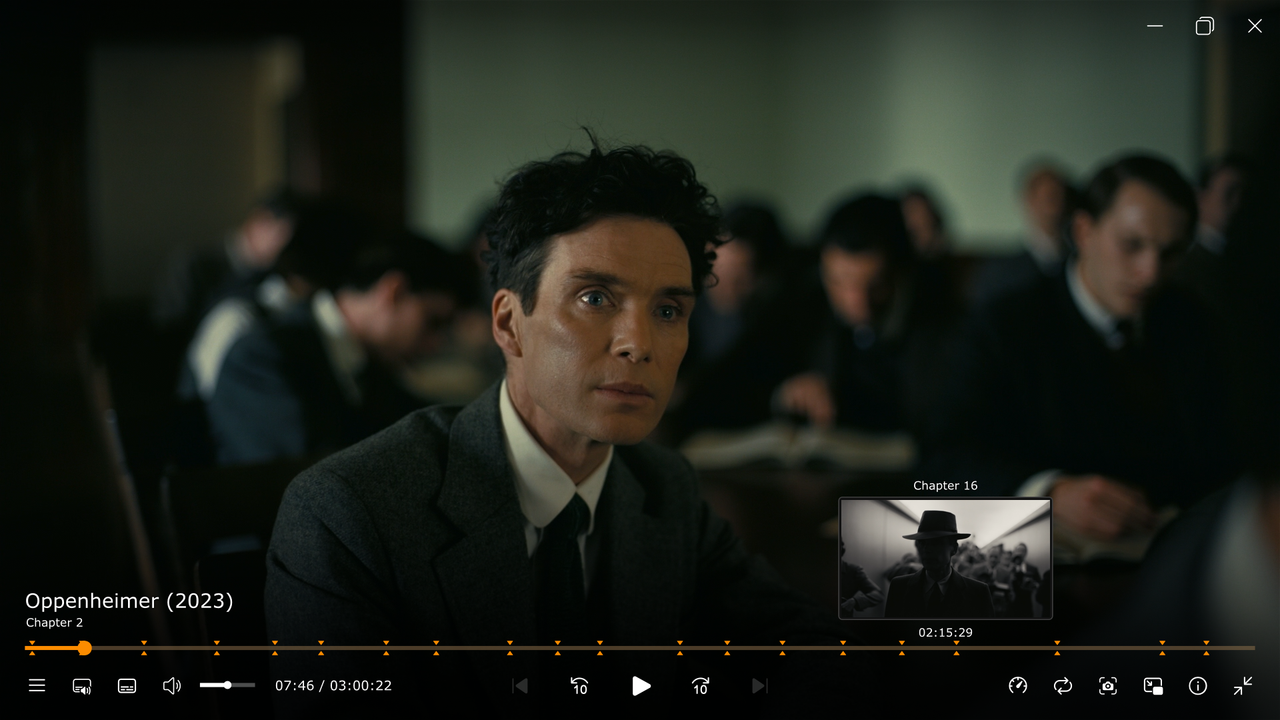
Installation
Windows
Here are the steps to install mpv and to use my configuration files on Windows:
- Download the latest 64bit mpv Windows build by shinchiro from mpv.io/installation or directly from here and extract it wherever you please. This is now your mpv folder
- Run
mpv-install.bat, which is located ininstallerfolder, with administrator priviledges by right-clicking and selecting Run as administrator - Download this repository as a ZIP file (or you can clone it using git)
- Create a folder named
portable_config(this is important), located at the same directory asmpv.exe - Extract or copy the contents of this repository that you have downloaded to the
portable_configfolder - To make some scripts work, you need to modify them from the release a little bit:
- In order for the
mpv-gif.luascript to work, it requires FFmpeg with libass enabled and accessible via terminal. See the installation instructions from the script's source repository for further info. - (Optional) By default, the
mpv-gif.luascript saves GIFs toC:/Program Files/mpv/gifs. To modify this, opengif.conf, which is located inportable_config/script-optsfolder, with a text editor and specify thedir, which is output directory for GIFs, as you please. For exampledir="C:/Users/USERNAME/Pictures/mpv-gifs".
- In order for the
- (Optional) Make your own mpv configuration. You can do that by modifying my configuration files and/or making your own from scratch or modifying others' configurations. Check out the useful links section for mpv configuration guides.
- You're all set up.
Linux
Here are the steps to install mpv and to use my configuration files on Linux:
-
Install mpv and xclip (clipboard CLI interface) using the package manager that comes with your Linux distribution. xclip is needed for copy-time.lua and seek-to.lua scripts to work properly. The package name for mpv and xclip might also vary depending on your Linux distribution. Here, I will make Arch Linux, that comes with
pacmanas its package manager, as an examplesudo pacman -S mpv xclipIf you, for example, use Fedora Linux, that comes with
dnfas its package manager, you can install mpv and xclip with the following command instead.sudo dnf install mpv xclipIf you use other Linux distributions, please refer to the documentation of your Linux distribution's package manager on how to install packages.
-
Download this repository as a ZIP file (or you can clone it using git) and extract/copy it to your standard mpv configuration directory which is
~/.config/mpv -
Some things to highlight:
- In order for the
mpv-gif.luascript to work, it requires FFmpeg with libass enabled and accessible via terminal. See the installation instructions from the script's source repository for further info. - (Optional) By default, the
mpv-gif.luascript saves GIFs to~/Videos/mpv-gifs. To modify this, opengif.conf, which is located inportable_config/script-optsfolder, with a text editor and specify thedir, which is output directory for GIFs, as you please. For exampledir="~/Videos".
- In order for the
-
(Optional) Make your own mpv configuration. You can do that by modifying my configuration files and/or making your own from scratch or modifying others' configurations. Check out the useful links section for mpv configuration guides.
-
You're all set up.
Scripts
Scripts from external sources:
-
audio-visualizer.lua (source)
Various audio visualization. It only works if you open audio files. -
autoload.lua (source)
Automatically load playlist entries before and after the currently playing file, by scanning the directory. -
copy-timestamp.lua (source)
Copies current timecode in HH:MM:SS.MS format to clipboard. Cross-platform (Mac, Windows, Linux). -
cycle-commands.lua (source)
Cycles through a series of commands on a keypress. Each iteration of the cycle can contain as many commands as one wants. Syntax details are at the top of the file. -
cycle-profile.lua (source)
Cycles through a list of profiles sent via a script message and prints the profile-desc to the OSD. More details at the top of the file. -
modernz.lua (source)
A modern OSC UI replacement for MPV that retains the functionality of the default OSC. -
mpv-gif.lua (source)
Script to generate GIFs from video playback. Requires FFmpeg with libass enabled. The exporting GIFs with subtitled currently doesn't work properly. -
playlistmanager.lua (source)
Allows you to see and interact with your playlist in an intuitive way. -
seek-to.lua (source)
Seek to an absolute timestamp specified via keyboard input or pasted from clipboard. -
sponsorblock-minimal.lua (source)
Skip sponsor segments in YouTube videos. -
thumbfast.lua (source)
High-performance on-the-fly thumbnailer for mpv. The script does not display thumbnails on its own, it is meant to be used alongside a UI script that calls thumbfast.
Configuration files for these scripts can be found in the script-opts folder. I also modified some of these scripts' default keybindings. To see my modifications, look for script keybindings in input.conf.
Shaders
The shaders included in the shaders folder:
-
ArtCNN_C4F32 (source)
Used for luma upscaling. -
nnedi3-nns128-win8x4 (source)
Used for luma upscaling.
Use shaders based on your preference and system capabilities. For more info about shaders, read the resources in the useful links section.
Useful Links
- mpv tutorial by The Wiki
- mpv.conf guide by iamscum
- mpv Configuration Guide for Watching Videos by Kokomins
- mpv Resampling by João Vitor Chrisóstomo
Official Links

iina
iina·Swift
macOS 上基于 mpv 的现代视频播放器,用 Swift 编写,界面原生美观,支持几乎所有视频格式,适合替代 QuickTime 日常看片。
视频播放器+4视频播放器
47082+463.0kv1.5.12026-11-10 03:26 UTC
video.js
videojs·TypeScript
开源媒体播放器框架,支持 HTML 和 React,统一处理 HLS、DASH 等流媒体格式,帮你在网页里快速搭出稳定可定制的视频播放器。
视频播放器+4视频播放器
40155+477.5k[email protected]2026-11-10 22:39 UTC
mpv
mpv-player·C
轻量级命令行视频播放器,基于 FFmpeg 解码,支持硬件加速、字幕渲染和脚本扩展,适合在终端或嵌入其他应用中播放音视频。
命令行播放器+4视频播放器
38050+1133.6kv0.42.02026-11-10 16:51 UTC

peach
peach-mitao·Python
本地优先的视频元数据刮削与媒体库管理工具,自动整理影片信息并支持自托管播放,适合搭建个人影音库。
媒体库管理+4视频播放器
14845+1541.7kv0.57.02026-11-10 05:46 UTC