必须预先安装 ffmpeg 和 espeak-ng,否则无法生成 m4b;GUI 需额外安装 pillow、wxpython,Ubuntu 还要 libgtk-3-dev;Windows 建议在 venv 中安装,CUDA 支持需自行按 PyTorch 官网安装对应版本。
sudo apt install ffmpeg espeak-ng
pip install audiblez
audiblez book.epub -v af_sky 硬件要求按 README 说明
默认在 CPU 上运行,M2 MacBook Pro 约 60 字符/秒;加 --cuda 可用 NVIDIA GPU(如 Colab T4 约 600 字符/秒)。README 未说明具体显存要求,且暂不支持 Apple Silicon 的 MLX 加速。
纯 CPU 可运行支持 Apple Silicon需要 CUDA
用 Kokoro 语音模型把 epub 电子书转成 m4b 有声书的命令行工具和图形界面
把 EPUB 电子书转成有声书的 Python 工具,基于 Kokoro 语音合成模型,适合想批量制作个人音频书的人。
核心能力
- 用 Kokoro-82M 模型合成自然语音
- 支持中英西法印意日葡九种语言音色
- 按章节生成 wav 并合并为 m4b
- 可用 --pick 交互选择要朗读的章节
- 支持 0.5~2.0 倍速调节与 --cuda 加速
容易踩的坑
内容由模型根据 README 生成,可能不完整或不准确,以官方文档为准。看原文 README
暂无 release 数据(可能没有发版,或尚未同步)。
用户点评
登录用户的真实使用记录,可按版本和硬件筛选共 0 条
还没有人点评。第一个说出真实体验的人最有价值。
Audiblez: Generate audiobooks from e-books


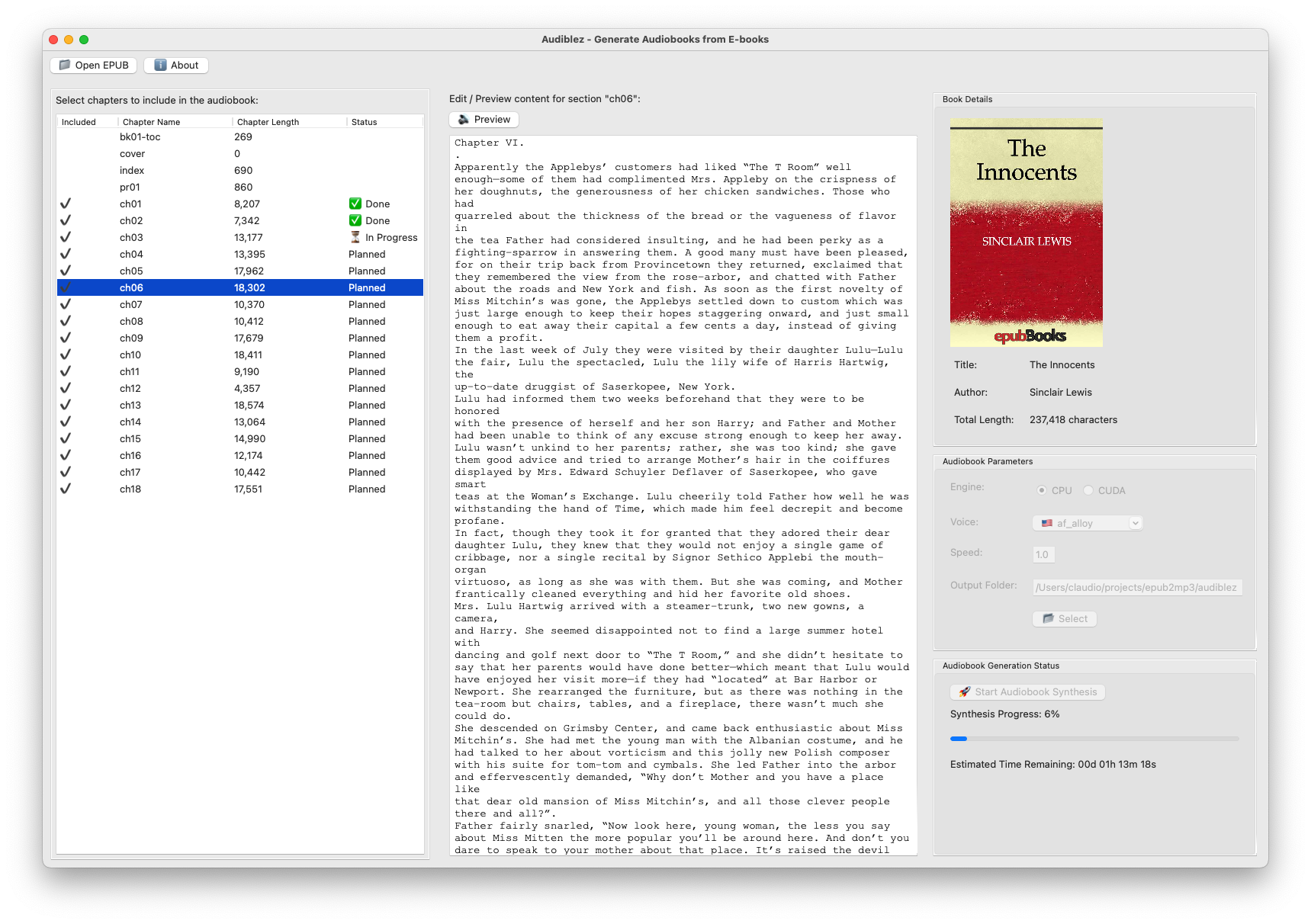
v4 Now with Graphical interface, CUDA support, and many languages!

Audiblez generates .m4b audiobooks from regular .epub e-books,
using Kokoro's high-quality speech synthesis.
Kokoro-82M is a recently published text-to-speech model with just 82M params and very natural sounding output. It's released under Apache licence and it was trained on < 100 hours of audio. It currently supports these languages: 🇺🇸 🇬🇧 🇪🇸 🇫🇷 🇮🇳 🇮🇹 🇯🇵 🇧🇷 🇨🇳
On a Google Colab's T4 GPU via Cuda, it takes about 5 minutes to convert "Animal's Farm" by Orwell (which is about 160,000 characters) to audiobook, at a rate of about 600 characters per second.
On my M2 MacBook Pro, on CPU, it takes about 1 hour, at a rate of about 60 characters per second.
How to install the Command Line tool
If you have Python 3 on your computer, you can install it with pip.
You also need espeak-ng and ffmpeg installed on your machine:
sudo apt install ffmpeg espeak-ng                   # on Ubuntu/Debian 🐧
pip install audiblez
brew install ffmpeg espeak-ng                       # on Mac 🍏
pip install audiblez
Then you can convert an .epub directly with:
audiblez book.epub -v af_sky
It will first create a bunch of book_chapter_1.wav, book_chapter_2.wav, etc. files in the same directory,
and at the end it will produce a book.m4b file with the whole book you can listen with VLC or any
audiobook player.
It will only produce the .m4b file if you have ffmpeg installed on your machine.
How to run the GUI
The GUI is a simple graphical interface to use audiblez. You need some extra dependencies to run the GUI:
sudo apt install ffmpeg espeak-ng
sudo apt install libgtk-3-dev        # just for Ubuntu/Debian 🐧, Windows/Mac don't need this

pip install audiblez pillow wxpython
Then you can run the GUI with:
audiblez-ui
How to run on Windows
After many trials, on Windows we recommend to install audiblez in a Python venv:
- Open a Windows terminal
- Create anew folder:
mkdir audiblez - Enter the folder:
cd audiblez - Create a venv:
python -m venv venv - Activate the venv:
.\venv\Scripts\Activate.ps1 - Install the dependencies:
pip install audiblez pillow wxpython - Now you can run
audiblezoraudiblez-ui - For Cuda support, you need to install Pytorch accordingly: https://pytorch.org/get-started/locally/
Speed
By default the audio is generated using a normal speed, but you can make it up to twice slower or faster by specifying a speed argument between 0.5 to 2.0:
audiblez book.epub -v af_sky -s 1.5
Supported Voices
Use -v option to specify the voice to use. Available voices are listed here.
The first letter is the language code and the second is the gender of the speaker e.g. im_nicola is an italian male voice.
For hearing samples of Kokoro-82M voices, go here
| Language | Voices |
|---|---|
| 🇺🇸 American English | af_alloy, af_aoede, af_bella, af_heart, af_jessica, af_kore, af_nicole, af_nova, af_river, af_sarah, af_sky, am_adam, am_echo, am_eric, am_fenrir, am_liam, am_michael, am_onyx, am_puck, am_santa |
| 🇬🇧 British English | bf_alice, bf_emma, bf_isabella, bf_lily, bm_daniel, bm_fable, bm_george, bm_lewis |
| 🇪🇸 Spanish | ef_dora, em_alex, em_santa |
| 🇫🇷 French | ff_siwis |
| 🇮🇳 Hindi | hf_alpha, hf_beta, hm_omega, hm_psi |
| 🇮🇹 Italian | if_sara, im_nicola |
| 🇯🇵 Japanese | jf_alpha, jf_gongitsune, jf_nezumi, jf_tebukuro, jm_kumo |
| 🇧🇷 Brazilian Portuguese | pf_dora, pm_alex, pm_santa |
| 🇨🇳 Mandarin Chinese | zf_xiaobei, zf_xiaoni, zf_xiaoxiao, zf_xiaoyi, zm_yunjian, zm_yunxi, zm_yunxia, zm_yunyang |
For more detaila about voice quality, check this document: Kokoro-82M voices
How to run on GPU
By default, audiblez runs on CPU. If you pass the option --cuda it will try to use the Cuda device via Torch.
Check out this example: Audiblez running on a Google Colab Notebook with Cuda .
We don't currently support Apple Silicon, as there is not yet a Kokoro implementation in MLX. As soon as it will be available, we will support it.
Manually pick chapters to convert
Sometimes you want to manually select which chapters/sections in the e-book to read out loud.
To do so, you can use --pick to interactively choose the chapters to convert (without running the GUI).
Help page
For all the options available, you can check the help page audiblez --help:
usage: audiblez [-h] [-v VOICE] [-p] [-s SPEED] [-c] [-o FOLDER] epub_file_path

positional arguments:
  epub_file_path        Path to the epub file

options:
  -h, --help            show this help message and exit
  -v VOICE, --voice VOICE
                        Choose narrating voice: a, b, e, f, h, i, j, p, z
  -p, --pick            Interactively select which chapters to read in the audiobook
  -s SPEED, --speed SPEED
                        Set speed from 0.5 to 2.0
  -c, --cuda            Use GPU via Cuda in Torch if available
  -o FOLDER, --output FOLDER
                        Output folder for the audiobook and temporary files

example:
  audiblez book.epub -l en-us -v af_sky

to use the GUI, run:
  audiblez-ui
Author
by Claudio Santini in 2025, distributed under MIT licence.
Related Article: Audiblez v4: Generate Audiobooks from E-books
whisper
openai·Python
OpenAI 开源的通用语音识别模型,基于大规模弱监督训练,支持多语言转写、翻译和语种识别,开箱即用。
语音识别+4语音进阶
112371+23414kv202506252026-08-31 17:19 UTC
GPT-SoVITS
RVC-Boss·Python
只需 1 分钟语音数据就能训练出高质量 TTS 模型,支持少样本音色克隆,适合快速定制个性化语音合成。
语音合成+4语音硬核
64721+2816.8k20250606v2pro2026-11-09 13:59 UTC
Real-Time-Voice-Cloning
CorentinJ·Python
用 5 秒语音样本克隆音色,实时合成任意文本的语音,基于 PyTorch/TensorFlow 的说话人编码与声码器流水线。
语音克隆+4语音进阶
60236+69.4k2026-03-09 10:31 UTC

VoxCPM
OpenBMB·Python
无需分词器的多语言语音合成模型,支持创意音色设计和逼真声音克隆,可直接从文本生成自然语音。
语音合成+4语音进阶
42209+10654.8k2.0.32026-11-09 07:36 UTC