Full 包必须保留 jietuba_pp.exe 与同级 models/ 文件夹,缺一不可;Lite 包在无 Win11 截图工具或版本低于 11.2308 时需先下载 PP-OCR 包才能识别文字;两个包共用设置和剪贴板历史,但不要同时运行

jietuba
1003129155MIT活跃维护一款开源的 Windows 截图工具,支持滚动长截图、标注、OCR 文字识别、翻译、钉图编辑、GIF 录制和剪贴板历史,适合日常截图与图文处理。
Open-source Windows screenshot tool with scrolling capture, annotation, OCR, translation, pinned-image editing, GIF recording and clipboard history. 开源 Windows 截图工具:长截图、标注、OCR、翻译、钉图编辑、GIF 录制与剪贴板历史。
release-2.2.2发布于 2026-11-05 08:18 UTC566star +3 / 7 天62fork同步于 2026-11-10 23:56 UTC
下载 Releases 页的 -x64.zip 或 -arm64.zip,解压整个压缩包后双击其中的 exe 硬件要求按 README 说明
Windows x64 与 ARM64;README 未提及显存或 GPU 要求,OCR 走 CPU 推理
纯 CPU 可运行
Windows 开源截图工具,把截图、钉图、剪贴板历史连成一条流程,免安装解压即用
一款开源的 Windows 截图工具,支持滚动长截图、标注、OCR 文字识别、翻译、钉图编辑、GIF 录制和剪贴板历史,适合日常截图与图文处理。
核心能力
- 截图自动吸附窗口和控件,提供十余种可撤销标注工具
- 四向长截图拼接并支持自动滚动,回滚只重新定位
- 内置离线 OCR,可选 Win11 截图工具 OCR 与 PP-OCR 双引擎
- 钉图支持文字、图片、文件,可缩放、标注、取字和翻译
- 剪贴板记录所有来源内容,支持分组收藏、搜索过滤和批量拖出
容易踩的坑
内容由模型根据 README 生成,可能不完整或不准确,以官方文档为准。看原文 README
- release-2.2.2最新正式版2026-11-05 · 2026-11-05 08:18 UTC
What's Changed
新功能
1.文字识别能认出表格,可以在「文本 | 表格」之间切换,按表格复制,粘进 Excel 和文档时保留合并的格子(#41、#53、#145)。
2.识别出的表格可以直接编辑:插入或删除行列、合并或拆分格子、粘贴、撤销重做;带行号和列标,Ctrl+滚轮缩放,选中格子时显示求和、平均值和计数。
3.文字识别窗口可以对照原图,在原图上直接选字,右侧选中的文字在原图上高亮。
4.截图里按 Ctrl+S 保存,按 Ctrl+Shift+S 快捷保存,不弹窗直接存进保存文件夹。
5.屏幕标注可以跨屏画、跨屏拖动。
6.文件钉图的文件夹格可以拖入文件。
7.首次启动向导改为五页,配上功能演示,新增绿色模式(设置保存在程序所在文件夹)。
改进
全局快捷键按截图、钉图、剪贴板、翻译、屏幕标注排序,新装默认依次是 Ctrl+1 到 Ctrl+5,老用户的快捷键不变。
翻译小窗新增「点击窗口外时关闭」(#153)。
剪贴板齿轮菜单新增「「全部」中隐藏已分组内容」(#154)。
剪贴板窗口里的路径文本会按文件钉图。
剪贴板历史少占几十 MB 内存,缩略图缓存不再无限增长(#155)。
设置窗口的剪贴板页补齐了剪贴板窗口里的选项。
文字识别窗口默认更大,可以复制后关闭,普通文本结果也能缩放。
修复
修复画面有细微抖动或连续快速滚动时,长截图接不上的问题(#152)。
修复快捷保存的文件名多出格式前缀、也不按设置的格式保存的问题。
修复在钉图上横向拖过表格的一行时,中间的格子选不上的问题。
修复剪贴板分组内搜索和筛选漏掉条目的问题。
修复剪贴板历史搜索对非英文字母区分大小写的问题。
修复设置里改了目标语言后,开着的翻译窗口不跟着变的问题。
修复截图附带的文件路径粘不进 OneNote 的问题。
New
-
Text recognition can recognize tables: switch between "Text | Table", copy as a table, and merged cells are kept when pasting into Excel and documents (#41, #53, #145).
-
Recognized tables can be edited directly: insert or delete rows and columns, merge or split cells, paste, undo and redo; with row numbers and column letters, Ctrl+wheel zoom, and sum, average and count for the selected cells.
-
The text recognition window can show the original image; select text right on the image, and text selected on the right is highlighted on the image.
-
In a screenshot, Ctrl+S saves and Ctrl+Shift+S quick-saves straight to the save folder without a dialog.
-
Screen annotation can draw and drag across screens.
-
Files can be dropped onto the folder cells of a file pin.
-
The first-run wizard is now five pages with feature demos, and adds portable mode (settings kept in the program's folder).
Improvements
Global shortcuts are ordered as Screenshot, Pin, Clipboard, Translation, Screen Annotation; new installs default to Ctrl+1 through Ctrl+5, and existing users keep their shortcuts.
The translation popup has a new "Close When Clicking Outside" (#153).
The clipboard gear menu has a new "Hide Grouped Items from All" (#154).
Path text in the clipboard window is pinned as files.
Clipboard history uses tens of MB less memory, and the thumbnail cache no longer grows without limit (#155).
The Clipboard page of the settings now has all the options from the clipboard window.
The text recognition window is larger by default, can close after copying, and plain text results can be zoomed too.
Fixes
Fixed long screenshots failing to stitch when the picture jitters slightly or when scrolling quickly in a row (#152).
Fixed quick save adding the format to the front of the file name and not saving in the format set.
Fixed the cells in the middle being left out when dragging across a table row on a pin.
Fixed search and filters inside clipboard groups missing entries.
Fixed clipboard history search being case-sensitive for non-English letters.
Fixed open translation windows not following a target language changed in the settings.
Fixed file paths attached to screenshots not pasting into OneNote.
Full Changelog: https://github.com/1003129155/jietuba/compare/release-2.2.1...release-2.2.2
-
- release-2.2.12026-10-30 · 2026-10-30 04:05 UTC
查看更新说明
What's Changed
新功能
1.剪贴板里的文字可以钉成文字钉图,能整体缩放和标注,双击选词、三击选整段。
2.图片钉图按 T(「钉成文字」)会把识别出的文字另钉成一张文字钉图,放在原图旁边,原来的「文字模式」随之去掉。
3.序号可以拉出指引箭头,旁边加说明文字,移动时一起走(#143)。
4.马赛克新增「智能擦除」(#139)。
5.剪贴板窗口换成一行一条的新样式,预置「收藏」和「图片」分组,左右方向键直接切换分组,按钮图标统一并跟随主题(#144)。
6.钉图热键能钉图片文件、动图和文件,剪贴板里的文件和多选条目也能钉图;文件钉图能像在文件夹里一样选中和打开。
7.钉图上按住 Ctrl 可以把内容拖到别的程序。
8.设置窗口可以搜索设置项。
改进
屏幕标注打开白板时,置顶的钉图留在白板上面,可以直接在钉图上标注(#142)。
再次钉同样的内容时,已经开着的那张钉图会抖一下并移到最前,不再重复打开;可在设置「钉图」页关闭「提示重复钉图」。
托盘菜单新增「隐藏所有钉图」。
钉图和录屏的画笔也能撤销,并能用工具快捷键切换工具。
钉图可以隐藏标注。
截图时可以用剪贴板往文字框里输入。
钉图缩放每一格都立即清晰,钉长文字和大图时打开、缩放更快。
钉图缩放总能回到 100%,最小边从 50 像素降到 30;钉图有一边不足 30 像素时先确认再钉。
剪贴板搜索快捷键可以自定义;悬停预览改为后台加载,也能预览图片文件;切换筛选分组不再卡顿。
长截图时鼠标停在预览上,预览会变淡。
修复
修复钉图缩小后,复制和另存为得到的是缩小发糊的图的问题。
修复截图后钉图的上下顺序被打乱的问题。
修复几个窗口叠在一起时,按键被截图窗口抢走的问题。
修复钉成文字后字号比原图偏小的问题。
修复截图刚出现时抢走正在输入的文字框焦点的问题。
修复慢慢拖动标注后,撤销回不到原位的问题。
修复剪贴板用滚轮滚动时,预览停在旧行的问题。
修复横向长截图的预览压住滚动条的问题。
New
-
Text in the clipboard can be pinned as a text pin, which can be zoomed and annotated as a whole; double-click selects a word and triple-click a paragraph.
-
Pressing T ("Pin as Text") on an image pin pins the recognized text as a new text pin next to the original; the old "Text Mode" is removed.
-
Numbers can pull out a pointer arrow with a caption beside it, and they move together (#143).
-
Mosaic has a new "Smart Erase" (#139).
-
The clipboard window has a new one-entry-per-row style, preset "Favorites" and "Images" groups, Left/Right arrow keys to switch groups, and unified button icons that follow the theme (#144).
-
The pin hotkey can pin image files, animated images and files, and clipboard files and multiple selected entries can be pinned too; file pins can be selected and opened like in a folder.
-
Hold Ctrl on a pin to drag its content into another program.
-
The settings window can search for settings.
Improvements
With the whiteboard on in screen annotation, topmost pins stay above it and can be annotated directly (#142).
Pinning the same content again shakes the pin that is already open and brings it to the front instead of opening another; turn off "Point Out Repeats" on the "Pin" page of the settings.
The tray menu has a new "Hide all pins".
The pen on pins and in recordings can undo and switch tools with the tool shortcuts.
Pins can hide their annotations.
During a screenshot, the clipboard can type into the text box.
Every zoom step on a pin is sharp right away, and long text and large images open and zoom faster.
Pin zoom always returns to 100%, and the smallest side goes down from 50 to 30 pixels; a pin with a side under 30 pixels asks before pinning.
The clipboard search shortcut can be customized; hover previews load in the background and also show image files; switching filter groups no longer stutters.
The long screenshot preview fades while the mouse is over it.
Fixes
Fixed copying and saving a zoomed-out pin giving the shrunken, blurry image.
Fixed screenshots changing the stacking order of pins.
Fixed keys being taken by the screenshot window when several windows overlap.
Fixed text from "Pin as Text" coming out smaller than in the image.
Fixed a new screenshot taking the focus from a text box being typed in.
Fixed undo not returning a slowly dragged annotation to where it was.
Fixed the clipboard preview staying on the old row when scrollin
-
- release-2.2.02026-10-26 · 2026-10-26 00:03 UTC
查看更新说明
What's Changed
新功能
1.OCR 能识别倾斜的文字、超长的行和长图(#125)。
2.长截图工具栏新增「文字识别」和「保存到文件」按钮,可以直接识别整张长图,或手动保存到文件(#133)。
3.全局鼠标快捷键新增「扫码(二维码 / 条形码)」,按住修饰键拖选区域即可识别,默认不绑定(#129,感谢 @LowValueTarget777)。
4.翻译设置新增「朗读」,每种语言可选音色,可调语速和音量,改完能先试听(#127)。
5.箭头新增折弯点,可以拖出 S 形曲线。
6.录屏时工具栏可以不被录进视频,在设置「截图」页「录屏」中开关,默认开启(#130)。
改进
剪贴板窗口可以在上次的位置打开,在齿轮菜单或设置「剪贴板」页的「窗口位置」中选择(#128)。
剪贴板「数据管理」新增「单文件数据库」开关,数据库放在 OneDrive 等同步盘上时更稳。
剪贴板里的图片文件不在时,预览、钉图、另存为和拖出改用数据库里保存的图片。
装上或更新截图工具后,不用重启就能使用截图工具 OCR。
智能选区移动时不再在控件和整个窗口之间来回闪。
全屏截图和全屏录制时,工具栏放在选区内的底部,不再挡住屏幕边缘的内容。
GIF 工具栏的尺寸和图标与截图工具栏统一。
设置窗口每次打开时,剪贴板占用、OCR 引擎列表和翻译用量都显示最新状态。
开机自启动在任务管理器里被禁用时,设置里会给出提示。
截图设置页按使用顺序重新排列。
程序图标重新生成,去掉白底,各尺寸更清晰。
修复
修复导出的 GIF 时长随帧率偏快的问题(16/24fps 约快 4%)。
修复 Windows 10 2004 之前的系统上,录屏、长截图和屏幕标注的工具栏被录成黑块的问题。
修复保存图片窗口里,预览图盖住顶部「调整后 / 原图 / 对比」按钮的问题。
修复设置窗口拖到最窄时,卡片标题被截断的问题。
New
-
OCR recognizes tilted text, very long lines and long images (#125).
-
The long screenshot toolbar has new "Recognize text (OCR)" and "Save to file" buttons, to recognize the whole long image or save it to a file by hand (#133).
-
Global mouse shortcuts have a new "Scan QR code / barcode": hold the modifier key and drag over an area to read the codes in it; not bound by default (#129, thanks @LowValueTarget777).
-
The translation settings have a new "Read Aloud" group: choose a voice for each language and set the speech rate and volume, with a preview before saving (#127).
-
Arrows have new bend points for dragging out S-shaped curves.
-
The recording toolbar can stay out of the video; switch it under "Screen Recording" on the "Screenshot" page of the settings, on by default (#130).
Improvements
The clipboard window can open where it was last, chosen under "Window Position" in the gear menu or on the "Clipboard" page of the settings (#128).
Clipboard "Data" has a new "Single-File Database" switch, which keeps a database on a sync folder such as OneDrive more reliable.
When a clipboard image file is missing, preview, pin, save as and drag out use the image stored in the database.
After the Snipping Tool is installed or updated, its OCR works without restarting.
Smart selection no longer flickers between a control and the whole window while moving, and browser windows snap to a control on the first try.
Full-screen captures and recordings place the toolbar inside the selection along its bottom, so it no longer covers content at the screen edge.
The GIF toolbars match the capture toolbar in size and icons.
Each time the settings window opens, the clipboard storage size, OCR engine list and translation usage are up to date.
When autostart is turned off in Task Manager, the settings say so.
The Screenshot page of the settings is reordered by how often things are used.
The program icon was regenerated without the white background, sharper at every size.
Fixes
Fixed exported GIFs playing faster than recorded at some frame rates (about 4% at 16/24 fps).
Fixed the recording, long screenshot and screen annotation toolbars being recorded as black boxes on Windows versions before Windows 10 2004.
Fixed the preview in the Save Image window covering the "Adjusted / Original Image / Compare" buttons at its top.
Fixed card titles being cut off when the settings window is dragged to its narrowest.
Full Changelog: https://github.com/1003129155/jietuba/compare/release-2.1.9...release-2.2.0
-
- release-2.1.92026-10-22 · 2026-10-22 07:08 UTC
查看更新说明
What's Changed
新功能
1.设置改存在 settings.ini 文件里,默认位置不在exe根目录,但是放在根目录也会正常读取。因为不想放在桌面上的用户双击后发现多了一个文件 复制程序文件夹即可带走设置;老用户首次启动会自动把原来的设置复制过去,退回旧版照常可用。
2.钉图新增「文字模式」(快捷键 T),把钉图原位换成可编辑的识别文字,钉图关闭前来回切换不丢改动。
改进
设置「其他」页显示正在使用的设置文件并可直接打开;「导入设置」可以选另一份 settings.ini 或旧版导出的文件,原来的「导出设置」去掉。
剪贴板更改「数据存储位置」时,如果目标文件夹已有剪贴板数据,可以直接改用那里的数据,不必覆盖。
钉图「文字选择」新增快捷键 P;快捷键优先作用于有焦点的钉图,有焦点的钉图边框以主题色标出。
智能选区可以识别 VS Code 等 Electron 应用窗口里的控件。
拖动矩形的圆角后,之后新画的矩形沿用这个圆角。
长截图切换竖向/横向时,从当前画面按新方向重新拼接。
修复
修复长截图预览变长时闪烁的问题。
修复横向长截图在 Chrome 里接两帧就断开的问题。
修复钉图选字时连带选中相邻行的问题。
修复 GIF 回放时满屏噪点,以及暂停时调整大小后继续播放画面错位的问题。
修复特殊粘贴「首字母大写」在撇号、数字后另起一词的问题(they're 变成 They'Re)。
New
-
Settings are now stored in a settings.ini file; put a settings.ini next to the exe and the program uses it, so copying the program folder takes the settings along. On first start, existing users' settings are copied over automatically, and going back to the previous version still works.
-
Pins have a new "Text mode" (shortcut T) that turns the pin into editable recognized text in place; switching back and forth keeps the edits until the pin is closed.
Improvements
The "Other" page of the settings shows the settings file in use and can open it; "Import Settings" accepts another settings.ini or a file exported by earlier versions, and "Export Settings" has been removed.
When changing the clipboard "Data Storage Location" to a folder that already holds clipboard data, you can switch to that data instead of overwriting it.
Pin "Text selection" has a new shortcut P; shortcuts go to the pin with focus first, and the focused pin's border is shown in the theme color.
Smart selection recognizes controls inside Electron apps such as VS Code.
After dragging a rectangle's corner radius, new rectangles keep that radius.
Switching a long screenshot between vertical and horizontal restitches from the current view in the new direction.
Fixes
Fixed the long screenshot preview flickering as it grows.
Fixed horizontal long screenshots in Chrome breaking off after two frames.
Fixed selecting text on a pin also selecting the neighboring line.
Fixed full-screen noise during GIF playback, and a misaligned picture when resuming after resizing while paused.
Fixed Special Paste "Capitalize Words" starting a new word after apostrophes and digits (they're became They'Re).
Full Changelog: https://github.com/1003129155/jietuba/compare/release-2.1.8...release-2.1.9
-
- release-2.1.82026-10-21 · 2026-10-21 04:09 UTC
查看更新说明
What's Changed
新功能
1.改由 C++ 构建,和轻量版一样体积更小、启动更快;Python 版不再更新,老用户一键更新设置和剪贴板历史都会保留。
2.新增屏幕标注,可以在整个屏幕上用画笔、荧光笔、箭头、序号、矩形、椭圆和文字标注,还有白板和光标高亮,从托盘或快捷键开始,在设置「屏幕标注」页调整(#93)。
3.新增「玩游戏时暂停热键」,游戏在前台或独占全屏时自动暂停全局快捷键和鼠标快捷键,在托盘菜单里开关(#112)。
4.新增「以管理员身份运行」,开启后在任务管理器等管理员窗口上也能截图和用快捷键,在设置「其他」页的「开机自启」下方(#98)。
5.剪贴板里的文字、图片和文件可以直接拖到桌面、资源管理器或其他程序,勾选的多条可以一起拖出(#115,感谢 @LowValueTarget777)。
6.剪贴板多选重做:勾选后每行显示圆圈,单击切换勾选,底部横幅可以一起粘贴、另存为或做更多操作;文本、图片和文件都可以另存为。
7.剪贴板能识别链接、颜色和文件路径,链接可以在浏览器中打开,路径可以作为文件粘贴。
8.剪贴板新增筛选分组,按内容类型或来源应用只看一部分历史;新增快速启动分组,放文件、文件夹或链接,点一下就打开(#93)。
9.剪贴板 ⚙ 菜单新增「最多显示行数」,每条内容可以显示多行(#114)。
10.新的保存图片窗口带预览,可以选格式、调质量和尺寸,并预估文件大小;在设置「截图」页的「保存对话框」里可以改回系统对话框。
11.新的取色器,可以从屏幕取色(悬停实时预览)和按通道输入;在设置里也可以改回经典样式。
12.翻译窗口可以朗读原文和译文。
13.新增繁体中文界面。
14.托盘新增「延时截图」,倒计时结束后再开始截图。
改进
设置窗口改为即时保存,改完直接生效,不再需要点「应用」;每页都可以「重置此页面」;「快捷行为」并入截图页,「截图设定」改名为「截图」。
托盘菜单显示各功能的快捷键,新增「记录剪贴板」开关,钉图相关操作收进一个子菜单。
剪贴板管理窗口改版,并按所在屏幕决定大小。
钉图里的文字选择改为按识别引擎给出的逐字位置,选字更准。
智能选区的控件检测改为按鼠标所在位置识别,截图一打开就显示鼠标所在窗口的选区;「检测方式」改名为「检测精度」。
全局鼠标和键盘钩子改由 C++ 实现。
首次启动向导扩充到 8 页,补上鼠标快捷键、屏幕标注和玩游戏时暂停热键等新功能。
日文、韩文界面逐条校对,并补齐缺失的翻译。
完整版在 models 文件夹不可写时,把 OCR 运行库放到用户目录,PP-OCR 照常可用。
修复
修复按 Esc 退出截图后,下次截图第一帧闪出上次鼠标样式的问题。
修复切换标注工具时设置面板闪一下的问题。
修复设置窗口移出所有屏幕后找不回来的问题。
修复开关按钮的圆点位置偏上的问题。
New
-
The Full edition is now built from C++ too, smaller and faster to start like the Lite edition; the Python version is no longer updated, and the one-click update replaces it with the C++ version and keeps settings and clipboard history.
-
Screen annotation: draw on the whole screen with the pen, highlighter, arrow, numbers, rectangle, ellipse and text, with a whiteboard and cursor highlight; start it from the tray or a shortcut, and adjust it on the Screen Annotation page of Settings (#93).
-
"Pause Hotkeys While Gaming": global shortcuts and mouse shortcuts pause while a game is in the foreground or in exclusive full screen; switch it in the tray menu (#112).
-
"Run as Administrator" makes captures and shortcuts work over administrator windows such as Task Manager; it is under "Launch at Startup" on the Other page of Settings (#98).
-
Text, images and files in the clipboard can be dragged straight to the desktop, File Explorer or other programs, and checked items can be dragged out together (#115, thanks @LowValueTarget777).
-
Clipboard multi-select is reworked: rows show circles once something is checked, a click toggles a row, and the bar at the bottom pastes, saves or does more with the checked items; text, images and files can all be saved.
-
The clipboard recognizes links, colors and file paths; links open in the browser and paths can be pasted as files.
-
Clipboard filter groups show only part of the history by content type or source app, and quick launch groups hold files, folders or links that open with one click (#93).
-
The clipboard ⚙ menu gains "Max Display Lines", so each item can show several lines (#114).
-
A new save image window with a preview le
-
用户点评
登录用户的真实使用记录,可按版本和硬件筛选共 0 条
还没有人点评。第一个说出真实体验的人最有价值。
jietuba
Screenshot, Screen Drawing, OCR, Pin, Translation & Clipboard Tool for Windows




Download for Windows · Build from Source · Development and Tests
简体中文 | 繁體中文 | English | 日本語 | 한국어
Overview
jietuba is a free, open-source screenshot and productivity tool for Windows, bringing screenshot annotation, screen drawing, OCR, translation, pinning, recording and clipboard history together. Screenshots, pins and the clipboard are connected, so anything you capture is easy to find again and reuse.
Screenshot ⇄ pin ⇄ clipboard, seamlessly connected
Send a capture to history and pin it back to the screen in one click. Keep annotating, extract text and copy it back to the clipboard: three tools working together in one smooth flow.
- A full screenshot toolkit, a smooth experience: snap to windows and controls, with more than a dozen annotation tools at hand, plus four-way scrolling capture, auto-scroll, multiple monitors, mixed DPI and HDR capture.
- Pin anything: keep what you need on screen in one click: text, images or files. Zoom, annotate, grab text and translate as you work.
- Clipboard: record everything: not just your own screenshots. Anything copied from any source goes into history. Organize it into groups and favorites, search, filter and drag multiple items out. Find important content whenever you need it, drag anything into the window you want, or pin it on screen.
- Fast, fluid and light on memory: deeply optimized for quick responses and smooth operation, even in demanding workflows on low-end PCs. Measured resident memory (working set) drops to around 3 MB when idle, and stays low under heavy use as well. No installation needed: unzip and run.
It is written in C++ (Qt6), with image processing, clipboard access, the PP-OCR engine and other core parts in Rust, and runs on Windows x86_64 and ARM64. The earlier Python (PySide6) implementation is archived on the archive/python branch and no longer updated.
Features
Also:
- Code scanning: reads several QR codes and barcodes in a selection at once.
- Global mouse shortcuts: hold modifiers and drag to capture, pin, recognize text, translate or scan QR codes / barcodes straight away.
- And more: PDF export, watermarks, delayed capture, five interface languages (Simplified and Traditional Chinese, English, Japanese, Korean).
Download and Run
- Open the Releases page and download the archive ending in
-x64.zipor-arm64.zipfor your device. No runtime needs installing. - Extract the entire archive and double-click the exe inside.
Full jietuba_pp-…zip | Lite jietuba_lite-…zip | |
|---|---|---|
| Contents | jietuba_pp.exe and the models/ folder beside it (keep both) | A single jietuba_lite.exe |
| OCR engines | Snipping Tool OCR + bundled PP-OCR; recognition also works without the system Snipping Tool | Windows 11 Snipping Tool OCR by default; download the PP-OCR pack in Settings if needed |
| Best for | Windows 10, or OCR that works out of the box | Windows 11 and a smaller download |
Both packages select an available engine automatically, preferring Windows 11 Snipping Tool OCR and otherwise trying PP-OCR; you can select an engine under OCR Settings. Supported languages depend on the engine and model; the bundled PP-OCRv6 small model supports Chinese, English and Japanese. Without the Snipping Tool, or with a version older than 11.2308 (no "Text actions"), Lite needs a working Snipping Tool OCR installation or the PP-OCR pack before it can recognize text.
[!NOTE] Windows may display a warning after you download the program through a browser. If prompted, click More info, then Run anyway.
[!WARNING] Both packages share settings and clipboard history, so you can switch between them, but do not run both at once: the default hotkeys conflict.
[!TIP] Settings are kept in
%APPDATA%\Jietuba\settings.ini. Put asettings.ininext to the exe (an empty file is enough) and the program uses that one instead, so copying the program folder takes the settings along. Settings that only make sense on this computer, such as the screenshot save folder, the clipboard history location and autostart, stay in the registry; the clipboard history is in%APPDATA%\pyclipboardby default and can be moved on the Clipboard page of the settings.
Updates
After installing the first release containing the updater, use About → Check for Updates → Update and Restart. It downloads the matching GitHub Release ZIP, replaces only the application EXE, and restarts. Settings, clipboard history, models and other files remain intact. Finish recording, exporting and saving before installation. The last application backup is kept under .jietuba-update/; see updater recovery. Python builds older than 2.1.8 switch to the C++ build through the one-click update, keeping settings, clipboard history and models.
PP-OCR Pack (Lite)
Lite includes PP-OCR's pre- and post-processing but not ONNX Runtime or models. Download them under Manage PP-OCR Models in Settings: models come from ModelScope; ONNX Runtime is extracted from Microsoft's onnxruntime wheel, using PyPI or a mirror. Downloads are checked against the sizes and hashes in the built-in catalog. Choose from PP-OCRv6, PP-OCRv5 and language-specific recognizers, or add a local ONNX file. Downloading, adding and switching need no restart.
You can also place the files by hand in the models/ folder beside the exe: PP-OCRv6_det_small.onnx and PP-OCRv6_rec_small.onnx (both are in the repository's models/), plus a CPU-only onnxruntime.dll of ONNX Runtime 1.24 or later.
Code Signing Policy
The Windows release executables, jietuba_pp.exe and jietuba_lite.exe, are built by GitHub Actions from the C++ source in this repository's cpp/. The release workflow supports code signing through SignPath; signing depends on the build configuration. Check the EXE's digital signature and the notes for that release.
Free code signing provided by SignPath.io, certificate by SignPath Foundation.
- Committer, reviewer and approver: @1003129155
- External contributions are submitted as pull requests and merged only after review by the maintainer.
Privacy
Capture, OCR, annotation, recording and clipboard history are processed and stored on your computer. Every network feature requires a manual action from you; the app never connects automatically. These features include:
- Everyday capture, OCR recognition and clipboard recording do not require uploading your content. PP-OCR needs local models and ONNX Runtime before recognition.
- Translation sends the text to the service selected in Settings, using the credentials you configure; that service's privacy policy applies. A custom OpenAI-compatible endpoint can also point to a service on your own computer, in which case the text goes to that local endpoint.
- When you check for or install updates under About → Check for Updates, the program contacts GitHub to read release information and download the release package.
- Downloading models or ONNX Runtime in Manage PP-OCR Models contacts ModelScope, PyPI or mirrors listed in the built-in catalog. These requests download components; they do not upload images for recognition.
- Testing a translation connection or fetching a model list contacts the service endpoint you configure. Connection tests send fixed sample text; fetching a model list does not send clipboard content.
Build from Source
You need Visual Studio's "Desktop development with C++" workload (including CMake), the Rust MSVC toolchain and the Qt 6.11 MSVC SDK. In PowerShell, from cpp/:
python -m venv .tools
.\.tools\Scripts\python.exe -m pip install py7zr==1.1.4
.\.tools\Scripts\python.exe scripts\install_qt.py   # downloads the Qt SDK into .sdk/
.\build.cmd                                         # builds, tests and deploys to dist/Release
If you already have a Qt 6 MSVC x64 SDK, use .\scripts\build.ps1 -QtRoot C:\Qt\6.11.0\msvc2022_64; -SkipTests skips the tests and -Configuration Debug builds Debug. Run run.cmd when the build finishes.
The released single-file builds link Qt and the MSVC runtime statically, so neither needs a separate installation. OCR models and ONNX Runtime are described in the component-pack section above. Build a static Qt SDK from Qt's official sources with .\scripts\build_static_qt.ps1, then:
.\build.cmd -Static          # Lite: dist/Release-static/jietuba_lite.exe
.\build.cmd -Static -Full    # Full: dist/Release-static-full/jietuba_pp.exe, embeds ONNX Runtime and ships the default PP-OCR models
The ARM64 build is cross-compiled on x64: build the x64 static Qt first, then run .\scripts\build_static_qt.ps1 -Arch arm64 and .\build.cmd -Static -Arch arm64. It needs Visual Studio's MSVC ARM64 build tools and rustup target add aarch64-pc-windows-msvc. The version number comes from the repository's VERSION file.
The PP-OCR models are in the repository's models/ directory: PP-OCRv6_det_small.onnx and PP-OCRv6_rec_small.onnx. Snipping Tool OCR uses files from the local Windows 11 Snipping Tool, copied to %LOCALAPPDATA%\Jietuba\oneocr on first use; nothing else needs to be downloaded.
Development and Tests
.\build.cmd builds and runs all the tests. Tests whose names end in _desktop inject real keyboard and mouse input, register global hotkeys and capture the screen, so leave the mouse and keyboard alone while they run. To run only the tests that need no desktop:
$env:PATH = "$PWD\.sdk\6.11.0\msvc2022_64\bin;$env:PATH"
ctest --test-dir build\msvc -C Release --output-on-failure -E "_desktop$|_windows_parity$"
The test programs run in a temporary sandbox and never read or write your own settings, clipboard history or logs. There are also analysis builds (scripts\check.ps1: AddressSanitizer, code analysis, leak detection) and coverage (scripts\coverage.ps1).
C++ CI builds every pull request, runs offscreen tests and checks line coverage. Desktop tests run separately and their failures do not block that check. When rust_libs/ changes, Rust CI runs Rust unit tests and rechecks third-party notices.
Releases are made by build.yml: the tag must be release-<version in the VERSION file>. lite.yml builds Lite and Full for x64 and ARM64; the release workflow signs them when configured and packages them as jietuba_lite-<tag>-<arch>.zip and jietuba_pp-<tag>-<arch>.zip.
Directory Structure
# Project root
├── README.md / README_zh-CN.md / README_zh-TW.md / README_JA.md / README_KO.md   # English, Chinese, Japanese and Korean documentation
├── VERSION                  # Version number, read by CMake and the release workflow
├── app.ico                  # Application and updater icon
├── licenses/                # Third-party licenses shipped with the release packages
│
├── cpp/                     # C++ (Qt6) implementation
│   ├── src/                 # Source, organized as <package>/<module>
│   │   ├── annotation/      # Live screen annotation — one layer over every screen, pass-through, drawings move across screens
│   │   ├── barcode/         # QR code and barcode recognition (zxing-cpp)
│   │   ├── canvas/          # Canvas — editing core, undo, layers
│   │   ├── capture/         # Capture — screenshots, window and element detection
│   │   ├── clipboard/       # Clipboard manager — history, groups/quick launch, import/export, search
│   │   ├── core/            # Core — bootstrap, logging, resources, theme, i18n, hotkeys
│   │   ├── gif/             # GIF/MP4 recording, GIF editing, playback, export
│   │   ├── ocr/             # Snipping Tool OCR and PP-OCR
│   │   ├── pin/             # Pins — text, images, files, annotation, OCR and translation
│   │   ├── settings/        # Unified settings
│   │   ├── stitch/          # Long screenshot stitching
│   │   ├── text_recognition/ # OCR result layout
│   │   ├── tools/           # Drawing tools — pen, rectangle, arrow, text, mosaic and more
│   │   ├── translation/     # Multi-provider translation and read-aloud
│   │   ├── ui/              # UI components, capture window, toolbar, settings window
│   │   └── video/           # MP4 recording worker
│   ├── native/              # C interface to rust_libs, linked statically
│   ├── resources/           # Default settings, UI translations (XML and .qm), log messages
│   ├── scripts/             # Build, Qt SDK setup, translation compiling
│   └── tests/               # QtTest tests and reference data
│
├── rust_libs/               # Rust libraries, linked statically into the C++ build through cpp/native
│   ├── gifrecorder/         # GIF frame storage, playback and encoding
│   ├── longstitch/          # Long screenshot stitching algorithm
│   ├── pyclipboard/         # Low-level clipboard operations
│   ├── ppocr_rust/          # PP-OCR (PaddleOCR) ONNX recognition engine
│   ├── hdrcapture/          # HDR desktop capture
│   ├── updater/             # Standalone updater that replaces only the application EXE
│   └── video_recorder/      # Media Foundation recording and WASAPI system audio capture
│
├── models/                  # PP-OCR ONNX models (shipped with the Full package)
│   ├── PP-OCRv6_det_small.onnx   # Text detection model (DBNet)
│   └── PP-OCRv6_rec_small.onnx   # Text recognition model (CRNN/CTC)
│
└── svg/                     # SVG icons
Module Details
Module-by-module details are in docs/MODULES.md.
License
Copyright and the MIT license are in LICENSE; Qt and other third-party components are described in THIRD-PARTY-NOTICES.md.
PaddleOCR
PaddlePaddle·Python
轻量级 OCR 工具包,能把图片和 PDF 转成结构化数据,支持 100 多种语言,方便接入 LLM 和 RAG 流程。
OCR+4文档解析 / OCR进阶
92537+15112kv3.7.02026-09-16 03:31 UTC

MinerU
opendatalab·Python
把 PDF、Office 等复杂文档转成 LLM 可直接用的 Markdown/JSON,内置版面分析和 OCR,专为 RAG 与 Agent 工作流准备语料。
文档解析+4文档解析 / OCR进阶
83452+1976.9kmineru-4.2.0-released2026-11-10 17:04 UTC
tesseract
tesseract-ocr·C++
老牌开源 OCR 引擎,用 LSTM 识别图片中的文字,支持上百种语言,适合做文档扫描和文本提取。
OCR引擎+4文档解析 / OCR进阶
77449+5011k5.5.42026-11-10 18:26 UTC
docling
docling-project·Python
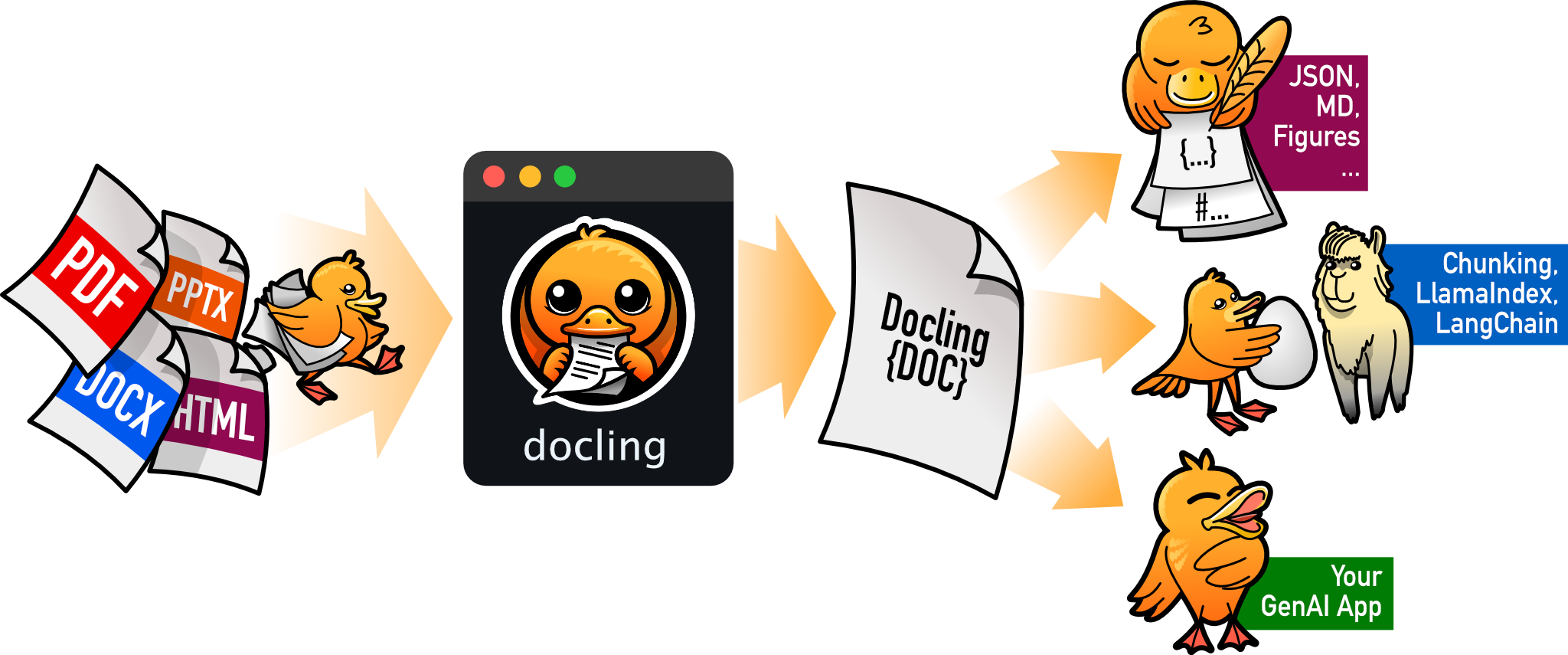
把 PDF、DOCX、HTML 等文档解析成结构化 Markdown 或 JSON,方便喂给大模型和 RAG 流程。
文档解析+4文档解析 / OCR进阶
70395+1555.3kv2.150.02026-11-10 17:59 UTC