无内置认证且默认监听 :8080 全部网卡,直接映射端口会暴露给整个局域网,需加反向代理认证或限制到 VPN;需已有运行中的 paperless-ngx 实例并生成 API Token;选 Ollama 时需自行部署 Ollama 服务并拉取模型。
paperless-gpt
icereedMIT活跃维护给 paperless-ngx 文档管理系统接上大模型,用 LLM 和视觉 OCR 自动识别扫描件内容、生成标题和标签,让文档数字化更省事。
Use LLMs and LLM Vision (OCR) to handle paperless-ngx - Document Digitalization powered by AI
v0.31.0发布于 2026-10-14 07:25 UTC2,833star +10 / 7 天236fork同步于 2026-11-10 23:43 UTC
docker compose up -d(使用 README 示例 docker-compose.yml,配置 PAPERLESS_BASE_URL、PAPERLESS_API_TOKEN 及 LLM_PROVIDER/LLM_MODEL 与对应 API Key) 硬件要求按 README 说明
README 未给出具体显存要求;可用 Ollama 本地跑模型(如 qwen3:8b),GPU/NPU 越强可选更大模型,也可用 OpenAI 等云端 API 免本地算力。
有 Docker 镜像
给 paperless-ngx 接上大模型,自动生成标题标签并增强 OCR 的文档数字化工具
给 paperless-ngx 文档管理系统接上大模型,用 LLM 和视觉 OCR 自动识别扫描件内容、生成标题和标签,让文档数字化更省事。
核心能力
- 用 OpenAI 或 Ollama 大模型重写 OCR 结果,提升低质量扫描件文本质量
- 自动生成文档标题、标签、通信方与创建日期,可人工复核
- 识别文档中引用的单号并回填 paperless-ngx 文档链接字段
- 支持 Google Document AI、Azure Document Intelligence、Docling 等专用 OCR 后端
- 生成带透明文字层的可搜索 PDF,可上传为同一文档的新版本
容易踩的坑
内容由模型根据 README 生成,可能不完整或不准确,以官方文档为准。看原文 README
- v0.31.0v0.31.0 — Workflow Custom Fields最新正式版2026-10-14 · 2026-10-14 07:25 UTC
A small follow-up to v0.30.0, shaped by what people asked for after the AI Workflows release.
🧾 Workflows choose their own custom fields
Until now every workflow filled the custom fields selected in Settings. A payslip workflow would try to fill "Invoice number", and an invoice workflow "Gross pay".
Each workflow can now pick only the fields it should fill: in the editor under What it does, switch Custom fields from Same as Settings to Only these fields for this workflow and tick the fields. The workflow card shows which fields it fills, including ones inherited from Settings. Workflows without their own selection keep using the one from Settings.
The AI Workflows guide has a payslip example. In a workflow file it's
"custom_field_ids": [12, 13]. (#1181)🔒 OpenRouter: only providers with Zero Data Retention
With
OPENROUTER_ENFORCE_ZDR=trueandOPENAI_BASE_URLpointing at OpenRouter, every request (LLM, vision LLM and LLM OCR) asks OpenRouter to route only to upstream providers that don't store or train on your data. Requests to any other endpoint are unchanged. This narrows the provider pool, so check that your model has more than one ZDR-capable provider before turning it on.Thanks @Earthlike1104! (#1177 from #1080)
🐛 Fixes
- Searchable PDFs now work in image mode. With
OCR_PROCESS_MODE=image,PDF_UPLOADandCREATE_LOCAL_PDFskipped the PDF on every run with "fewer pages were processed than exist in the original document", whateverOCR_LIMIT_PAGESwas set to. Thanks @miniawol for the exact diagnosis! (#1196, closes #1144) - PDFs with an owner password and an empty user password go through every OCR path; this is now covered by tests. Thanks @MaxRink for the report. (#1179, closes #1173)
🔧 Under the hood
- Dependency updates (gin 1.12, ollama 0.40.3, Document AI 1.50, React, and others).
☁️ Want paperless-gpt without hosting it yourself?
paperless-gpt remains free and fully self-hostable. For users in Germany, Austria and Switzerland, our Fair Hosting Partner server.camp offers a managed paperless-ngx + paperless-gpt setup and shares part of the revenue with the open source project.
- Searchable PDFs now work in image mode. With
- v0.30.0v0.30.0 — AI Workflows2026-10-12 · 2026-10-12 10:08 UTC
查看更新说明
paperless-gpt now lets different documents be processed differently. An invoice can get a title prompt built around its invoice number, a contract its own custom fields, private mail only a title, each with its own prompts and steps, set up and tested in the UI.
Around that: searchable PDFs that become a new version of the same document instead of a new document, no more OCR for pages that already have clean text, and a long list of fixes, many of them for documents that ended up with the wrong tags, values or a fail tag without anyone noticing.
The theme is control: over what happens to which document, and over what you can see before it happens.
Upgrading: nothing to do for most setups. Please read Before you upgrade at the bottom if you mount your volumes differently from the examples, used AI workflows from @MrMoep's fork, or customised the custom field prompt.
🧭 AI Workflows: different prompts for different documents
Until now there was one automatic path: every document tagged
paperless-gpt-autogot the same prompts and the same steps. That stops working once an archive holds very different things.An AI workflow is another processing path with its own trigger tag. Tag a document with it (by hand, or with a paperless-ngx workflow or mail rule) and paperless-gpt processes it with that workflow's prompts and steps, then swaps the trigger for the workflow's completion tag.
- Own prompts, only where they differ. Each prompt is either the shared global one or the workflow's own version; the editor makes clear which one you are editing. Only the steps a workflow actually runs show a prompt.
- Steps per workflow. Title, tags, correspondent, document type, created date and custom fields are each Default, On or Off, and the editor shows what Default currently means. Optional OCR first, with its own page limit and OCR prompt.
- Test on a document before you save. The editor runs the workflow, unsaved changes included, on a real document and shows the result next to the current values. Nothing is written to paperless-ngx.
- Workflows are files. Each one is a folder in
prompts/workflows/, next to the global prompts, so thepromptsvolume you already have keeps them. You can also write them by hand or keep them in git; changes are picked up without a restart. - No loops. A completion tag can't be a trigger, workflows can't be chained, and paperless-gpt's own tags can't be triggers. The editor flags this while you type; files written by hand follow the same rules.
- Plays well with the default path. A document carrying both a workflow trigger and
paperless-gpt-autois processed once, by the workflow.
Thanks @MrMoep for building this and bringing a working implementation in the feature request. (#1108, #1110, #1115, #1116, closes #1096)
📄 Searchable PDFs as a new version (paperless-ngx 3.0)
With
PDF_UPLOAD_MODE=version, the searchable PDF is added as a new version of the same document. It keeps its ID, tags, custom fields, notes and storage path, and the original stays available as the previous version. Nothing is deleted. On paperless-ngx 3.0 this is the safe replacement forPDF_REPLACE.newstays the default; older paperless-ngx versions get a clear error instead of a silent failure, andPDF_REPLACEis ignored in version mode.Thanks @kzaoaai! (#1125)
⚡ No OCR for pages that already have text
Born-digital PDFs (invoices, statements, letters generated as PDF) already contain exact text. OCR on them costs time and tokens and can only make the text worse. With
OCR_SKIP_DIGITAL_PAGES=true, paperless-gpt checks each page of the original file and keeps the text of pages that have a clean, visible text layer. Scans, pages with another tool's OCR layer, and pages with broken text, including umlauts mangled intof¸rorfür, still g - v0.29.0v0.29.0 — The Connection Expansion2026-10-05 · 2026-10-05 08:00 UTC
查看更新说明
paperless-gpt now connects documents that belong together. A reminder is linked to the invoice it is about, an amendment to its contract, a letter to the case file it cites, automatically, through paperless-ngx's own Document Link fields.
Under the hood, PDF rendering moves from MuPDF to PDFium. That keeps the published binary under permissive licenses, and it removes the last system library from the build. Around both, a set of fixes for silent data loss in tags, custom fields and the history view.
The theme is connection: between documents, and between what paperless-gpt does and what you can see and undo.
Heads-up: PDF rendering now uses PDFium. For almost everyone this changes nothing, but read the Known issues at the bottom.
🔗 Related documents link themselves
Office paperwork comes in chains. A reminder cites an invoice number, a credit note cites the invoice it corrects, a delivery note cites the order, and every letter in an insurance claim or a dispute cites the same file number (Aktenzeichen). Until now, connecting them was manual work.
paperless-gpt now reads those references and fills a paperless-ngx Document Link custom field with the documents they point to. paperless-ngx shows the link on both sides, so the invoice lists its reminder and the reminder lists its invoice.
- Accounts payable: order, delivery note and invoice end up connected.
- Contracts: a contract carries its amendments, renewals and the termination letter.
- Case files: every letter that cites the same file number joins the case, whoever sent it.
- Reminders: checking whether a reminder is already paid becomes one click.
It is built to run unattended. The model only extracts the reference numbers; paperless-gpt resolves each one itself with an exact whole-word match against your archive. References that are too short, or that match more than three documents (your own customer number, say), are skipped, a document is never linked to itself, and anything that doesn't resolve is left unlinked rather than guessed.
Setup: create a Document Link custom field in paperless-ngx, select it under Settings → Custom fields in paperless-gpt, done. No new environment variable.
Thanks @andre161292 for building it, and @LembkeM for describing exactly this in the feature request. (#1097, #1098, closes #1020)
📄 PDF rendering: PDFium replaces MuPDF
MuPDF is licensed under the AGPL-3.0 and was statically linked into the binary, which made every published image an AGPL-bound work although paperless-gpt is MIT. PDF pages are now rendered with PDFium (Apache-2.0, the engine behind Chrome's PDF viewer) through go-pdfium's WebAssembly runtime.
- Licensing: the paperless-gpt binary and images are now built from permissively licensed components only.
- No system PDF library:
mupdf/libmupdf-devare no longer needed to build from source. A C compiler is still needed for SQLite. - Same output: checked side by side against MuPDF on a real archive of 726 documents and 1,626 pages. Page counts and sizes match exactly, rendering speed is the same, and filled-in form fields are rendered, as before. Memory peaks slightly higher while rendering; see Known issues.
- Ready before the first document: with OCR enabled, the renderer is compiled in the background while paperless-gpt starts, on your machine and for your CPU. Without that, the first page after every restart waited for the compilation, about 20 seconds on a small home server; it now renders in under a second.
- Go 1.27.1 for the build.
(#1083, #1102)
🛡️ Fixes for silent data loss
- Append mode no longer deletes custom fields. paperless-ngx replaces the whole custom-field list on update, and for auto-tagged documents paperless-gpt was merging against an empty list. So
append, documented as "never overw
- v0.28.0v0.28.0 — The Follow-Through Expansion2026-09-18 · 2026-09-18 10:09 UTC
查看更新说明
Automation you can leave alone. This release is almost entirely about paperless-gpt doing what its logs already claimed it was doing — tags that were computed and then silently dropped, retry loops that never concluded, and settings that quietly had no effect.
The theme is follow-through: if the app says it added a tag, the tag is there; if a document can't be processed, it stops being retried and says so; if you set an option, it reaches the model.
Heads-up — two behaviour changes worth reading before you upgrade. See Notable changes at the bottom.
🏷️ Tags that actually get applied
Five separate defects conspired to make completion tags vanish between the log line and paperless-ngx. Every one of them is fixed.
AUTO_TAG_COMPLETEis applied instead of being dropped. The tag was written to anAddTagsfield that nothing ever read, so it was computed, logged as "adding", and discarded. A second tag path — taken when no other field changed, which is the likeliest case for an already-tidy document — ignored it too. Thanks @skort-90 for the four-document reproduction and @Denim5660 for the original root-cause analysis. (#1059, closes #1006, #1074)PDF_OCR_COMPLETE_TAGis created at startup, likeFAIL_TAGalready was. Without it, the name→ID resolution silently skipped a tag that didn't exist yet — which is why this worked for some people and not others, with nothing in the log to explain the difference. (#1064, closes #854)- Tag names now resolve case-insensitively. The rest of the tag handling already ignored case; the name→ID lookup was the odd one out, so a configured
Paperless-GPT-Auto-Completecouldn't find a storedpaperless-gpt-auto-complete. Where a database holds several case variants, the original (lowest id) wins deterministically and the ambiguity is logged. Thanks @ivanzud! (#1075) - An added tag now wins a name collision with a removed one. Configuring the completion tag to the same name as the trigger tag used to leave the document with neither. (#1059, closes #458)
- paperless-gpt's own tags are never offered to the LLM.
FAIL_TAG,AUTO_TAG_COMPLETEandPDF_OCR_COMPLETE_TAGwere missing from the exclusion list, so the model suggested them as ordinary document tags. With an OCR→tagging workflow that produced an unbounded loop, re-billing every LLM call on each pass. Thanks @hakehardware and @fr0der1c for reporting it, twice. (#1061, closes #877, #1015)
🔁 Loops that end
Three ways the auto pipeline can fail. Until now, only two of them could stop.
- Repeated suggestion failures now break the loop. A permanent LLM error — a prompt that can't fit the context, a model that no longer exists — used to re-bill the same request forever: one report measured ~12,000 rejected requests over seven days. Worse, because the poll fetches a single unordered page of 25, enough stuck documents starved everything behind them (67 documents, with the container still reporting healthy). After
AUTO_TAG_MAX_RETRIESattempts the auto tag comes off andFAIL_TAGgoes on. Thanks @JoGres-DE for an exceptionally precise report. (#1076, closes #1071) This should also end the "worker goes permanently silent" reports: the poll loop doubles its backoff on every failing cycle, capped at one hour, so a single permanently failing document kept the whole worker in hour-long sleeps until a container restart. With the document leaving the queue, the cycle succeeds and the backoff resets. (likely #1016) - Ollama requests can no longer hang forever. Both Ollama paths ran on a timeout-less HTTP client, so a single stalled generation blocked the background loop indefinitely — recoverable only by restarting the container.
OLLAMA_TIMEOUT_SECONDS(default 300s) bounds it. Thanks @swiception! (#1070) Note this covers the Ollama paths only — other providers still share an unbounded HTTP client, so #937 stays open.
🧠 Ollama:
OLLAMA_THINKfinally does - v0.27.0v0.27.0 — The Clarity Expansion2026-07-21 · 2026-07-21 10:13 UTC
查看更新说明
paperless-gpt's biggest release in a long time — a ground-up redesign of the web UI, LLM-based OCR promoted to a first-class feature with its own Playground and Activity log, a read-only view of your entire live configuration, and a clear ramp from manual runs to fully hands-off automation.
The theme is clarity: you can finally see what paperless-gpt is doing, tune it with confidence, and trust it to run on its own.
Heads-up: this release moves the OCR route to
/ocrand drops theMANUAL_OCR_TAGqueue in favor of the new Playground + Auto-OCR flow. See Notable changes below.
✨ A redesigned, dark-mode-first web UI
The interface users called the app's weakest point has been rebuilt from the ground up — calm, precise, and trustworthy.
- First-class dark mode (not an inversion): surfaces gain depth through lightness, scans stay crisp, contrast holds everywhere. Follows your system theme, with a manual toggle.
- A consistent design system: OKLCH color tokens, a real type scale, and one shared button/badge/chip vocabulary across every screen.
- The familiar select → generate → review → apply flow is intact — upgraded with clearer diff cards and an optional focus mode — so the ~1M existing installs feel instantly at home.
🔬 OCR Playground & Activity
LLM-based OCR is no longer "experimental" — it's the headline feature, with a workspace to match.
- Playground (
/ocr): pick any document, run OCR, and see the scan beside the recognized (editable) text. Tune per-run options — page limit, process mode, searchable-PDF handling, prompt override — and re-run any past run with adjusted settings. - Compare runs side by side and re-OCR individual pages.
- Activity log (
/ocr?tab=activity): a persisted record of every OCR run, manual and automatic, with status, duration, page counts, and clear warnings when an original was replaced by a searchable PDF.
🤖 A ramp to hands-off Auto-OCR
The Playground exists to build your trust, then get out of the way.
- Dial in options that work, hit Save as defaults, tag documents with your Auto-OCR tag, and paperless-gpt processes them automatically using those defaults.
- The Activity log is your safety net for verifying what ran overnight.
⚙️ Active Configuration view
A new read-only page under Settings shows every setting the running instance is actually using — all 80+ environment variables, what each one means, and where its value comes from (
env, saved-in-app, or default). Secrets are shown only as set / not set, never revealed.- Makes 12-factor config legible: when a saved in-app default shadows an environment variable, the UI says so explicitly (and it's logged at startup).
🐛 Fixes & polish
- Stop endless OCR retries — failed auto-OCR now gives up after
OCR_MAX_RETRIESattempts and applies a fail-tag instead of looping forever. Thanks @lunetics! (#1008) - "Save as defaults" is now a clear, prominent control — the promotion-to-automation action it was always meant to be.
- The Playground now teaches on first open instead of showing an empty canvas.
- Model scaffolding no longer leaks into recognized text — a stray
```markdownwrapper from vision models is stripped at the source, so it never reaches your archive. - OCR failures are diagnosable — full error messages and long document titles are now reachable (keyboard- and screen-reader-friendly), not hidden in a tooltip.
📚 Under the hood
- Docs: contributor instructions migrated to the standard AGENTS.md format.
- OCR runs are now persisted and re-runnable units with per-run options.
🙏 Credits
- @lunetics (Matthias Breddin) — the endless-retry fix (#1008).
- Christian Hessel — the async job-processing foundation this release's flow is built on (#984).
- Everyone who reported that the UI needed love. This one's for you.
Full Changelog: https://github.com/icereed/paperless-gpt/compare/v0.26.1..
用户点评
登录用户的真实使用记录,可按版本和硬件筛选共 0 条
还没有人点评。第一个说出真实体验的人最有价值。
paperless-gpt




💡 Maintained by Icereed. Proudly supported by BubbleTax.de – automated, BMF-compliant tax reports for Interactive Brokers traders in Germany.
paperless-gpt seamlessly pairs with [paperless-ngx][paperless-ngx] to generate AI-powered document titles and tags, saving you hours of manual sorting. While other tools may offer AI chat features, paperless-gpt stands out by supercharging OCR with LLMs-ensuring high accuracy, even with tricky scans. It also connects documents that belong together: a reminder gets linked to the invoice it is about, an amendment to its contract, a letter to the case it cites. If you're craving next-level text extraction and effortless document organization, this is your solution.
https://github.com/user-attachments/assets/bd5d38b9-9309-40b9-93ca-918dfa4f3fd4
☁️ Self-host it or have it hosted
paperless-gpt is free, open source and fully self-hostable. If you're in Germany, Austria or Switzerland and would rather not run it yourself, server.camp offers managed paperless-ngx with paperless-gpt and shares part of that revenue with this project. → Managed hosting
❤️ Support This Project
If paperless-gpt is helping you organize your documents and saving you time, please consider sponsoring its development. Your support helps ensure continued improvements and maintenance!
Key Highlights
-
LLM-Enhanced OCR
Harness Large Language Models (OpenAI or Ollama) for better-than-traditional OCR—turn messy or low-quality scans into context-aware, high-fidelity text. -
Links related documents for you 🔗
Reminders, credit notes, amendments, delivery notes and follow-up letters all cite a number: an invoice, contract, order or case number (Aktenzeichen). paperless-gpt reads that reference, finds the matching document in your archive and fills a paperless-ngx Document Link field, so both documents point at each other. Order, delivery note and invoice end up connected; a contract carries its amendments and termination; every letter citing the same file number lands in one case file, no matter who sent it.Built to be conservative: the model only extracts the reference, paperless-gpt does an exact whole-word lookup, and anything ambiguous is left unlinked rather than guessed. → Use cases and setup
-
Use specialized AI OCR services
- LLM OCR: Use OpenAI or Ollama to extract text from images.
- Google Document AI: Leverage Google's powerful Document AI for OCR tasks.
- Azure Document Intelligence: Use Microsoft's enterprise OCR solution.
- Docling Server: Self-hosted OCR and document conversion service
-
Automatic Title, Tag & Created Date Generation
No more guesswork. Let the AI do the naming and categorizing. You can easily review suggestions and refine them if needed. -
Supports reasoning models in Ollama
Greatly enhance accuracy by using a reasoning model likeqwen3:8b. The perfect tradeoff between privacy and performance! Of course, if you got enough GPUs or NPUs, a bigger model will enhance the experience. -
Automatic Correspondent Generation
Automatically identify and generate correspondents from your documents, making it easier to track and organize your communications. -
Automatic Custom Field Generation
Extract and populate custom fields from your documents. Configure which fields to target and how they should be filled. This feature must be enabled in the settings, and you must select at least one custom field for it to function. Three write modes are available:- Append: This is the safest option: It only adds new fields that do not already exist on the document. It will never overwrite an existing field, even if it's empty.
- Update: Adds new fields and overwrites existing fields with new suggestions. Fields on the document that don't have a new suggestion are left untouched.
- Replace: Deletes all existing custom fields on the document and replaces them entirely with the suggested fields.
Fields of type Document Link are special: instead of filling in text, paperless-gpt resolves the references a document cites to the actual documents in your archive (see Links related documents above).
-
Searchable & Selectable PDFs
Generate PDFs with transparent text layers positioned accurately over each word, making your documents both searchable and selectable while preserving the original appearance. With paperless-ngx 3.0, the searchable PDF can be added as a new version of the same document, so it keeps its ID, tags, custom fields and notes, and the original stays available as the previous version (PDF_UPLOAD_MODE=version, see PDF Upload to paperless-ngx). -
Extensive Customization
- Customizable Prompts via Web UI: Tweak and manage all AI prompts for titles, tags, correspondents, and more directly within the web interface under the "Settings" menu. The application uses a safe
default_promptsandpromptsdirectory structure, ensuring your customizations are persistent. - Tagging: Decide how documents get tagged—manually, automatically, or via OCR-based flows.
- AI Workflows: Give each kind of document its own trigger tag, prompts and processing steps: invoices get a title prompt tuned for invoice numbers, contracts get custom fields, private mail only gets a title. Test a workflow on a real document before saving it; workflows are plain files next to your prompts. → AI Workflows
- PDF Processing: Configure how OCR-enhanced PDFs are handled, with options to save locally or upload to paperless-ngx.
- Customizable Prompts via Web UI: Tweak and manage all AI prompts for titles, tags, correspondents, and more directly within the web interface under the "Settings" menu. The application uses a safe
-
Simple Docker Deployment
A few environment variables, and you're off! Compose it alongside paperless-ngx with minimal fuss. -
Unified Web UI
- Manual Review: Approve or tweak AI's suggestions.
- Auto Processing: Focus only on edge cases while the rest is sorted for you.
- Ad-hoc Document Analysis Perform ad-hoc analysis on a selection of documents using a custom prompt. Gain quick insights, summaries, or extract specific information from multiple documents at once.
Table of Contents
- paperless-gpt
Managed Hosting for Germany, Austria and Switzerland
paperless-gpt is built to be self-hosted and remains free and open source.
If you'd rather use it without operating the infrastructure yourself, server.camp provides managed paperless-ngx hosting with paperless-gpt and the AI components it needs already set up:
- paperless-ngx and paperless-gpt ready to use
- hosting and updates managed for you
- no GPU of your own and no separate AI infrastructure to run
- AI processing in the EU
- aimed at individuals and businesses in Germany, Austria and Switzerland
Fair Hosting
server.camp follows a simple principle: when open source software creates value for their hosting business, the projects behind it should share in that value. A share of the revenue server.camp generates with paperless-gpt goes back to the paperless-gpt project and funds its continued development.
→ Use paperless-gpt as a managed service with server.camp
→ More about managed hosting and Fair Hosting
Prefer to run everything yourself? Great. Continue with Getting Started below.
Getting Started
There are two ways to run paperless-gpt.
Option 1: Managed Hosting
If you're in Germany, Austria or Switzerland and don't want to operate paperless-gpt yourself, server.camp provides a managed paperless-ngx + paperless-gpt environment. → Managed paperless-gpt with server.camp
Option 2: Self-Hosting
paperless-gpt is fully self-hostable and free under the MIT license. Everything below covers running it yourself with Docker Compose or a manual setup.
Prerequisites
- [Docker][docker-install] installed.
- A running instance of [paperless-ngx][paperless-ngx] — tested against the 2.20.x release series and the 3.0.0 beta (
v3.0.0-beta.rc1). paperless-gpt only uses the stableapi/documents/,api/tags/,api/correspondents/,api/custom_fields/andapi/document_types/endpoints, none of which have documented breaking changes in the v3 migration guide. - Access to an LLM provider:
- OpenAI: An API key with models like
gpt-4oorgpt-3.5-turbo. - Ollama: A running Ollama server with models like
qwen3:8b.
- OpenAI: An API key with models like
Security
paperless-gpt has no built-in authentication. Its web UI and /api/* endpoints are open to anyone who can reach the port — by default it listens on all interfaces (LISTEN_INTERFACE defaults to :8080), so a plain -p 8080:8080 (as in the example below) exposes it to your whole LAN/VPN, not just localhost. Anyone who can reach it can rewrite documents in your connected paperless-ngx instance, trigger LLM/OCR jobs against your API keys, and change settings — with zero credentials required.
Do not expose it directly to the internet or an untrusted network. Put it behind a reverse proxy that adds authentication (e.g. Authelia, Authentik, a Basic Auth layer), restrict it to a VPN/Tailscale network, or otherwise limit who can reach the port.
Prefer not to manage this layer yourself?
For users in Germany, Austria and Switzerland, server.camp provides paperless-gpt as part of a managed paperless-ngx environment, including operation of the surrounding infrastructure. See Managed Hosting.
Installation
Docker Compose
Here's an example docker-compose.yml to spin up paperless-gpt alongside paperless-ngx:
services:
  paperless-ngx:
    image: ghcr.io/paperless-ngx/paperless-ngx:latest
    # ... (your existing paperless-ngx config)

  paperless-gpt:
    # Use one of these image sources:
    image: icereed/paperless-gpt:latest # Docker Hub (upstream)
    # image: ghcr.io/icereed/paperless-gpt:latest  # GitHub Container Registry (upstream)
    # image: ghcr.io/hensing/paperless-gpt:latest  # This fork's GHCR image
    environment:
      PAPERLESS_BASE_URL: "http://paperless-ngx:8000"
      PAPERLESS_API_TOKEN: "your_paperless_api_token"
      PAPERLESS_PUBLIC_URL: "http://paperless.mydomain.com" # Optional
      MANUAL_TAG: "paperless-gpt" # Optional, default: paperless-gpt
      AUTO_TAG: "paperless-gpt-auto" # Optional, default: paperless-gpt-auto
      FAIL_TAG: "paperless-gpt-failed" # Optional, default: paperless-gpt-failed. Applied to documents whose update is rejected by paperless-ngx or whose OCR keeps failing (see OCR_MAX_RETRIES), so they don't get re-processed in a loop. Auto-created at startup.
      # LLM Configuration - Choose one:

      # Option 1: Standard OpenAI
      LLM_PROVIDER: "openai"
      LLM_MODEL: "gpt-4o"
      OPENAI_API_KEY: "your_openai_api_key"

      # Option 2: Mistral
      # LLM_PROVIDER: "mistral"
      # LLM_MODEL: "mistral-large-latest"
      # MISTRAL_API_KEY: "your_mistral_api_key"

      # Option 3: Azure OpenAI
      # LLM_PROVIDER: "openai"
      # LLM_MODEL: "your-deployment-name"
      # OPENAI_API_KEY: "your_azure_api_key"
      # OPENAI_API_TYPE: "azure"
      # OPENAI_BASE_URL: "https://your-resource.openai.azure.com"

      # Option 4: Ollama (Local)
      # LLM_PROVIDER: "ollama"
      # LLM_MODEL: "qwen3:8b"
      # OLLAMA_HOST: "http://host.docker.internal:11434"
      # OLLAMA_CONTEXT_LENGTH: "8192" # Sets Ollama NumCtx (context window)
      # LLM_MAX_TOKENS: "256" # Sets Ollama num_predict (output-token budget)
      # OLLAMA_KEEP_ALIVE: "10m" # Keeps the model loaded between metadata requests
      # OLLAMA_THINK: "false" # true/false, or low/medium/high for supported models
      # OLLAMA_HEADERS: "Authorization=Bearer mytoken" # Optional headers for reverse-proxy auth
      # TOKEN_LIMIT: 1000 # Recommended for smaller models

      # Option 5: Anthropic/Claude
      # LLM_PROVIDER: "anthropic"
      # LLM_MODEL: "claude-sonnet-4-5"
      # ANTHROPIC_API_KEY: "your_anthropic_api_key"

      # Optional LLM Settings
      # LLM_LANGUAGE: "English" # Optional, default: English

      # OCR Configuration - Choose one:
      # Option 1: LLM-based OCR
      OCR_PROVIDER: "llm" # Default OCR provider
      VISION_LLM_PROVIDER: "ollama" # openai, ollama, mistral, or anthropic
      VISION_LLM_MODEL: "minicpm-v" # minicpm-v (ollama) or gpt-4o (openai) or claude-sonnet-4-5 (anthropic/claude)
      OLLAMA_HOST: "http://host.docker.internal:11434" # If using Ollama

      # OCR Processing Mode
      OCR_PROCESS_MODE: "image" # Optional, default: image, other options: pdf, whole_pdf
      PDF_SKIP_EXISTING_OCR: "false" # Optional, skip OCR for PDFs with existing OCR

      # Option 2: Google Document AI
      # OCR_PROVIDER: 'google_docai'       # Use Google Document AI
      # GOOGLE_PROJECT_ID: 'your-project'  # Your GCP project ID
      # GOOGLE_LOCATION: 'us'              # Document AI region
      # GOOGLE_PROCESSOR_ID: 'processor-id' # Your processor ID
      # GOOGLE_APPLICATION_CREDENTIALS: '/app/credentials.json' # Path to service account key

      # Option 3: Azure Document Intelligence
      # OCR_PROVIDER: 'azure'              # Use Azure Document Intelligence
      # AZURE_DOCAI_ENDPOINT: 'your-endpoint' # Your Azure endpoint URL
      # AZURE_DOCAI_KEY: 'your-key'        # Your Azure API key
      # AZURE_DOCAI_MODEL_ID: 'prebuilt-read' # Optional, defaults to prebuilt-read
      # AZURE_DOCAI_TIMEOUT_SECONDS: '120'  # Optional, defaults to 120 seconds
      # AZURE_DOCAI_OUTPUT_CONTENT_FORMAT: 'text' # Optional, defaults to 'text', other valid option is 'markdown'
      # 'markdown' requires the 'prebuilt-layout' model

      # Enhanced OCR Features
      CREATE_LOCAL_HOCR: "false" # Optional, save hOCR files locally
      LOCAL_HOCR_PATH: "/app/hocr" # Optional, path for hOCR files
      CREATE_LOCAL_PDF: "false" # Optional, save enhanced PDFs locally
      LOCAL_PDF_PATH: "/app/pdf" # Optional, path for PDF files
      PDF_UPLOAD: "false" # Optional, upload enhanced PDFs to paperless-ngx
      PDF_UPLOAD_MODE: "new" # Optional: "new" (new document) or "version" (new version of the same document, paperless-ngx 3.0+, recommended)
      PDF_REPLACE: "false" # Optional and DANGEROUS, delete original after upload ("new" mode only)
      PDF_COPY_METADATA: "true" # Optional, copy metadata from original document
      PDF_OCR_TAGGING: "true" # Optional, add tag to processed documents
      PDF_OCR_COMPLETE_TAG: "paperless-gpt-ocr-complete" # Optional, tag name

      # Option 4: Docling Server
      # OCR_PROVIDER: 'docling'              # Use a Docling server
      # DOCLING_URL: 'http://your-docling-server:port' # URL of your Docling instance
      # DOCLING_IMAGE_EXPORT_MODE: "placeholder" # Optional, defaults to "embedded"
      # DOCLING_OCR_PIPELINE: "standard" # Optional, defaults to "vlm"
      # DOCLING_OCR_ENGINE: "easyocr" # Optional, defaults to "easyocr" (only used when `DOCLING_OCR_PIPELINE is set to 'standard')
      # DOCLING_OUTPUT_FORMAT: "md" # Optional, defaults to "md", other option: "text"


      AUTO_OCR_TAG: "paperless-gpt-ocr-auto" # Optional, default: paperless-gpt-ocr-auto
      OCR_LIMIT_PAGES: "5" # Optional, default: 5. Set to 0 for no limit.
      OCR_MAX_RETRIES: "3" # Optional, default: 3. Failed OCR attempts per document before it is fail-tagged and removed from the queue. Set to 0 to retry forever.
      LOG_LEVEL: "info" # Optional: debug, warn, error
    volumes:
      - ./prompts:/app/prompts # Mount the prompts directory
      - ./config:/app/config # Mount the config directory (settings made in the UI)
      - ./db:/app/db # Mount the db directory (history for undo, OCR run log)
      # For Google Document AI:
      - ${HOME}/.config/gcloud/application_default_credentials.json:/app/credentials.json
      # For local hOCR and PDF saving:
      - ./hocr:/app/hocr # Only if CREATE_LOCAL_HOCR is true
      - ./pdf:/app/pdf # Only if CREATE_LOCAL_PDF is true
    ports:
      - "8080:8080"
    deploy:
      resources:
        reservations:
          cpus: '0.01'
          memory: 20M
    depends_on:
      - paperless-ngx
Pro Tip: Replace placeholders with real values and read the logs if something looks off.
Manual Setup
- Clone the Repository
git clone https://github.com/icereed/paperless-gpt.git cd paperless-gpt - Create a
promptsDirectorymkdir prompts - Build the Docker Image
docker build -t paperless-gpt . - Run the Container
docker run -d \
  -e PAPERLESS_BASE_URL='http://your_paperless_ngx_url' \
  -e PAPERLESS_API_TOKEN='your_paperless_api_token' \
  -e LLM_PROVIDER='openai' \
  -e LLM_MODEL='gpt-4o' \
  -e OPENAI_API_KEY='your_openai_api_key' \
  -e LLM_LANGUAGE='English' \
  -e VISION_LLM_PROVIDER='ollama' \
  -e VISION_LLM_MODEL='minicpm-v' \
  -e LOG_LEVEL='info' \
  -v $(pwd)/prompts:/app/prompts \
  -v $(pwd)/config:/app/config \
  -v $(pwd)/db:/app/db \
  -p 8080:8080 \
  paperless-gpt
OCR Providers
For detailed provider-specific documentation:
paperless-gpt supports four different OCR providers, each with unique strengths and capabilities:
1. LLM-based OCR (Default)
- Key Features:
- Uses vision-capable LLMs like gpt-4o or MiniCPM-V
- High accuracy with complex layouts and difficult scans
- Context-aware text recognition
- Self-correcting capabilities for OCR errors
- Best For:
- Complex or unusual document layouts
- Poor quality scans
- Documents with mixed languages
- Configuration:
OCR_PROVIDER: "llm"
VISION_LLM_PROVIDER: "openai" # or "ollama"
VISION_LLM_MODEL: "gpt-4o" # or "minicpm-v"
2. Azure Document Intelligence
- Key Features:
- Enterprise-grade OCR solution
- Prebuilt models for common document types
- Layout preservation and table detection
- Fast processing speeds
- Best For:
- Business documents and forms
- High-volume processing
- Documents requiring layout analysis
- Configuration:
OCR_PROVIDER: "azure"
AZURE_DOCAI_ENDPOINT: "https://your-endpoint.cognitiveservices.azure.com/"
AZURE_DOCAI_KEY: "your-key"
AZURE_DOCAI_MODEL_ID: "prebuilt-read" # optional
AZURE_DOCAI_TIMEOUT_SECONDS: "120" # optional
AZURE_DOCAI_OUTPUT_CONTENT_FORMAT:
  "text" # optional, defaults to text, other valid option is 'markdown'
  # 'markdown' requires the 'prebuilt-layout' model
3. Google Document AI
- Key Features:
- Enterprise-grade OCR/HTR solution
- Specialized document processors
- Strong form field detection
- Multi-language support
- High accuracy on structured documents
- Exclusive hOCR generation for creating searchable PDFs with text layers
- Only provider that supports enhanced PDF generation features
- Best For:
- Forms and structured documents
- Documents with tables
- Multi-language documents
- Handwritten text (HTR)
- Configuration:
OCR_PROVIDER: "google_docai"
GOOGLE_PROJECT_ID: "your-project"
GOOGLE_LOCATION: "us"
GOOGLE_PROCESSOR_ID: "processor-id"
CREATE_LOCAL_HOCR: "true" # Optional, for hOCR generation
LOCAL_HOCR_PATH: "/app/hocr" # Optional, default path
CREATE_LOCAL_PDF: "true" # Optional, for applying OCR to PDF
LOCAL_PDF_PATH: "/app/pdf" # Optional, default path
4. Docling Server
- Key Features:
- Self-hosted OCR and document conversion service
- Supports various input and output formats (including text)
- Utilizes multiple OCR engines (EasyOCR, Tesseract, etc.)
- Can be run locally or in a private network
- Best For:
- Users who prefer a self-hosted solution
- Environments where data privacy is paramount
- Processing a wide variety of document types
- Configuration:
OCR_PROVIDER: "docling"
DOCLING_URL: "http://your-docling-server:port"
DOCLING_IMAGE_EXPORT_MODE: "placeholder" # Optional, defaults to "embedded"
DOCLING_OCR_PIPELINE: "standard" # Optional, defaults to "vlm"
DOCLING_OCR_ENGINE: "macocr" # Optional, defaults to "easyocr" (only used when `DOCLING_OCR_PIPELINE is set to 'standard')
DOCLING_OUTPUT_FORMAT: "md" # Optional, defaults to "md", other option: "text"
OCR Processing Modes
paperless-gpt offers different methods for processing documents, giving you flexibility based on your needs and OCR provider capabilities:
Image Mode (Default)
- How it works: Converts PDF pages to images before processing
- Best for: Compatibility with all OCR providers.
- Configuration:
OCR_PROCESS_MODE: "image"
PDF Mode
- How it works: Processes PDF pages directly without image conversion
- Best for: Preserving PDF features, potentially faster processing and improved accuracy with some providers
- Configuration:
OCR_PROCESS_MODE: "pdf"
Whole PDF Mode
- How it works: Processes the entire PDF document in a single operation
- Best for: Providers that handle multi-page documents efficiently, reduced API calls
- Configuration:
OCR_PROCESS_MODE: "whole_pdf" - Note: Processing large PDFs may cause you to hit the API limit of your OCR provider. If you encounter problems with large documents, consider switching to
pdfmode, which processes pages individually. - Note:
OCR_LIMIT_PAGESdoes not apply in this mode — the whole point ofwhole_pdfis to hand the OCR provider the entire document in one shot, so it always processes every page regardless of that setting. Usepdforimagemode if you need a page cap.
Provider Compatibility
Different OCR providers support different processing modes:
| Provider | Image Mode | PDF Mode | Whole PDF Mode |
|---|---|---|---|
| LLM-based OCR (OpenAI/Ollama) | ✅ | ❌ | ❌ |
| Azure Document Intelligence | ✅ | ❌ | ❌ |
| Google Document AI | ✅ | ✅ | ✅ |
| Mistral OCR | ✅ | ✅ | ✅ |
| Docling Server | ✅ | ✅ | ✅ |
Important: paperless-gpt will validate your configuration at startup and prevent unsupported mode/provider combinations. If you specify an unsupported mode for your provider, the application will fail to start with a clear error message.
Existing OCR Detection
When using PDF or whole PDF modes, you can enable automatic detection of existing OCR:
environment:
  OCR_PROCESS_MODE: "pdf" # or "whole_pdf"
  PDF_SKIP_EXISTING_OCR: "true" # Skip processing if existing OCR is detected in the PDF
Note: Not all OCR providers support all processing modes. Some may work better with certain modes than others. Processing as PDF might use more or fewer API tokens than processing as images, depending on the provider. Results may vary based on document complexity and provider capabilities. It's recommended to experiment with different modes to find what works best for your specific documents and OCR provider.
Skip OCR for pages that already have text
Many archives mix born-digital documents (invoices, statements, letters generated as PDF), whose text is already exact, with scans. OCR on the digital pages costs time and tokens and can only make their text worse. In one real archive we checked, about half of all pages were digital. With this option paperless-gpt checks each page of the original file first and only sends pages to OCR that need it:
environment:
  OCR_SKIP_DIGITAL_PAGES: "true"
| Page | Decision |
|---|---|
| No text layer | OCR |
| Invisible text over a scanned image (a scanner's or OCR tool's text layer) | OCR, that is what paperless-gpt improves on |
| Broken text: replacement glyphs, mojibake such as "f¸r" or "für" | OCR |
| Clean, visible text, no large images | Its own text is used |
| A little text over a large image | OCR |
- Original, not archive: routing looks at the original file, not paperless-ngx' archive version. The archive carries paperless-ngx' own Tesseract text on every scanned page, which is the text paperless-gpt is meant to replace.
- Image mode only: it applies to the image OCR mode, and stays off for runs that create a searchable PDF or hOCR (
PDF_UPLOAD,CREATE_LOCAL_PDF,CREATE_LOCAL_HOCR, or an OCR provider that produces hOCR such as Google Document AI), because those need OCR on every page. - Never blocks OCR: if the original is not a PDF, its page count differs from the archive version, or anything goes wrong, every page is OCRed as before.
The idea comes from doc-router: don't pay to OCR a page that already has text on it.
Enhanced OCR Features
paperless-gpt includes powerful OCR enhancements that go beyond basic text extraction:
Important Note: The PDF text layer generation and hOCR features are currently only supported with Google Document AI as the OCR provider. These features are not available when using LLM-based OCR or Azure Document Intelligence.
PDF Text Layer Generation
- Searchable & Selectable PDFs: Creates PDFs with transparent text overlays accurately positioned over each word in the document
- hOCR Integration: Utilizes hOCR format (HTML-based OCR representation) to maintain precise text positioning
- Document Quality Improvement: Makes documents both searchable and selectable while preserving the original appearance
- Google Document AI Required: These features rely on Google Document AI's ability to generate hOCR data with accurate word positions
Local File Saving
paperless-gpt can save both the hOCR files and enhanced PDFs locally:
environment:
  # Enable local file saving
  CREATE_LOCAL_HOCR: "true" # Save hOCR files locally
  CREATE_LOCAL_PDF: "true" # Save generated PDFs locally
  LOCAL_HOCR_PATH: "/app/hocr" # Path to save hOCR files
  LOCAL_PDF_PATH: "/app/pdf" # Path to save PDF files
volumes:
  # Mount volumes to access the files from your host
  - ./hocr_files:/app/hocr
  - ./pdf_files:/app/pdf
Note: You must mount these directories as volumes in your Docker configuration to access the generated files from your host system.
PDF Upload to paperless-ngx
paperless-gpt can hand the enhanced PDF back to paperless-ngx in one of two ways, chosen with PDF_UPLOAD_MODE:
version(paperless-ngx 3.0+, recommended): the enhanced PDF is added as a new version of the same document through paperless-ngx's document versions API. The document keeps its id, tags, custom fields, notes and storage path, the original file stays available as the previous version, and downloads serve the searchable PDF. Nothing is deleted, soPDF_REPLACEandPDF_COPY_METADATAdo not apply.new(default, any paperless-ngx version): older paperless-ngx releases cannot update an existing document's file, so paperless-gpt uploads the enhanced PDF as a new document, copies some metadata to it, and can optionally delete the original.
environment:
  PDF_UPLOAD: "true"
  PDF_UPLOAD_MODE: "version" # Add the searchable PDF as a new version (paperless-ngx 3.0+)
Note: in
versionmode paperless-ngx runs its normal consumption on the new version. With paperless-ngx's OCR mode set toredo, it would re-OCR the file with Tesseract and use that text for search instead of the text layer paperless-gpt wrote; set the OCR mode toauto(Settings → OCR) so files that already have text are left alone.
In new mode paperless-gpt will:
- Upload the enhanced PDF as a new document
- Copy metadata from the original document to the new one
- Optionally delete the original document
environment:
  # PDF upload configuration
  PDF_UPLOAD: "true" # Upload processed PDFs to paperless-ngx
  PDF_COPY_METADATA: "true" # Copy metadata from original to new document
  PDF_REPLACE: "false" # Whether to delete the original document (use with caution!)
  PDF_OCR_TAGGING: "true" # Add a tag to mark documents as OCR-processed
  PDF_OCR_COMPLETE_TAG: "paperless-gpt-ocr-complete" # Tag used to mark OCR-processed documents
⚠️ WARNING ⚠️
SettingPDF_REPLACE: "true"will delete the original document after uploading the enhanced version. This process cannot be undone and may result in data loss if something goes wrong during the upload or metadata copying process. Use with extreme caution! paperless-gpt only deletes the original once paperless-ngx reports the upload as imported (within about a minute); if it can't confirm that, the original is kept and the run says so.On paperless-ngx 3.0 or newer, use
PDF_UPLOAD_MODE: "version"instead. It gives the same result, one document with a searchable PDF, without deleting anything: the original stays available as the previous version.PDF_REPLACEis ignored in that mode.
Metadata Copying Limitations
This section applies to PDF_UPLOAD_MODE: "new" only. In version mode nothing has to be copied: the searchable PDF becomes a new version of the same document, which keeps its ID, title, tags, correspondent, custom fields, notes and storage path.
When copying metadata from the original document to the new one, paperless-gpt attempts to copy:
- Document title
- Tags (including adding the OCR complete tag)
- Correspondent information
- Created date
However, some metadata cannot be copied due to paperless-ngx API limitations:
- Document ID (new document always gets a new ID)
- Added date (will reflect the current upload date)
- Modified date
- Custom fields that might be added by other paperless-ngx plugins
- Notes and annotations
Safety Features
To prevent accidental creation of incomplete documents, paperless-gpt includes several safety features:
- Page Count Check: If using
OCR_LIMIT_PAGESto process only a subset of pages (for speed or resource reasons), PDF generation will be skipped entirely if fewer pages would be processed than exist in the original document.
environment:
  OCR_LIMIT_PAGES: "5" # Limit OCR to first 5 pages, set to 0 for no limit
-
OCR Complete Tagging: Documents that have been fully processed with OCR can be automatically tagged with a special tag, preventing duplicate processing.
-
Processing Skip: If a document already has the OCR complete tag, processing will be skipped automatically.
Usage Recommendations
For best results with the enhanced OCR features:
-
Initial Testing: On paperless-ngx 3.0+, prefer
PDF_UPLOAD_MODE: "version", which never deletes anything. Withnewmode, start withPDF_REPLACE: "false"until you've confirmed the process works well with your documents. -
Regular Backups: Ensure you have backups of your paperless-ngx database and documents before enabling document replacement.
-
Process Management: For large documents, consider using
OCR_LIMIT_PAGES: "0"to ensure all pages are processed, even though this will take longer. -
Local Copies: Enable local file saving (
CREATE_LOCAL_HOCRandCREATE_LOCAL_PDF) to keep copies of the enhanced files as an extra precaution. -
Tagging Strategy: Use the OCR complete tag (
PDF_OCR_COMPLETE_TAG) to track which documents have already been processed.
Configuration
Environment Variables
Note: When using Ollama, ensure that the Ollama server is running and accessible from the paperless-gpt container.
| Variable | Description | Required | Default |
|---|---|---|---|
PUID | User ID to run the container as. See Running as a Non-Root User. | No | 10001 |
PGID | Group ID to run the container as. See Running as a Non-Root User. | No | 10001 |
PAPERLESS_BASE_URL | URL of your paperless-ngx instance (e.g. http://paperless-ngx:8000). | Yes | |
PAPERLESS_API_TOKEN | API token for paperless-ngx. Generate one in paperless-ngx admin. | Yes | |
PAPERLESS_PUBLIC_URL | Public URL for Paperless (if different from PAPERLESS_BASE_URL). | No | |
MANUAL_TAG | Tag for manual processing. | No | paperless-gpt |
AUTO_TAG | Tag for auto processing. | No | paperless-gpt-auto |
AUTO_TAG_MAX_RETRIES | How many times suggestion generation (title/tags/correspondent/document type) may fail for a document in the auto-tag poll before paperless-gpt gives up: the auto tag is removed and FAIL_TAG applied, so the document stops being retried (and re-billed) every cycle and stops occupying a slot in the poll's page of 25. Counted in memory — a restart resets the count. Set to 0 to keep retrying forever. | No | 3 |
FAIL_TAG | Tag applied to a document when paperless-gpt could not apply the full LLM suggestion. Two cases trigger it: (1) partial success — paperless-ngx rejected one or more fields (e.g. a suggested value a custom field's type cannot accept); paperless-gpt drops the rejected fields, retries the update with the rest, and applies this tag so the user knows the document needs review; (2) hard failure — the update could not be salvaged; paperless-gpt removes the auto tag (to break the processing loop) and applies this tag; (3) repeated OCR failure — OCR processing of the document failed OCR_MAX_RETRIES times in a row; paperless-gpt removes the auto OCR tag and applies this tag. The tag is created automatically in paperless-ngx at startup if it does not exist. | No | paperless-gpt-failed |
AUTO_TAG_COMPLETE | Tag added to documents after auto-processing is complete. Only applied during auto-processing, not manual review. Set to an empty string (AUTO_TAG_COMPLETE="") to disable. When the variable is unset, the default tag is used. The tag is created automatically in paperless-ngx at startup if it does not exist. | No | paperless-gpt-auto-complete |
LLM_PROVIDER | AI backend (openai, ollama, googleai, mistral, or anthropic). | Yes | |
LLM_MODEL | AI model name (e.g., gpt-4o, mistral-large-latest, qwen3:8b, claude-sonnet-4-5). | Yes | |
OPENAI_API_KEY | OpenAI API key (required if using OpenAI). | Cond. | |
MISTRAL_API_KEY | Mistral API key (required if using Mistral). | Cond. | |
MISTRAL_OCR_IMAGE_LIMIT | Max images Mistral OCR extracts per document when OCR_PROVIDER is mistral_ocr. Unset uses the API default. | No | |
MISTRAL_OCR_IMAGE_MIN_SIZE | Min height/width (px) for a region to be extracted as an image rather than transcribed, when OCR_PROVIDER is mistral_ocr. Raise this to stop small boxed fields (e.g. handwritten form entries) from being skipped as images. | No | |
ANTHROPIC_API_KEY | Anthropic API key (required if using Anthropic/Claude). | Cond. | |
OPENAI_API_TYPE | Set to azure to use Azure OpenAI Service. | No | |
OPENAI_BASE_URL | Base URL for OpenAI API. Use it to point to any OpenAI-compatible endpoint (OpenRouter, LM Studio, vLLM, LiteLLM, llama.cpp, Groq, …) — see OpenAI-compatible providers for ready-made configurations. For Azure OpenAI, set to your deployment URL (e.g., https://your-resource.openai.azure.com). | No | |
OPENAI_HEADERS | Comma-separated Key=Value pairs added as HTTP headers to every OpenAI-compatible request (e.g. OPENAI_HEADERS=User-Agent=paperless-gpt/1.0). | No | |
OPENROUTER_ENFORCE_ZDR | When true and OPENAI_BASE_URL points at openrouter.ai, adds "provider": {"data_collection": "deny", "zdr": true} to every LLM/VisionLLM/OCR request so OpenRouter only routes to upstream providers offering a Zero Data Retention guarantee. Requests to any other endpoint are unaffected. Narrows the provider pool for the configured model — check https://openrouter.ai/<model>/providers for multiple ZDR-capable providers before enabling this with a single-provider model, or a 429/5xx with no fallback can result. | No | false |
LLM_LANGUAGE | Likely language for documents (e.g. English). Appears in the prompt to help the LLM. | No | English |
LLM_TEMPERATURE | (Ollama metadata only) Sampling temperature for title, tag, and other metadata generation. A non-negative finite value supplies the global setting; invalid, negative, NaN, and Inf values are ignored with a warning. The base fallback is 0. An explicit per-call option still wins. It does not apply to other LLM providers or Vision OCR; use VISION_LLM_TEMPERATURE for supported vision providers. | No | 0 |
LLM_MAX_TOKENS | (Ollama metadata only) Positive integer or -1, mapped to Ollama num_predict as the output-token budget. When unset, paperless-gpt preserves the model/base setting. It is independent of TOKEN_LIMIT and OLLAMA_CONTEXT_LENGTH. | No | Model/base setting |
GOOGLEAI_API_KEY | Google Gemini API key (required if using LLM_PROVIDER=googleai). | Cond. | |
GOOGLEAI_THINKING_BUDGET | (Optional, googleai only) Integer. Controls Gemini "thinking" budget. If unset, model default is used (thinking enabled if supported). Set to 0 to disable thinking (if model supports it). | No | |
OLLAMA_HOST | Ollama server URL (e.g. http://host.docker.internal:11434). | No | |
OLLAMA_KEEP_ALIVE | (Ollama metadata only) Ollama duration such as 10m or 1h, 0 to unload after a request, or -1 to keep the model loaded indefinitely. Keeping models loaded consumes RAM/VRAM. | No | Model/base setting |
OLLAMA_THINK | (Ollama metadata only) true or false, or low, medium, or high for models that support thinking levels. The value is forwarded to the selected Ollama model, which may reject or ignore an unsupported setting or level. Thinking consumes output budget on models that generate a reasoning trace. | No | Model/base setting |
LLM_REQUESTS_PER_MINUTE | Maximum requests per minute for the main LLM. Useful for managing API costs or local LLM load. | No | 120 |
LLM_MAX_RETRIES | Maximum retry attempts for failed main LLM requests. | No | 3 |
LLM_BACKOFF_MAX_WAIT | Maximum wait time between retries for the main LLM (e.g., 30s). | No | 30s |
SUGGESTION_WORKERS | Number of async manual suggestion workers. Keep this at 1 for slow or local LLM backends to avoid concurrent generation overload. | No | 1 |
SUGGESTION_JOB_TIMEOUT_SECONDS | Optional timeout for async manual suggestion jobs. Leave unset to disable; set a bounded value for slow local inference when jobs must not run forever. | No | |
OCR_PROVIDER | OCR provider to use (llm, azure, google_docai, docling, or mistral_ocr). | No | llm |
OCR_PROCESS_MODE | Method for processing documents: image (convert to images first), pdf (process PDF pages directly), or whole_pdf (entire PDF at once). | No | image |
VISION_LLM_PROVIDER | AI backend for LLM OCR (openai, ollama, mistral, or anthropic). Required if OCR_PROVIDER is llm. | Cond. | |
VISION_LLM_MODEL | Model name for LLM OCR (e.g. minicpm-v). Required if OCR_PROVIDER is llm. | Cond. | |
VISION_LLM_REQUESTS_PER_MINUTE | Maximum requests per minute for the Vision LLM. Useful for managing API costs or local LLM load. | No | 120 |
VISION_LLM_MAX_RETRIES | Maximum retry attempts for failed Vision LLM requests. For OCR, only transient errors (HTTP 429/5xx) are retried, per page; 0 disables OCR retries. | No | 3 (suggestions), 8 (OCR) |
VISION_LLM_BACKOFF_MAX_WAIT | Maximum wait time between retries for the Vision LLM (e.g., 30s). | No | 30s (suggestions), 90s (OCR) |
VISION_LLM_MAX_TOKENS | Maximum tokens for Vision LLM OCR output. | No | |
VISION_LLM_TEMPERATURE | Sampling temperature for Vision OCR generation. Lower is more deterministic. Important: For OpenAI GPT-5 it must be explicitly set to 1.0. | No | |
OLLAMA_CONTEXT_LENGTH | (Ollama only) Integer. Sets NumCtx (context window) for the Ollama runner. If unset or 0, the model default is used. | No | |
OLLAMA_TIMEOUT_SECONDS | (Ollama only) Per-request HTTP timeout in seconds for calls to the Ollama server. Prevents a single stalled generation from hanging the background auto-tagging/OCR loop indefinitely. Set to 0 (or negative) to disable the timeout. | No | 300 |
OLLAMA_OCR_TOP_K | (Ollama only) Top-k token sampling for Vision OCR. Lower favors more likely tokens; higher increases diversity. | No | |
OLLAMA_HEADERS | (Ollama only) Comma-separated Key=Value pairs added as HTTP headers to every Ollama request. Useful for authorization when Ollama is behind a reverse proxy (e.g. Authorization=Bearer mytoken). | No | |
AZURE_DOCAI_ENDPOINT | Azure Document Intelligence endpoint. Required if OCR_PROVIDER is azure. | Cond. | |
AZURE_DOCAI_KEY | Azure Document Intelligence API key. Required if OCR_PROVIDER is azure. | Cond. | |
AZURE_DOCAI_MODEL_ID | Azure Document Intelligence model ID. Optional if using azure provider. | No | prebuilt-read |
AZURE_DOCAI_TIMEOUT_SECONDS | Azure Document Intelligence timeout in seconds. | No | 120 |
AZURE_DOCAI_OUTPUT_CONTENT_FORMAT | Azure Document Intelligence output content format. Optional if using azure provider. Defaults to text. 'markdown' is the other option and it requires the 'prebuild-layout' model ID. | No | text |
GOOGLE_PROJECT_ID | Google Cloud project ID. Required if OCR_PROVIDER is google_docai. | Cond. | |
GOOGLE_LOCATION | Google Cloud region (e.g. us, eu). Required if OCR_PROVIDER is google_docai. | Cond. | |
GOOGLE_PROCESSOR_ID | Document AI processor ID. Required if OCR_PROVIDER is google_docai. | Cond. | |
GOOGLE_APPLICATION_CREDENTIALS | Path to the mounted Google service account key. Required if OCR_PROVIDER is google_docai. | Cond. | |
DOCLING_URL | URL of the Docling server instance. Required if OCR_PROVIDER is docling. | Cond. | |
DOCLING_IMAGE_EXPORT_MODE | Mode for image export. Optional; defaults to embedded if unset. | No | embedded |
DOCLING_OCR_PIPELINE | Sets the pipeline type. Optional; defaults to vlm if unset. | No | vlm |
DOCLING_OCR_ENGINE | Sets the ocr engine, if DOCLING_OCR_PIPELINE is set to standard. Optional; defaults to easyocr | No | easyocr |
DOCLING_OUTPUT_FORMAT | Output format requested from Docling (to_formats): md (Markdown, keeps tables and headings) or text (plain text). Optional; defaults to md. | No | md |
CREATE_LOCAL_HOCR | Whether to save hOCR files locally. | No | false |
LOCAL_HOCR_PATH | Path where hOCR files will be saved when hOCR generation is enabled. | No | /app/hocr |
CREATE_LOCAL_PDF | Whether to save enhanced PDFs locally. | No | false |
LOCAL_PDF_PATH | Path where PDF files will be saved when PDF generation is enabled. | No | /app/pdf |
PDF_UPLOAD | Whether to upload enhanced PDFs to paperless-ngx. | No | false |
PDF_UPLOAD_MODE | How PDF_UPLOAD hands back the PDF: new uploads a new document (optionally replacing the original); version adds it as a new version of the same document (paperless-ngx 3.0+), keeping id and metadata. PDF_REPLACE is ignored in version mode. | No | new |
PDF_REPLACE | Whether to delete the original document after uploading the enhanced version (DANGEROUS). | No | false |
PDF_COPY_METADATA | Whether to copy metadata from the original document to the uploaded PDF. Only applicable when using PDF_UPLOAD. | No | true |
PDF_OCR_TAGGING | Whether to add a tag to mark documents as OCR-processed. | No | true |
PDF_OCR_COMPLETE_TAG | Tag used to mark documents as OCR-processed. The tag is created automatically in paperless-ngx at startup if it does not exist (when PDF_OCR_TAGGING is enabled). | No | paperless-gpt-ocr-complete |
PDF_SKIP_EXISTING_OCR | Whether to skip OCR processing for PDFs that already have OCR. Works with pdf and whole_pdf processing modes (OCR_PROCESS_MODE). | No | false |
OCR_SKIP_DIGITAL_PAGES | Skip OCR for pages whose original already has a clean, visible text layer and use that text (image mode; off when a searchable PDF or hOCR is produced). See Skip OCR for pages that already have text. | No | false |
PRESERVE_EXISTING_METADATA | Keep a correspondent or document type that is already set on the document instead of overwriting it with the suggestion. Useful when paperless-ngx' own classifier or manual corrections should stay in charge and the LLM should only fill the gaps. | No | false |
AUTO_OCR_TAG | Tag for automatically processing docs with OCR. | No | paperless-gpt-ocr-auto |
OCR_LIMIT_PAGES | Limit the number of pages for OCR. Set to 0 for no limit. Not applied in whole_pdf mode (see Whole PDF Mode), which always processes the entire document. | No | 5 |
OCR_MAX_RETRIES | How many times OCR processing may fail for a document before paperless-gpt gives up on it: the auto OCR tag is removed and FAIL_TAG applied, so the document stops being retried (and re-billed) every poll cycle. Counted in memory — a restart resets the count. Set to 0 to keep the old retry-forever behavior. | No | 3 |
LOG_LEVEL | Application log level (info, debug, warn, error). | No | info |
LISTEN_INTERFACE | Network interface to listen on. |
PaddleOCR
PaddlePaddle·Python
轻量级 OCR 工具包,能把图片和 PDF 转成结构化数据,支持 100 多种语言,方便接入 LLM 和 RAG 流程。
OCR+4文档解析 / OCR
92537+15112kv3.7.02026-09-16 03:31 UTC

MinerU
opendatalab·Python
把 PDF、Office 等复杂文档转成 LLM 可直接用的 Markdown/JSON,内置版面分析和 OCR,专为 RAG 与 Agent 工作流准备语料。
文档解析+4文档解析 / OCR
83452+1976.9kmineru-4.2.0-released2026-11-10 17:04 UTC
tesseract
tesseract-ocr·C++
老牌开源 OCR 引擎,用 LSTM 识别图片中的文字,支持上百种语言,适合做文档扫描和文本提取。
OCR引擎+4文档解析 / OCR
77449+5011k5.5.42026-11-10 18:26 UTC
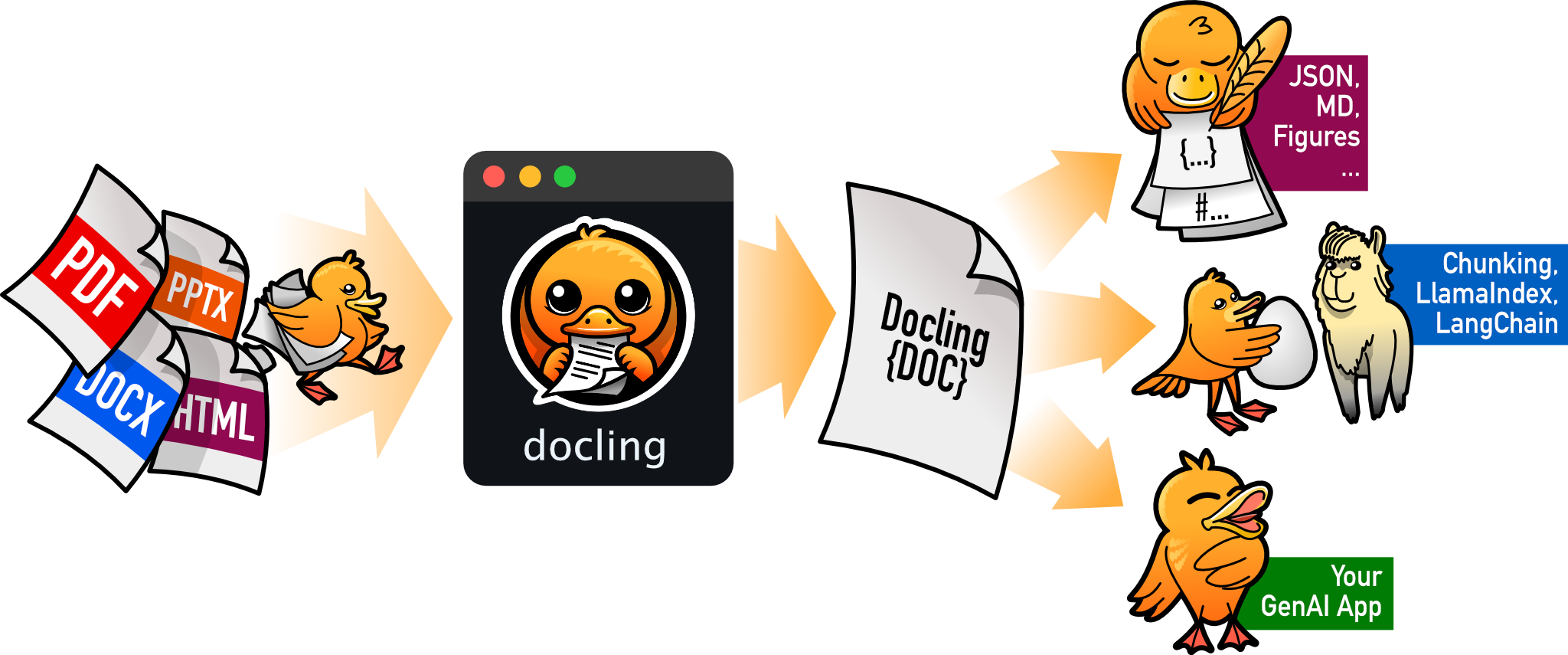
docling
docling-project·Python
把 PDF、DOCX、HTML 等文档解析成结构化 Markdown 或 JSON,方便喂给大模型和 RAG 流程。
文档解析+4文档解析 / OCR
70395+1555.3kv2.150.02026-11-10 17:59 UTC