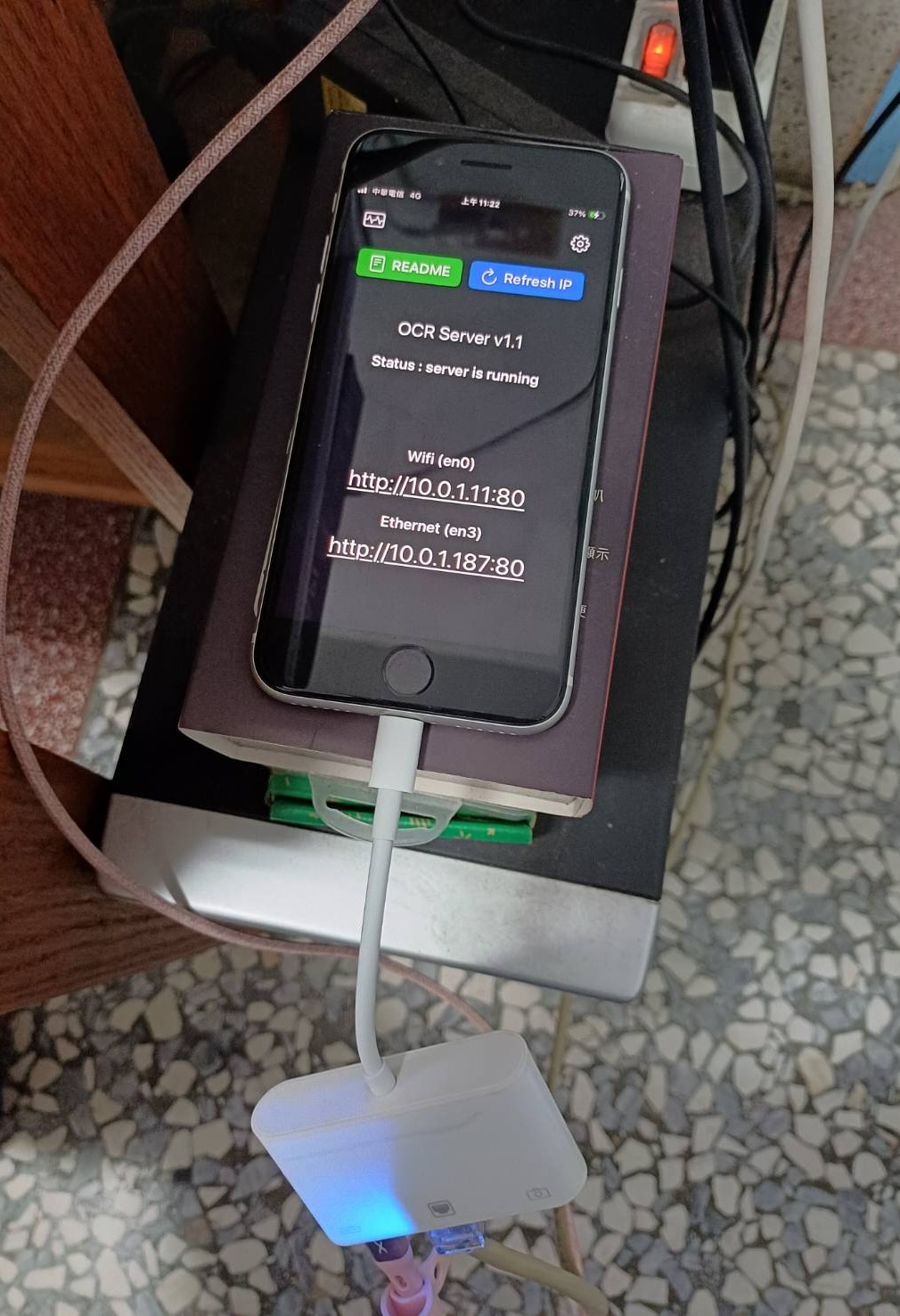
需先从 App Store 安装 OCR Server 应用并保持前台运行,否则服务不可用;建议开启 iOS 引导式访问并保持屏幕常亮,防止应用被系统挂起;服务默认监听 8000 端口,客户端须与 iPhone 在同一网络。
curl -H "Accept: application/json" -X POST http://<YOUR IP>:8000/upload -F "[email protected]" 硬件要求按 README 说明
需要一台 iPhone 运行 App Store 上的 OCR Server 应用;README 未提及具体机型或系统版本要求,仅说明文档段落识别需 iOS 26+。客户端只需与 iPhone 处于同一局域网。
把 iPhone 变成局域网内的本地 OCR 服务器,基于 Apple Vision 框架,无需云端、不限次数
把 iPhone 变成 OCR 服务器,基于 Apple Vision 框架提供 HTTP 接口,让局域网内其他设备直接调用 iOS 的离线文字识别能力。
核心能力
- 用 Apple Vision Framework 做高精度多语言 OCR,自动识别语种
- 启动即开 HTTP 服务,浏览器访问 IP 即可上传图片测试
- 提供 /upload 接口返回文本与带四角坐标的文本框 JSON
- 支持 /docOCR 文档段落识别(需 iOS 26 及以上)
- 全部本地处理,图片不出设备,隐私可控
容易踩的坑
内容由模型根据 README 生成,可能不完整或不准确,以官方文档为准。看原文 README
- v1.4.0最新正式版2026-10-06 · 2026-10-06 12:47 UTC
Added support for iPhone Duo.
- v1.3.92026-05-28 · 2026-05-28 22:30 UTC
查看更新说明
- The HTTP port input now validates whether the value is valid.
- Added support for recognizing lists and tables. (iOS 26+ only)
- v1.3.82026-05-24 · 2026-05-24 16:45 UTC
查看更新说明
Added document paragraph recognition support (iOS 26+ only).
- v1.3.72026-05-04 · 2026-05-04 10:44 UTC
查看更新说明
Corrected memory usage calculation logic for Monitor page.
- v1.3.62026-02-15 · 2026-02-15 16:33 UTC
查看更新说明
Added rect information to JSON. (issue #4)
用户点评
登录用户的真实使用记录,可按版本和硬件筛选共 0 条
还没有人点评。第一个说出真实体验的人最有价值。
OCR Server
Turn your iPhone into a powerful local OCR server using Apple's Vision Framework. No cloud dependencies, unlimited usage, complete privacy.
English | 日本語 | 繁體中文 | 简体中文 | 한국어 | Français

How to Use
- Launch the app and the server will start automatically
- Access the displayed IP address from any device on the same network
- Upload images to get text recognition results
- Integrate the service into your applications via API
- To ensure the app runs continuously without interruption, please enable iOS Guided Access mode and keep the screen on
- OCR Test: On your computer, open a web browser and navigate to the IP address displayed by the app to perform an OCR test.

-
API Example - Upload an image via
uploadAPI:curl -H "Accept: application/json" \ -X POST http://<YOUR IP>:8000/upload \ -F "[email protected]" -
Python Upload Example:
import requests url = "http://10.0.1.11:8000/upload" # Replace with your IP address file_path = "01.png" with open(file_path, "rb") as f: files = {"file": f} headers = {"Accept": "application/json"} response = requests.post(url, files=files, headers=headers) print("status code:", response.status_code) print("response:", response.text) -
The JSON response looks like this:
{ "success": true, "message": "File uploaded successfully", "ocr_result": "Hello\nWorld", "image_height": 648, "image_width": 1247, "ocr_boxes": [ { "text": "Hello", "x": 429.6554479416482, "y": 268.0000001076923, "w": 201.83814102564105, "h": 72, "rect": { "topLeft_x": 429.6554479416482, "topLeft_y": 268.0000001076923, "topRight_x": 631.4935889672893, "topRight_y": 268.0000001076923, "bottomRight_x": 631.4935889672893, "bottomRight_y": 340.0000001076923, "bottomLeft_x": 429.6554479416482, "bottomLeft_y": 340.0000001076923 } }, { "text": "World", "x": 421.6618595738782, "y": 417.99999971428576, "w": 251.79807692307696, "h": 80, "rect": { "topLeft_x": 421.6618595738782, "topLeft_y": 417.99999971428576, "topRight_x": 673.4599364969552, "topRight_y": 417.99999971428576, "bottomRight_x": 673.4599364969552, "bottomRight_y": 497.99999971428576, "bottomLeft_x": 421.6618595738782, "bottomLeft_y": 497.99999971428576 } } ] }image_widthandimage_heightrepresent the width and height of the image (in px),xandyrepresent the top-left origin of the text bounding box (in px),wandhrepresent the width and height of the text bounding box (in px),rectprovides the four corner coordinates of the detected text region, preserving its original orientation (non-axis-aligned). -
Python Example – Drawing text bounding boxes using
ocr_boxesinformation:# # pip3 install requests pillow opencv-python numpy # import os import sys import requests from PIL import Image, ImageDraw, ImageFont, ImageOps import numpy as np import cv2 url = "http://10.0.1.11:8000/upload" # Replace with your IP address file_path = "01.png" # ===== Select font (supports Chinese and English), font size auto-scales with box height ===== def pick_font(box_h_px: float): font_candidates = [ # macOS "/System/Library/Fonts/PingFang.ttc", "/System/Library/Fonts/STHeiti Light.ttc", # Windows r"C:\Windows\Fonts\msyh.ttc", r"C:\Windows\Fonts\msjh.ttc", r"C:\Windows\Fonts\arialuni.ttf", # Noto "/usr/share/fonts/opentype/noto/NotoSansCJK-Regular.ttc", "/usr/share/fonts/truetype/noto/NotoSansCJK-Regular.ttc", ] size = max(10, int(box_h_px * 0.25)) # Small font size = 25% of box height (minimum 10pt) for path in font_candidates: if os.path.exists(path): try: return ImageFont.truetype(path, size=size) except Exception: pass return ImageFont.load_default() # ===== Draw box and small text ===== def draw_boxes(img_pil: Image.Image, boxes, line_thickness: int = 5) -> Image.Image: draw = ImageDraw.Draw(img_pil) for b in boxes: try: x = float(b["x"]); y = float(b["y"]) w = float(b["w"]); h = float(b["h"]) text = str(b.get("text", "")) except Exception: continue # Red bounding box x2, y2 = x + w, y + h draw.rectangle([x, y, x2, y2], outline=(255, 0, 0), width=line_thickness) # Top-right label font = pick_font(h) # Text size # textbbox returns (l, t, r, b) l, t, r, b = draw.textbbox((0, 0), text, font=font) tw, th = (r - l), (b - t) pad = max(2, int(h * 0.06)) # Align label to top-right, not exceeding box or image edge tx = int(max(0, min(x2 - tw - pad, img_pil.width - tw - pad))) ty = int(max(0, min(y + pad, img_pil.height - th - pad))) # White background draw.rectangle([tx - pad, ty - pad, tx + tw + pad, ty + th + pad], fill=(255, 255, 255)) draw.text((tx, ty), text, font=font, fill=(20, 20, 20)) return img_pil def main(): if not os.path.exists(file_path): print(f"[ERROR] Image not found: {file_path}", file=sys.stderr) sys.exit(1) # 1) Upload with open(file_path, "rb") as f: files = {"file": f} headers = {"Accept": "application/json"} try: response = requests.post(url, files=files, headers=headers, timeout=60) except requests.RequestException as e: print(f"[ERROR] Request failed: {e}", file=sys.stderr) sys.exit(2) print("status code:", response.status_code) # 2) Check HTTP and JSON if response.status_code != 200: print("response:", response.text[:500]) sys.exit(3) try: data = response.json() except ValueError: print("[ERROR] Not JSON response") print("response:", response.text[:500]) sys.exit(4) if not data.get("success", False): print("[ERROR] Server returned failure:", data) sys.exit(5) print("response ok") # 3) Load original image (using PIL) img_pil = Image.open(file_path) img_pil = ImageOps.exif_transpose(img_pil).convert("RGB") # If server returns different dimensions (should usually match), use server dimensions W = int(data.get("image_width", img_pil.width)) H = int(data.get("image_height", img_pil.height)) if (W, H) != (img_pil.width, img_pil.height): img_pil = img_pil.resize((W, H), Image.BICUBIC) boxes = data.get("ocr_boxes", []) img_pil = draw_boxes(img_pil, boxes) # 4) Display img_cv = cv2.cvtColor(np.array(img_pil), cv2.COLOR_RGB2BGR) cv2.imshow("OCR Preview", img_cv) print("Press any key on the image window to exit...") cv2.waitKey(0) cv2.destroyAllWindows() if __name__ == "__main__": main()Sample Output:

Document Paragraph Detection (iOS 26+ Only)
On the webpage, check Document Paragraph Detection:

Paragraph recognition results:

Or recognize document paragraphs using the docOCR API:
curl -H "Accept: application/json" \
    -X POST http://<YOUR IP>:8000/docOCR \
    -F "[email protected]"
The JSON response looks like this:
{
    "success": true,
    "message": "OCR completed successfully",
    "ocr_text": "OCR text..."
}
Features
- High-precision OCR powered by Apple’s Vision Framework
- Supports multiple languages with automatic detection
- Upload via web interface and receive OCR results within seconds
- JSON API for easy integration into apps
- 100% local processing, no cloud, full privacy
Use Cases
- Local OCR without cloud services
- Share OCR services across devices in the same network
- Build an OCR processing cluster using multiple iPhones
PaddleOCR
PaddlePaddle·Python
轻量级 OCR 工具包,能把图片和 PDF 转成结构化数据,支持 100 多种语言,方便接入 LLM 和 RAG 流程。
OCR+4文档解析 / OCR
92516+10812kv3.7.02026-09-16 03:31 UTC

MinerU
opendatalab·Python
把 PDF、Office 等复杂文档转成 LLM 可直接用的 Markdown/JSON,内置版面分析和 OCR,专为 RAG 与 Agent 工作流准备语料。
文档解析+4文档解析 / OCR
83425+1406.9kmineru-4.1.7-released2026-11-10 11:15 UTC
tesseract
tesseract-ocr·C++
老牌开源 OCR 引擎,用 LSTM 识别图片中的文字,支持上百种语言,适合做文档扫描和文本提取。
OCR引擎+4文档解析 / OCR
77437+3111k5.5.42026-11-09 11:40 UTC
docling
docling-project·Python
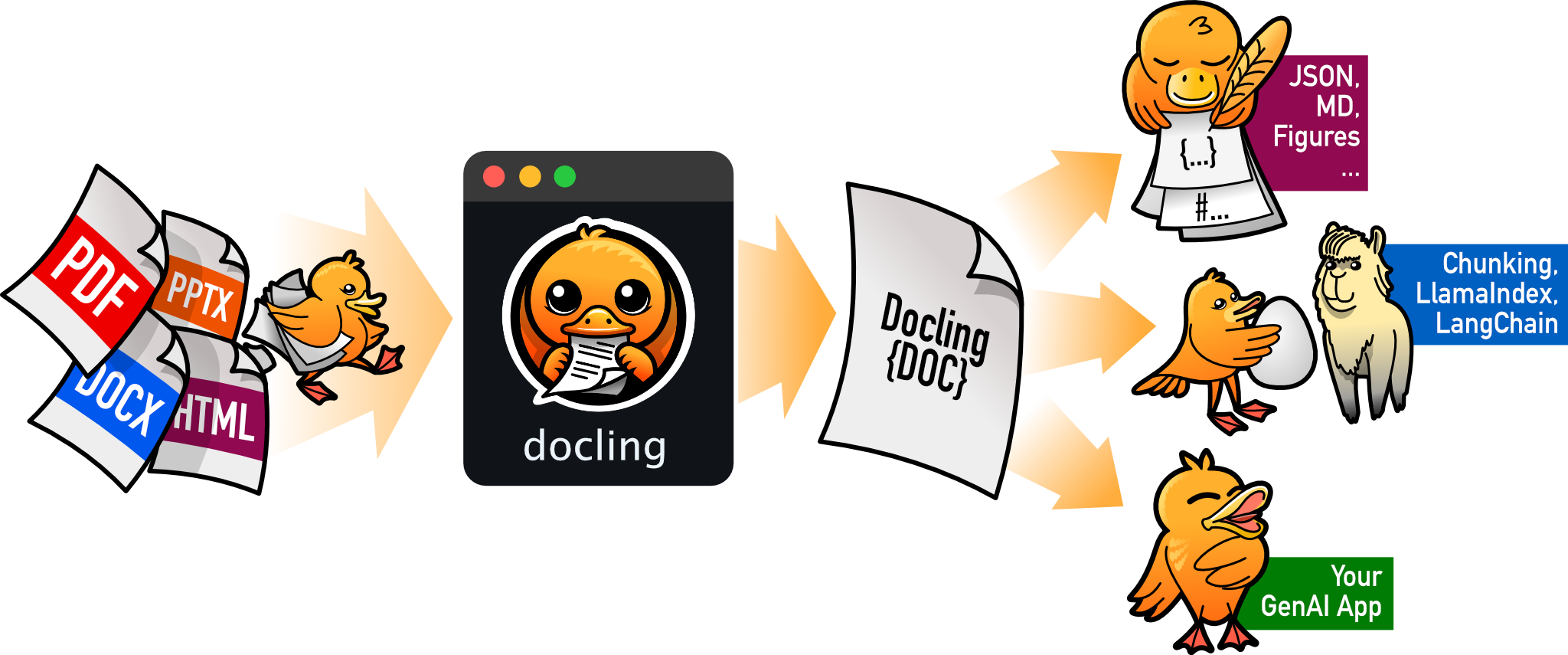
把 PDF、DOCX、HTML 等文档解析成结构化 Markdown 或 JSON,方便喂给大模型和 RAG 流程。
文档解析+4文档解析 / OCR
70364+1065.3kv2.149.02026-11-10 07:57 UTC