首次启动需授予屏幕录制、辅助功能等权限,授权后若仍失败需退出重开应用;云分享为可选项,需自建 Cloudflare R2 桶并配置 API Token;从源码构建需 Xcode 26 和 XcodeGen。

better-shot
KartikLabhshetwar活跃维护macOS 原生截图、录屏与视频编辑工具,提供截图工作台、75+ 自定义快捷键、URL Scheme 自动化和自托管云分享,可替代 CleanShot X 和 Loom。
Screenshot, screen recording, and video editor for macOS. Native SwiftUI app with capture deck, 75+ customizable shortcuts, URL scheme automation, and self-hosted cloud sharing. Open-source alternative to CleanShot X and Loom.
v0.5.9发布于 2026-10-11 13:55 UTC2,447star +8 / 7 天147fork同步于 2026-11-10 17:46 UTC
brew install --cask bettershot 硬件要求按 README 说明
需要 macOS 14 或更高版本;麦克风旁白需 macOS 15,旁白字幕和提词器语音跟踪需 macOS 26。README 未说明 CPU/GPU 或显存要求。
支持 Apple Silicon
macOS 原生截图录屏与图片视频编辑工具,开源替代 CleanShot X 和 Loom
macOS 原生截图、录屏与视频编辑工具,提供截图工作台、75+ 自定义快捷键、URL Scheme 自动化和自托管云分享,可替代 CleanShot X 和 Loom。
核心能力
- 支持区域、窗口、全屏和滚动截图,附带 OCR 与取色器
- 图片编辑器提供箭头、形状、文字、模糊、像素化及背景边框
- 录制屏幕、窗口或区域,可混入系统音频、麦克风、摄像头和提词器
- 视频编辑器支持剪切、变速、缩放、字幕、遮罩和光标样式,导出 MP4/MOV
- 通过 URL scheme 从 Shortcuts、Raycast 或终端触发截图与录制
容易踩的坑
内容由模型根据 README 生成,可能不完整或不准确,以官方文档为准。看原文 README
- v0.5.9BetterShot 0.5.9最新正式版2026-10-11 · 2026-10-11 13:55 UTC
Added
- Settings opens to a new Home page. Start a Region, Screen, Window, Scrolling, Record, or Text capture with one click, each tile showing its current shortcut. Your five most recent captures are listed below and open directly; one that was moved or deleted points you to the Media Gallery instead. A Setup section shows the status of Screen Recording, Accessibility, Microphone, and Camera access.
- Freeze the screen while selecting a region. Turn it on in Settings > Capture > Region to select from a still frame of every display, so video, animations, and other moving content hold still while you choose the area. The screenshot is cropped from that same frame at full resolution, so it shows exactly what you selected from. It works with Capture as soon as I let go, adjusting the area, the remembered area, and the countdown, which finishes before the screen freezes. Window, scrolling, and text capture stay live. Off by default (#184, closes #182, thanks @solid-pixel)
- Use the native macOS region selector. Turn it on in Settings > Capture > Region to take region screenshots with the macOS crosshair, so open context menus and menu-bar menus stay visible because BetterShot is not activated. It captures when you release the mouse from the live screen, so Capture as soon as I let go and Freeze the screen while selecting are disabled while it is on. Capture Previous Region keeps the last area chosen with BetterShot's selector, and scrolling capture and recording areas still use it. Off by default (#176, closes #172 and #175, thanks @zergzorg and @icanhasjonas)
- Choose whether the selector starts with your last area. BetterShot's area selector still opens with the area you chose last, so Return captures it again. Turn off Start with the last area selected in Settings > Capture > Region to start every region screenshot, scrolling capture, and recording area from an empty selection. Capture Previous Region (
⌘⇧1) still uses your last area. On by default (#185, thanks @erickhun)
Changed
- BetterShot runs on macOS 14 Sonoma and macOS 15 Sequoia again. The minimum is back to macOS 14 after requiring macOS 26 since 0.4.0. A few features need a newer system: microphone narration needs macOS 15, and narration subtitles and teleprompter speech tracking need macOS 26. On older systems the Mic button is disabled and says why, a recording that asks for the microphone continues without narration and tells you so, and Subtitles explains the requirement (#177, thanks @pareshbhangale)
- Settings pages are reorganized into grouped cards, with a short caption under each option explaining what it does. The sidebar lists Home, then the Settings pages, then About. Its section search field is gone; the Shortcuts page keeps its own search. Shortcuts now shows Accessibility access and tells you when shortcuts need a relaunch to start working. About shows the version, software updates, release notes, and the tour together, with links to the source code and issue tracker. Default Look groups its backgrounds under Color, Gradient, and Image.
- Shortcuts are recorded in a native field. Click a shortcut in Settings > Shortcuts and it becomes a standard macOS search-style field with a focus ring and a clear button. It reads Press Shortcut, shows the modifiers you hold as you press them, and records the first key. Escape, click
- v0.5.8BetterShot 0.5.82026-09-27 · 2026-09-27 12:21 UTC
查看更新说明
Fixed
- Recording confirmations no longer show a black rectangle. Discard and Start Over now use standalone native macOS alerts instead of SwiftUI alerts attached to the transparent recording bar. Buttons and keyboard shortcuts share the same confirmation; Cancel keeps the current recording.
- Floating screenshot previews now dismiss after Overlay > Hide After. The timer pauses for the live pointer or a focused action, recovers from missed hover/focus events, and keeps saved files. Keep screenshot previews open now holds only unsaved staged captures; saved and retained captures follow Hide After.
Changed
- Restored native macOS window screenshot selection.
- Simplified region capture to BetterShot’s adjustable selector and removed the separate native region-selector option. Use Settings > Capture > Region > Capture as soon as I let go to capture on mouse release, or leave it off to adjust the area before confirming. Both keep the previous area for reuse. Window screenshots and OCR retain native macOS selection.
- Removed Notch Mode, its shelf, quick editor, capture gestures, and bundled dependencies. Previews use the floating capture deck.
- v0.5.7BetterShot 0.5.72026-09-25 · 2026-09-25 12:42 UTC
查看更新说明
Added
- Scrolling capture is now available. The 0.5.5 stitching engine shipped without a way to start it. Choose Scrolling Capture in the menu bar or Scroll in the capture bar, select an area, then scroll down through the content. A compact bar beside the area shows the stitched size; Stop sends the result to the normal capture preview and Cancel or Escape discards it. Stitching handles fixed headers and moving scrollbars, and a capture finishes on its own at 30,000 pixels (#169, thanks @ItisPratham)
- Scrolling Capture can be assigned a shortcut in Settings > Shortcuts (unassigned by default); triggering it again during a capture stops the capture. It is also available as
bettershot://capture/scrollfor automation. - Choose any background color. Background > Color in the image and video editors now has a Custom color well below the preset swatches, and Settings > General > Default Look has one for new captures. The color is kept in saved projects and exports (#160, thanks @EthanL06)
Changed
- Normal screenshots save automatically on new installs. The default save folder is Desktop; change it or turn automatic saving off in Settings > General > Saving. Upgrades keep their existing behavior, including automatic saving staying off when it was never enabled. Capture & Copy, Edit, and Pin shortcuts still bypass automatic saving. Copying or dismissing an already-saved preview keeps the file. Settings now explains the active saving behavior (#149).
- Recording zooms now follow Cap's camera model for smoother, steadier zoom in and zoom out. Zoom level and framing move on separate springs, so every frame stays inside the recording. A zoom now aims at its target before it begins, so it scales straight toward the subject instead of zooming into the middle and panning across. When a zoom ends, the view zooms out in place without drifting back to the center first. Auto focus groups pointer movement into regions, so small cursor jitter no longer shakes the camera and the view only re-aims when the pointer moves into a new area (hovering is enough, no click needed). The pan-widening and click-snap corrections that caused wobble are gone. Instant zooms snap cleanly on both sides of the segment. Adapted from Cap under AGPLv3.
- Auto Zoom creates zooms at 2x, matching Cap's default. Existing zooms keep their saved level and focus.
- The floating capture preview cards are larger at every size (Small, Medium, and Large), with larger hover actions to match. The preview also appears faster: the deck window is reused between captures and a new card shows the already-rendered image instead of reading it back from disk.
- The image and video editors show a subtle dot grid behind the canvas, in both light and dark appearance.
- Capture Previous Region now defaults to
⌘⇧1, so the last area can be shot again without opening the selector.⌘⇧2stays the capture bar. A custom binding for it is kept, and it stays unassigned if another action already uses⌘⇧1.
Fixed
- Region screenshots remember your last area again.
⌘⇧4and Area in the capture bar open BetterShot's selector with the previous area already selected, as in 0.4: press Return (or double-click inside it) to capture the same area again, drag its edges to resize it, or drag anywhere, even inside it, to draw a new area (so a full-screen previous area never blocks a new selection). Space still switches to window selection and Escape cancels. The app you were using regains focus before the shot, so its windows are captured as active. OCR keeps the native macOS selector. - Scrolling capture no longer lags, in Auto Scroll or when scrolling by hand. It now uses MacShot'
- v0.5.6BetterShot 0.5.62026-09-21 · 2026-09-21 10:32 UTC
查看更新说明
Changed
- Restored the 0.5.4 compact floating recording strip in both capture modes. Its popover again provides Display, Window, Area, Camera, Microphone, System Audio, and Teleprompter controls, while the shared timer menu configures screenshot and recording delays.
- Limited the notch to capture previews, saved shelf items, quick editing, and related status. Capture, recording, countdown, and teleprompter controls remain in their dedicated floating surfaces.
- Moved the customizable Notch capture modifier and hold action to Settings > Shortcuts.
Fixed
- Bare modifier presses no longer open or expand the notch, Option voice capture is opt-in so it does not conflict with tools such as Wispr Flow, and notch scroll indicators remain hidden.
- Switching between Normal and Notch modes no longer moves the recording bar between unrelated window hierarchies, preventing mode-switch lag and crashes.
- Switching into Notch Mode now opens its preview shelf immediately, even before the first screenshot is taken, then keeps the compact resting notch available while idle.
- Closing the final image preview no longer tears down its SwiftUI/AppKit window during the button event, preventing the close-action crash in Normal and Notch modes.
- v0.5.5BetterShot 0.5.52026-09-21 · 2026-09-21 09:45 UTC
查看更新说明
What's New
- Capture hold key setting with Control, Option, Shift, and Command choices; Option capture takes priority over the optional voice gesture.
- Scroll capture: select a region, then scroll (manually or with auto-scroll) to stitch a full-page screenshot. Uses Vision framework for pixel-precise alignment, TIFF byte comparison for frame settlement, frozen header detection, scrollbar exclusion, and incremental stitching up to 30,000 pixels.
- Restored hold-and-drag area screenshots as the default. Pressing the configured modifier alone leaves the notch hidden.
- Copied hex colors appear as persistent swatches in Notch Mode, with a separate collection setting enabled by default.
- OCR and Pick Color actions in the notch's folder menu show their configured shortcuts.
- Local voice screenshots: hold Option to draw and speak, then release to retain an annotated image with an on-device transcript.
- Optional local text history in General > Notch Shelf, with 50-item retention and duplicate removal.
- A compact quick editor below the notch with drawing, arrows, blur, crop, background and undo.
Notch improvements
- Simplified the notch to saved cards and filters, removing the capture toolbar and grid/viewfinder controls.
- Notch OCR text and colors now persist across launches and can be dragged into other apps.
- Reworked into a black horizontal shelf with white selected filter pills, media cards, and full-color swatches.
- Redesigned shared capture controls and notch recording setup with native Screen/Window/Area tabs, visible camera and microphone pickers, and explicit Start Recording action.
- Notch Mode never displays toast notifications; copy confirms directly on the result button.
Fixes
- Bare modifier presses no longer open or expand the notch; Option voice capture is opt-in.
- The notch shelf's All filter now places the newest capture first.
- Screenshot failures now show recovery guidance; window screenshots use the native macOS window picker via ScreenCaptureKit.
- Fixed an editor redraw loop in notch transfer-status routing that could consume a CPU core.
- Image and video editors can enter and leave native full screen again.
- 3D Scenes now use full-width buttons with readable names.
Downloads: Apple Silicon (arm64) and Intel (x86_64) DMGs are signed and notarized. Double-click to install.
Full changelog: https://github.com/KartikLabhshetwar/better-shot/blob/main/CHANGELOG.md
用户点评
登录用户的真实使用记录,可按版本和硬件筛选共 0 条
还没有人点评。第一个说出真实体验的人最有价值。
BetterShot is a free, open-source Mac app for screenshots, screen recordings, and image and video editing. No account or subscription.

Install
brew install --cask bettershot
Or download the Apple silicon or Intel .dmg from
Releases.
Requires macOS 14 or later. Microphone narration needs macOS 15, and narration subtitles and teleprompter speech tracking need macOS 26.
Features
- Screenshots: region, window, fullscreen, and scrolling capture, plus OCR and a color picker.
- Image editor: arrows, shapes, text, numbered markers, highlights, blur, and pixelate. Crop, rotate, flip, and frame captures with backgrounds, padding, corners, and shadow.
- Recording: a display, window, or area, with system audio, microphone, camera, and a teleprompter.
- Video editor: cuts, speed, zooms, captions, masks, camera layouts, cursor styles, and 3D shots. Export MP4 or MOV at 30 or 60 fps.
- Sharing: copy, save, pin, or drag from the floating preview, browse everything in the Media Gallery, and share links through your own Cloudflare R2 bucket.
Original captures and source recordings are never modified.

Getting started
- Open BetterShot. Setup asks for Screen Recording and Accessibility access and where to save screenshots.
- Press
⌘⇧4and select an area. - Copy, Save, Edit, Pin, or Share from the floating preview.
| Action | Shortcut |
|---|---|
| Region screenshot | ⌘⇧4 |
| Fullscreen screenshot | ⌘⇧3 |
| Capture previous region | ⌘⇧1 |
| Capture and recording bar | ⌘⇧2 |
| Recording options | ⌘⇧5 |
| OCR text scan | ⌘⇧O |
| Color picker | ⌘⇧C |
Change shortcuts in Settings > Shortcuts. New installs save screenshots to the Desktop; change the folder, file names, or automatic saving in Settings > General > Saving.
Permissions
| Permission | Used for |
|---|---|
| Screen & System Audio Recording | Screenshots, recordings, and system audio |
| Accessibility | Global shortcuts |
| Input Monitoring | Cursor effects and shortcut overlays. Plain typing is never recorded. |
| Microphone | Voice in recordings |
| Camera | Camera recording |
If capture or shortcuts still fail after granting access, quit and reopen BetterShot. When BetterShot opens at login before macOS applies Screen Recording access, it offers to restart itself the first time you capture.
Cloud sharing
Optional. Sharing uploads to a Cloudflare R2 bucket you own.
- Create an R2 bucket with a public URL and an API token with Object Read & Write access.
- Enter the credentials in Settings > Sharing, choose the bucket's Jurisdiction if it has one, and click Test Connection.
- Click Share on any capture to upload it and copy the link.
Credentials are stored in your login Keychain, and anyone with a link can view it. Outside of sharing, BetterShot only goes online to check GitHub for updates.
Automation
Trigger captures from Shortcuts, Raycast, or the terminal:
open 'bettershot://capture/region'
| Route | Action |
|---|---|
capture/region | Region screenshot |
capture/fullscreen | Fullscreen screenshot |
capture/window | Window screenshot |
capture/scroll | Scrolling capture |
ocr | OCR text scan |
color-picker | Color picker |
record | Start a recording |
settings | Open Settings |
Build from source
Requires Xcode 26 and XcodeGen.
brew install xcodegen
git clone https://github.com/KartikLabhshetwar/better-shot.git
cd better-shot
make release
open .build/Build/Products/Release/BetterShot.app
See CONTRIBUTING.md for Xcode setup, the code map, and tests.
Contributing
Issues and pull requests are welcome. Read the contributor guide and Code of Conduct first.
Built by Kartik Labhshetwar and contributors. If BetterShot helps you, consider supporting its development.
PaddleOCR
PaddlePaddle·Python
轻量级 OCR 工具包,能把图片和 PDF 转成结构化数据,支持 100 多种语言,方便接入 LLM 和 RAG 流程。
OCR+4文档解析 / OCR
92532+14612kv3.7.02026-09-16 03:31 UTC

MinerU
opendatalab·Python
把 PDF、Office 等复杂文档转成 LLM 可直接用的 Markdown/JSON,内置版面分析和 OCR,专为 RAG 与 Agent 工作流准备语料。
文档解析+4文档解析 / OCR
83449+1946.9kmineru-4.1.7-released2026-11-10 17:04 UTC
tesseract
tesseract-ocr·C++
老牌开源 OCR 引擎,用 LSTM 识别图片中的文字,支持上百种语言,适合做文档扫描和文本提取。
OCR引擎+4文档解析 / OCR
77445+4611k5.5.42026-11-09 11:40 UTC
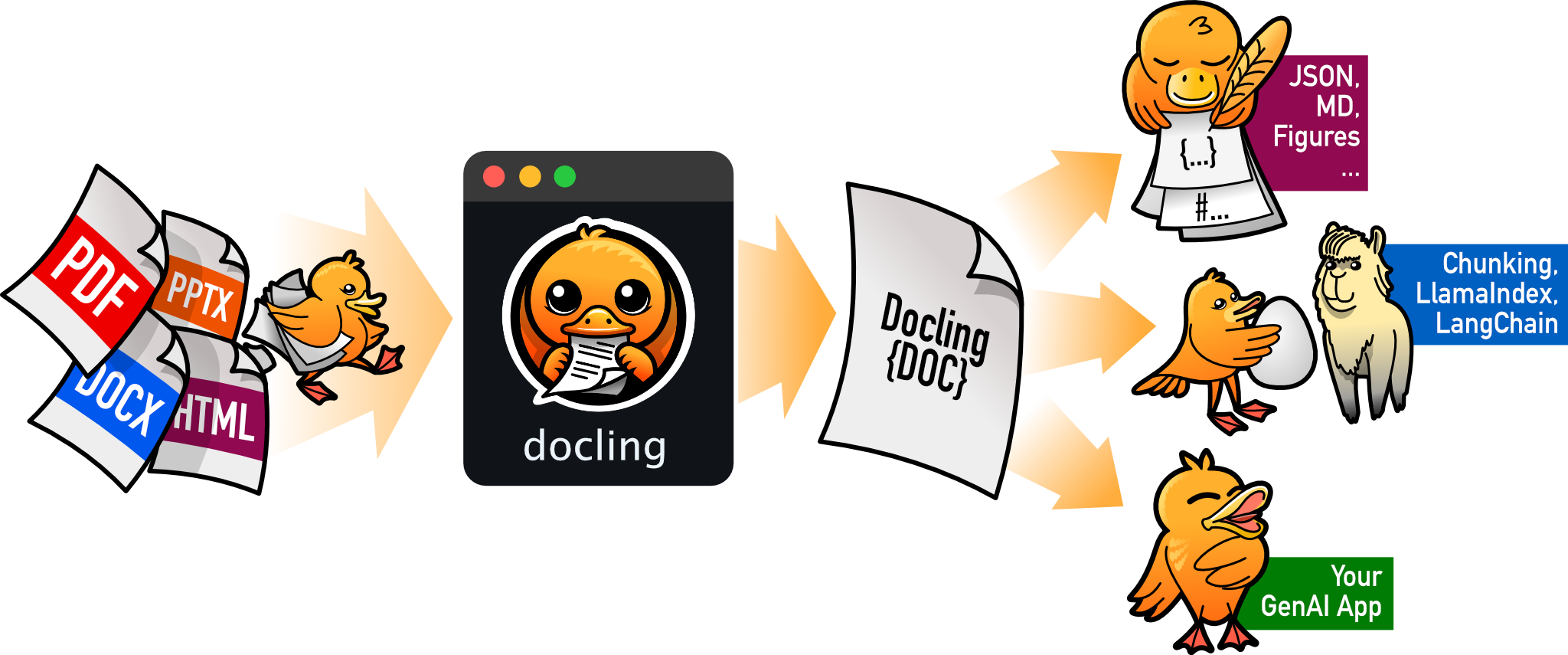
docling
docling-project·Python
把 PDF、DOCX、HTML 等文档解析成结构化 Markdown 或 JSON,方便喂给大模型和 RAG 流程。
文档解析+4文档解析 / OCR
70385+1455.3kv2.149.02026-11-10 16:54 UTC